This
<script>
      $(function () {
        let xWidth = 100;
        let yHeight = 100;

        $('div').click(function () {
          $(this).width(xWidth).height(yHeight).addClass('box');
          xWidth -= 10;
          yHeight -= 10;
        });

        $('button').click(function () {
          $('h1, h2, p, h3').toggleClass('red');
        });
      });
    </script>
    <style>
      div {
        width: 100px;
        height: 100px;
        float: left;
        margin: 5px;
        background: yellow;
      }

      .box {
        background: blue;
      }

      .red {
        color: red;
        border: 1px solid blue;
      }

      p.gap {
        height: 120px;
      }
    </style>
  </head>
  <body>
    <div>박스1</div>
    <div>박스2</div>
    <div>박스3</div>
    <div>박스4</div>
    <div>박스5</div>
    <p class="gap"></p>
    <hr />
    <h1>HTML</h1>
    <h2>CSS</h2>
    <p>JavaScript</p>
    <button>CSS 적용/해제</button>
  </body>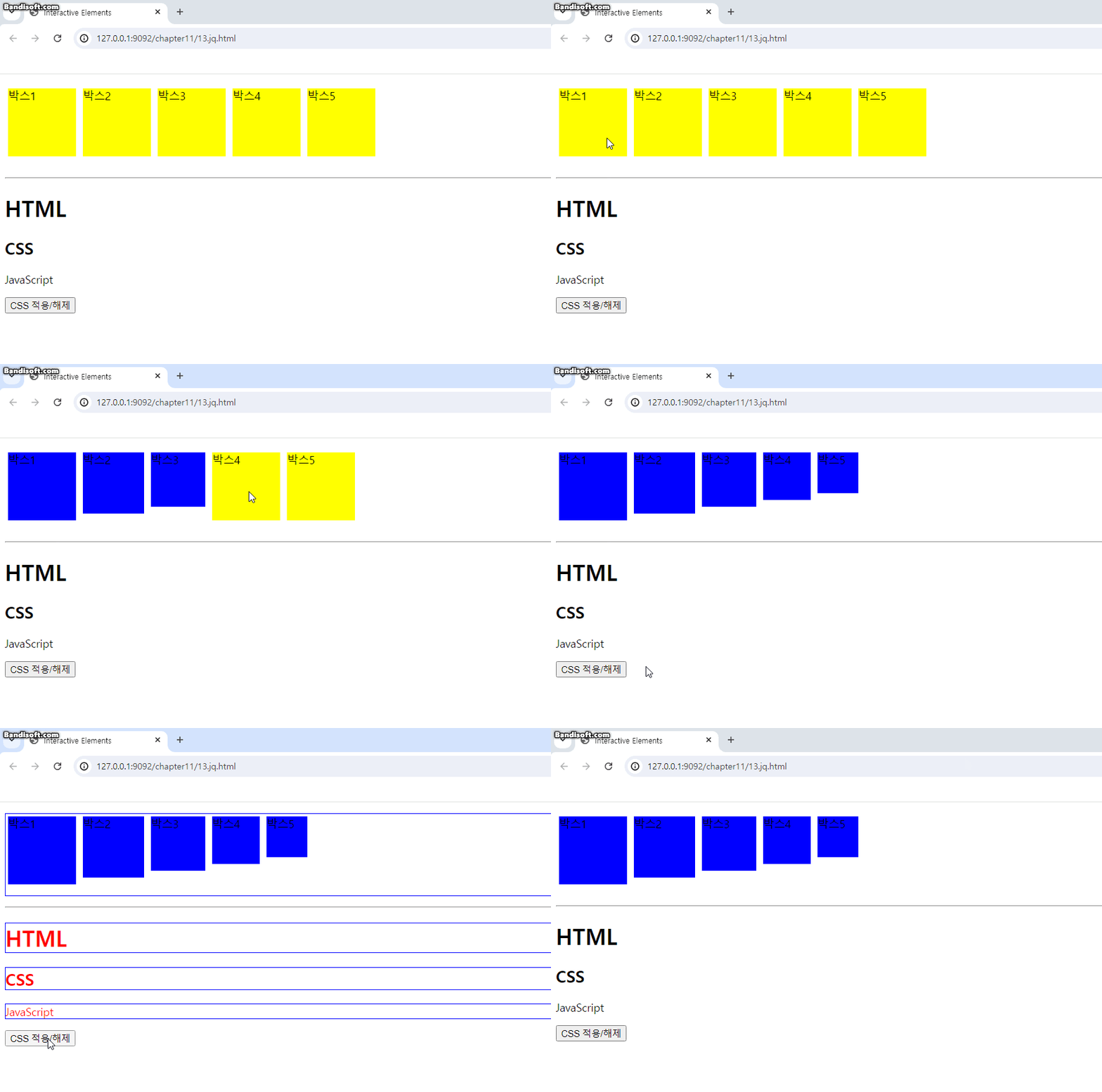
animate
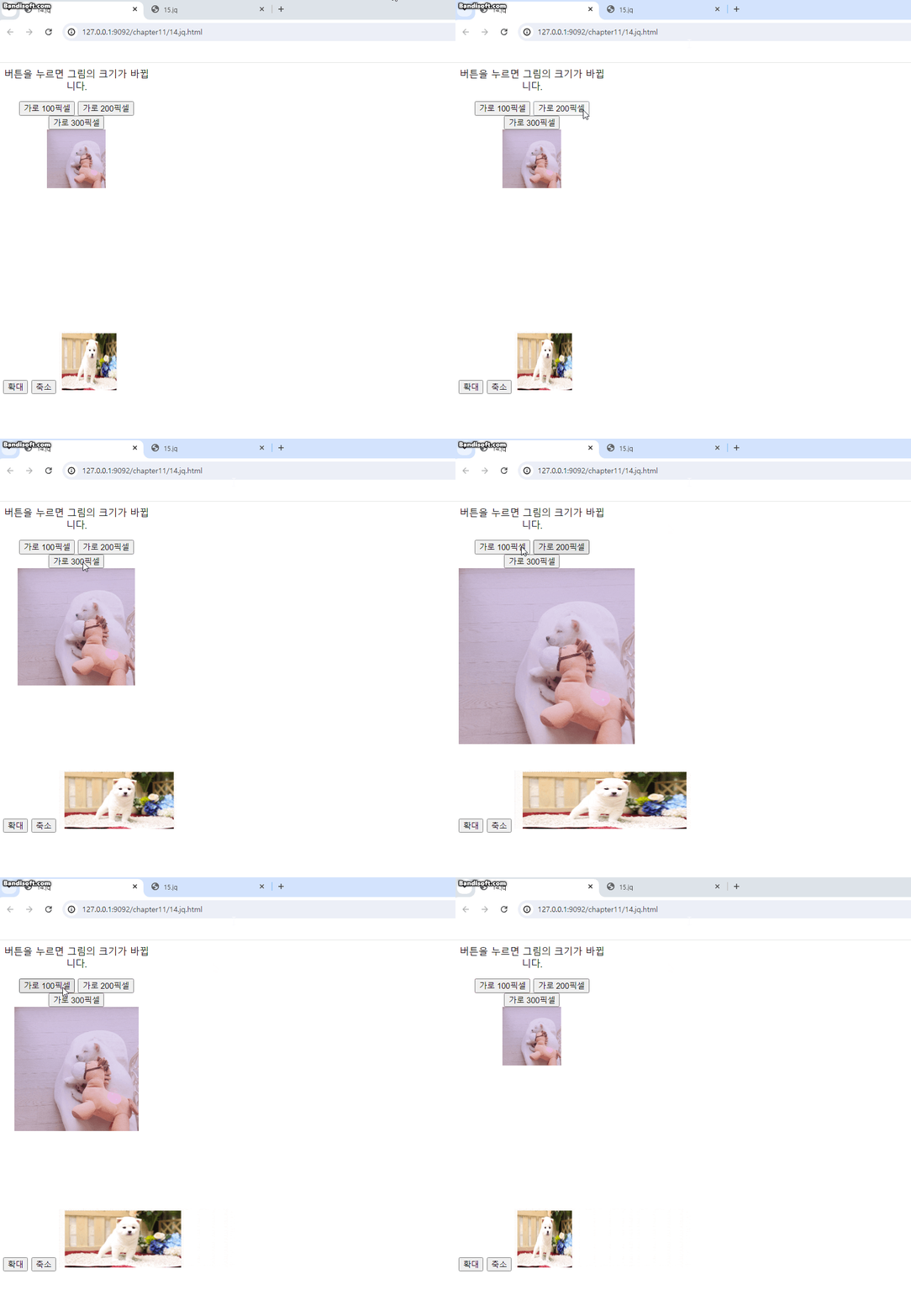
그림 크기 바꾸기
<script>
      $(function () {
        $('button.b1').click(function () {
          $('img').animate({
            width: '100px',
          });
        });
      });
      $(function () {
        $('button.b2').click(function () {
          $('img').animate({
            width: '200px',
          });
        });
      });
      $(function () {
        $('button.b3').click(function () {
          $('img').animate({
            width: '300px',
          });
        });
        $('button.move').click(function () {
          $('img').animate({
            height: '300px',
            width: '400px',
            left: '300',
          });
        });
        $('button.init').click(function () {
          $('img').animate({
            height: '100px',
            width: '150px',
            left: '0',
          });
        });
      });
      /*
      .animate() : 특정 css 속성 값을 지정된 시간 동안 애니메이션 효과로 변경하는 데 사용
      요소의 크기, 위치, 불투명도 등 다양한 css 속성을 부드럽게 변경
      */
    </script>
    <style>
      .css_pic {
        height: 450px;
        text-align: center;
      }
      .css_pic {
        width: 250px;
      }
    </style>
  </head>
  <body>
    <div class="css_pic">
      버튼을 누르면 그림의 크기가 바뀝니다.
      <p>
        <button class="b1">가로 100픽셀</button>
        <button class="b2">가로 200픽셀</button>
        <button class="b3">가로 300픽셀</button>
        <br />
        <img src="/chapter11/sul2.jpg" />
      </p>
    </div>
    <button class="move">확대</button>
    <button class="init">축소</button>

    <img src="/chapter11/sul1.png" width="150" height="100" style="position: relative" />
  </body>
.animate() : 특정 css 속성 값을 지정된 시간 동안 애니메이션 효과로 변경하는 데 사용
요소의 크기, 위치, 불투명도 등 다양한 css 속성을 부드럽게 변경
Fade
<script>
      $(function () {
        $('#out').click(function () {
          $('img').fadeOut(3000);
          //fadeOut : 서서히 사라지게
        });
        $('#in').click(function () {
          $('img').fadeIn(3000);
          //fadeIn : 서서히 보이게
        });
        $('#toggle').click(function () {
          $('img').fadeToggle(3000);
          //fadeToggle : 서서이 보이거나 안보이거나 (fadout/in 합친거)
        });
        $('#to50').click(function () {
          $('img').fadeTo('slow', 0.5); //투명도
          //fadeTO : 투명해지게 ('속도',어느정도만큼)
        });
        $('#to10').click(function () {
          $('img').fadeTo('slow', 0.1); //투명도
          //fadeTO : 투명해지게 ('속도',어느정도만큼)
        });
        $('#to100').click(function () {
          $('img').fadeTo('slow', 1.0); //투명도
          //fadeTO : 투명해지게 ('속도',어느정도만큼)
        });
      });
    </script>
    <style></style>
  </head>
  <body>
    <button id="out">fadeOut</button>
    <button id="in">fadeIn</button>
    <button id="toggle">toggle</button>
    <button id="to50">opacity 50%</button>
    <button id="to10">opacity 10%</button>
    <button id="to100">opacity 100%</button>
    <p />
    <img src="/chapter11/sul1.png" />
  </body>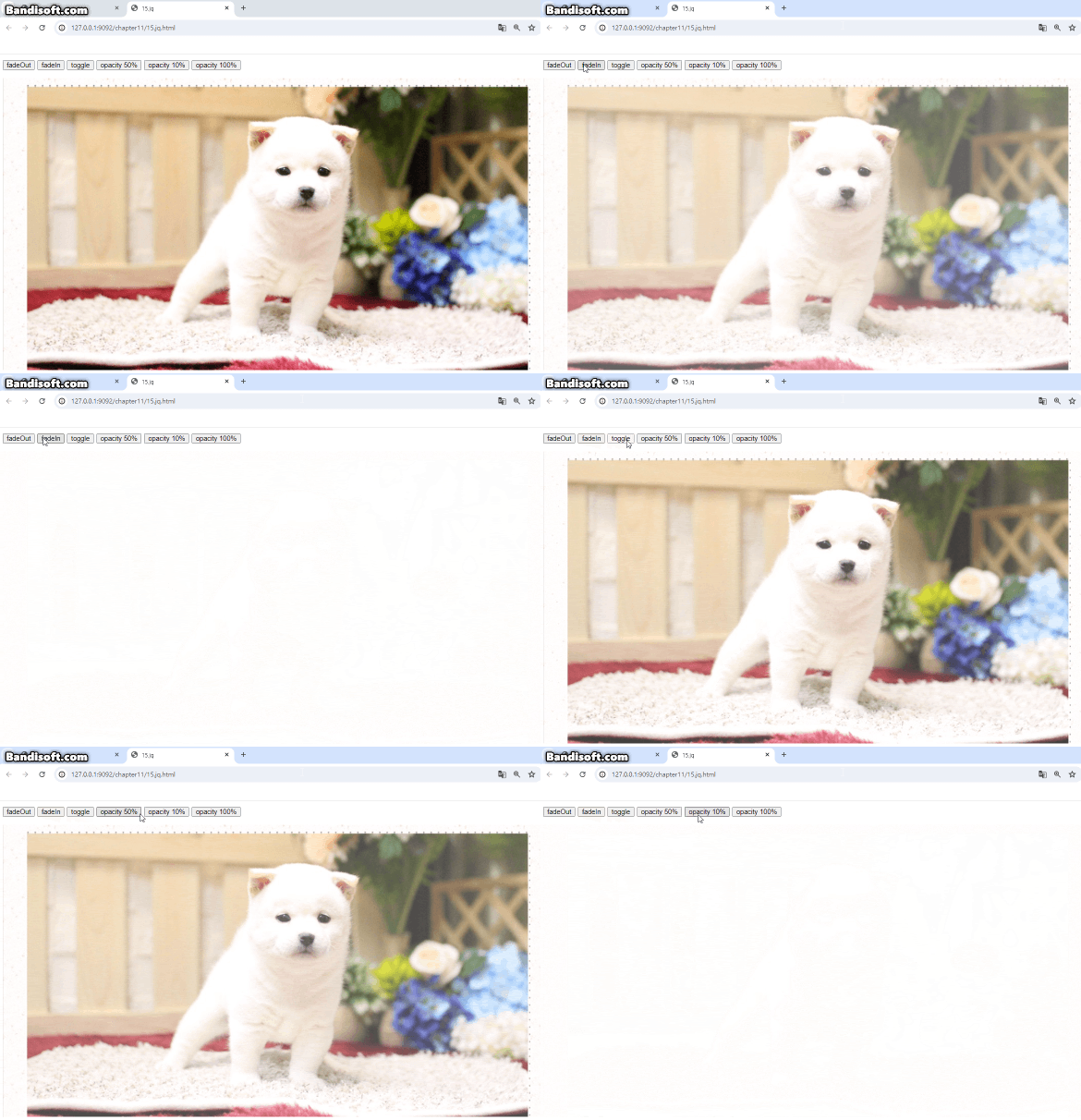
fadeOut : 서서히 사라지게
fadeIn : 서서히 보이게
fadeToggle : 서서이 보이거나 안보이거나 (fadout/in 합친거)
fadeTO : 투명해지게 ('속도',어느정도만큼)
AppendTo
<script>
      $(function () {
        $('#firstBtn').click(function () {
          $('#firstitme').appendTo('#list');
        });
        $('#secondBtn').click(function () {
          $('#seconditme').appendTo('#list');
        });
        $('#thirdBtn').click(function () {
          $('#thirditme').appendTo('#list');
        });
      });
      //appendTo() : 선택한 요소를 지정된 다른 요소의 끝에 추가
    </script>
    <style></style>
  </head>
  <body>
    <h1>.append()메서드</h1>
    <ul id="list">
      <li id="firstitme">상의</li>
      <li id="seconditme">하의</li>
      <li id="thirditme">아우터</li>
    </ul>
    <p />
    <button id="firstBtn">상의 상품이동</button>
    <button id="secondBtn">하의 상품이동</button>
    <button id="thirdBtn">아우터 상품이동</button>
  </body>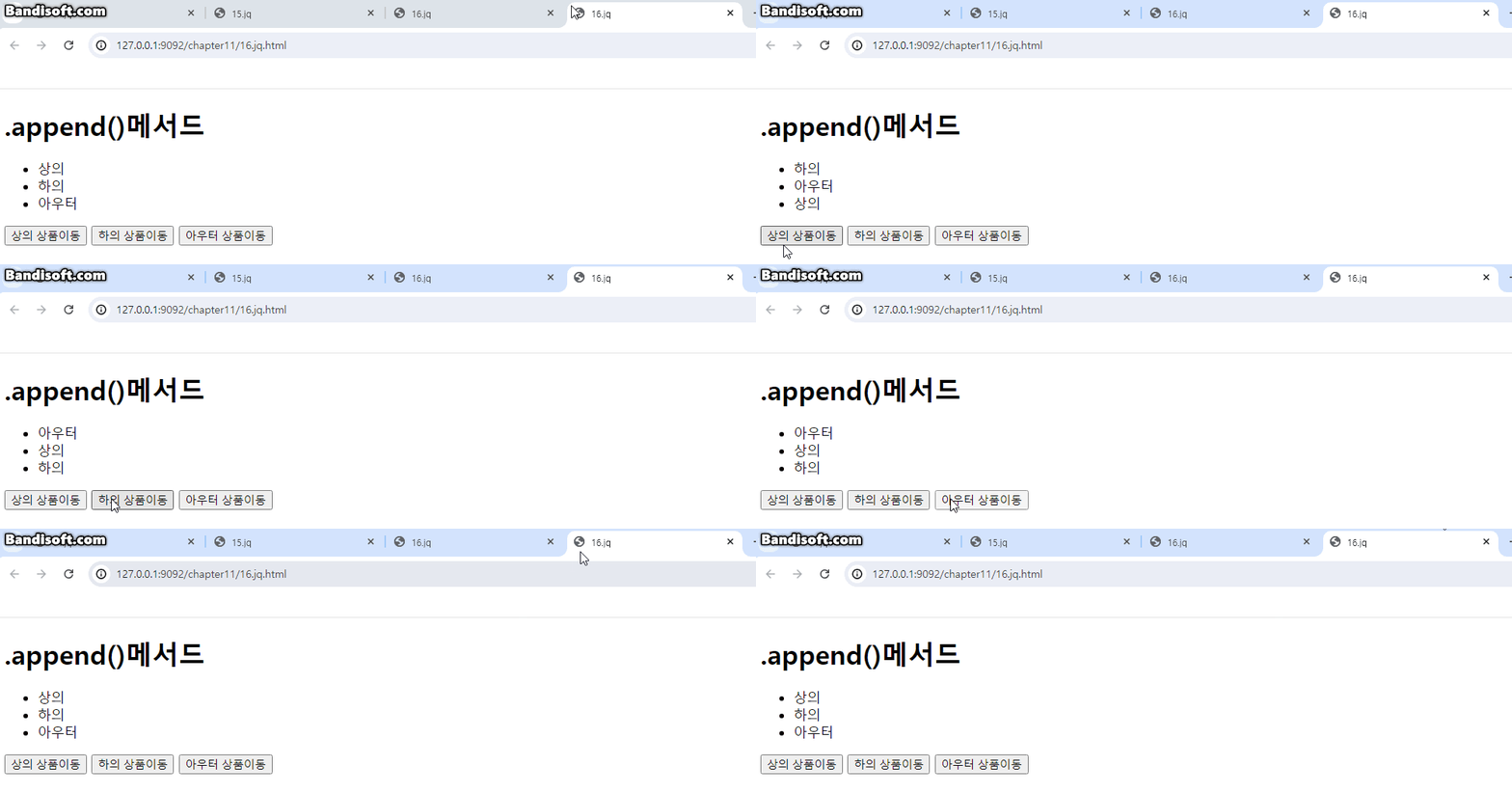
appendTo() : 선택한 요소를 지정된 다른 요소의 끝에 추가
clone
복붙 / 지정 부분 시작 / 삭제
<script>
      $(function () {
        $('button.p1').click(function () {
          $('#firstitem').clone().appendTo('#list');
          //clone : 복사해서 해당요소 붙여넣는다
        });
        $('button.p2').click(function () {
          $('#lastitem').clone().appendTo('#list');
          //clone : 복사해서 해당요소 붙여넣는다
        });
        $('button.p3').click(function () {
          $('<li><b>봄상품80%세일</b></li>').prependTo('#list');
          //.prependTo : 선택한 요소를 지정한 요소의 시작 부분에 추가
        });
        $('button.p4').click(function () {
          $('.content.second, .content.third').remove();
          //.remove : 선택된 요소를 제거
        });
      });
    </script>
    <style></style>
  </head>
  <body>
    <h1>.clone() 메서드</h1>
    <ul id="list">
      <li id="firstitem">상의</li>
      <li id="item">하의</li>
      <li id="lastitem">아우터</li>
      <li class="content second">두번째 컨텐츠</li>
      <li class="content third">세번째 컨텐츠</li>
    </ul>
    <button class="p1">상의 상품 등록</button>
    <button class="p2">아우터 상품 등록</button>
    <button class="p3">세일 상품 등록</button>
    <button class="p4">상품취소</button>
  </body>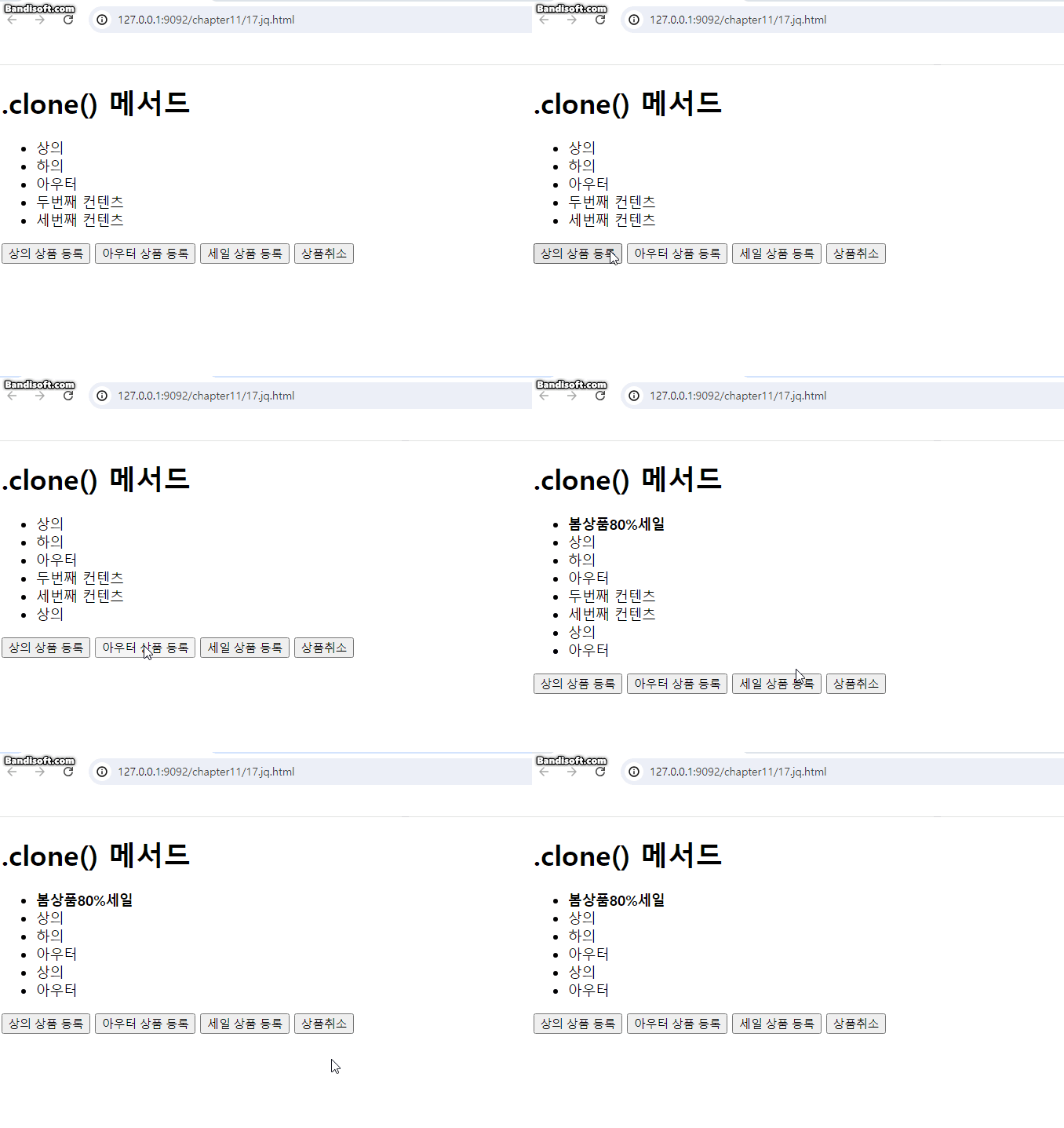
clone : 복사해서 해당요소 붙여넣는다
prependTo : 선택한 요소를 지정한 요소의 시작 부분에 추가
remove : 선택된 요소를 제거
Detach / append
<script>
      $(function () {
        let data;
        $('#detachBtn').click(function () {
          data = $('.content').detach();
          //.detach() : 선택한 요소를 제거
        });

        $('#restorBtn').click(function () {
          $('.container').append(data);
          //.append() : 선택한 요소를 지정한 요소의 마지막에 추가
        });
      });
    </script>
    <style></style>
  </head>
  <body>
    <h1>.detach() 메서드</h1>
    <div class="container">
      첫번째 컨텐츠
      <div class="content second">두번째 컨텐츠</div>
      <div class="content third">세번째 컨텐츠</div>
    </div>

    <button id="detachBtn">상품 취소</button>
    <button id="restorBtn">상품 복구</button>
  </body>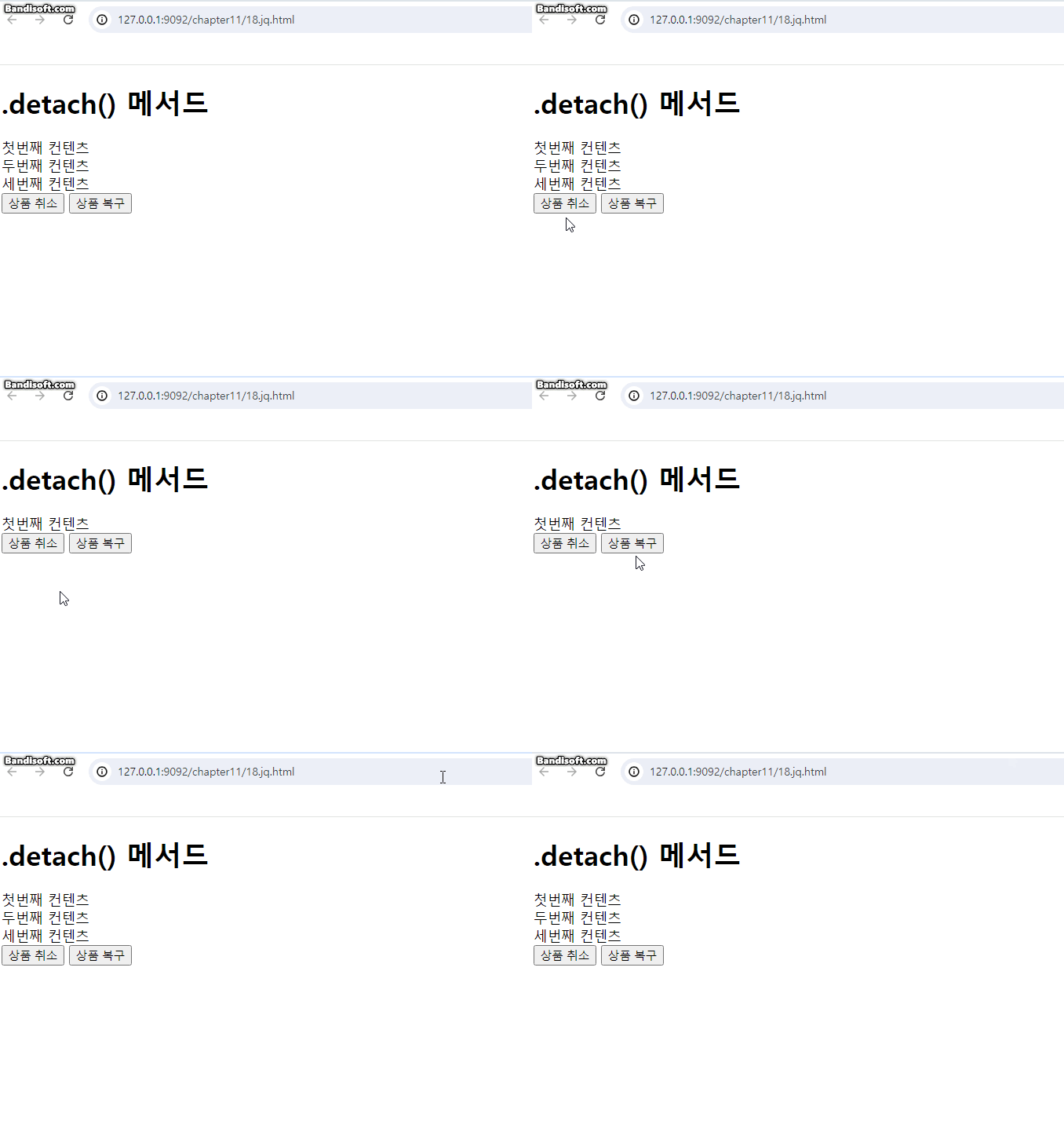
detach() : 선택한 요소를 제거
append() : 선택한 요소를 지정한 요소의 마지막에 추가
datach로 삭제한 요소를 .append(요소)로 추가가능
slid
slid 함수 : Donw, Up, Toggle
<script>
      $(function () {
        $('#slide').click(function () {
          $('#panel').slideDown(5000);
          //.slideDown : #panel의 display를 none에서 block으로 변경
        });
        $('#panel').click(function () {
          $('#panel').slideUp(5000);
          //.slideUp : #panel의 display를 block에서 none으로 변경
        });
        $('#flip').click(function () {
          $('#panel').slideToggle('slow');
          //.slideToggle : #panel의 display가 none이면 block으로, block이면 none으로 변경해주는 메서드
        });
        $('#slide2').click(function () {
          $('#panel2').slideDown(3000).slideUp(5000).css('color', 'red').fadeTo('slow', 0.3);
          //j쿼리는 동시다발적으로 이어지면 함수 계쏙 붙여서 쓰기가능
        });
      });
    </script>
    <style>
      #slide,
      #panel,
      #flip {
        padding: 5px;
        text-align: center;
        background-color: #e5eecc;
        border: 1px solid #c3c3c3;
      }

      #panel {
        padding: 70px;
        display: none;
        background-color: #ffff00;
      }

      #panel2 {
        padding: 70px;
        display: none;
        /*  처음에 화면에 표시하지 않기 */
        background-color: #ffff00;
        font-size: 20px;
      }
    </style>
  </head>
  <body>
    <div id="slide">[오늘의 공지]</div>

    <div id="panel">
      6월24일(월요일) 공지 <br />
      제이쿼리 강의 <br />
      AjAX 강의 <br />
    </div>

    <div id="flip">Toggle Slide</div>
    <p></p>
    <hr />

    <div id="slide2">[오늘의 공지]</div>
    <div id="panel2">
      6월24일(월요일) 공지 <br />
      제이쿼리 강의 <br />
      AjAX 강의 <br />
    </div>
  </body>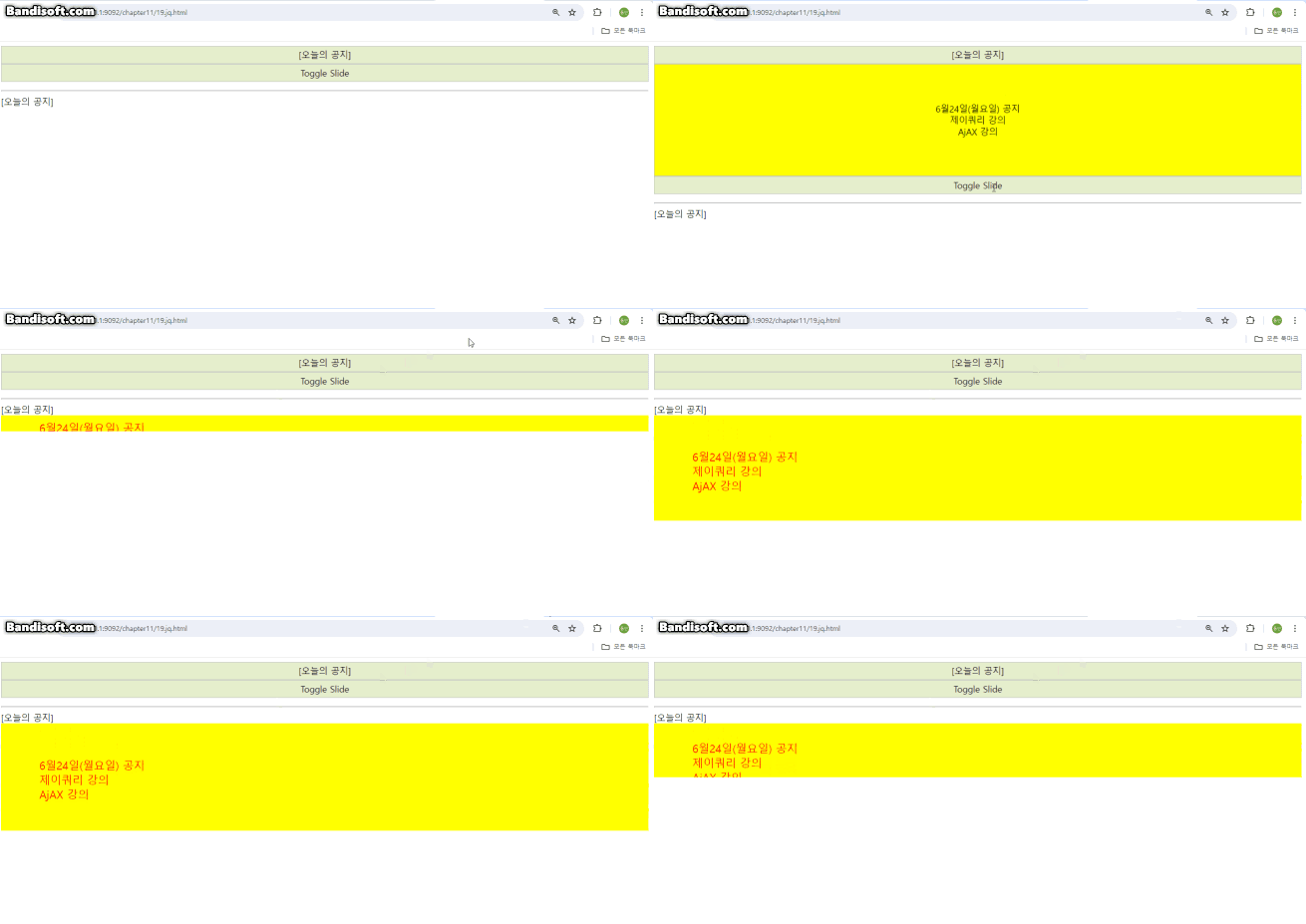
slideDown : #panel의 display를 none에서 block으로 변경
slideUp : #panel의 display를 block에서 none으로 변경
slideToggle : #panel의 display가 none이면 block으로, block이면 none으로 변경해주는 메서드
this
객체지향 j쿼리 사용법
<script>
      function move(obj, time) {
        $(obj).animate({ left: -350 }, time);
      }
      function back(obj) {
        $(obj).animate({ left: 0 });
      }
    </script>
    <style>
      .moving {
        border: 1px solid;
        margin: 20px auto;
        text-align: right;
        width: 550px;
      }
      .moving img {
        width: 200px;
        height: 150px;
        cursor: painter;
        position: relative;
      }
    </style>
  </head>
  <body>
    <div class="init">
      <button type="button" onclick="back('.moving img')">초기화</button>
    </div>
    <div class="moving">
      <img src="/chapter11/sul1.png" onclick="move(this, 6000)" /><br />
      <img src="/chapter11/sul2.jpg" onclick="move(this, 6000)" /><br />
      <img src="/chapter11/sul1.png" onclick="move(this, 6000)" />
    </div>
  </body>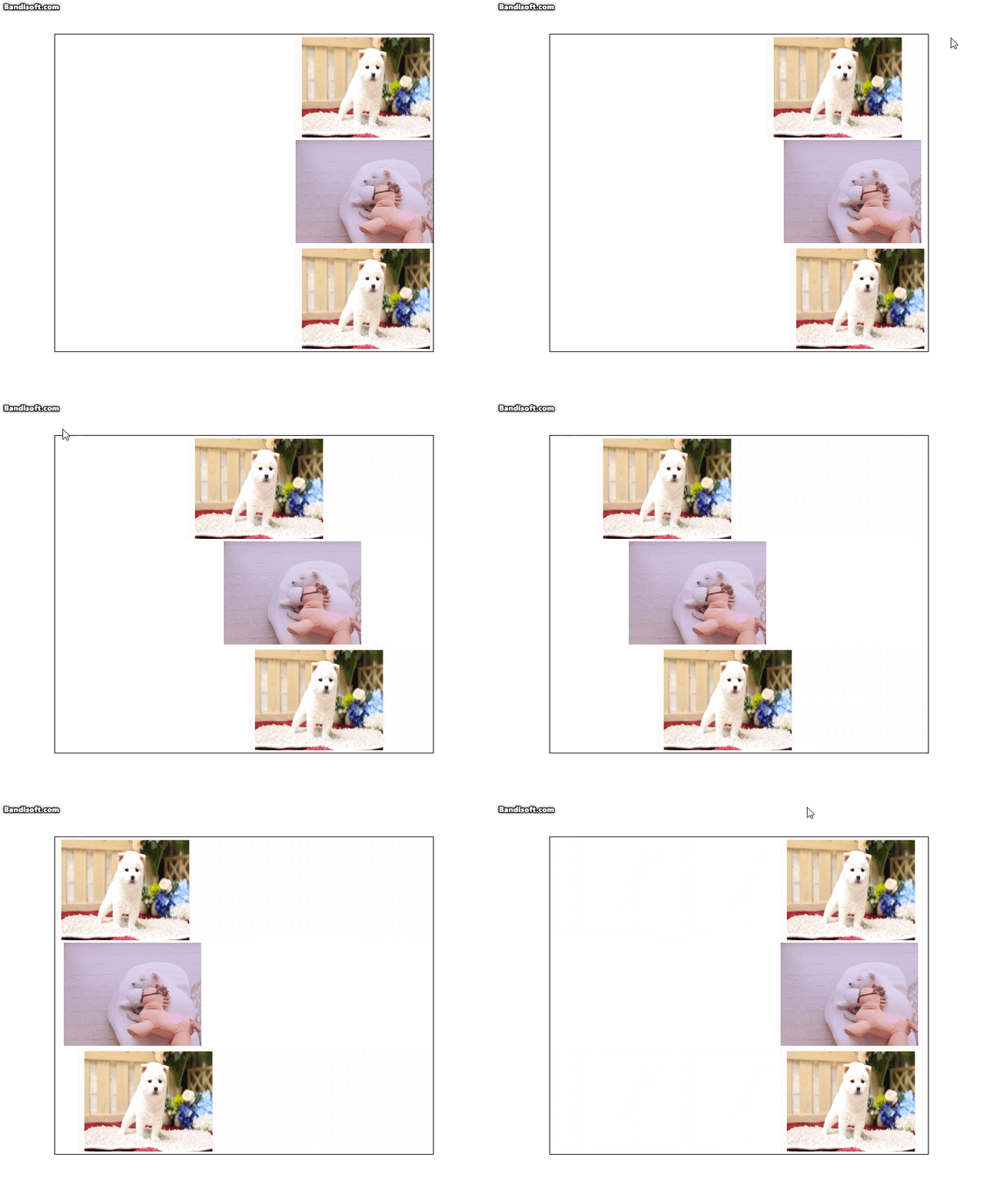
function move(obj, time) {
$(obj).animate({ left: -350 }, time);}
여기서 obj는 아무런 값이 들어 가도 상관없다.
onclick="move(this, 6000)
this는 해당 본인 이미지 요소를 J쿼리로 보내준다.
즉 obj에서 받는다.
onclick="back('.moving img')">초기화
back의 .moving img는
function back(obj)
div 클래스 moving에 this들을 다 받아오기 때문에
3개의 클래스를 이용한 객체 지향 프로그래밍이다.