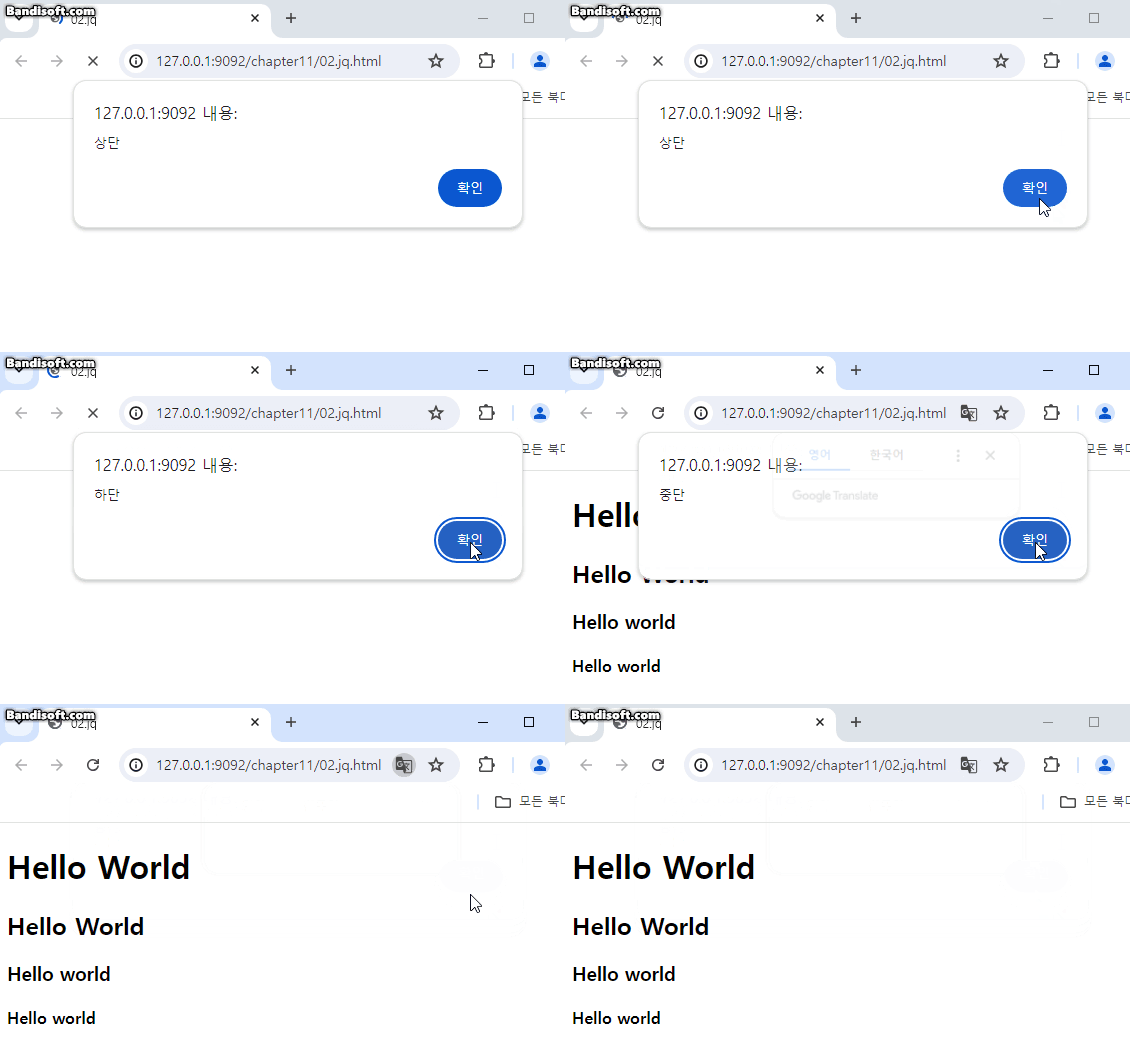
마우스 이벤트로 스타일 변경
<script>
      $(function () {
        $('p').click(function () {
          //p태그를 클릭하면 함수 실행
          $('p').css('color', 'red'); //클릭하면 색깔을 빨강으로 변경
        });
      });
    </script>
  </head>
  <body>
    <p>재이쿼리</p>
    <p>마우스 이벤트로 스타일 변경(클릭해 주세요)</p>
  </body>
마우스 클릭하면 스타일 변경
문서와 창 동시 실행
<script>
      $(window).on('load', function () {
        $('#win').text('환영합니다.');
      });
      $(document).ready(function () {
        $('#doc1').text('doc1문서가 모두 로드 완료됨');
      });
      $(document).ready(function () {
        $('#doc2').text('doc2문서가 모두 로드 완료됨');
      });
    </script>
  </head>
  <body>
    <h1>문서와 창이 모두 로그되는 시점</h1>
    <p>두 시점의 차이가 확인</p>
    <iframe src="01.js.html" width="100%" height="250px"></iframe>
    <p id="win">잠시만 기다려 주세요</p>
    <p id="doc1">잠시만 기다려 주세요</p>
    <p id="doc2">잠시만 기다려 주세요</p>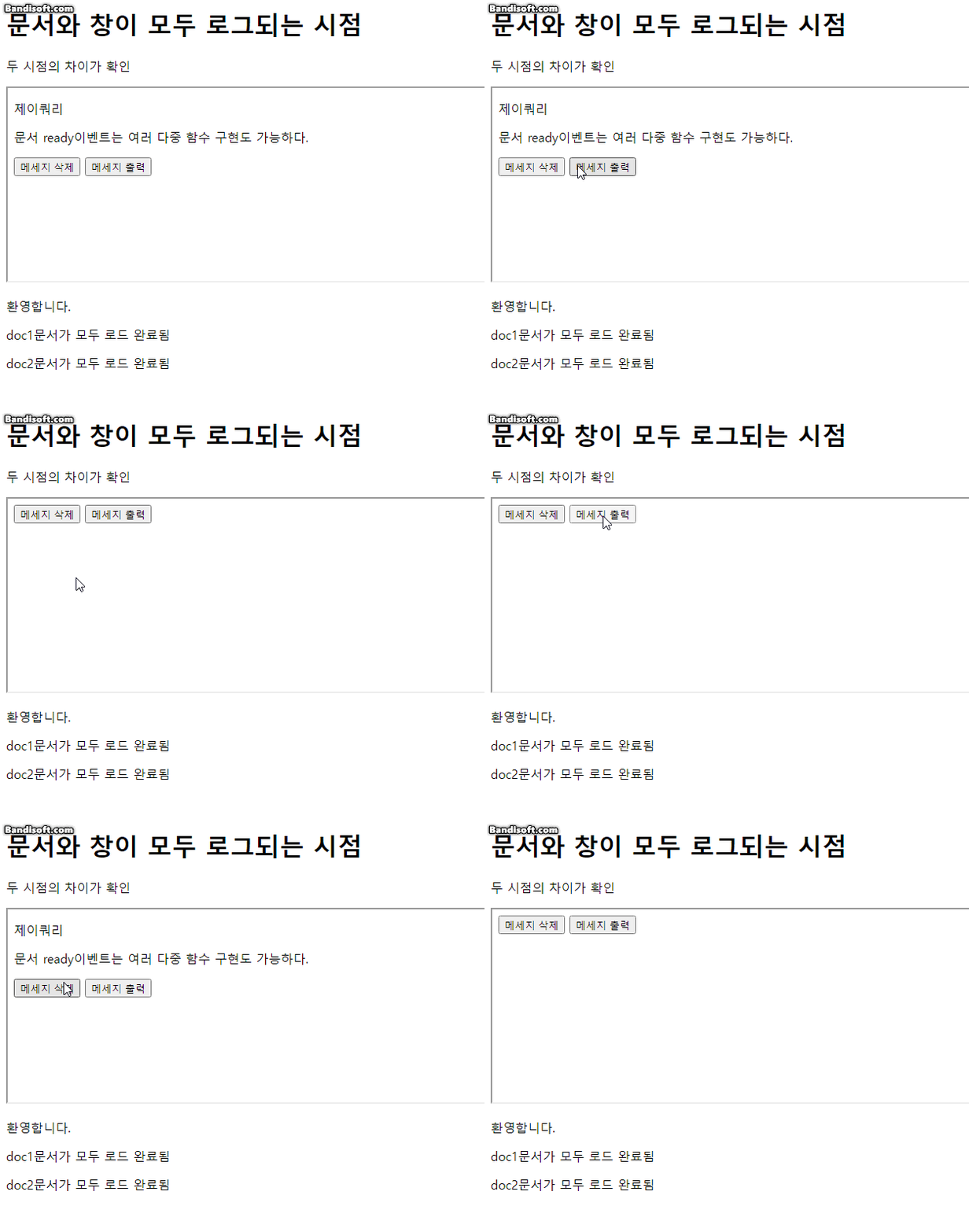
문제 만들기
정답보기 누르전에 정답 숨기기, 정답보기 누르면 정답 등장
<script>
      $(document).ready(function () {
        $('div').hide();

        $('p.a1').click(function () {
          $('div.q1').show();
        });
        $('p.a2').click(function () {
          $('div.q2').show();
        });
      });
    </script>

    <style>
      div.q1 {
        color: red;
        font-size: 18px;
      }
      div.q2 {
        color: blue;
        font-size: 18px;
      }
    </style>
  </head>
  <body>
    <h2>질문1 : 대한민국의 수도는 어디입니까?</h2>
    <p class="a1">[정답보기]</p>
    <div class="q1">대한민국의 수도는 <strong>서울</strong>입니다.</div>
    <p />
    <h2>질문2 : 대한민국의 국보 1호는 무엇입니까?</h2>
    <p class="a2">[정답보기]</p>
    <div class="q2">대한민국의 국보1호는 <strong>숭례문</strong>입니다.</div>
  </body>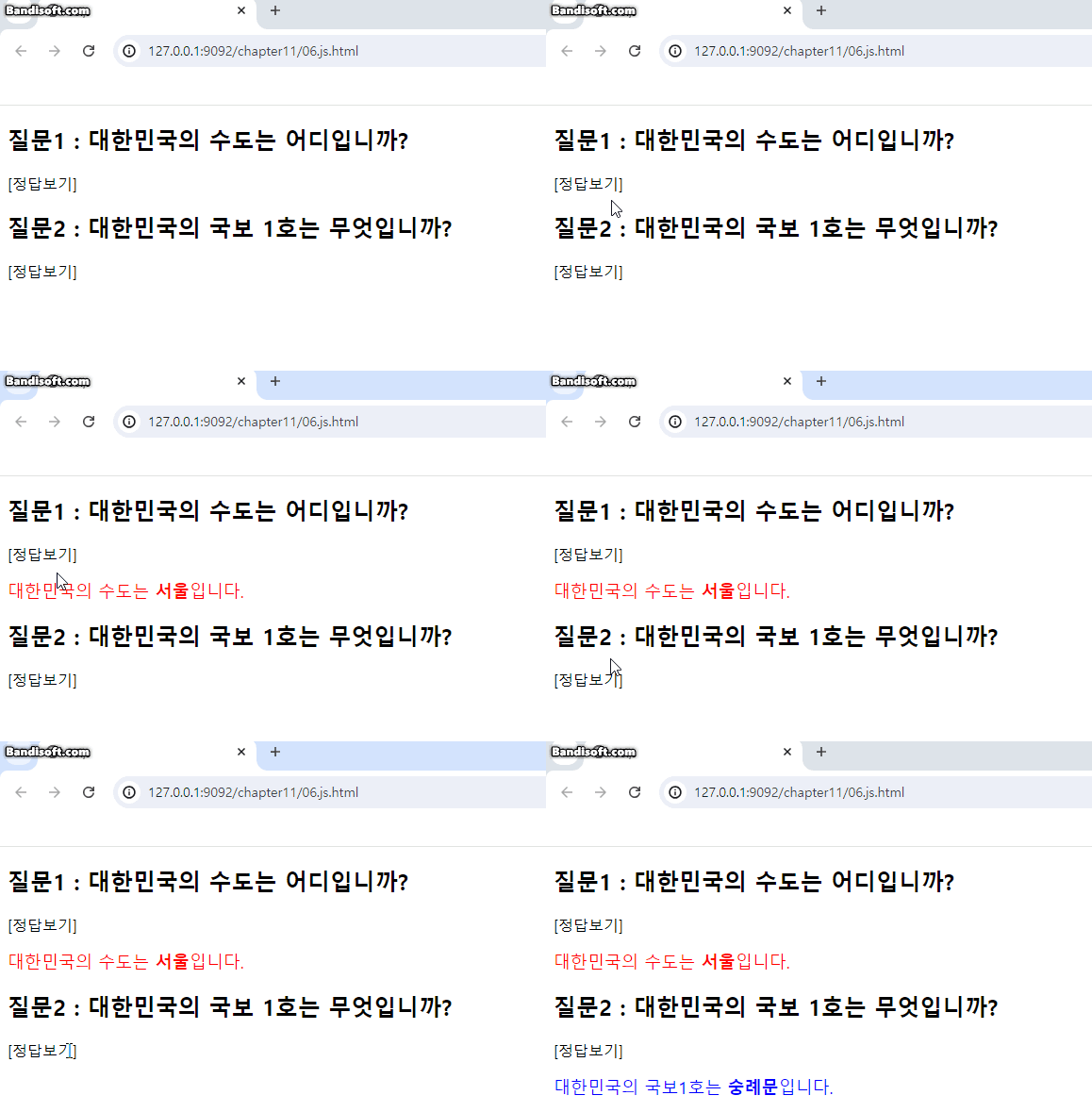
<script>
        $(document).ready(function () {
        $('div').hide();

        $('p.a1').click(function () {
        $('div.q1').show();
        });
        $('p.a2').click(function () {
        $('div.q2').show();
	});
 });
</script>
정답 숨기기 :
$(document).ready(function () {
$('div').hide();
정답 공개 :
$('p.a1').click(function () {
$('div.q1').show();
각종 마우스 이벤트
<script>
      $(function () {
        $('div.out').click(function () {
          $('div.out').css('background-color', 'red');
        });
      });
      let n = 0;

      $(function () {
        $('div.out').mouseenter(function () {
          $('p:first').text('마우스 포인트 들어옴');
          $('p:last').text(++n);
        });
      });

      $(function () {
        $('div.out').mouseleave(function () {
          $('p:first').text('마우스 포인트 나감');
          $('p.last').text('최종 회수 : ' + n);
        });
      });
      $(function () {
        $('div.out').mousedown(function () {
          //마우스로 해당 요소를 누르고 있을 때
          $('p:first').hide();
          $('p:last').text('메세지 없음');
        });
      });
      $(function () {
        $('div.out').mouseup(function () {
          //마우스로 해당 요소를 누르고 있다가 떼었을 때 발동
          $('p:first').show();
          $('p:last').text('최종 회수 : ' + n);
        });
      });
    </script>
    <style>
      div.out {
        width: 200px;
        height: 100px;
        border: 10px solid #000;
        text-align: center;
        background-color: yellow;
      }
    </style>
  </head>
  <body>
    <div class="out">
      <p>마우스 이벤트 구현</p>
      <p>0</p>
    </div>
  </body>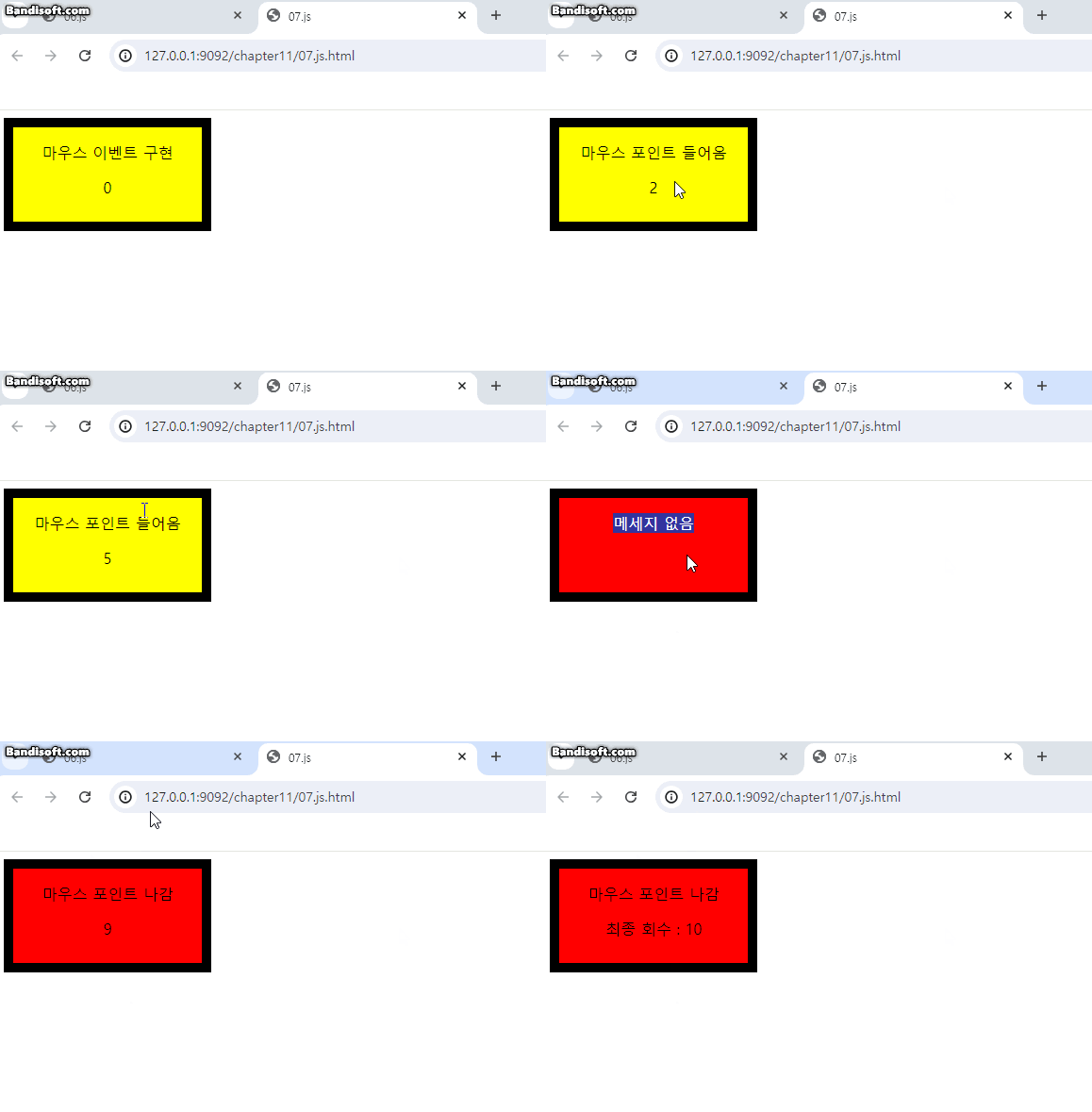
.mouseenter : 마우스 포인트 들어옴
.mouseleave : 마우스 포인트 나감
.mousedown : 마우스로 해당 요소를 누르고 있을때
.mouseup: 마우스로 해당 요소를 누르고 있다가 떼었을 때 발동
선택한 요소가 바뀌는 문법
 <script>
      $(function () {
        $('button').click(function () {
          $('li:has(span)').text('오늘의 점심메뉴 (떡볶이)');
        });
      });
    </script>
  </head>
  <body>
    <h1>선택한 요소의 필터링</h1>
    <ul>
      <li>라면</li>
      <li>
        <span>떡볶이</span>
      </li>
      <li>불고기</li>
    </ul>

    <button>필터링</button>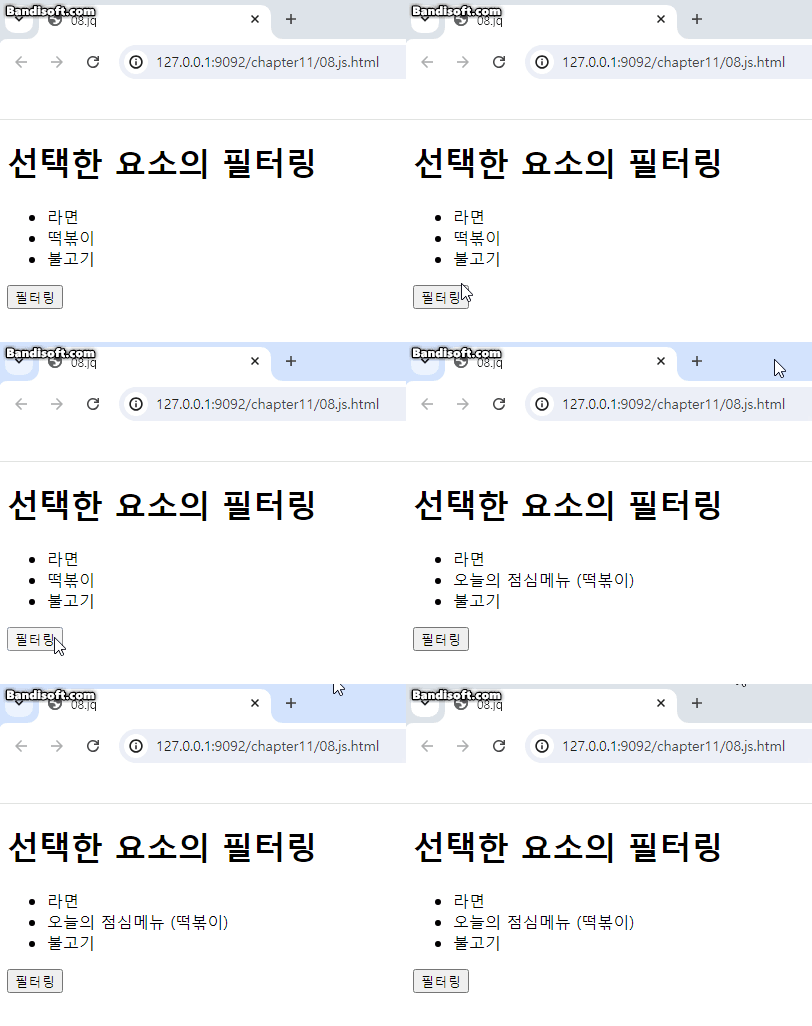
li:has(span).text('바꾸고 싶은 텍스트');
checkbox
<script>
      $(function () {
        $('button').click(function () {
          $(':checked').next().text('현재 학습중인 교과목입니다.');
        });
      });
    </script>
  </head>
  <body>
    <h1>Form 요소의 선택</h1>
    <form>
      <input type="checkbox" name="lecture" value="html" />
      <span>html</span>
      <input type="checkbox" name="lecture" value="css" />
      <span>CSS</span>
      <input type="checkbox" name="lecture" value="JavaScript" />
      <span>JavaScript</span>
      <input type="checkbox" name="lecture" value="JQuery" checked />
      <span>JQuery</span>
      <p />
      <button type="button">현재 학습중인 교과목</button>
    </form>
  </body>
</html>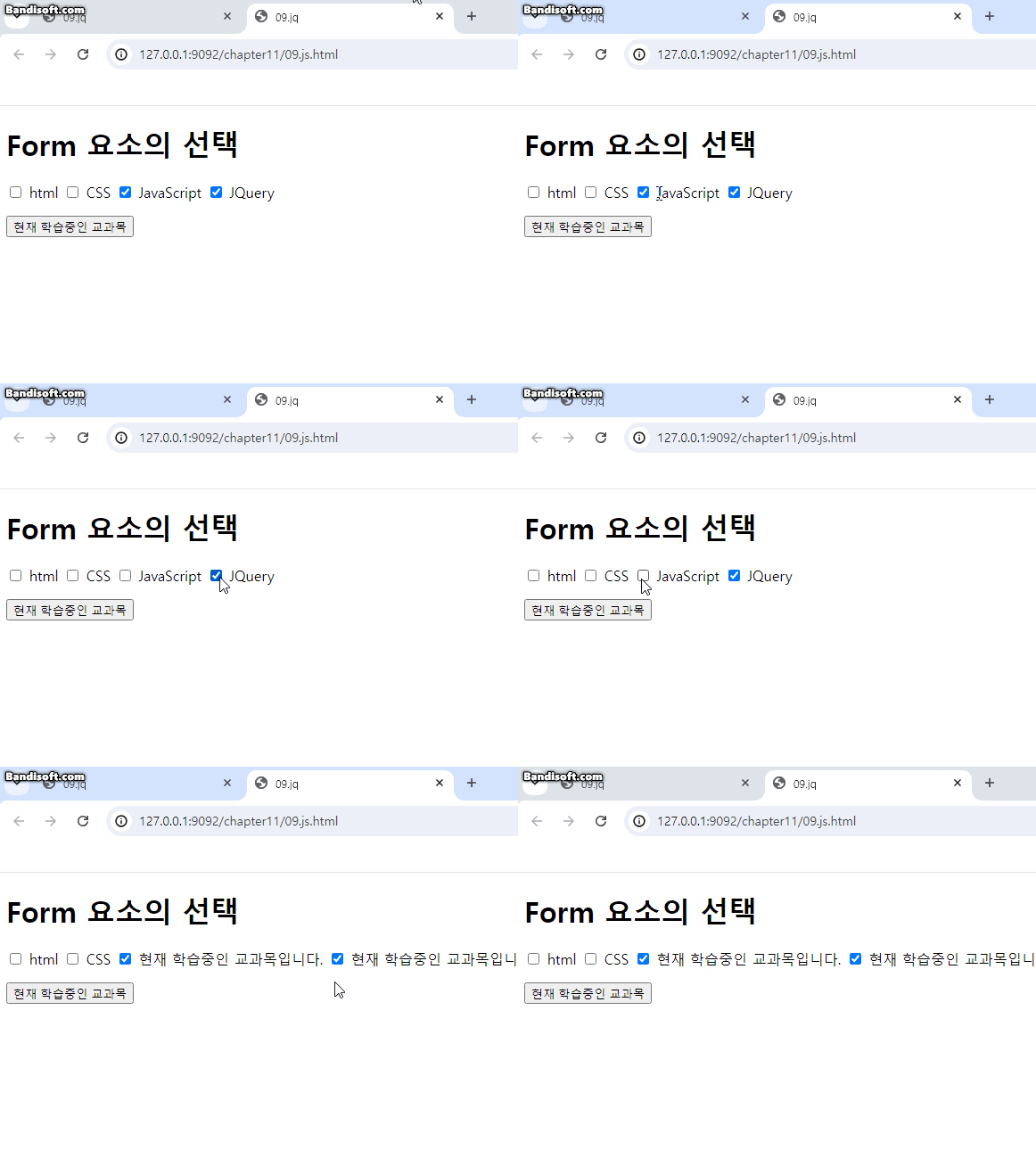
선택한 체크박스 요소 텍스트 변경
$(':checked').next().text('현재 학습중인 교과목입니다.');
addClass, removeClass
<script>
      $(function () {
        $('button.add').click(function () {
          $('h1, h2, p').addClass('blue');
          $('div').addClass('important');
        });
      });

      $(function () {
        $('button.remove').click(function () {
          $('h1, h2, p').removeClass('blue');
          $('div').removeClass('important');
        });
      });
    </script>
    <style>
      .important {
        font-weight: bold;
        font-size: xx-large;
      }
      .blue {
        color: blue;
      }
    </style>
  </head>
  <body>
    <div>
      <h1>HTML5</h1>
      <h2>CSS</h2>
      <p>자바스크립트</p>
      <p>제이쿼리</p>
    </div>
    <br />
    <button class="add">CSS적용</button>
    <button class="remove">CSS적용 해제</button>
  </body>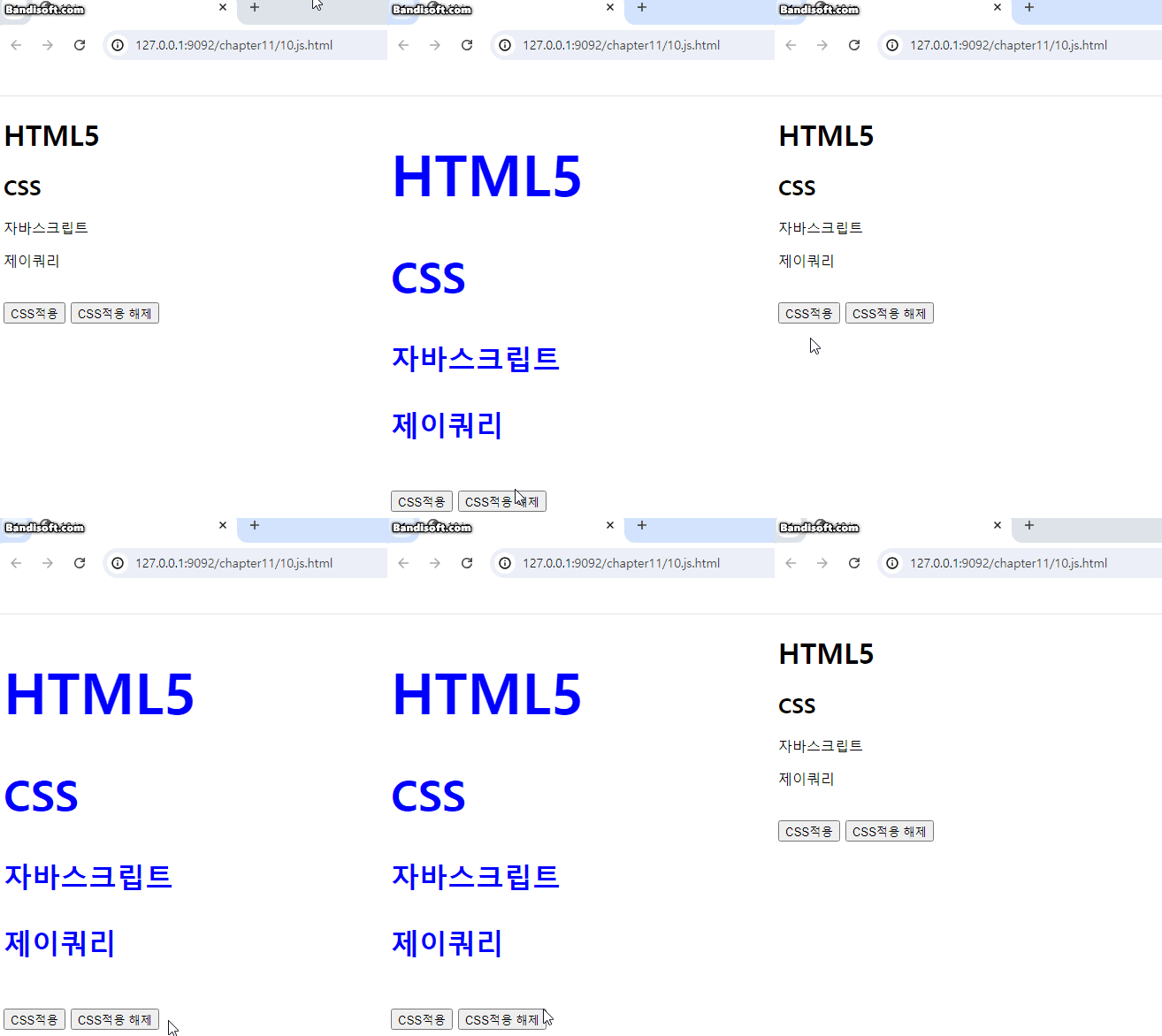
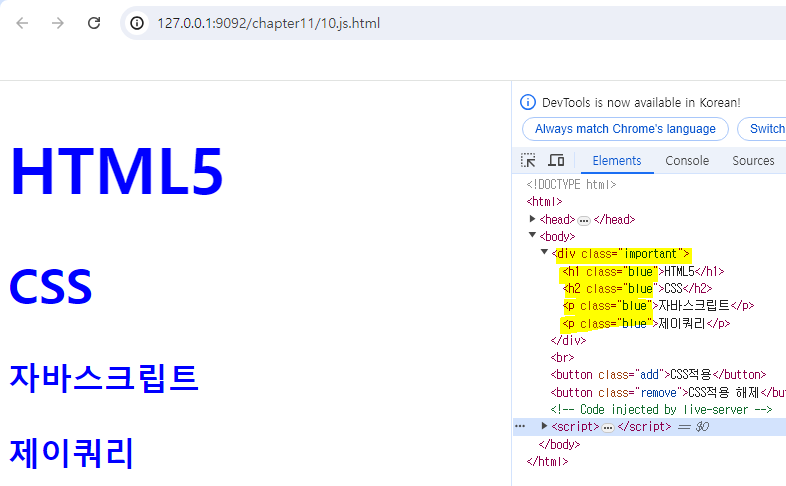
addClass로 p문단에 class가 지정되어있지않아도 class가 생성 가능하다.
width()메서드, .height()메서드
<script>
      $(function () {
        $('#getter').click(function () {
          let size = '너비는 ' + $('#box').width() + 'px이고, 높이는' + $('box').height() + 'px입니다.<br >';
          $('#text').html(size);
        });
        $('#setter').click(function () {
          let w = $('#box').width();
          let h = $('#box').height();
          $('#box')
            .width(w / 2)
            .height(h / 2);
        });
      });
    </script>
    <style></style>
  </head>
  <body>
    <h1>.width()메서드, .height()메서드</h1>
    <p>아래의 버튼을 누르면 div 요소의 크기를 읽어오거나 설정 가능</p>
    <button id="getter">크기 읽어오기</button>
    <button id="setter">크기 줄이기</button>
    <p />
    <div id="box" style="width: 400px; height: 200px; background-color: yellow"></div>
    <p id="text"></p>
  </body>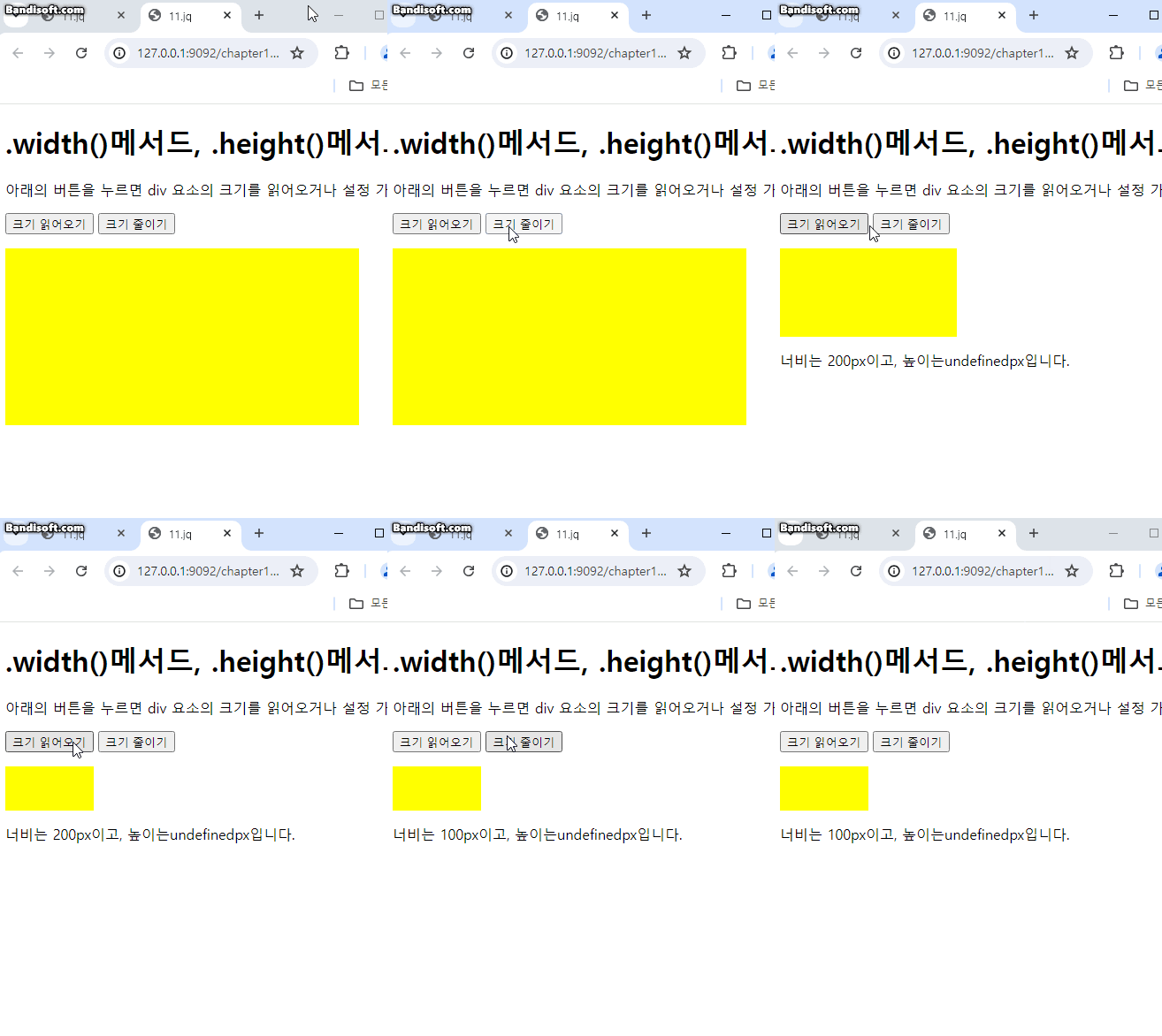
let w = $('#box').width();
let h = $('#box').height();
$('#box')
.width(w / 2)
.height(h / 2);
- $('#box')는 id가 box인 HTML 요소를 선택합니다.
- .width() 메서드는 선택된 요소의 현재 너비를 픽셀 단위로 반환합니다.
- 반환된 너비 값을 변수 w에 저장합니다.
attr() 메서드
<script>
      $(function () {
        $('button').click(function () {
          let imgSrcd = $('img').attr('src'); //속성값을 읽어온다 (img src의 이미지 정보 담는다)
          $('img').attr('src', '/chapter11/sul2.jpg');
        });
      });
    </script>
    <style></style>
  </head>
  <body>
    <h1>.attr()메서드</h1>
    <p>이미지가 변경됩니다.</p>
    <button>변경</button>
    <p / >
    <img src="/chapter11/sul1.png" style="width: 320px; height: 214px; border: 1px solid black" />
  </body>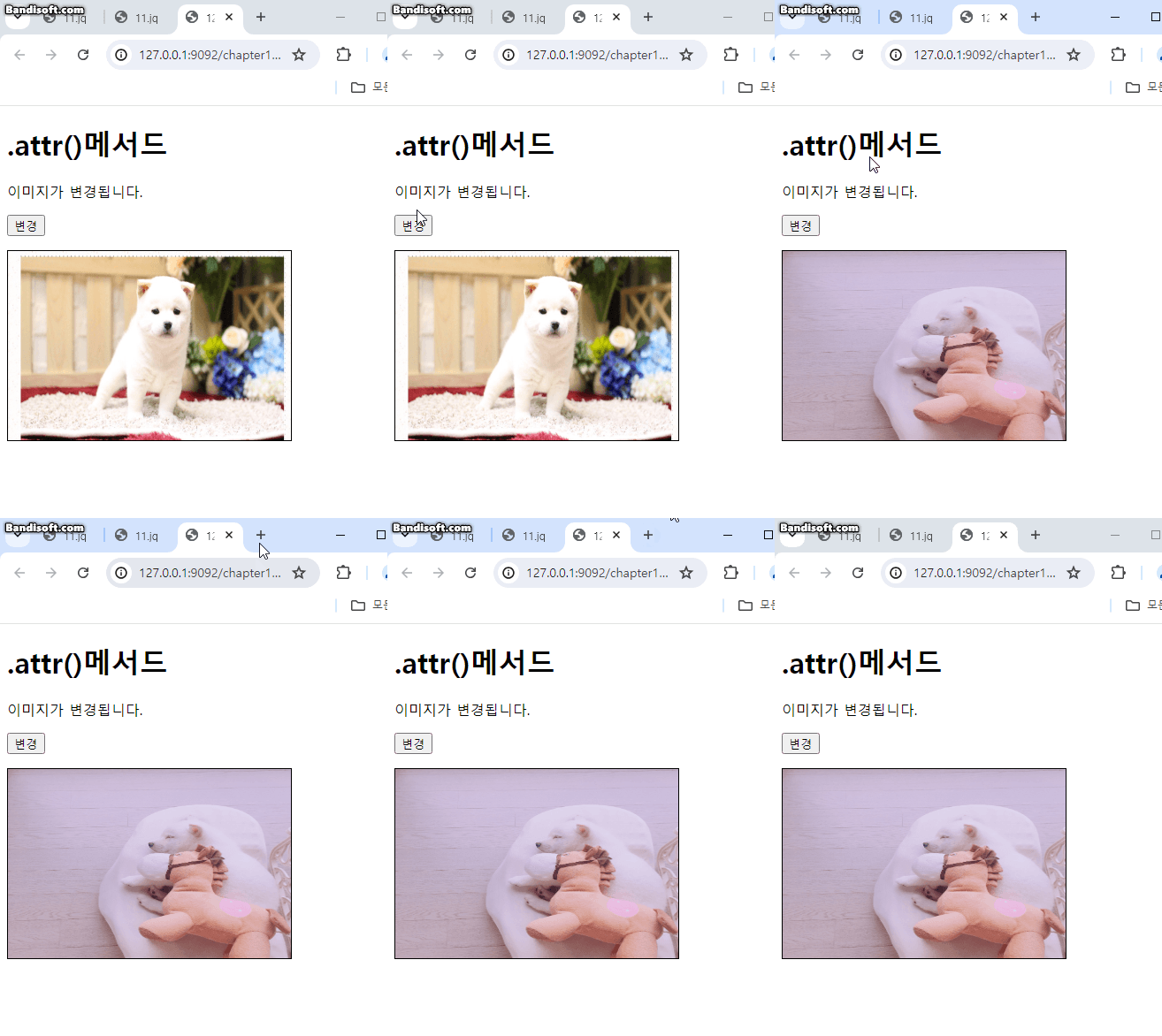
$(function () {
$('button').click(function () {
let imgSrcd = $('img').attr('src'); //속성값을 읽어온다 (img src의 이미지 정보 담는다)
$('img').attr('src', '/chapter11/sul2.jpg');
});
});
let imgSrcd에 <im.g src=" ~ "> 속성을 담고
$('img').attr("src"," ~ ");로 속성을 재 설정 가능하다.

나를 한줄로 소개하자