Dell Update Package (DUP) and Firmware Updates
DUPs allow individuals to update a wide range of system components simultaneously.
The system BIOS, firmware, and device drivers are updated using a DUP.
Engineers can download the DUP and firmware updates from the drivers and download(opens in a new tab) page.
Many issues are resolved by upgrading to the latest firmware.
Administrators can use OpenManage Enterprise(OME) to push firmware updates to multiple servers.
Updates for one or a few servers is typically done by downloading the DUP and uploading them to the iDRAC.
Activity: Upgrade the iDRAC Firmware
Scenario: The server is installed and powered on. You have replaced a drive in the XE9680. While verifying the drive status in the iDRAC UI, you notice that the server is not running the latest firmware packages.
Upgrade iDRAC to the latest version.
See the Participant Guide for Activity Steps
-
Launch the iDRAC simulator and log-in (root/calvin).
-
Note that the iDRAC Firmware Version on the Dashboard System information is 7.10.30.05. Go to the iDRAC Maintenance > System Update > Manual Update page.
-
The first upgrade instance presents an orange browser icon. Click the icon to simulate going to the Drivers & Downloads page on the Dell Support site.
-
The product is already entered. Typically, you would enter Service Tag number. Click Search.
-
It is a good practice to use filters. The operating system is entered, and the iDRAC package is checked. Click Download. The DUP downloads to the local system, and the simulator returns to the iDRAC page.
-
Select Choose File in the Update Path field. The local Downloads folder opens.
-
The DUP is selected. Click Open. The upload begins automatically in the simulator. In the production environment, you would have to click the upload button.
-
Next, click the checkbox for iDRAC_7.10.50.05_A00.exe.
-
Click Install.
-
Verify that the Dashboard shows the updated iDRAC version 7.10.50.05.
Server Configuration Profiles (SCP)
PowerEdge servers can use a Server Configuration Profiles (SCP) to make the implementation of many servers more efficient or to recover a server configuration.
The SCP is an XML or JSON template that contains configuration settings for an individual server.
Each configurable setting is a simplified name-value pair.
the SCP template is equipped with attributes that can trigger specific workflows like firmware updates and operating system deployment.
The primary intent of an SCP is to quickly deploy a similar configuration to many identical PowerEdge servers. Another use for the SCP is to restore a lost configuration to a server.
The SCP stores the configuration settings for: iDRAC, BIOS, NIC, RAID, Fibre Channel, and InfiniBand.
Hardware Status Monitoring (pre 17G)
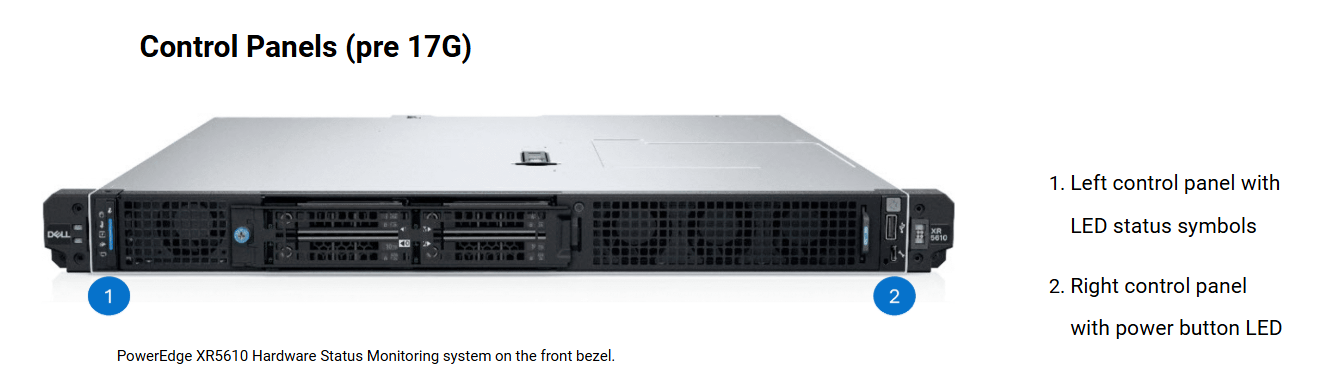
LED Status symblols
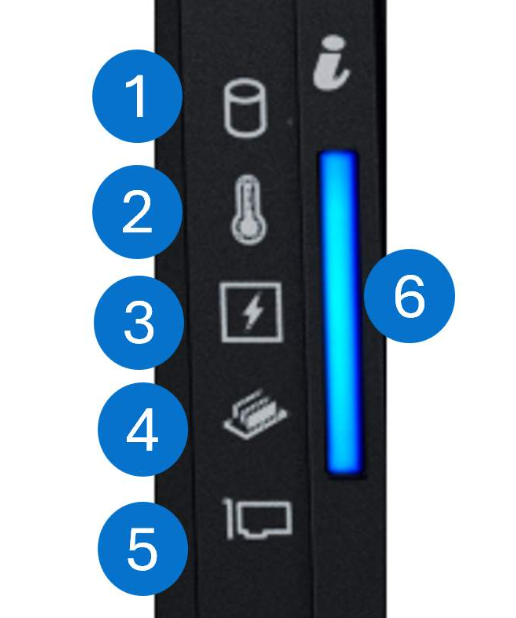
The indicators display solid amber when errors occur.
-
Hard drive
If there is a drive error, the indicator turns solid amber.
The administrator can check system event logs and run diagnostic tests. -
Thermal
If the system experiences a thermal error, the indicator turns solid amber.
For example, the ambient temperature is out of range or there is a fan failure. Administrator can check for airflow obstructions or cooling fan malfunctions.
- Power Supply
If the system experiences an electrical error, the indicator turns solid amber.
For example, an amber LED can indicate a voltage out of range, a failed power supply unit (PSU), or a voltage regulator.
-
Memory modules
If a memory error occurs, the indicator turns solid amber. -
PCIe
If a PCIe card experiences an error, the indicator turns solid amber. -
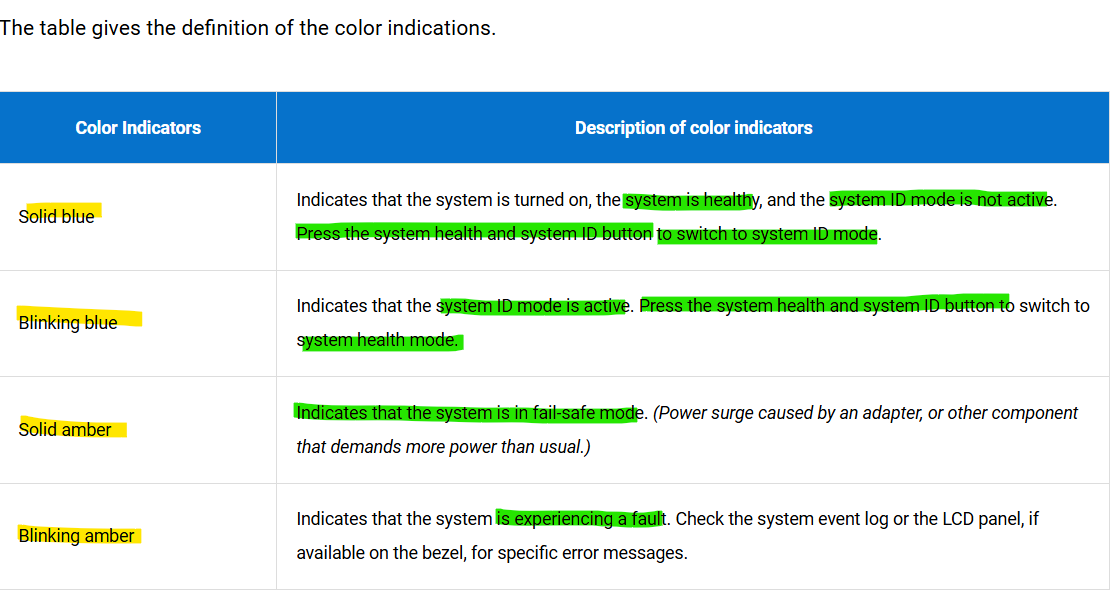
ID
The indicator can turn blue or amber depending on the condition of the system.
For example if the LED is blinking amber, the system event log should be read for specific error messages.
Power button control
The power button LED is at the front panel of the XR5610 and includes
USB 2.0 port and a Micro-USB port of iDRAC Direct.
Power button LED indicator code - OFF
The system is not operating, regardless of the power supplies available.
Power button LED indicator code - On
System is operating, one or more of the non standby power supply units are active.
Power button LED indicator code - Slowly blinking
The system is performing powering on sequence, and iDRAC is still booting.
Hardware Status Monitoring (17G)
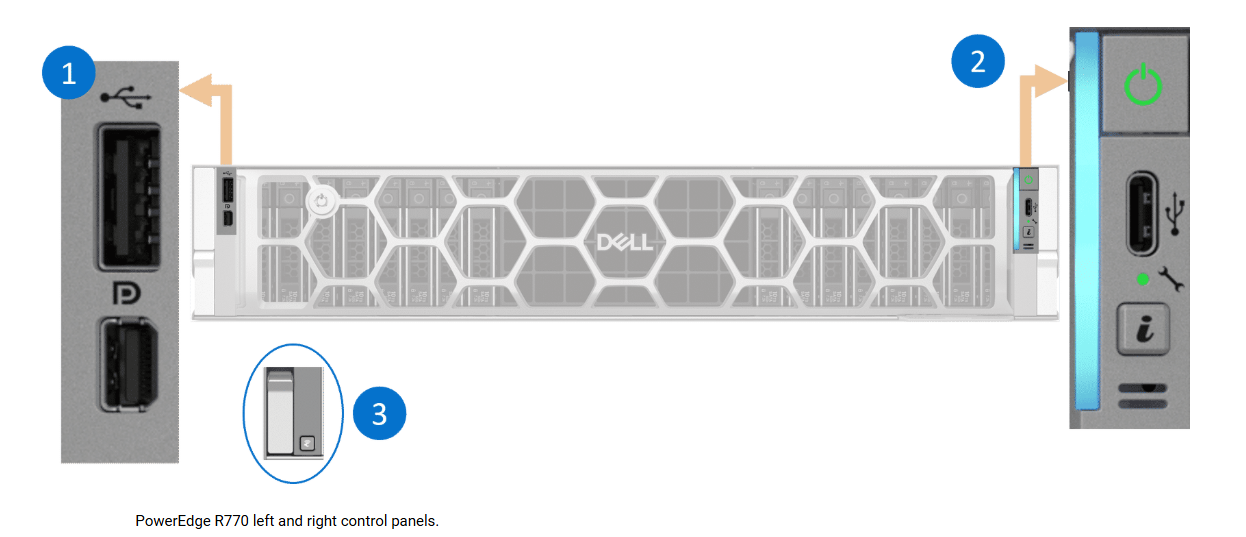
-
The left control panel has either a blank or an optional KVM module. The graphic shows the KVM panel, which allows engineers to connect a USB and display.
-
The right control panel consists of the power button, system health bar, type-C USB, and ID button.
-
The optional Quick Sync version of the LCP has the backlit, Quick Sync button.
Front Panel Live Feed Indicators
Some PowerEdge servers do not have a full LCD panel and hence, using LED indicators. The front panel in the iDRAC9 UI enables administrators to view the system ID LED status remotely.
팁: 시스템이 작동 중일 때(전면 LED 패널에 파란색 상태 아이콘으로 표시됨)는 Hide Error와 Un‑Hide Error가 모두 비활성화(회색 처리)됩니다.
또한 랙 서버와 타워 서버에서만 오류 숨기기 및 숨김 해제가 가능합니다.
Hardware Diagnostics
The Hardware Diagnostics utility has a physical (as opposed to logical) view of the attached hardware.
The utility identifies hardware problems that the operating system and other online tools cannot identify.
Launching the utility:
- Engineers must boot the server into the Lifecycle Controller.
- Select the Hardware Diagnostics option.
- Run the Hardware Diagnostics. The utility validates the memory, I/O devices, CPU, hard drives, and other peripherals.
- Selecting the Yes displays the Preboot System Assessment (ePSA) window. ePSA lists the devices that the server detects.
Server Monitoring Tools
지난 업데이트에서 다뤘지만 아래 내용을 다시 다룸! 정리가 잘된 듯.
iDRAC
The integrated Dell Remote Access Controller (iDRAC) is out-of-band. It monitors a server and the components.
OMSA
OpenManage Server Administrator (OMSA) is in-band. OMSA is a collection of software that works to discover, monitor, manage, patch, and deploy PowerEdge servers.
OME
OpenManage Enterprise (OpenManage Enterprise) is out-of-band. OpenManage Enterprise is the one-to-many management console for monitoring the hardware infrastructure.
SupportAssist
SupportAssist is out-of-band. It gathers information and provides predictive issue detection and proactive resolution.
> Important: When the iDRAC is unresponsive, administrators can reboot the system by holding down the System ID button for 16 seconds.
iDRAC Reboot and Reset
System conditions can cause the iDRAC to become unresponsive. The first step to resolve iDRAC issues is to reboot the iDRAC. Typically this clears most issues.
Consider an iDRAC reset if an iDRAC reboot does not resolve the issue.
Administrators have three options to reset the iDRAC. Although the options remove settings, some of the settings can be preserved.
Option 1 preserves the iDRAC user and network settings.
Option 2 resets the username to root and the password to the shipping value. The shipping value is not always "calvin."
Option 3 resets the username and password to the unique credentials on the luggage tag.