
Lighthouse 사용해보기
Lighthouse는 사이트를 검사하여 성능 측정을 할 수 있는 도구이자 다양한 지표를 이용하여 웹페이지의 성능 검사를 해줄 뿐만 아니라 그에 대한 개선책도 제공한다.
일단 설명으로는 모르겠으니 네이버로 실습을 해봤다.
뭘 잘못했는지 죄다 빨간색으로 나온다
두번째 URL을 사용하라는 오류가 보인다
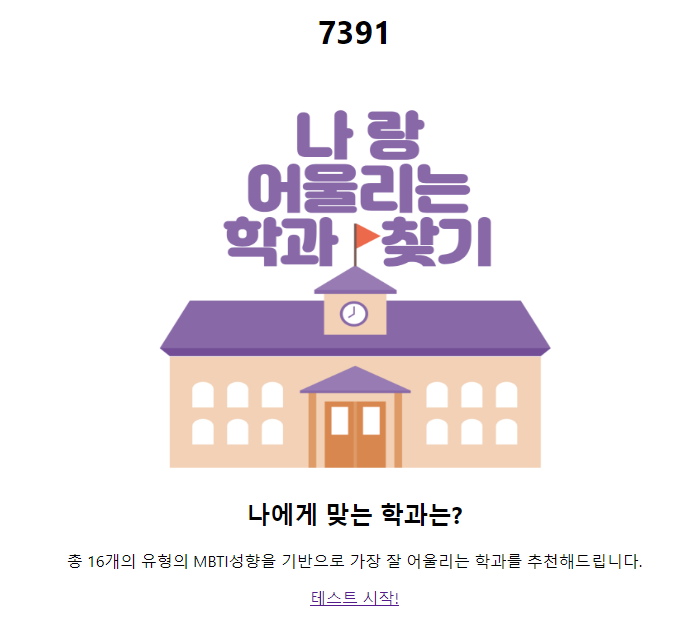
그래서 예전에 만들었던 웹앱으로 실행했다.
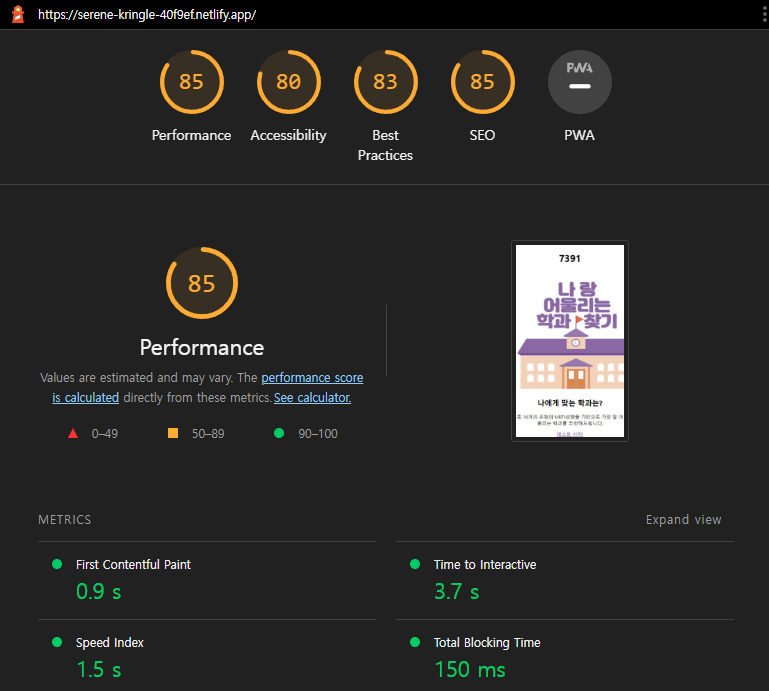
뭔가 나온거 같다.
이제 웹 성능 측정하기 위해 Performance 항목을 보자
Performance항목에서 화면에 콘텐츠가 표시되는데 시간이 얼마나 걸리는지, 표시된 후 사용자와 상호작용하기 까진 얼마나 걸리는지, 화면에 불안정한 요소는 없는지 등을 확인가능하다.
유어클래스에 나온 네이버 점수랑 비슷하게 나왔다.
Metrics
아래로 내리면 주요 메트릭이 안내되어 있다.
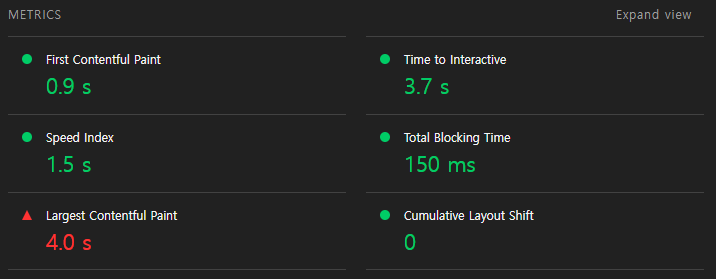
하나씩 확인해보자
First Contentful Paint
성능(Performance) 지표를 추적하는 메트릭 -> 0.9s
Largest Contentful Paint
뷰포트를 차지하는 가장 큰 콘텐츠(이미지 또는 텍스트 블록)의 렌더 시간 -> 4.0s
Speed Index
성능(Performance) 지표를 추적하는 메트릭 -> 1.5s
Time to interactive
페이지가 로드되는 시점부터 사용자와의 상호작용이 가능한 시점까지의 시간 -> 3.7s
Total Blocking Time
페이지가 유저와 상호작용하기까지의 막혀있는 시간 -> 150ms
Cumulative Layout Shift
사용자에게 컨텐츠가 화면에서 얼마나 많이 움직이는지(불안정한 지)를 수치화한 지표 -> 0
Opportunities
Opportunities 항목에서는 무엇이 시간을 많이 소모하는지, 어떻게 개선하여 최적화를 할 수 있을지 해결책을 확인 할 수 있다.
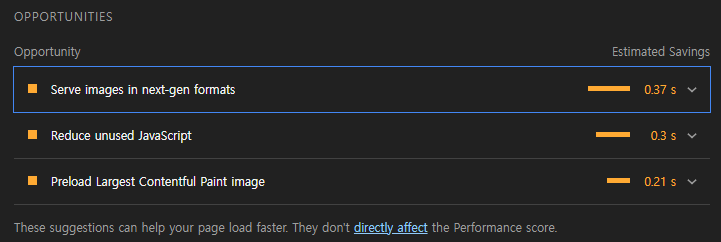
항목은 모두 17개로 공식 사이트에서 확인할 수 있다.
- Eliminate render-blocking resources (렌더링 차단 리소스 제거)
Learn about the render-blocking-resources audit. - Properly size images (적절한 크기의 이미지)
Learn about the uses-responsive-images audit. - Defer offscreen images (오프스크린 이미지 연기)
Learn about the offscreen-images audit. - Minify CSS (CSS 축소)
Learn about the unminified-css audit. - Minify JavaScript (자바스크립트 축소)
Learn about the unminified-javascript audit. - Remove unused CSS (사용하지 않는 CSS 제거)
Learn about the unused-css-rules audit. - Efficiently encode images (이미지를 효율적으로 인코딩)
Learn about the uses-optimized-images audit. - Serve images in modern formats (최신 형식으로 이미지 제공)
Learn about the uses-webp-images audit. - Enable text compression (텍스트 압축 활성화)
Learn about how enabling text compression can improve your webpage load performance. - Preconnect to required origins (필수 오리진에 사전 연결)
Learn about the uses-rel-preconnect audit. - Reduce server response times (TTFB) (서버 응답 시간 단축(TTFB))
Learn about the time-to-first-byte audit. - Avoid multiple page redirects (여러 페이지 리디렉션 방지)
Learn why page redirects slow down your web page's load speed and how to avoid them. - Preload key requests (키 요청 미리 로드)
Learn about the uses-rel-preload audit. - Use video formats for animated content (애니메이션 콘텐츠에 비디오 형식 사용)
Learn about the efficient-animated-content audit. - Reduce the impact of third-party code (타사 코드의 영향 감소)
Learn how third-party code, like advertising networks and analytics services, affects page load performance, and how you can optimize third-party code. - Avoid non-composited animations (합성되지 않은 애니메이션 피하기)
How to pass the "Avoid non-composited animations" Lighthouse audit. - Lazy load third-party resources with facades (퍼사드가 있는 지연 로드 타사 리소스)
Learn about the opportunities to lazy load third-party resources with facades.
내가 만든 웹앱에서 나온 항목은
1. Serve images in next-gen formats (차세대 형식으로 이미지 제공)
현재 가져오는 이미지의 용량이 현재 보여지는 화면의 용량보다 크기 때문에 과도하게 많은 용량을 가져온다는 의미로 이미지의 사이즈를 최적화해라
화면에 표시되는 사이즈 (예: 120x120)과 실제 이미지의 용량을 일치시키면 된다.
당시 만들 때 억지로 이미지를 늘린 기억이 있는데 그것 때문인 것 같다...
2. Reduce unused JavaScript (사용하지 않는 JavaScript 줄이기)
필요하지 않지만 페이지나 다른 페이지에서 여전히 사용될 수 있는 javascript이거나 사용하지 않는 모듈이거나 테스트 코드 등을 삭제하기
3. Preload Largest Contentful Paint image (가장 큰 콘텐츠가 있는 페인트 이미지 미리 로드)
메인 페이지에 큰 이미지가 하나 있는데 파일을 불러오는 과정에서 시간이 오래걸린다고 한다.
이 경우, src 태그의 값을 복사하여 href 속성 값으로 아래 스니펫에 붙여넣기하면 된다.
<link rel="preload" as="image" href="image.png" />
그럼 나중에 리팩토링하면서 수정하는걸로...
참고
https://developer.chrome.com/docs/lighthouse/performance/
https://kyounghwan01.github.io/blog/React/optimize-performance/properly-size-images/#%E1%84%8B%E1%85%AF%E1%86%AB%E1%84%8B%E1%85%B5%E1%86%AB
https://medium.com/@zoey_kang/lighthouse%EB%A1%9C-%EC%9B%B9%EC%82%AC%EC%9D%B4%ED%8A%B8-%EC%84%B1%EB%8A%A5-%EC%B8%A1%EC%A0%95%ED%95%98%EA%B8%B0-5520f4755a08