Tasks
1. Install turtlesim
sudo apt update

sudo apt install ros-foxy-turtlesim
Check that the package is installed:
ros2 pkg executables turtlesim
The above command should return a list of turtlesim’s executables:
turtlesim draw_square
turtlesim mimic
turtlesim turtle_teleop_key
turtlesim turtlesim_node
2. Start turtlesim
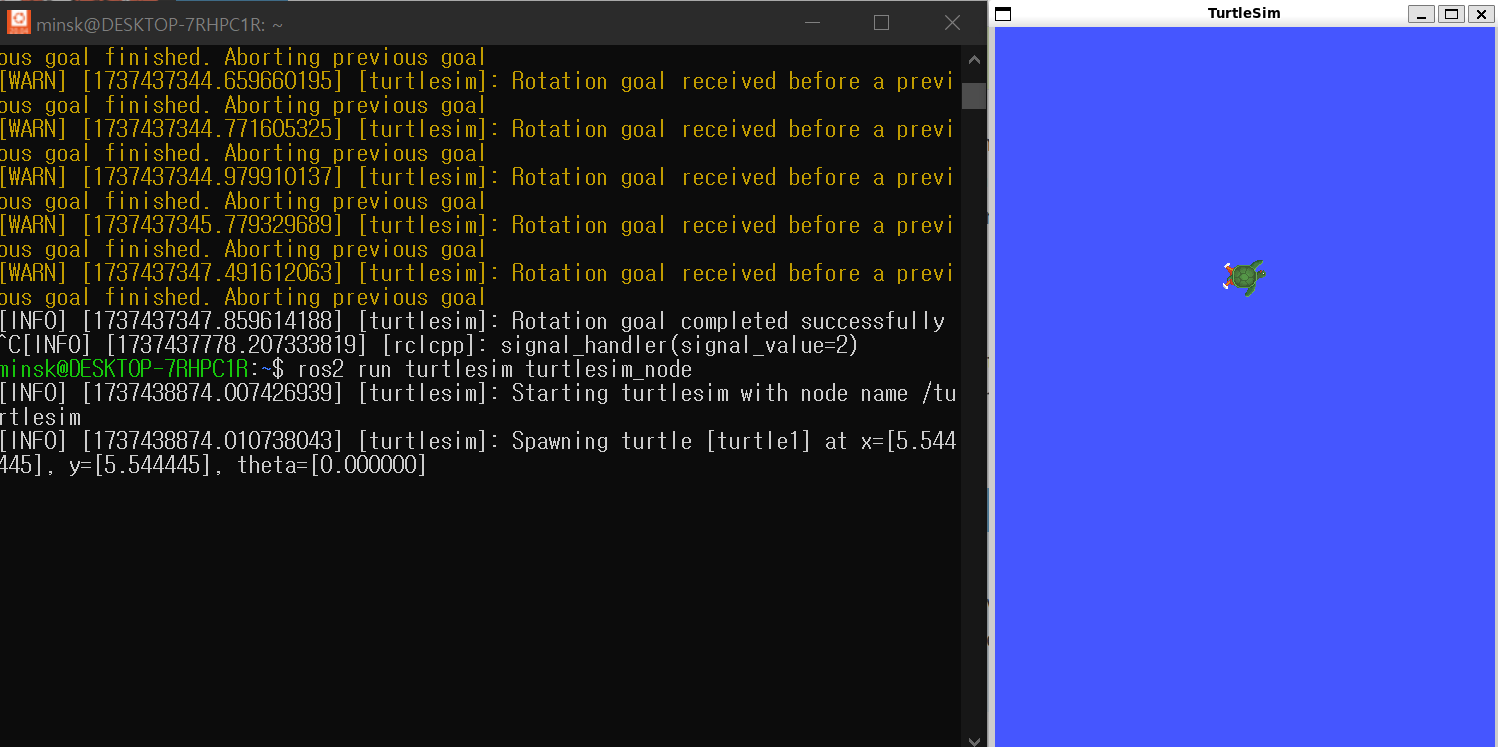
To start turtlesim, enter the following command in your terminal:
ros2 run turtlesim turtlesim_node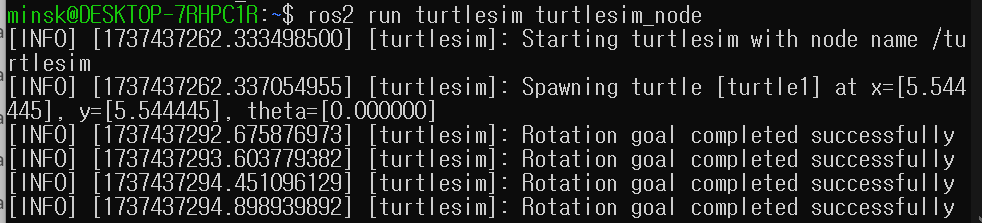
3. Use turtlesim
Open a new terminal and source ROS 2 again.
Now you will run a new node to control the turtle in the first node:
ros2 run turtlesim turtle_teleop_keyyou can control on this terminal
4. Install rqt
sudo apt update

sudo apt install ~nros-foxy-rqt*
To run rqt :
rqt5. Use rqt
When running rqt for the first time, the window will be blank. No worries; just select Plugins > Services > Service Caller from the menu bar at the top.
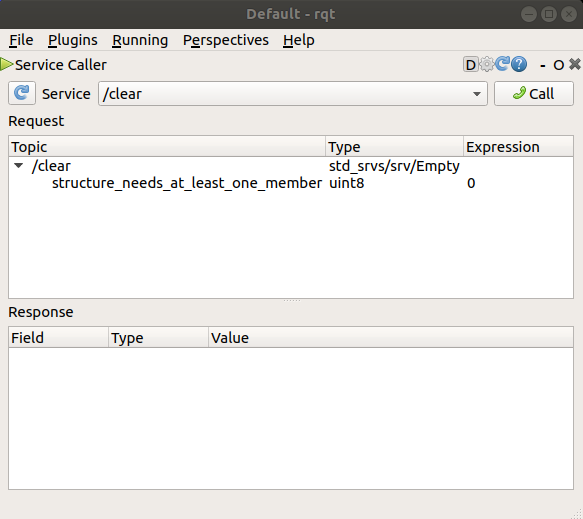
Use the refresh button to the left of the Service dropdown list to ensure all the services of your turtlesim node are available.
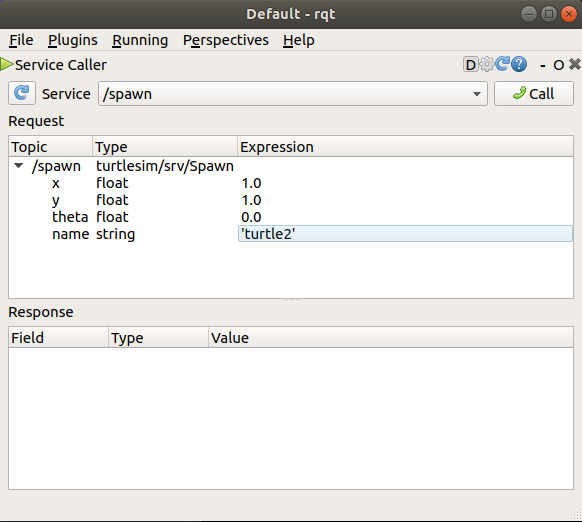
Click on the Service dropdown list to see turtlesim’s services, and select the /spawn service.
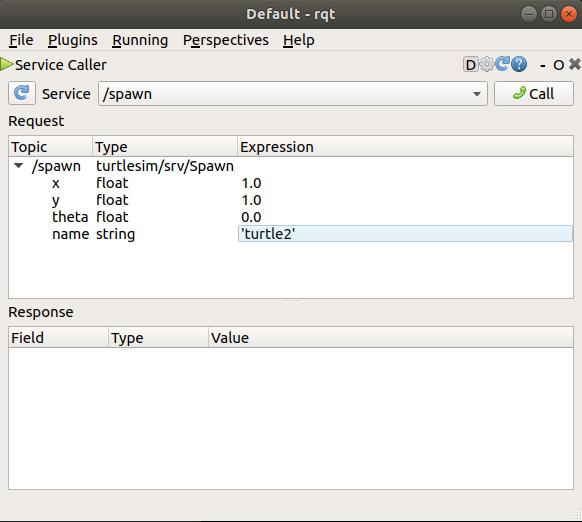
5.1 Try the spawn service
Let’s use rqt to call the /spawn service. You can guess from its name that /spawn will create another turtle in the turtlesim window.
Give the new turtle a unique name, like turtle2, by double-clicking between the empty single quotes in the Expression column. You can see that this expression corresponds to the value of name and is of type string.
Next enter some valid coordinates at which to spawn the new turtle, like x = 1.0 and y = 1.0.
Note
If you try to spawn a new turtle with the same name as an existing turtle, like the default turtle1, you will get an error message in the terminal running turtlesim_node:
[ERROR][turtlesim]: A turtle named [turtle1] already exists
To spawn turtle2, you then need to call the service by clicking the Call button on the upper right side of the rqt window.
If the service call was successful, you should see a new turtle (again with a random design) spawn at the coordinates you input for x and y.
If you refresh the service list in rqt, you will also see that now there are services related to the new turtle, /turtle2/..., in addition to /turtle1/....
5.2 Try the set_pen service
Now let’s give turtle1 a unique pen using the /set_pen service:
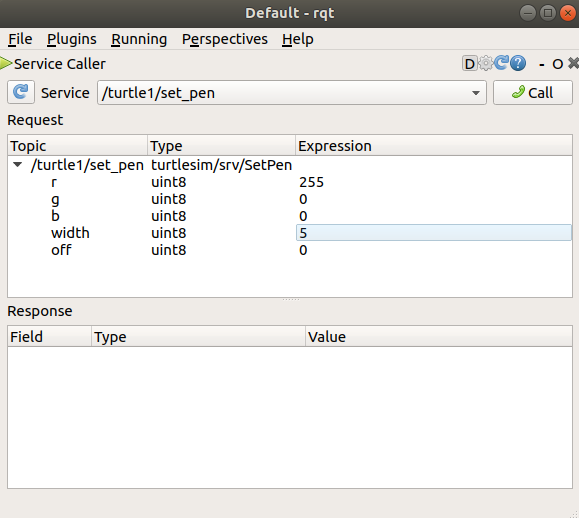
The values for r, g and b, which are between 0 and 255, set the color of the pen turtle1 draws with, and width sets the thickness of the line.
To have turtle1 draw with a distinct red line, change the value of r to 255, and the value of width to 5. Don’t forget to call the service after updating the values.
If you return to the terminal where turtle_teleop_key is running and press the arrow keys, you will see turtle1’s pen has changed.
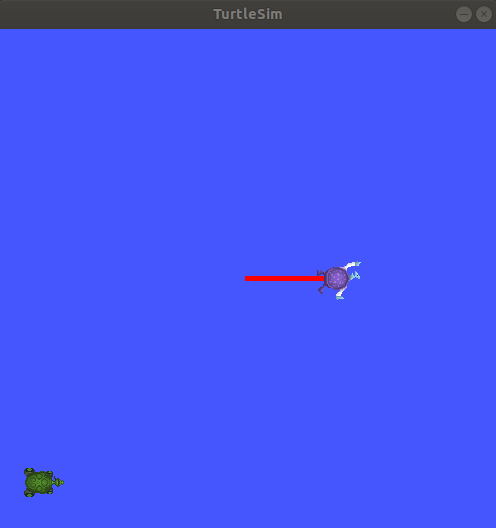
You’ve probably also noticed that there’s no way to move turtle2. That’s because there is no teleop node for turtle2.
6. Remapping
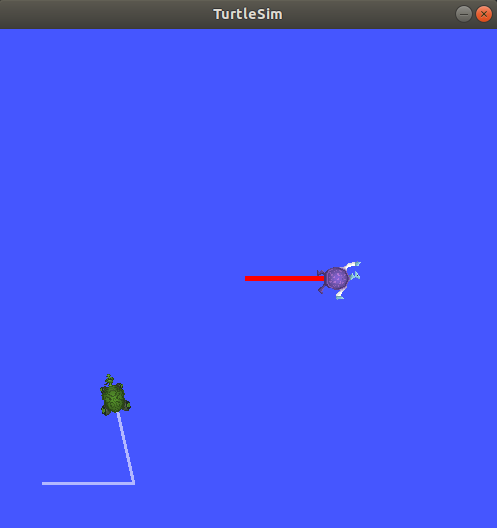
You need a second teleop node in order to control turtle2. However, if you try to run the same command as before, you will notice that this one also controls turtle1. The way to change this behavior is by remapping the cmd_vel topic.
In a new terminal, source ROS 2, and run:
ros2 run turtlesim turtle_teleop_key --ros-args --remap turtle1/cmd_vel:=turtle2/cmd_velNow, you can move turtle2 when this terminal is active, and turtle1 when the other terminal running turtle_teleop_key is active.
7 Close turtlesim
To stop the simulation, you can enter Ctrl + C in the turtlesim_node terminal, and q in the turtle_teleop_key terminals.