Light Linux 를 진행한 후의 과정임.
Manual installation steps for older versions of WSL
위에꺼 보고 하면 더 좋은듯(25.04.02 수정)
Window 버전 확인
WSL2 활성화
wsl --set-default-version 2CHOCOLATEY 설치(powershell 관리자권한 실행)
Set-ExecutionPolicy Bypass -Scope Process -Force; [System.Net.ServicePointManager]::SecurityProtocol = [System.Net.ServicePointManager]::SecurityProtocol -bor 3072; iex ((New-Object System.Net.WebClient).DownloadString('<https://community.chocolatey.org/install.ps1>'))
자료대로 입력하면 오류가 나는데
이는 "DownloadingString" method에서 URL 문자열에 <, > 의 특수문자를 사용해서 오류가 난것임
따라서 특수문자 제거후 명령입력
Set-ExecutionPolicy Bypass -Scope Process -Force;
[System.Net.ServicePointManager]::SecurityProtocol = [System.Net.ServicePointManager]::SecurityProtocol -bor 3072;
iex ((New-Object System.Net.WebClient).DownloadString('https://community.chocolatey.org/install.ps1'))
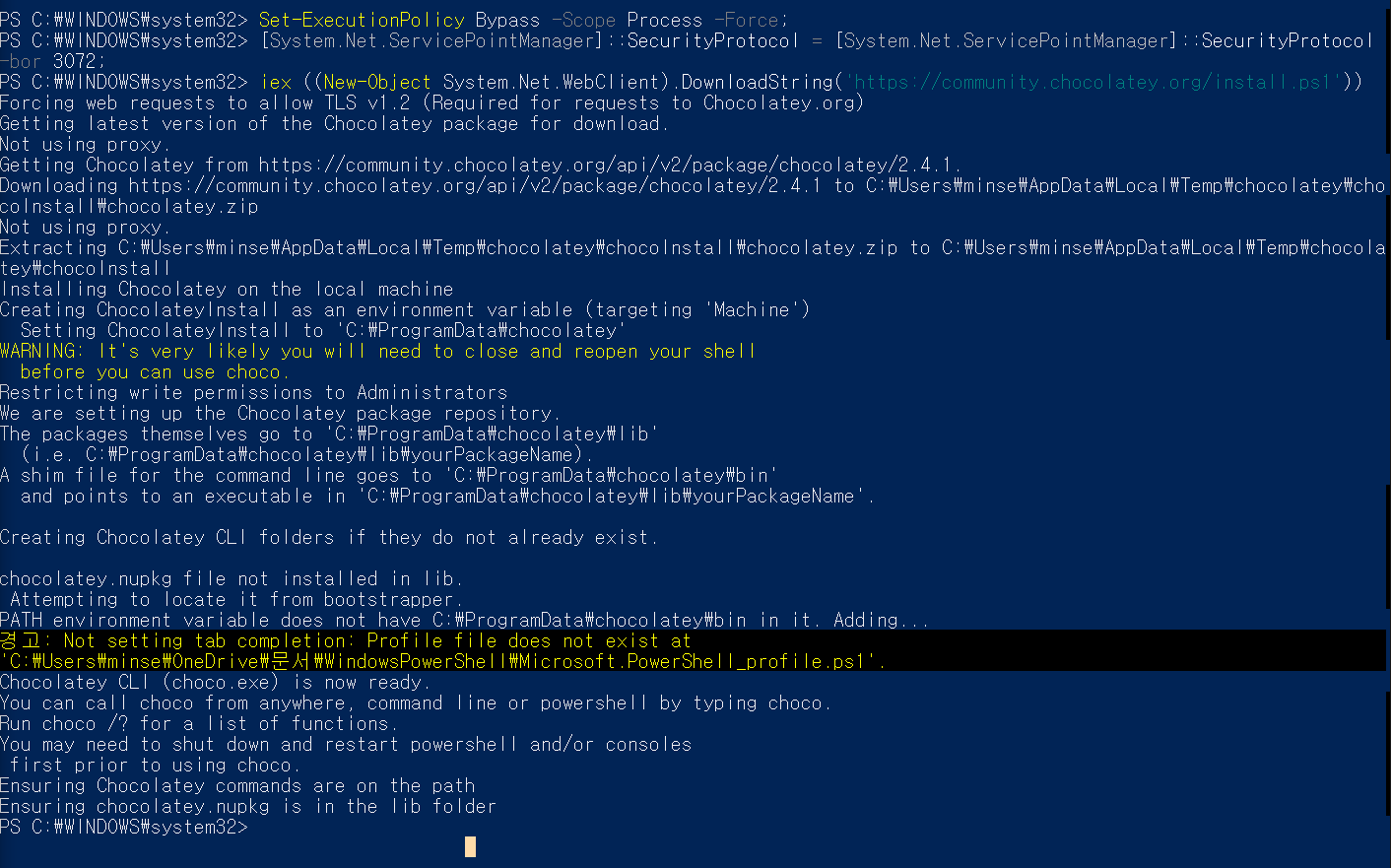
Powershell 관리자권한으로 재시작 후, 버전 확인
choco
윈도우 터미널 설치
choco install -y microsoft-windows-terminal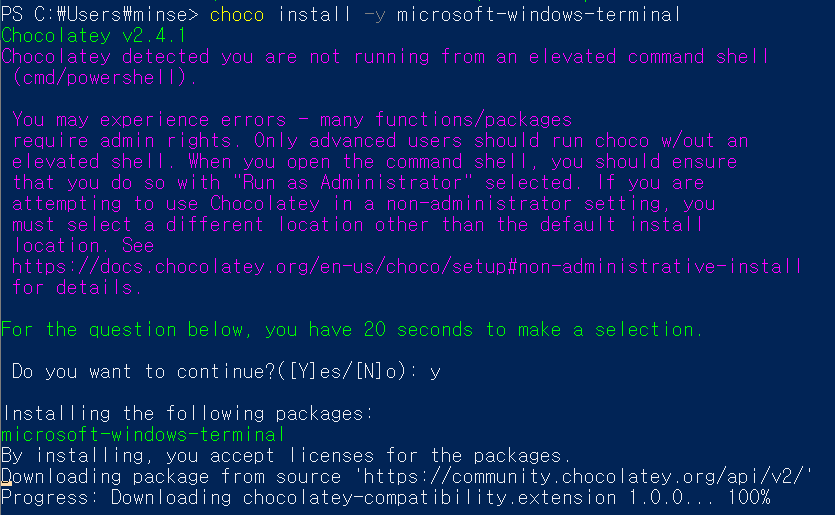
관리자 권한으로 실행안하면 이런 오류발생
PS C:\Users\minse> choco install -y microsoft-windows-terminal
Chocolatey v2.4.1
Chocolatey detected you are not running from an elevated command shell
 (cmd/powershell).
 You may experience errors - many functions/packages
 require admin rights. Only advanced users should run choco w/out an
 elevated shell. When you open the command shell, you should ensure
 that you do so with "Run as Administrator" selected. If you are
 attempting to use Chocolatey in a non-administrator setting, you
 must select a different location other than the default install
 location. See
 https://docs.chocolatey.org/en-us/choco/setup#non-administrative-install
 for details.
For the question below, you have 20 seconds to make a selection.
 Do you want to continue?([Y]es/[N]o): y
Installing the following packages:
microsoft-windows-terminal
By installing, you accept licenses for the packages.
Downloading package from source 'https://community.chocolatey.org/api/v2/'
Progress: Downloading chocolatey-compatibility.extension 1.0.0... 100%
chocolatey-compatibility.extension not installed. An error occurred during installation:
 Unable to obtain lock file access on 'C:\ProgramData\chocolatey\lib\689c878d6fbac0136c56be0661f715aee99b4d9c' for operations on 'C:\ProgramData\chocolatey\lib\chocolatey-compatibility.extension'. This may mean that a different user or administrator is holding this lock and that this process does not have permission to access it. If no other process is currently performing an operation on this file it may mean that an earlier NuGet process crashed and left an inaccessible lock file, in this case removing the file 'C:\ProgramData\chocolatey\lib\689c878d6fbac0136c56be0661f715aee99b4d9c' will allow NuGet to continue.
chocolatey-compatibility.extension package files install failed with exit code 1. Performing other installation steps.
This is try 1/3. Retrying after 300 milliseconds.
 Error converted to warning:
 'C:\ProgramData\chocolatey\.chocolatey' 경로에 대한 액세스가 거부되었습니다.
This is try 2/3. Retrying after 400 milliseconds.
 Error converted to warning:
 'C:\ProgramData\chocolatey\.chocolatey' 경로에 대한 액세스가 거부되었습니다.
Maximum tries of 3 reached. Throwing error.
Cannot create directory "C:\ProgramData\chocolatey\.chocolatey". Error was:
System.UnauthorizedAccessException: 'C:\ProgramData\chocolatey\.chocolatey' 경로에 대한 액세스가 거부되었습니다.
   위치: System.IO.__Error.WinIOError(Int32 errorCode, String maybeFullPath)
   위치: System.IO.Directory.InternalCreateDirectory(String fullPath, String path, Object dirSecurityObj, Boolean checkHost)
   위치: System.IO.Directory.InternalCreateDirectoryHelper(String path, Boolean checkHost)
   위치: chocolatey.infrastructure.filesystem.DotNetFileSystem.<>c__DisplayClass63_0.<CreateDirectory>b__1()
   위치: chocolatey.infrastructure.tolerance.FaultTolerance.<>c__DisplayClass1_0.<Retry>b__0()
   위치: chocolatey.infrastructure.tolerance.FaultTolerance.Retry[T](Int32 numberOfTries, Func1 function, Int32 waitDurationMilliseconds, Int32 increaseRetryByMilliseconds, Boolean isSilent)
   위치: chocolatey.infrastructure.tolerance.FaultTolerance.Retry(Int32 numberOfTries, Action action, Int32 waitDurationMilliseconds, Int32 increaseRetryByMilliseconds, Boolean isSilent)
   위치: chocolatey.infrastructure.filesystem.DotNetFileSystem.CreateDirectory(String directoryPath, Boolean isSilent)
   위치: chocolatey.infrastructure.filesystem.DotNetFileSystem.EnsureDirectoryExists(String directoryPath, Boolean ignoreError, Boolean isSilent)
Chocolatey installed 0/0 packages.
 See the log for details (C:\ProgramData\chocolatey\logs\chocolatey.log).
'C:\ProgramData\chocolatey\.chocolatey' 경로에 대한 액세스가 거부되었습니다.
CMake 설치
choco install -y cmake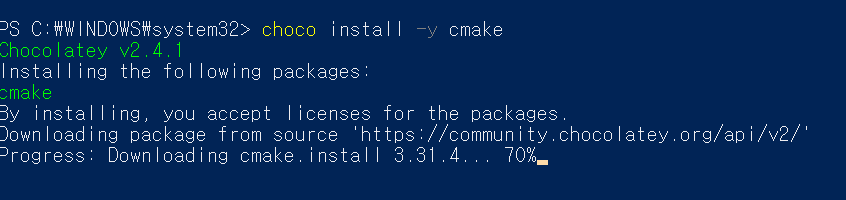
Ubuntu install
마이크로소프트 스토어에서 Ubuntu 20.04 install 하고 실행하면 됨
설치한거 실행할 때, Window 11에서 아래와 같은 오류가 발생할 경우,
Installing, this may take a few minutes...
WslRegisterDistribution failed with error: 0x800701bc
Error: 0x800701bc WSL 2? ?? ?? ?? ????? ?????. ??? ??? https://aka.ms/wsl2kernel? ??????.
Press any key to continue...
아래의 커널을 설치해주면 된다.
WSL2 Linux Kernel Update를 설치
이후 실행된 화면에서
sudo apt updatesudo apt upgradesudo apt autoremovesudo apt install wsl -ywsl # 설치확인
..