Mac 환경 git 설치하기
1. Install Homebrew
https://brew.sh/
위 사이트로 들어가서 설치코드 복사, 터미널에 붙여넣기
2. brew설치 후
터미널에 brew install git 입력
3. 환경설정하기
Step1 : git config --global user.name "git아이디 입력"
Step2 : git config --global user.email "git메일 입력"
Step3 :git config --list로 정보 확인하기, 유저네임, 이메일 잘 들어갔는지 체크
Github에 처음 코드 업로드하기
- 초기화
git init - 추가할 파일 더하기
git add . - 상태 확인 (선택)
git status - 히스토리 만들기
git commit -m "first commit" - ?
git branch -M main - Github repository랑 내 로컬 프로젝트 연결하기
git remote add origin ~repository주소~ - 잘 연결됐는지 확인 (선택)
git remote -v - Github 올리기
git push origin master or main
코드 업데이트하기
- 추가할 파일 더하기
git add . - 히스토리 만들기
git commit -m "커밋내용" - Github로 올리기
git push origin master
React 프로젝트 git 사이트 만들기
1. 터미널에서 현재 위치가 프로젝트 폴더인지 확인하기!!
터미널 실행 후 명령어를 이용하여 폴더 이동하기
또는 터미널에 프로젝트 폴더 드래그하기
⭐️ 터미널 명령어
ls 현재 경로에 존재하는 파일/폴더 리스트를 보여줌
cd/폴더명 폴더이동
2. git 명령어 차례대로 입력
Step1 초기화 : git init
Step2 추가할 파일 더하기 : git add . 모든파일을 추가한다는 의미
Step3 상태 확인 (선택사항) : git status
Step4 히스토리 만들기 : git commit -m "first commit"
Step5 Github repository와 내 로컬 프로젝트 연결하기 :
git remote add origin https://github.com/git아이디/repository이름
⭐️ error: origin 리모트가 이미 있습니다. 오류가 뜰 경우
git remote remove origin 기존 repository 삭제 명령어
Step6 잘 연결되었는지 확인 (선택사항) :
git remote -v 내가 연결한 주소값이 잘 뜨면 성공
vscode React 프로젝트에서 추가해야 할 사항
Step1 : npm i gh-pages
gh-page란 프로젝트를 github pages에 업로드 할 수 있도록 도와주는 패키지
Step2 :
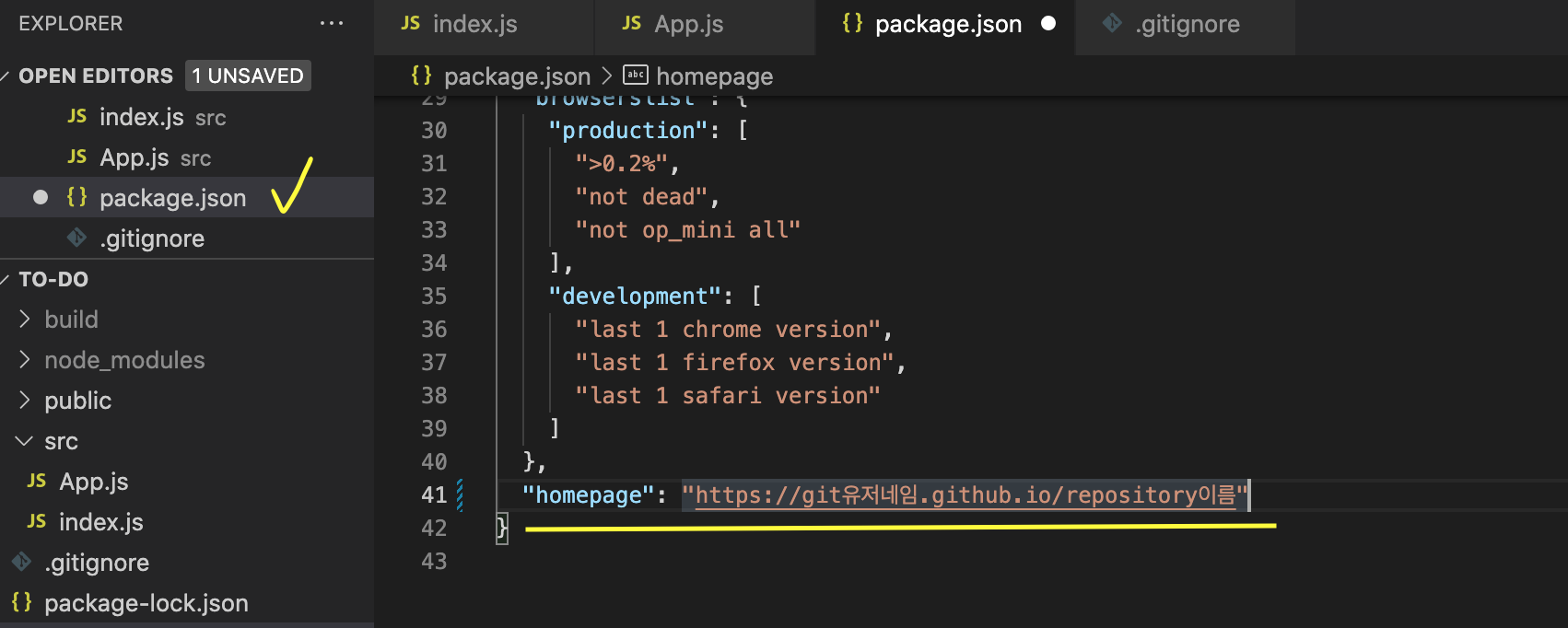
package.json 맨 마지막에
"homepage": "https://git유저네임.github.io/repository명" 입력
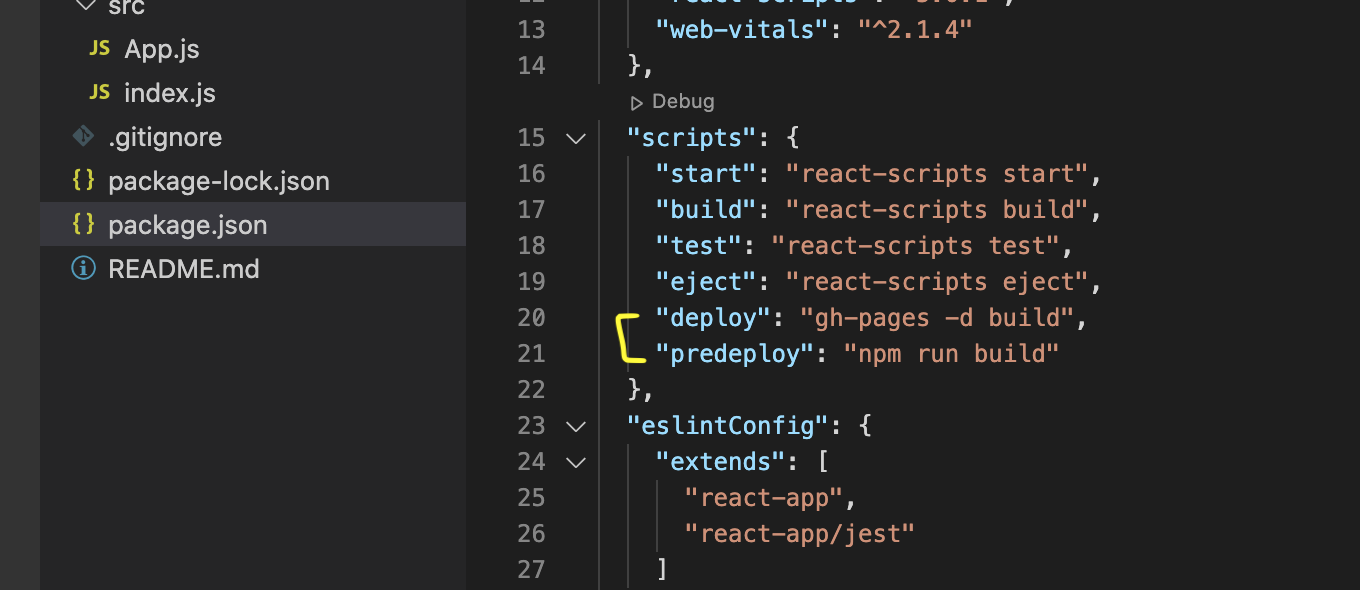
package.json > scripts
"deploy": "gh-pages -d build"
"predeploy": "npm run build" 입력
Step3 : npm run deploy 실행
수정이나 업데이트시 npm run deploy만 실행해 주면 됌
약 5분 뒤 git URL로 이동하면 업로드된 페이지를 확인할 수 있음
📍 라우터를 사용했을 경우 basename 추가해주기
<BrowserRouter basename={process.env.PUBLIC_URL}>⭐️ 라우터 사용 참고
⭐️ 새로고침 오류 참고
📌 참고