이벤트(Event)
-
이벤트(Event): 동작, 행위
→ 브라우저에서의 동작, 행위 : click, keydown, keyup, mouseover, drag, submit, change, ... -
이벤트 리스너(Event Listener)
→ 이벤트가 발생하는 것을 대기하고 있다가 이벤트가 발생하는 것이 감지되면 연결된 기능(함수)를 수행하는 것
ex) onclick, onkeyup, onchange, onsubmit ... (on 이벤트명)
onclick-"함수명()";
- 이벤트 핸들러(Event Handler)
→ 이벤트 리스너에 연결된 기능으로 이벤트 발생 시 수행하고자 하는 내용을 작성해둔 함수(function)
style 태그
<style>
  #test3 {
  width: 200px;
  height: 200px;
  border: 1px solid black;
  background-color: darkgreen;
  cursor: pointer;
  }

  /* 연습문제 */
  #div1 {
  width: 200px;
  height: 200px;
  border: 1px solid black;
  background-color: lightgreen;
  }
</style>
script 태그
외부 js 파일과 연결하는 태그
<script src="js/06_이벤트.js"></script>// 인라인 이벤트 모델 확인하기
function test1(button){
button.style.backgroundColor="lightblue";
button.style.color="orange";
}
// 고전 이벤트 모델 확인하기
// ** 주의사항 **
// 고전/표준 이벤트 모델은 랜더링된 HTML요소에
// 이벤트 관련된 동작을 부여하는 코드
// 랜더링되지 않은 요소에는 이벤트 관련 동작을 추가할 수 없다.
// (문제 원인 : HTML 코드 해석 순서가 위 -> 아래 이다.)
// --> 해결 방법 : HTML 요소가 먼저 랜더링된 후에 JS 코드 수행
// console.log(document.getElementById("test2-1"));
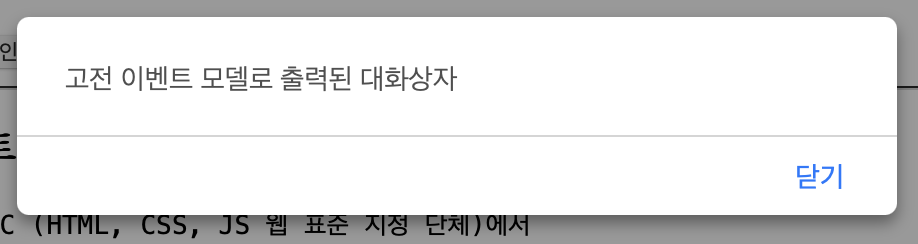
document.getElementById("test2-1").onclick = function(){
// 익명 함수(이벤트 핸들러에 많이 사용함)
alert("고전 이벤트 모델로 출력된 대화상자");
}
// 이벤트 제거
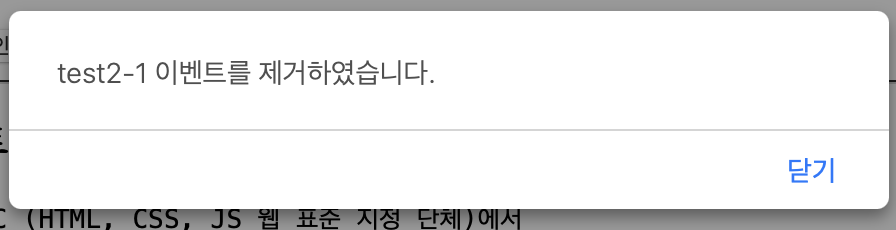
document.getElementById("test2-2").onclick = function(){
// test2-1 이벤트 제거
document.getElementById("test2-1").onclick = null;
alert("test2-1 이벤트를 제거하였습니다.")
}
// 고전 이벤트 모델 단점
// -> 한 요소에 동일한 이벤트 리스너(onclick)에 대한
// 다수의 이벤트 핸들러(배경색 변경, 폰트 변경)를 작성할 수 없다.
// (마지막으로 해석된 이벤트 핸들러만 적용)
document.getElementById("test2-3").onclick = function(event){
// 버튼 색 바꾸기
// 방법 1) 요소를 문서에서 찾아서 선택
// document.getElementById("test2-3").style.backgroundColor="aqua";
// 방법 2) 매개변수 e 또는 이벤트 활용하기
// -> 이벤트 핸들러에 e 또는 event를 작성하는 경우
// 해당 이벤트와 관련된 모든 정보가 담긴 이벤트 객체가 반환된다.
// console.log(event);
// event.target : 이벤트가 발생한 요소
// event.target.style.backgroundColor="pink";
// 방법 3) this 활용하기 -> 이벤트가 발생한 요소(event.target과 동일)
// console.log(this);
this.style.backgroundColor="green";
}
/* document.getElementById("test2-3").onclick=function(){
document.getElementById("test2-3").style.fontSize="30px";
} */
// 표준 이벤트 모델
document.getElementById("test3").addEventListener("click", function(){
// this : 이벤트가 발생한 요소
console.log(this.clientWidth); // 현재 요소의 너비(테두리 제외)
// this.style.width="300px"; // 현재 요소 너비 변경
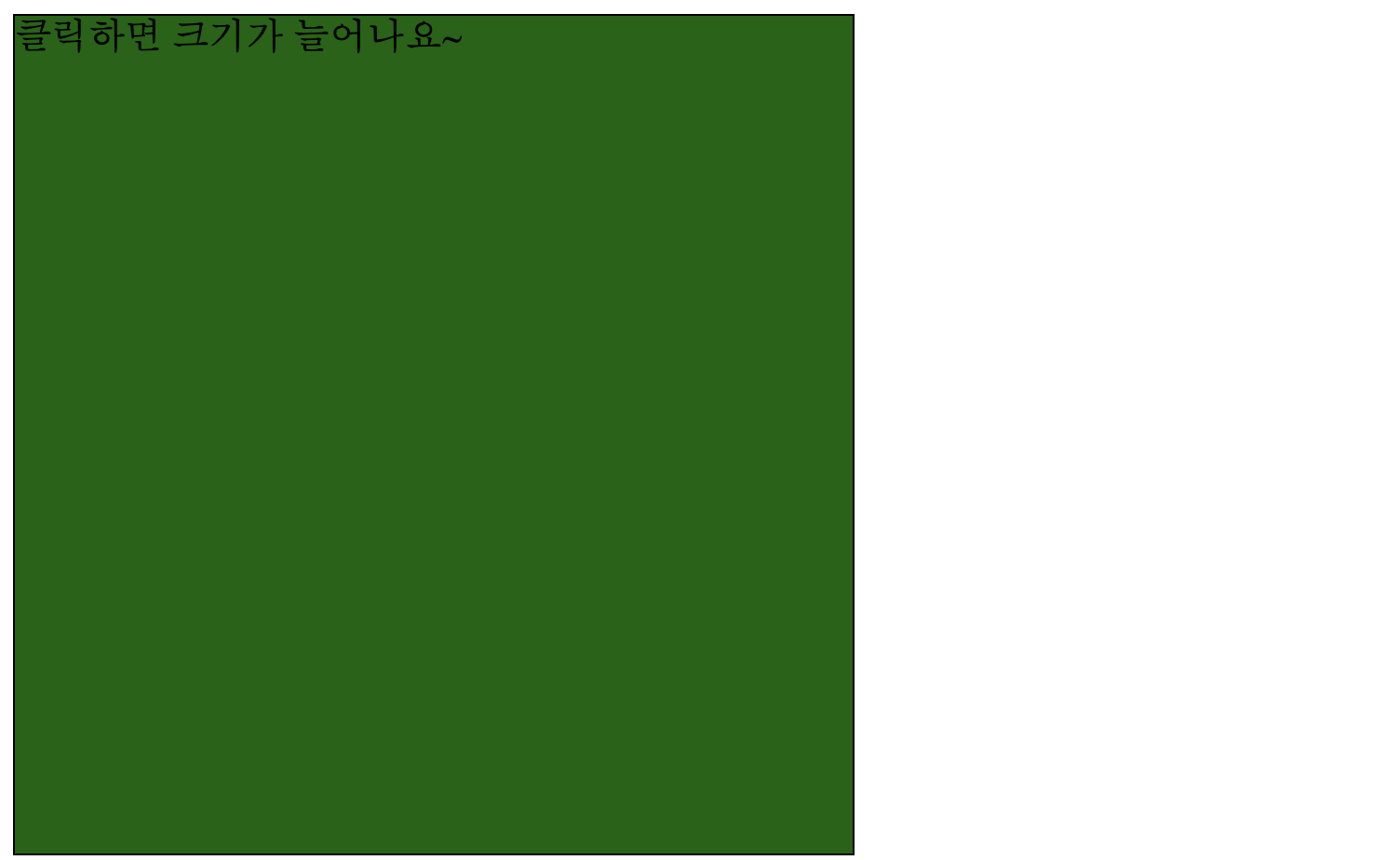
this.style.width = this.clientWidth + 20 + "px";
})
// test3에 이미 click 이벤트에 대한 동작이 존재하는데
// 중복해서 적용
document.getElementById("test3").addEventListener("click", function(){
console.log(this.clientHeight);
// 높이 증가
this.style.height = this.clientHeight + 20 +"px";
})
/* 연습문제 */
// document.getElementById("changeBtn1").addEventListener("click", function(){
// // document.getElementById("div1").style.backgroundColor = document.getElementById("input1").value;
// const div1 = document.getElementById("div1");
// const input1 = document.getElementById("input1");
// // input에 작성된 값 얻어오기
// const bgColor = input1.value;
// // div1 배경색 변경
// div1.style.backgroundColor = bgColor;
// })
// input1에 값이 변경되었을 때 입력된 값으로 배경색 변경
document.getElementById("input1").addEventListener("change", function(){
// change 이벤트
// - text 관련 input 태그는
// 입력된 값이 변할 때는 change라고 하지 않고
// 입력이 완료된 후 포커스를 잃거나, 엔터를 입력하는 경우
// 입력된 값이 이전과 다를 경우 change 이벤트가 발생한 것으로 인식한다.
// console.log("change 이벤트 발생!");
// const input1 = document.getElementById("input1");
// document.getElementById("div1").style.backgroundColor = input1.value;
// input1.value = "";
const div1 = document.getElementById("div1");
// input1에 작성된 값 얻어오기
// const bgColor = this.value;
// div1 배경색 변경
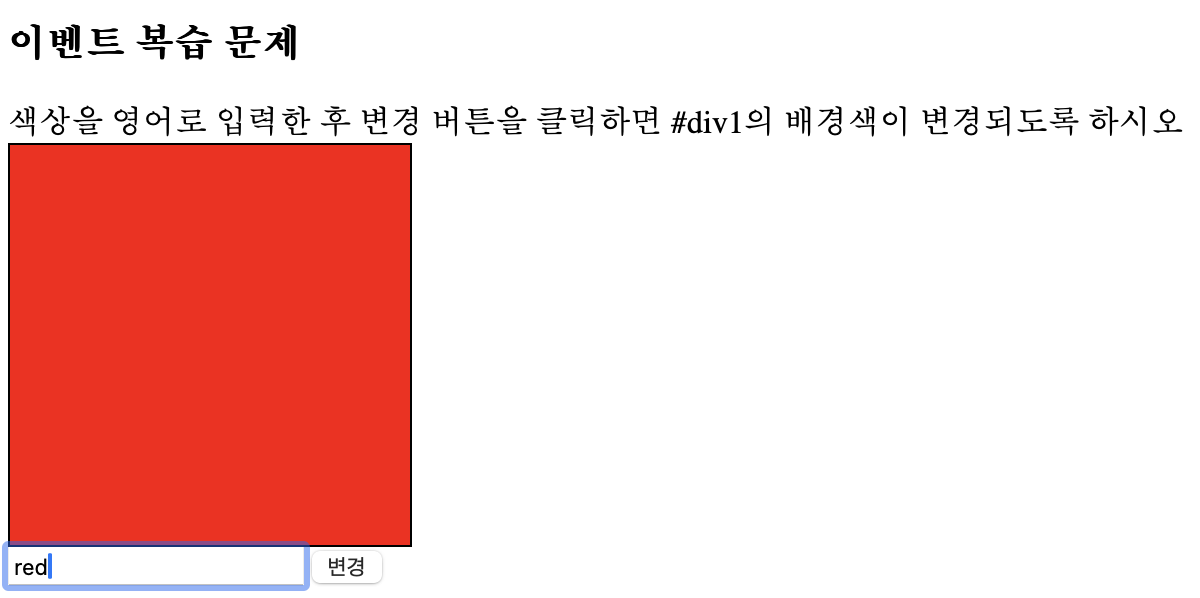
div1.style.backgroundColor = this.value;
this.value = "";
})
// a 태그 기본 이벤트 제거
document.getElementById("moveNaver").addEventListener("click", function(e){
// 매개변수 e 또는 event = 이벤트 발생 객체
// (이벤트와 관련된 정보가 담겨있는 객체)
e.preventDefault(); // HTML 요소가 가지고 있는 기본 이벤트를 막음(예방)
// prevent : 막다, 방지하다, 예방하다
// Default : 기본 / 기본값
})
// form 태그 기본 이벤트 제거
// 방법1. submit 버튼을 사용 안 하는 방법
document.getElementById("testBtn1").addEventListener("click", function(){
// #in1의 입력값 얻어오기
const in1 = document.getElementById("in1").value;
// #in1에 작성된 값이 "제출"인 경우 testForm1을 submit
if(in1 == "제출"){
// ** form 태그에 name 속성이 있을 경우 직접 선택이 가능
// document.form태그의 name속성값
// ** form요소.submit() : form요소 제출 함수
document.testForm1.submit(); // 클릭인데 엔터도 되네....
}
})
// 방법2. onsubmit을 이용해서 form 태그 제출되는 것을 막는 방법
function checkIn2(){
// #in2에 "제출"이 입력된 경우만 submit(return true);
const in2 = document.getElementById("in2").value;
if(in2 == "제출"){
return true;
} else {
return false;
}
}1️⃣ 인라인 이벤트 모델
요소 내부에 이벤트를 작성하는 방법으로 on이벤트명 = 함수명() 형태로 작성함
<h3>인라인 이벤트 모델</h3>

<button onclick="test1(this)">인라인 이벤트 모델 확인</button>
2️⃣ 고전 이벤트 모델
요소가 가지고 있는 이벤트 속성(이벤트 리스너)에 이벤트 핸들러를 연결하는 방법으로
인라인 모델처럼 HTML 요소에 JS 코드가 포함되는 것이 아닌 script에만 이벤트 관련 코드를 작성할 수 있다.
<h3>고전 이벤트 모델</h3>

<button id="test2-1">고전 이벤트 모델 확인</button>
<button id="test2-2">test2-1 이벤트 제거</button>
<button id="test2-3">고전 이벤트 모델의 단점</button>

3️⃣ 표준 이벤트 모델
W3C (HTML, CSS, JS 웹 표준 지정 단체)에서 공식적으로 지정한 이벤트 모델(이벤트 동작 지정 방법)
한 요소에 여러 이벤트 핸들러를 설정할 수 있다.
→ 고전 이벤트 모델 단점 보완
<h3>표준 이벤트 모델</h3>

<div id="test3">클릭하면 크기가 늘어나요~</div>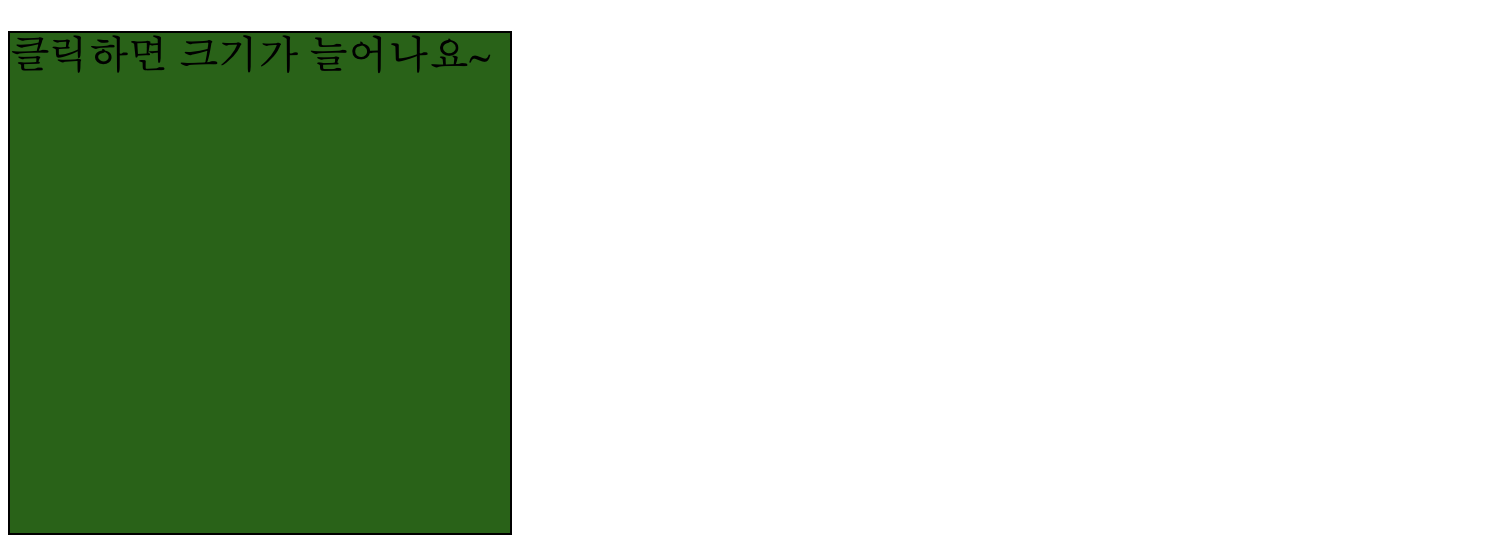
4️⃣ 이벤트 복습 문제
<h3>이벤트 복습 문제</h3>

색상을 영어로 입력한 후 변경 버튼을 클릭하면 #div1의 배경색이 변경되도록 하시오

<div id="div1"></div>

<input type="text" id="input1">

<button id="changeBtn1">변경</button>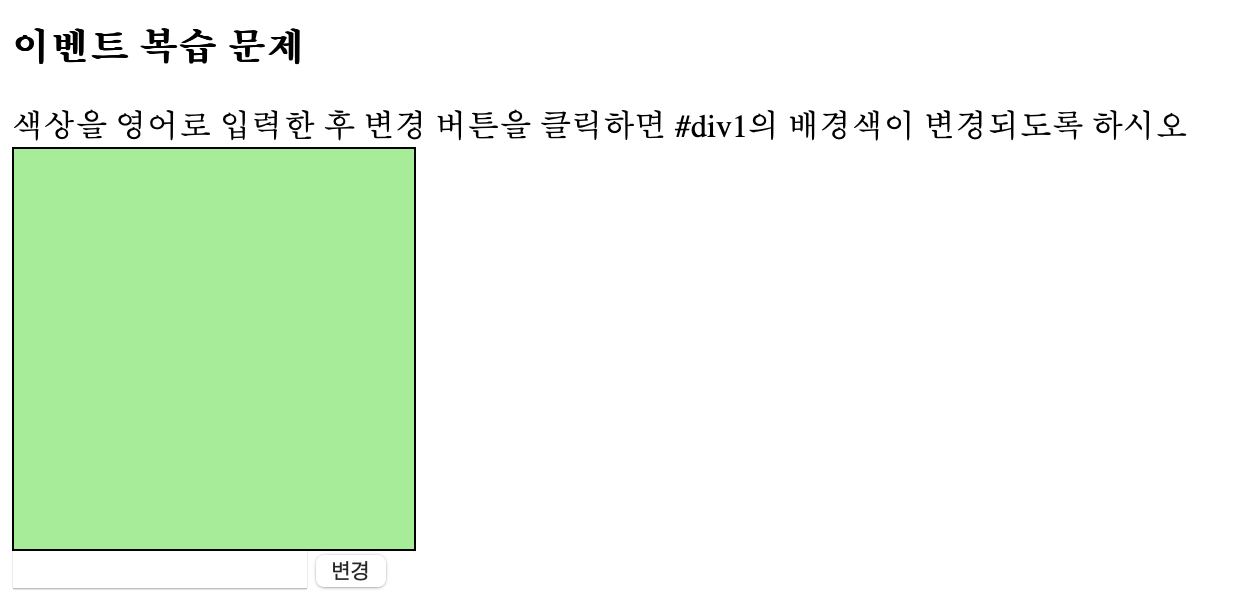
HTML 요소 기본 이벤트 제거
<h1>HTML 요소 기본 이벤트 제거</h1>

<h3>a태그 기본 이벤트 제거</h3>
<a href="https://www.naver.com" id="moveNaver">네이버로 이동</a>
form 태그 기본 이벤트 제거
- 방법 1. submit 버튼을 사용 안 하는 방법
<h3>form 태그 기본 이벤트 제거</h3>
<!-- 내부에서 submit 버튼이 클릭되면 action 경로로 제출 -->

<h4>방법 1. submit 버튼을 사용 안 하는 방법</h4>
<form action="01_js개요.html" name="testForm1">
  "제출" 이라고 입력 되었을 때만 버튼이 submit으로 동작<br>
  입력 : <input type="text" name="in1" id="in1">

  <button type="button" id="testBtn1">제출하기</button>
</form>

- 방법2. onsubmit을 이용해서 form 태그 제출되는 것을 막는 방법
<h4>방법2. onsubmit을 이용해서 form 태그 제출되는 것을 막는 방법</h4>
<!--
        onsubmit : form 태그가 제출이 되었을 떄
                  -> 제출하기 버튼이 클릭되었을 때를 의미
        onsubmit = "return false"
        -> submit을 막는 방법
     -->

<form action="01_js개요.html" onsubmit="return checkIn2()">

  "제출" 이라고 입력 되었을 때만 버튼이 submit으로 동작<br>

  입력 : <input type="text" name="in2" id="in2">

  <button type="submit">제출하기</button>
</form>

전체코드
<!DOCTYPE html>
<html lang="en">

<head>
    <meta charset="UTF-8">
    <meta name="viewport" content="width=device-width, initial-scale=1.0">
    <title>06_이벤트</title>

    <style>
        #test3 {
            width: 200px;
            height: 200px;
            border: 1px solid black;
            background-color: darkgreen;
            cursor: pointer;
        }

        /* 연습문제 */
        #div1 {
            width: 200px;
            height: 200px;
            border: 1px solid black;
            background-color: lightgreen;
        }
    </style>

</head>

<body>

    <h1>이벤트(Event)</h1>

    <pre>
        이벤트(Event): 동작, 행위
        -> 브라우저에서의 동작, 행위 : click, keydown, keyup, mouseover, drag, submit, change, ...

        이벤트 리스너(Event Listener)
        -> 이벤트가 발생하는 것을 대기하고 있다가
           이벤트가 발생하는 것이 감지되면 연결된 기능(함수)를 수행하는 것

           ex) onclick, onkeyup, onchange, onsubmit ... (on 이벤트명)

           onclick-"함수명()";

        이벤트 핸들러(Event Handler)
        -> 이벤트 리스너에 연결된 기능으로
           이벤트 발생 시 수행하고자 하는 내용을 작성해둔 함수(function)
    </pre>

    <hr>

    <h3>인라인 이벤트 모델</h3>
    <pre>
        요소 내부에 이벤트를 작성하는 방법으로
        on이벤트명 = 함수명() 형태로 작성함
    </pre>

    <button onclick="test1(this)">인라인 이벤트 모델 확인</button>

    <hr>

    <h3>고전 이벤트 모델</h3>
    <pre>
        요소가 가지고 있는 이벤트 속성(이벤트 리스너)에
        이벤트 핸들러를 연결하는 방법으로

        인라인 모델처럼 HTML 요소에 JS 코드가 포함되는 것이 아닌
        script에만 이벤트 관련 코드를 작성할 수 있다.
    </pre>
    <button id="test2-1">고전 이벤트 모델 확인</button>
    <button id="test2-2">test2-1 이벤트 제거</button>
    <button id="test2-3">고전 이벤트 모델의 단점</button>
    <hr>

    <h3>표준 이벤트 모델</h3>

    <pre>
        - W3C (HTML, CSS, JS 웹 표준 지정 단체)에서
          공식적으로 지정한 이벤트 모델(이벤트 동작 지정 방법)

        - 한 요소에 여러 이벤트 핸들러를 설정할 수 있다.
            -> 고전 이벤트 모델 단점 보완
    </pre>

    <div id="test3">클릭하면 크기가 늘어나요~</div>

    <hr>

    <h3>이벤트 복습 문제</h3>

    색상을 영어로 입력한 후 변경 버튼을 클릭하면 #div1의 배경색이 변경되도록 하시오

    <div id="div1"></div>

    <input type="text" id="input1">

    <button id="changeBtn1">변경</button>

    <hr>

    <h1>HTML 요소 기본 이벤트 제거</h1>

    <h3>a태그 기본 이벤트 제거</h3>
    <a href="https://www.naver.com" id="moveNaver">네이버로 이동</a>

    <hr>

    <h3>form 태그 기본 이벤트 제거</h3>
    <!-- 내부에서 submit 버튼이 클릭되면 action 경로로 제출 -->

    <h4>방법 1. submit 버튼을 사용 안 하는 방법</h4>
    <form action="01_js개요.html" name="testForm1">
        "제출" 이라고 입력 되었을 때만 버튼이 submit으로 동작<br>
        입력 : <input type="text" name="in1" id="in1">

        <button type="button" id="testBtn1">제출하기</button>
    </form>

    <hr>

    <h4>방법2. onsubmit을 이용해서 form 태그 제출되는 것을 막는 방법</h4>
    <!--
        onsubmit : form 태그가 제출이 되었을 떄
                  -> 제출하기 버튼이 클릭되었을 때를 의미
        onsubmit = "return false"
        -> submit을 막는 방법
     -->

    <form action="01_js개요.html" onsubmit="return checkIn2()">

        "제출" 이라고 입력 되었을 때만 버튼이 submit으로 동작<br>

        입력 : <input type="text" name="in2" id="in2">

        <button type="submit">제출하기</button>
    </form>


    <!--
        * JS 코드를 body태그 마지막에 작성하는 이유
        1. 고전/표준 이벤트 모델 방식의 코드 수행을 위해
           (HTML 요소 먼저 랜더링 -> JS 코드 해석)

        2. head에 용량이 큰 JS를 추가하면
           페이지 로딩 시간(흰 화면)이 길어지게 된다.

           -> body 마지막으로 옮기면
              일단 화면부터 랜더링 후 JS 코드를 나중에 해석한다.
     -->
    <script src="js/06_이벤트.js"></script>
</body>

</html>
Hello! My Name is oYJo