개요
최근 진행하던 동아리 프로젝트에 사용하지 않는 에셋들이 너무 많아 무거워졌습니다.
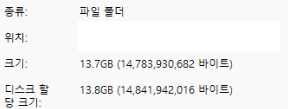
에셋을 임포트 한 후에 바로 지우지 않다보니 프로젝트 하나에 13기가를 차지하고 있었습니다.
이번에는 에셋들의 의존관계를 통해 사용되는 에셋과 사용되지 않는 에셋을 구분하고, 사용되지 않는 에셋을 삭제하는 툴을 만들어보겠습니다.
구현
우선, 유니티에서는 AssetDatabase 클래스에서 GetAllAssetPaths 함수를 제공합니다.
extern 함수라 그런진 몰라도 document 에는 나오지 않습니다.

해당 함수는 모든 에셋의 경로들을 string 배열로 가져옵니다.
또 AssetDatabase 에는 GetDependencies 라는 함수도 있습니다.
이 문서를 보면, pathName 을 파라미터로 받아서 해당 위치에 있는 에셋에 의존관계가 있는 에셋들의 경로를 string 배열로 반환합니다.
다행히도 Scene 도 에셋이고, Building Settings 에 있는 모든 Scene의 의존하는 에셋들을 구한 후에 위의 GetAllAssetPaths 로 구한 string 배열에서 제외하면 될 것 같습니다.
        private void FindUnusedAssets()
        {
            unusedAssets.Clear();

            string[] allAssets = AssetDatabase.GetAllAssetPaths();
            HashSet<string> referencedAssets = new HashSet<string>();

            // BuildSettings 에 있는 Scene들을 순회하며 Dependency 파악
            foreach (var scene in EditorBuildSettings.scenes)
            {
                if (scene.enabled)
                {
                    string[] dependencies = AssetDatabase.GetDependencies(scene.path, true);
                    foreach (var dependency in dependencies)
                    {
                        referencedAssets.Add(dependency);
                    }
                }
            }

            long fileSize = 0;
            foreach (var asset in allAssets)
            {
                if (!asset.StartsWith("Assets/"))       continue;	// Asset으로 시작하지 않는 경로 제외
                if (AssetDatabase.IsValidFolder(asset)) continue;	// 유효하지 않은 경로 제외

                if (!referencedAssets.Contains(asset))				// 이미 있는 경로 제외
                {
                    unusedAssets.Add(asset);
                    FileInfo info = new FileInfo(asset);
					fileSize += info.Length;
                }
            }

			for (int i = 0; i < unusedAssets.Count; i++)			// 결과 출력
			{
				Debug.Log(unusedAssets[i]);
			}

			Debug.Log($"Found {unusedAssets.Count} unused assets.");
			Debug.Log($"You can save {fileSize/1e6:f2}MB!");
        }
가지고있는 에셋들로 간단한 데모씬을 만들어주고 실행해보겠습니다.
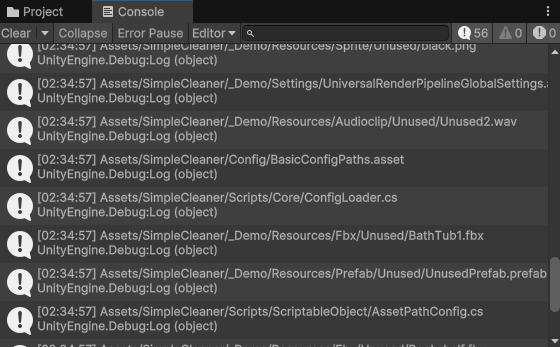
Unused 폴더 아래에 있는 에셋들을 추적하기는 하지만, Scene에 종속적이지 않은 에셋들 또한 지우는 대상에 들어가있습니다.
예를 들어 Settings/URPGloablSettings 는 ProjectSettings에 종속되어있고, .cs 파일들의 경우에는 어느곳에도 종속되지 않아 지우려고 하고있습니다.
따라서, 특정 경로에 있거나 특정 확장자를 가진 에셋들을 제외시켜주어야 합니다.
Asset Path Config
    [CreateAssetMenu(menuName = "Asset Path Configuration")]
    public class AssetPathConfig : ScriptableObject
    {
        public List<string> includePaths;
        public List<string> excludePaths;
        public List<string> excludeExtention;
    }
위와 같이 ScriptableObject 를 선언하여 Configuration을 할 파일을 만들고 Load하는 함수도 만들어줍니다.
        /// <summary>
        /// Return ONLY 1 SO
        /// </summary>
        public static AssetPathConfig LoadAssetPathSO()
        {
            List<AssetPathConfig> scriptableObjects = new List<AssetPathConfig>();

			// type : AssetPathConfig
			string[] guids = AssetDatabase.FindAssets("t:AssetPathConfig", new[] { SimpleCleaner.Util.Constants.PATH_CONFIG });
            scriptableObjects.Clear();

            foreach (string guid in guids)
            {
                string assetPath = AssetDatabase.GUIDToAssetPath(guid);
                AssetPathConfig asset = AssetDatabase.LoadAssetAtPath<AssetPathConfig>(assetPath);
                if (asset != null)
                {
                    scriptableObjects.Add(asset);
                }
            }

            if (scriptableObjects.Count <= 0)
            {
                Debug.LogError("There is no configure SO!");
                return null;
            }
            return scriptableObjects[0];
        }
이제 해당 함수를 호출하면 Config SO 를 얻을 수 있습니다.
		/// <summary>
		/// Get paths and
		///  filter according to Include/Exclude paths and extentions.
		/// </summary>
		public static void FilterPaths(ref string[] paths)
		{
			/** Filter Paths  **/

			AssetPathConfig pathConfig = ConfigLoader.LoadAssetPathSO();

			// Filter - Include paths
			List<string> filteredPaths = paths
				.Where(path => pathConfig.includePaths.Any(include => path.StartsWith(include, System.StringComparison.OrdinalIgnoreCase)))
				.ToList();

			// Filter - Exclude paths
			filteredPaths.RemoveAll(path => pathConfig.excludePaths.Any(exclude => path.StartsWith(exclude, System.StringComparison.OrdinalIgnoreCase)));

			/** Filter Extentions **/

			filteredPaths.RemoveAll(path => pathConfig.excludeExtention.Any(exclude => path.EndsWith(exclude, System.StringComparison.OrdinalIgnoreCase)));

			paths = filteredPaths.ToArray();
			return;
		}
해당 함수를 통해 SO를 받아오고, LINQ 와 List 함수를 통해 경로들을 필터링하는 함수를 만들면 끝입니다.
테스트
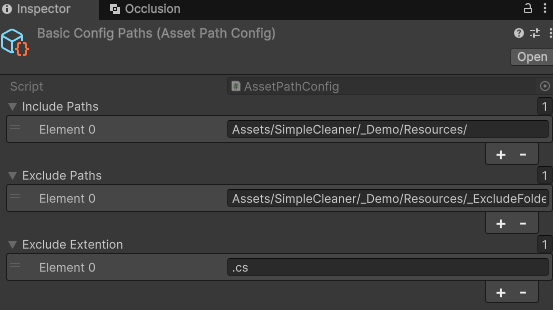
AssetConfig 를 위와같이 설정해주고 테스트 해보면,
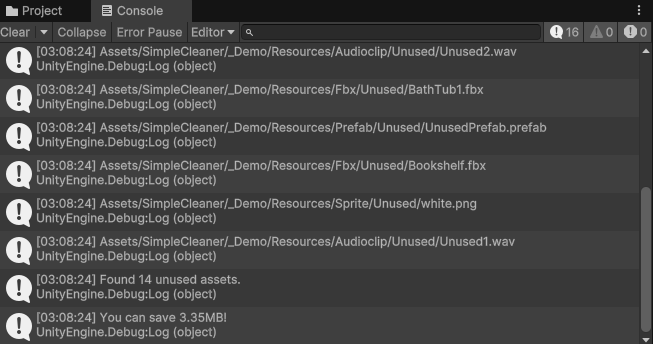
Resources 폴더 안에있는 에셋 중에서 _ExcludeFoler와 .cs 확장자를 제외한 에셋들만 출력되는 것을 확인할 수 있습니다.
마무리
.cs 파일의 경우 아예 제외시키지 않아도 될 수 있습니다.

위와 같이, IDE 에서 제공하는 기능인 참조 기능을 코드에서 사용할 수 있다면, cs 파일간의 의존관계를 파악하여 사용되지 않는 파일을 구분할 수 있습니다.
또한 씬을 파라미터로 GetDependencies 를 호출하기 때문에, Resources.Load 와 같이 동적으로 에셋을 로드하는 경우는 추적하지 못합니다. 즉, 지우고 난 뒤에 게임을 실행하면 nullException 이 발생하게 됩니다.
- 에셋 번들을 사용하는 경우, 에셋 번들로부터 Dependency를 파악합니다.
- 그렇지 않은 경우에는 게임을 실행해서 Load되는 에셋들을 추적하거나, 모든 cs파일에서 Load 함수를 찾은 후에 파싱해서 경로를 추적해야 합니다.
다음에는 이번에 구한 경로들을 Editor 상에서 TreeView로 나타내고, Checkbox를 제공해서 삭제할 에셋들을 시각화할 수 있도록 해보겠습니다.
참고자료
https://docs.unity3d.com/6000.0/Documentation/ScriptReference/AssetDatabase.GetDependencies.html
https://learn.microsoft.com/ko-kr/dotnet/api/system.stringcomparison?view=net-7.0