개요
Unity Project 창에 폴더가 많아지면 어떤 에셋을 찾으려고 할 때, 시간이 걸리는 경우가 많습니다. 그래서 저는 폴더에 (혹은 해당 Rect에) 색을 칠해서 가시성을 높이면 좋겠다고 생각했습니다.
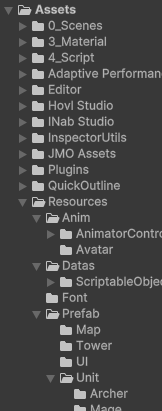
이번에는 Unity 기능을 사용해서 Project 창에 있는 폴더의 색을 커스텀하고 아이콘을 추가할 수 있도록 만들어보겠습니다.
구현
한 가지 주의할 점은, 유니티의 기능중에 해당 아이콘을 직접 변경하는 기능이 없다는 것입니다.
따라서 아이콘을 바꾸는게 아니라, 해당 아이콘 위에 다른 색의 폴더 아이콘을 덧그리는 방식으로 구현해야합니다.
해당 기능을 구현하기 위해서는 다음과 같은 구조가 필요합니다.
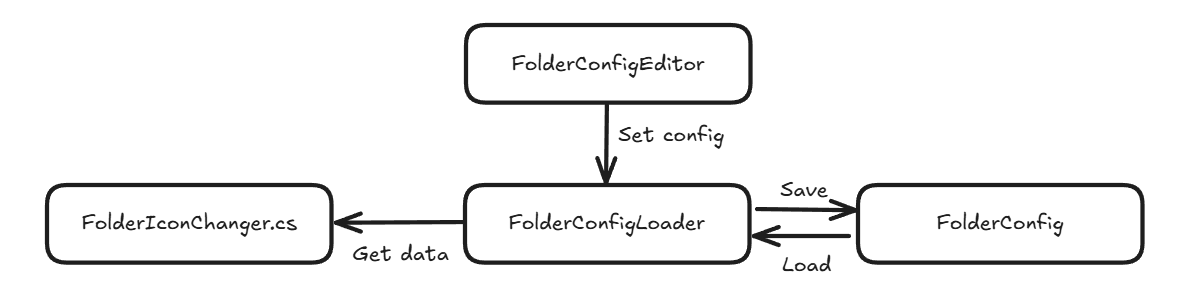
FolderConfig 를 ScriptableObject 로 선언하고, FolderConfigLoader 에서 해당 SO를 로드해두고 있게됩니다.
FolderIconChanger 는 해당 SO를 참조하여 실제 폴더 아이콘을 그리고, FolderConfigEditor 에서는 해당 설정을 바꿀 수 있도록 해보겠습니다.
우선 구현할 부분은 FolderConfig 와 FolderConfigLoader 입니다.
FolderConfig.cs
[System.Serializable]
public class FolderConfigElement
{
	public string Path = string.Empty;							// 폴더 경로
	public FolderColorType ColorType = FolderColorType.None;	// 폴더 색상
	public FolderIconType IconType = FolderIconType.None;		// 폴더 아이콘
	public Color CustomFolderColor = Color.white;				// 커스텀 색상

	public FolderConfigElement(string path)
	{
		Path = path;
	}
}

[CreateAssetMenu(fileName = "FolderConfig", menuName = "IUtil/FolderConfig")]
public class FolderConfig : ScriptableObject
{
	public List<FolderConfigElement> Elements = new();
}
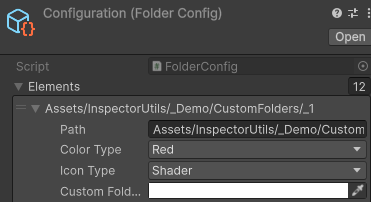
하나의 SO에 정보를 저장하기 위해 FolderConfigElement 에 필요한 정보들을 저장해주고, SO에는 해당 Element를 List를 가지고있도록 합니다.
FolderConfigLoader 에서 해당 SO 정보를 로드/세이브 할 수 있도록 하겠습니다.
FolderConfigLoader.cs
해당 Static 클래스는 InitializeOnLoad 어트리뷰트와 함께 선언합니다.
관련 내용은 해당 링크에서 확인하실 수 있습니다.
Static constructors with this attribute are called when scripts in the project are recompiled (also known as a Domain Reload).
처음 유니티를 키거나, recompile 할 때 해당 static 생성자가 호출됩니다.
    [InitializeOnLoad]
    public static class FolderConfigLoader
    {
        public static Dictionary<string, FolderConfigElement> ConfigDict { get; private set; } = new();
        public static Dictionary<FolderColorType, Texture2D> ColoredFolders { get; private set; } = new();
        public static Dictionary<FolderIconType, Texture2D> Icons { get; private set; } = new();
        private static FolderConfig configSO = null;

		static FolderConfigLoader()
        {
            LoadAll();

            EditorApplication.projectChanged -= LoadAll;
            EditorApplication.projectChanged += LoadAll;
        }

        public static void SaveAll()
        {
            if (configSO == null) return;
			ConfigDict = ConfigDict
	            .Where(kv => AssetDatabase.IsValidFolder(kv.Key))
	            .ToDictionary(kv => kv.Key, kv => kv.Value);

			configSO.Elements = ConfigDict.Values.ToList();

			EditorUtility.SetDirty(configSO);
			AssetDatabase.SaveAssets();
			AssetDatabase.Refresh();
		}

        public static void LoadAll()
        {
			RefreshConfigs();
            LoadFolderColorTextures();
            LoadIconTextures();
        }


        private static void RefreshConfigs()
        {
            ConfigDict.Clear();
			configSO = AssetDatabase.LoadAssetAtPath<FolderConfig>(Constants.PATH_FOLDER_CONFIG);

            if (configSO == null)
            {
                IUtilDebug.ConfigurationNullError("Folder Config", Constants.PATH_FOLDER_CONFIG);
                return;
            }
			foreach (var entry in configSO.Elements)
			{
                if (!AssetDatabase.IsValidFolder(entry.Path)) continue;
				if (entry != null && !string.IsNullOrEmpty(entry.Path))
                {
                    ConfigDict[entry.Path] = entry;
                }
			}
		}

        private static void LoadFolderColorTextures()
        {
            ColoredFolders.Clear();

            foreach (FolderColorType colorType in System.Enum.GetValues(typeof(FolderColorType)))
            {
                if (colorType == FolderColorType.None)
                    continue;

                string fileName = colorType.ToString();
                string[] guids = AssetDatabase.FindAssets($"{fileName} t:Texture2D", new[] { Constants.PATH_FOLDER_TEXTURE });

                if (guids.Length > 0)
                {
                    string path = AssetDatabase.GUIDToAssetPath(guids[0]);
                    Texture2D texture = AssetDatabase.LoadAssetAtPath<Texture2D>(path);

                    if (texture != null)
                    {
                        ColoredFolders[colorType] = texture;
                    }
                }
            }
        }
        private static void LoadIconTextures()
        {
            Icons.Clear();

            foreach (FolderIconType iconType in System.Enum.GetValues(typeof(FolderIconType)))
            {
                if (iconType < 0)
                    continue;

                Icons[iconType] = EditorGUIUtility.IconContent(iconType.GetIconName()).image as Texture2D;
            }
        }
    // ...

}
EditorApplication.projectChanged 콜백함수는 해당 링크를 참고하시면 됩니다.
LoadAll 함수에서는 세 개의 함수를 호출하고있지만, 전부 데이터를 Dictionary 로 저장해두기 위한 함수들입니다.
각 폴더에 대한 정보는 FolderConfig SO에서 받아오고,
폴더의 색상에 대한 Texture는 미리 만들어둔 Texture 들을 로드합니다.
폴더에 추가할 아이콘같은 경우에는 EditorGUIUtility 에서 받아서 저장하도록 했습니다.
SaveAll 함수는 ConfigDict 를 다시 List로 변환한 후에 저장해주도록 합니다.
에셋을 저장할 때에는 SetDirty를 통해 변경사항이 있다는걸 알려야 저장이 되므로 주의해야 합니다.
이제 외부에서 사용할 수 있도록 Getter/Setter 들을 만들어주도록 하겠습니다.
        /// <summary>
        /// Save path info in Scriptable Object,
        ///     and Re-Load all.
        /// </summary>
        public static void SetCustomFolderConfig<T>(string path, int idx) where T : Enum
        {
            if (!ConfigDict.ContainsKey(path)) ConfigDict[path] = new FolderConfigElement(path);
            if (typeof(T) == typeof(FolderIconType)) ConfigDict[path].IconType = (FolderIconType)idx;
            if (typeof(T) == typeof(FolderColorType)) ConfigDict[path].ColorType = (FolderColorType)idx;

            SaveAll();
            LoadAll();
		}

        /// <summary>
        /// Save folder color in Scriptable Object,
        ///     and Re-Load all.
        /// </summary>
        public static void SetCustomFolderColor(string path, Color color)
        {
            if (!ConfigDict.ContainsKey(path)) ConfigDict[path] = new FolderConfigElement(path);
            ConfigDict[path].CustomFolderColor = color;

            SaveAll();
            LoadAll();
        }

        /// <summary>
        /// Get FolderConfigElement by folder path
        /// </summary>
        public static FolderConfigElement GetFolderConfigElement(string path)
        {
            if (!ConfigDict.ContainsKey(path)) return null;
            return ConfigDict[path];
        }

        /// <summary>
        /// Remove folder config element by folder path
        /// </summary>
        public static void ResetCustom(string path)
        {
            if (!ConfigDict.ContainsKey(path)) return;
            ConfigDict.Remove(path);

			SaveAll();
			LoadAll();
		}
안전하게하기 위해 Dictionary 접근 전에는 항상 Dictionary에 값이 있는지 확인해야합니다.
Setter는 끝에 SaveAll, LoadAll 을 호출하여 바로 SO에 저장할 수 있도록 했습니다.
마무리
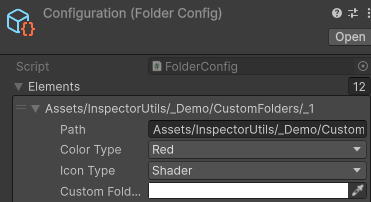
FolderConfig를 저장하고, 이를 컨트롤 할 수 있는 FolderConfigLoader 까지 만들었습니다.
이제 Editor를 통해 Config를 수정할 수 있도록 해보겠습니다.
참고자료
https://docs.unity3d.com/6000.1/Documentation/ScriptReference/EditorApplication-projectChanged.html
https://docs.unity3d.com/ScriptReference/InitializeOnLoadAttribute.html