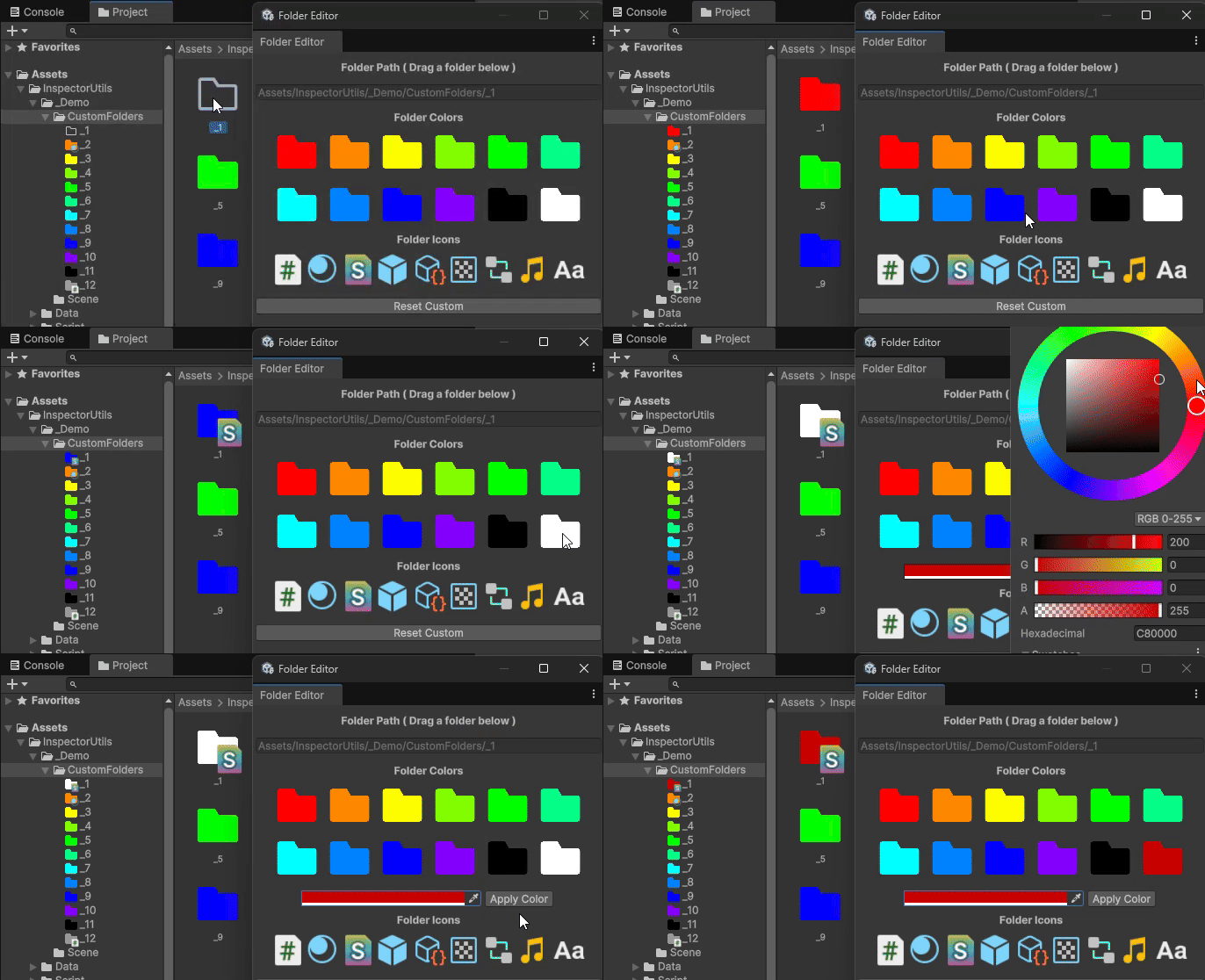
개요
저번에 Config파일을 수정하는 기능을 만들었으니, 이번에는 해당 Config파일을 참조하여 실제 폴더 색을 변경해보도록 하겠습니다.
구현
	[InitializeOnLoad]
	public class FolderIconChanger
	{
		static FolderIconChanger()
		{
			EditorApplication.projectWindowItemOnGUI -= HandleProjectWindowItemOnGUI;
			EditorApplication.projectWindowItemOnGUI += HandleProjectWindowItemOnGUI;
		}

        //...
	}
EditorApplication.projectWindowItemOnGUI 는 해당 문서에서 확인하실 수 있습니다.
Delegate for OnGUI events for every visible list item in the ProjectWindow.
ProjectWindow에 모든 보이는 아이템에 대해서 해당 Callback이 실행됩니다.
만약 콜백함수를 사용할 때 파라미터를 어떻게 해야할지 모르겠다면, F12 를 통해 Delegate선언을 확인하면 됩니다.
만약 projectWindowItemOnGUI 에 마우스를 두고 F12를 누르면 대리자가 선언된 곳을 찾을 수 있고,

한번 더 ~Callback 에 마우스를 두고 F12를 누르면 Delegate가 선언된 곳을 확인하실 수 있습니다.
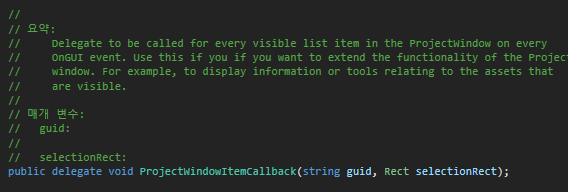
파라미터를 보면 string와 Rect이므로 이를 고려하여 콜백 함수를 적어주면 됩니다.
		private static void HandleProjectWindowItemOnGUI(string guid, Rect rect)
		{
			string path = AssetDatabase.GUIDToAssetPath(guid);
			if (path == "Assets" || path == "Assets/") return;	// Assets 폴더는 제외

			Rect imageRect;
			Rect additionalRect;

			if (rect.height > 20)	// Window 우측 아이콘이 최소화 되지 않은 경우
			{
				imageRect = new Rect(rect.x - 1, rect.y - 1, rect.width + 2, rect.width + 2);
			}
			else if(rect.x > 20)	// Window 좌측 Treeview 창
			{
				imageRect = new Rect(rect.x - 1, rect.y - 1, rect.height + 2, rect.height + 2);
			}
			else					// // Window 우측 아이콘이 최소화 된 경우
			{
				imageRect = new Rect(rect.x + 2, rect.y - 1, rect.height + 2, rect.height + 2);
			}

            // 폴더 우측 아래에 아이콘을 그리기 위한 Rect
			additionalRect = new Rect(rect.x + imageRect.width * .4f, rect.y + imageRect.height * .4f, imageRect.width * .6f, imageRect.height * .6f);


			if (AssetDatabase.IsValidFolder(path))
			{
				if (!FolderConfigLoader.ConfigDict.TryGetValue(path, out FolderConfigElement config)) return;

				if (config.ColorType != FolderColorType.None && FolderConfigLoader.ColoredFolders != null)
				{	// 폴더 그리기
					if (config.ColorType == FolderColorType.Custom) GUI.color = config.CustomFolderColor;
					GUI.DrawTexture(imageRect, FolderConfigLoader.ColoredFolders[config.ColorType]);
					GUI.color = Color.white;
				}

                // 아이콘 그리기
				if (config.IconType >= 0 && FolderConfigLoader.Icons != null)
				{
					GUI.DrawTexture(additionalRect, FolderConfigLoader.Icons[config.IconType]);
				}
			}
		}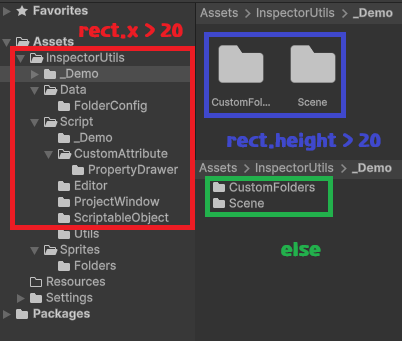
그려야 하는 Rect들의 대략적인 위치를 그림으로 그려보면 위와 같습니다.
rect로 위치를 잡았으니 FolderConfigLoader 에서 유지하고있는 해당 폴더의 ConfigElement 정보를 가져와서 DrawTexture 함수를 통해 그려주면 됩니다.
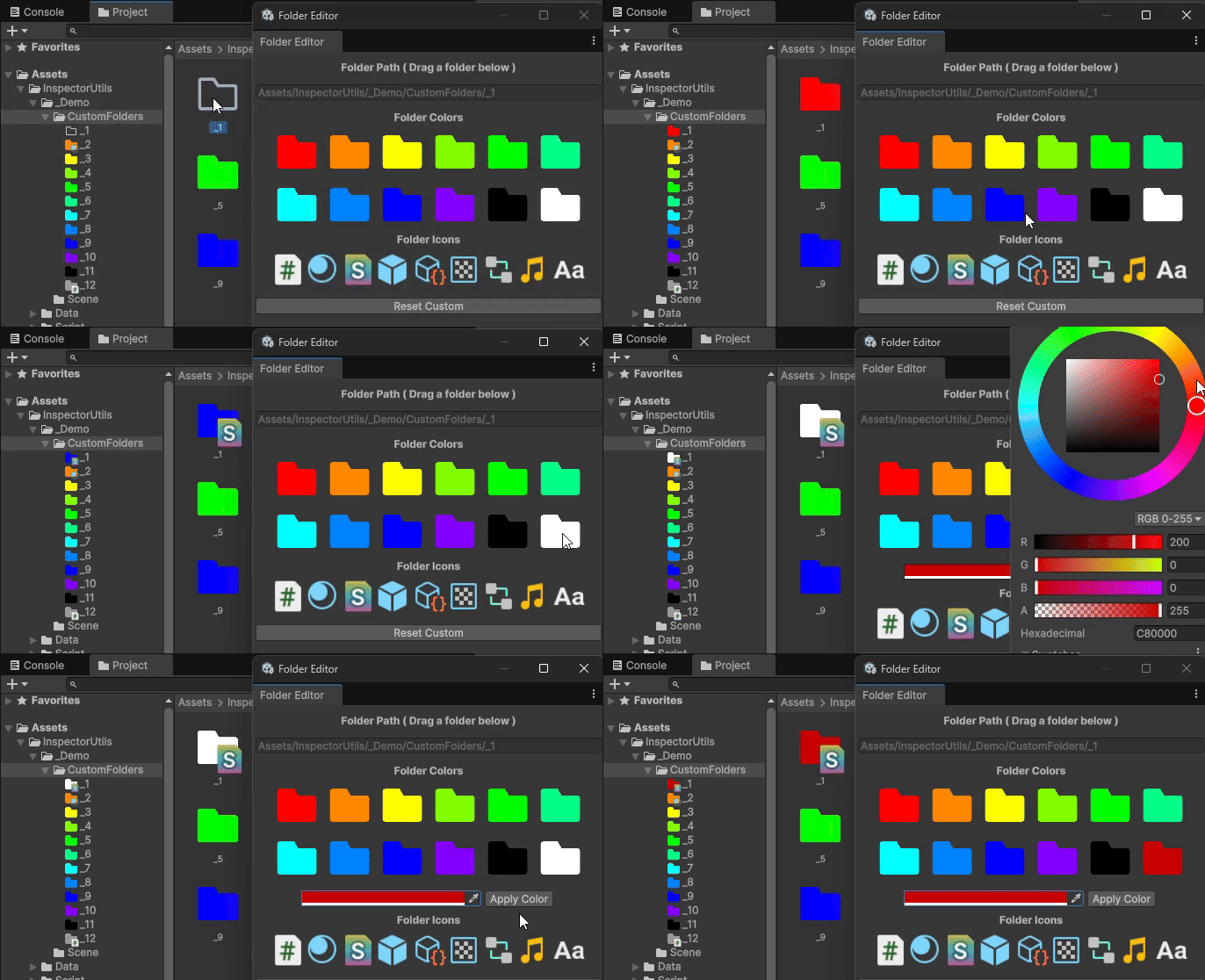
마무리
이렇게 에디터를 통해 Config 파일을 수정하고, ConfigElement를 참조하여 폴더의 색을 바꿔보았습니다.
에디터 관련 기능을 만들 때, 가장 어려운 부분은 "이런 기능을 하는 (콜백)함수가 있나?" 를 찾기가 어렵다는 것입니다.
그럴 때에는 ChatGPT -> Google 검색 -> VisualStudio 자동완성 -> Unity 공식 Document 순으로 찾아보는 것 같습니다.
참고자료
https://docs.unity3d.com/kr/560/ScriptReference/EditorApplication-projectWindowItemOnGUI.html