English with Suits 프로젝트에서 영어 학습에 필수적인 발음 듣기 기능 구현이 필요했다. 처음에는 외부 TTS(Text to Speech) API를 찾아봤었는데, 대부분 비용이 발생하거나 별도의 인증 과정이 필요해서 번거로웠다. 그러던 중, 브라우저 자체에서 텍스트를 음성으로 변환해주는 API를 제공해준다는 사실을 알게되었다! 번거로운 외부 API 연결없이 무료로 브라우저에서 제공해준다니 이보다 좋을수가🎉
실제로 사용해보니 구현도 간편하고 굉장히 다양한 음성 선택지를 제공할 뿐만아니라(브라우저마다 다르긴 하지만) 변환된 음성도 매끄러웠다.
⬇️ 구현된 기능은 여기서 확인할 수 있다 ⬇️
https://english-with-suits.vercel.app/list/1/expressions
Web Speech API
The Web Speech API enables you to incorporate voice data into web apps. The Web Speech API has two parts: SpeechSynthesis (Text-to-Speech), and SpeechRecognition (Asynchronous Speech Recognition.)
Web Speech API는 음성 데이터를 웹 앱에서 처리할 수 있도록 해준다.
이 API는 두 가지 주요 기능을 제공하는데, 첫 번째는 텍스트를 음성으로 변환하는SpeechSynthesis, 두 번째는 음성을 텍스트로 인식하는 SpeechRecognition이다. 그 중 나는 TTS(Text to Speech) 기능 구현이 필요했기 때문에 SpeechSynthesis를 활용했다.
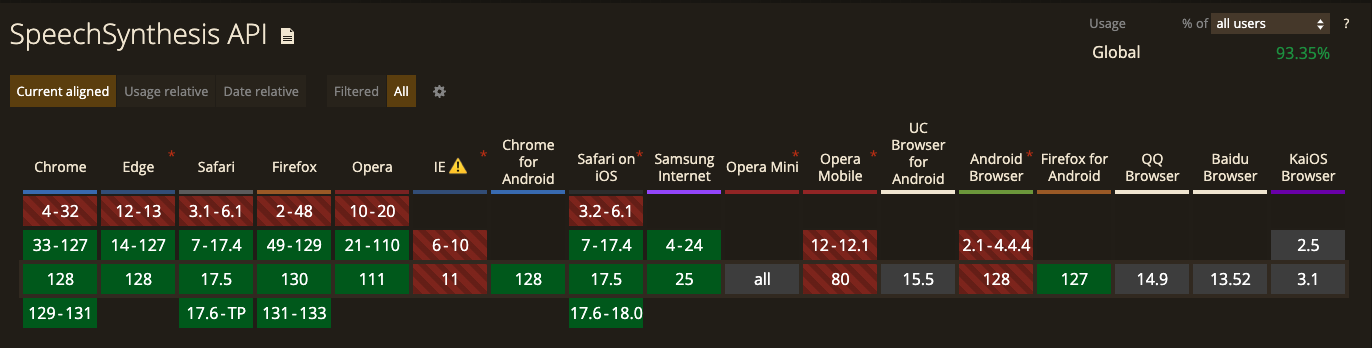
참고로 Web Speech API는 모든 브라우저에서 동일하게 지원되지 않으며, 특히 SpeechSynthesis의 경우 브라우저나 OS에 따라 지원하는 음성이 다를 수 있다. 하지만 Chrome, Edge, Safari 등 주요 브라우저에서 대부분의 기능을 사용할 수 있어 학습용 웹 애플리케이션에는 큰 문제가 되지 않는다.
기능 구현
1. 음성 목록 로드
speechSynthesis.getVoices()메서드를 사용해 사용 가능한 음성 목록을 불러온다. 브라우저가 음성을 준비하는 데 시간이 걸릴 수 있어voiceschanged이벤트 리스너를 통해 음성이 로드되었을 때 다시 불러오도록했다.- (선택사항) 사용 가능한 음성 목록 중, 미국 발음 제공을 위해
voice.lang === "en-US"인 음성들로 필터링 해주었다. - (선택사항) 음성 목록 중 preferredVoices 배열에 명시된 발음이 명확한 음성들을 우선적으로 선택하도록 했다. 음성 목록이 존재하면 첫 번째로 찾은 음성을 초기 설정으로 선택하며, 그렇지 않으면
en-US로 필터링된 음성 중 첫 번째 음성을 선택한다.
const preferredVoices = ["Aaron", "Google US English", "Samantha", "Reed"];
const [voices, setVoices] = useState<SpeechSynthesisVoice[]>([]);

  useEffect(() => {
    const loadVoices = () => {
      // 사용 가능한 음성 목록
      let availableVoices = speechSynthesis.getVoices();

      // 미국 발음 음성 필터링
      const filterAndSetVoices = (voices: SpeechSynthesisVoice[]) => {
        const enUsVoices = voices.filter((voice) => voice.lang === "en-US");
        const uniqueVoices = Array.from(
          new Map(enUsVoices.map((voice) => [voice.name, voice])).values()
        );
        setVoices(uniqueVoices);
        if (uniqueVoices.length > 0) {
          setInitialVoice(uniqueVoices);
        }
      };

      // 브라우저가 음성을 준비하면 다시 불러오기
      if (availableVoices.length === 0) {
        speechSynthesis.addEventListener("voiceschanged", () => {
          availableVoices = speechSynthesis.getVoices();
          filterAndSetVoices(availableVoices);
        });
      } else {
        filterAndSetVoices(availableVoices);
      }
    };

    // 선호 발음 초기 세팅
    const setInitialVoice = (enUsVoices: SpeechSynthesisVoice[]) => {
      for (const voiceName of preferredVoices) {
        const voice = enUsVoices.find((v) => v.name.includes(voiceName));
        if (voice) {
          setSelectedVoice(voice);
          return;
        }
      }
      setSelectedVoice(enUsVoices[0]);
    };

    loadVoices();

    return () => {
      speechSynthesis.removeEventListener("voiceschanged", loadVoices);
    };
  }, []);
2. 음성 선택
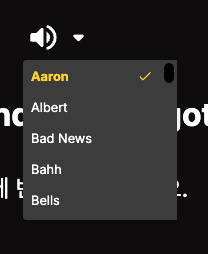
voices 배열에 저장된 음성 중 사용자가 선택할 수 있도록 드롭다운 메뉴를 제공했다.
const [voices, setVoices] = useState<SpeechSynthesisVoice[]>([]);
const [selectedVoice, setSelectedVoice] = useState<SpeechSynthesisVoice | null>(null);
const [isDropdownOpen, setIsDropdownOpen] = useState<boolean>(false);

const handleVoiceChange = (voiceName: string) => {
  const voice = voices.find((v) => v.name === voiceName);
  setSelectedVoice(voice || null);
  setIsDropdownOpen(false);
};

return (
  ...
  <div onClick={() => setIsDropdownOpen(!isDropdownOpen)}>
      <ArrowDropDownRoundedIcon fontSize="large" />
  </div>

  {isDropdownOpen && (
      <div className={styles.voiceOptions}>
          {voices.map((voice) => (
              <div
                  key={voice.name}
                  className={`${styles.voiceOption} ${
                    voice.name === selectedVoice?.name ? styles.selectedVoice : ""
                  }`}
                  onClick={() => handleVoiceChange(voice.name)}
                >
                  {voice.name}
                  {voice.name === selectedVoice?.name && (
                    <DoneRoundedIcon
                      className={styles.checkIcon}
                      fontSize="small"
                    />
                  )}
               </div>
           ))}
      </div>
	)}
	...
)
3. 발음 재생
SpeechSynthesisUtterance객체를 생성하고 객체에 음성(selectedVoice)과 텍스트(currentExpression.en)를 설정한 뒤,speechSynthesis.speak()메서드를 호출해 텍스트를 발음한다.
  const speakExpression = () => {
    if (selectedVoice) {
      const utterance = new SpeechSynthesisUtterance();
      utterance.voice = selectedVoice;
      utterance.text = currentExpression?.en || "";
      speechSynthesis.speak(utterance);
    } else {
      console.log("No voices available.");
    }
  };

return (
  ...
  <div onClick={speakExpression}>
  	<VolumeUpRoundedIcon fontSize="large" />
  </div>
  ...
)