가시다(gasida) 님이 진행하는 AEWS(Amazon EKS Workshop Study) 3기 과정으로 학습한 내용을 정리 또는 실습한 내용을 정리한 게시글입니다. 3주차는 EKS Storage, ManagedNodeGroup을 학습한 내용을 실습하면서 정리하였습니다.
- AWS EFS, Google Filestore를 Persistent Volume으로 사용 시
해당 서비스에 장애 발생 시 SPoF(Single Point of Failure, 시스템 단일 장애지점)이 될 수 있어서 중요 서비스의 경우 고민이 필요로 합니다.- 특히 GCP의 경우 Filestore 등급이 BASIC의 경우 구글측 작업이 있을 경우 가용성을 보장하지 않기 때문에 Pod가 Filestore에 로그 저장 시 Hang이 발생되어 동시에 Pod들이 재기동 될 수 있습니다. 운영기의 경우 Zonal 이상의 등급을 고려하여야 합니다
1. 실습 환경 배포
1.1 구성도
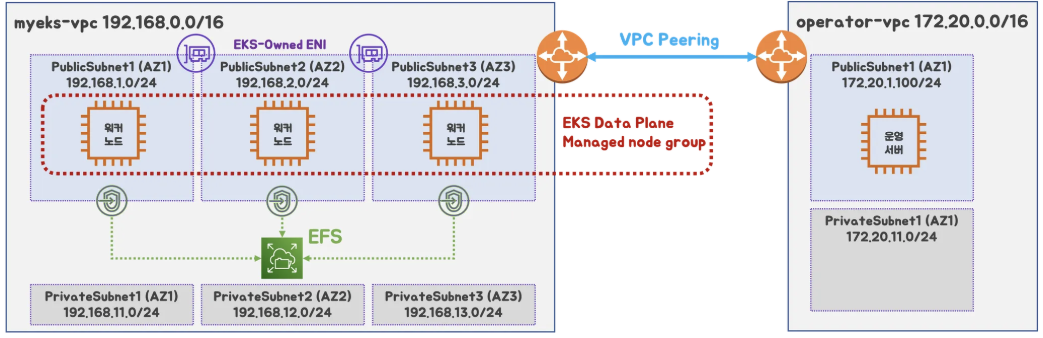
2개의 VPC(EKS 배포, 운영용 구분), myeks-vpc의 public 에 EFS 추가(테스트간 비용절감)
- myeks-vpc에 각기 AZ를 사용하는 퍼블릭/프라이빗 서브넷 배치
- operator-vpc 에 AZ1를 사용하는 퍼블릭/프라이빗 서브넷 배치 : 172.20.1.100 운영서버 EC2 배포
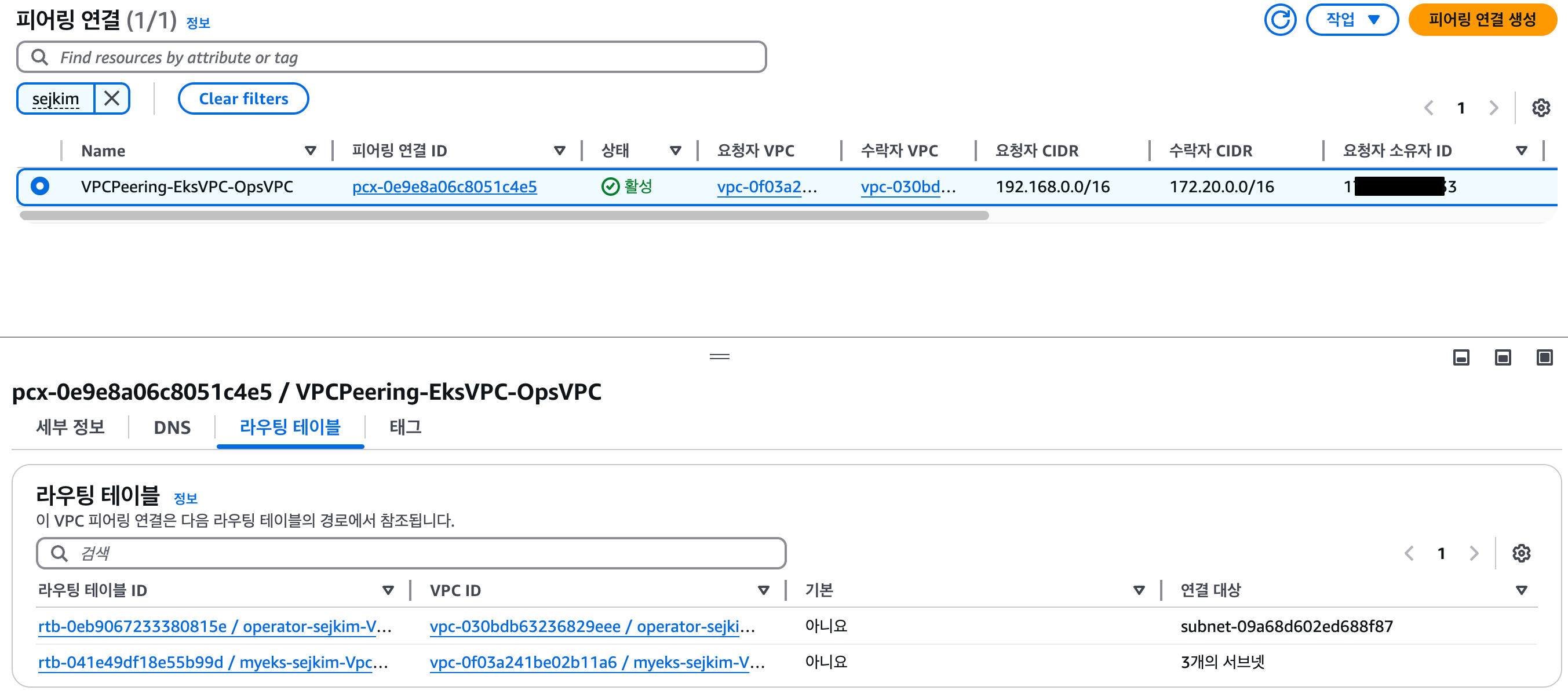
- 내부 통신을 위한 VPC Peering 배치
1.2 AWS CloudFormation을 통해 기본 실습 환경 배포
- CloudFormation 배포
# yaml 파일 다운로드
curl -O https://s3.ap-northeast-2.amazonaws.com/cloudformation.cloudneta.net/K8S/myeks-3week.yaml

# 배포
# aws cloudformation deploy --template-file myeks-3week.yaml --stack-name mykops --parameter-overrides KeyName=<My SSH Keyname> SgIngressSshCidr=<My Home Public IP Address>/32 --region <리전>
예시) aws cloudformation deploy --template-file myeks-3week-sejkim.yaml \
     --stack-name myeks-sejkim --parameter-overrides KeyName=kp-sejkim SgIngressSshCidr=$(curl -s ipinfo.io/ip)/32 --region ap-northeast-2

# CloudFormation 스택 배포 완료 후 운영서버 EC2 IP 출력
aws cloudformation describe-stacks --stack-name myeks-sejkim --query 'Stacks[*].Outputs[*].OutputValue' --output text
예시) 3.38.165.30

# 운영서버 EC2 에 SSH 접속
예시) ssh ec2-user@3.35.137.31
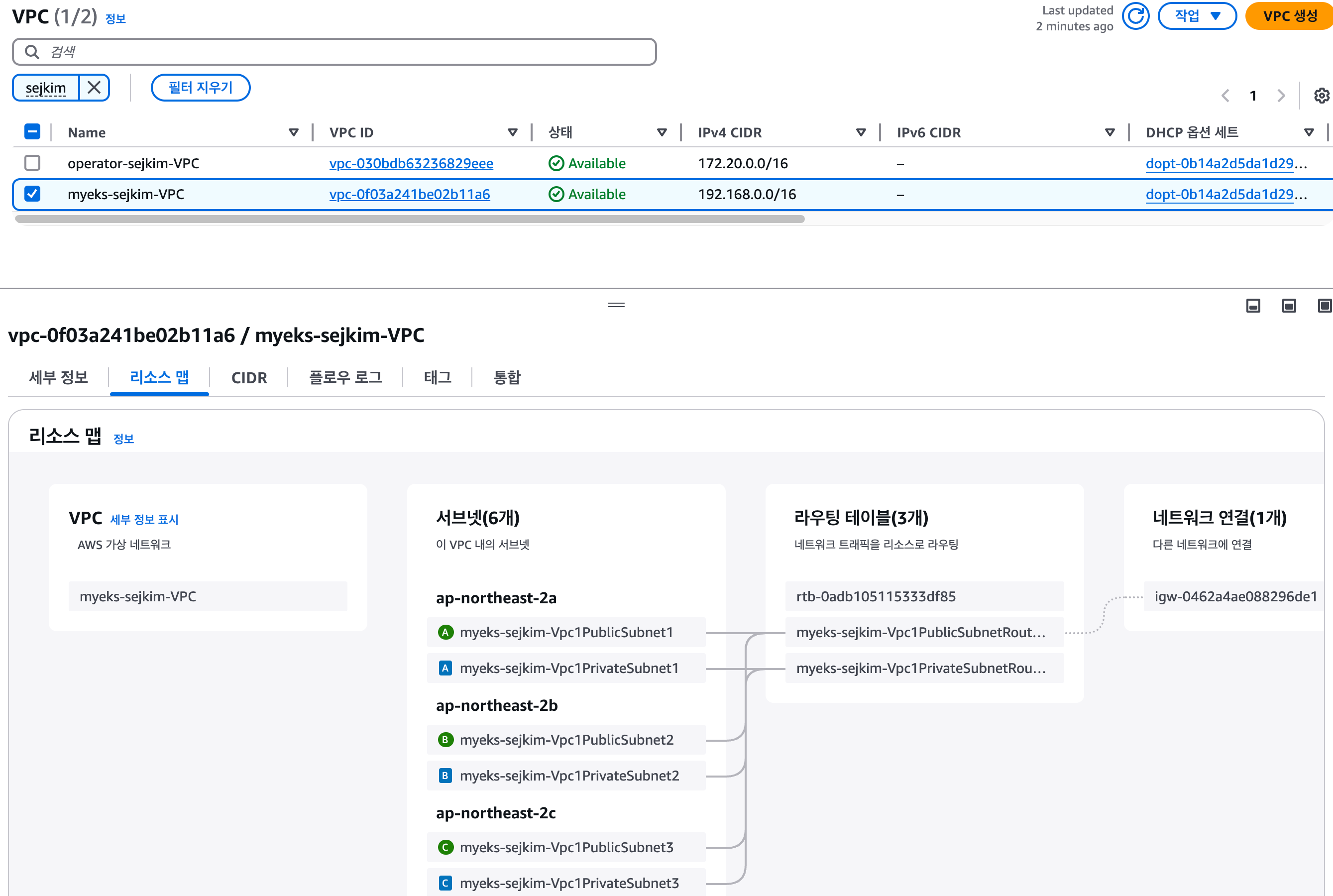
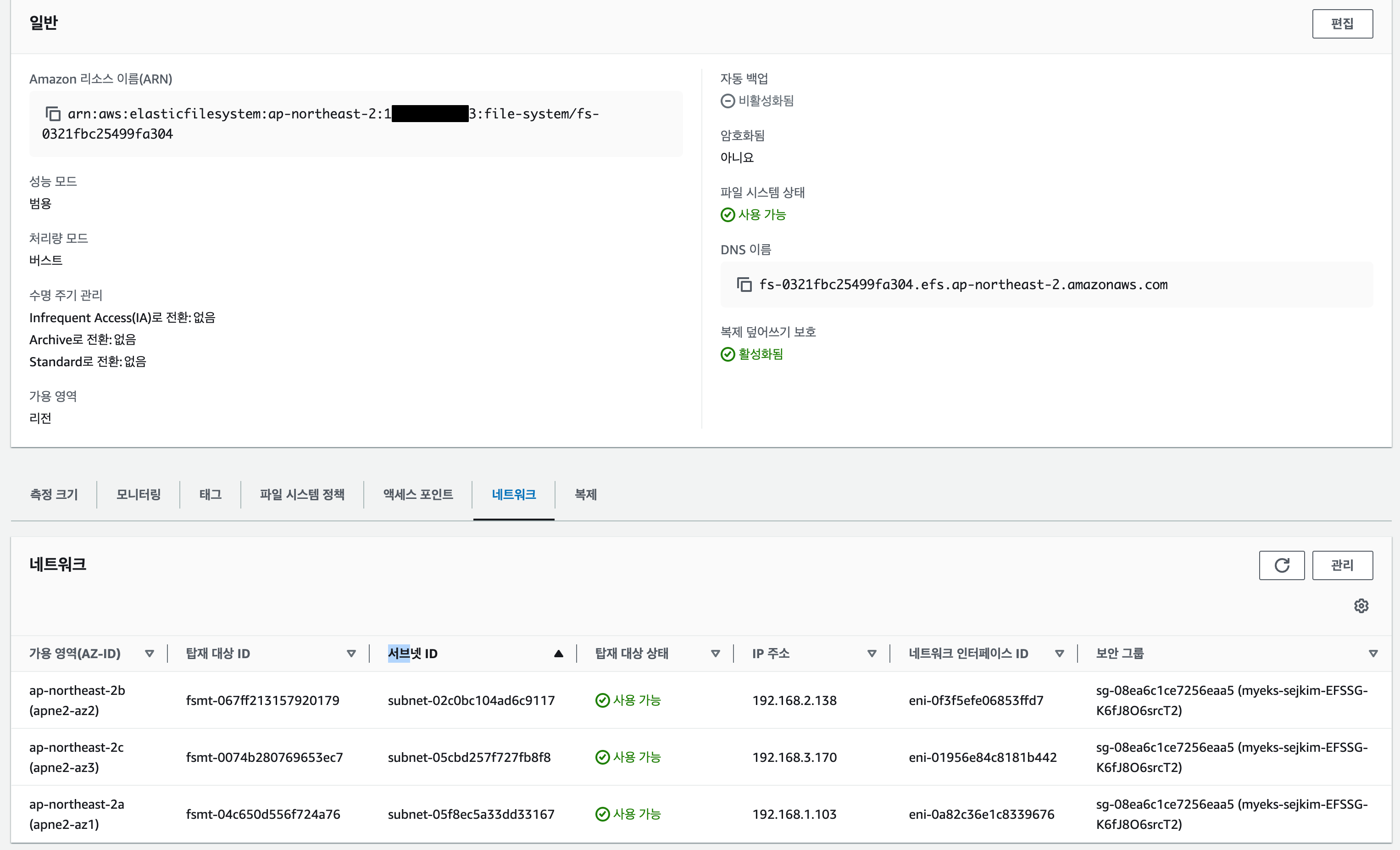
ssh -i ~/.ssh/kp-sejkim.pem ec2-user@$(aws cloudformation describe-stacks --stack-name myeks-sejkim --query 'Stacks[*].Outputs[0].OutputValue' --output text)- 배포된 리소스 정보 확인 : EFS, 운영서버 EC2, VPC(DNS 설정 옵션), VPC Peering, Routing Table
- VPC
- VPC Peering
- EFS
- Operation Host 콘솔화면

- Operation Host 접속 후
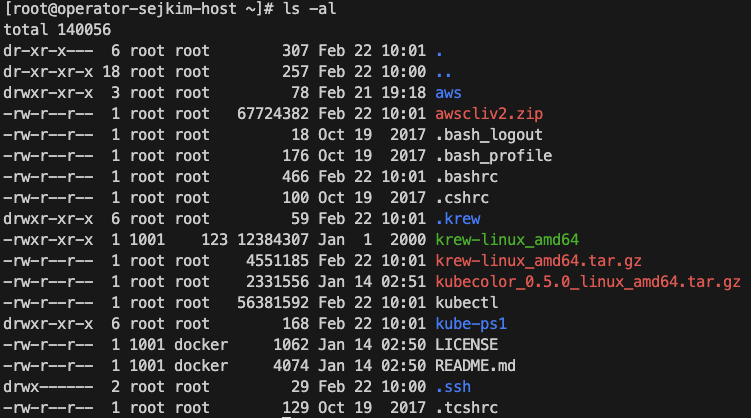
- VPC
1.3 eksctl을 통해 EKS 배포
- 배포할 Yaml 파일 작성
export CLUSTER_NAME=myeks-sejkim

# myeks-VPC/Subnet 정보 확인 및 변수 지정
export VPCID=$(aws ec2 describe-vpcs --filters "Name=tag:Name,Values=$CLUSTER_NAME-VPC" --query 'Vpcs[*].VpcId' --output text)
echo $VPCID
vpc-0f03a241be02b11a6

export PubSubnet1=$(aws ec2 describe-subnets --filters Name=tag:Name,Values="$CLUSTER_NAME-Vpc1PublicSubnet1" --query "Subnets[0].[SubnetId]" --output text)
export PubSubnet2=$(aws ec2 describe-subnets --filters Name=tag:Name,Values="$CLUSTER_NAME-Vpc1PublicSubnet2" --query "Subnets[0].[SubnetId]" --output text)
export PubSubnet3=$(aws ec2 describe-subnets --filters Name=tag:Name,Values="$CLUSTER_NAME-Vpc1PublicSubnet3" --query "Subnets[0].[SubnetId]" --output text)
echo $PubSubnet1 $PubSubnet2 $PubSubnet3
subnet-05f8ec5a33dd33167 subnet-02c0bc104ad6c9117 subnet-05cbd257f727fb8f8

#------------------
SSHKEYNAME=<각자 자신의 SSH Keypair 이름>
SSHKEYNAME=kp-sejkim- myeks.yaml 파일 작성 : vpc/subnet 과 ssh 키 이름 수정
cat << EOF > myeks-sejkim.yaml
apiVersion: eksctl.io/v1alpha5
kind: ClusterConfig
metadata:
  name: myeks-sejkim
  region: ap-northeast-2
  version: "1.31"

iam:
  withOIDC: true # enables the IAM OIDC provider as well as IRSA for the Amazon CNI plugin

  serviceAccounts: # service accounts to create in the cluster. See IAM Service Accounts
  - metadata:
      name: aws-load-balancer-controller
      namespace: kube-system
    wellKnownPolicies:
      awsLoadBalancerController: true

vpc:
  cidr: 192.168.0.0/16
  clusterEndpoints:
    privateAccess: true # if you only want to allow private access to the cluster
    publicAccess: true # if you want to allow public access to the cluster
  id: $VPCID
  subnets:
    public:
      ap-northeast-2a:
        az: ap-northeast-2a
        cidr: 192.168.1.0/24
        id: $PubSubnet1
      ap-northeast-2b:
        az: ap-northeast-2b
        cidr: 192.168.2.0/24
        id: $PubSubnet2
      ap-northeast-2c:
        az: ap-northeast-2c
        cidr: 192.168.3.0/24
        id: $PubSubnet3

addons:
  - name: vpc-cni # no version is specified so it deploys the default version
    version: latest # auto discovers the latest available
    attachPolicyARNs: # attach IAM policies to the add-on's service account
      - arn:aws:iam::aws:policy/AmazonEKS_CNI_Policy
    configurationValues: |-
      enableNetworkPolicy: "true"

  - name: kube-proxy
    version: latest

  - name: coredns
    version: latest

  - name: metrics-server
    version: latest

managedNodeGroups:
- amiFamily: AmazonLinux2023
  desiredCapacity: 3
  iam:
    withAddonPolicies:
      certManager: true # Enable cert-manager
      externalDNS: true # Enable ExternalDNS
  instanceType: t3.medium
  preBootstrapCommands:
    # install additional packages
    - "dnf install nvme-cli links tree tcpdump sysstat ipvsadm ipset bind-utils htop -y"
  labels:
    alpha.eksctl.io/cluster-name: myeks-sejkim
    alpha.eksctl.io/nodegroup-name: ng1
  maxPodsPerNode: 100
  maxSize: 3
  minSize: 3
  name: ng1-sejkim
  ssh:
    allow: true
    publicKeyName: $SSHKEYNAME
  tags:
    alpha.eksctl.io/nodegroup-name: ng1-sejkim
    alpha.eksctl.io/nodegroup-type: managed
  volumeIOPS: 3000
  volumeSize: 120
  volumeThroughput: 125
  volumeType: gp3
EOF- 최종 yaml로 eks 배포
eksctl create cluster -f myeks-sejkim.yaml --verbose 4- 배포 후 기본 정보 확인
- EKS 관리 콘솔 확인 : Overview, Compute, Networking, Add-ons, Access
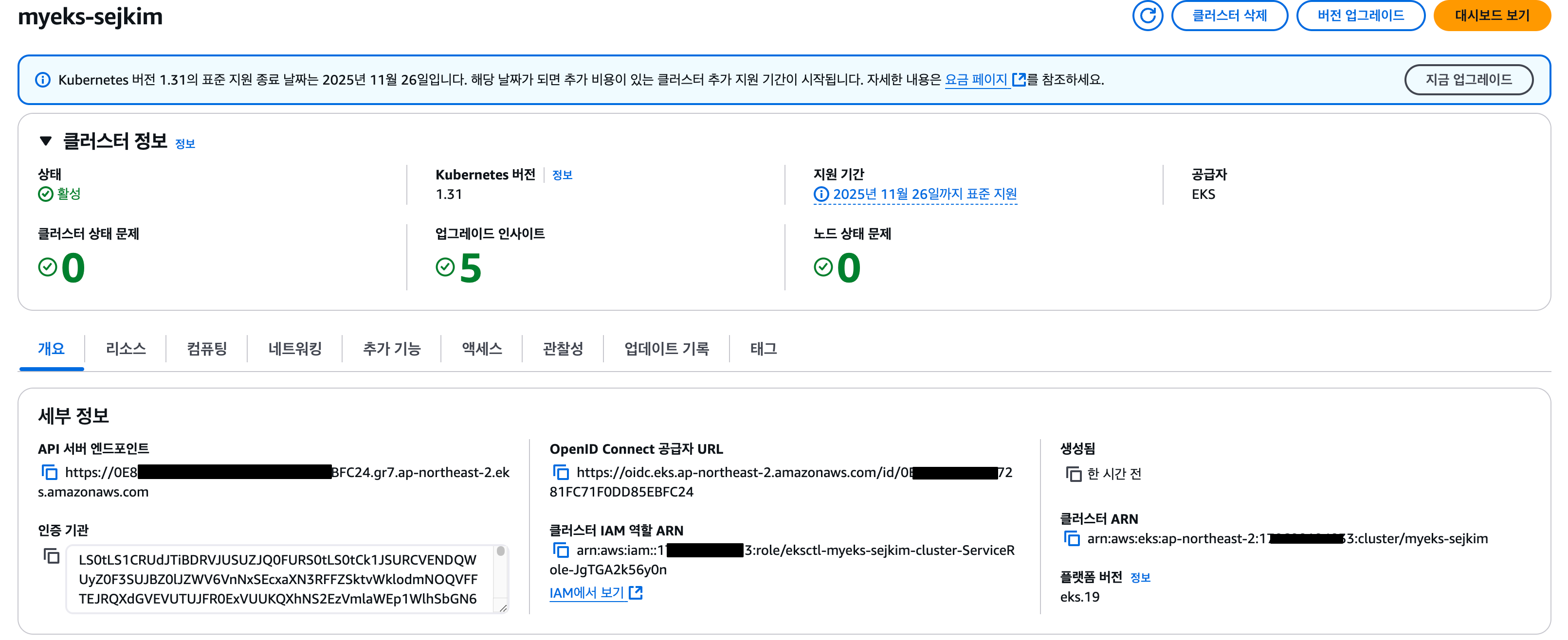
- EKS 정보 확인
- EKS 관리 콘솔 확인 : Overview, Compute, Networking, Add-ons, Access
#
kubectl cluster-info

# 네임스페이스 default 변경 적용
kubens default

#
kubectl ctx
kubectl config rename-context "<각자 자신의 IAM User>@myeks.ap-northeast-2.eksctl.io" "eksworkshop"
kubectl config rename-context "admin@myeks-sejkim.ap-northeast-2.eksctl.io" "eksworkshop"

#
kubectl get node --label-columns=node.kubernetes.io/instance-type,eks.amazonaws.com/capacityType,topology.kubernetes.io/zone
kubectl get node -v=6

#
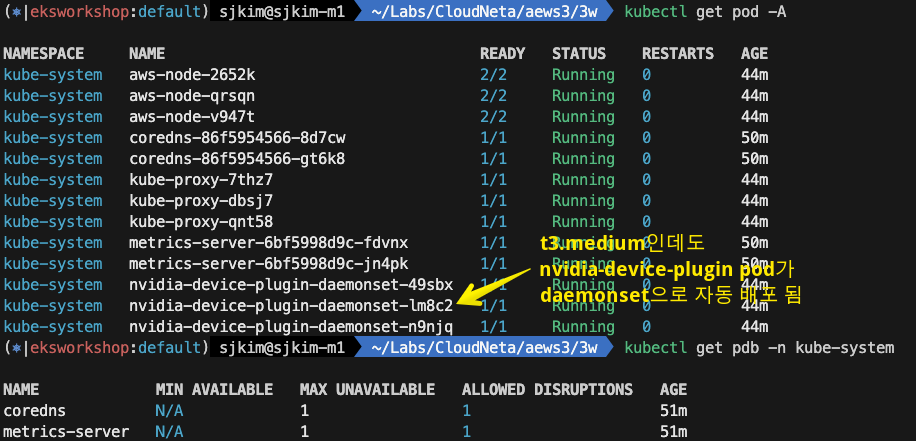
kubectl get pod -A
kubectl get pdb -n kube-system

# 관리형 노드 그룹 확인
eksctl get nodegroup --cluster $CLUSTER_NAME
CLUSTER         NODEGROUP       STATUS  CREATED                 MIN SIZE        MAX SIZE        DESIRED CAPACITY        INSTANCE TYPE   IMAGE ID     ASG NAME                                         TYPE
myeks-sejkim    ng1-sejkim      ACTIVE  2025-02-22T01:50:15Z    3               3               3                       t3.medium       AL2023_x86_64_STANDARD        eks-ng1-sejkim-30ca95ac-8858-1284-6ee7-1423e40613e9     managed

aws eks describe-nodegroup --cluster-name $CLUSTER_NAME --nodegroup-name ng1-sejkim | jq
{
  "nodegroup": {
    "nodegroupName": "ng1-sejkim",
    "nodegroupArn": "arn:aws:eks:ap-northeast-2:1**********3:nodegroup/myeks-sejkim/ng1-sejkim/30ca95ac-8858-1284-6ee7-1423e40613e9",
    "clusterName": "myeks-sejkim",
    "version": "1.31",
    "releaseVersion": "1.31.5-20250212",
    "createdAt": "2025-02-22T10:50:15.411000+09:00",
    "modifiedAt": "2025-02-22T11:41:53.447000+09:00",
    "status": "ACTIVE",
    "capacityType": "ON_DEMAND",
    "scalingConfig": {
      "minSize": 3,
      "maxSize": 3,
      "desiredSize": 3
    },
    "instanceTypes": [
      "t3.medium"
    ],
    "subnets": [
      "subnet-05f8ec5a33dd33167",
      "subnet-02c0bc104ad6c9117",
      "subnet-05cbd257f727fb8f8"
    ],
    "amiType": "AL2023_x86_64_STANDARD",
    "nodeRole": "arn:aws:iam::1**********3:role/eksctl-myeks-sejkim-nodegroup-ng1--NodeInstanceRole-gum9x0fgOtCG",
    "labels": {
      "alpha.eksctl.io/cluster-name": "myeks-sejkim",
      "alpha.eksctl.io/nodegroup-name": "ng1-sejkim"
    },
    "resources": {
      "autoScalingGroups": [
        {
          "name": "eks-ng1-sejkim-30ca95ac-8858-1284-6ee7-1423e40613e9"
        }
      ]
    },
    "health": {
      "issues": []
    },
    "updateConfig": {
      "maxUnavailable": 1
    },
    "launchTemplate": {
      "name": "eksctl-myeks-sejkim-nodegroup-ng1-sejkim",
      "version": "1",
      "id": "lt-0059eeb3a5379a129"
    },
    "tags": {
      "aws:cloudformation:stack-name": "eksctl-myeks-sejkim-nodegroup-ng1-sejkim",
      "alpha.eksctl.io/cluster-name": "myeks-sejkim",
      "alpha.eksctl.io/nodegroup-name": "ng1-sejkim",
      "aws:cloudformation:stack-id": "arn:aws:cloudformation:ap-northeast-2:1**********3:stack/eksctl-myeks-sejkim-nodegroup-ng1-sejkim/4d29a790-f0bf-11ef-8424-0692e56a8539",
      "eksctl.cluster.k8s.io/v1alpha1/cluster-name": "myeks-sejkim",
      "aws:cloudformation:logical-id": "ManagedNodeGroup",
      "alpha.eksctl.io/nodegroup-type": "managed",
      "alpha.eksctl.io/eksctl-version": "0.204.0-dev+b073ca55e.2025-02-13T20:01:47Z"
    }
  }
}

# eks addon 확인
eksctl get addon --cluster $CLUSTER_NAME
NAME            VERSION                 STATUS  ISSUES  IAMROLE                                                                                 UPDATE AVAILABLE      CONFIGURATION VALUES            POD IDENTITY ASSOCIATION ROLES
coredns         v1.11.4-eksbuild.2      ACTIVE  0
kube-proxy      v1.31.3-eksbuild.2      ACTIVE  0
metrics-server  v0.7.2-eksbuild.2       ACTIVE  0
vpc-cni         v1.19.2-eksbuild.5      ACTIVE  0       arn:aws:iam::1**********3:role/eksctl-myeks-sejkim-addon-vpc-cni-Role1-XpCLgjH7pQ5s          enableNetworkPolicy: "true"

# aws-load-balancer-controller를 위한 iam service account 생성 확인 : AWS IAM role bound to a Kubernetes service account
eksctl get iamserviceaccount --cluster $CLUSTER_NAME
NAMESPACE	NAME				ROLE ARN
kube-system	aws-load-balancer-controller	NAMESPACE       NAME                            ROLE ARN
kube-system     aws-load-balancer-controller    arn:aws:iam::1**********3:role/eksctl-myeks-sejkim-addon-iamserviceaccount-k-Role1-OpBnplYcPSKW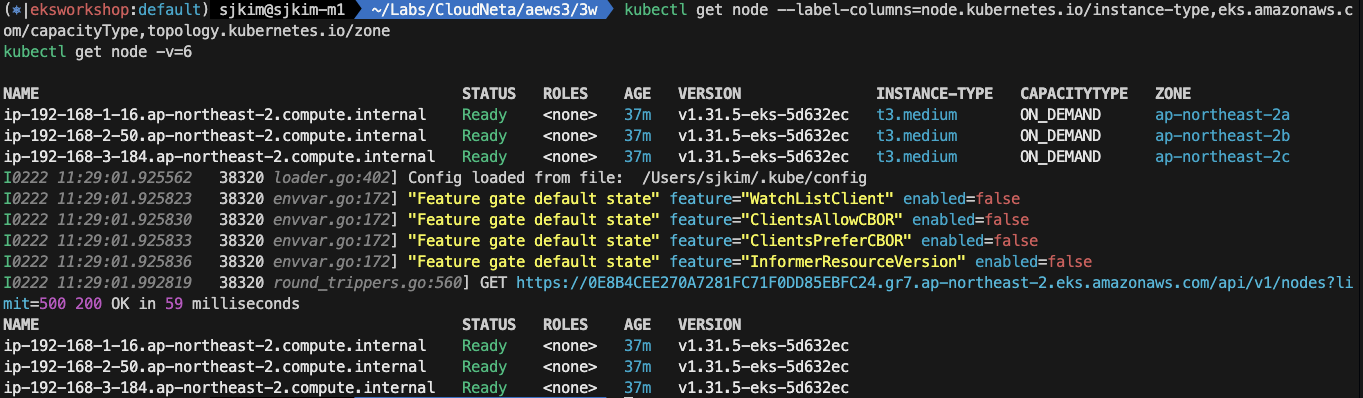
- EC2 관리 콘솔 확인 : type, az, IP, ec2 instance profile → iam role 확인

1.4 관리형 노드 그룹(EC2) 접속 및 노드 정보 확인 : max-pods
- 관리 콘솔 EC2 서비스 : 관리형 노드 그룹(EC2) 에 보안그룹 ID 확인
- 해당 보안그룹 inbound 에 자신의 집 공인 IP 추가 후 접속 확인
# 인스턴스 정보 확인 1
aws ec2 describe-instances --query "Reservations[*].Instances[*].{InstanceID:InstanceId, PublicIPAdd:PublicIpAddress, PrivateIPAdd:PrivateIpAddress, InstanceName:Tags[?Key=='Name']|[0].Value, Status:State.Name}" --filters Name=instance-state-name,Values=running --output table | grep sejkim
|  i-0701a3db79fe333b2|  operator-sejkim-host          |  172.20.1.100  |  3.38.165.30   |  running  |
|  i-02534f48b8829758c|  myeks-sejkim-ng1-sejkim-Node  |  192.168.1.16  |  13.125.44.115 |  running  |
|  i-021a0e43bf55f06a0|  myeks-sejkim-ng1-sejkim-Node  |  192.168.2.50  |  15.164.237.68 |  running  |
|  i-0369415e13eb1fe80|  myeks-sejkim-ng1-sejkim-Node  |  192.168.3.184 |  3.34.194.8    |  running  |

# 인스턴스 정보 확인 2 : AZ, ID, 공인IP
aws ec2 describe-instances \
    --filters "Name=tag:Name,Values=myeks-sejkim-ng1-sejkim-Node" \
    --query "Reservations[].Instances[].{InstanceID:InstanceId, PublicIP:PublicIpAddress, AZ:Placement.AvailabilityZone}" \
    --output table
-------------------------------------------------------------
|                     DescribeInstances                     |
+-----------------+-----------------------+-----------------+
|       AZ        |      InstanceID       |    PublicIP     |
+-----------------+-----------------------+-----------------+
|  ap-northeast-2a|  i-02534f48b8829758c  |  13.125.44.115  |
|  ap-northeast-2b|  i-021a0e43bf55f06a0  |  15.164.237.68  |
|  ap-northeast-2c|  i-0369415e13eb1fe80  |  3.34.194.8     |
+-----------------+-----------------------+-----------------+

# AZ1 배치된 EC2 공인 IP
aws ec2 describe-instances \
    --filters "Name=tag:Name,Values=myeks-sejkim-ng1-sejkim-Node" "Name=availability-zone,Values=ap-northeast-2a" \
    --query 'Reservations[*].Instances[*].PublicIpAddress' \
    --output text
13.125.44.115

# AZ2 배치된 EC2 공인 IP
aws ec2 describe-instances \
    --filters "Name=tag:Name,Values=myeks-sejkim-ng1-sejkim-Node" "Name=availability-zone,Values=ap-northeast-2b" \
    --query 'Reservations[*].Instances[*].PublicIpAddress' \
    --output text
15.164.237.68

# AZ3 배치된 EC2 공인 IP
aws ec2 describe-instances \
    --filters "Name=tag:Name,Values=myeks-sejkim-ng1-sejkim-Node" "Name=availability-zone,Values=ap-northeast-2c" \
    --query 'Reservations[*].Instances[*].PublicIpAddress' \
    --output text
3.34.194.8

# EC2 공인 IP 변수 지정
export N1=$(aws ec2 describe-instances --filters "Name=tag:Name,Values=myeks-sejkim-ng1-sejkim-Node" "Name=availability-zone,Values=ap-northeast-2a" --query 'Reservations[*].Instances[*].PublicIpAddress' --output text)
export N2=$(aws ec2 describe-instances --filters "Name=tag:Name,Values=myeks-sejkim-ng1-sejkim-Node" "Name=availability-zone,Values=ap-northeast-2b" --query 'Reservations[*].Instances[*].PublicIpAddress' --output text)
export N3=$(aws ec2 describe-instances --filters "Name=tag:Name,Values=myeks-sejkim-ng1-sejkim-Node" "Name=availability-zone,Values=ap-northeast-2c" --query 'Reservations[*].Instances[*].PublicIpAddress' --output text)
echo $N1, $N2, $N3
13.125.44.115, 15.164.237.68, 3.34.194.8

# *remoteAccess* 포함된 보안그룹 ID
aws ec2 describe-security-groups --filters "Name=group-name,Values=*sejkim-remoteAccess*" | jq
export MNSGID=$(aws ec2 describe-security-groups --filters "Name=group-name,Values=*sejkim-remoteAccess*" --query 'SecurityGroups[*].GroupId' --output text)

# 해당 보안그룹 inbound 에 자신의 집 공인 IP 룰 추가
aws ec2 authorize-security-group-ingress --group-id $MNSGID --protocol '-1' --cidr $(curl -s ipinfo.io/ip)/32

# 해당 보안그룹 inbound 에 운영서버 내부 IP 룰 추가
aws ec2 authorize-security-group-ingress --group-id $MNSGID --protocol '-1' --cidr 172.20.1.100/32

# ping 테스트
ping -c 2 $N1
ping -c 2 $N2
ping -c 2 $N3

# 워커 노드 SSH 접속
ssh -i ~/.ssh/kp-sejkim.pem -o StrictHostKeyChecking=no ec2-user@$N1 hostname
for i in $N1 $N2 $N3; do echo ">> node $i <<"; ssh -o StrictHostKeyChecking=no ec2-user@$i hostname; echo; done

ssh ec2-user@$N1
exit
ssh ec2-user@$N2
exit
ssh ec2-user@$N2
exit- ssh Keypair 명시 없이 접속환경 구성
cat ~/.ssh/config
Host operator
  Hostname 3.38.165.30
  User ec2-user
  Port 22
  IdentityFile ~/.ssh/kp-sejkim.pem
Host N1
  Hostname 13.125.44.115
  User ec2-user
  Port 22
  IdentityFile ~/.ssh/kp-sejkim.pem
Host N2
  Hostname 15.164.237.68
  User ec2-user
  Port 22
  IdentityFile ~/.ssh/kp-sejkim.pem
Host N3
  Hostname 3.34.194.8
  User ec2-user
  Port 22
  IdentityFile ~/.ssh/kp-sejkim.pem

$ ssh ec2-user@operator
   ,     #_
   ~\_  ####_        Amazon Linux 2
  ~~  \_#####\
  ~~     \###|       AL2 End of Life is 2026-06-30.
  ~~       \#/ ___
   ~~       V~' '->
    ~~~         /    A newer version of Amazon Linux is available!
      ~~._.   _/
         _/ _/       Amazon Linux 2023, GA and supported until 2028-03-15.
       _/m/'           https://aws.amazon.com/linux/amazon-linux-2023/


$ ssh ec2-user@N1
A newer release of "Amazon Linux" is available.
  Version 2023.6.20250211:
  Version 2023.6.20250218:
Run "/usr/bin/dnf check-release-update" for full release and version update info
   ,     #_
   ~\_  ####_        Amazon Linux 2023
  ~~  \_#####\
  ~~     \###|
  ~~       \#/ ___   https://aws.amazon.com/linux/amazon-linux-2023
   ~~       V~' '->
    ~~~         /
      ~~._.   _/
         _/ _/
_/m/'- 노드 정보 확인 & max-pods 정보 확인
# 노드 기본 정보 확인
for i in N1 N2 N3; do echo ">> node $i <<"; ssh ec2-user@$i hostnamectl; echo; done
>> node N1 <<
 Static hostname: ip-192-168-1-16.ap-northeast-2.compute.internal
       Icon name: computer-vm
         Chassis: vm 🖴
      Machine ID: ec24152f168e689373b9ef3309d00e2c
         Boot ID: 6aa815adf49243dd9d9b0cd2639895b9
  Virtualization: amazon
Operating System: Amazon Linux 2023.6.20250203
     CPE OS Name: cpe:2.3:o:amazon:amazon_linux:2023
          Kernel: Linux 6.1.127-135.201.amzn2023.x86_64
    Architecture: x86-64
 Hardware Vendor: Amazon EC2
  Hardware Model: t3.medium
Firmware Version: 1.0

>> node N2 <<
 Static hostname: ip-192-168-2-50.ap-northeast-2.compute.internal
       Icon name: computer-vm
         Chassis: vm 🖴
      Machine ID: ec2e951c4221461416dcf60d26ae7c08
         Boot ID: c6e2166aad474781a49211740b39ece6
  Virtualization: amazon
Operating System: Amazon Linux 2023.6.20250203
     CPE OS Name: cpe:2.3:o:amazon:amazon_linux:2023
          Kernel: Linux 6.1.127-135.201.amzn2023.x86_64
    Architecture: x86-64
 Hardware Vendor: Amazon EC2
  Hardware Model: t3.medium
Firmware Version: 1.0

>> node N3 <<
 Static hostname: ip-192-168-3-184.ap-northeast-2.compute.internal
       Icon name: computer-vm
         Chassis: vm 🖴
      Machine ID: ec2aa5e9a7ee4ab03af2a9aed5ee9272
         Boot ID: d75bf07754504c90893925da4b79e5ff
  Virtualization: amazon
Operating System: Amazon Linux 2023.6.20250203
     CPE OS Name: cpe:2.3:o:amazon:amazon_linux:2023
          Kernel: Linux 6.1.127-135.201.amzn2023.x86_64
    Architecture: x86-64
 Hardware Vendor: Amazon EC2
  Hardware Model: t3.medium
Firmware Version: 1.0

# ip, lsblk, df 확인
for i in N1 N2 N3; do echo ">> node $i <<"; ssh ec2-user@$i sudo ip -c addr; echo; done
for i in N1 N2 N3; do echo ">> node $i <<"; ssh ec2-user@$i lsblk; echo; done
for i in N1 N2 N3; do echo ">> node $i <<"; ssh ec2-user@$i df -hT /; echo; done

# 스토리지클래스 및 CSI 노드 확인
kubectl get sc
NAME   PROVISIONER             RECLAIMPOLICY   VOLUMEBINDINGMODE      ALLOWVOLUMEEXPANSION   AGE
gp2    kubernetes.io/aws-ebs   Delete          WaitForFirstConsumer   false                  153m

kubectl describe sc gp2
Name:            gp2
IsDefaultClass:  No
Provisioner:           kubernetes.io/aws-ebs
Parameters:            fsType=ext4,type=gp2
AllowVolumeExpansion:  <unset>
MountOptions:          <none>
ReclaimPolicy:         Delete
VolumeBindingMode:     WaitForFirstConsumer
Events:                <none>

kubectl get crd
NAME                                         CREATED AT
cninodes.vpcresources.k8s.aws                2025-02-22T01:42:03Z
eniconfigs.crd.k8s.amazonaws.com             2025-02-22T01:45:59Z
policyendpoints.networking.k8s.aws           2025-02-22T01:42:03Z
securitygrouppolicies.vpcresources.k8s.aws   2025-02-22T01:42:03Z

kubectl get csinodes
NAME                                               DRIVERS   AGE
ip-192-168-1-16.ap-northeast-2.compute.internal    0         145m
ip-192-168-2-50.ap-northeast-2.compute.internal    0         145m
ip-192-168-3-184.ap-northeast-2.compute.internal   0         145m

# max-pods 정보 확인
kubectl describe node | grep Capacity: -A13
Capacity:
  cpu:                2
  ephemeral-storage:  125751276Ki
  hugepages-1Gi:      0
  hugepages-2Mi:      0
  memory:             3919536Ki
  pods:               100
Allocatable:
  cpu:                1930m
  ephemeral-storage:  114818633946
  hugepages-1Gi:      0
  hugepages-2Mi:      0
  memory:             3364528Ki
  pods:               100
--

kubectl get nodes -o custom-columns="NAME:.metadata.name,MAXPODS:.status.capacity.pods"
NAME                                               MAXPODS
ip-192-168-1-16.ap-northeast-2.compute.internal    100
ip-192-168-2-50.ap-northeast-2.compute.internal    100
ip-192-168-3-184.ap-northeast-2.compute.internal   100

# 노드에서 확인
for i in N1 N2 N3; do echo ">> node $i <<"; ssh ec2-user@$i cat /etc/eks/bootstrap.sh; echo; done
>> node N1 <<
#!/usr/bin/env bash

echo >&2 '
!!!!!!!!!!
!!!!!!!!!! ERROR: bootstrap.sh has been removed from AL2023-based EKS AMIs.
!!!!!!!!!!
!!!!!!!!!! EKS nodes are now initialized by nodeadm.
!!!!!!!!!!
!!!!!!!!!! To migrate your user data, see:
!!!!!!!!!!
!!!!!!!!!!     https://awslabs.github.io/amazon-eks-ami/nodeadm/
!!!!!!!!!!
'
exit 1

ssh ec2-user@$N1 sudo cat /etc/kubernetes/kubelet/config.json | jq
{
  "address": "0.0.0.0",
  "authentication": {
    "x509": {
      "clientCAFile": "/etc/kubernetes/pki/ca.crt"
    },
    "webhook": {
      "enabled": true,
      "cacheTTL": "2m0s"
    },
    "anonymous": {
      "enabled": false
    }
  },
  "authorization": {
    "mode": "Webhook",
    "webhook": {
      "cacheAuthorizedTTL": "5m0s",
      "cacheUnauthorizedTTL": "30s"
    }
  },
  "cgroupDriver": "systemd",
  "cgroupRoot": "/",
  "clusterDNS": [
    "10.100.0.10"
  ],
  "clusterDomain": "cluster.local",
  "containerRuntimeEndpoint": "unix:///run/containerd/containerd.sock",
  "evictionHard": {
    "memory.available": "100Mi",
    "nodefs.available": "10%",
    "nodefs.inodesFree": "5%"
  },
  "featureGates": {
    "RotateKubeletServerCertificate": true
  },
  "hairpinMode": "hairpin-veth",
  "kubeReserved": {
    "cpu": "70m",
    "ephemeral-storage": "1Gi",
    "memory": "442Mi"
  },
  "kubeReservedCgroup": "/runtime",
  "logging": {
    "verbosity": 2
  },
  "maxPods": 17,
  "protectKernelDefaults": true,
  "providerID": "aws:///ap-northeast-2a/i-02534f48b8829758c",
  "readOnlyPort": 0,
  "serializeImagePulls": false,
  "serverTLSBootstrap": true,
  "systemReservedCgroup": "/system",
  "tlsCipherSuites": [
    "TLS_ECDHE_ECDSA_WITH_AES_128_GCM_SHA256",
    "TLS_ECDHE_ECDSA_WITH_AES_256_GCM_SHA384",
    "TLS_ECDHE_ECDSA_WITH_CHACHA20_POLY1305",
    "TLS_ECDHE_RSA_WITH_AES_128_GCM_SHA256",
    "TLS_ECDHE_RSA_WITH_AES_256_GCM_SHA384",
    "TLS_ECDHE_RSA_WITH_CHACHA20_POLY1305",
    "TLS_RSA_WITH_AES_128_GCM_SHA256",
    "TLS_RSA_WITH_AES_256_GCM_SHA384"
  ],
  "kind": "KubeletConfiguration",
  "apiVersion": "kubelet.config.k8s.io/v1beta1"
}

for i in N1 N2 N3; do echo ">> node $i <<"; ssh ec2-user@$i sudo cat /etc/kubernetes/kubelet/config.json | grep maxPods; echo; done
>> node N1 <<
    "maxPods": 17,

for i in N1 N2 N3; do echo ">> node $i <<"; ssh ec2-user@$i sudo cat /etc/kubernetes/kubelet/config.json.d/00-nodeadm.conf | grep maxPods; echo; done
>> node N1 <<
    "maxPods": 100
1.5 운영서버 eks kubeconfig 설정, EFS 마운트 테스트
- 운영서버(operator-host) EC2 eks kubeconfig 설정
# eks 설치한 iam 자격증명을 설정하기
aws configure
...

# get-caller-identity 확인
aws sts get-caller-identity --query Arn

# kubeconfig 생성
aws eks update-kubeconfig --name myeks-sejkim --user-alias <위 출력된 자격증명 사용자>
aws eks update-kubeconfig --name myeks-sejkim --user-alias admin

#
kubectl cluster-info
kubectl ns default
kubectl get node -v6- 운영서버 EFS 마운트 테스트
# 현재 EFS 정보 확인
aws efs describe-file-systems | jq

# 파일 시스템 ID만 출력
aws efs describe-file-systems --query "FileSystems[*].FileSystemId" --output text
fs-0321fbc25499fa304

# EFS 마운트 대상 정보 확인
aws efs describe-mount-targets --file-system-id $(aws efs describe-file-systems --query "FileSystems[*].FileSystemId" --output text) | jq

# IP만 출력 :
aws efs describe-mount-targets --file-system-id $(aws efs describe-file-systems --query "FileSystems[*].FileSystemId" --output text) --query "MountTargets[*].IpAddress" --output text
192.168.1.103   192.168.2.138   192.168.3.170

# DNS 질의 : 안되는 이유가 무엇일까요?
# EFS 도메인 이름(예시) : fs-0321fbc25499fa304.efs.ap-northeast-2.amazonaws.com
dig +short $(aws efs describe-file-systems --query "FileSystems[*].FileSystemId" --output text).efs.ap-northeast-2.amazonaws.com


# EFS 마운트 테스트
EFSIP1=<IP만 출력에서 아무 IP나 지정>
EFSIP1=192.168.1.103
EFSIP2=192.168.2.138
EFSIP3=192.168.3.170

df -hT
mkdir /mnt/myefs
mount -t nfs4 -o nfsvers=4.1,rsize=1048576,wsize=1048576,hard,timeo=600,retrans=2,noresvport $EFSIP1:/ /mnt/myefs
findmnt -t nfs4
TARGET     SOURCE          FSTYPE OPTIONS
/mnt/myefs 192.168.1.103:/ nfs4   rw,relatime,vers=4.1,rsize=1048576,wsize=1048576,namlen=255,hard,noresvport,proto=tcp,timeo=600,retrans=2,sec=sys,clientaddr=172.20.1.100,local_lock=none,addr=192.168.1.103

df -hT --type nfs4
Filesystem      Type  Size  Used Avail Use% Mounted on
192.168.1.103:/ nfs4  8.0E     0  8.0E   0% /mnt/myefs

# 파일 작성
nfsstat
Client rpc stats:
calls      retrans    authrefrsh
19         0          19

Client nfs v4:
null         read         write        commit       open         open_conf
1         5% 0         0% 0         0% 0         0% 0         0% 0         0%
open_noat    open_dgrd    close        setattr      fsinfo       renew
0         0% 0         0% 0         0% 0         0% 2        10% 0         0%
setclntid    confirm      lock         lockt        locku        access
0         0% 0         0% 0         0% 0         0% 0         0% 0         0%
getattr      lookup       lookup_root  remove       rename       link
2        10% 0         0% 1         5% 0         0% 0         0% 0         0%
symlink      create       pathconf     statfs       readlink     readdir
0         0% 0         0% 1         5% 2        10% 0         0% 0         0%
server_caps  delegreturn  getacl       setacl       fs_locations rel_lkowner
3        15% 0         0% 0         0% 0         0% 0         0% 0         0%
secinfo      exchange_id  create_ses   destroy_ses  sequence     get_lease_t
0         0% 0         0% 2        10% 1         5% 0         0% 2        10%
reclaim_comp layoutget    getdevinfo   layoutcommit layoutreturn getdevlist
0         0% 1         5% 0         0% 0         0% 0         0% 0         0%
(null)
1         5%

echo "EKS Workshop" > /mnt/myefs/memo.txt
nfsstat
Client rpc stats:
calls      retrans    authrefrsh
23         0          23

Client nfs v4:
null         read         write        commit       open         open_conf
1         4% 0         0% 1         4% 0         0% 1         4% 0         0%
open_noat    open_dgrd    close        setattr      fsinfo       renew
0         0% 0         0% 1         4% 0         0% 2         8% 0         0%
setclntid    confirm      lock         lockt        locku        access
0         0% 0         0% 0         0% 0         0% 0         0% 1         4%
getattr      lookup       lookup_root  remove       rename       link
2         8% 0         0% 1         4% 0         0% 0         0% 0         0%
symlink      create       pathconf     statfs       readlink     readdir
0         0% 0         0% 1         4% 2         8% 0         0% 0         0%
server_caps  delegreturn  getacl       setacl       fs_locations rel_lkowner
3        13% 0         0% 0         0% 0         0% 0         0% 0         0%
secinfo      exchange_id  create_ses   destroy_ses  sequence     get_lease_t
0         0% 0         0% 2         8% 1         4% 0         0% 2         8%
reclaim_comp layoutget    getdevinfo   layoutcommit layoutreturn getdevlist
0         0% 1         4% 0         0% 0         0% 0         0% 0         0%
(null)
1         4%

ls -l /mnt/myefs
cat /mnt/myefs/memo.txt

# EC2 재부팅 이후에도 mount 탑재가 될 수 있게 설정 해보자! : (힌트 : /etc/fstab)
cat /etc/fstab
#
UUID=43b4f483-987f-429f-ad61-9e2993518248     /           xfs    defaults,noatime  1   1
192.168.1.103:/                               /mnt/myefs  nfs4   nfsvers=4.1,rsize=1048576,wsize=1048576,hard,timeo=600,retrans=2,noresvport,_netdev  0   0
1.6 EKS 배포 후 실습 편의를 위한 설정
- macOS
# 실습 완료 후 삭제 할 것!
MyDomain=ksj7279.click # 각자 자신의 도메인 이름 입력
MyDnzHostedZoneId=$(aws route53 list-hosted-zones-by-name --dns-name "$MyDomain." --query "HostedZones[0].Id" --output text)

cat << EOF >> ~/.zshrc
# eksworkshop
export CLUSTER_NAME=myeks-sejkim
export VPCID=$(aws ec2 describe-vpcs --filters "Name=tag:Name,Values=$CLUSTER_NAME-VPC" --query 'Vpcs[*].VpcId' --output text)
export PubSubnet1=$(aws ec2 describe-subnets --filters Name=tag:Name,Values="$CLUSTER_NAME-Vpc1PublicSubnet1" --query "Subnets[0].[SubnetId]" --output text)
export PubSubnet2=$(aws ec2 describe-subnets --filters Name=tag:Name,Values="$CLUSTER_NAME-Vpc1PublicSubnet2" --query "Subnets[0].[SubnetId]" --output text)
export PubSubnet3=$(aws ec2 describe-subnets --filters Name=tag:Name,Values="$CLUSTER_NAME-Vpc1PublicSubnet3" --query "Subnets[0].[SubnetId]" --output text)
export N1=$(aws ec2 describe-instances --filters "Name=tag:Name,Values=$CLUSTER_NAME-ng1-sejkim-Node" "Name=availability-zone,Values=ap-northeast-2a" --query 'Reservations[*].Instances[*].PublicIpAddress' --output text)
export N2=$(aws ec2 describe-instances --filters "Name=tag:Name,Values=$CLUSTER_NAME-ng1-sejkim-Node" "Name=availability-zone,Values=ap-northeast-2b" --query 'Reservations[*].Instances[*].PublicIpAddress' --output text)
export N3=$(aws ec2 describe-instances --filters "Name=tag:Name,Values=$CLUSTER_NAME-ng1-sejkim-Node" "Name=availability-zone,Values=ap-northeast-2c" --query 'Reservations[*].Instances[*].PublicIpAddress' --output text)
MyDomain=ksj7279.click # 각자 자신의 도메인 이름 입력
MyDnzHostedZoneId=$(aws route53 list-hosted-zones-by-name --dns-name "$MyDomain." --query "HostedZones[0].Id" --output text)
EOF

# [신규 터미널] 확인
echo $CLUSTER_NAME $VPCID $PubSubnet1 $PubSubnet2 $PubSubnet3
echo $N1 $N2 $N3 $MyDomain $MyDnzHostedZoneId
tail -n 12 ~/.zshrc
1.7 AWS LoadBalancerController, ExternalDNS, kube-ops-view 설치
- 설치
# kube-ops-view
helm repo add geek-cookbook https://geek-cookbook.github.io/charts/
helm repo update
helm install kube-ops-view geek-cookbook/kube-ops-view --version 1.2.2 --set service.main.type=ClusterIP  --set env.TZ="Asia/Seoul" --namespace kube-system

NAME: kube-ops-view
LAST DEPLOYED: Sat Feb 22 15:34:35 2025
NAMESPACE: kube-system
STATUS: deployed
REVISION: 1
TEST SUITE: None
NOTES:
1. Get the application URL by running these commands:
  export POD_NAME=$(kubectl get pods --namespace kube-system -l "app.kubernetes.io/name=kube-ops-view,app.kubernetes.io/instance=kube-ops-view" -o jsonpath="{.items[0].metadata.name}")
  echo "Visit http://127.0.0.1:8080 to use your application"
  kubectl port-forward $POD_NAME 8080:8080

# AWS LoadBalancerController
helm repo add eks https://aws.github.io/eks-charts
helm repo update
kubectl get sa -n kube-system aws-load-balancer-controller
helm install aws-load-balancer-controller eks/aws-load-balancer-controller -n kube-system --set clusterName=$CLUSTER_NAME \
  --set serviceAccount.create=false --set serviceAccount.name=aws-load-balancer-controller

NAME: aws-load-balancer-controller
LAST DEPLOYED: Sat Feb 22 15:35:58 2025
NAMESPACE: kube-system
STATUS: deployed
REVISION: 1
TEST SUITE: None
NOTES:
AWS Load Balancer controller installed!

# ExternalDNS
MyDomain=<자신의 도메인>
MyDomain=ksj729.click
MyDnzHostedZoneId=$(aws route53 list-hosted-zones-by-name --dns-name "$MyDomain." --query "HostedZones[0].Id" --output text)
curl -s https://raw.githubusercontent.com/gasida/PKOS/main/aews/externaldns.yaml | MyDomain=$MyDomain MyDnzHostedZoneId=$MyDnzHostedZoneId envsubst | kubectl apply -f -

# 사용 리전의 인증서 ARN 확인 : 정상 상태 확인(만료 상태면 에러 발생!)
CERT_ARN=$(aws acm list-certificates --query 'CertificateSummaryList[].CertificateArn[]' --output text)
echo $CERT_ARN
CERT_ARN=arn:aws:acm:ap-northeast-2:1**********3:certificate/415404eb-e2e2-4744-b2e4-1108735b5903
# kubeopsview 용 Ingress 설정 : group 설정으로 1대의 ALB를 여러개의 ingress 에서 공용 사용
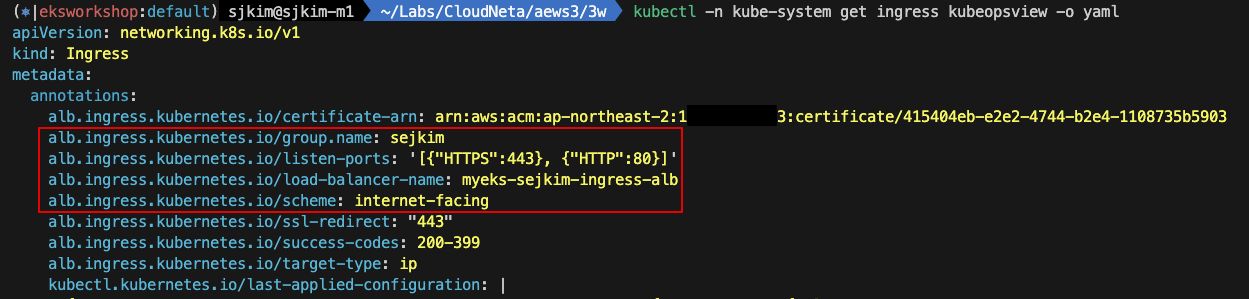
cat <<EOF | kubectl apply -f -
apiVersion: networking.k8s.io/v1
kind: Ingress
metadata:
  annotations:
    alb.ingress.kubernetes.io/certificate-arn: $CERT_ARN
    alb.ingress.kubernetes.io/group.name: sejkim
    alb.ingress.kubernetes.io/listen-ports: '[{"HTTPS":443}, {"HTTP":80}]'
    alb.ingress.kubernetes.io/load-balancer-name: myeks-sejkim-ingress-alb
    alb.ingress.kubernetes.io/scheme: internet-facing
    alb.ingress.kubernetes.io/ssl-redirect: "443"
    alb.ingress.kubernetes.io/success-codes: 200-399
    alb.ingress.kubernetes.io/target-type: ip
  labels:
    app.kubernetes.io/name: kubeopsview
  name: kubeopsview
  namespace: kube-system
spec:
  ingressClassName: alb
  rules:
  - host: kubeopsview.$MyDomain
    http:
      paths:
      - backend:
          service:
            name: kube-ops-view
            port:
              number: 8080
        path: /
        pathType: Prefix
EOF- Pod,Ingress, ALB, KubeOpsView 상태 확인
- Pod 확인
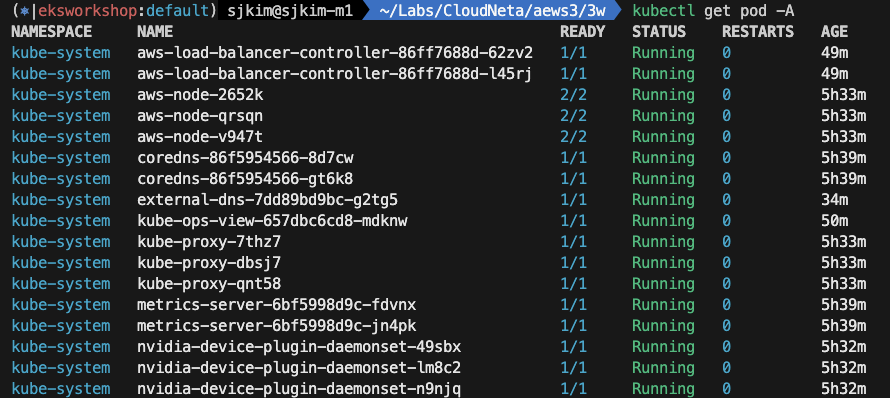
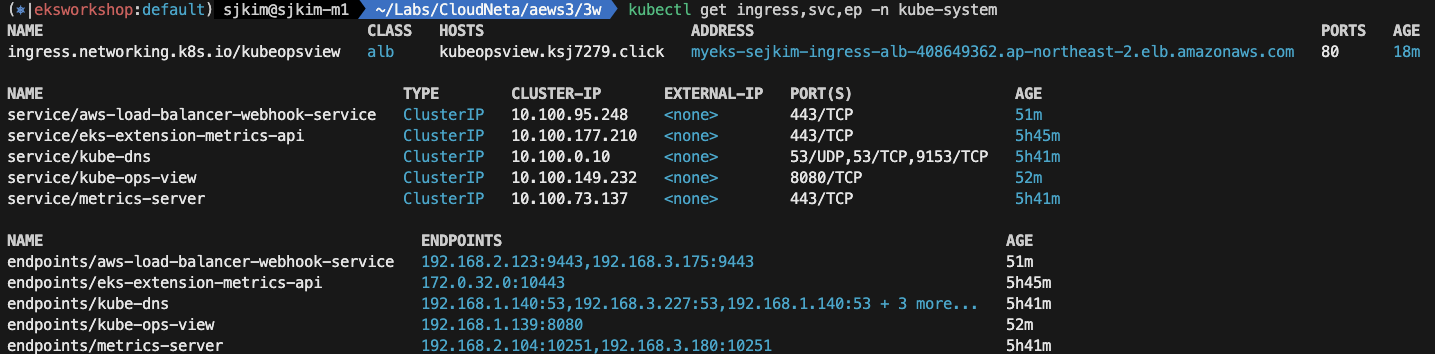
- service, ep, ingress 확인
- kubectl -n kube-system get ingress kubeopsview -o yaml
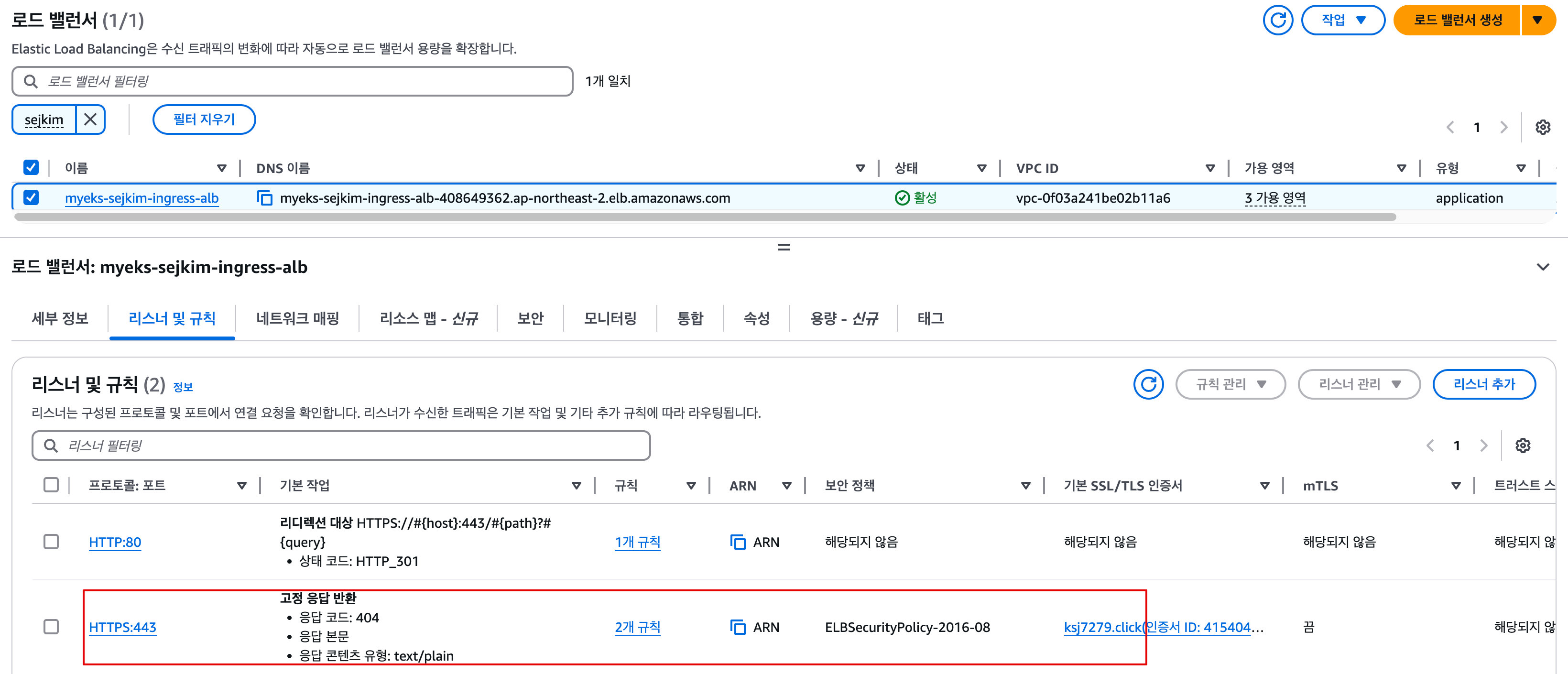
- Internet-facing alb 생성 됨
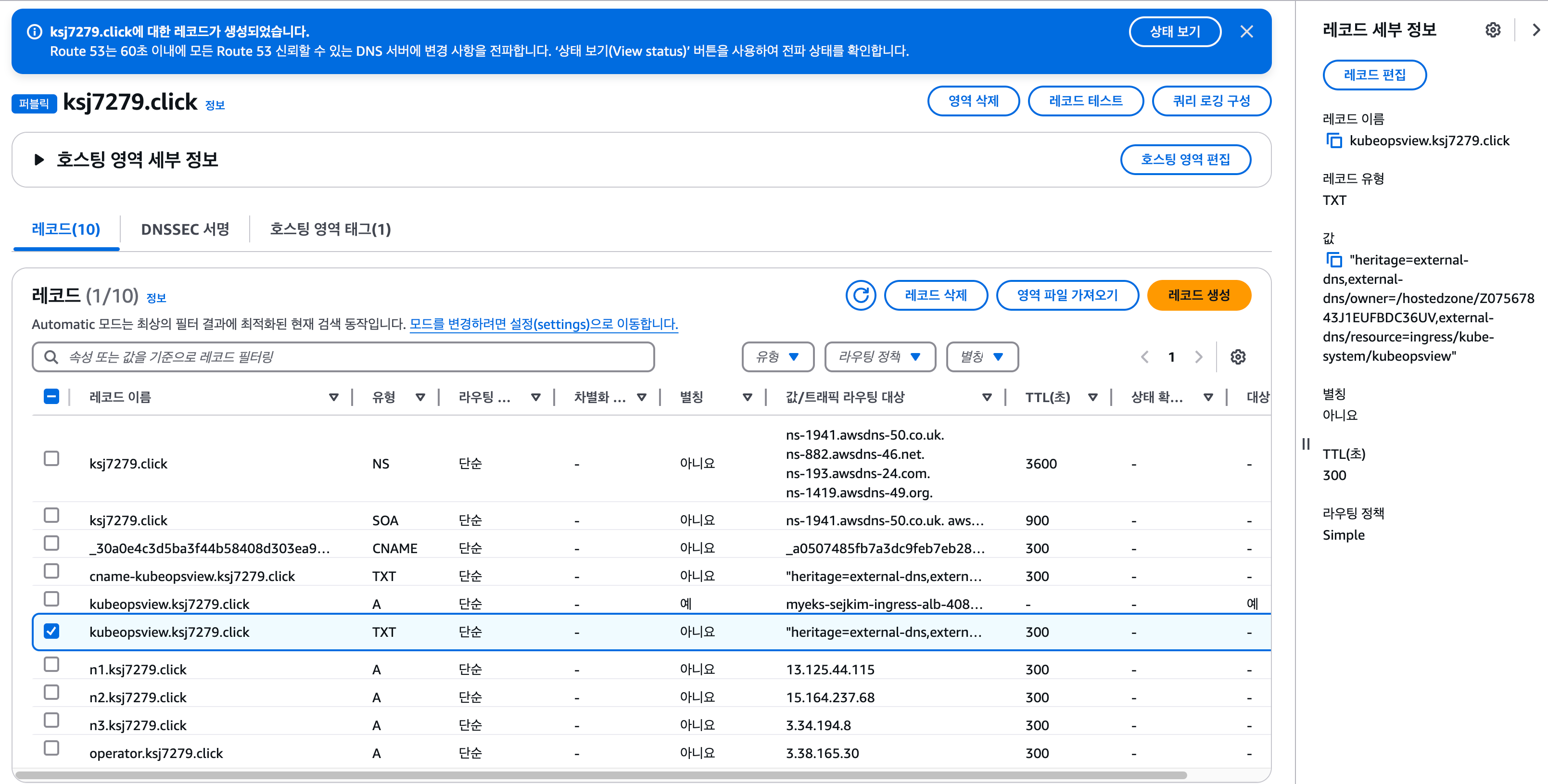
- external-dns 기능에 의해 route53에 record 자동 추가 됨
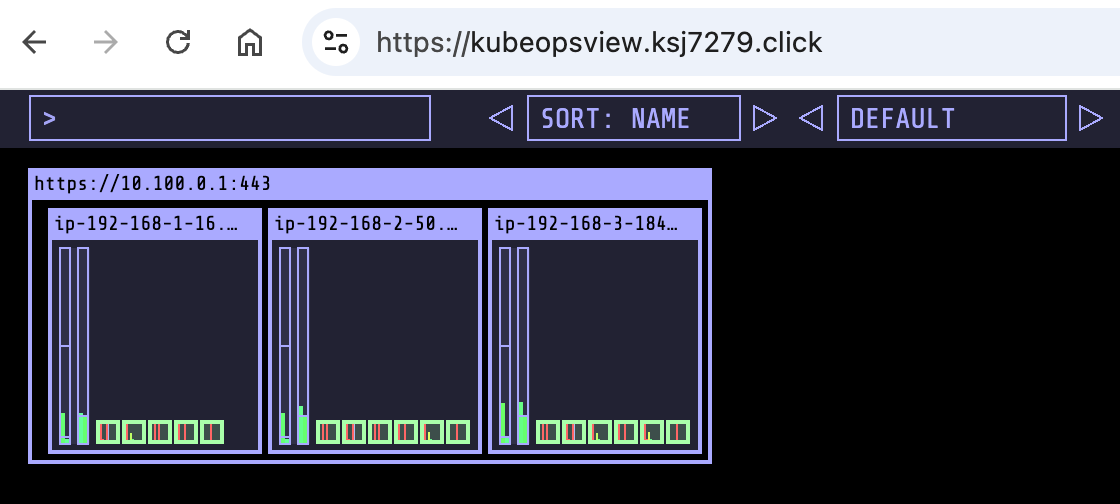
- 인증서 적용된 https protocol로 kubeopsview 접속 됨
echo -e "Kube Ops View URL = https://kubeopsview.$MyDomain/#scale=1.5"
Kube Ops View URL = https://kubeopsview.ksj7279.click/#scale=1.5
- Pod 확인
2. 스토리지 이해
2.1 배경소개 - AWS-Blog
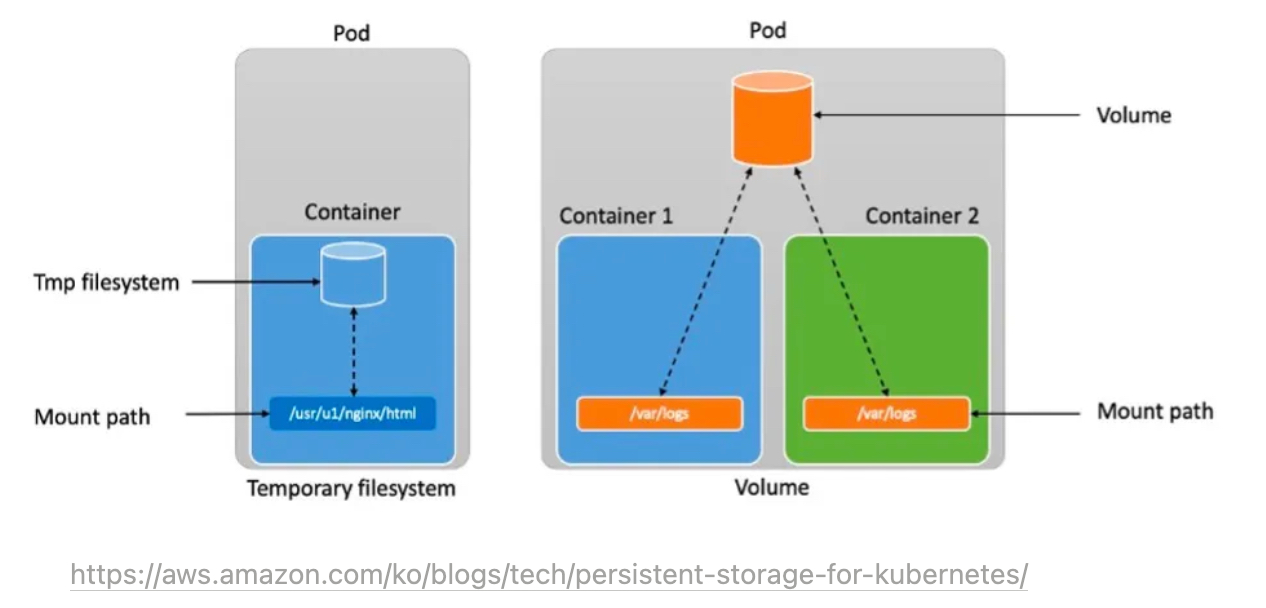
- 파드 내부의 데이터는 파드가 삭제되면 모두 삭제됨 → 즉, 파드가 모두 상태가 없는(Stateless) 애플리케이션이였음! : Temporary filesystem, Volume - 링크
- 데이터베이스(파드)처럼 데이터 보존이 필요 == 상태가 있는(Stateful) 애플리케이션 : PV & PVC
→ 로컬 볼륨(hostPath) ⇒ 퍼시스턴트 볼륨(Persistent Volume, PV) - 어느 노드에서도 연결하여 사용 가능, 예시) NFS, AWS EBS/EFS, Google Filestore 등 링크
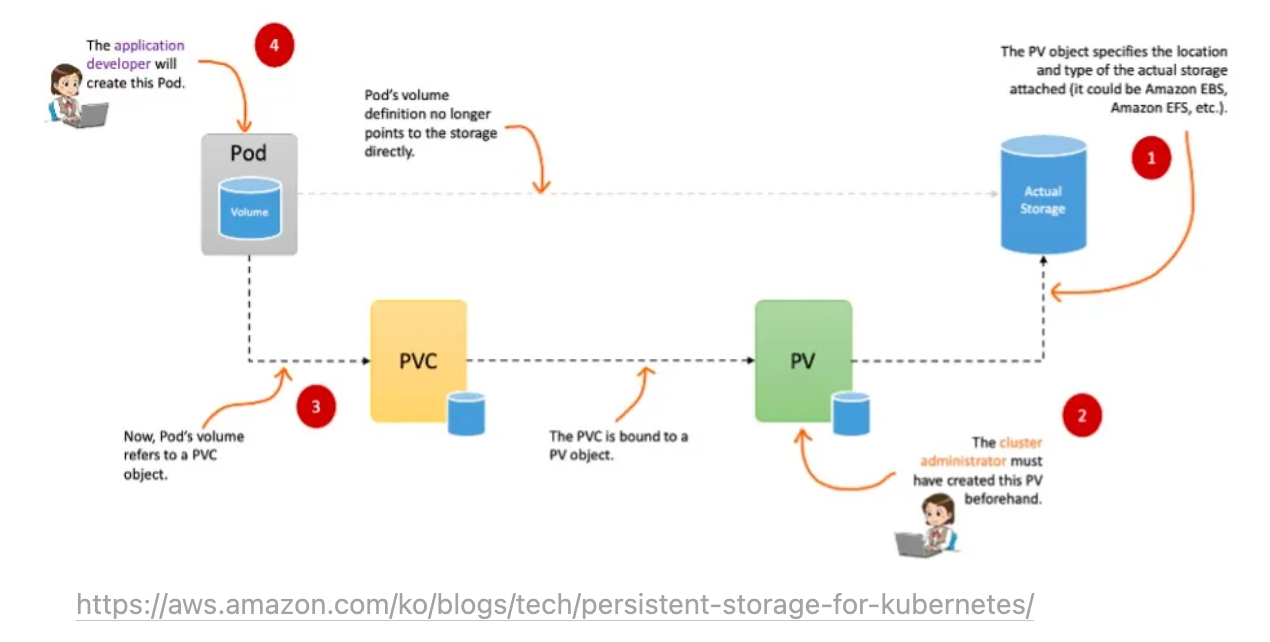
- 파드가 생성될 때 자동으로 볼륨을 마운트하여 파드에 연결하는 기능을 동적 프로비저닝(Dynamic Provisioning)이라고 함
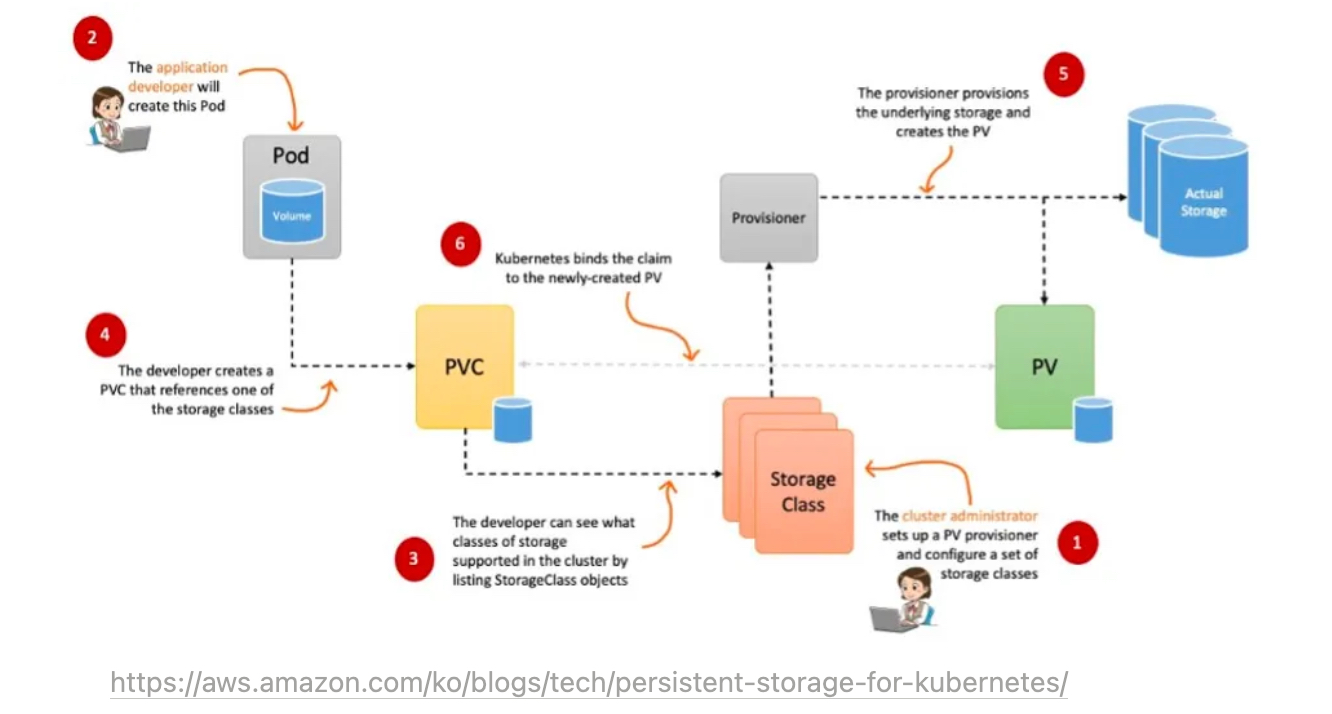
- 퍼시스턴트 볼륨의 사용이 끝났을 때 해당 볼륨은 어떻게 초기화할 것인지 별도로 설정할 수 있는데, 쿠버네티스는 이를 Reclaim Policy 라고 부릅니다.
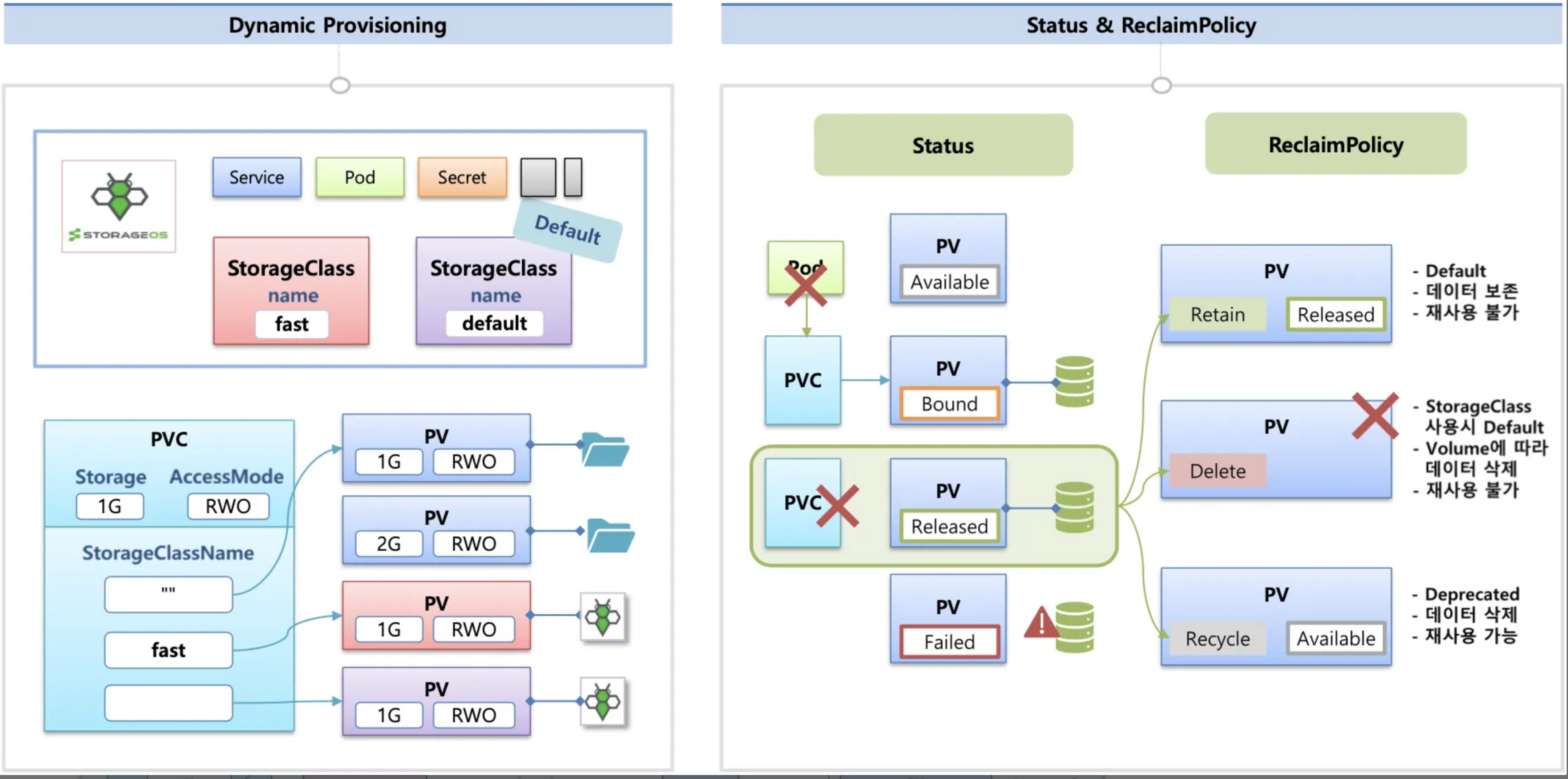
- Reclaim Policy 에는 크게 Retain(보존), Delete(삭제, 즉 EBS 볼륨도 삭제됨),
Recycle방식이 있습니다.
2.2 스토리지 소개
- 출처 : 김태민 기술 블로그
- 볼륨 : emptyDir, hostPath, pv/pvc
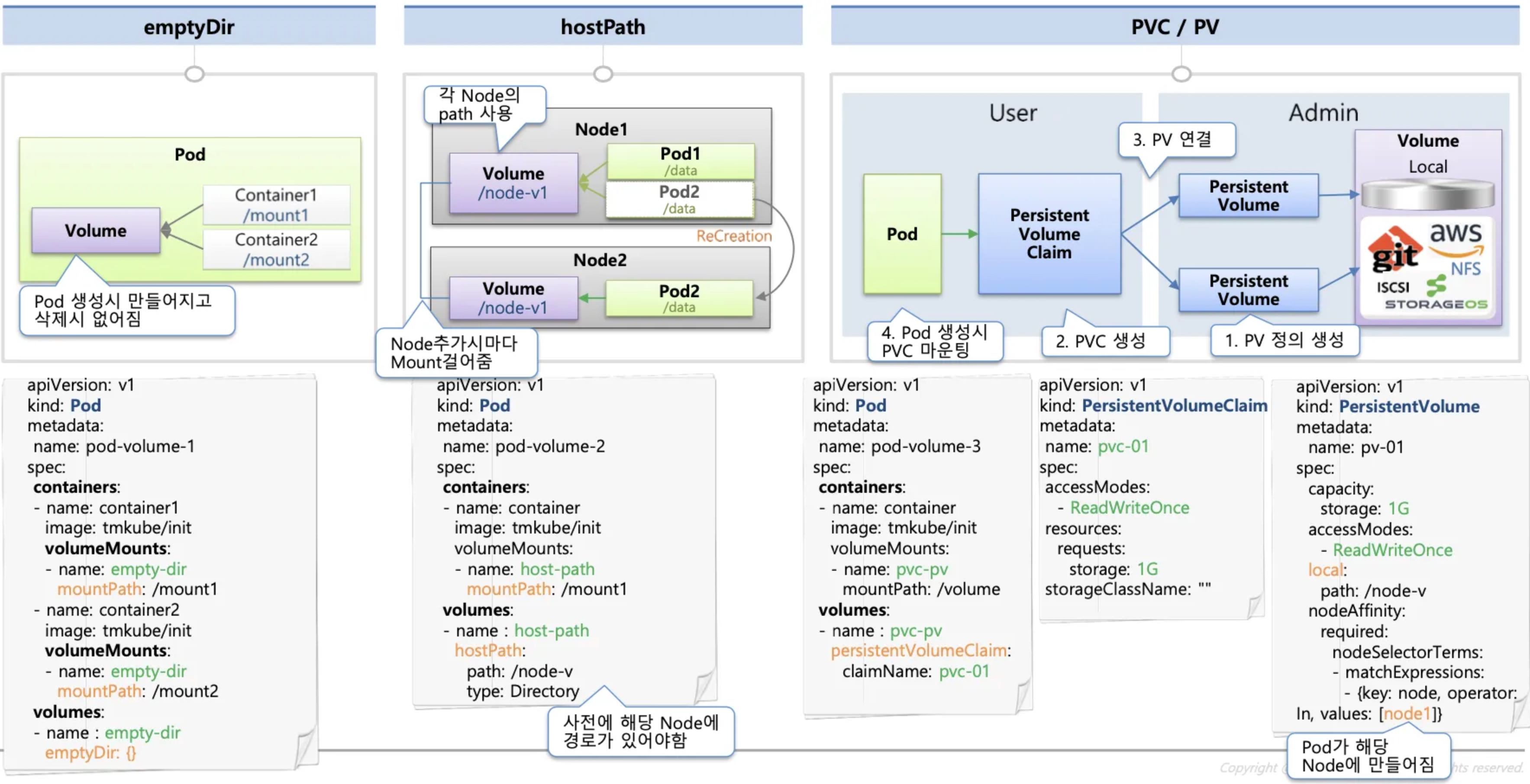
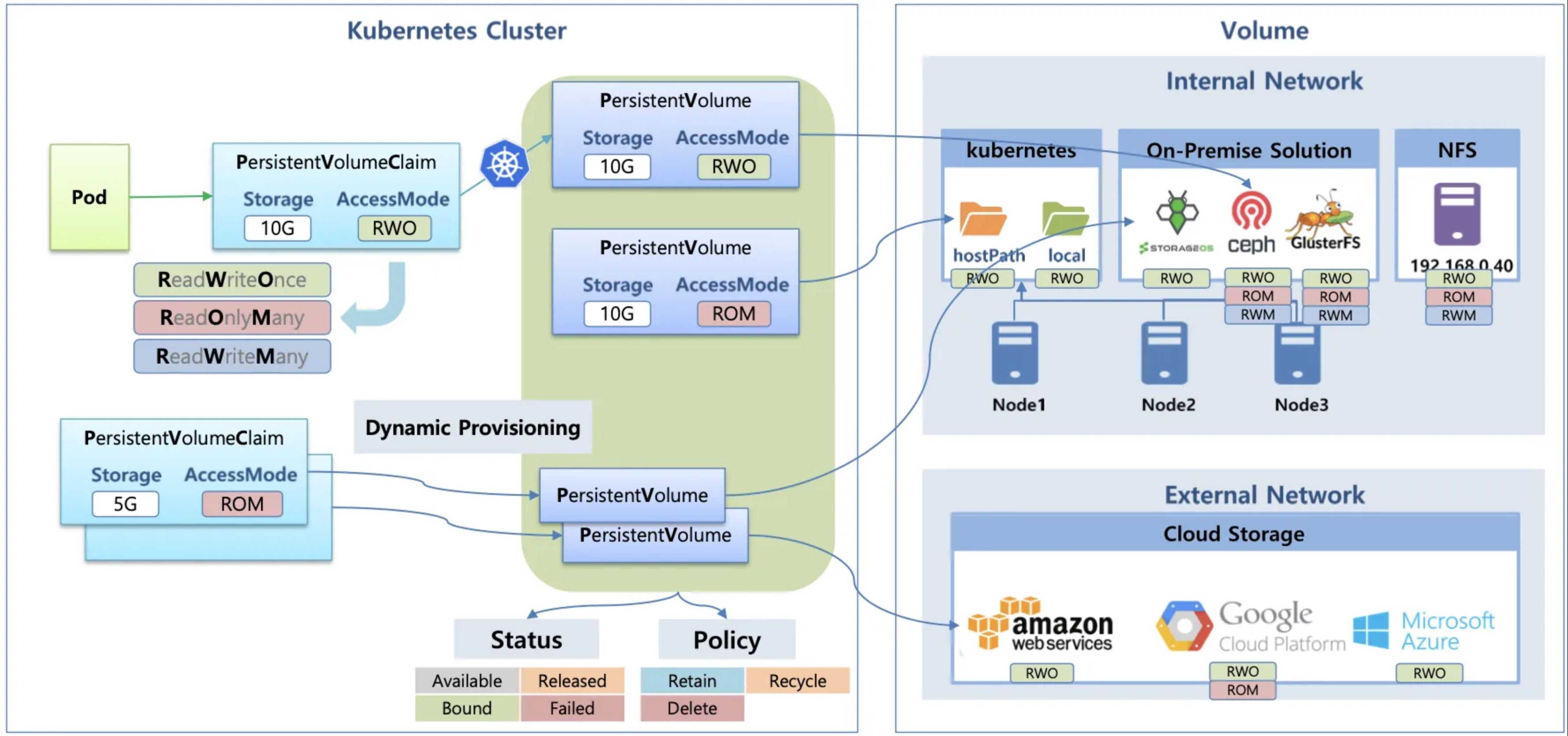
- 다양한 볼륨 사용 : K8S 자체 제공(hostPath, local), 온프렘 솔루션(ceph 등), NFS, 클라우드 스토리지(AWS EBS/EFS, GCP Filestore 등)
- 동적 프로비저닝 & 볼륨 상태 , ReclaimPolicy
2.3 CSI(Contaier Storage Interface) 소개
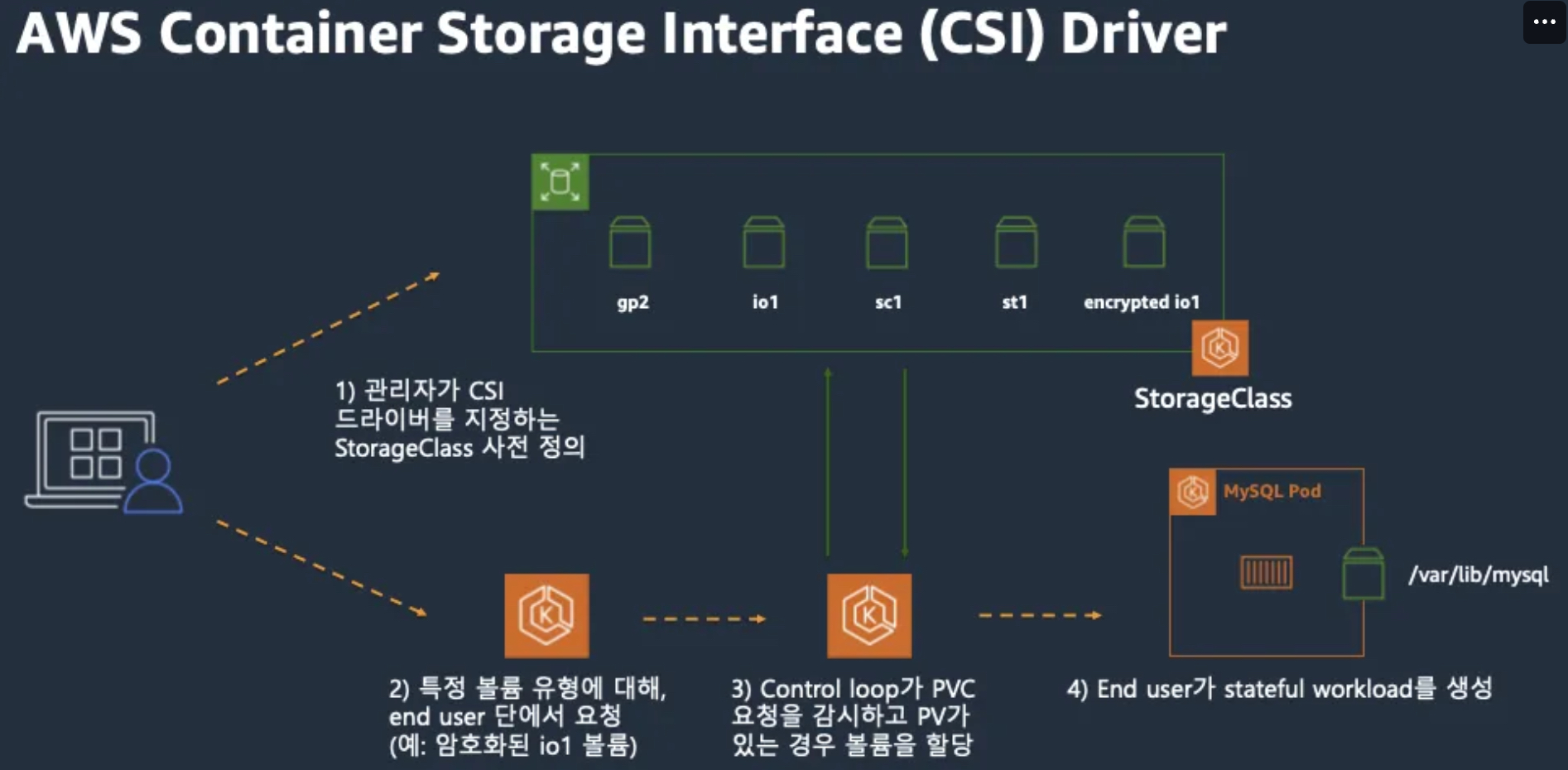
- CSI Driver 배경 : Kubernetes source code 내부에 존재하는 AWS EBS provisioner는 당연히 Kubernetes release lifecycle을 따라서 배포되므로, provisioner 신규 기능을 사용하기 위해서는 Kubernetes version을 업그레이드해야 하는 제약 사항이 있습니다. 따라서, Kubernetes 개발자는 Kubernetes 내부에 내장된 provisioner (in-tree)를 모두 삭제하고, 별도의 controller Pod을 통해 동적 provisioning을 사용할 수 있도록 만들었습니다. 이것이 바로 CSI(Container Storage Interface) driver 입니다
- CSI를 사용하면, K8S 의 공통화된 CSI 인터페이스를 통해 다양한 프로바이더를 사용할 수 있다.
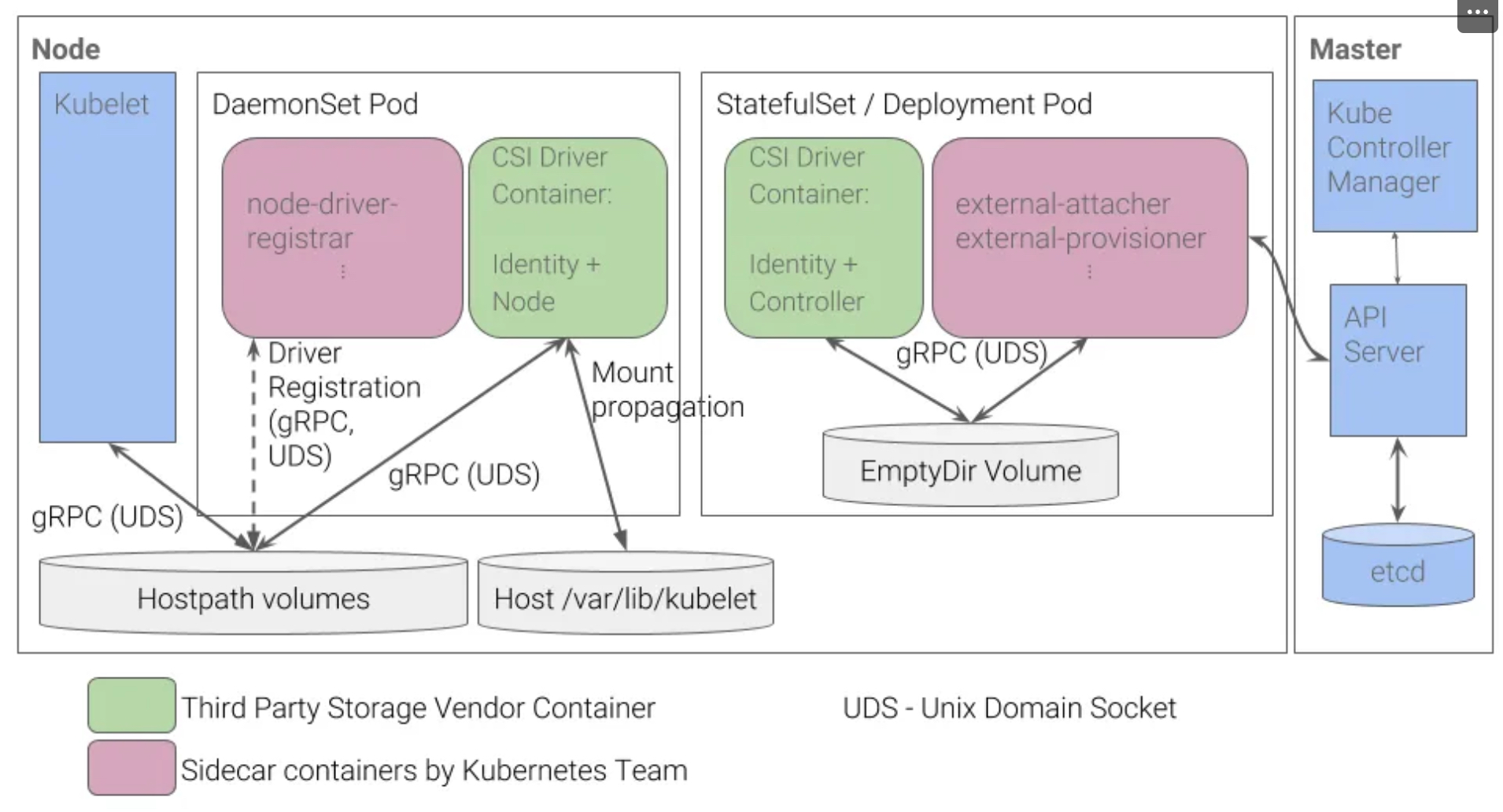
- 일반적인 CSI driver의 구조입니다. AWS EBS CSI driver 역시 아래와 같은 구조를 가지는데,
오른쪽 StatefulSet 또는 Deployment로 배포된 controller Pod이 AWS API를 사용하여 실제 EBS volume을 생성하는 역할을 합니다.
왼쪽 DaemonSet으로 배포된 node Pod은 AWS API를 사용하여 Kubernetes node (EC2 instance)에 EBS volume을 attach 해줍니다.
2.4 Node-specific Volume Limits
- 출처 : 링크 , Docs
- AWS EC2 Type에 따라 볼륨 최대 제한 : 25개 or 39개
- For Amazon EBS disks on M5,C5,R5,T3 and Z1D instance types, Kubernetes allows only 25 volumes to be attached to a Node.
- For other instance types on Amazon Elastic Compute Cloud (EC2), Kubernetes allows 39 volumes to be attached to a Node.
- Improve compute utilization with more Amazon EBS volume attachments on 7th generation Amazon EC2 instances - Blog
# csinodes 확인 : t3.medium
kubectl describe csinodes
...
Spec:
  Drivers:
    ebs.csi.aws.com:
      Node ID:  i-01fe8eed1ead9cde5
      Allocatables:
        Count:        25
      Topology Keys:  [kubernetes.io/os topology.ebs.csi.aws.com/zone topology.kubernetes.io/zone]
Events:               <none>
...

# check m7i.48xlarge CSInode object
kubectl get csinode ip-<redacted>.eu-west-1.compute.internal -o yaml
...
spec:
  drivers:
  - allocatable:
      count: 127
    name: ebs.csi.aws.com
    nodeID: i-<redacted>
    topologyKeys:
    - topology.ebs.csi.aws.com/zone
2.5 파드 기본 및 empty 저장소 동작 확인
2.5.1 기본 저장소
- 파드 기본 저장소 동작 확인 - Docs
# 모니터링
kubectl get pod -w

# redis 파드 생성
cat <<EOF | kubectl apply -f -
apiVersion: v1
kind: Pod
metadata:
  name: redis
spec:
  terminationGracePeriodSeconds: 0
  containers:
  - name: redis
    image: redis
EOF

# redis 파드 내에 파일 작성
kubectl exec -it redis -- pwd
kubectl exec -it redis -- sh -c "echo hello > /data/hello.txt"
kubectl exec -it redis -- cat /data/hello.txt

# ps 설치
kubectl exec -it redis -- sh -c "apt update && apt install procps -y"
kubectl exec -it redis -- ps aux

# redis 프로세스 강제 종료 : 파드가 어떻게 되나요? hint) restartPolicy
kubectl exec -it redis -- kill 1
kubectl get pod

# redis 파드 내에 파일 확인
kubectl exec -it redis -- cat /data/hello.txt
kubectl exec -it redis -- ls -l /data

# 파드 삭제
kubectl delete pod redis- 실습 화면(좌측 명령어 수행, 우측 redis pod 상태 변화)
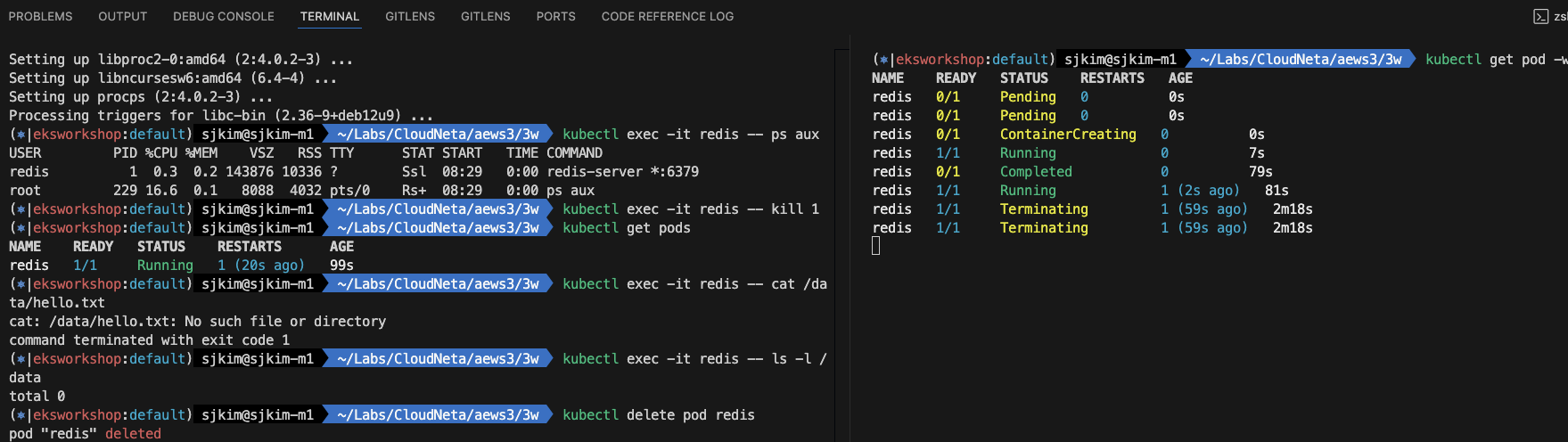
2.5.2 emptyDir
- emptyDir 동작 확인 - Docs
# 모니터링
kubectl get pod -w

# redis 파드 생성
cat <<EOF | kubectl apply -f -
apiVersion: v1
kind: Pod
metadata:
  name: redis
spec:
  terminationGracePeriodSeconds: 0
  containers:
  - name: redis
    image: redis
    volumeMounts:
    - name: redis-storage
      mountPath: /data/redis
  volumes:
  - name: redis-storage
    emptyDir: {}
EOF

# redis 파드 내에 파일 작성
kubectl exec -it redis -- pwd
kubectl exec -it redis -- sh -c "echo hello > /data/redis/hello.txt"
kubectl exec -it redis -- cat /data/redis/hello.txt

# ps 설치
kubectl exec -it redis -- sh -c "apt update && apt install procps -y"
kubectl exec -it redis -- ps aux

# redis 프로세스 강제 종료 : 파드가 어떻게 되나요? hint) restartPolicy
kubectl exec -it redis -- kill 1
kubectl get pod

# redis 파드 내에 파일 확인 > 파일 유지됨
kubectl exec -it redis -- cat /data/redis/hello.txt
hello
kubectl exec -it redis -- ls -l /data/redis

# 파드 삭제 후 파일 확인
kubectl delete pod redis
cat <<EOF | kubectl apply -f -
apiVersion: v1
kind: Pod
metadata:
  name: redis
spec:
  terminationGracePeriodSeconds: 0
  containers:
  - name: redis
    image: redis
    volumeMounts:
    - name: redis-storage
      mountPath: /data/redis
  volumes:
  - name: redis-storage
    emptyDir: {}
EOF

# redis 파드 내에 파일 확인
kubectl exec -it redis -- cat /data/redis/hello.txt
kubectl exec -it redis -- ls -l /data/redis

# 파드 삭제
kubectl delete pod redis- 실습 화면 > 컨테이너 재기동 시 파일 유지됨, Pod 재생성 시 파일 소실 됨
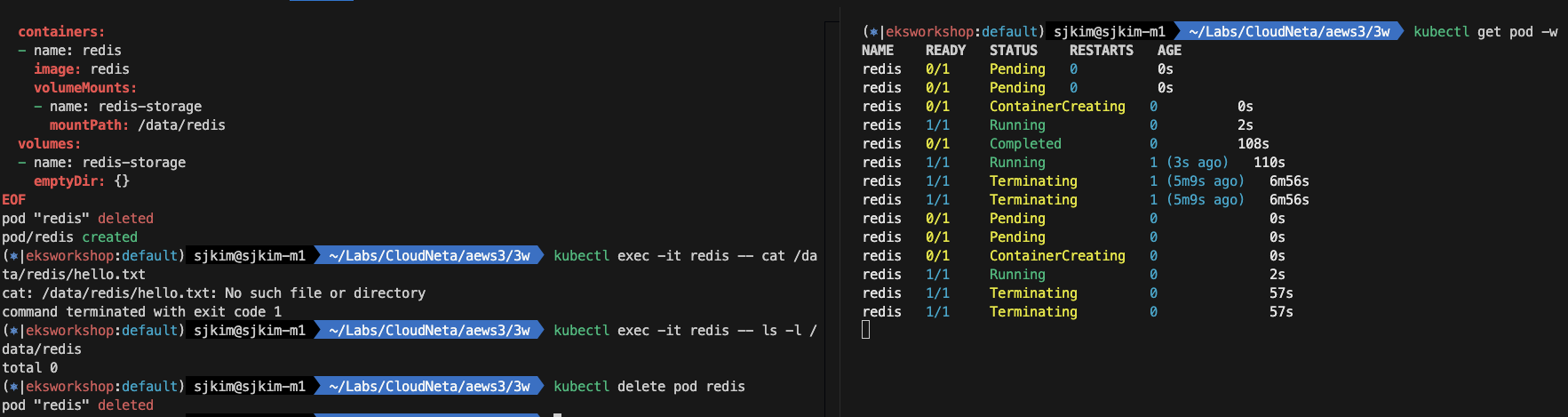
2.6 호스트 Path 를 사용하는 PV/PVC
- local-path-provisioner 스트리지 클래스 배포 - 링크
- 설치 - 링크
- (참고) The provisioner supports automatic configuration reloading. Users can change the configuration using kubectl apply or kubectl edit with config map local-path-config
# 배포
kubectl apply -f https://raw.githubusercontent.com/rancher/local-path-provisioner/v0.0.31/deploy/local-path-storage.yaml

namespace/local-path-storage created
serviceaccount/local-path-provisioner-service-account created
role.rbac.authorization.k8s.io/local-path-provisioner-role created
clusterrole.rbac.authorization.k8s.io/local-path-provisioner-role created
rolebinding.rbac.authorization.k8s.io/local-path-provisioner-bind created
clusterrolebinding.rbac.authorization.k8s.io/local-path-provisioner-bind created
deployment.apps/local-path-provisioner created
storageclass.storage.k8s.io/local-path created
configmap/local-path-config created

...
apiVersion: storage.k8s.io/v1
kind: StorageClass
metadata:
  name: local-path
provisioner: rancher.io/local-path
volumeBindingMode: WaitForFirstConsumer
reclaimPolicy: Delete

---
apiVersion: v1
kind: ConfigMap
metadata:
  name: local-path-config
  namespace: local-path-storage
data:
  config.json: |-
    {
            "nodePathMap":[
            {
                    "node":"DEFAULT_PATH_FOR_NON_LISTED_NODES",
                    "paths":["/opt/local-path-provisioner"]
            }
            ]
    }
  setup: |-
    #!/bin/sh
    set -eu
    mkdir -m 0777 -p "$VOL_DIR"
  teardown: |-
    #!/bin/sh
    set -eu
    rm -rf "$VOL_DIR"
...

# 확인
kubectl get-all -n local-path-storage
configmap/kube-root-ca.crt                                         local-path-storage  3m20s
configmap/local-path-config                                        local-path-storage  3m20s
pod/local-path-provisioner-84967477f-824rv                         local-path-storage  3m20s
serviceaccount/default                                             local-path-storage  3m20s
serviceaccount/local-path-provisioner-service-account              local-path-storage  3m20s
deployment.apps/local-path-provisioner                             local-path-storage  3m20s
replicaset.apps/local-path-provisioner-84967477f                   local-path-storage  3m20s
rolebinding.rbac.authorization.k8s.io/local-path-provisioner-bind  local-path-storage  3m20s
role.rbac.authorization.k8s.io/local-path-provisioner-role         local-path-storage  3m20s

kubectl get pod -n local-path-storage -owide
local-path-provisioner-84967477f-824rv   1/1     Running   0          4m45s   192.168.1.58   ip-192-168-1-16.ap-northeast-2.compute.internal   <none>           <none>

kubectl describe cm -n local-path-storage local-path-config
kubectl get sc
kubectl get sc local-path
NAME         PROVISIONER             RECLAIMPOLICY   VOLUMEBINDINGMODE      ALLOWVOLUMEEXPANSION   AGE
local-path rancher.io/local-path Delete WaitForFirstConsumer false 5m22s- PV/PVC 를 사용하는 파드 생성
# PVC 생성
cat <<EOF | kubectl apply -f -
apiVersion: v1
kind: PersistentVolumeClaim
metadata:
  name: localpath-claim
spec:
  accessModes:
    - ReadWriteOnce
  storageClassName: local-path
  resources:
    requests:
      storage: 1Gi
EOF

# PVC 확인
kubectl get pvc
localpath-claim   Pending                                      local-path     <unset>                 18s

kubectl describe pvc
Name:          localpath-claim
Namespace:     default
StorageClass:  local-path
Status:        Pending
Volume:
Labels:        <none>
Annotations:   <none>
Finalizers:    [kubernetes.io/pvc-protection]
Capacity:
Access Modes:
VolumeMode:    Filesystem
Used By:       <none>
Events:
  Type    Reason                Age               From                         Message
  ----    ------                ----              ----                         -------
  Normal  WaitForFirstConsumer  8s (x3 over 32s)  persistentvolume-controller  waiting for first consumer to be created before binding


# 파드 생성
cat <<EOF | kubectl apply -f -
apiVersion: v1
kind: Pod
metadata:
  name: app
spec:
  terminationGracePeriodSeconds: 3
  containers:
  - name: app
    image: centos
    command: ["/bin/sh"]
    args: ["-c", "while true; do echo \$(date -u) >> /data/out.txt; sleep 5; done"]
    volumeMounts:
    - name: persistent-storage
      mountPath: /data
  volumes:
  - name: persistent-storage
    persistentVolumeClaim:
      claimName: localpath-claim
EOF

# 파드 확인
kubectl get pod,pv,pvc
NAME      READY   STATUS    RESTARTS   AGE
pod/app   1/1     Running   0          53s

NAME                                                        CAPACITY   ACCESS MODES   RECLAIM POLICY   STATUS   CLAIM                     STORAGECLASS   VOLUMEATTRIBUTESCLASS   REASON   AGE
persistentvolume/pvc-b99c7a71-e9bf-4981-a107-2255f34a6f71   1Gi        RWO            Delete           Bound    default/localpath-claim   local-path     <unset>                          45s

NAME                                    STATUS   VOLUME                                     CAPACITY   ACCESS MODES   STORAGECLASS   VOLUMEATTRIBUTESCLASS   AGE
persistentvolumeclaim/localpath-claim   Bound    pvc-b99c7a71-e9bf-

kubectl describe pv    # Node Affinity 확인
Name:              pvc-b99c7a71-e9bf-4981-a107-2255f34a6f71
Labels:            <none>
Annotations:       local.path.provisioner/selected-node: ip-192-168-3-184.ap-northeast-2.compute.internal
                   pv.kubernetes.io/provisioned-by: rancher.io/local-path
Finalizers:        [kubernetes.io/pv-protection]
StorageClass:      local-path
Status:            Bound
Claim:             default/localpath-claim
Reclaim Policy:    Delete
Access Modes:      RWO
VolumeMode:        Filesystem
Capacity:          1Gi
Node Affinity:
  Required Terms:
    Term 0:        kubernetes.io/hostname in [ip-192-168-3-184.ap-northeast-2.compute.internal]
Message:
Source:
    Type:          HostPath (bare host directory volume)
    Path:          /opt/local-path-provisioner/pvc-b99c7a71-e9bf-4981-a107-2255f34a6f71_default_localpath-claim
    HostPathType:  DirectoryOrCreate
Events:            <none>

kubectl exec -it app -- tail -f /data/out.txt
Sat Feb 22 09:06:45 UTC 2025
Sat Feb 22 09:06:50 UTC 2025
...

# 워커노드 중 현재 파드가 배포되어 있다만, 아래 경로에 out.txt 파일 존재 확인 (N3 노드에서 확인 됨)
for node in N1 N2 N3; do ssh ec2-user@$node tree /opt/local-path-provisioner; done
/opt/local-path-provisioner [error opening dir]

0 directories, 0 files
/opt/local-path-provisioner [error opening dir]

0 directories, 0 files
/opt/local-path-provisioner
└── pvc-b99c7a71-e9bf-4981-a107-2255f34a6f71_default_localpath-claim
    └── out.txt

1 directory, 1 file


# 해당 워커노드 자체에서 out.txt 파일 확인 : 아래 굵은 부분은 각자 실습 환경에 따라 다름
ssh ec2-user@N3 tail -f /opt/local-path-provisioner/pvc-b99c7a71-e9bf-4981-a107-2255f34a6f71_default_localpath-claim/out.txt

Sat Feb 22 09:10:26 UTC 2025
Sat Feb 22 09:10:31 UTC 2025
... - 파드 삭제 후 파드 재생성해서 데이터 유지 되는지 확인
# 파드 삭제 후 PV/PVC 확인
kubectl delete pod app
kubectl get pod,pv,pvc
for node in N1 N2 N3; do ssh ec2-user@$node tree /opt/local-path-provisioner; done
/opt/local-path-provisioner [error opening dir]

0 directories, 0 files
/opt/local-path-provisioner [error opening dir]

0 directories, 0 files
/opt/local-path-provisioner
└── pvc-b99c7a71-e9bf-4981-a107-2255f34a6f71_default_localpath-claim
    └── out.txt

# 파드 다시 실행
cat <<EOF | kubectl apply -f -
apiVersion: v1
kind: Pod
metadata:
  name: app
spec:
  terminationGracePeriodSeconds: 3
  containers:
  - name: app
    image: centos
    command: ["/bin/sh"]
    args: ["-c", "while true; do echo \$(date -u) >> /data/out.txt; sleep 5; done"]
    volumeMounts:
    - name: persistent-storage
      mountPath: /data
  volumes:
  - name: persistent-storage
    persistentVolumeClaim:
      claimName: localpath-claim
EOF

# 확인 -- 앞의 파일 유지된 상태에서 추가되어 저장 됨
kubectl exec -it app -- head /data/out.txt
Sat Feb 22 09:05:25 UTC 2025
Sat Feb 22 09:05:30 UTC 2025
Sat Feb 22 09:05:35 UTC 2025
Sat Feb 22 09:05:40 UTC 2025
Sat Feb 22 09:05:45 UTC 2025
Sat Feb 22 09:05:50 UTC 2025
Sat Feb 22 09:05:55 UTC 2025
Sat Feb 22 09:06:00 UTC 2025
Sat Feb 22 09:06:05 UTC 2025
Sat Feb 22 09:06:10 UTC 2025

kubectl exec -it app -- tail -f /data/out.txt
Sat Feb 22 09:18:12 UTC 2025
Sat Feb 22 09:18:17 UTC 2025
Sat Feb 22 09:18:22 UTC 2025
Sat Feb 22 09:18:27 UTC 2025
Sat Feb 22 09:18:32 UTC 2025
Sat Feb 22 09:18:37 UTC 2025
Sat Feb 22 09:18:42 UTC 2025
Sat Feb 22 09:18:47 UTC 2025
Sat Feb 22 09:18:52 UTC 2025
Sat Feb 22 09:18:57 UTC 2025- 다음 실습을 위해서 파드와 PVC 삭제
# 파드와 PVC 삭제
kubectl delete pod app
kubectl get pv,pvc
kubectl delete pvc localpath-claim

# 확인
kubectl get pv
for node in N1 N2 N3; do ssh ec2-user@$node tree /opt/local-path-provisioner; done
2.7 디스크 성능 측정
- Kubestr 모니터링 및 성능 측정 확인 (NVMe SSD) - Kubestr, CloudStorage
- Choosing the right storage for cloud native CI/CD on Amazon Elastic Kubernetes Service - 링크
3. AWS EBS Controller
3.1 Volume (ebs-csi-controller)
-
AWS CSI 드라이버는 크게 2개 구성요소가 있습니다. AWS API를 호출하면서 AWS 스토리지를 관리하는 CSI-Controller와 kubelet과 상호작용하면서 AWS스토리지를 pod에 마운트하는 CSI-Node가 있습니다.링크
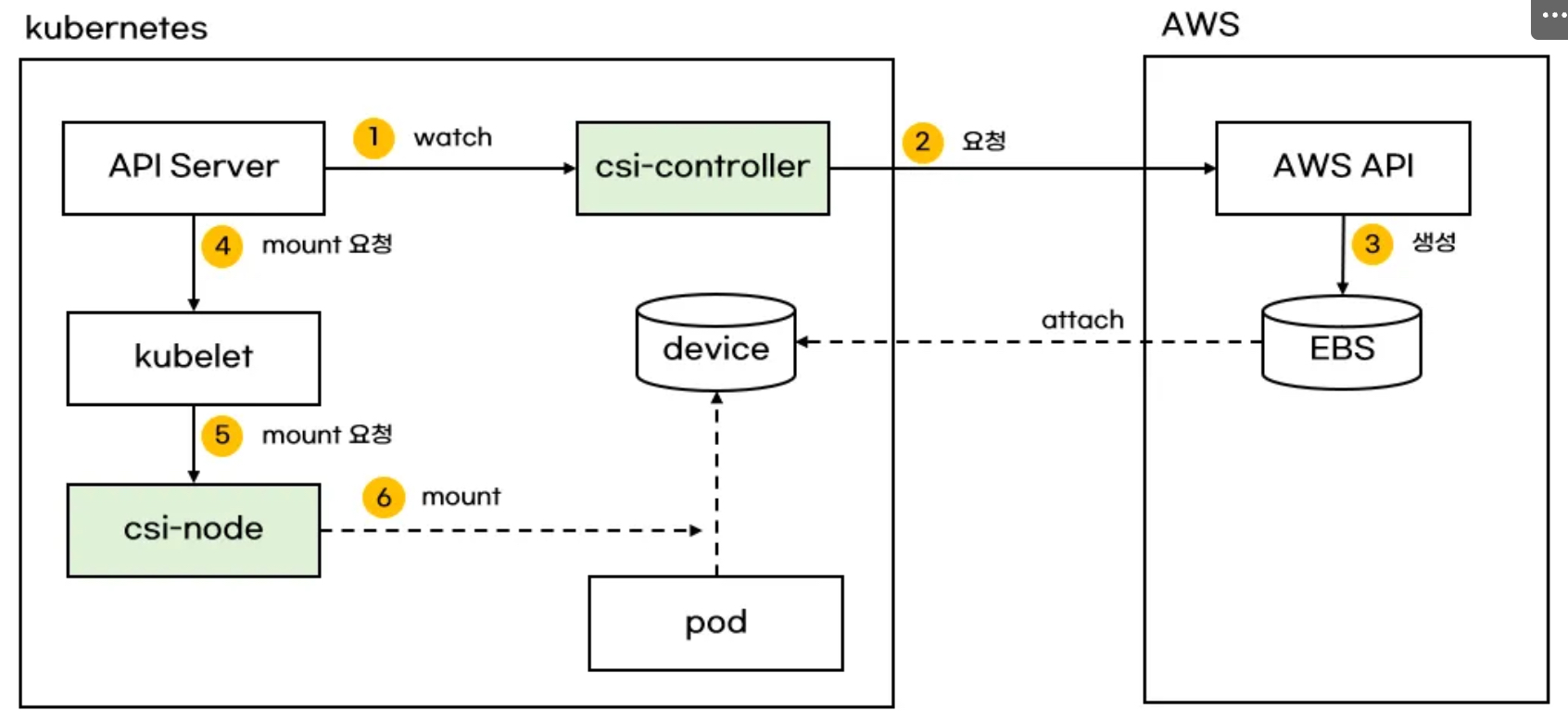
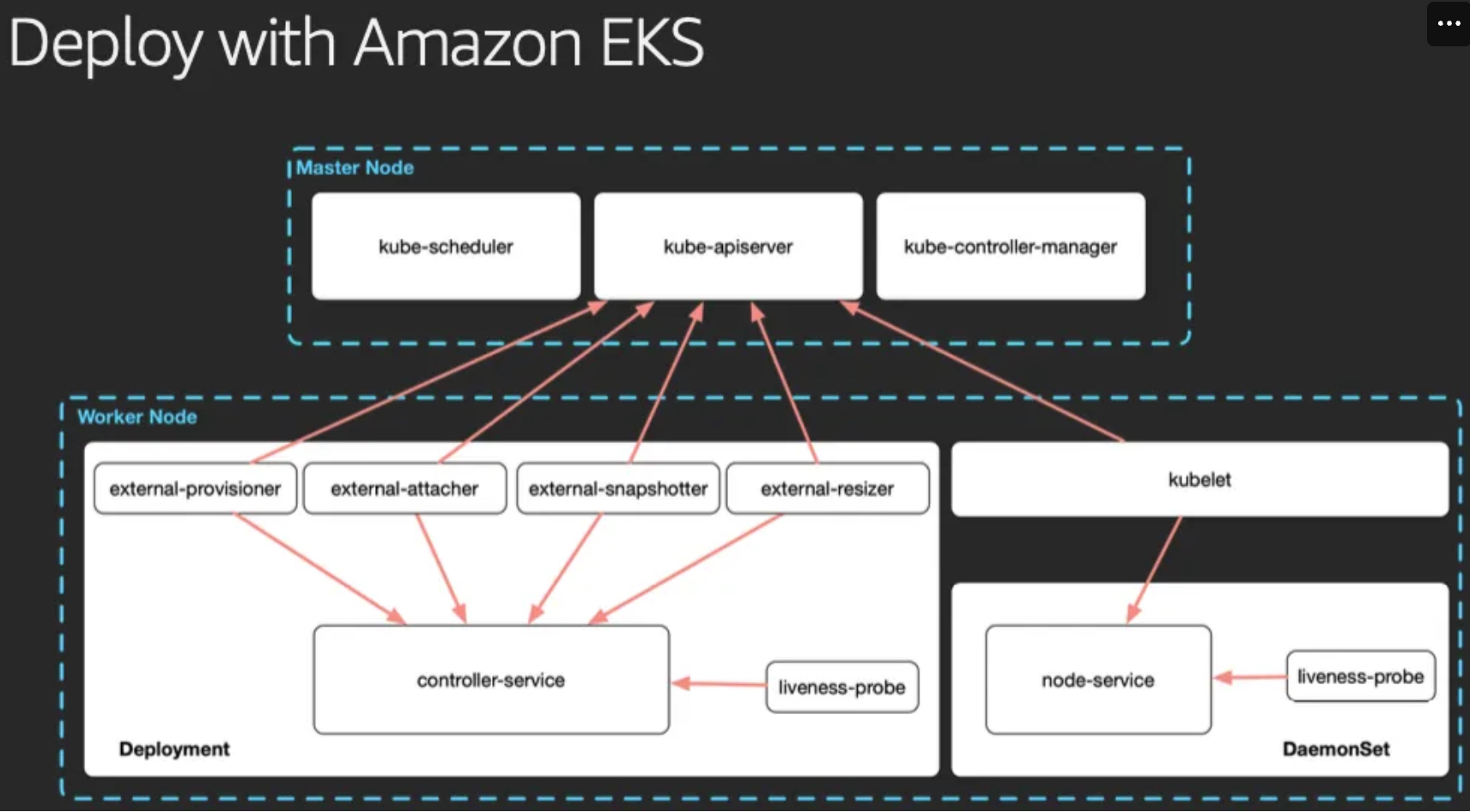
- persistentvolume, persistentvolumeclaim의 accessModes는 ReadWriteOnce로 설정해야 합니다 - Why? EBS는 EC2와 같이 AZ 종속 자원입니다.
3.2 설치
- Amazon EBS CSI driver as an Amazon EKS add-on - Parameters
# 아래는 aws-ebs-csi-driver 전체 버전 정보와 기본 설치 버전(True) 정보 확인
aws eks describe-addon-versions \
    --addon-name aws-ebs-csi-driver \
    --kubernetes-version 1.31 \
    --query "addons[].addonVersions[].[addonVersion, compatibilities[].defaultVersion]" \
    --output text
v1.39.0-eksbuild.1  True
v1.38.1-eksbuild.2  False
v1.38.1-eksbuild.1  False

# ISRA 설정 : AWS관리형 정책 AmazonEBSCSIDriverPolicy 사용
eksctl create iamserviceaccount \
  --name ebs-csi-controller-sa \
  --namespace kube-system \
  --cluster ${CLUSTER_NAME} \
  --attach-policy-arn arn:aws:iam::aws:policy/service-role/AmazonEBSCSIDriverPolicy \
  --approve \
  --role-only \
  --role-name AmazonEKS_EBS_CSI_DriverRole-sejkim

# ISRA 확인
eksctl get iamserviceaccount --cluster ${CLUSTER_NAME}
NAMESPACE	    NAME				            ROLE ARN
kube-system     ebs-csi-controller-sa           arn:aws:iam::1**********3:role/AmazonEKS_EBS_CSI_DriverRole-sejkim
...

# Amazon EBS CSI driver addon 배포(설치)
export ACCOUNT_ID=$(aws sts get-caller-identity --query 'Account' --output text)
eksctl create addon --name aws-ebs-csi-driver --cluster ${CLUSTER_NAME} --service-account-role-arn arn:aws:iam::${ACCOUNT_ID}:role/AmazonEKS_EBS_CSI_DriverRole-sejkim --force
kubectl get sa -n kube-system ebs-csi-controller-sa -o yaml | head -6
apiVersion: v1
automountServiceAccountToken: true
kind: ServiceAccount
metadata:
  annotations:
    eks.amazonaws.com/role-arn: arn:aws:iam::1**********3:role/AmazonEKS_EBS_CSI_DriverRole-sejkim

# 확인
eksctl get addon --cluster ${CLUSTER_NAME}
kubectl get deploy,ds -l=app.kubernetes.io/name=aws-ebs-csi-driver -n kube-system
NAME                    VERSION                 STATUS  ISSUES  IAMROLE                                                                 UPDATE AVAILABLE CONFIGURATION VALUES            POD IDENTITY ASSOCIATION ROLES
aws-ebs-csi-driver      v1.39.0-eksbuild.1      ACTIVE  0       arn:aws:iam::1**********3:role/AmazonEKS_EBS_CSI_DriverRole-sejkim
coredns                 v1.11.4-eksbuild.2      ACTIVE  0
kube-proxy              v1.31.3-eksbuild.2      ACTIVE  0
metrics-server          v0.7.2-eksbuild.2       ACTIVE  0
vpc-cni                 v1.19.2-eksbuild.5      ACTIVE  0       arn:aws:iam::1**********3:role/eksctl-myeks-sejkim-addon-vpc-cni-Role1-XpCLgjH7pQ5s                              enableNetworkPolicy: "true"
NAME                                 READY   UP-TO-DATE   AVAILABLE   AGE
deployment.apps/ebs-csi-controller   2/2     2            2           66s

NAME                                  DESIRED   CURRENT   READY   UP-TO-DATE   AVAILABLE   NODE SELECTOR              AGE
daemonset.apps/ebs-csi-node           3         3         3       3            3           kubernetes.io/os=linux     67s
daemonset.apps/ebs-csi-node-windows   0         0         0       0            0           kubernetes.io/os=windows   67s


kubectl get pod -n kube-system -l 'app in (ebs-csi-controller,ebs-csi-node)'
NAME                                  READY   STATUS    RESTARTS   AGE
ebs-csi-controller-84bdcddd98-lxhkr   6/6     Running   0          2m48s
ebs-csi-controller-84bdcddd98-xrz28   6/6     Running   0          2m48s
ebs-csi-node-96w96                    3/3     Running   0          2m48s
ebs-csi-node-c2dw8                    3/3     Running   0          2m48s
ebs-csi-node-xtcbk                    3/3     Running   0          2m49s

kubectl get pod -n kube-system -l app.kubernetes.io/component=csi-driver

# ebs-csi-controller 파드에 6개 컨테이너 확인
kubectl get pod -n kube-system -l app=ebs-csi-controller -o jsonpath='{.items[0].spec.containers[*].name}'
ebs-plugin csi-provisioner csi-attacher csi-snapshotter csi-resizer liveness-probe

# csinodes 확인
kubectl api-resources | grep -i csi
csidrivers                                       storage.k8s.io/v1                 false        CSIDriver
csinodes                                         storage.k8s.io/v1                 false        CSINode
csistoragecapacities                             storage.k8s.io/v1                 true         CSIStorageCapacity

kubectl get csinodes
NAME                                               DRIVERS   AGE
ip-192-168-1-16.ap-northeast-2.compute.internal    1         9h
ip-192-168-2-50.ap-northeast-2.compute.internal    1         9h
ip-192-168-3-184.ap-northeast-2.compute.internal   1         9h

kubectl describe csinodes
...
Name:               ip-192-168-1-16.ap-northeast-2.compute.internal
Labels:             <none>
Annotations:        storage.alpha.kubernetes.io/migrated-plugins:
                      kubernetes.io/aws-ebs,kubernetes.io/azure-disk,kubernetes.io/azure-file,kubernetes.io/cinder,kubernetes.io/gce-pd,kubernetes.io/portworx-v...
CreationTimestamp:  Sat, 22 Feb 2025 10:51:43 +0900
Spec:
  Drivers:
    ebs.csi.aws.com:
      Node ID:  i-02534f48b8829758c
      Allocatables:
        Count:        25
      Topology Keys:  [kubernetes.io/os topology.ebs.csi.aws.com/zone topology.kubernetes.io/zone]
Events:               <none>
...

kubectl get csidrivers
NAME              ATTACHREQUIRED   PODINFOONMOUNT   STORAGECAPACITY   TOKENREQUESTS   REQUIRESREPUBLISH   MODES        AGE
ebs.csi.aws.com   true             false            false             <unset>         false               Persistent   8m23s
efs.csi.aws.com   false            false            false             <unset>         false               Persistent   9h

kubectl describe csidrivers ebs.csi.aws.com
Name:         ebs.csi.aws.com
Namespace:
Labels:       app.kubernetes.io/component=csi-driver
              app.kubernetes.io/managed-by=EKS
              app.kubernetes.io/name=aws-ebs-csi-driver
              app.kubernetes.io/version=1.39.0
Annotations:  <none>
API Version:  storage.k8s.io/v1
Kind:         CSIDriver
Metadata:
  Creation Timestamp:  2025-02-22T10:52:14Z
  Resource Version:    118773
  UID:                 1f9be551-e197-4226-b6c0-fdf7384cedd6
Spec:
  Attach Required:     true
  Fs Group Policy:     ReadWriteOnceWithFSType
  Pod Info On Mount:   false
  Requires Republish:  false
  Se Linux Mount:      false
  Storage Capacity:    false
  Volume Lifecycle Modes:
    Persistent
Events:  <none>

# (참고) 노드에 최대 EBS 부착 수량 변경
aws eks update-addon --cluster-name ${CLUSTER_NAME} --addon-name aws-ebs-csi-driver \
  --addon-version v1.39.0-eksbuild.1 --configuration-values '{
    "node": {
      "volumeAttachLimit": 31,
      "enableMetrics": true
    }
  }'
혹은
cat << EOF > node-attachments.yaml
"node":
  "volumeAttachLimit": 31
  "enableMetrics": true
EOF
aws eks update-addon --cluster-name ${CLUSTER_NAME} --addon-name aws-ebs-csi-driver \
  --addon-version v1.39.0-eksbuild.1 --configuration-values 'file://node-attachments.yaml'


## 확인
kubectl get ds -n kube-system ebs-csi-node -o yaml
...
      containers:
      - args:
        - node
        - --endpoint=$(CSI_ENDPOINT)
        - --http-endpoint=0.0.0.0:3302
        - --csi-mount-point-prefix=/var/lib/kubelet/plugins/kubernetes.io/csi/ebs.csi.aws.com/
        - --volume-attach-limit=31
        - --logging-format=text
        - --v=2

kubectl describe csinodes
...
Spec:
  Drivers:
    ebs.csi.aws.com:
      Node ID:  i-0369415e13eb1fe80
      Allocatables:
        Count:        31
      Topology Keys:  [kubernetes.io/os topology.ebs.csi.aws.com/zone topology.kubernetes.io/zone]
3.3 gp3 스토리지 클래스 생성
- AWS EBS 스토리지 클래스 파라미터 - 링크 , Parameters
# gp3 스토리지 클래스 생성
kubectl get sc
cat <<EOF | kubectl apply -f -
kind: StorageClass
apiVersion: storage.k8s.io/v1
metadata:
  name: gp3
  annotations:
    storageclass.kubernetes.io/is-default-class: "true"
allowVolumeExpansion: true
provisioner: ebs.csi.aws.com
volumeBindingMode: WaitForFirstConsumer
parameters:
  type: gp3
  #iops: "5000"
  #throughput: "250"
  allowAutoIOPSPerGBIncrease: 'true'
  encrypted: 'true'
  fsType: xfs # 기본값이 ext4
EOF

kubectl get sc
gp2             kubernetes.io/aws-ebs   Delete          WaitForFirstConsumer   false                  9h
gp3 (default)   ebs.csi.aws.com         Delete          WaitForFirstConsumer   true                   28s
local-path      rancher.io/local-path   Delete          WaitForFirstConsumer   false                  143m

kubectl describe sc gp3 | grep Parameters
Parameters: allowAutoIOPSPerGBIncrease=true,encrypted=true,fsType=xfs,type=gp3volumeBindingMode필드는 볼륨 바인딩과 동적 프로비저닝의 시작 시기를 제어합니다. 설정되어 있지 않으면,Immediate모드가 기본으로 사용된다.Immediate모드는 퍼시스턴트볼륨클레임이 생성되면 볼륨 바인딩과 동적 프로비저닝이 즉시 발생하는 것을 나타냅니다. 토폴로지 제약이 있고 클러스터의 모든 노드에서 전역적으로 접근할 수 없는 스토리지 백엔드의 경우, 파드의 스케줄링 요구 사항에 대한 파악없이 퍼시스턴트볼륨이 바인딩되거나 프로비저닝되며, 이로 인해 스케줄되지 않은 파드가 발생할 수 있습니다.WaitForFirstConsumer모드를 지정해서 이 문제를 해결할 수 있는데 이 모드는 퍼시스턴트볼륨클레임을 사용하는 파드가 생성될 때까지 퍼시스턴트볼륨의 바인딩과 프로비저닝을 지연시킵니다. 퍼시스턴트볼륨은 파드의 스케줄링 제약 조건에 의해 지정된 토폴로지에 따라 선택되거나 프로비저닝 됩니다. 여기에는 리소스 요구 사항, 노드 셀렉터, 파드 어피니티(affinity)와 안티-어피니티(anti-affinity) 그리고 테인트(taint)와 톨러레이션(toleration)이 포함됩니다.
3.4 PVC/PV 파드 테스트
- 워커노드의 EBS 볼륨 확인 : tag(키/값) 필터링 - 링크
aws ec2 describe-volumes --filters Name=tag:Name,Values=$CLUSTER_NAME-ng1-sejkim-Node --output table
aws ec2 describe-volumes --filters Name=tag:Name,Values=$CLUSTER_NAME-ng1-sejkim-Node --query "Volumes[*].Attachments" | jq
aws ec2 describe-volumes --filters Name=tag:Name,Values=$CLUSTER_NAME-ng1-sejkim-Node --query "Volumes[*].{ID:VolumeId,Tag:Tags}" | jq
aws ec2 describe-volumes --filters Name=tag:Name,Values=$CLUSTER_NAME-ng1-sejkim-Node --query "Volumes[].[VolumeId, VolumeType, Attachments[].[InstanceId, State][]][]" | jq
aws ec2 describe-volumes --filters Name=tag:Name,Values=$CLUSTER_NAME-ng1-sejkim-Node --query "Volumes[].{VolumeId: VolumeId, VolumeType: VolumeType, InstanceId: Attachments[0].InstanceId, State: Attachments[0].State}" | jq

# 워커노드에서 파드에 추가한 EBS 볼륨 확인
aws ec2 describe-volumes --filters Name=tag:ebs.csi.aws.com/cluster,Values=true --output table
aws ec2 describe-volumes --filters Name=tag:ebs.csi.aws.com/cluster,Values=true --query "Volumes[*].{ID:VolumeId,Tag:Tags}" | jq
aws ec2 describe-volumes --filters Name=tag:ebs.csi.aws.com/cluster,Values=true --query "Volumes[].{VolumeId: VolumeId, VolumeType: VolumeType, InstanceId: Attachments[0].InstanceId, State: Attachments[0].State}" | jq

# 워커노드에서 파드에 추가한 EBS 볼륨 모니터링
while true; do aws ec2 describe-volumes --filters Name=tag:ebs.csi.aws.com/cluster,Values=true --query "Volumes[].{VolumeId: VolumeId, VolumeType: VolumeType, InstanceId: Attachments[0].InstanceId, State: Attachments[0].State}" --output text; date; sleep 1; done

# PVC 생성
cat <<EOF | kubectl apply -f -
apiVersion: v1
kind: PersistentVolumeClaim
metadata:
  name: ebs-claim
spec:
  accessModes:
    - ReadWriteOnce
  resources:
    requests:
      storage: 4Gi
  storageClassName: gp3
EOF
kubectl get pvc,pv
NAME                              STATUS    VOLUME   CAPACITY   ACCESS MODES   STORAGECLASS   VOLUMEATTRIBUTESCLASS   AGE
persistentvolumeclaim/ebs-claim   Pending

# 파드 생성
cat <<EOF | kubectl apply -f -
apiVersion: v1
kind: Pod
metadata:
  name: app
spec:
  terminationGracePeriodSeconds: 3
  containers:
  - name: app
    image: centos
    command: ["/bin/sh"]
    args: ["-c", "while true; do echo \$(date -u) >> /data/out.txt; sleep 5; done"]
    volumeMounts:
    - name: persistent-storage
      mountPath: /data
  volumes:
  - name: persistent-storage
    persistentVolumeClaim:
      claimName: ebs-claim
EOF

# PVC, 파드 확인
kubectl get pvc,pv,pod
NAME                              STATUS   VOLUME                                     CAPACITY   ACCESS MODES   STORAGECLASS   VOLUMEATTRIBUTESCLASS   AGE
persistentvolumeclaim/ebs-claim   Bound    pvc-bf3bb97d-f532-47a5-a02c-2215643a484a   4Gi        RWO            gp3            <unset>                 79s

NAME                                                        CAPACITY   ACCESS MODES   RECLAIM POLICY   STATUS   CLAIM               STORAGECLASS   VOLUMEATTRIBUTESCLASS   REASON   AGE
persistentvolume/pvc-bf3bb97d-f532-47a5-a02c-2215643a484a   4Gi        RWO            Delete           Bound    default/ebs-claim   gp3            <unset>                          21s

NAME      READY   STATUS    RESTARTS   AGE
pod/app   1/1     Running   0          25s

kubectl get VolumeAttachment
NAME                                                                   ATTACHER          PV                                         NODE                                              ATTACHED   AGE
csi-160d3b4119645e3fc69a43120ac32e3fecfbfd84c11c4c62f3c6240b25ee2e2a   ebs.csi.aws.com   pvc-bf3bb97d-f532-47a5-a02c-2215643a484a   ip-192-168-1-16.ap-northeast-2.compute.internal   true       46s

 PV NAME                                   PVC NAME   NAMESPACE  NODE NAME                                        POD NAME  VOLUME MOUNT NAME   SIZE  USED  AVAILABLE  %USED  IUSED  IFREE    %IUSED
 pvc-bf3bb97d-f532-47a5-a02c-2215643a484a  ebs-claim  default    ip-192-168-1-16.ap-northeast-2.compute.internal  app       persistent-storage  3Gi   60Mi  3Gi        1.50   4      2097148  0.00

# 추가된 EBS 볼륨 상세 정보 확인 : AWS 관리콘솔 EC2(EBS)에서 확인
aws ec2 describe-volumes --volume-ids $(kubectl get pv -o jsonpath="{.items[0].spec.csi.volumeHandle}") | jq
{
  "Volumes": [
    {
      "Iops": 3000,
      "Tags": [
        {
          "Key": "kubernetes.io/created-for/pvc/namespace",
          "Value": "default"
        },
        {
          "Key": "ebs.csi.aws.com/cluster",
          "Value": "true"
        },
        {
          "Key": "CSIVolumeName",
          "Value": "pvc-bf3bb97d-f532-47a5-a02c-2215643a484a"
        },
        {
          "Key": "KubernetesCluster",
          "Value": "myeks-sejkim"
        },
        {
          "Key": "Name",
          "Value": "myeks-sejkim-dynamic-pvc-bf3bb97d-f532-47a5-a02c-2215643a484a"
        },
        {
          "Key": "kubernetes.io/cluster/myeks-sejkim",
          "Value": "owned"
        },
        {
          "Key": "kubernetes.io/created-for/pv/name",
          "Value": "pvc-bf3bb97d-f532-47a5-a02c-2215643a484a"
        },
        {
          "Key": "kubernetes.io/created-for/pvc/name",
          "Value": "ebs-claim"
        }
      ],
      "VolumeType": "gp3",
      "MultiAttachEnabled": false,
      "Throughput": 125,
      "Operator": {
        "Managed": false
      },
      "VolumeId": "vol-0c1aa6c27227fbcfd",
      "Size": 4,
      "SnapshotId": "",
      "AvailabilityZone": "ap-northeast-2a",
      "State": "in-use",
      "CreateTime": "2025-02-22T11:38:24.339000+00:00",
      "Attachments": [
        {
          "DeleteOnTermination": false,
          "VolumeId": "vol-0c1aa6c27227fbcfd",
          "InstanceId": "i-02534f48b8829758c",
          "Device": "/dev/xvdaa",
          "State": "attached",
          "AttachTime": "2025-02-22T11:38:28+00:00"
        }
      ],
      "Encrypted": true,
      "KmsKeyId": "arn:aws:kms:ap-northeast-2:1**********3:key/7307aec6-fb88-4955-b926-7d1693436e6e"
    }
  ]
}

# PV 상세 확인 : nodeAffinity 내용의 의미는?
kubectl get pv -o yaml
...
    nodeAffinity:
      required:
        nodeSelectorTerms:
        - matchExpressions:
          - key: topology.kubernetes.io/zone
            operator: In
            values:
            - ap-northeast-2a
...

kubectl get node --label-columns=topology.ebs.csi.aws.com/zone,topology.k8s.aws/zone-id
NAME                                               STATUS   ROLES    AGE   VERSION               ZONE              ZONE-ID
ip-192-168-1-16.ap-northeast-2.compute.internal    Ready    <none>   9h    v1.31.5-eks-5d632ec   ap-northeast-2a   apne2-az1
ip-192-168-2-50.ap-northeast-2.compute.internal    Ready    <none>   9h    v1.31.5-eks-5d632ec   ap-northeast-2b   apne2-az2
ip-192-168-3-184.ap-northeast-2.compute.internal   Ready    <none>   9h    v1.31.5-eks-5d632ec   ap-northeast-2c   apne2-az3

kubectl describe node

# 파일 내용 추가 저장 확인
kubectl exec app -- tail -f /data/out.txt

## 파드 내에서 볼륨 정보 확인
kubectl exec -it app -- sh -c 'df -hT --type=overlay'
Filesystem     Type     Size  Used Avail Use% Mounted on
overlay        overlay  120G  4.9G  116G   5% /

kubectl exec -it app -- sh -c 'df -hT --type=xfs'
Filesystem     Type  Size  Used Avail Use% Mounted on
/dev/nvme1n1   xfs   4.0G   61M  3.9G   2% /data
/dev/nvme0n1p1 xfs   120G  4.9G  116G   5% /etc/hosts
# 현재 pv 의 이름을 기준하여 4G > 10G 로 증가 : .spec.resources.requests.storage의 4Gi 를 10Gi로 변경
kubectl get pvc ebs-claim -o jsonpath={.spec.resources.requests.storage} ; echo
4Gi

kubectl get pvc ebs-claim -o jsonpath={.status.capacity.storage} ; echo
4Gi

kubectl patch pvc ebs-claim -p '{"spec":{"resources":{"requests":{"storage":"10Gi"}}}}'
persistentvolumeclaim/ebs-claim patched

# 확인 : 볼륨 용량 수정 반영이 되어야 되니, 수치 반영이 조금 느릴수 있다
kubectl exec -it app -- sh -c 'df -hT --type=xfs'
Filesystem     Type  Size  Used Avail Use% Mounted on
/dev/nvme1n1   xfs    10G  105M  9.9G   2% /data
/dev/nvme0n1p1 xfs   120G  4.9G  116G   5% /etc/hosts

kubectl df-pv
 PV NAME                                   PVC NAME   NAMESPACE  NODE NAME                                        POD NAME  VOLUME MOUNT NAME   SIZE  USED   AVAILABLE  %USED  IUSED  IFREE    %IUSED
 pvc-bf3bb97d-f532-47a5-a02c-2215643a484a  ebs-claim  default    ip-192-168-1-16.ap-northeast-2.compute.internal  app       persistent-storage  9Gi   104Mi  9Gi        1.02   4      5242876  0.00

aws ec2 describe-volumes --volume-ids $(kubectl get pv -o jsonpath="{.items[0].spec.csi.volumeHandle}") | jq
...
      "VolumeId": "vol-0c1aa6c27227fbcfd",
      "Size": 10,
... - 삭제
kubectl delete pod app & kubectl delete pvc ebs-claim4. AWS Volume SnapShot controller
4.1 Volumesnapshots 컨트롤러 설치
- 참고 - 링크, VolumeSnapshot, example, Blog, Docs
- 설치
# Install Snapshot CRDs
kubectl apply -f https://raw.githubusercontent.com/kubernetes-csi/external-snapshotter/master/client/config/crd/snapshot.storage.k8s.io_volumesnapshots.yaml
kubectl apply -f https://raw.githubusercontent.com/kubernetes-csi/external-snapshotter/master/client/config/crd/snapshot.storage.k8s.io_volumesnapshotclasses.yaml
kubectl apply -f https://raw.githubusercontent.com/kubernetes-csi/external-snapshotter/master/client/config/crd/snapshot.storage.k8s.io_volumesnapshotcontents.yaml
kubectl get crd | grep snapshot
volumesnapshotclasses.snapshot.storage.k8s.io    2025-02-22T11:58:26Z
volumesnapshotcontents.snapshot.storage.k8s.io   2025-02-22T11:58:37Z
volumesnapshots.snapshot.storage.k8s.io          2025-02-22T11:58:07Z

kubectl api-resources  | grep snapshot
volumesnapshotclasses               vsclass,vsclasses   snapshot.storage.k8s.io/v1        false        VolumeSnapshotClass
volumesnapshotcontents              vsc,vscs            snapshot.storage.k8s.io/v1        false        VolumeSnapshotContent
volumesnapshots                     vs                  snapshot.storage.k8s.io/v1        true         VolumeSnapshot

# Install Common Snapshot Controller
kubectl apply -f https://raw.githubusercontent.com/kubernetes-csi/external-snapshotter/master/deploy/kubernetes/snapshot-controller/rbac-snapshot-controller.yaml
serviceaccount/snapshot-controller created
clusterrole.rbac.authorization.k8s.io/snapshot-controller-runner created
clusterrolebinding.rbac.authorization.k8s.io/snapshot-controller-role created
role.rbac.authorization.k8s.io/snapshot-controller-leaderelection created
rolebinding.rbac.authorization.k8s.io/snapshot-controller-leaderelection created

kubectl apply -f https://raw.githubusercontent.com/kubernetes-csi/external-snapshotter/master/deploy/kubernetes/snapshot-controller/setup-snapshot-controller.yaml
deployment.apps/snapshot-controller created

kubectl get deploy -n kube-system snapshot-controller
snapshot-controller   2/2     2            0           16s

kubectl get pod -n kube-system
...
snapshot-controller-6f574d754c-5bhfk           1/1     Running   0          29s
snapshot-controller-6f574d754c-hz5lv           1/1     Running   0          29s

# Install Snapshotclass
kubectl apply -f https://raw.githubusercontent.com/kubernetes-sigs/aws-ebs-csi-driver/master/examples/kubernetes/snapshot/manifests/classes/snapshotclass.yaml
volumesnapshotclass.snapshot.storage.k8s.io/csi-aws-vsc created

kubectl get vsclass # 혹은 volumesnapshotclasses
NAME          DRIVER            DELETIONPOLICY   AGE
csi-aws-vsc   ebs.csi.aws.com   Delete           16s

kubectl describe vsclass
Name:             csi-aws-vsc
Namespace:
Labels:           <none>
Annotations:      <none>
API Version:      snapshot.storage.k8s.io/v1
Deletion Policy:  Delete
Driver:           ebs.csi.aws.com
Kind:             VolumeSnapshotClass
Metadata:
  Creation Timestamp:  2025-02-22T12:00:56Z
  Generation:          1
  Resource Version:    138310
  UID:                 950e5d69-7dc4-4f29-84a8-27086f4a57c3
Events:                <none>
4.2 사용 example, Blog
- 테스트 PVC/파드 생성
# PVC 생성
cat <<EOF | kubectl apply -f -
apiVersion: v1
kind: PersistentVolumeClaim
metadata:
  name: ebs-claim
spec:
  accessModes:
    - ReadWriteOnce
  resources:
    requests:
      storage: 4Gi
  storageClassName: gp3
EOF
persistentvolumeclaim/ebs-claim created

kubectl get pvc,pv
NAME                              STATUS    VOLUME   CAPACITY   ACCESS MODES   STORAGECLASS   VOLUMEATTRIBUTESCLASS   AGE
persistentvolumeclaim/ebs-claim   Pending                                      gp3            <unset>                 16s

# 파드 생성
cat <<EOF | kubectl apply -f -
apiVersion: v1
kind: Pod
metadata:
  name: app
spec:
  terminationGracePeriodSeconds: 3
  containers:
  - name: app
    image: centos
    command: ["/bin/sh"]
    args: ["-c", "while true; do echo \$(date -u) >> /data/out.txt; sleep 5; done"]
    volumeMounts:
    - name: persistent-storage
      mountPath: /data
  volumes:
  - name: persistent-storage
    persistentVolumeClaim:
      claimName: ebs-claim
EOF

# 파일 내용 추가 저장 확인
kubectl exec app -- tail -f /data/out.txt
Sat Feb 22 12:05:26 UTC 2025
Sat Feb 22 12:05:31 UTC 2025

# VolumeSnapshot 생성 : Create a VolumeSnapshot referencing the PersistentVolumeClaim name
# AWS 관리 콘솔 EBS 스냅샷 확인
cat <<EOF | kubectl apply -f -
apiVersion: snapshot.storage.k8s.io/v1
kind: VolumeSnapshot
metadata:
  name: ebs-volume-snapshot
spec:
  volumeSnapshotClassName: csi-aws-vsc
  source:
    persistentVolumeClaimName: ebs-claim
EOF
volumesnapshot.snapshot.storage.k8s.io/ebs-volume-snapshot created

# VolumeSnapshot 확인
kubectl get volumesnapshot
NAME                  READYTOUSE   SOURCEPVC   SOURCESNAPSHOTCONTENT   RESTORESIZE   SNAPSHOTCLASS   SNAPSHOTCONTENT                                    CREATIONTIME   AGE
ebs-volume-snapshot   false        ebs-claim                           4Gi           csi-aws-vsc     snapcontent-614d973c-a066-4e7f-aa16-48bd00168294   13s            14s

kubectl get volumesnapshot ebs-volume-snapshot -o jsonpath={.status.boundVolumeSnapshotContentName} ; echo
snapcontent-614d973c-a066-4e7f-aa16-48bd00168294

kubectl describe volumesnapshot.snapshot.storage.k8s.io ebs-volume-snapshot
Name:         ebs-volume-snapshot
Namespace:    default
Labels:       <none>
Annotations:  <none>
API Version:  snapshot.storage.k8s.io/v1
Kind:         VolumeSnapshot
Metadata:
  Creation Timestamp:  2025-02-22T12:06:06Z
  Finalizers:
    snapshot.storage.kubernetes.io/volumesnapshot-as-source-protection
    snapshot.storage.kubernetes.io/volumesnapshot-bound-protection
  Generation:        1
  Resource Version:  139855
  UID:               614d973c-a066-4e7f-aa16-48bd00168294
Spec:
  Source:
    Persistent Volume Claim Name:  ebs-claim
  Volume Snapshot Class Name:      csi-aws-vsc
Status:
  Bound Volume Snapshot Content Name:  snapcontent-614d973c-a066-4e7f-aa16-48bd00168294
  Creation Time:                       2025-02-22T12:06:07Z
  Ready To Use:                        false
  Restore Size:                        4Gi
Events:
  Type    Reason            Age   From                 Message
  ----    ------            ----  ----                 -------
  Normal  CreatingSnapshot  50s   snapshot-controller  Waiting for a snapshot default/ebs-volume-snapshot to be created by the CSI driver.
  Normal  SnapshotCreated   49s   snapshot-controller  Snapshot default/ebs-volume-snapshot was successfully created by the CSI driver.

kubectl get volumesnapshotcontents
NAME                                               READYTOUSE   RESTORESIZE   DELETIONPOLICY   DRIVER            VOLUMESNAPSHOTCLASS   VOLUMESNAPSHOT        VOLUMESNAPSHOTNAMESPACE   AGE
snapcontent-614d973c-a066-4e7f-aa16-48bd00168294   true         4294967296    Delete           ebs.csi.aws.com   csi-aws-vsc           ebs-volume-snapshot   default                   77s

# VolumeSnapshot ID 확인
kubectl get volumesnapshotcontents -o jsonpath='{.items[*].status.snapshotHandle}' ; echo
snap-0d77061c9ee93ad63

# AWS EBS 스냅샷 확인
aws ec2 describe-snapshots --owner-ids self | jq
...
          "Value": "myeks-sejkim-dynamic-snapshot-614d973c-a066-4e7f-aa16-48bd00168294"
          "Key": "kubernetes.io/cluster/myeks-sejkim",
...

aws ec2 describe-snapshots --owner-ids self --query 'Snapshots[]' --output table

# app & pvc 제거 : 강제로 장애 재현
kubectl delete pod app && kubectl delete pvc ebs-claim- 스냅샷으로 복원
# 스냅샷에서 PVC 로 복원
kubectl get pvc,pv
cat <<EOF | kubectl apply -f -
apiVersion: v1
kind: PersistentVolumeClaim
metadata:
  name: ebs-snapshot-restored-claim
spec:
  storageClassName: gp3
  accessModes:
    - ReadWriteOnce
  resources:
    requests:
      storage: 4Gi
  dataSource:
    name: ebs-volume-snapshot
    kind: VolumeSnapshot
    apiGroup: snapshot.storage.k8s.io
EOF

# 확인
kubectl get pvc,pv
persistentvolumeclaim/ebs-snapshot-restored-claim   Pending                                      gp3            <unset>                 23s

# 파드 생성
cat <<EOF | kubectl apply -f -
apiVersion: v1
kind: Pod
metadata:
  name: app
spec:
  terminationGracePeriodSeconds: 3
  containers:
  - name: app
    image: centos
    command: ["/bin/sh"]
    args: ["-c", "while true; do echo \$(date -u) >> /data/out.txt; sleep 5; done"]
    volumeMounts:
    - name: persistent-storage
      mountPath: /data
  volumes:
  - name: persistent-storage
    persistentVolumeClaim:
      claimName: ebs-snapshot-restored-claim
EOF

# 파일 내용 저장 확인 : 파드 삭제 전까지의 저장 기록이 남아 있다. 이후 파드 재생성 후 기록도 잘 저장되고 있다
kubectl exec app -- cat /data/out.txt
...
Sat Feb 22 12:05:26 UTC 2025
Sat Feb 22 12:05:31 UTC 2025
Sat Feb 22 12:05:36 UTC 2025
Sat Feb 22 12:05:41 UTC 2025
Sat Feb 22 12:05:47 UTC 2025 <-- 백업된 시점
Sat Feb 22 12:12:39 UTC 2025 <-- 복구된 시점
Sat Feb 22 12:12:44 UTC 2025
...

# 삭제
kubectl delete pod app && kubectl delete pvc ebs-snapshot-restored-claim && kubectl delete volumesnapshots ebs-volume-snapshot
pod "app" deleted
persistentvolumeclaim "ebs-snapshot-restored-claim" deleted
volumesnapshot.snapshot.storage.k8s.io "ebs-volume-snapshot" deleted
5. AWS EFS Controller
5.1 EFS 파일시스템 확인 및 EFS Controller Addon 설치
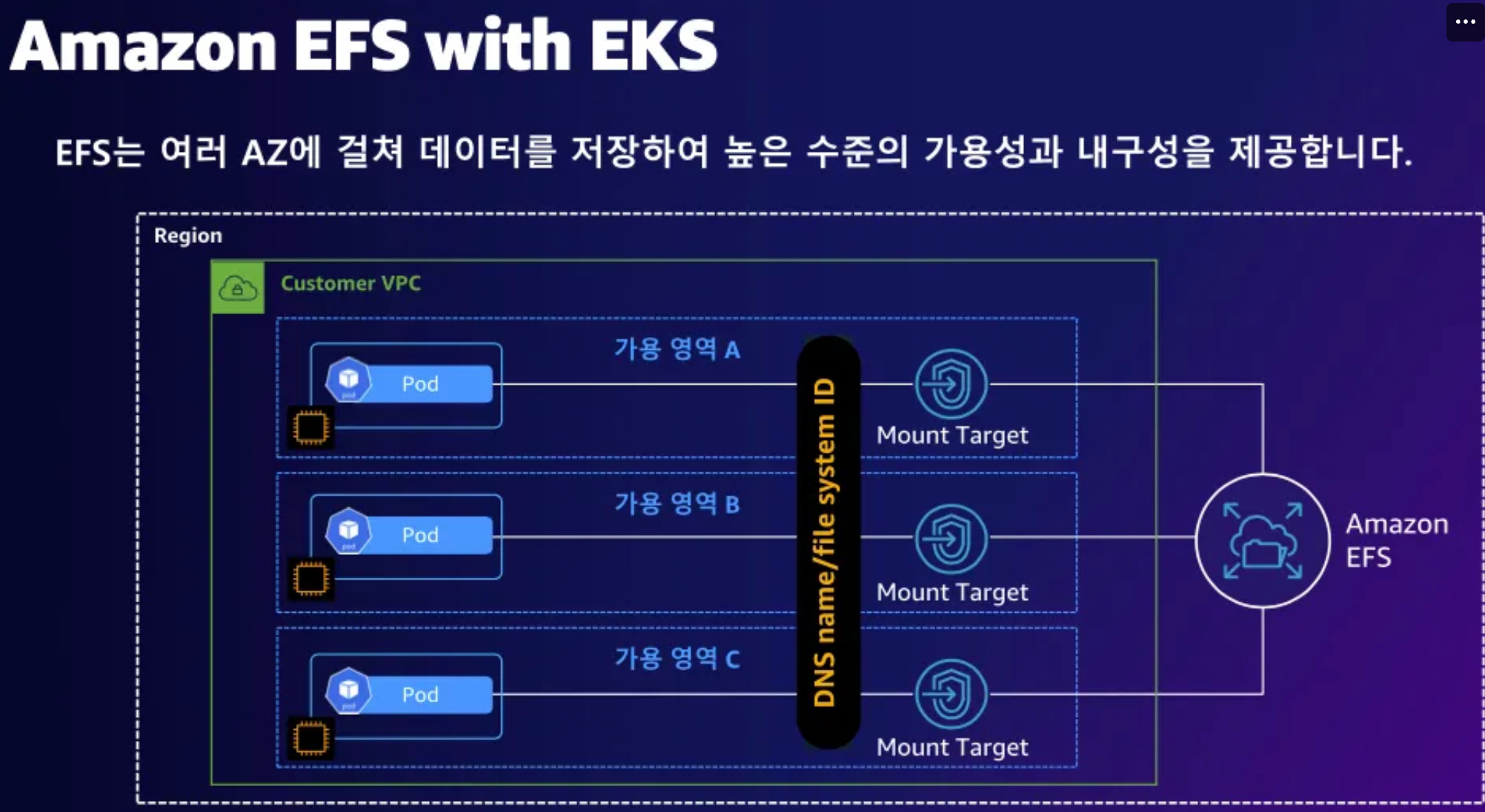
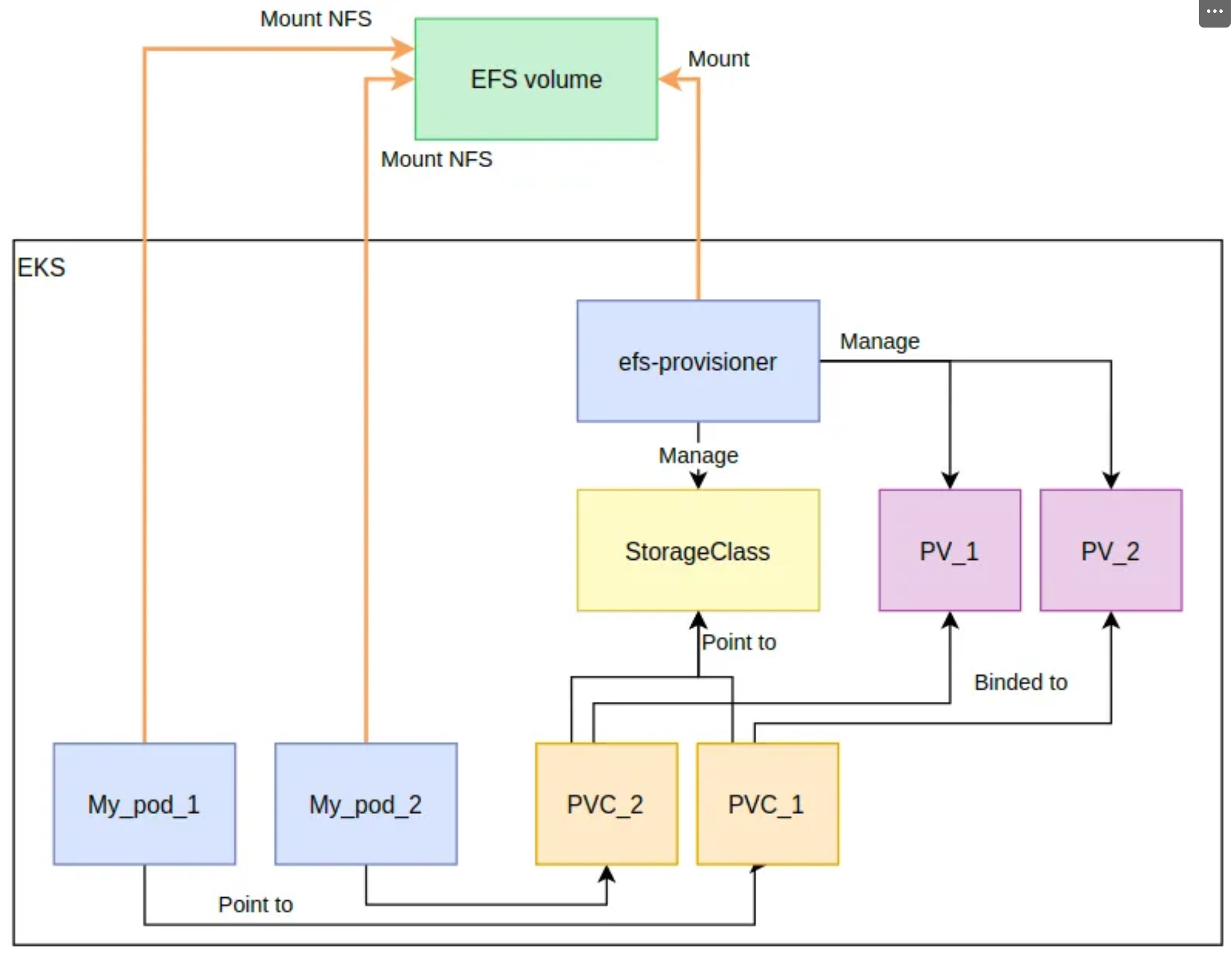
# EFS 정보 확인
aws efs describe-file-systems --query "FileSystems[*].FileSystemId" --output text
fs-0321fbc25499fa304

# 아래는 aws-efs-csi-driver 전체 버전 정보와 기본 설치 버전(True) 정보 확인
aws eks describe-addon-versions \
    --addon-name aws-efs-csi-driver \
    --kubernetes-version 1.31 \
    --query "addons[].addonVersions[].[addonVersion, compatibilities[].defaultVersion]" \
    --output text
v2.1.4-eksbuild.1 True
v2.1.3-eksbuild.1 False

# ISRA 설정 : 고객관리형 정책 AmazonEKS_EFS_CSI_Driver_Policy 사용
eksctl create iamserviceaccount \
  --name efs-csi-controller-sa \
  --namespace kube-system \
  --cluster ${CLUSTER_NAME} \
  --attach-policy-arn arn:aws:iam::aws:policy/service-role/AmazonEFSCSIDriverPolicy \
  --approve \
  --role-only \
  --role-name AmazonEKS_EFS_CSI_DriverRole-sejkim

# ISRA 확인
eksctl get iamserviceaccount --cluster ${CLUSTER_NAME}
NAMESPACE       NAME                            ROLE ARN
kube-system     aws-load-balancer-controller    arn:aws:iam::170698194833:role/eksctl-myeks-sejkim-addon-iamserviceaccount-k-Role1-OpBnplYcPSKW
kube-system     ebs-csi-controller-sa           arn:aws:iam::170698194833:role/AmazonEKS_EBS_CSI_DriverRole-sejkim
kube-system     efs-csi-controller-sa           arn:aws:iam::170698194833:role/AmazonEKS_EFS_CSI_DriverRole-sejkim

# Amazon EFS CSI driver addon 배포(설치)
export ACCOUNT_ID=$(aws sts get-caller-identity --query 'Account' --output text)
eksctl create addon --name aws-efs-csi-driver --cluster ${CLUSTER_NAME} --service-account-role-arn arn:aws:iam::${ACCOUNT_ID}:role/AmazonEKS_EFS_CSI_DriverRole-sejkim --force
kubectl get sa -n kube-system efs-csi-controller-sa -o yaml | head -5
apiVersion: v1
kind: ServiceAccount
metadata:
  annotations:
    eks.amazonaws.com/role-arn: arn:aws:iam::1**********3:role/AmazonEKS_EFS_CSI_DriverRole-sejkim

# 확인
eksctl get addon --cluster ${CLUSTER_NAME}
kubectl get pod -n kube-system -l "app.kubernetes.io/name=aws-efs-csi-driver,app.kubernetes.io/instance=aws-efs-csi-driver"
NAME                    VERSION                 STATUS  ISSUES  IAMROLE                                                                 UPDATE AVAILABLE CONFIGURATION VALUES                                                                    POD IDENTITY ASSOCIATION ROLES
aws-ebs-csi-driver      v1.39.0-eksbuild.1      ACTIVE  0                                                                               {
    "node": {
      "volumeAttachLimit": 31,
      "enableMetrics": true
    }
  }
aws-efs-csi-driver      v2.1.4-eksbuild.1       ACTIVE  0       arn:aws:iam::170698194833:role/AmazonEKS_EFS_CSI_DriverRole-sejkim
coredns                 v1.11.4-eksbuild.2      ACTIVE  0
kube-proxy              v1.31.3-eksbuild.2      ACTIVE  0
metrics-server          v0.7.2-eksbuild.2       ACTIVE  0
vpc-cni                 v1.19.2-eksbuild.5      ACTIVE  0       arn:aws:iam::170698194833:role/eksctl-myeks-sejkim-addon-vpc-cni-Role1-XpCLgjH7pQ5s                              enableNetworkPolicy: "true"
NAME                                  READY   STATUS    RESTARTS   AGE
efs-csi-controller-64fc4bc65d-8t8tf   3/3     Running   0          58s
efs-csi-controller-64fc4bc65d-vmr4p   3/3     Running   0          58s
efs-csi-node-6l292                    3/3     Running   0          58s
efs-csi-node-6wfq9                    3/3     Running   0          58s
efs-csi-node-k4m6p                    3/3     Running   0          58s

kubectl get pod -n kube-system -l app=efs-csi-controller -o jsonpath='{.items[0].spec.containers[*].name}' ; echo
efs-plugin csi-provisioner liveness-probe

kubectl get csidrivers efs.csi.aws.com -o yaml
apiVersion: storage.k8s.io/v1
kind: CSIDriver
metadata:
  annotations:
    kubectl.kubernetes.io/last-applied-configuration: |
      {"apiVersion":"storage.k8s.io/v1","kind":"CSIDriver","metadata":{"annotations":{},"name":"efs.csi.aws.com"},"spec":{"attachRequired":false}}
  creationTimestamp: "2025-02-22T01:42:01Z"
  name: efs.csi.aws.com
  resourceVersion: "156035"
  uid: 7dd0fce7-06ea-4b73-93f2-e45abba7c13c
spec:
  attachRequired: false
  fsGroupPolicy: ReadWriteOnceWithFSType
  podInfoOnMount: false
  requiresRepublish: false
  seLinuxMount: false
  storageCapacity: false
  volumeLifecycleModes:
- Persistent- AWS → EFS → 파일 시스템 : 네트워크 확인
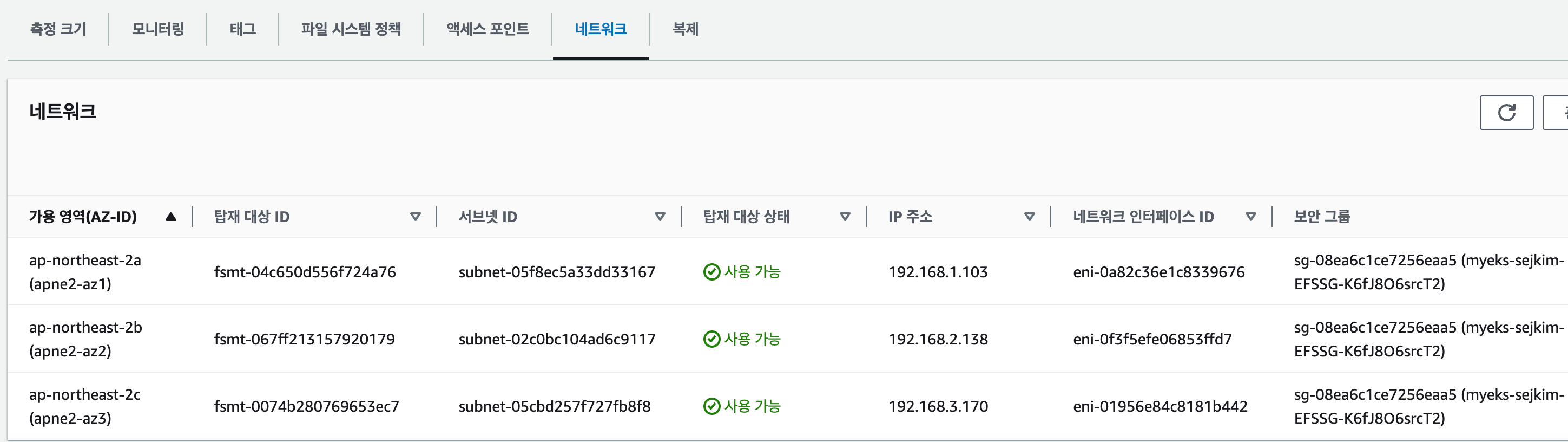
5.2 EFS 파일시스템을 파드가 사용하게 설정
# 모니터링
watch 'kubectl get sc efs-sc; echo; kubectl get pv,pvc,pod'

# [운영 서버 EC2]
# 실습 코드 clone
git clone https://github.com/kubernetes-sigs/aws-efs-csi-driver.git /root/efs-csi
cd /root/efs-csi/examples/kubernetes/multiple_pods/specs && tree
├── claim.yaml
├── pod1.yaml
├── pod2.yaml
├── pv.yaml
└── storageclass.yaml

# EFS 스토리지클래스 생성 및 확인
cat storageclass.yaml
kind: StorageClass
apiVersion: storage.k8s.io/v1
metadata:
  name: efs-sc
provisioner: efs.csi.aws.com

kubectl apply -f storageclass.yaml
storageclass.storage.k8s.io/efs-sc created

kubectl get sc efs-sc
NAME     PROVISIONER       RECLAIMPOLICY   VOLUMEBINDINGMODE   ALLOWVOLUMEEXPANSION   AGE
efs-sc   efs.csi.aws.com   Delete          Immediate           false                  13s

# PV 생성 및 확인 : volumeHandle을 자신의 EFS 파일시스템ID로 변경
EfsFsId=$(aws efs describe-file-systems --query "FileSystems[*].FileSystemId" --output text)
fs-0321fbc25499fa304

sed -i "s/fs-4af69aab/$EfsFsId/g" pv.yaml
cat pv.yaml
apiVersion: v1
kind: PersistentVolume
metadata:
  name: efs-pv
spec:
  capacity:
    storage: 5Gi
  volumeMode: Filesystem
  accessModes:
    - ReadWriteMany
  persistentVolumeReclaimPolicy: Retain
  storageClassName: efs-sc
  csi:
    driver: efs.csi.aws.com
    volumeHandle: fs-0321fbc25499fa304

kubectl apply -f pv.yaml
kubectl get pv; kubectl describe pv
NAME     CAPACITY   ACCESS MODES   RECLAIM POLICY   STATUS      CLAIM   STORAGECLASS   VOLUMEATTRIBUTESCLASS   REASON   AGE
efs-pv   5Gi        RWX            Retain           Available           efs-sc         <unset>                          17s
Name:            efs-pv
Labels:          <none>
Annotations:     <none>
Finalizers:      [kubernetes.io/pv-protection]
StorageClass:    efs-sc
Status:          Available
Claim:
Reclaim Policy:  Retain
Access Modes:    RWX
VolumeMode:      Filesystem
Capacity:        5Gi
Node Affinity:   <none>
Message:
Source:
    Type:              CSI (a Container Storage Interface (CSI) volume source)
    Driver:            efs.csi.aws.com
    FSType:
    VolumeHandle:      fs-0321fbc25499fa304
    ReadOnly:          false
    VolumeAttributes:  <none>
Events:                <none>


# PVC 생성 및 확인
cat claim.yaml
apiVersion: v1
kind: PersistentVolumeClaim
metadata:
  name: efs-claim
spec:
  accessModes:
    - ReadWriteMany
  storageClassName: efs-sc
  resources:
    requests:
      storage: 5Gi

kubectl apply -f claim.yaml
persistentvolumeclaim/efs-claim created

kubectl get pvc
NAME        STATUS   VOLUME   CAPACITY   ACCESS MODES   STORAGECLASS   VOLUMEATTRIBUTESCLASS   AGE
efs-claim   Bound    efs-pv   5Gi        RWX            efs-sc         <unset>                 23s

# 파드 생성 및 연동 : 파드 내에 /data 데이터는 EFS를 사용
# 추후에 파드1,2가 각기 다른 노드에 배포되게 추가해두자!
cat pod1.yaml pod2.yaml
apiVersion: v1
kind: Pod
metadata:
  name: app1
spec:
  containers:
  - name: app1
    image: busybox
    command: ["/bin/sh"]
    args: ["-c", "while true; do echo $(date -u) >> /data/out1.txt; sleep 5; done"]
    volumeMounts:
    - name: persistent-storage
      mountPath: /data
  volumes:
  - name: persistent-storage
    persistentVolumeClaim:
      claimName: efs-claim
apiVersion: v1
kind: Pod
metadata:
  name: app2
spec:
  containers:
  - name: app2
    image: busybox
    command: ["/bin/sh"]
    args: ["-c", "while true; do echo $(date -u) >> /data/out2.txt; sleep 5; done"]
    volumeMounts:
    - name: persistent-storage
      mountPath: /data
  volumes:
  - name: persistent-storage
    persistentVolumeClaim:
      claimName: efs-claim

kubectl apply -f pod1.yaml,pod2.yaml

kubectl df-pv
INFO[2025-02-22T22:16:42+09:00] Either no volumes found in namespace/s: 'all' or the storage provisioner used for the volumes does not publish metrics to kubelet

# 파드 정보 확인 : PV에 5Gi 와 파드 내에서 확인한 NFS4 볼륨 크리 8.0E의 차이는 무엇?
kubectl get pods
kubectl exec -ti app1 -- sh -c "df -hT -t nfs4"
Filesystem           Type            Size      Used Available Use% Mounted on
127.0.0.1:/          nfs4            8.0E         0      8.0E   0% /data

kubectl exec -ti app2 -- sh -c "df -hT -t nfs4"
Filesystem           Type            Size      Used Available Use% Mounted on
127.0.0.1:/          nfs4            8.0E         0      8.0E   0% /data

# 공유 저장소 저장 동작 확인
tree /mnt/myefs              # 운영서버 EC2 에서 확인
/mnt/myefs
├── memo.txt
├── out1.txt
└── out2.txt

tail -f /mnt/myefs/out1.txt  # 운영서버 EC2 에서 확인
tail -f /mnt/myefs/out2.txt  # 운영서버 EC2 에서 확인
kubectl exec -ti app1 -- tail -f /data/out1.txt
kubectl exec -ti app2 -- tail -f /data/out2.txt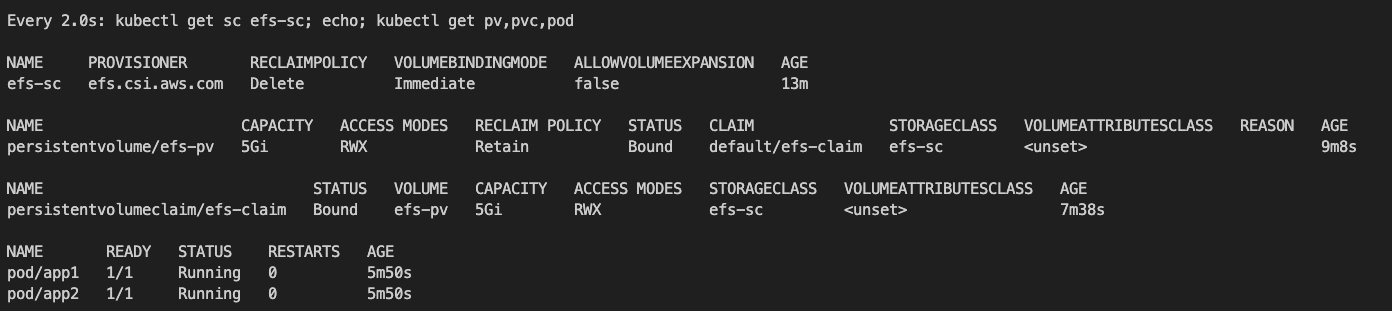
- 실습 완료 후 삭제
# 쿠버네티스 리소스 삭제
kubectl delete pod app1 app2
kubectl delete pvc efs-claim && kubectl delete pv efs-pv && kubectl delete sc efs-sc
5.3 EFS 파일시스템을 다수의 파드가 사용하게 설정
# 모니터링
watch 'kubectl get sc efs-sc; echo; kubectl get pv,pvc,pod'

# [운영 서버 EC2]
# EFS 스토리지클래스 생성 및 확인
curl -s -O https://raw.githubusercontent.com/kubernetes-sigs/aws-efs-csi-driver/master/examples/kubernetes/dynamic_provisioning/specs/storageclass.yaml
cat storageclass.yaml
kind: StorageClass
apiVersion: storage.k8s.io/v1
metadata:
  name: efs-sc
provisioner: efs.csi.aws.com
parameters:
  provisioningMode: efs-ap #  The type of volume to be provisioned by Amazon EFS. Currently, only access point based provisioning is supported (efs-ap).
  fileSystemId: fs-92107410 # The file system under which the access point is created.
  directoryPerms: "700" # The directory permissions of the root directory created by the access point.
  gidRangeStart: "1000" # optional, The starting range of the Posix group ID to be applied onto the root directory of the access point. The default value is 50000.
  gidRangeEnd: "2000" # optional, The ending range of the Posix group ID. The default value is 7000000.
  basePath: "/dynamic_provisioning" # optional, The path on the file system under which the access point root directory is created. If the path isn't provided, the access points root directory is created under the root of the file system.
  subPathPattern: "${.PVC.namespace}/${.PVC.name}" # optional, A pattern that describes the subPath under which an access point should be created. So if the pattern were ${.PVC.namespace}/${PVC.name}, the PVC namespace is foo and the PVC name is pvc-123-456, and the basePath is /dynamic_provisioner the access point would be created at /dynamic_provisioner/foo/pvc-123-456
  ensureUniqueDirectory: "true" # optional # A boolean that ensures that, if set, a UUID is appended to the final element of any dynamically provisioned path, as in the above example. This can be turned off but this requires you as the administrator to ensure that your storage classes are set up correctly. Otherwise, it's possible that 2 pods could end up writing to the same directory by accident. Please think very carefully before setting this to false!
  reuseAccessPoint: "false" # optional

sed -i "s/fs-92107410/$EfsFsId/g" storageclass.yaml
kubectl apply -f storageclass.yaml
kubectl get sc efs-sc
NAME     PROVISIONER       RECLAIMPOLICY   VOLUMEBINDINGMODE   ALLOWVOLUMEEXPANSION   AGE
efs-sc   efs.csi.aws.com   Delete          Immediate           false                  14s

# PVC/파드 생성 및 확인
curl -s -O https://raw.githubusercontent.com/kubernetes-sigs/aws-efs-csi-driver/master/examples/kubernetes/dynamic_provisioning/specs/pod.yaml
cat pod.yaml
apiVersion: v1
kind: PersistentVolumeClaim
metadata:
  name: efs-claim
spec:
  accessModes:
    - ReadWriteMany
  storageClassName: efs-sc
  resources:
    requests:
      storage: 5Gi
---
apiVersion: v1
kind: Pod
metadata:
  name: efs-app
spec:
  containers:
    - name: app
      image: centos
      command: ["/bin/sh"]
      args: ["-c", "while true; do echo $(date -u) >> /data/out; sleep 5; done"]
      volumeMounts:
        - name: persistent-storage
          mountPath: /data
  volumes:
    - name: persistent-storage
      persistentVolumeClaim:
        claimName: efs-claim

kubectl apply -f pod.yaml
kubectl get pvc,pv,pod
NAME                              STATUS   VOLUME                                     CAPACITY   ACCESS MODES   STORAGECLASS   VOLUMEATTRIBUTESCLASS   AGE
persistentvolumeclaim/efs-claim   Bound    pvc-a488a672-a14d-4480-b575-d6ed40f0e52a   5Gi        RWX            efs-sc         <unset>                 10s

NAME                                                        CAPACITY   ACCESS MODES   RECLAIM POLICY   STATUS   CLAIM               STORAGECLASS   VOLUMEATTRIBUTESCLASS   REASON   AGE
persistentvolume/pvc-a488a672-a14d-4480-b575-d6ed40f0e52a   5Gi        RWX            Delete           Bound    default/efs-claim   efs-sc         <unset>                          9s

NAME          READY   STATUS    RESTARTS   AGE
pod/efs-app   1/1     Running   0          10s

# PVC/PV 생성 로그 확인
kubectl krew install stern
kubectl stern -n kube-system -l app=efs-csi-controller -c csi-provisioner
혹은
kubectl logs  -n kube-system -l app=efs-csi-controller -c csi-provisioner -f

# 파드 정보 확인
kubectl exec -it efs-app -- sh -c "df -hT -t nfs4"
Filesystem     Type  Size  Used Avail Use% Mounted on
127.0.0.1:/    nfs4  8.0E     0  8.0E   0% /data

# 공유 저장소 저장 동작 확인
tree /mnt/myefs              # 운영서버 EC2 에서 확인
/mnt/myefs
├── dynamic_provisioning
│   └── default
│       └── efs-claim-ae05e05c-31a0-4af9-9df4-bf318a8b2dcc
│           └── out
├── memo.txt
├── out1.txt
└── out2.txt

kubectl exec efs-app -- bash -c "cat /data/out"
Sat Feb 22 13:31:36 UTC 2025
Sat Feb 22 13:31:41 UTC 2025
Sat Feb 22 13:31:46 UTC 2025

kubectl exec efs-app -- bash -c "ls -l /data/out"
-rw-r--r--. 1 1000 1000 957 Feb 22 13:34 /data/out

kubectl exec efs-app -- bash -c "stat /data/"
  File: /data/
  Size: 6144            Blocks: 8          IO Block: 1048576 directory
Device: 100019h/1048601d        Inode: 9784991296674642448  Links: 2
Access: (0700/drwx------)  Uid: ( 1000/ UNKNOWN)   Gid: ( 1000/ UNKNOWN)
Access: 2025-02-22 13:31:36.796000000 +0000
Modify: 2025-02-22 13:31:36.796000000 +0000
Change: 2025-02-22 13:31:36.796000000 +0000
Birth: --
EFS → Access Point 확인
- EFS Access Point는 EFS의 특정 부분을 격리하고, UID/GID를 강제하여 보안성을 높임.
- 여러 팀, 여러 애플리케이션이 같은 EFS를 사용할 때 Access Point를 활용하면 보안과 관리가 용이.
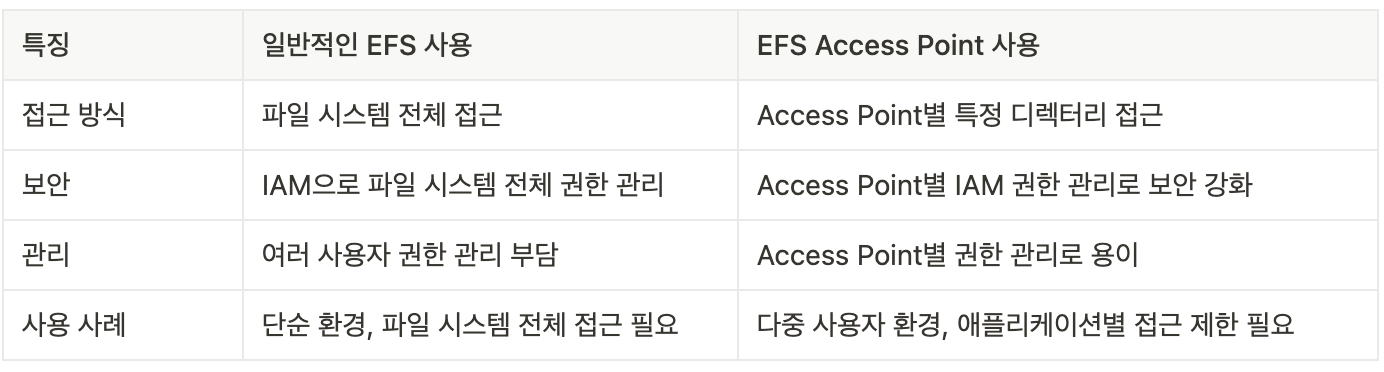

-
실습 완료 후 삭제
# 쿠버네티스 리소스 삭제
kubectl delete -f pod.yaml
persistentvolumeclaim "efs-claim" deleted
pod "efs-app" deleted

kubectl delete -f storageclass.yaml
cd $HOME
6. EKS PV for Instance Store & Add NodeGroup
6.1 신규 노드 그룹 ng2 생성
- Blog : c5d.large 의 EC2 인스턴스 스토어(임시 블록 스토리지) 설정 작업 - 링크, NVMe SSD - 링크
- 데이터 손실 : 기본 디스크 드라이브 오류, 인스턴스가 중지됨, 인스턴스가 최대 절전 모드로 전환됨, 인스턴스가 종료됨
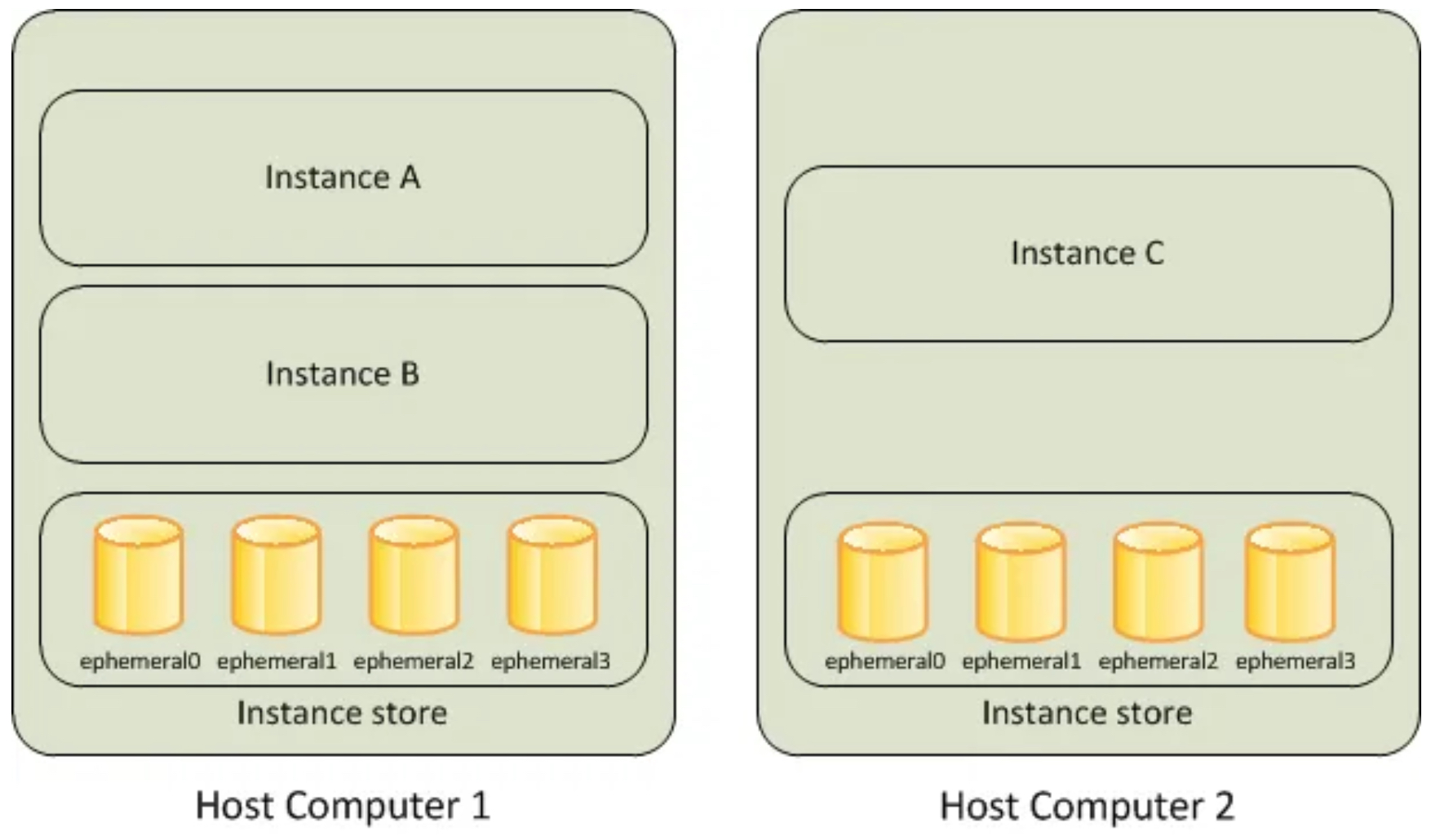
- 인스턴스 스토어는 EC2 스토리지(EBS) 정보에 출력되지는 않는다
# 인스턴스 스토어 볼륨이 있는 c5 모든 타입의 스토리지 크기
aws ec2 describe-instance-types \
 --filters "Name=instance-type,Values=c5*" "Name=instance-storage-supported,Values=true" \
 --query "InstanceTypes[].[InstanceType, InstanceStorageInfo.TotalSizeInGB]" \
 --output table
--------------------------
|  DescribeInstanceTypes |
+---------------+--------+
|  c5d.large    |  50    |
|  c5d.12xlarge |  1800  |
...

# 신규 노드 그룹 생성 전 정보 확인
eksctl create nodegroup --help
eksctl create nodegroup -c $CLUSTER_NAME -r ap-northeast-2 --subnet-ids "$PubSubnet1","$PubSubnet2","$PubSubnet3" --ssh-access \
  -n ng2-sejkim -t c5d.large -N 1 -m 1 -M 1 --node-volume-size=30 --node-labels disk=instancestore --max-pods-per-node 100 --dry-run > myng2.yaml

cat <<EOT > nvme.yaml
  preBootstrapCommands:
    - |
      # Install Tools
      yum install nvme-cli links tree jq tcpdump sysstat -y

      # Filesystem & Mount
      mkfs -t xfs /dev/nvme1n1
      mkdir /data
      mount /dev/nvme1n1 /data

      # Get disk UUID
      uuid=\$(blkid -o value -s UUID mount /dev/nvme1n1 /data)

      # Mount the disk during a reboot
      echo /dev/nvme1n1 /data xfs defaults,noatime 0 2 >> /etc/fstab
EOT
sed -i -n -e '/volumeType/r nvme.yaml' -e '1,$p' myng2.yaml

#
export PubSubnet1=$(aws ec2 describe-subnets --filters Name=tag:Name,Values="$CLUSTER_NAME-Vpc1PublicSubnet1" --query "Subnets[0].[SubnetId]" --output text)
export PubSubnet2=$(aws ec2 describe-subnets --filters Name=tag:Name,Values="$CLUSTER_NAME-Vpc1PublicSubnet2" --query "Subnets[0].[SubnetId]" --output text)
export PubSubnet3=$(aws ec2 describe-subnets --filters Name=tag:Name,Values="$CLUSTER_NAME-Vpc1PublicSubnet3" --query "Subnets[0].[SubnetId]" --output text)
echo $PubSubnet1 $PubSubnet2 $PubSubnet3

#
SSHKEYNAME=<각자 자신의 SSH Keypair 이름>
SSHKEYNAME=kp-sejkim- myng2.yaml 파일 작성
cat << EOF > myng2.yaml
apiVersion: eksctl.io/v1alpha5
kind: ClusterConfig
metadata:
  name: myeks
  region: ap-northeast-2
  version: "1.31"

managedNodeGroups:
- amiFamily: AmazonLinux2
  desiredCapacity: 1
  instanceType: c5d.large
  labels:
    alpha.eksctl.io/cluster-name: myeks-sejkim
    alpha.eksctl.io/nodegroup-name: ng2
    disk: instancestore
  maxPodsPerNode: 110
  maxSize: 1
  minSize: 1
  name: ng2
  ssh:
    allow: true
    publicKeyName: $SSHKEYNAME
  subnets:
  - $PubSubnet1
  - $PubSubnet2
  - $PubSubnet3
  tags:
    alpha.eksctl.io/nodegroup-name: ng2-sejkim
    alpha.eksctl.io/nodegroup-type: managed
  volumeIOPS: 3000
  volumeSize: 30
  volumeThroughput: 125
  volumeType: gp3
  preBootstrapCommands:
    - |
      # Install Tools
      yum install nvme-cli links tree jq tcpdump sysstat -y

      # Filesystem & Mount
      mkfs -t xfs /dev/nvme1n1
      mkdir /data
      mount /dev/nvme1n1 /data

      # Get disk UUID
      uuid=\$(blkid -o value -s UUID mount /dev/nvme1n1 /data)

      # Mount the disk during a reboot
      echo /dev/nvme1n1 /data xfs defaults,noatime 0 2 >> /etc/fstab
EOF- 신규 노드 그룹 생성
# 신규 노드 그룹 생성
eksctl create nodegroup -f myng2.yaml

# 확인
kubectl get node --label-columns=node.kubernetes.io/instance-type,eks.amazonaws.com/capacityType,topology.kubernetes.io/zone
kubectl get node -l disk=instancestore

# ng2 노드 그룹 *ng2-remoteAccess* 포함된 보안그룹 ID
aws ec2 describe-security-groups --filters "Name=group-name,Values=*ng2-sejkim-remoteAccess*" | jq
export NG2SGID=$(aws ec2 describe-security-groups --filters "Name=group-name,Values=*ng2-sejkim-remoteAccess*" --query 'SecurityGroups[*].GroupId' --output text)
aws ec2 authorize-security-group-ingress --group-id $NG2SGID --protocol '-1' --cidr $(curl -s ipinfo.io/ip)/32
aws ec2 authorize-security-group-ingress --group-id $NG2SGID --protocol '-1' --cidr 172.20.1.100/32


# 워커 노드 SSH 접속
N4=<각자 자신의 워커 노드4번 공인 IP 지정>
N4=3.37.44.222
ssh ec2-user@$N4 hostname

# 확인
ssh ec2-user@$N4 sudo nvme list
ssh ec2-user@$N4 sudo lsblk -e 7 -d
ssh ec2-user@$N4 sudo df -hT -t xfs
ssh ec2-user@$N4 sudo tree /data
ssh ec2-user@$N4 sudo cat /etc/fstab

# (옵션) max-pod 확인
kubectl describe node -l disk=instancestore | grep Allocatable: -A7

# (옵션) kubelet 데몬 파라미터 확인 : --max-pods=29 --max-pods=110
ssh ec2-user@$N4 cat /etc/eks/bootstrap.sh
ssh ec2-user@$N4 sudo ps -ef | grep kubelet
root 3012 1 0 06:50 ? 00:00:02 /usr/bin/kubelet --config /etc/kubernetes/kubelet/kubelet-config.json --kubeconfig /var/lib/kubelet/kubeconfig --container-runtime-endpoint unix:///run/containerd/containerd.sock --image-credential-provider-config /etc/eks/image-credential-provider/config.json --image-credential-provider-bin-dir /etc/eks/image-credential-provider --node-ip=192.168.2.228 --pod-infra-container-image=602401143452.dkr.ecr.ap-northeast-2.amazonaws.com/eks/pause:3.5 --v=2 --hostname-override=ip-192-168-2-228.ap-northeast-2.compute.internal --cloud-provider=external --node-labels=eks.amazonaws.com/sourceLaunchTemplateVersion=1,alpha.eksctl.io/cluster-name=myeks,alpha.eksctl.io/nodegroup-name=ng2,disk=instancestore,eks.amazonaws.com/nodegroup-image=ami-0fa05db9e3c145f63,eks.amazonaws.com/capacityType=ON_DEMAND,eks.amazonaws.com/nodegroup=ng2,eks.amazonaws.com/sourceLaunchTemplateId=lt-0955d0931c1d712c1 --max-pods=29 --max-pods=110- local-path 스토리지 클래스 재생성 : 패스 변경
# 기존 local-path 스토리지 클래스 삭제
kubectl delete -f https://raw.githubusercontent.com/rancher/local-path-provisioner/v0.0.31/deploy/local-path-storage.yaml

#
curl -sL https://raw.githubusercontent.com/rancher/local-path-provisioner/v0.0.31/deploy/local-path-storage.yaml | sed 's/opt/data/g' | kubectl apply -f -

kubectl describe cm -n local-path-storage local-path-config
...
        "nodePathMap":[
        {
                "node":"DEFAULT_PATH_FOR_NON_LISTED_NODES",
                "paths":["/data/local-path-provisioner"]
        }
        ]
...

# 모니터링
watch 'kubectl get pod -owide;echo;kubectl get pv,pvc'
ssh ec2-user@$N4 iostat -xmdz 1 -p nvme1n1

# [운영서버 EC2] Read 측정
kubestr fio -f fio-read.fio -s local-path --size 10G --nodeselector disk=instancestore
...
read:
  IOPS=20309.355469 BW(KiB/s)=81237
  iops: min=17392 max=93872 avg=20316.857422
  bw(KiB/s): min=69570 max=375488 avg=81268.023438

Disk stats (read/write):
  nvme1n1: ios=2432488/9 merge=0/3 ticks=7639891/23 in_queue=7639913, util=99.950768%
- OK - 삭제
# local-path 스토리지 클래스 삭제
kubectl delete -f https://raw.githubusercontent.com/rancher/local-path-provisioner/v0.0.31/deploy/local-path-storage.yaml

# ng2 노드그룹 삭제
eksctl delete nodegroup -c $CLUSTER_NAME -n ng2-sejkim- 참고 : 일반 EBS(기본값 3000 IOPS) vs 인스턴스 스토어 평균 IOPS 속도 비교 with kubestr ← 인스턴스 스토어가 7배 빠름 - 링크
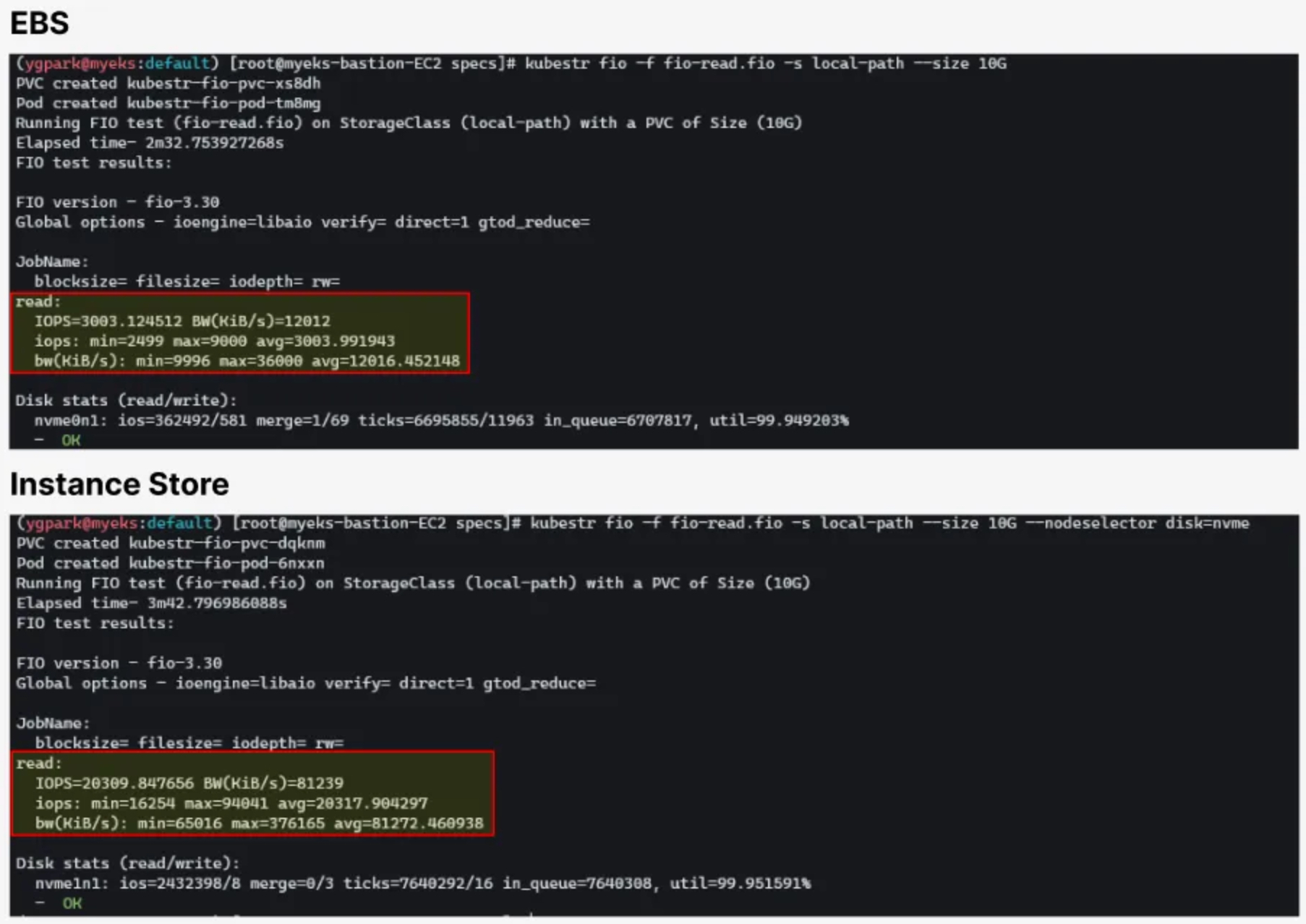
7. NodeGroup
7.1 사전 지식
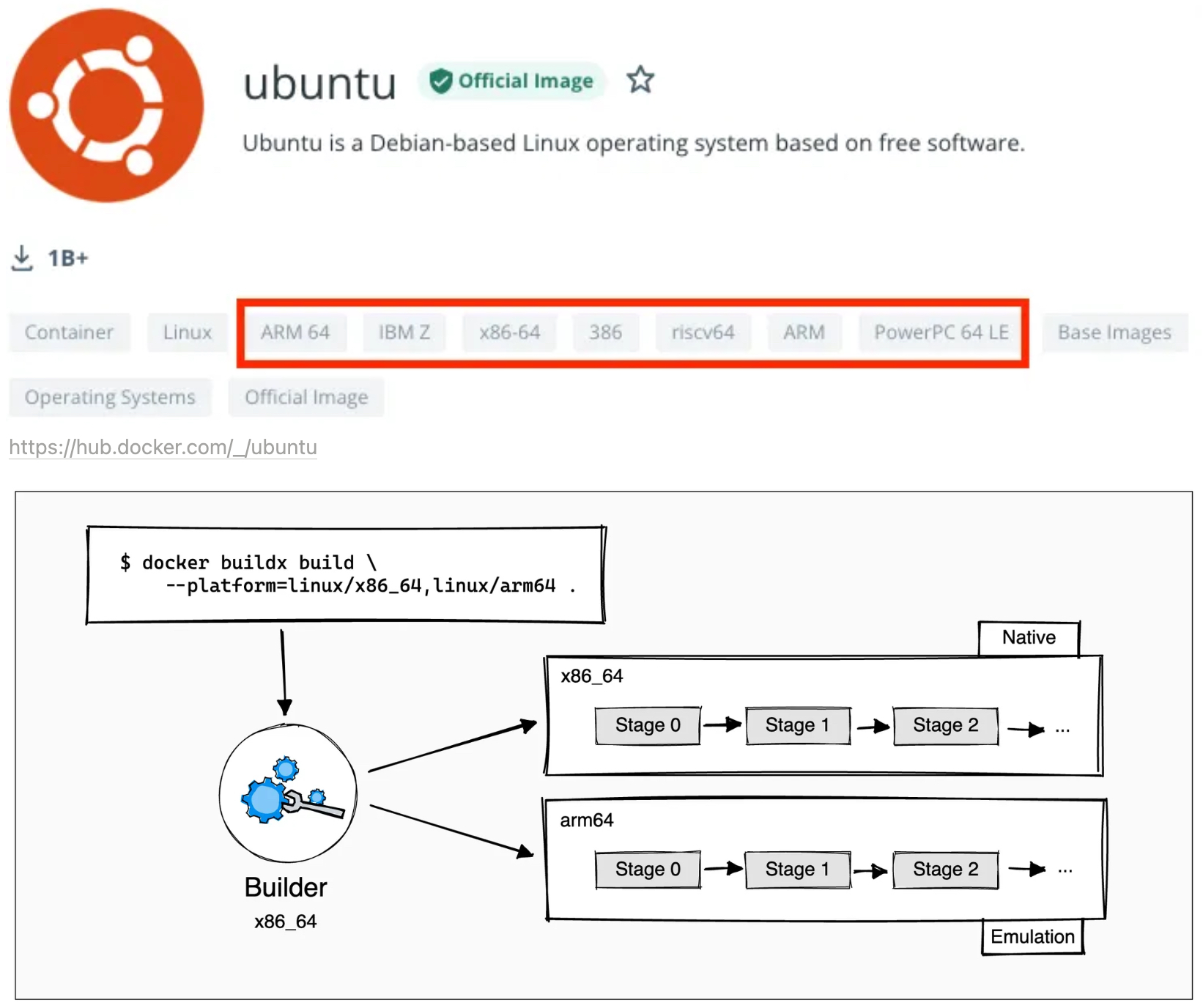
#
arch
x86_64

# CPU Arch arm64v8 , riscv64 실행 시도
docker run --rm -it riscv64/ubuntu bash
Unable to find image 'riscv64/ubuntu:latest' locally
latest: Pulling from riscv64/ubuntu
docker: no matching manifest for linux/amd64 in the manifest list entries.

docker run --rm -it arm64v8/ubuntu bash
Unable to find image 'arm64v8/ubuntu:latest' locally
latest: Pulling from arm64v8/ubuntu
docker: no matching manifest for linux/amd64 in the manifest list entries.

# Extended build capabilities with BuildKit - List builder instances
docker buildx ls
NAME/NODE DRIVER/ENDPOINT STATUS  BUILDKIT PLATFORMS
default * docker
  default default         running v0.12.5  linux/amd64, linux/amd64/v2, linux/amd64/v3, linux/386


# docker buildx 활성화 (멀티 아키텍처 빌드를 위해 필요)
docker run --rm --privileged multiarch/qemu-user-static --reset -p yes
docker images
REPOSITORY                   TAG       IMAGE ID       CREATED       SIZE
multiarch/qemu-user-static   latest    3539aaa87393   2 years ago   305MB

docker buildx create --use --name mybuilder
docker buildx ls
NAME/NODE    DRIVER/ENDPOINT             STATUS   BUILDKIT PLATFORMS
mybuilder *  docker-container
  mybuilder0 unix:///var/run/docker.sock inactive
default      docker
  default    default                     running  v0.12.5  linux/amd64, linux/amd64/v2, linux/amd64/v3, linux/amd64/v4, linux/386, linux/arm64, linux/riscv64, linux/ppc64, linux/ppc64le, linux/s390x, linux/mips64le, linux/mips64, linux/arm/v7, linux/arm/v6

# Buildx가 정상 동작하는지 확인
docker buildx inspect --bootstrap
...
Platforms: linux/amd64, linux/amd64/v2, linux/amd64/v3, linux/arm64, linux/riscv64, linux/ppc64, linux/ppc64le, linux/s390x, linux/386, linux/arm/v7, linux/arm/v6
...

docker buildx ls
NAME/NODE    DRIVER/ENDPOINT             STATUS  BUILDKIT PLATFORMS
mybuilder *  docker-container
  mybuilder0 unix:///var/run/docker.sock running v0.19.0  linux/amd64, linux/amd64/v2, linux/amd64/v3, linux/arm64, linux/riscv64, linux/ppc64, linux/ppc64le, linux/s390x, linux/386, linux/arm/v7, linux/arm/v6
default      docker
  default    default                     running v0.12.5  linux/amd64, linux/amd64/v2, linux/amd64/v3, linux/386, linux/arm64, linux/riscv64, linux/ppc64, linux/ppc64le, linux/s390x, linux/mips64le, linux/mips64, linux/arm/v7, linux/arm/v6

docker ps
CONTAINER ID   IMAGE                           COMMAND       CREATED          STATUS          PORTS     NAMES
be4d232c6ecc   moby/buildkit:buildx-stable-1   "buildkitd"   58 seconds ago   Up 56 seconds             buildx_buildkit_mybuilder0
7.2 컨테이너 이미지 빌드 및 실행
- 윈도우PC(amd64)와 macOS(arm64)
#
mkdir myweb && cd myweb

# server.py 파일 작성
cat > server.py <<EOF
from http.server import ThreadingHTTPServer, BaseHTTPRequestHandler
from datetime import datetime
import socket

class RequestHandler(BaseHTTPRequestHandler):
    def do_GET(self):
        self.send_response(200)
        self.send_header('Content-type', 'text/plain')
        self.end_headers()

        now = datetime.now()
        hostname = socket.gethostname()
        response_string = now.strftime("The time is %-I:%M:%S %p, VERSION 0.0.1\n")
        response_string += f"Server hostname: {hostname}\n"
        self.wfile.write(bytes(response_string, "utf-8"))

def startServer():
    try:
        server = ThreadingHTTPServer(('', 80), RequestHandler)
        print("Listening on " + ":".join(map(str, server.server_address)))
        server.serve_forever()
    except KeyboardInterrupt:
        server.shutdown()

if __name__ == "__main__":
    startServer()
EOF


# Dockerfile 생성
cat > Dockerfile <<EOF
FROM python:3.12
ENV PYTHONUNBUFFERED 1
COPY . /app
WORKDIR /app
CMD python3 server.py
EOF

# 빌드, 실행 후 삭제
docker pull python:3.12
docker build -t myweb:1 -t myweb:latest .
docker images
docker run -d -p 8080:80 --name=timeserver myweb
curl http://localhost:8080
The time is 2:17:42 PM, VERSION 0.0.1
Server hostname: 65e5b0c3bcf8

docker rm -f timeserver

# 멀티 플랫폼 빌드 후 푸시
docker images
docker login

DOCKERNAME=<도커허브 계정명>
DOCKERNAME=kimseongjung

docker buildx build --platform linux/amd64,linux/arm64 --push --tag $DOCKERNAME/myweb:multi .
docker images
REPOSITORY                   TAG               IMAGE ID       CREATED         SIZE
myweb                        1                 0da0f7ae6663   7 minutes ago   1.02GB
myweb                        latest            0da0f7ae6663   7 minutes ago   1.02GB
moby/buildkit                buildx-stable-1   f210b5f94e18   2 days ago      209MB
python                       3.12              149b9784258f   2 weeks ago     1.02GB
multiarch/qemu-user-static   latest            3539aaa87393   2 years ago     305MB

docker manifest inspect $DOCKERNAME/myweb:multi | jq
{
  "schemaVersion": 2,
  "mediaType": "application/vnd.oci.image.index.v1+json",
  "manifests": [
    {
      "mediaType": "application/vnd.oci.image.manifest.v1+json",
      "size": 2010,
      "digest": "sha256:97ce30829d7491ea748508abb1a0bda7e96ee7320a92c2fa3c4fe8bdeb4c707b",
      "platform": {
        "architecture": "amd64",
        "os": "linux"
      }
    },
    {
      "mediaType": "application/vnd.oci.image.manifest.v1+json",
      "size": 2010,
      "digest": "sha256:5ac9d8d01bbaa88111af3ff42d23f75772a6fb02ae1d3aa421cfece8f6bfdd6f",
      "platform": {
        "architecture": "arm64",
        "os": "linux"
      }
    },
    {
      "mediaType": "application/vnd.oci.image.manifest.v1+json",
      "size": 566,
      "digest": "sha256:9b085f78938bd366f2dfa8576d4bdda6126e706aed5b4db16deb6fd835bfcdef",
      "platform": {
        "architecture": "unknown",
        "os": "unknown"
      }
    },
    {
      "mediaType": "application/vnd.oci.image.manifest.v1+json",
      "size": 566,
      "digest": "sha256:ff333d7b09716f0c65391dfe4b49b39ef4bc2536431ad0e52c9dbf6a913a2f52",
      "platform": {
        "architecture": "unknown",
        "os": "unknown"
      }
    }
  ]
}

docker buildx imagetools inspect $DOCKERNAME/myweb:multi
Name:      docker.io/kimseongjung/myweb:multi
MediaType: application/vnd.oci.image.index.v1+json
Digest:    sha256:898d239e8f3cb490093d19d5ae82901365c0f4fd1721f40a6309b3c4af0844ee

Manifests:
  Name:        docker.io/kimseongjung/myweb:multi@sha256:97ce30829d7491ea748508abb1a0bda7e96ee7320a92c2fa3c4fe8bdeb4c707b
  MediaType:   application/vnd.oci.image.manifest.v1+json
  Platform:    linux/amd64

  Name:        docker.io/kimseongjung/myweb:multi@sha256:5ac9d8d01bbaa88111af3ff42d23f75772a6fb02ae1d3aa421cfece8f6bfdd6f
  MediaType:   application/vnd.oci.image.manifest.v1+json
  Platform:    linux/arm64

  Name:        docker.io/kimseongjung/myweb:multi@sha256:9b085f78938bd366f2dfa8576d4bdda6126e706aed5b4db16deb6fd835bfcdef
  MediaType:   application/vnd.oci.image.manifest.v1+json
  Platform:    unknown/unknown
  Annotations:
    vnd.docker.reference.digest: sha256:97ce30829d7491ea748508abb1a0bda7e96ee7320a92c2fa3c4fe8bdeb4c707b
    vnd.docker.reference.type:   attestation-manifest

  Name:        docker.io/kimseongjung/myweb:multi@sha256:ff333d7b09716f0c65391dfe4b49b39ef4bc2536431ad0e52c9dbf6a913a2f52
  MediaType:   application/vnd.oci.image.manifest.v1+json
  Platform:    unknown/unknown
  Annotations:
    vnd.docker.reference.digest: sha256:5ac9d8d01bbaa88111af3ff42d23f75772a6fb02ae1d3aa421cfece8f6bfdd6f
    vnd.docker.reference.type:   attestation-manifest

# 컨테이너 실행 해보기 : 윈도우PC(amd64)와 macOS(arm64) 두 곳 모두 동일한 컨테이너 이미지 경로로 실행해보자!
docker ps
be4d232c6ecc   moby/buildkit:buildx-stable-1   "buildkitd"   14 minutes ago   Up 14 minutes             buildx_buildkit_mybuilder0

docker run -d -p 8080:80 --name=timeserver $DOCKERNAME/myweb:multi
docker ps
CONTAINER ID   IMAGE                           COMMAND                  CREATED          STATUS          PORTS                                   NAMES
6e56d2868586   kimseongjung/myweb:multi        "/bin/sh -c 'python3…"   10 seconds ago   Up 8 seconds    0.0.0.0:8080->80/tcp, :::8080->80/tcp   timeserver
be4d232c6ecc   moby/buildkit:buildx-stable-1   "buildkitd"              16 minutes ago   Up 16 minutes                                           buildx_buildkit_mybuilder0

# 컨테이너 접속 및 로그 확인
curl http://localhost:8080
The time is 2:28:05 PM, VERSION 0.0.1
Server hostname: 6e56d2868586

docker logs timeserver
Listening on 0.0.0.0:80
172.17.0.1 - - [22/Feb/2025 14:28:05] "GET / HTTP/1.1" 200 -

# 컨테이너 이미지 내부에 파일 확인
docker exec -it timeserver ls -l
total 8
-rw-r--r-- 1 root root  88 Feb 22 14:16 Dockerfile
-rw-r--r-- 1 root root 876 Feb 22 14:14 server.py

# 컨테이너 이미지 내부에 server.py 파일 확인
docker exec -it timeserver cat server.py

# 컨테이너 삭제
docker rm -f timeserver
7.3 AWS ECR 프라이빗 저장소 사용하기
#
export ACCOUNT_ID=$(aws sts get-caller-identity --query 'Account' --output text)
aws ecr get-login-password \
--region ap-northeast-2 | docker login \
--username AWS \
--password-stdin ${ACCOUNT_ID}.dkr.ecr.ap-northeast-2.amazonaws.com
cat /root/.docker/config.json | jq

# ECR 프라이빗 저장소 생성
aws ecr create-repository --repository-name myweb-sejkim

# ECR 프라이빗 저장소에 푸시
docker buildx build --platform linux/amd64,linux/arm64 --push --tag ${ACCOUNT_ID}.dkr.ecr.ap-northeast-2.amazonaws.com/myweb-sejkim:multi .
docker images

# 컨테이너 실행 : 윈도우PC(amd64)와 macOS(arm64) 두 곳 모두 동일한 컨테이너 이미지 경로로 실행해보자!
docker run -d -p 8080:80 --name=timeserver ${ACCOUNT_ID}.dkr.ecr.ap-northeast-2.amazonaws.com/myweb-sejkim:multi
docker ps
curl http://localhost:8080
The time is 2:37:00 PM, VERSION 0.0.1
Server hostname: 947f6e85a3df

# 컨테이너 삭제
docker rm -f timeserver- 모든 실습 후 ECR 프라이빗 저장소 삭제 할 것!
7.4 AWS Graviton (ARM) Instance 노드그룹 (ng3) 배포 - Link
- AWS Graviton 프로세서 : 64-bit Arm 프로세서 코어 기반의 AWS 커스텀 반도체 ⇒ 20~40% 향상된 가격대비 성능

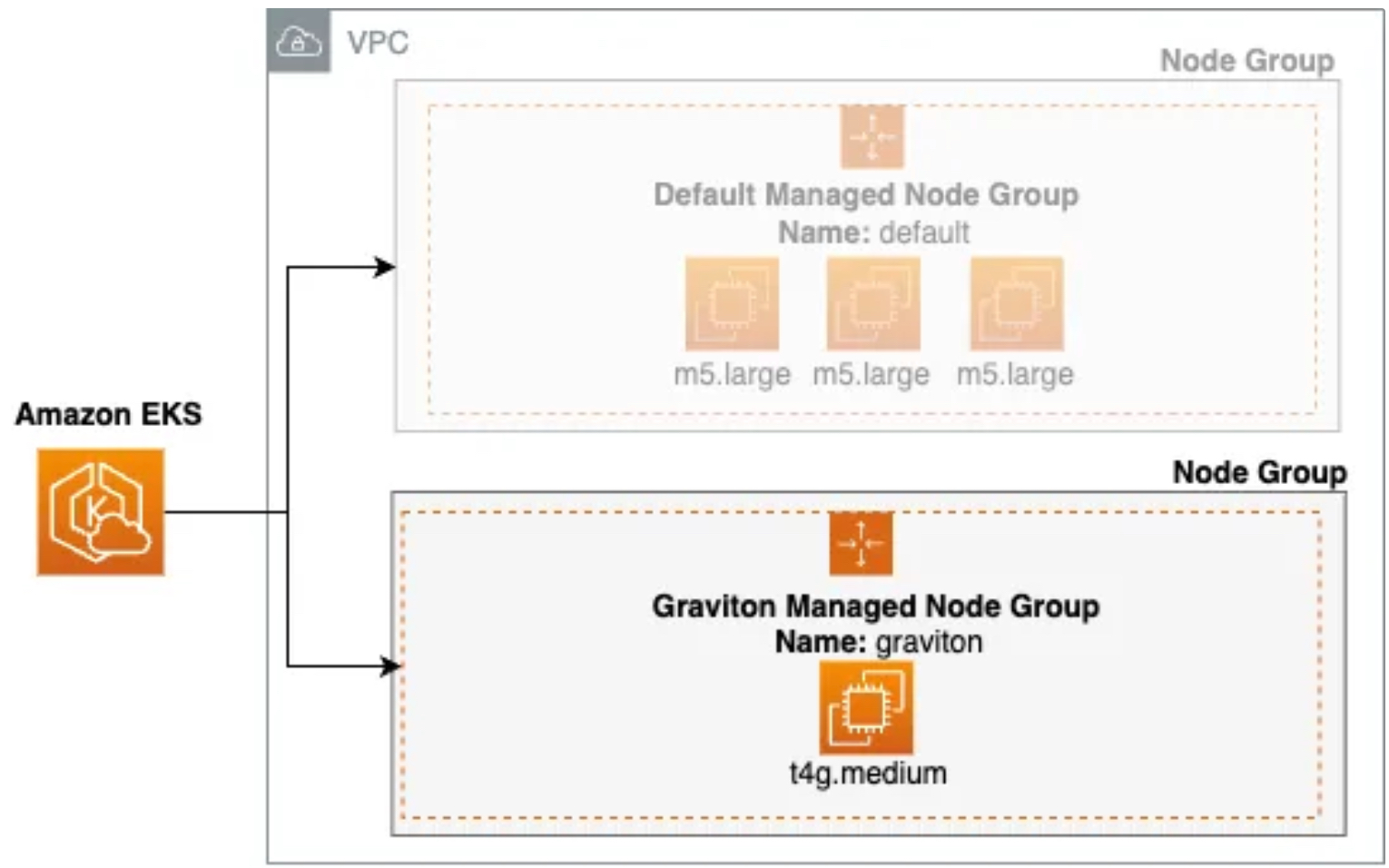
kubectl get nodes -L kubernetes.io/arch
NAME                                               STATUS   ROLES    AGE   VERSION               ARCH
ip-192-168-1-16.ap-northeast-2.compute.internal    Ready    <none>   12h   v1.31.5-eks-5d632ec   amd64
ip-192-168-2-50.ap-northeast-2.compute.internal    Ready    <none>   12h   v1.31.5-eks-5d632ec   amd64
ip-192-168-3-184.ap-northeast-2.compute.internal   Ready    <none>   12h   v1.31.5-eks-5d632ec   amd64

# 신규 노드 그룹 생성
eksctl create nodegroup --help
eksctl create nodegroup -c $CLUSTER_NAME -r ap-northeast-2 --subnet-ids "$PubSubnet1","$PubSubnet2","$PubSubnet3" \
  -n ng3-sejkim -t t4g.medium -N 1 -m 1 -M 1 --node-volume-size=30 --node-labels family=graviton --dry-run > myng3.yaml
cat myng3.yaml
eksctl create nodegroup -f myng3.yaml

# 확인
kubectl get nodes --label-columns eks.amazonaws.com/nodegroup,kubernetes.io/arch,eks.amazonaws.com/capacityType
kubectl describe nodes --selector family=graviton
aws eks describe-nodegroup --cluster-name $CLUSTER_NAME --nodegroup-name ng3-sejkim | jq .nodegroup.taints

# taints 셋팅 -> 적용에 2~3분 정도 시간 소요
aws eks update-nodegroup-config --cluster-name $CLUSTER_NAME --nodegroup-name ng3-sejkim --taints "addOrUpdateTaints=[{key=frontend, value=true, effect=NO_EXECUTE}]"

# 확인
kubectl describe nodes --selector family=graviton | grep Taints
Taints:             frontend=true:NoExecute

aws eks describe-nodegroup --cluster-name $CLUSTER_NAME --nodegroup-name ng3-sejkim | jq .nodegroup.taints
[
  {
    "key": "frontend",
    "value": "true",
    "effect": "NO_EXECUTE"
  }
]
# NO_SCHEDULE - This corresponds to the Kubernetes NoSchedule taint effect. This configures the managed node group with a taint that repels all pods that don't have a matching toleration. All running pods are not evicted from the manage node group's nodes.
# NO_EXECUTE - This corresponds to the Kubernetes NoExecute taint effect. Allows nodes configured with this taint to not only repel newly scheduled pods but also evicts any running pods without a matching toleration.
# PREFER_NO_SCHEDULE - This corresponds to the Kubernetes PreferNoSchedule taint effect. If possible, EKS avoids scheduling Pods that do not tolerate this taint onto the node.- AWS 관리 콘솔 EKS 서비스에 ng3 노드그룹에서 확인 - Link
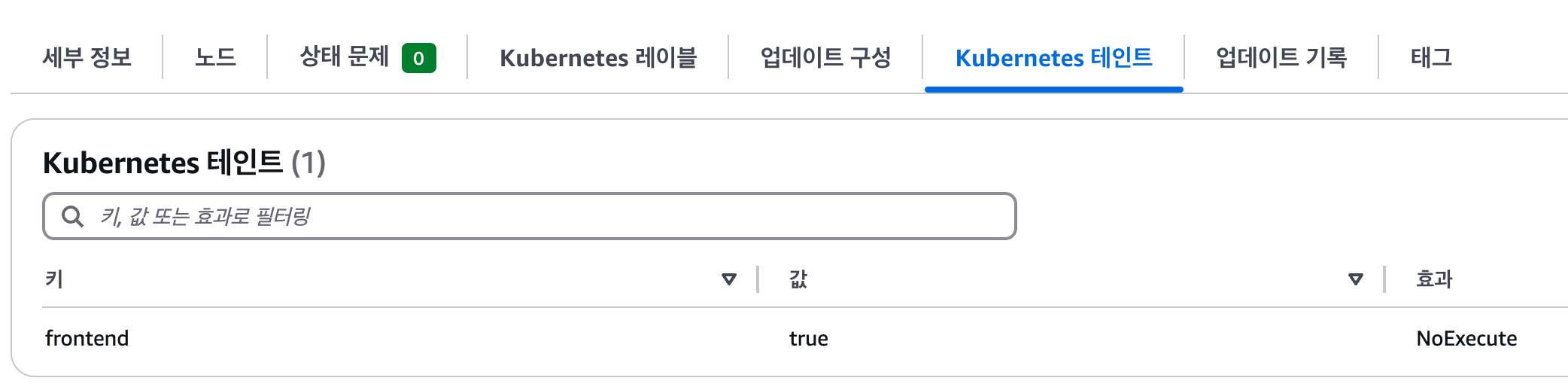
7.5 Run pods on Graviton
- busybox - DHUB

#
cat <<EOF | kubectl apply -f -
apiVersion: v1
kind: Pod
metadata:
  name: busybox
spec:
  terminationGracePeriodSeconds: 3
  containers:
  - name: busybox
    image: busybox
    command:
    - "/bin/sh"
    - "-c"
    - "while true; do date >> /home/pod-out.txt; cd /home; sync; sync; sleep 10; done"
  tolerations:
    - effect: NoExecute
      key: frontend
      operator: Exists
  nodeSelector:
    family: graviton
EOF

# 파드가 배포된 노드 정보 확인
kubectl get pod -owide
NAME      READY   STATUS    RESTARTS   AGE   IP             NODE                                              NOMINATED NODE   READINESS GATES
busybox   1/1     Running   0          9s    192.168.2.80   ip-192-168-2-79.ap-northeast-2.compute.internal   <none>           <none>

kubectl describe pod busybox
Name:             busybox
Namespace:        default
Priority:         0
Service Account:  default
Node:             ip-192-168-2-79.ap-northeast-2.compute.internal/192.168.2.79
Start Time:       Sat, 22 Feb 2025 23:51:12 +0900
Labels:           <none>
Annotations:      <none>
Status:           Running
IP:               192.168.2.80
IPs:
  IP:  192.168.2.80
Containers:
  busybox:
    Container ID:  containerd://237883ca8e10f51625e8756c19d575a8bd3964426b1a8b4419944c3e77058d5f
    Image:         busybox
    Image ID:      docker.io/library/busybox@sha256:498a000f370d8c37927118ed80afe8adc38d1edcbfc071627d17b25c88efcab0
    Port:          <none>
    Host Port:     <none>
    Command:
      /bin/sh
      -c
      while true; do date >> /home/pod-out.txt; cd /home; sync; sync; sleep 10; done
    State:          Running
      Started:      Sat, 22 Feb 2025 23:51:16 +0900
    Ready:          True
    Restart Count:  0
    Environment:    <none>
    Mounts:
      /var/run/secrets/kubernetes.io/serviceaccount from kube-api-access-mjfc4 (ro)
Conditions:
  Type                        Status
  PodReadyToStartContainers   True
  Initialized                 True
  Ready                       True
  ContainersReady             True
  PodScheduled                True
Volumes:
  kube-api-access-mjfc4:
    Type:                    Projected (a volume that contains injected data from multiple sources)
    TokenExpirationSeconds:  3607
    ConfigMapName:           kube-root-ca.crt
    ConfigMapOptional:       <nil>
    DownwardAPI:             true
QoS Class:                   BestEffort
Node-Selectors:              family=graviton
Tolerations:                 frontend:NoExecute op=Exists
                             node.kubernetes.io/not-ready:NoExecute op=Exists for 300s
                             node.kubernetes.io/unreachable:NoExecute op=Exists for 300s
Events:
  Type    Reason     Age   From               Message
  ----    ------     ----  ----               -------
  Normal  Scheduled  35s   default-scheduler  Successfully assigned default/busybox to ip-192-168-2-79.ap-northeast-2.compute.internal
  Normal  Pulling    35s   kubelet            Pulling image "busybox"
  Normal  Pulled     31s   kubelet            Successfully pulled image "busybox" in 3.796s (3.796s including waiting). Image size: 1855648 bytes.
  Normal  Created    31s   kubelet            Created container busybox
  Normal  Started    31s   kubelet            Started container busybox

kubectl exec -it busybox -- arch
aarch64

kubectl exec -it busybox -- tail -f /home/pod-out.txt
Sat Feb 22 14:51:16 UTC 2025
Sat Feb 22 14:51:26 UTC 2025
Sat Feb 22 14:51:36 UTC 2025
Sat Feb 22 14:51:46 UTC 2025

# 삭제
kubectl delete pod busybox- 운영서버 EC2 에서 빌드한 myweb 컨테이너 이미지를 파드로 배포해보기
# 아래 gasida 부분은 자신의 도커 허브 계정명으로 변경하거나 혹은 AWS ECR 프라이빗 저장소 경로로 변경해서 배포해보자
cat <<EOF | kubectl apply -f -
apiVersion: v1
kind: Pod
metadata:
  name: myweb-arm
spec:
  terminationGracePeriodSeconds: 3
  containers:
  - name: myweb
    image: kimseongjung/myweb:multi
  tolerations:
    - effect: NoExecute
      key: frontend
      operator: Exists
  nodeSelector:
    family: graviton
---
apiVersion: v1
kind: Pod
metadata:
  name: myweb-amd
spec:
  terminationGracePeriodSeconds: 3
  containers:
  - name: myweb
    image: kimseongjung/myweb:multi
EOF

#
kubectl get pod -owide
NAME        READY   STATUS    RESTARTS   AGE   IP              NODE                                               NOMINATED NODE   READINESS GATES
myweb-amd   1/1     Running   0          46s   192.168.3.103   ip-192-168-3-184.ap-northeast-2.compute.internal   <none>           <none>
myweb-arm   1/1     Running   0          46s   192.168.2.72    ip-192-168-2-79.ap-northeast-2.compute.internal    <none>           <none>

kubectl exec -it myweb-arm -- arch
aarch64

kubectl exec -it myweb-amd -- arch
x86_64

kubectl exec -it myweb-arm -- curl localhost
The time is 2:58:26 PM, VERSION 0.0.1
Server hostname: myweb-arm

kubectl exec -it myweb-amd -- curl localhost
The time is 2:58:38 PM, VERSION 0.0.1
Server hostname: myweb-amd

# 삭제
kubectl delete pod myweb-arm myweb-amd- ng3 노드 그룹 삭제 : eksctl delete nodegroup -c $CLUSTER_NAME -n ng3-sejkim
7.6 Spot 노드 그룹
7.6.1 Spot instances 노드 그룹 (managed-spot) 생성 - Link, Blog
- AWS 고객이 EC2 여유 용량 풀을 활용하여 엄청난 할인으로 EC2 인스턴스를 실행할 수 있습니다.
- EC2에 용량이 다시 필요할 때 2분 알림으로 Spot Instances를 중단할 수 있습니다.
- Kubernetes 워커 노드로 Spot Instances를 사용하는 것은 상태 비저장 API 엔드포인트, 일괄 처리, ML 학습 워크로드, Apache Spark를 사용한 빅데이터 ETL, 대기열 처리 애플리케이션, CI/CD 파이프라인과 같은 워크로드에 매우 인기 있는 사용 패턴입니다.
- 예를 들어 Kubernetes에서 상태 비저장 API 서비스를 실행하는 것은 Spot Instances를 워커 노드로 사용하기에 매우 적합합니다. Pod를 우아하게 종료할 수 있고 Spot Instances가 중단되면 다른 워커 노드에서 대체 Pod를 예약할 수 있기 때문입니다.
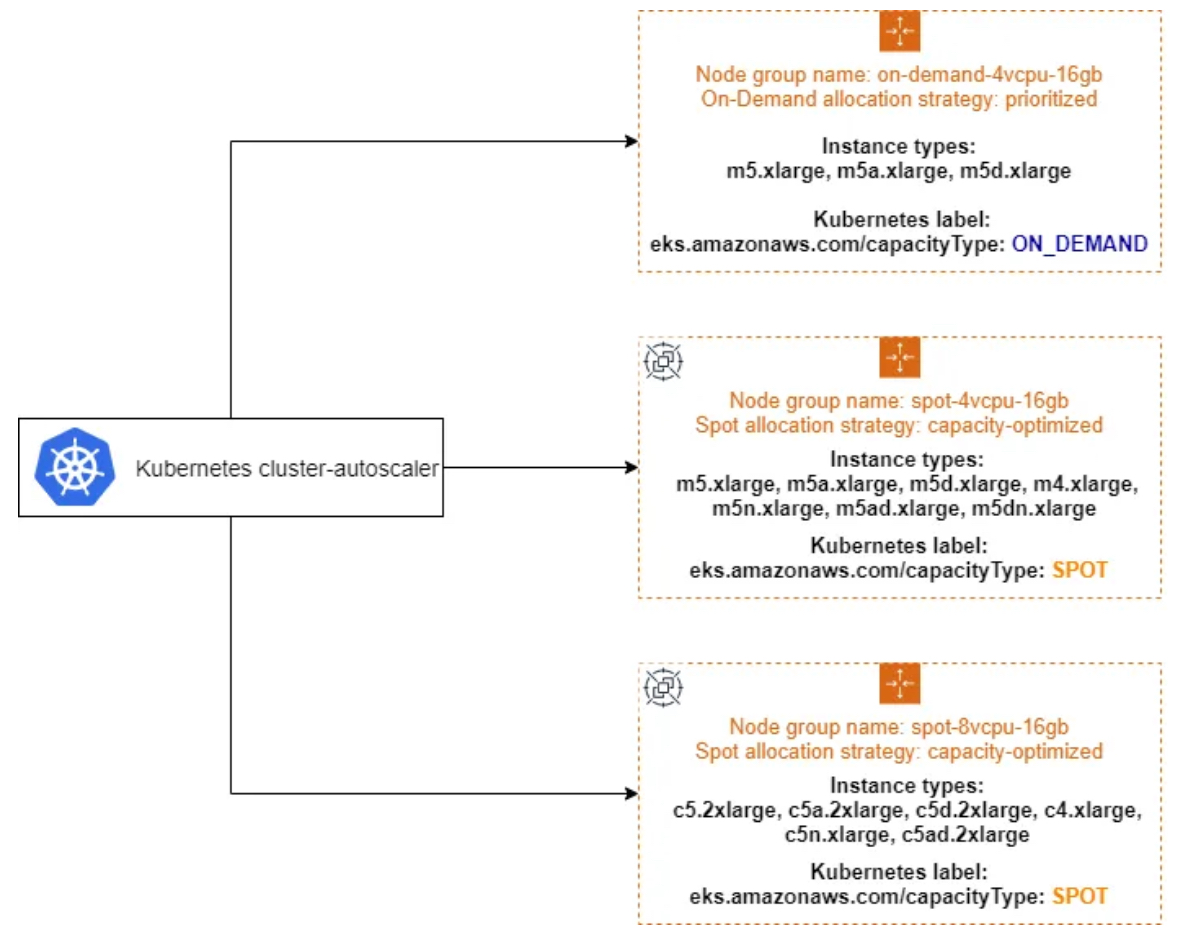
Instance type diversification - Link
# [운영서버 EC2] ec2-instance-selector 설치
curl -Lo ec2-instance-selector https://github.com/aws/amazon-ec2-instance-selector/releases/download/v2.4.1/ec2-instance-selector-`uname | tr '[:upper:]' '[:lower:]'`-amd64 && chmod +x ec2-instance-selector
mv ec2-instance-selector /usr/local/bin/
ec2-instance-selector --version
v2.4.1

# 적절한 인스턴스 스펙 선택을 위한 도구 사용
ec2-instance-selector --vcpus 2 --memory 4 --gpus 0 --current-generation -a x86_64 --deny-list 't.*' --output table-wide
Instance Type   VCPUs   Mem (GiB)  Hypervisor  Current Gen  Hibernation Support  CPU Arch  Network Performance  ENIs    GPUs    GPU Mem (GiB)  GPU Info  On-Demand Price/Hr  Spot Price/Hr (30d avg)
-------------   -----   ---------  ----------  -----------  -------------------  --------  -------------------  ----    ----    -------------  --------  ------------------  -----------------------
c5.large        2       4          nitro       true         true                 x86_64    Up to 10 Gigabit     3       0       0              none      $0.096              $0.02837
c5a.large       2       4          nitro       true         false                x86_64    Up to 10 Gigabit     3       0       0              none      $0.086              $0.04022
c5d.large       2       4          nitro       true         true                 x86_64    Up to 10 Gigabit     3       0       0              none      $0.11               $0.03265
c6i.large       2       4          nitro       true         true                 x86_64    Up to 12.5 Gigabit   3       0       0              none      $0.096              $0.03425
c6id.large      2       4          nitro       true         true                 x86_64    Up to 12.5 Gigabit   3       0       0              none      $0.1155             $0.03172
c6in.large      2       4          nitro       true         true                 x86_64    Up to 25 Gigabit     3       0       0              none      $0.1281             $0.04267
c7i-flex.large  2       4          nitro       true         true                 x86_64    Up to 12.5 Gigabit   3       0       0              none      $0.09576            $0.02872
c7i.large       2       4          nitro       true         true                 x86_64    Up to 12.5 Gigabit   3       0       0              none      $0.1008             $0.02977

#Internally ec2-instance-selector is making calls to the DescribeInstanceTypes for the specific region and filtering the instances based on the criteria selected in the command line, in our case we filtered for instances that meet the following criteria:
- Instances with no GPUs
- of x86_64 Architecture (no ARM instances like A1 or m6g instances for example)
- Instances that have 2 vCPUs and 4 GB of RAM
- Instances of current generation (4th gen onwards)
- Instances that don’t meet the regular expression t.* to filter out burstable instance types- Create spot capacity - Link
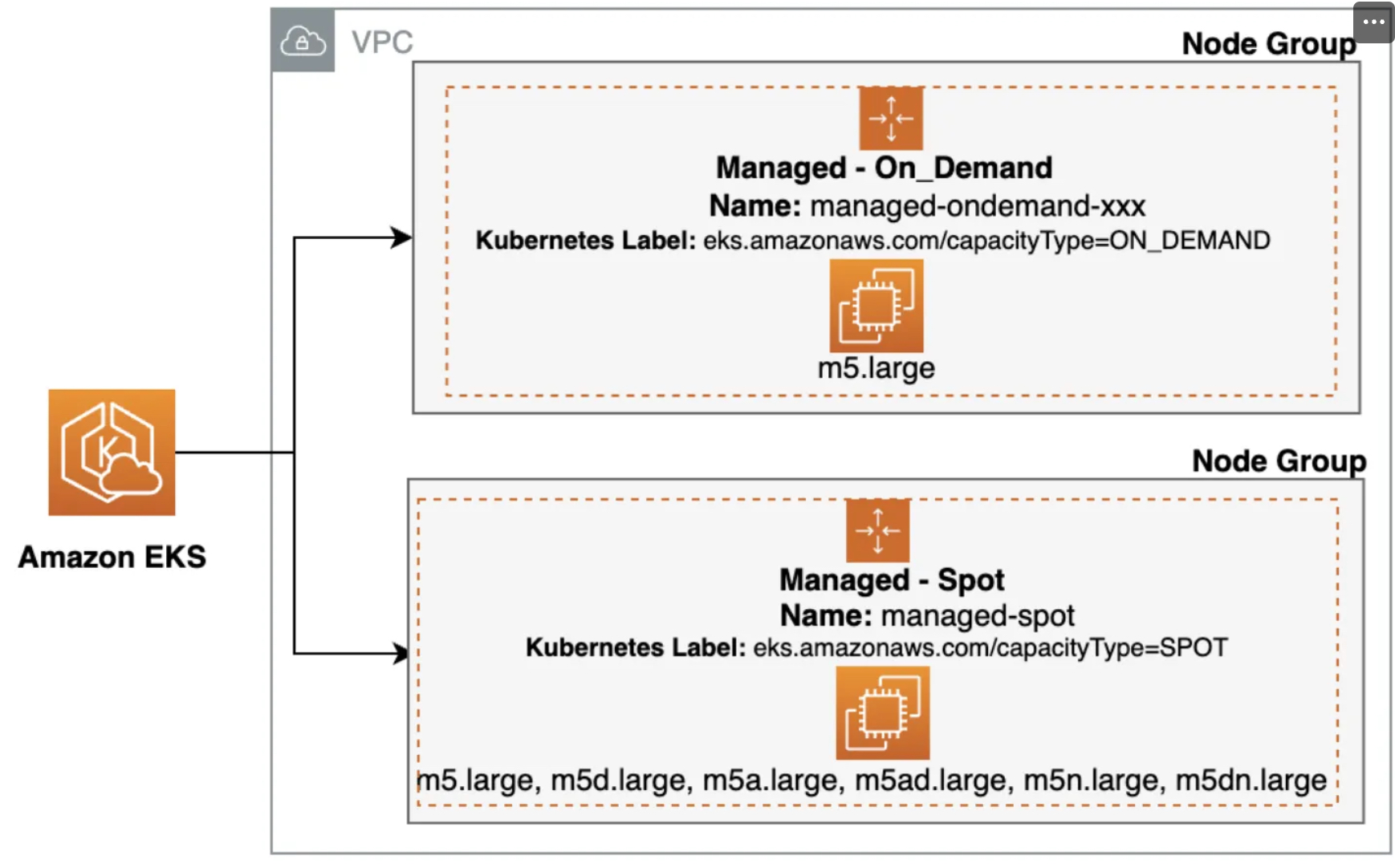
#
kubectl get nodes -l eks.amazonaws.com/capacityType=ON_DEMAND
kubectl get nodes -L eks.amazonaws.com/capacityType
NAME                                               STATUS   ROLES    AGE   VERSION               CAPACITYTYPE
ip-192-168-1-16.ap-northeast-2.compute.internal    Ready    <none>   13h   v1.31.5-eks-5d632ec   ON_DEMAND
ip-192-168-2-50.ap-northeast-2.compute.internal    Ready    <none>   13h   v1.31.5-eks-5d632ec   ON_DEMAND
ip-192-168-3-184.ap-northeast-2.compute.internal   Ready    <none>   13h   v1.31.5-eks-5d632ec   ON_DEMAND

# 노드 그룹 생성
NODEROLEARN=$(aws iam list-roles --query "Roles[?contains(RoleName, 'sejkim-nodegroup-ng1')].Arn" --output text)
echo $NODEROLEARN
arn:aws:iam::1**********3:role/eksctl-myeks-sejkim-nodegroup-ng1--NodeInstanceRole-gum9x0fgOtCG

aws eks create-nodegroup \
  --cluster-name $CLUSTER_NAME \
  --nodegroup-name managed-spot-sejkim \
  --subnets $PubSubnet1 $PubSubnet2 $PubSubnet3 \
  --node-role $NODEROLEARN \
  --instance-types c5.large c5d.large c5a.large \
  --capacity-type SPOT \
  --scaling-config minSize=1,maxSize=2,desiredSize=1 \
  --disk-size 20

# The command can be used to wait until a specific EKS node group is active and ready for use.
aws eks wait nodegroup-active --cluster-name $CLUSTER_NAME --nodegroup-name managed-spot-sejkim

# 확인
kubectl get nodes -L eks.amazonaws.com/capacityType,eks.amazonaws.com/nodegroup
NAME                                               STATUS   ROLES    AGE   VERSION               CAPACITYTYPE   NODEGROUP
ip-192-168-1-16.ap-northeast-2.compute.internal    Ready    <none>   13h   v1.31.5-eks-5d632ec   ON_DEMAND      ng1-sejkim
ip-192-168-1-237.ap-northeast-2.compute.internal   Ready    <none>   31s   v1.31.5-eks-5d632ec   SPOT           managed-spot-sejkim
ip-192-168-2-50.ap-northeast-2.compute.internal    Ready    <none>   13h   v1.31.5-eks-5d632ec   ON_DEMAND      ng1-sejkim
ip-192-168-3-184.ap-northeast-2.compute.internal   Ready    <none>   13h   v1.31.5-eks-5d632ec   ON_DEMAND      ng1-sejkim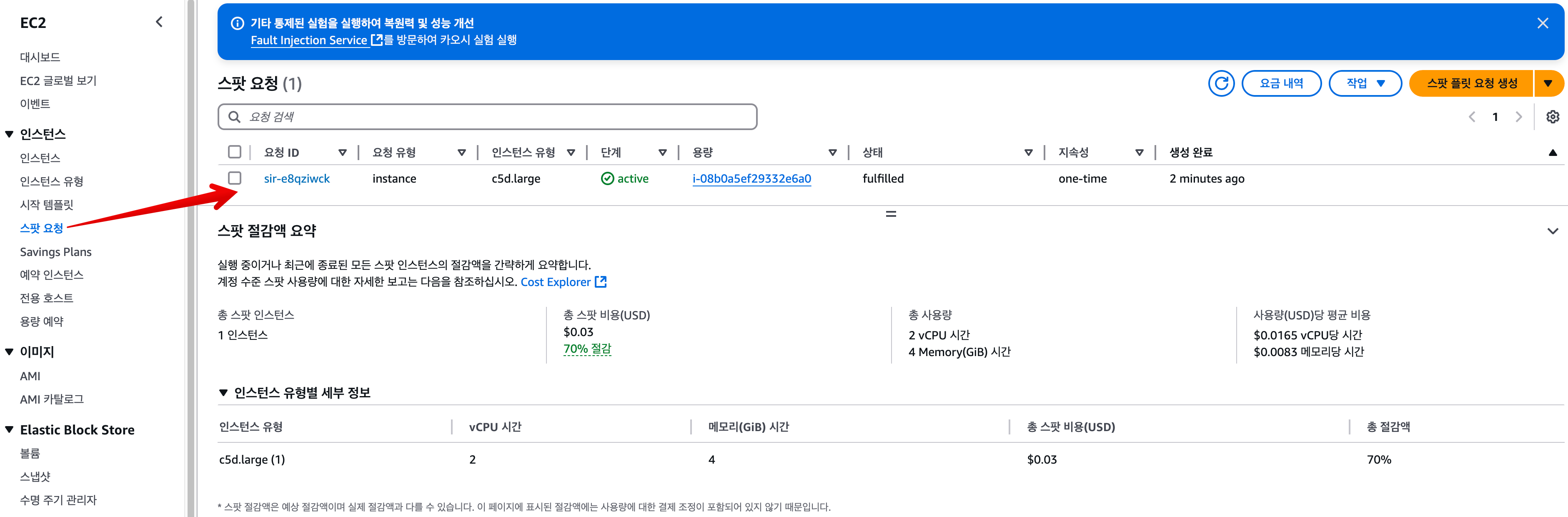
7.6.2 Running a workload on Spot instances
#
cat <<EOF | kubectl apply -f -
apiVersion: v1
kind: Pod
metadata:
  name: busybox
spec:
  terminationGracePeriodSeconds: 3
  containers:
  - name: busybox
    image: busybox
    command:
    - "/bin/sh"
    - "-c"
    - "while true; do date >> /home/pod-out.txt; cd /home; sync; sync; sleep 10; done"
  nodeSelector:
    eks.amazonaws.com/capacityType: SPOT
EOF

# 파드가 배포된 노드 정보 확인
kubectl get pod -owide
NAME      READY   STATUS    RESTARTS   AGE   IP             NODE                                               NOMINATED NODE   READINESS GATES
busybox   1/1     Running   0          8s    192.168.1.45   ip-192-168-1-237.ap-northeast-2.compute.internal   <none>           <none>

# 삭제
kubectl delete pod busybox
7.6.3 Interruption Handling in EKS managed node groups with Spot capacity - Link
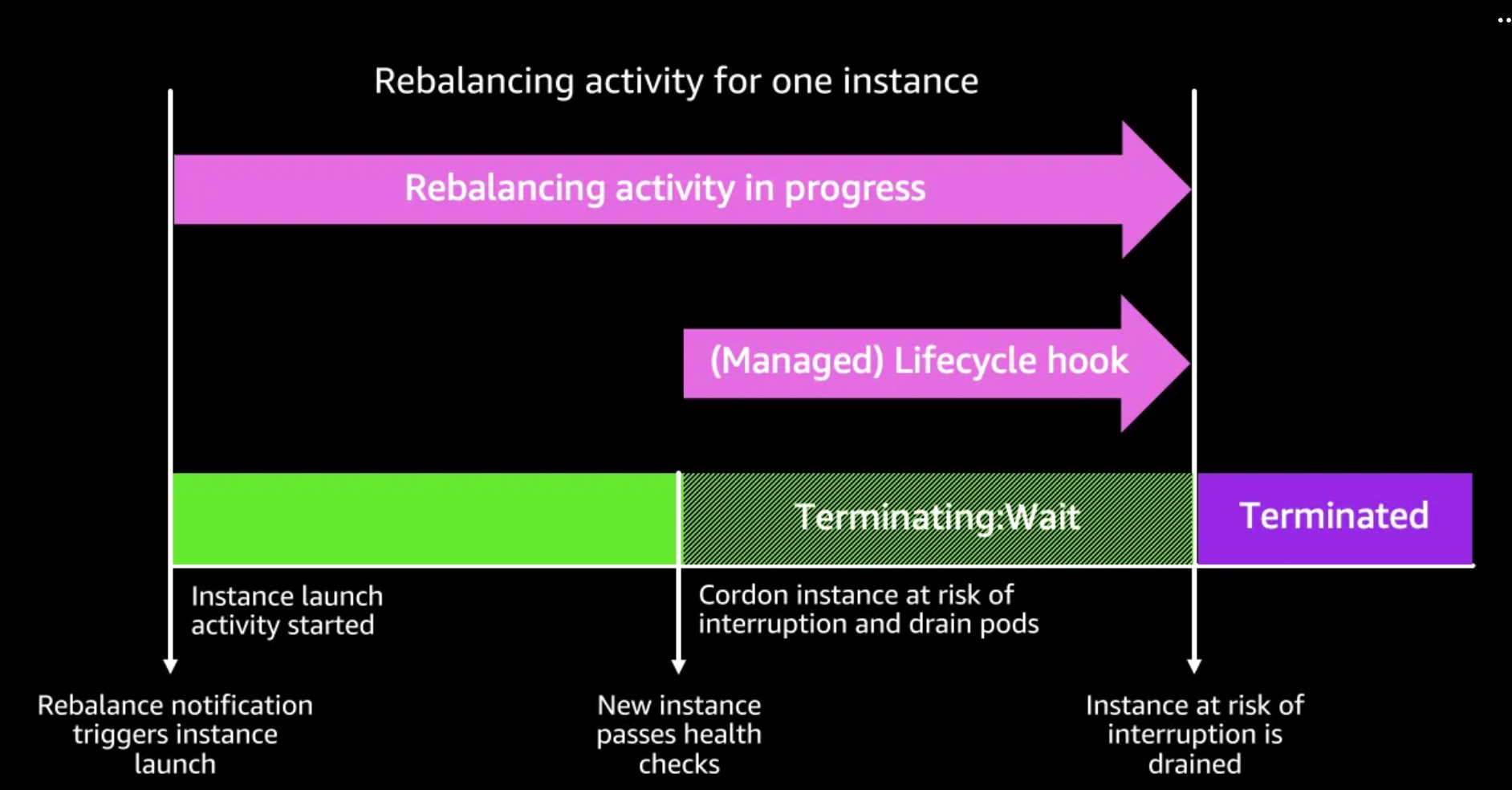
-
Spot 중단을 처리하기 위해 AWS Node Termination Handler와 같은 클러스터에 추가 자동화 도구를 설치할 필요가 없습니다. 관리형 노드 그룹은 사용자를 대신하여 Amazon EC2 Auto Scaling 그룹을 구성하고 다음과 같은 방식으로 Spot 중단을 처리합니다. To handle Spot interruptions, you do not need to install any extra automation tools on the cluster such as the AWS Node Termination Handler. A managed node group configures an Amazon EC2 Auto Scaling group on your behalf and handles the Spot interruption in following manner:
- Amazon EC2 Spot 용량 재조정은 Amazon EKS가 Spot 노드를 우아하게 비우고 재조정하여 Spot 노드가 중단 위험이 높을 때 애플리케이션 중단을 최소화할 수 있도록 활성화됩니다.
- Amazon EC2 Spot Capacity Rebalancing is enabled so that Amazon EKS can gracefully drain and rebalance your Spot nodes to minimize application disruption when a Spot node is at elevated risk of interruption. For more information, see Amazon EC2 Auto Scaling Capacity Rebalancing in the Amazon EC2 Auto Scaling User Guide.
- 교체 Spot 노드가 부트스트랩되고 Kubernetes에서 Ready 상태가 되면 Amazon EKS는 재조정 권장 사항을 수신한 Spot 노드를 cordons하고 drains합니다. Spot 노드를 cordons하면 노드가 예약 불가능으로 표시되고 kube-scheduler가 해당 노드에서 새 포드를 예약하지 않습니다.
- When a replacement Spot node is bootstrapped and in the Ready state on Kubernetes, Amazon EKS cordons and drains the Spot node that received the rebalance recommendation. Cordoning the Spot node ensures that the node is marked as unschedulable and kube-scheduler will not schedule any new pods on it. It also removes it from its list of healthy, active Spot nodes. Draining the Spot node ensures that running pods are evicted gracefully.
- 교체 Spot 노드가 준비 상태가 되기 전에 Spot 2분 중단 알림이 도착하면 Amazon EKS는 재균형 권장 사항을 받은 Spot 노드의 드레이닝을 시작합니다.
- If a Spot two-minute interruption notice arrives before the replacement Spot node is in a Ready state, Amazon EKS starts draining the Spot node that received the rebalance recommendation.
- Amazon EC2 Spot 용량 재조정은 Amazon EKS가 Spot 노드를 우아하게 비우고 재조정하여 Spot 노드가 중단 위험이 높을 때 애플리케이션 중단을 최소화할 수 있도록 활성화됩니다.
-
이 프로세스는 Spot 중단이 도착할 때까지 교체 Spot 노드를 기다리는 것을 피하고, 대신 사전에 교체 노드를 조달하여 보류 중인 Pod의 스케줄링 시간을 최소화하는 데 도움이 됨. This process avoids waiting for replacement Spot node till Spot interruption arrives, instead it procures replacement in advance and helps in minimizing the scheduling time for pending pods.
-
ng3 노드 그룹 삭제 : eksctl delete nodegroup -c $CLUSTER_NAME -n managed-spot-sejkim
7.7 Bottlerocket AMI
7.7.1 Bottlerocket 소개
-
컨테이너 실행을 위한 Linux 기반 운영 체제 - Home, Github , Docs, Blog, Work, Youtube, Workshop
-
배경
- 현재 이용되는 컨테이너는 대부분 다양한 형식으로 패키징된 애플리케이션을 지원하도록 설계된 범용 운영 체제(OS)에서 실행됩니다. 그와 같은 운영 체제에는 수백 가지 패키지가 포함되어 있으며, 컨테이너화된 애플리케이션 하나를 실행하는 데 사용되는 패키지는 몇 개 되지 않더라도 자주 보안 및 유지 관리 업데이트를 해야 합니다. Bottlerocket은 보안에 중점을 두고, 컨테이너 호스팅에 필수적인 소프트웨어만 포함하므로 공격에 대한 노출 위험을 줄입니다. 여기에는 SELinux(Security-Enhanced Linux)가 함께 제공되어 추가 격리 모드를 지원하며 Linux 커널 기능의 일종인 Device Mapper의 진실성 대상(dm-verity)을 사용하므로 루트킷 기반 공격을 예방하는 데 도움이 됩니다. 이러한 보안 강화 기능 외에도 Bottlerocket 업데이트를 적용하여 원자 단위 방식으로 롤백하므로 업데이트 관리가 한층 간소화됩니다.
-
장점 - Kr
- 운영 비용 절감 및 관리 복잡성 감소로 가동 시간 증가 – Bottlerocket은 다른 Linux 배포판보다 리소스 공간이 작고 부팅 시간이 짧으며 보안 위협에 덜 취약합니다. Bottlerocket은 공간이 작아 스토리지, 컴퓨팅 및 네트워킹 리소스를 적게 사용하여 비용을 절감할 수 있습니다.
- 자동 OS 업데이트로 보안 강화 – Bottlerocket 업데이트는 필요한 경우 롤백할 수 있는 단일 단위로 적용됩니다. 이렇게 하면 시스템을 사용 불가 상태로 둘 수 있는 손상되거나 실패한 업데이트의 위험이 제거됩니다. Bottlerocket을 사용하면 보안 업데이트를 사용할 수 있는 즉시 중단을 최소화하는 방식으로 자동 적용하고 장애 발생 시 롤백할 수 있습니다.
- 프리미엄 지원 – AWS에서 제공하는 Amazon EC2 기반 Bottlerocket 빌드에는 Amazon EC2, Amazon EKS, Amazon ECR 등의 AWS 서비스에도 적용되는 동일한 AWS Support 플랜이 적용됩니다
- Bottlerocket의 설계 덕분에 OS 바이너리 업데이트와 보안 패치 주기를 분리하여 사전 페치된 이미지로 데이터 볼륨을 쉽게 연결할 수 있습니다.링크
-
고려 사항 - Docs
- Bottlerocket은 x86_64 및 arm64 프로세서가 있는 Amazon EC2 인스턴스를 지원합니다.
- Bottlerocket AMI를 Inferentia 칩이 있는 Amazon EC2 인스턴스와 함께 사용하는 것은 권장되지 않습니다.
- Bottlerocket 이미지에는 SSH 서버 또는 쉘이 포함되지 않습니다. 대체 액세스 방법을 사용하여 SSH를 허용할 수 있습니다.
7.7.2 노드 그룹 생성 및 노드 접속
- Control / Admin Container 배치 참고 - Link
- ng-br.yaml 파일 작성
cat << EOF > ng-br.yaml
apiVersion: eksctl.io/v1alpha5
kind: ClusterConfig
metadata:
  name: myeks-sejkim
  region: ap-northeast-2
  version: "1.31"

managedNodeGroups:
- name: ng-bottlerocket-sejkim
  instanceType: t3.medium
  amiFamily: Bottlerocket
  bottlerocket:
    enableAdminContainer: true
    settings:
      motd: "Hello, eksctl!"
  desiredCapacity: 1
  maxSize: 1
  minSize: 1
  labels:
    alpha.eksctl.io/cluster-name: myeks-sejkim
    alpha.eksctl.io/nodegroup-name: ng-bottlerocket-sejkim
    ami: bottlerocket
  subnets:
  - $PubSubnet1
  - $PubSubnet2
  - $PubSubnet3
  tags:
    alpha.eksctl.io/nodegroup-name: ng-bottlerocket-sejkim
    alpha.eksctl.io/nodegroup-type: managed

- name: ng-bottlerocket-ssh-sejkim
  instanceType: t3.medium
  amiFamily: Bottlerocket
  desiredCapacity: 1
  maxSize: 1
  minSize: 1
  ssh:
    allow: true
    publicKeyName: $SSHKEYNAME
  labels:
    alpha.eksctl.io/cluster-name: myeks-sejkim
    alpha.eksctl.io/nodegroup-name: ng-bottlerocket-ssh-sejkim
    ami: bottlerocket
  subnets:
  - $PubSubnet1
  - $PubSubnet2
  - $PubSubnet3
  tags:
    alpha.eksctl.io/nodegroup-name: ng-bottlerocket-ssh-sejkim
    alpha.eksctl.io/nodegroup-type: managed
EOF- 노드그룹 배포
#
cat ng-br.yaml
eksctl create nodegroup -f ng-br.yaml

# 노드의 OS 와 CRI 정보 등 확인
kubectl get node --label-columns=alpha.eksctl.io/nodegroup-name,ami,node.kubernetes.io/instance-type
kubectl get node -owide
NAME                                               STATUS   ROLES    AGE   VERSION               INTERNAL-IP     EXTERNAL-IP     OS-IMAGE                                KERNEL-VERSION                    CONTAINER-RUNTIME
ip-192-168-1-149.ap-northeast-2.compute.internal   Ready    <none>   52s   v1.31.4-eks-0f56d01   192.168.1.149   43.202.62.187   Bottlerocket OS 1.32.0 (aws-k8s-1.31)   6.1.124                           containerd://1.7.24+bottlerocket
ip-192-168-1-16.ap-northeast-2.compute.internal    Ready    <none>   14h   v1.31.5-eks-5d632ec   192.168.1.16    13.125.44.115   Amazon Linux 2023.6.20250203            6.1.127-135.201.amzn2023.x86_64   containerd://1.7.25
ip-192-168-2-193.ap-northeast-2.compute.internal   Ready    <none<>   56s   v1.31.4-eks-0f56d01   192.168.2.193   3.34.28.136     Bottlerocket OS 1.32.0 (aws-k8s-1.31)   6.1.124                           containerd://1.7.24+bottlerocket
ip-192-168-2-50.ap-northeast-2.compute.internal    Ready    <none>   14h   v1.31.5-eks-5d632ec   192.168.2.50    15.164.237.68   Amazon Linux 2023.6.20250203            6.1.127-135.201.amzn2023.x86_64   containerd://1.7.25
ip-192-168-3-184.ap-northeast-2.compute.internal   Ready    <none>   14h   v1.31.5-eks-5d632ec   192.168.3.184   3.34.194.8      Amazon Linux 2023.6.20250203            6.1.127-135.201.amzn2023.x86_64   containerd://1.7.25

# 인스턴스 IP 확인
aws ec2 describe-instances --query "Reservations[*].Instances[*].{InstanceID:InstanceId, PublicIPAdd:PublicIpAddress, PrivateIPAdd:PrivateIpAddress, InstanceName:Tags[?Key=='Name']|[0].Value, Status:State.Name}" --filters Name=instance-state-name,Values=running --output table
----------------------------------------------------------------------------------------------------------------------
|                                                  DescribeInstances                                                 |
+---------------------+------------------------------------------------+----------------+----------------+-----------+
|     InstanceID      |                 InstanceName                   | PrivateIPAdd   |  PublicIPAdd   |  Status   |
+---------------------+------------------------------------------------+----------------+----------------+-----------+
|  i-0369415e13eb1fe80|  myeks-sejkim-ng1-sejkim-Node                  |  192.168.3.184 |  3.34.194.8    |  running  |
|  i-02534f48b8829758c|  myeks-sejkim-ng1-sejkim-Node                  |  192.168.1.16  |  13.125.44.115 |  running  |
|  i-0701a3db79fe333b2|  operator-sejkim-host                          |  172.20.1.100  |  3.38.165.30   |  running  |
|  i-094aefd1f8a716d8a|  myeks-sejkim-ng-bottlerocket-sejkim-Node      |  192.168.1.149 |  43.202.62.187 |  running  |
|  i-021a0e43bf55f06a0|  myeks-sejkim-ng1-sejkim-Node                  |  192.168.2.50  |  15.164.237.68 |  running  |
|  i-0216d4ecb8df67d18|  myeks-sejkim-ng-bottlerocket-ssh-sejkim-Node  |  192.168.2.193 |  3.34.28.136   |  running  |+---------------------+------------------------------------------------+----------------+----------------+-----------+


#
BRNode1=<ng-bottlerocket EC2 유동공인 IP>
BRNode2=<ng-bottlerocket-ssh EC2 유동공인 IP>
BRNode1=43.202.62.187
BRNode2=3.34.28.136- SSH 로 노드 접속
# SSH 접속 테스트
ssh $BRNode1 - 접속 불가
ssh $BRNode2
          Welcome to Bottlerocket's admin container!
    ╱╲
   ╱┄┄╲   This container provides access to the Bottlerocket host
   │▗▖│   filesystems (see /.bottlerocket/rootfs) and contains common
  ╱│  │╲  tools for inspection and troubleshooting.  It is based on
  │╰╮╭╯│  Amazon Linux 2, and most things are in the same places you
    ╹╹    would find them on an AL2 host.

To permit more intrusive troubleshooting, including actions that mutate the
running state of the Bottlerocket host, we provide a tool called "sheltie"
(`sudo sheltie`).  When run, this tool drops you into a root shell in the
Bottlerocket host's root filesystem.

-----------------
# AL2 기반이여, 문제 해결을 위한 도구 포함.
# sudo sheltie 실행 시 you into a root shell in the Bottlerocket host's root filesystem.
whoami
ec2-user

pwd
/home/ec2-user

ip -c a
-bash: ip: command not found

lsblk
NAME         MAJ:MIN RM  SIZE RO TYPE MOUNTPOINT
loop0          7:0    0 12.6M  1 loop /.bottlerocket/rootfs/var/lib/kernel-devel/.overlay/lower
loop1          7:1    0  352K  1 loop /.bottlerocket/rootfs/x86_64-bottlerocket-linux-gnu/sys-root/usr/share/licenses
nvme0n1      259:0    0    2G  0 disk
├─nvme0n1p1  259:2    0    4M  0 part
├─nvme0n1p2  259:3    0    5M  0 part
├─nvme0n1p3  259:4    0   40M  0 part /.bottlerocket/rootfs/boot
├─nvme0n1p4  259:5    0  920M  0 part
├─nvme0n1p5  259:6    0   10M  0 part
├─nvme0n1p6  259:7    0   25M  0 part
├─nvme0n1p7  259:8    0    5M  0 part
├─nvme0n1p8  259:9    0   40M  0 part
├─nvme0n1p9  259:10   0  920M  0 part
├─nvme0n1p10 259:11   0   10M  0 part
├─nvme0n1p11 259:12   0   25M  0 part
├─nvme0n1p12 259:13   0   41M  0 part /.bottlerocket/rootfs/var/lib/bottlerocket
└─nvme0n1p13 259:14   0    1M  0 part
nvme1n1      259:1    0   80G  0 disk
└─nvme1n1p1  259:16   0   80G  0 part /.bottlerocket/rootfs/local

sudo yum install htop which -y
htop
which bash
which sh
ps
ps -ef
ps 1
    PID TTY      STAT   TIME COMMAND
      1 ?        Ss     0:01 /sbin/init systemd.log_target=journal-or-kmsg systemd.log_color=0 systemd.show_status=true

sestatus
SELinux status:                 disabled

getenforce
Disabled

sudo sheltie
whoami
root

pwd
/

ip -c a
1: lo: <LOOPBACK,UP,LOWER_UP> mtu 65536 qdisc noqueue state UNKNOWN group default qlen 1000
    link/loopback 00:00:00:00:00:00 brd 00:00:00:00:00:00
    inet 127.0.0.1/8 scope host lo
       valid_lft forever preferred_lft forever
    inet6 ::1/128 scope host noprefixroute
       valid_lft forever preferred_lft forever
2: eth0: <BROADCAST,MULTICAST,UP,LOWER_UP> mtu 9001 qdisc mq state UP group default qlen 1000
    link/ether 0a:d5:43:03:4e:c3 brd ff:ff:ff:ff:ff:ff
    altname enp0s5
    altname ens5
    inet 192.168.3.190/24 metric 1024 brd 192.168.3.255 scope global eth0
       valid_lft forever preferred_lft forever
    inet6 fe80::8d5:43ff:fe03:4ec3/64 scope link proto kernel_ll
       valid_lft forever preferred_lft forever
3: eni4c228d9b4f6@if3: <BROADCAST,MULTICAST,UP,LOWER_UP> mtu 9001 qdisc noqueue state UP group default
    link/ether 5e:e1:93:b5:72:6e brd ff:ff:ff:ff:ff:ff link-netns cni-a5a47a98-e0d2-490d-a907-322fb6dcc113
    inet6 fe80::5ce1:93ff:feb5:726e/64 scope link proto kernel_ll
       valid_lft forever preferred_lft forever
4: eni0c1183dc19c@if3: <BROADCAST,MULTICAST,UP,LOWER_UP> mtu 9001 qdisc noqueue state UP group default
    link/ether 8a:53:65:dc:68:34 brd ff:ff:ff:ff:ff:ff link-netns cni-c9b62c18-6f21-ed31-504c-1fcf97678167
    inet6 fe80::8853:65ff:fedc:6834/64 scope link proto kernel_ll
       valid_lft forever preferred_lft forever
5: eth1: <BROADCAST,MULTICAST,UP,LOWER_UP> mtu 9001 qdisc mq state UP group default qlen 1000
    link/ether 0a:78:3b:20:37:51 brd ff:ff:ff:ff:ff:ff
    altname enp0s6
    altname ens6
    inet 192.168.3.137/24 brd 192.168.3.255 scope global eth1
       valid_lft forever preferred_lft forever
    inet6 fe80::878:3bff:fe20:3751/64 scope link proto kernel_ll
       valid_lft forever preferred_lft forever

lsblk
NAME         MAJ:MIN RM  SIZE RO TYPE MOUNTPOINTS
loop0          7:0    0 12.6M  1 loop /var/lib/kernel-devel/.overlay/lower
loop1          7:1    0  352K  1 loop /x86_64-bottlerocket-linux-gnu/sys-root/usr/share/licenses
nvme0n1      259:0    0    2G  0 disk
|-nvme0n1p1  259:2    0    4M  0 part
|-nvme0n1p2  259:3    0    5M  0 part
|-nvme0n1p3  259:4    0   40M  0 part /boot
|-nvme0n1p4  259:5    0  920M  0 part
|-nvme0n1p5  259:6    0   10M  0 part
|-nvme0n1p6  259:7    0   25M  0 part
|-nvme0n1p7  259:8    0    5M  0 part
|-nvme0n1p8  259:9    0   40M  0 part
|-nvme0n1p9  259:10   0  920M  0 part
|-nvme0n1p10 259:11   0   10M  0 part
|-nvme0n1p11 259:12   0   25M  0 part
|-nvme0n1p12 259:13   0   41M  0 part /var/lib/bottlerocket
`-nvme0n1p13 259:14   0    1M  0 part
nvme1n1      259:1    0   80G  0 disk
`-nvme1n1p1  259:16   0   80G  0 part /var
                                      /opt
                                      /mnt
                                      /local

yum install jq -y
bash: yum: command not found

    PID TTY          TIME CMD
   6027 ?        00:00:00 sudo
   6028 ?        00:00:00 nsenter
   6029 ?        00:00:00 bash
   6975 ?        00:00:00 ps

ps -ef
ps 1
    PID TTY      STAT   TIME COMMAND
      1 ?        Ss     0:01 /sbin/init systemd.log_target=journal-or-kmsg systemd.log_color=0 systemd.show_status=true

sestatus
SELinux status:                 enabled
SELinuxfs mount:                /sys/fs/selinux
SELinux root directory:         /etc/selinux
Loaded policy name:             fortified
Current mode:                   enforcing
Mode from config file:          enforcing
Policy MLS status:              enabled
Policy deny_unknown status:     denied
Memory protection checking:     actual (secure)
Max kernel policy version:      33

getenforce
bash: getenforce: command not found

exit
exit
------------------ AWS SSM 으로 노드 접속 및 apiclient 사용 - CIS , CIS-K8S
# ng-bottlerocket 인스턴스 ID 필터링
aws ec2 describe-instances --filters "Name=tag:eks:nodegroup-name,Values=ng-bottlerocket-sejkim" | jq -r '.[][0]["Instances"][0]["InstanceId"]'
i-02ad0394d4e75a636

# Run the below command to create an SSM session with bottlerocket node
aws ssm start-session --target $(aws ec2 describe-instances --filters "Name=tag:eks:nodegroup-name,Values=ng-bottlerocket-sejkim" | jq -r '.[][0]["Instances"][0]["InstanceId"]')

Starting session with SessionId: sejkim@lgcns.com-8dxnhid94evnalf4ylfe8rxx5y

SessionId: sejkim@lgcns.com-8dxnhid94evnalf4ylfe8rxx5y :
----------ERROR-------
Unable to start command: failed to start pty since RunAs user ec2-user does not exist
-----------------
# Bottlerocket의 Control Container 진입
# 이 컨테이너는 Bottlerocket API에 접근할 수 있도록 해주며, 이를 통해 시스템을 점검하고 설정을 변경할 수 있음.
# 이를 위해 apiclient 도구를 사용하는 것이 일반적입니다. 예) 시스템 점검 apiclient -u /settings | jq
# 고급 디버깅을 위해서는 Admin Container를 사용 : 호스트에 대한 root 접근을 허용
# Admin Container를 활성화한 후, SSH로 접근 가능.

# apiclient 사용
apiclient --help
apiclient -u /settings | jq
apiclient get | jq
apiclient get | grep motd

# CIS benchmark for Bottlerocket
apiclient report cis
Benchmark name:  CIS Bottlerocket Benchmark
Version:         v1.0.0
Reference:       https://www.cisecurity.org/benchmark/bottlerocket
Benchmark level: 1
Start time:      2025-02-16T09:15:30.964119078Z

[SKIP] 1.2.1     Ensure software update repositories are configured (Manual)
[PASS] 1.3.1     Ensure dm-verity is configured (Automatic)
[PASS] 1.4.1     Ensure setuid programs do not create core dumps (Automatic)
[PASS] 1.4.2     Ensure address space layout randomization (ASLR) is enabled (Automatic)
[PASS] 1.4.3     Ensure unprivileged eBPF is disabled (Automatic)
[PASS] 1.5.1     Ensure SELinux is configured (Automatic)
[SKIP] 1.6       Ensure updates, patches, and additional security software are installed (Manual)
[PASS] 2.1.1.1   Ensure chrony is configured (Automatic)
[PASS] 3.2.5     Ensure broadcast ICMP requests are ignored (Automatic)
[PASS] 3.2.6     Ensure bogus ICMP responses are ignored (Automatic)
[PASS] 3.2.7     Ensure TCP SYN Cookies is enabled (Automatic)
[SKIP] 3.4.1.3   Ensure IPv4 outbound and established connections are configured (Manual)
[SKIP] 3.4.2.3   Ensure IPv6 outbound and established connections are configured (Manual)
[PASS] 4.1.1.1   Ensure journald is configured to write logs to persistent disk (Automatic)
[PASS] 4.1.2     Ensure permissions on journal files are configured (Automatic)

Passed:          11
Failed:          0
Skipped:         4
Total checks:    15

Compliance check result: PASS

# Level 2 checks
apiclient report cis -l 2


# CIS Kubernetes benchmark : Level 1 of the CIS Benchmark.
apiclient report cis-k8s


#
enable-admin-container
enter-admin-container
whoami
pwd
ip -c a
lsblk
sudo yum install htop -y
htop
ps
ps -ef
ps 1
sestatus
getenforce

sudo sheltie
whoami
pwd
ip -c a
lsblk
yum install jq -y
ps
ps -ef
ps 1
sestatus
getenforce
exit
exit

#
disable-admin-container
whoami
pwd
ip -c a
sudo yum install git -y
sestatus
getenforce
exit
-----------------
# checks to see whether there is a new version of the installed variant
apiclient update check | jq

# downloads the update and verifies that it has been staged
apiclient update apply

# activates the update and reboots the system
apiclient reboot- 파드 배포
#
cat <<EOF | kubectl apply -f -
apiVersion: v1
kind: Pod
metadata:
  name: busybox
spec:
  terminationGracePeriodSeconds: 3
  containers:
  - name: busybox
    image: busybox
    command:
    - "/bin/sh"
    - "-c"
    - "while true; do date >> /home/pod-out.txt; cd /home; sync; sync; sleep 10; done"
  nodeSelector:
    ami: bottlerocket
EOF

# 파드가 배포된 노드 정보 확인
kubectl get pod -owide
NAME      READY   STATUS    RESTARTS   AGE   IP             NODE                                               NOMINATED NODE   READINESS GATES
busybox   1/1     Running   0          11s   192.168.3.75   ip-192-168-3-228.ap-northeast-2.compute.internal   <none>           <none>

#
kubectl exec -it busybox -- tail -f /home/pod-out.txt
Sat Feb 22 16:49:33 UTC 2025
Sat Feb 22 16:49:43 UTC 2025
Sat Feb 22 16:49:53 UTC 2025

# 삭제
kubectl delete pod busybox
7.7.3 호스트 네임스페이스로 탈옥하는 파드를 Bottlerocket AMI 노드에서 배포되게 실행 해보기!
- ng1 노드 그룹에 탈취용 파드 배포 : 파드 권한과 호스트 네임스페이스 공유로 호스트 탈취 - Blog
# kube-system 네임스페이스에 파드 배포
cat <<EOF | kubectl apply -f -
apiVersion: v1
kind: Pod
metadata:
  name: root-shell
  namespace: kube-system
spec:
  containers:
  - command:
    - /bin/cat
    image: alpine:3
    name: root-shell
    securityContext:
      privileged: true
    tty: true
    stdin: true
    volumeMounts:
    - mountPath: /host
      name: hostroot
  hostNetwork: true
  hostPID: true
  hostIPC: true
  tolerations:
  - effect: NoSchedule
    operator: Exists
  - effect: NoExecute
    operator: Exists
  volumes:
  - hostPath:
      path: /
    name: hostroot
  nodeSelector:
    eks.amazonaws.com/nodegroup: ng1-sejkim
EOF

# 파드 배포 확인
kubectl get pod -n kube-system root-shell
root-shell   1/1     Running   0          15s

# 파드 권한과 호스트 네임스페이스 공유로 호스트 탈취 시도
kubectl -n kube-system exec -it root-shell -- chroot /host /bin/bash

[root@ip-192-168-3-184 /]#

[root@ip-192-168-2-203 /]# id
uid=0(root) gid=0(root) groups=0(root),1(bin),2(daemon),3(sys),4(adm),6(disk),10(wheel),11(cdrom),20(games),26,27 context=system_u:system_r:unconfined_service_t:s0

1: lo: <LOOPBACK,UP,LOWER_UP> mtu 65536 qdisc noqueue state UNKNOWN group default qlen 1000
    link/loopback 00:00:00:00:00:00 brd 00:00:00:00:00:00
    inet 127.0.0.1/8 scope host lo
       valid_lft forever preferred_lft forever
    inet6 ::1/128 scope host noprefixroute
       valid_lft forever preferred_lft forever
2: ens5: <BROADCAST,MULTICAST,UP,LOWER_UP> mtu 9001 qdisc mq state UP group default qlen 1000
    link/ether 0a:f9:ad:38:0c:a5 brd ff:ff:ff:ff:ff:ff
    altname enp0s5
    inet 192.168.3.184/24 metric 1024 brd 192.168.3.255 scope global dynamic ens5
       valid_lft 3313sec preferred_lft 3313sec
    inet6 fe80::8f9:adff:fe38:ca5/64 scope link proto kernel_ll
       valid_lft forever preferred_lft forever
3: enica4c50e159f@if3: <BROADCAST,MULTICAST,UP,LOWER_UP> mtu 9001 qdisc noqueue state UP group default
    link/ether ca:a3:43:6a:0c:a9 brd ff:ff:ff:ff:ff:ff link-netns cni-498f2a9c-8ebb-f409-ae3c-dab77fcdc949
    inet6 fe80::c8a3:43ff:fe6a:ca9/64 scope link proto kernel_ll
       valid_lft forever preferred_lft forever
4: eni4bf9a67be55@if3: <BROADCAST,MULTICAST,UP,LOWER_UP> mtu 9001 qdisc noqueue state UP group default
    link/ether 26:f0:72:00:53:ba brd ff:ff:ff:ff:ff:ff link-netns cni-c5396182-2ecb-3d69-ea96-7396923a893b
    inet6 fe80::24f0:72ff:fe00:53ba/64 scope link proto kernel_ll
       valid_lft forever preferred_lft forever
5: ens6: <BROADCAST,MULTICAST,UP,LOWER_UP> mtu 9001 qdisc mq state UP group default qlen 1000
    link/ether 0a:a1:83:47:02:5d brd ff:ff:ff:ff:ff:ff
    altname enp0s6
    inet 192.168.3.187/24 brd 192.168.3.255 scope global ens6
       valid_lft forever preferred_lft forever
    inet6 fe80::8a1:83ff:fe47:25d/64 scope link proto kernel_ll
       valid_lft forever preferred_lft forever
6: eni8be7e7ad7a0@if3: <BROADCAST,MULTICAST,UP,LOWER_UP> mtu 9001 qdisc noqueue state UP group default
    link/ether e2:13:43:d0:43:6c brd ff:ff:ff:ff:ff:ff link-netns cni-4ae147ab-55c4-498d-a9b4-984ba9511139
    inet6 fe80::e013:43ff:fed0:436c/64 scope link proto kernel_ll
       valid_lft forever preferred_lft forever
7: eni9c70d8e6b3f@if3: <BROADCAST,MULTICAST,UP,LOWER_UP> mtu 9001 qdisc noqueue state UP group default
    link/ether 06:25:78:23:cc:e8 brd ff:ff:ff:ff:ff:ff link-netns cni-e1f41b9f-5df5-bc0e-a812-8d02a22fa1b8
    inet6 fe80::425:78ff:fe23:cce8/64 scope link proto kernel_ll
       valid_lft forever preferred_lft forever
13: eni4385655bc70@if3: <BROADCAST,MULTICAST,UP,LOWER_UP> mtu 9001 qdisc noqueue state UP group default
    link/ether 76:17:1f:55:65:c9 brd ff:ff:ff:ff:ff:ff link-netns cni-f69e63ae-7038-023a-79d3-da96ade2e0c3
    inet6 fe80::7417:1fff:fe55:65c9/64 scope link proto kernel_ll
       valid_lft forever preferred_lft forever
14: ens7: <BROADCAST,MULTICAST,UP,LOWER_UP> mtu 9001 qdisc mq state UP group default qlen 1000
    link/ether 0a:f0:71:a1:f4:c3 brd ff:ff:ff:ff:ff:ff
    altname enp0s7
    inet 192.168.3.152/24 brd 192.168.3.255 scope global ens7
       valid_lft forever preferred_lft forever
    inet6 fe80::8f0:71ff:fea1:f4c3/64 scope link proto kernel_ll
       valid_lft forever preferred_lft forever
15: eni001c0345254@if3: <BROADCAST,MULTICAST,UP,LOWER_UP> mtu 9001 qdisc noqueue state UP group default
    link/ether 62:db:cc:99:54:b5 brd ff:ff:ff:ff:ff:ff link-netns cni-e93dae20-898a-621c-56ec-ea41f1be7518
    inet6 fe80::60db:ccff:fe99:54b5/64 scope link proto kernel_ll
       valid_lft forever preferred_lft forever
16: eni5d3ed5424b6@if3: <BROADCAST,MULTICAST,UP,LOWER_UP> mtu 9001 qdisc noqueue state UP group default
    link/ether e6:7d:cb:8e:eb:36 brd ff:ff:ff:ff:ff:ff link-netns cni-d5d8e475-1d1e-24fa-5559-db255eb42a28
    inet6 fe80::e47d:cbff:fe8e:eb36/64 scope link proto kernel_ll
       valid_lft forever preferred_lft forever

[root@ip-192-168-3-184 /]# cat /etc/passwd
root:x:0:0:root:/root:/bin/bash
...
ec2-user:x:1000:1000:EC2 Default User:/home/ec2-user:/bin/bash
rpc:x:32:32:Rpcbind Daemon:/var/lib/rpcbind:/sbin/nologin
rpcuser:x:29:29:RPC Service User:/var/lib/nfs:/sbin/nologin
ec2-instance-connect:x:994:994::/home/ec2-instance-connect:/sbin/nologin
tcpdump:x:72:72::/:/sbin/nologin
...
[root@ip-192-168-2-203 /]# exit

# 파드 삭제
kubectl delete pod -n kube-system root-shell
- Bottlerocket AMI 노드에 탈취용 파드 배포 후 호스트 탈취 시도
# kube-system 네임스페이스에 파드 배포
cat <<EOF | kubectl apply -f -
apiVersion: v1
kind: Pod
metadata:
  name: root-shell
  namespace: kube-system
spec:
  containers:
  - command:
    - /bin/cat
    image: alpine:3
    name: root-shell
    securityContext:
      privileged: true
    tty: true
    stdin: true
    volumeMounts:
    - mountPath: /host
      name: hostroot
  hostNetwork: true
  hostPID: true
  hostIPC: true
  tolerations:
  - effect: NoSchedule
    operator: Exists
  - effect: NoExecute
    operator: Exists
  volumes:
  - hostPath:
      path: /
    name: hostroot
  nodeSelector:
    ami: bottlerocket
EOF

# 파드 배포 확인
kubectl get pod -n kube-system root-shell
root-shell   1/1     Running   0          23s

# 파드 권한과 호스트 네임스페이스 공유로 호스트 탈취 시도 -> 탈취실패
kubectl -n kube-system exec -it root-shell -- chroot /host /bin/bash
chroot: can't execute '/bin/bash': No such file or directory
command terminated with exit code 127

kubectl -n kube-system exec -it root-shell -- chroot /host /bin/sh
chroot: can't execute '/bin/sh': No such file or directory
command terminated with exit code 127

kubectl -n kube-system exec -it root-shell -- chroot /host /usr/bin/bash
chroot: can't execute '/usr/bin/bash': No such file or directory
command terminated with exit code 127

kubectl -n kube-system exec -it root-shell -- chroot /host /usr/bin/sh
chroot: can't execute '/usr/bin/sh': No such file or directory
command terminated with exit code 127

# 파드 삭제
kubectl delete pod -n kube-system root-shell
pod "root-shell" deleted- Bottlerocket AMI 노드에 apiclient 파드를 배포하여 enter-admin-container 진입
# kube-system 네임스페이스에 파드 배포
cat <<EOF | kubectl apply -f -
apiVersion: v1
kind: Pod
metadata:
  name: apiclient
  namespace: kube-system
spec:
  containers:
  - command:
    - sleep
    - infinity
    image: fedora
    imagePullPolicy: Always
    name: regain-access
    securityContext:
      seLinuxOptions:
        level: s0
        role: system_r
        type: control_t
        user: system_u
    volumeMounts:
    - mountPath: /usr/bin/apiclient
      name: apiclient
      readOnly: true
    - mountPath: /run/api.sock
      name: apiserver-socket
  restartPolicy: Always
  terminationGracePeriodSeconds: 0
  volumes:
  - hostPath:
      path: /usr/bin/apiclient
      type: File
    name: apiclient
  - hostPath:
      path: /run/api.sock
      type: Socket
    name: apiserver-socket
  nodeSelector:
    ami: bottlerocket
EOF

# 파드 배포 확인
kubectl get pod -n kube-system apiclient
apiclient   1/1     Running   0          11s

# 관리 컨테이너 활성화 및 진입
kubectl exec -i -t -n kube-system apiclient -- apiclient exec -t control enter-admin-container
--------------------------------------------
Confirming admin container is enabled...
Waiting for admin container to start...
Entering admin container
          Welcome to Bottlerocket's admin container!
    ╱╲
   ╱┄┄╲   This container provides access to the Bottlerocket host
   │▗▖│   filesystems (see /.bottlerocket/rootfs) and contains common
  ╱│  │╲  tools for inspection and troubleshooting.  It is based on
  │╰╮╭╯│  Amazon Linux 2, and most things are in the same places you
    ╹╹    would find them on an AL2 host.

To permit more intrusive troubleshooting, including actions that mutate the
running state of the Bottlerocket host, we provide a tool called "sheltie"
(`sudo sheltie`).  When run, this tool drops you into a root shell in the
Bottlerocket host's root filesystem.
[root@admin]#
[root@admin]# sudo sheltie
bash-5.1# whoami
root

exit
exit
--------------------------------------------

# 파드 삭제
kubectl delete pod -n kube-system apiclient
자원 삭제
# Bottlerocket nodegroup 삭제 :
eksctl delete nodegroup -c $CLUSTER_NAME -n ng-bottlerocket-sejkim
eksctl delete nodegroup -c $CLUSTER_NAME -n ng-bottlerocket-ssh-sejkim

# (실습 했을 경우) AWS ECR 저장소 삭제
# Amazon EKS 클러스터 삭제(10분 정도 소요) :
eksctl delete cluster --name $CLUSTER_NAME

# (클러스터 삭제 완료 확인 후) AWS CloudFormation 스택 삭제 :
aws cloudformation delete-stack --stack-name myeks-sejkim

# EKS 배포 후 실습 편의를 위한 변수 설정 삭제 :
macOS : vi ~/.zshrc , Windows(WSL2) :  vi ~/.bashrc
양이 많아서 한참을 스크롤 했습니다. 실습에 많은 도움 주셔서 감사합니다~ ^^