❖ 터틀 그래픽
- 16일차 강의 : Day16 → 🐢 Turtle Graphics
- 사용법
- Turtle Graphics
- 문서를 잘 읽고 이해하는 것도 중요한 스킬
- 모르는 기능은 구글에 입력 후, 끝에 Stack OverFlow를 붙여 검색하는 것도 추천
- 색상 관련 사이트
- Turtle Colours : Turtle에서 쓰이는 색상 이름표
- Trinket Turtle Colours : RGB값이 포함된 색상표
- RGB 계산기 : RGB 값을 입력하면 색상 보여줌
💡 각 색상에 해당하는 문자열의 유래 → TK
- 모듈 tkinter(Tk interface)의 줄임말
- 파이썬으로 그래픽 사용자 인터페이스(GUI, Graphical User Interface)를 생성하는 수단 중 하나
- 텍스트 인터페이스 : 사용자가 텍스트로 명령어를 입력
- 그래픽 사용자 인터페이스 : 이미지를 표시하여 사용자가 클릭과 드래그로 작업 가능
- Turtle 모듈도 TK 모듈에 의존하여 그래픽을 생성한다
🐢 터틀 과제1: 정사각형 그리기
######## Challenge 1 - Draw a Square ############
import turtle as t

timmy_the_turtle = t.Turtle()

for _ in range(4):
    timmy_the_turtle.forward(100)
    timmy_the_turtle.left(90)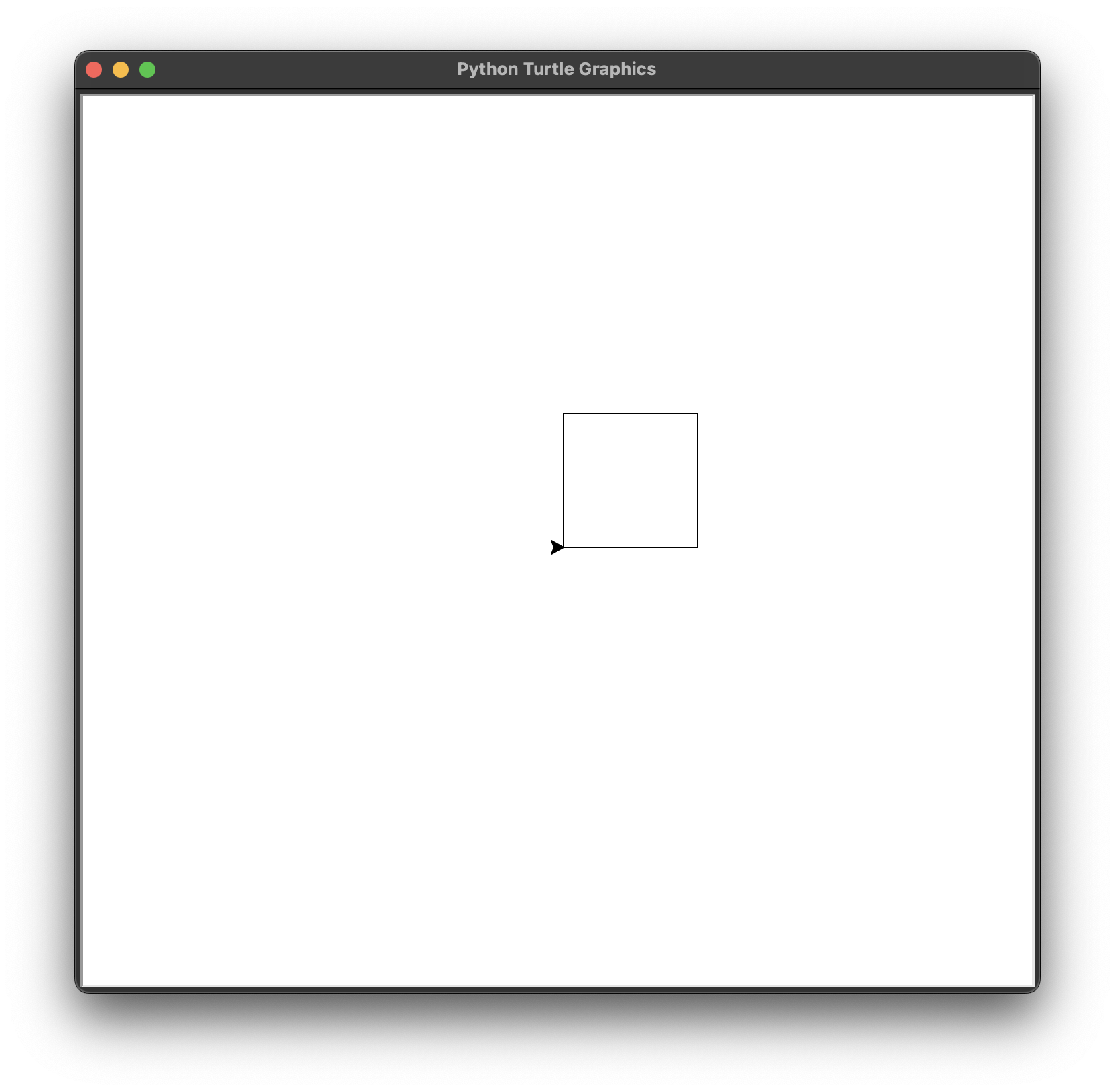
❖ 모듈 임포트, 패키지 설치, 별칭 사용
모듈을 임포트하는 여러 방법 정리
- 가장 기본적인 방법
importturtle→ 키워드 + 모듈 이름
tim =turtle.Turtle()- 어느 모듈에서 왔는지 알기 쉽지만, 매번 모듈 이름.을 써야 하므로 많이 안 쓰일 경우 추천
- 조금 더 편리한 방법
fromturtleimportTurtle→ 키워드 + 모듈 이름 + 키워드 + 모듈에서 필요한 것
tim =Turtle()- 위의 기본적인 방법보다 간단하므로, 많이 쓰이는 경우 추천
- 가장 편리한 방법
fromturtleimport*→ 키워드 + 모듈 이름 + 키워드 + 모듈의 모든 것
tim =Turtle()- 편리하지만, 클래스나 메소드가 어디에서 왔는지 헷갈리기 때문에 사용을 권하지 않음
- 모듈에 별칭 붙이기
importturtleast→ 키워드 + 모듈 이름 + 키워드 + 사용자 정의 별칭
tim =t.Turtle()- 긴 모듈 이름도 간단히 하면서, 어느 모듈에서 왔는지 항상 파악 가능한 장점
- 임포트 불가능한 모듈(패키지)
- 파이썬 표준 라이브러리 패키지에 포함된 모듈이 아닐 경우 패키지를 설치해야 함
- 패키지는 인터넷에 호스팅되어 있어서 필요할 때 프로그램에 설치하여 사용 가능
- 설치 방법
- Day16 → PyPi를 이용한 파이썬 패키지 추가
- 설치되지 않은 패키지 임포트(에러 발생) →
💡→Install package 패키지 이름
🐢 터틀 과제2: 점선 그리기
import turtle as t

tim = t.Turtle()

########### Challenge 2 - Draw a Dashed Line ########
for _ in range(15):
    tim.forward(10)
    tim.penup()
    tim.forward(10)
    tim.pendown()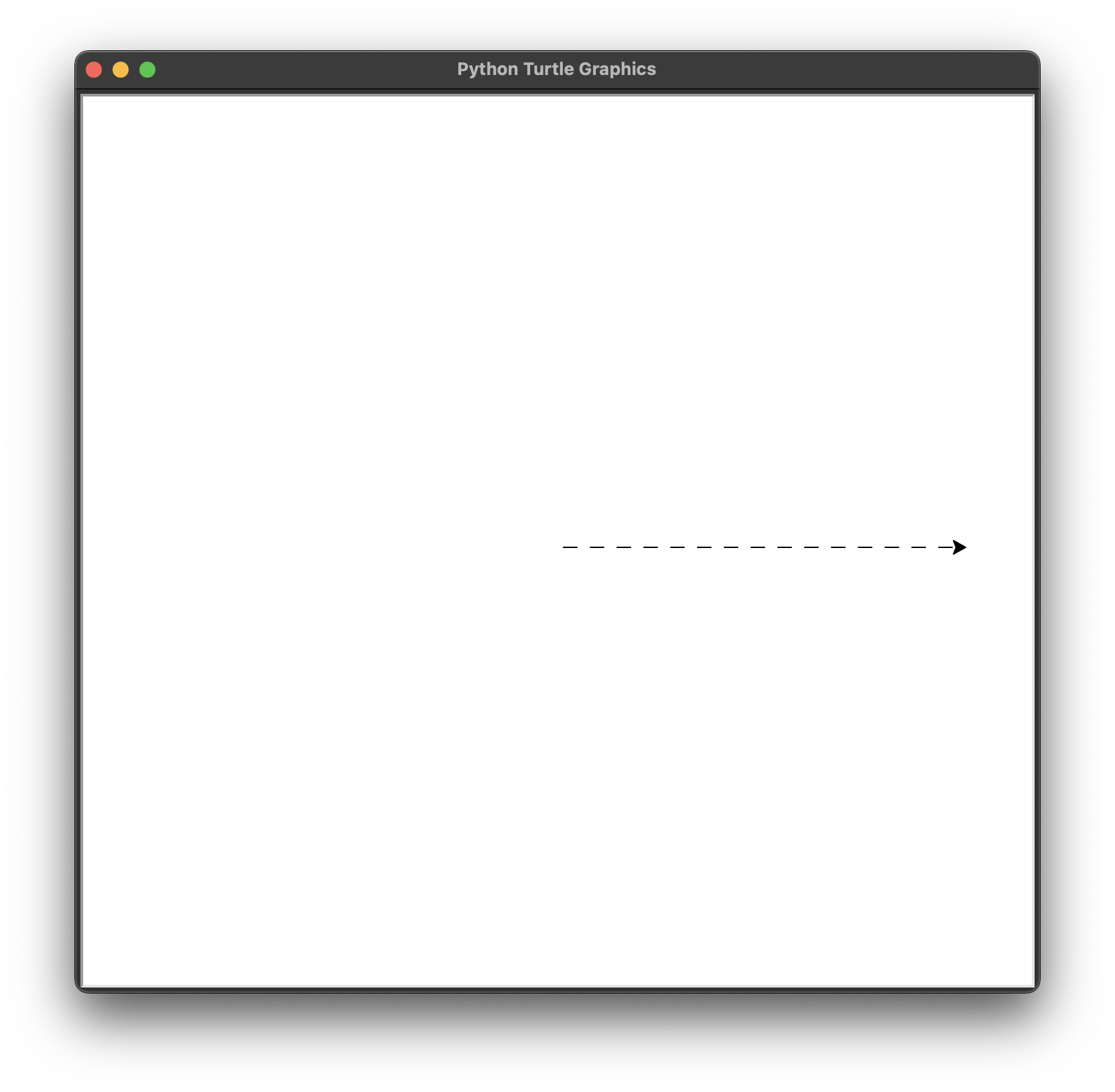
🐢 터틀 과제3: 다양한 도형 그리기
각 도형의 외각 변의 개수
import turtle as t
import random

tim = t.Turtle()

########### Challenge 3 - Draw Shapes ########
shape = 3
pen_colors = ["red", "magenta", "orange", "green", "blue", "navy", "purple", "salmon"]

while shape <= 10:
    tim.pencolor(random.choice(pen_colors))
    for i in range(shape):
        tim.forward(100)
        angle = 360 / shape
        tim.right(angle)
    shape += 1
🖍️ 답안
colours = [
    "CornflowerBlue", "DarkOrchid", "IndianRed", "DeepSkyBlue",
    "LightSeaGreen", "wheat", "SlateGray", "SeaGreen"
]

def draw_shape(num_sides):
    angle = 360 / num_sides
    for _ in range(num_sides):
        tim.forward(100)
        tim.right(angle)

for shape_side_n in range(3, 10):
    tim.color(random.choice(colours))
    draw_shape(shape_side_n)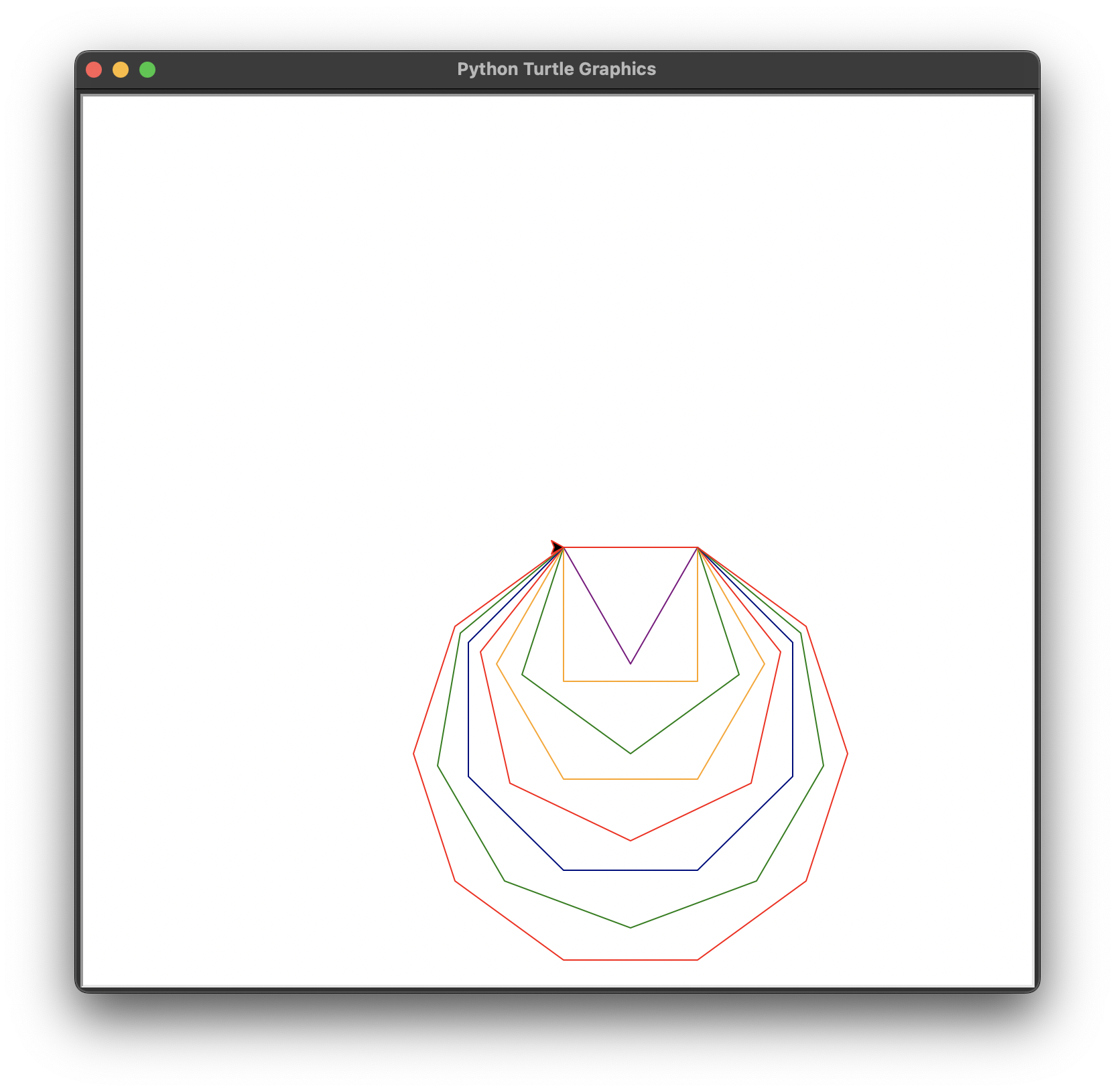
🐢 터틀 과제4: 무작위 행보 구현
조건
- 터틀이 동서남북으로 중 한 방향으로 움직임
- 항상 같은 거리만큼 움직인 후 무작위로 다음 방향을 정함
import turtle as t
import random

tim = t.Turtle()

########### Challenge 4 - Random Walk ########
colors = ["red", "magenta", "orange", "green", "blue", "navy", "purple", "salmon"]
directions = [0, 90, 180, 270]

tim.speed(0)
tim.pensize(10)

for i in range(200):
    tim.color(random.choice(colors))
    tim.forward(30)
    tim.right(random.choice(directions))
🖍️ 답안
import turtle as t
import random

tim = t.Turtle()

########### Challenge 4 - Random Walk ########
colours = [
    "CornflowerBlue", "DarkOrchid", "IndianRed", "DeepSkyBlue",
    "LightSeaGreen", "wheat", "SlateGray", "SeaGreen"
]
directions = [0, 90, 180, 270]
tim.pensize(15)
tim.speed("fastest")

for _ in range(200):
    tim.color(random.choice(colours))
    tim.forward(30)
    tim.setheading(random.choice(directions))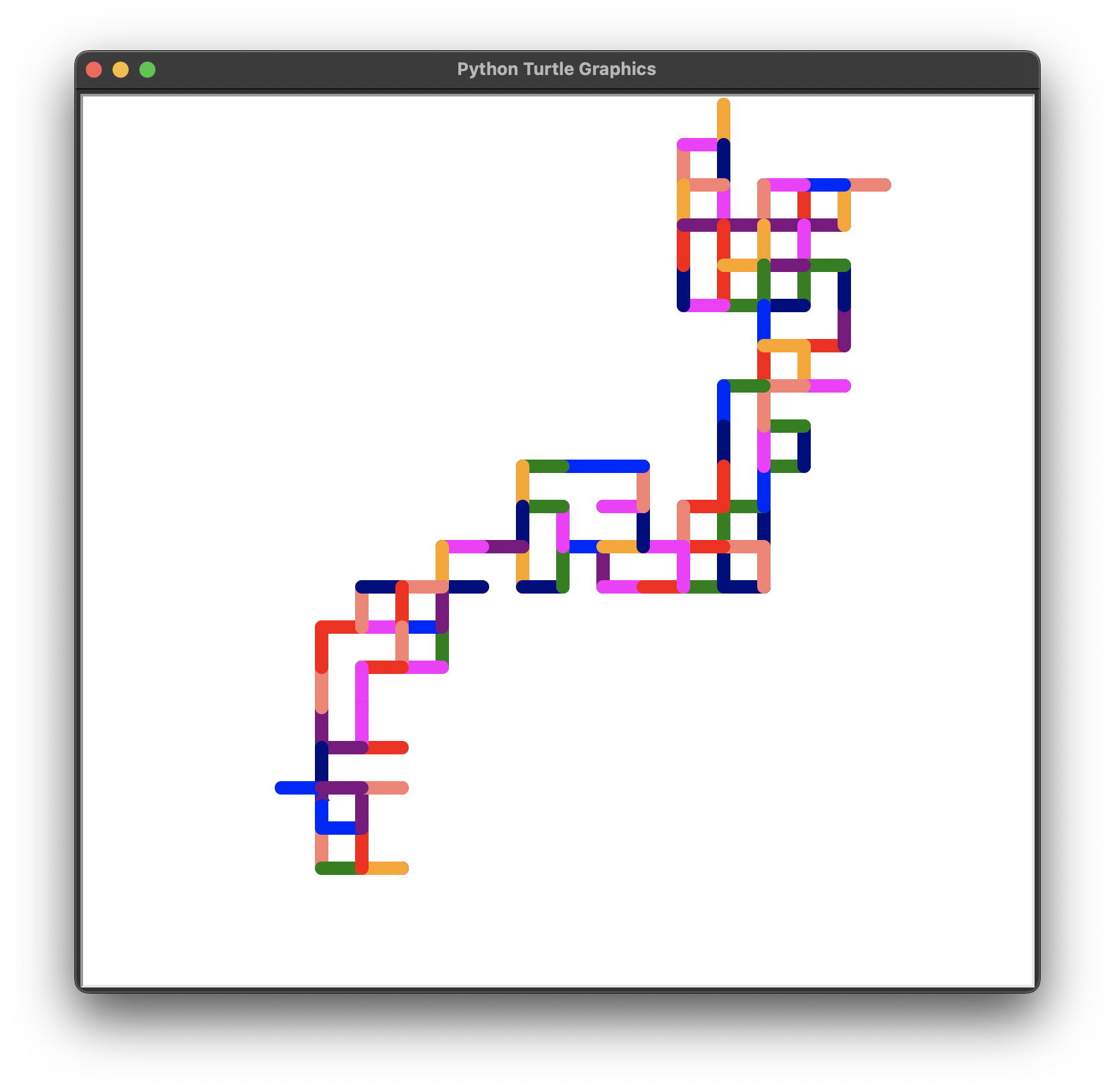
❖ 튜플(tuples)
파이썬의 데이터 타입 중 하나로 리스트와 비슷(각 원소에 순서가 있어서 인덱스로 접근 가능)
튜플 : (1, 3, 8)
리스트 : [1, 3, 8]
💡 튜플과 리스트의 차이
튜플은 한 번 생성하면, 값을 변경할 수 없음
- 🪨 돌에 새기는 것과 같음 = immutable
- 색상 리스트처럼 누군가가 실수로 변경하면 안 되는 리스트의 경우에는 튜플 사용
- 튜플 → 리스트 변환 (튜플의 값을 꼭 수정해야 할 때)
list(tuple)- 리스트 → 튜플 변환 가능
tuple(list)
🐢 터틀 과제 4-1: 튜플로 임의의 RGB 색상 생성
터틀 과제 3, 4와 같은 색상 리스트 없이도 임의의 색상을 생성하기
import turtle as t
import random

tim = t.Turtle()

# 먼저 터틀 모듈의 색상 모드를 0에서 255까지 범위로 변경
t.colormode(255)

# RGB 값을 각각 설정
def choose_random_color():
    r = random.randint(0, 255)
    g = random.randint(0, 255)
    b = random.randint(0, 255)
    random_color = (r, g, b)
    return random_color

################ 코드 수정 ###################

directions = [0, 90, 180, 270]
tim.pensize(15)
tim.speed("fastest")

for _ in range(200):
    tim.color(choose_random_color())
    tim.forward(30)
    tim.setheading(random.choice(directions))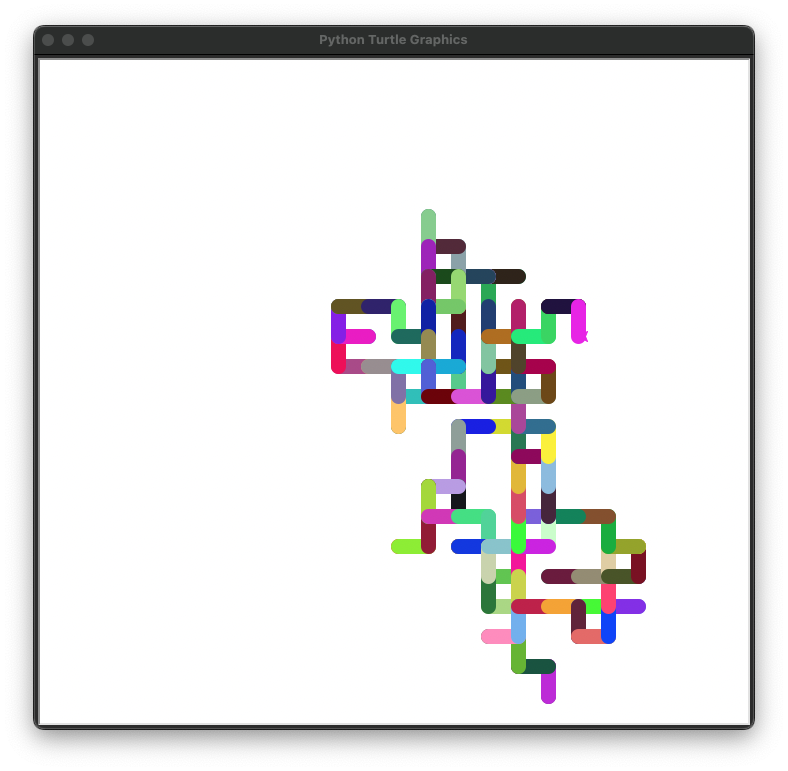
🐢 터틀 과제5: 스피로그래프 그리기
원을 필요한 만큼(한 바퀴를 돌기)만 그리도록 만들기
import turtle as t
import random

tim = t.Turtle()
t.colormode(255)
def random_color():
    r = random.randint(0, 255)
    g = random.randint(0, 255)
    b = random.randint(0, 255)
    color = (r, g, b)
    return color

########### Challenge 5 - Spirograph ########
tim.speed("fastest")

angle = 5
circles = int(360 / angle)

for circle in range(circles):
    tim.color(random_color())
    tim.circle(100)
    tim.left(angle)
🖍️ 답안
def draw_spirograph(size_of_gap):
    for _ in range(int(360 / size_of_gap)):
        tim.color(random_color())
        tim.circle(100)
        tim.setheading(tim.heading() + size_of_gap)

draw_spirograph(5)
🗂️ Day18 프로젝트 : 허스트 페인팅
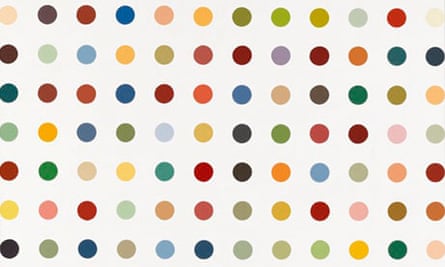
파이썬 터틀을 이용하여 데미안 허스트의 작품과 비슷한 스팟 무늬 그림을 생성하는 프로그램
1. 이미지에서 RGB값 추출하기
🔍 유의 사항
- 프로젝트 폴더에 허스트 작품 이미지를 추가하기 (파일명 :
image.jpg)
- colorgram : 이미지에서 가장 자주 쓰인 색상을 추출하는 라이브러리(PyPi 링크)
- error: externally-managed-environment
- homebrew로 파이썬을 설치한 경우, 전역적으로 파이썬 패키지를 설치하려 하면 에러 발생
- 가상 환경을 사용하여 프로젝트 별로 패키지를 관리할 수 있음
- 해당하는 프로젝트 폴더에서 터미널 열기
(현재 디렉토리 위치를 확인하는 키워드pwd로 맞는 위치인지 확인)- 가상환경 생성 (가상환경 이름은
.venv로 설정)python -m venv 가상환경이름
- 가상환경 활성화 (터미널에
(가상환경이름)이 뜨면 활성화 된 것)source 가상환경이름/bin/activate # macOS/Linux source 가상환경이름/Scripts/activate # Windows
- 패키지 설치
pip install 패키지이름그외 조작법
a. 설치된 패키지 목록 확인pip listb. 설치된 패키지 업데이트
pip install --upgrade 패키지이름c. 설치된 패키지 삭제
pip uninstall 패키지이름
- 가상환경 비활성화 (가상환경을 종료)
deactivate
- 가상환경 삭제
a. 방법1 : 해당 프로젝트 폴더에서 가상환경 폴더 삭제
(숨김파일 표시 : finder →Cmd+Shift+.)
b. 방법2 : 터미널에서 삭제sudo rm -rf 가상환경이름
- 프로젝트의 파이썬 인터프리터를 가상환경으로 설정하면 따로 활성화/비활성화 시킬 필요 없음
Interpreter type→Custom environment
type→CirtualenvLocation→~경로/가상환경이름
⌨️ main.py
# 1. colorgram 패키지로 이미지에서 색 추출하기
import colorgram

rgb_colors = []
colors = colorgram.extract('image.jpg', 30)

for color in colors:
    r = color.rgb.r
    g = color.rgb.g
    b = color.rgb.b
    new_color = (r, g, b)
    rgb_colors.append(new_color)

print(rgb_colors)
[(245, 243, 238), (246, 242, 244), (202, 164, 110), (240, 245, 241), (236, 239, 243), (149, 75, 50), (222, 201, 136), (53, 93, 123), (170, 154, 41), (138, 31, 20), (134, 163, 184), (197, 92, 73), (47, 121, 86), (73, 43, 35), (145, 178, 149), (14, 98, 70), (232, 176, 165), (160, 142, 158), (54, 45, 50), (101, 75, 77), (183, 205, 171), (36, 60, 74), (19, 86, 89), (82, 148, 129), (147, 17, 19), (27, 68, 102), (12, 70, 64), (107, 127, 153), (176, 192, 208), (168, 99, 102)]
- 추출한 색을 하나씩 RGB 계산기에 넣고 실제로 무슨 색인지 확인
(터틀 바탕이 흰색이므로 흰색 계열은 리스트에서 삭제) color_list로 리스트 저장- 나머지 cologram 관련 코드는 매번 실행할 필요 없으므로 삭제하거나 주석 처리
⌨️ main.py
# 2. 추출된 색 정리
color_list = [
    (202, 164, 110),  (236, 239, 243), (149, 75, 50), (222, 201, 136),
    (53, 93, 123), (170, 154, 41), (138, 31, 20), (134, 163, 184), (197, 92, 73),
    (47, 121, 86), (73, 43, 35), (145, 178, 149), (14, 98, 70), (232, 176, 165),
    (160, 142, 158), (54, 45, 50), (101, 75, 77), (183, 205, 171), (36, 60, 74),
    (19, 86, 89), (82, 148, 129),(147, 17, 19), (27, 68, 102), (12, 70, 64),
    (107, 127, 153), (176, 192, 208), (168, 99, 102)
]
2. 점 그리기
🔍 유의 사항
- 조건
- 10x10 개의 점 그리기
- 각 점의 크기는 약 20, 간격은 약 50
- penup() 을 한 상태에서는 라인을 안 그리지만, 점은 찍을 수 있음
(터틀의 움직임을 보기에는 용이하므로, 코드를 다 짠 후에 penup으로 선 지우기)- hideturtle() 은 터틀을 숨기는 것 뿐 아니라, 그리는 속도도 빨라지게 함
⌨️ main.py
import turtle as t
import random

tim = t.Turtle()

tim.speed(0)
tim.hideturtle()
tim.penup()
t.colormode(255)
color_list = [
    (202, 164, 110),  (236, 239, 243), (149, 75, 50), (222, 201, 136),
    (53, 93, 123), (170, 154, 41), (138, 31, 20), (134, 163, 184), (197, 92, 73),
    (47, 121, 86), (73, 43, 35), (145, 178, 149), (14, 98, 70), (232, 176, 165),
    (160, 142, 158), (54, 45, 50), (101, 75, 77), (183, 205, 171), (36, 60, 74),
    (19, 86, 89), (82, 148, 129),(147, 17, 19), (27, 68, 102), (12, 70, 64),
    (107, 127, 153), (176, 192, 208), (168, 99, 102)
]

# 처음 시작 위치
tim.setposition(-250, -200)

# 새로운 시작 위치로 이동하여 다시 그림을 그릴 준비를 하는 함수
def new_position(distance):
    tim.setheading(90)
    tim.forward(distance)
    tim.setheading(0)
    tim.backward(distance * 10)

# 한 줄을 그리는 함수
def draw_one_line(dot_size, distance):
    for dot in range(10):
        tim.dot(dot_size, random.choice(color_list))
        tim.forward(distance)
    new_position(distance)


for line in range(10):
    draw_one_line(20, 50)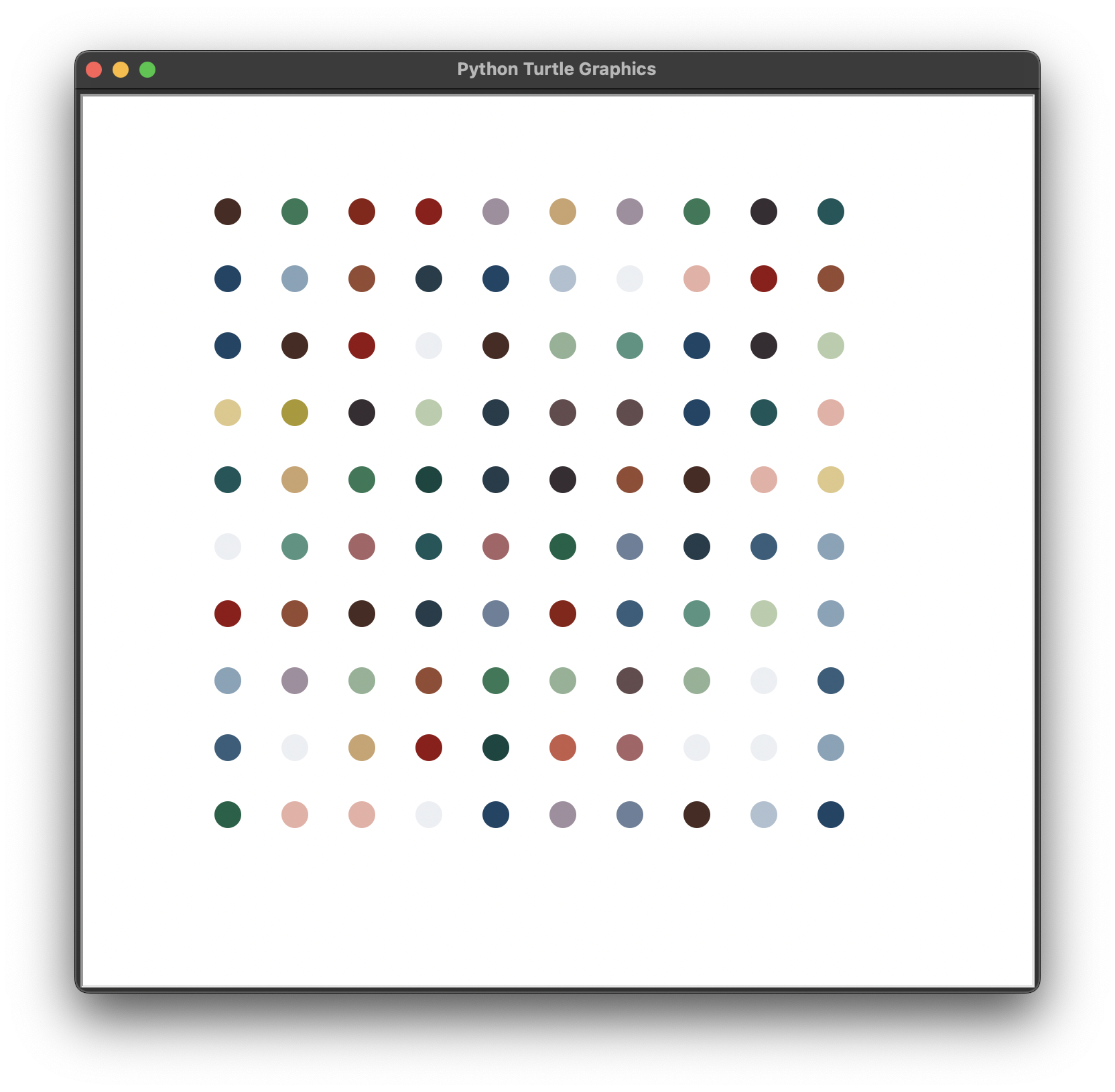
🖍️ 답안
import turtle as turtle_module
import random

turtle_module.colormode(255)
tim = turtle_module.Turtle()
tim.speed("fastest")
tim.penup()
tim.hideturtle()
color_list = [
  (202, 164, 109), (238, 240, 245), (150, 75, 49), (223, 201, 135), (52, 93, 124),
  (172, 154, 40), (140, 30, 19), (133, 163, 185), (198, 91, 71), (46, 122, 86),
  (72, 43, 35), (145, 178, 148), (13, 99, 71), (233, 175, 164), (161, 142, 158),
  (105, 74, 77), (55, 46, 50), (183, 205, 171), (36, 60, 74), (18, 86, 90),
  (81, 148, 129), (148, 17, 20), (14, 70, 64), (30, 68, 100), (107, 127, 153),
  (174, 94, 97), (176, 192, 209)
]
tim.setheading(225)
tim.forward(300)
tim.setheading(0)
number_of_dots = 100

for dot_count in range(1, number_of_dots + 1):
    tim.dot(20, random.choice(color_list))
    tim.forward(50)

    if dot_count % 10 == 0:
        tim.setheading(90)
        tim.forward(50)
        tim.setheading(180)
        tim.forward(500)
        tim.setheading(0)