Setting
setting personal info
# setting global name and email.
git config --global user.name [name]
git config --global user.email [email]

# setting local name and email.
git config --local user.name [name]
git config --local user.email [email]

# unset global name and email.
git config --unset --global user.name
git config --unset --global user.email

# unset local name and email.
git config --unset user.name
git config --unset user.email
check personal info
git config --listFlow Chart
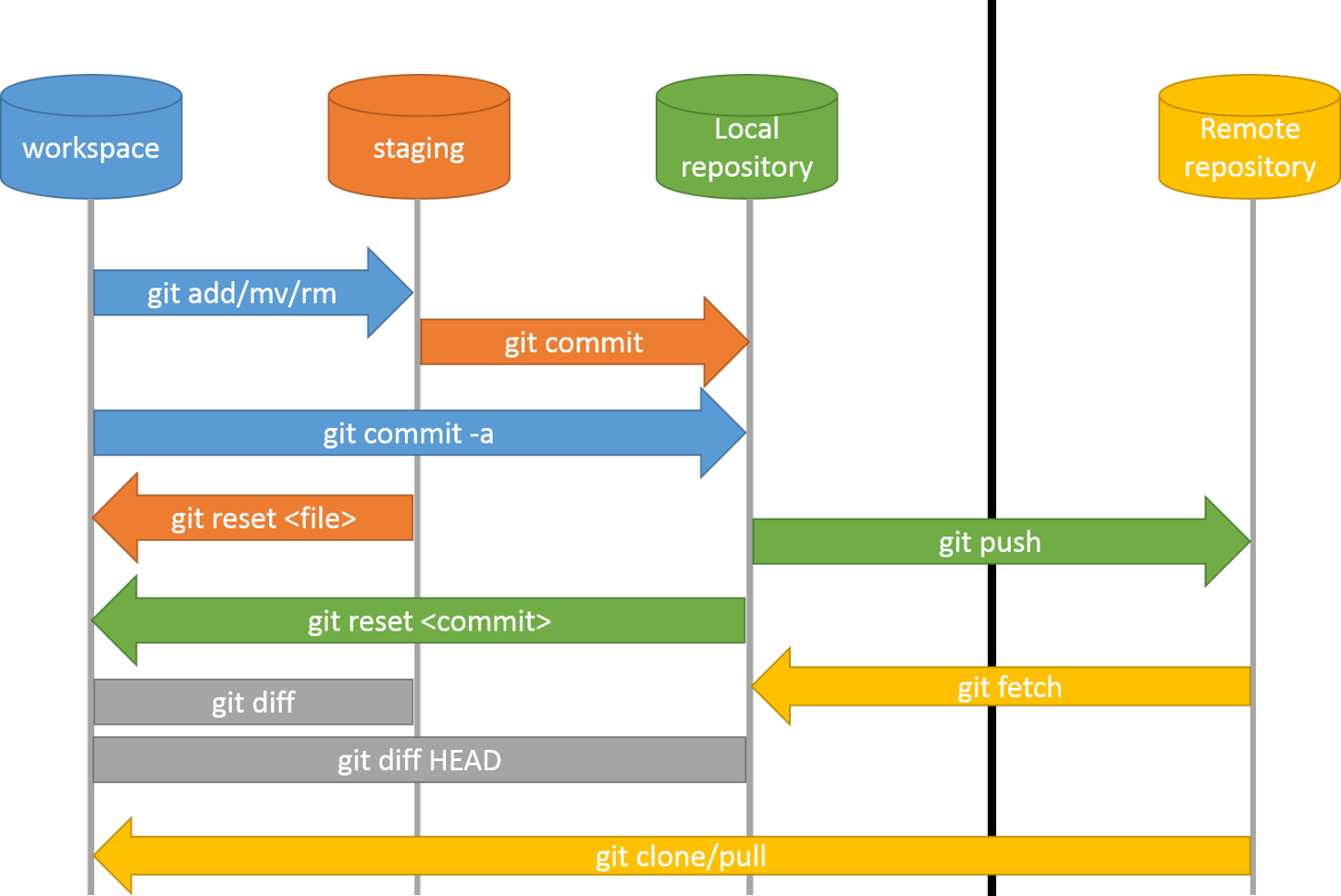
working dir -> [git add .] -> staged dir -> [git commit] -> local repo -> [git push] -> remote repo
Remote Repository:
also known as a remote, refers to a repository that is hosted on a server, typically accessed over the internet or a network. It serves as a centralized location where authorized individuals can store and share code. Through proper permissions and access controls, collaborators can interact with this remote repository, making contributions, fetching updates, and collaborating on projects regardless of their physical location.
workdspace
Workspace refers to the directory or folder where a developer works on a project. This directory contains source code files and other project files, and it's where developers perform their tasks.
Staging Area
Staging area, also known as an index, is a temporary storage space where modified files are held before committing them to the repository. It allows for reviewing changes and making necessary adjustments before finalizing the commit.
Local Repository
The local repository refers to the Git repository stored on a developer's computer. It provides a local environment where developers can work and track changes.
commit
example of commit log
hash, author, Date and commti msg
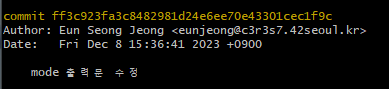
format
- git commit -m "msg" : This command is used to create a new commit with the specified message "msg".
- git commit --amend : This command is used to modify the most recent commit, allowing you to add changes or amend the commit message before finalizing it.
- git diff : This command is used to display the differences between the changes in the working directory and the changes staged for the next commit.
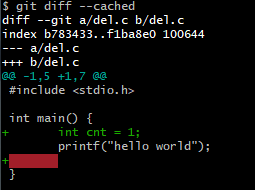
- git rm : This command is used to remove files from both the Git repository and the working directory. Without the
--cachedoption, it removes files from both areas.
- git checkout -- [name] : This command is used to restore the specified file
[name]in the working directory to its state at the time of the last commit.
- git rm --cached [name] : This command is used to remove files from the staging area without removing them from the working directory. It leaves the file intact in the working directory while removing it from the staging area.
gitignore
The .gitignore file specifies intentionally untracked files that Git should ignore. It contains a list of file formats, directories, or specific files that you do not want to include in version control or push to the remote repository. This file helps to keep the repository clean and avoids cluttering it with unnecessary files, such as build artifacts, temporary files, or sensitive information. Git uses the patterns defined in .gitignore to determine which files and directories to exclude when performing operations like git add or git commit.
.swp : Ignore all files with the .swp extension, typically generated by Vim.
.a : Ignore all files with the .a extension.
!lib.a : Do not ignore the file lib.a, even though it matches the pattern .a.
/todo : Ignore the todo directory located in the root of the repository.
build/ : Ignore all files within the build directory.
doc/.txt : Ignore files like doc/note.txt but do not ignore files like doc/server/arch.txt.
doc/*/.pdf: Ignore all PDF files under the doc directory and its subdirectories.
check commit history
To view the commit log in the latest order using Git, you can use the command git log. Here are some useful options:
- Press
fto check the next log. - Press
bto check the previous log. - Press
qto quit the git log.
git log -p -2 : show lastest 2 commit(-2) and show diff between each commit(-p)
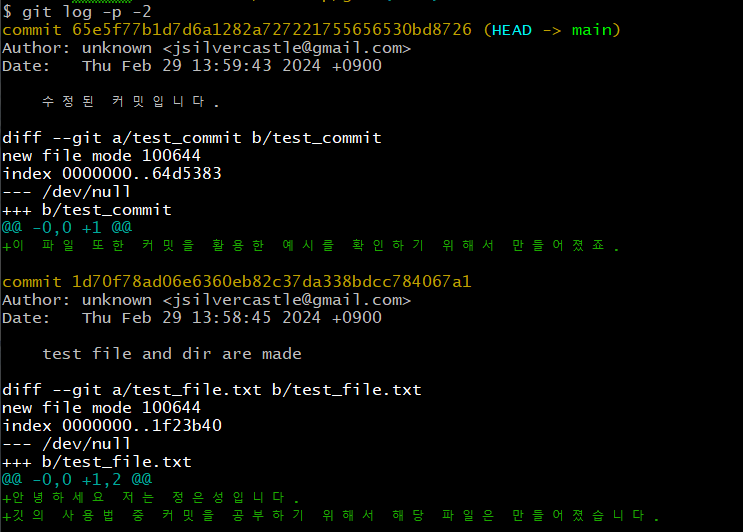
git log --stat : show commit's analysis which and how many file modified and how mamy lines are add and deleted.
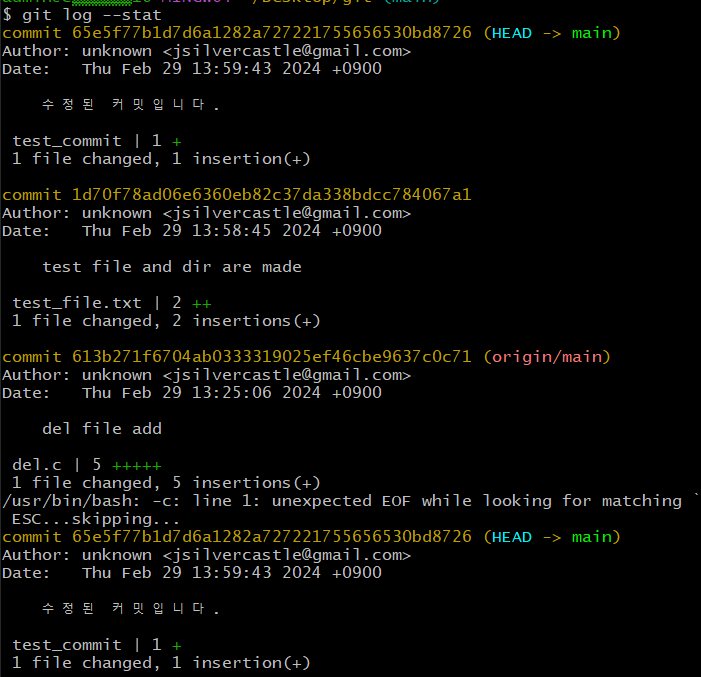
git log --pretty=format: Show the Git log in a custom format.
- Example: git log --pretty=format:"%h %s" --graph: Display a graph showing changes between two commit points.
- Example: git log --pretty=oneline: Show the log with commit ID and its history.

status Restoration
Before Restoration
| Tree | Role |
|---|---|
| HEAD | Represents the last committed snapshot and serves as the parent for the next commit.The HEAD is a pointer that points to the current branch, indicating the latest commit on that branch. The commit to which HEAD points becomes the parent of the next commit. |
| Index | Represents the snapshot for the next commit.The index is the snapshot right after the HEAD. This concept is also known as the Staging Area, where changes are prepared to be committed. |
| Working Directory | Acts as a sandbox. It's where the actual files reside and can be freely modified at any time. |
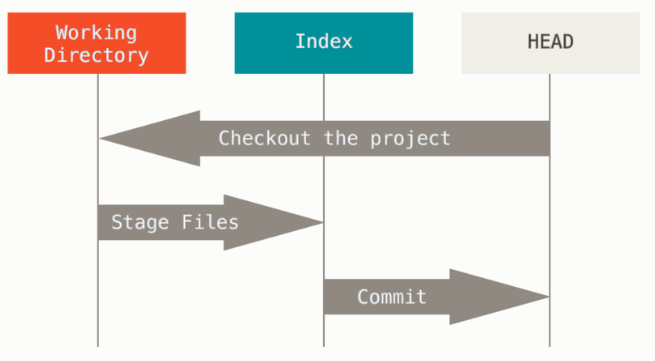
reset
git reset: When the git reset command is executed, it moves the HEAD pointer to the specified commit, effectively resetting the state of the repository to that commit.
-
basic status:
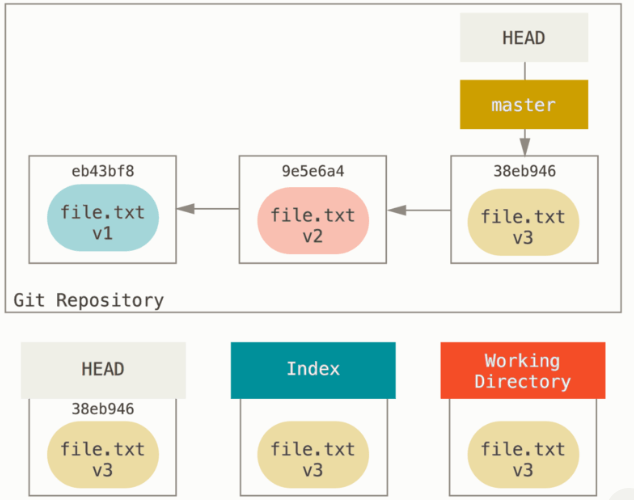
-
--mixed:- Default mode. Mixed mode keeps the changes in the working directory and resets the index to match the HEAD commit.
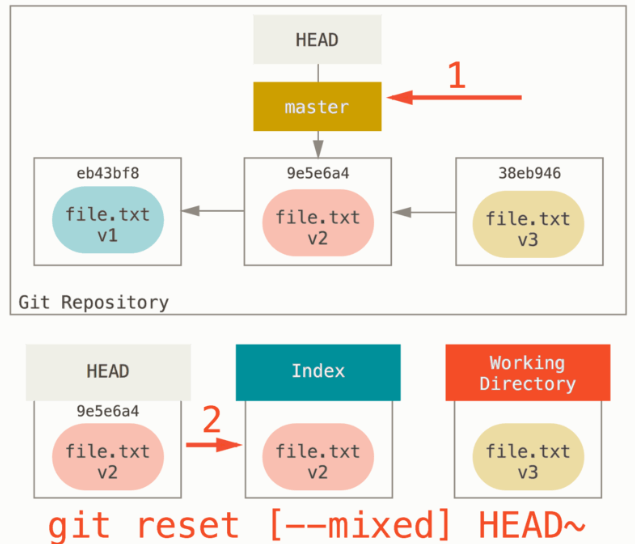
- Default mode. Mixed mode keeps the changes in the working directory and resets the index to match the HEAD commit.
-
--hard:- Exercise caution when using hard mode. It resets the repository to the state of the previous commit, discarding changes in the working directory and index.
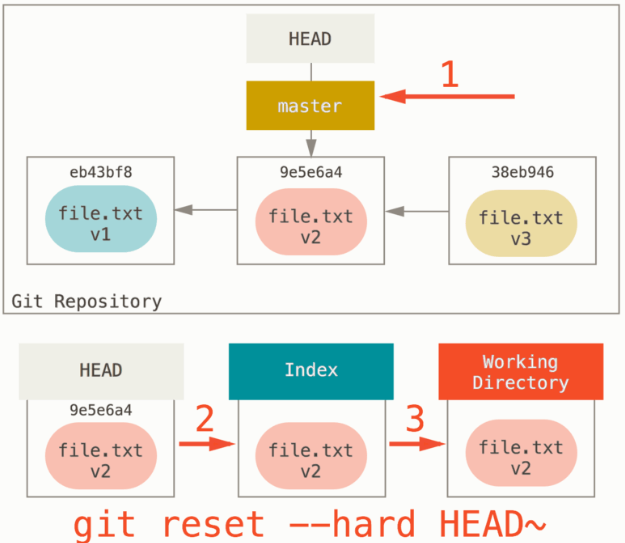
- Exercise caution when using hard mode. It resets the repository to the state of the previous commit, discarding changes in the working directory and index.
-
--soft:- It preserves the current index state and directory content, only undoing the commit.
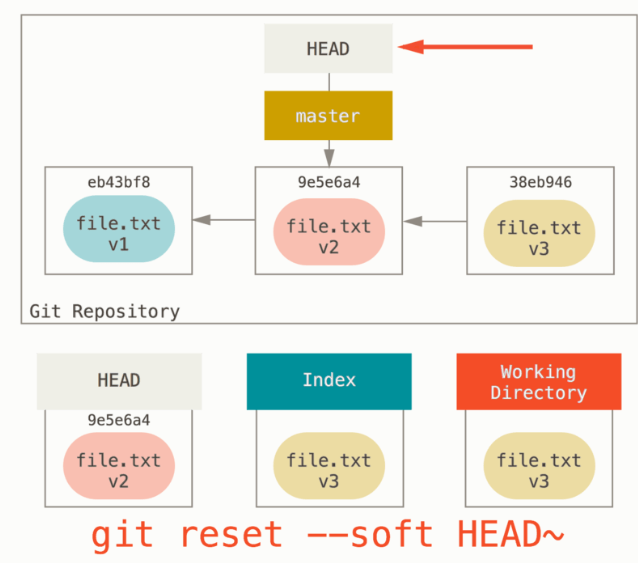
- It preserves the current index state and directory content, only undoing the commit.
git reset [Commit ID]: Deletes commits made before the specified Commit ID. However, the specified Commit ID is preserved. It also removes the committed files from the staging area. In other word, to make specific file unstaged.
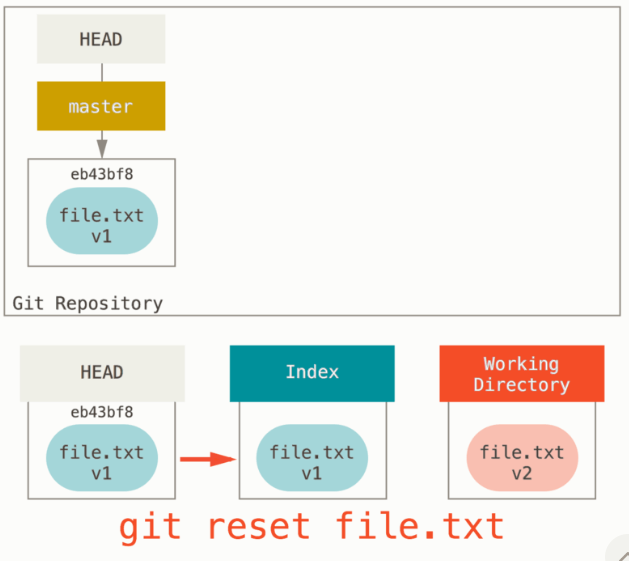
git reset HEAD^: Cancels the most recent commit. It is used when committing but not pushing changes. Files in the staging area are also reverted.
checkout
git checkout [branch] and git reset --hard [branch] are similar. They both control three standard trees to branch snapshots, but there are two differences.
-
checkoutcommand handles the working directory more safely thanreset --hard. It ensures that it checks if there is anything not saved and avoids discarding it. In fact, it works more intelligently. It tries to merge and update files that weren't saved, but the other command does not. -
How the
checkoutcommand updates HEAD: Theresetcommand moves the branch pointed to by HEAD, butcheckoutmoves HEAD itself to another branch.
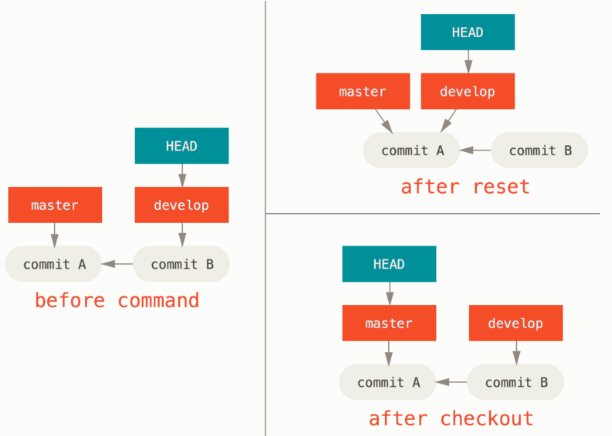
| git reset | git checkout |
|---|---|
| Moves the branch pointed to by HEAD to another commit | Moves HEAD itself to another commit or branch |
git docs : https://git-scm.com/book/ko/v2/Git-%EB%8F%84%EA%B5%AC-Reset-%EB%AA%85%ED%99%95%ED%9E%88-%EC%95%8C%EA%B3%A0-%EA%B0%80%EA%B8%B0#:~:text=reset%20%EB%AA%85%EB%A0%B9%EC%9D%80%20HEAD%EA%B0%80,%EB%A5%BC%20%EB%8B%A4%EB%A5%B8%20%EB%B8%8C%EB%9E%9C%EC%B9%98%EB%A1%9C%20%EC%98%AE%EA%B8%B4%EB%8B%A4.
blog: https://blog.naver.com/codeitofficial/222011693376, https://mylko72.gitbooks.io/git/content/restore/file.html