포트폴리오 사이트를 만들면서 마우스 이벤트에 따른 인터랙티브한 요소를 많이 구현해보고 싶었다. 특히 단순한 정보를 표시하는 부분에 단조롭게 보이지 않도록, 배경 부분에 그런 요소를 넣어보면 어떨까 싶었다.
결국 결정한 건, “볼풀” 느낌으로 공들이 서로 튕기며 계속 움직이는 효과를 만들어보자!였다.
정말 공처럼 보여지도록 matter.js라는 라이브러리를 사용했다. matter.js는 웹 브라우저 환경에서의 2D 물리엔진 구현을 위한 라이브러리이다.
1. 컴포넌트 만들기
우선 Matter.js를 사용할 컴포넌트를 만들어준다.
해당 컴포넌트는 컨테이너와 실제 그려질 canvas로 구성된다.
const DroppingBalls = ({ ballColor, backgroundColor }: DroppingBallsProps) => {
  const containerRef = useRef<HTMLDivElement | null>(null);
  const canvasRef = useRef<HTMLCanvasElement | null>(null);

  return (
    <div ref={containerRef}>
      <canvas ref={canvasRef} />
    </div>
  );
};
2. 기본 설정
주요 모듈은 다음과 같다.
- Engine
- Engine은 Matter.js 물리 세계를 업데이트하는 핵심 컨트롤러
- 중력·충돌·힘 계산 등 모든 물리 시뮬레이션을 담당
- Render
- Engine의 상태를 캔버스에 그려주는 시각화 도구
- Runner
- 매 프레임마다 Engine을 자동으로 업데이트해 물리 세계가 실제로 움직이도록 만드는 게임 루프 역할
우선 엔진이 작동하기 위한 기본적인 설정을 해준다.
  const containerRef = useRef<HTMLDivElement | null>(null);
  const canvasRef = useRef<HTMLCanvasElement | null>(null);

  useEffect(() => {
    const container = containerRef.current;
    const canvas = canvasRef.current;
    if (!container || !canvas) return;

    const rect = container.getBoundingClientRect();
    const width = rect.width;
    const height = rect.height;

    // 엔진
    const engine = Engine.create();
    engine.gravity.y = 0; // 중력 크기

    // Renderer
    const render = Render.create({
      element: container,
      engine,
      canvas,
      bounds: {
        min: { x: 0, y: 0 },
        max: { x: width, y: height },
      },
      options: {
        width,
        height,
        wireframes: false,
        background: backgroundColor,
      },
    });
    Render.run(render);

    // Runner
    const runner = Runner.create();
    Runner.run(runner, engine);

    return () => {
      Render.stop(render);
      Runner.stop(runner);
      Composite.clear(engine.world, false);
      Engine.clear(engine);
    };
  }, [backgroundColor]);

  return (
    <div ref={containerRef}>
      <canvas ref={canvasRef} />
    </div>
  );
참고로 공이 바닥에 바로 떨어지지 않았으면 좋겠어서 y축 중력을 0으로 설정해주었다.
3. 공, 벽 추가
공 추가
공의 역할을 하는 요소를 추가해준다.
나는 공이 잘 튕겨졌으면 해서, 탄성력(restritution)은 1, 저항(friction)은 모두 0으로 설정해주었다.
공이 너무 가벼우면 너무 빠르게 움직여 배경의 목적엔 맞지 않아, density를 기본값(0.001)보다 조금 높여주었다.
function getBalls(width: number, height: number, n: number) {
  const radius = 100;
  const balls: Matter.Body[] = [];

  for (let i = 0; i < n; i++) {
    const ball = Bodies.circle(0, 0, radius, {
      render: {
        fillStyle: ballColor,
        opacity: 0.3,
      },
      restitution: 1,
      frictionAir: 0,
      friction: 0,
      frictionStatic: 0,
      density: 0.08,
    });

    balls.push(ball);
  }
  return balls;
}

const n = 8;
let balls = getBalls(width, height, n);
Composite.add(engine.world, balls);
이렇게 테스트를 해보니 두가지 문제가 있었다.
첫번째는 공의 크기였다.
윈도우 크기가 바뀌면 화면에 비해 공이 너무 커지거나 작아졌다.
그래서 윈도우의 크기에 맞춰 공 크기를 계산하기로 했다.
두번째는 공의 위치였다.
공들이 한 곳에서 등장하거나 나란히 격자 형태로 등장하도록 하니 예뻐보이지 않았다.
그래서 공마다 랜덤 위치를 계산하기로 했다.
function computeRadius(width: number, height: number, n: number) {
  const cols = Math.ceil(Math.sqrt(n));
  const rows = Math.ceil(n / cols);

  const cellWidth = width / cols;
  const cellHeight = height / rows;

  return Math.min(cellWidth, cellHeight) / 2;
}

function getBalls(width: number, height: number, n: number) {
  // 공 크기 계산
  const radius = computeRadius(width, height, n);
  const balls: Matter.Body[] = [];

  for (let i = 0; i < n; i++) {
    // 공마다 랜덤 위치
    const x = radius + Math.random() * (width - radius * 2);
    const y = radius + Math.random() * (height - radius * 2);

    const ball = Bodies.circle(x, y, radius, {
      render: {
        fillStyle: ballColor,
        opacity: 0.3,
      },
      restitution: 1,
      frictionAir: 0,
      friction: 0,
      frictionStatic: 0,
      density: 0.08,
    });

    balls.push(ball);
  }
  return balls;
}

// 공 추가
const n = 8;
let balls = getBalls(width, height, n);
Composite.add(engine.world, balls);

// 윈도우 리사이즈 시 바뀐 윈도우 크기에 맞춰 공 다시 만들기
const handleResize = () => {
  const rect = container.getBoundingClientRect();
  const newWidth = rect.width;
  const newHeight = rect.height;

  Render.setSize(render, newWidth, newHeight);

  // 기존 공 제거
  Composite.remove(engine.world, balls);
  // 다시 만들어 추가
  balls = getBalls(newWidth, newHeight, n);
  Composite.add(engine.world, balls);
};

window.addEventListener("resize", handleResize);

return () => {
  // ...
  window.removeEventListener("resize", handleResize);
};
벽 추가
벽이 없으면 공 끼리 부딪히다가 화면 밖을 벗어나버려 사라지기 때문에, 벽을 사방에 만들어주어야 한다.
마찬가지로 윈도우 사이즈가 바뀔 때마다 다시 만들어준다.
function getWalls(width: number, height: number) {
  const topWall = Bodies.rectangle(width / 2, 0, width, 1, {
    isStatic: true,
    render: { visible: false },
  });
  const leftWall = Bodies.rectangle(0, height / 2, 1, height, {
    isStatic: true,
    render: { visible: false },
  });
  const rightWall = Bodies.rectangle(width, height / 2, 1, height, {
    isStatic: true,
    render: { visible: false },
  });
  const bottomWall = Bodies.rectangle(width / 2, height, width, 1, {
    isStatic: true,
    render: { visible: false },
  });

  return [topWall, leftWall, rightWall, bottomWall];
}

// 벽 추가
let walls = getWalls(width, height);
Composite.add(engine.world, walls);

// 리사이즈 핸들러에 벽 생성 로직 추가
const handleResize = () => {
  const rect = container.getBoundingClientRect();
  const newWidth = rect.width;
  const newHeight = rect.height;

  Render.setSize(render, newWidth, newHeight);

  // 기존 공, 벽 제거
  Composite.remove(engine.world, balls);
  Composite.remove(engine.world, walls);
  // 새로운 공, 벽 생성
  balls = getBalls(newWidth, newHeight, n);
  walls = getWalls(newWidth, newHeight);
  Composite.add(engine.world, [...balls, ...walls]);
};
공 속도 설정
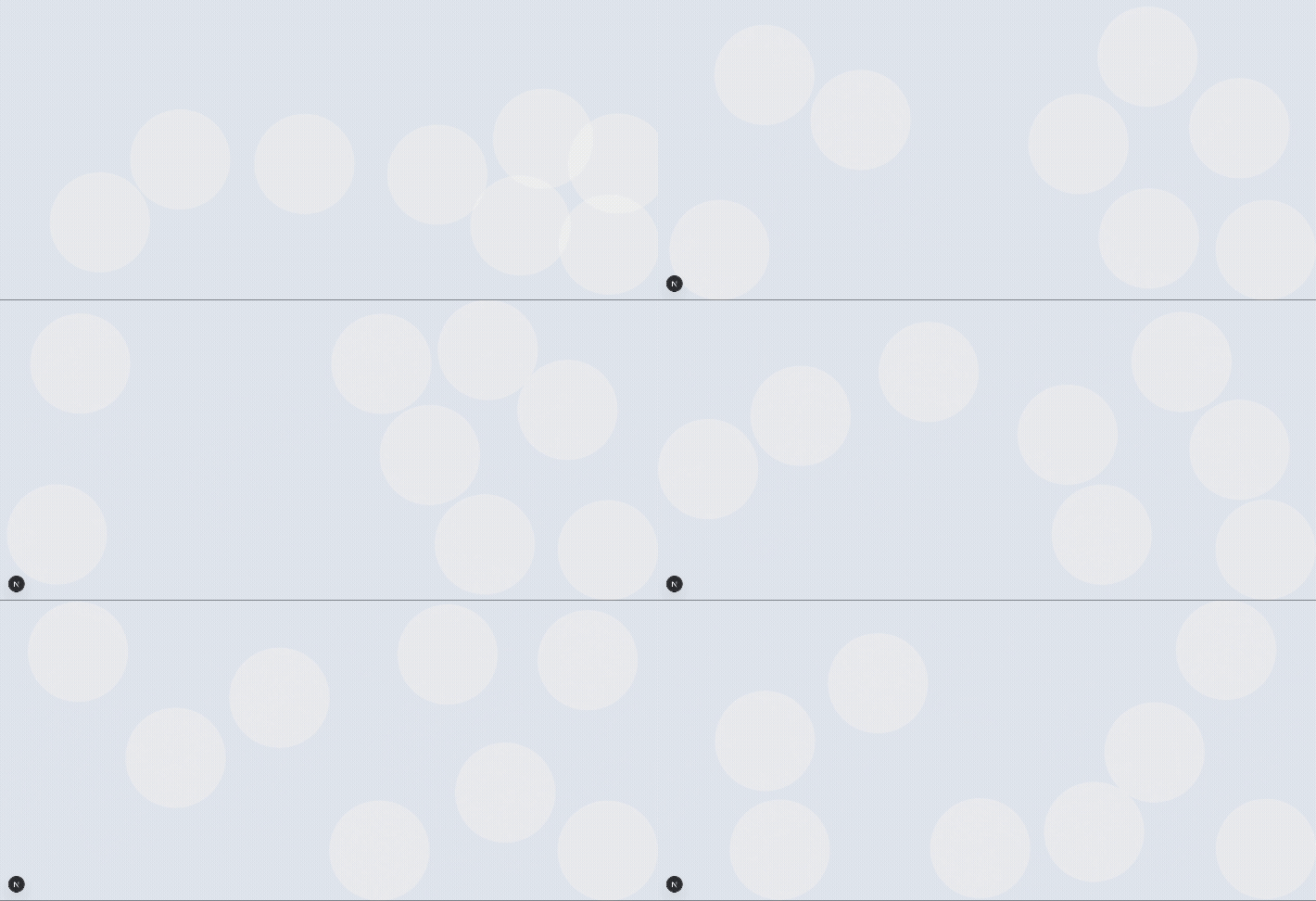
공끼리 초기 위치가 겹치지 않으면 튕김이 발생하지 않아 거의 움직이지 않았다.
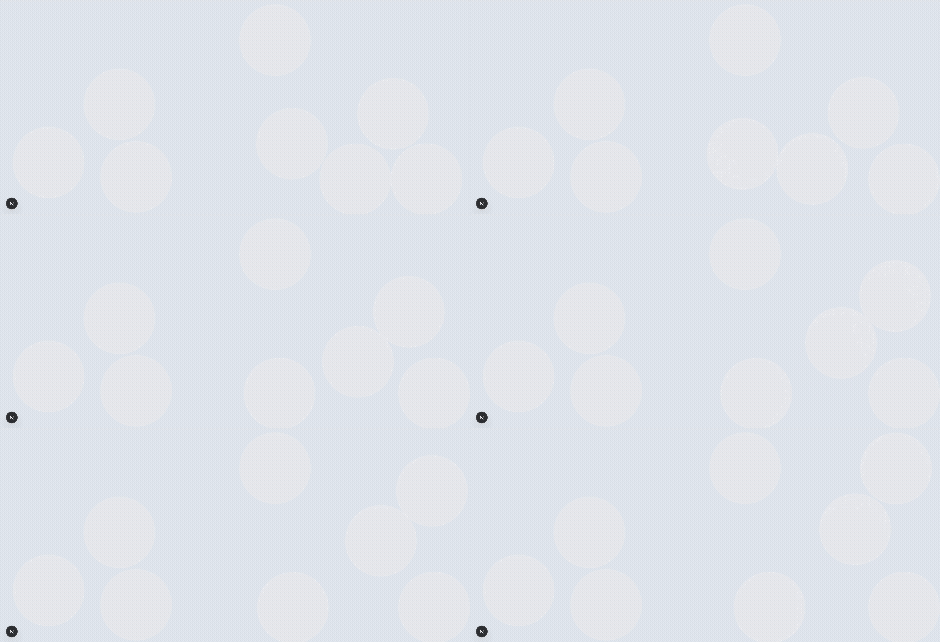
그래서 초반 속도를 임의로 부여해서 처음에 움직임이 작게 발생할 수 있도록 하였다.
const ball = Bodies.circle(x, y, radius, {
  // ...
});

Body.setVelocity(ball, {
  x: (Math.random() - 0.5) * 3,
  y: (Math.random() - 0.5) * 3,
});
4. 마우스 인터랙션 추가
기본 MouseConstraint 사용
matter.js는 기본적으로 마우스, 터치를 사용한 인터랙션을 제공한다.
// 마우스 조작 설정
const mouse = Mouse.create(render.canvas);
const mouseConstraint = MouseConstraint.create(engine, {
  mouse,
  constraint: {
    stiffness: 0.2,
    render: {
      visible: false,
    },
  },
});
Composite.add(engine.world, [mouseConstraint]);
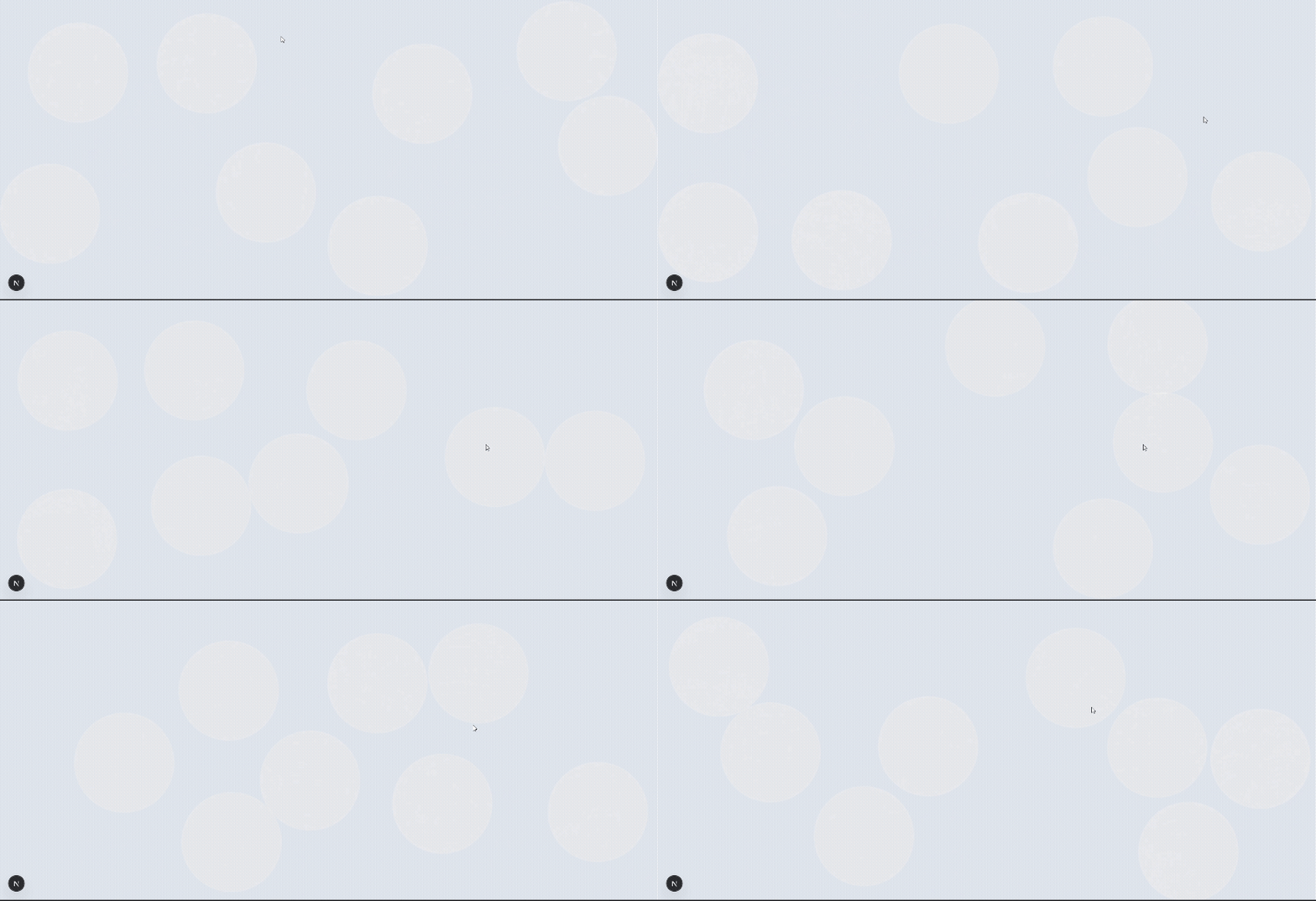
이렇게 하면 공을 드래그하여 움직일 수 있다.
스크롤이 안되는 이슈
해당 MouseConstraint 모듈을 사용하면 페이지 스크롤이 작동하지 않는다.
그 이유는 Mouse 모듈이 canvas에 부착한 wheel 이벤트 핸들러 때문이다.
딱히 wheel 이벤트 핸들러가 하는 역할은 적어도 내가 구현하고자 하는 인터랙션에서는 없어보이기에 지워주면 된다.
const mouseWithSource = mouse as any;
mouseConstraint.mouse.element.removeEventListener(
  "wheel",
  mouseWithSource.mousewheel
);
참고:
- https://github.com/liabru/matter-js/issues/929
- https://velog.io/@msm4167/react-ts-환경에서-matter.js-canvas-영역-스크롤-안됨-해결-방법
mousemove 인터랙션 추가하기
드래그를 통한 인터랙션도 좋지만, 페이지에 들어온 사람이 드래그로 공을 이동할 수 있다는 사실을 모를 가능성이 크다고 생각했다. 그래서 마우스를 움직이기만 해도 공이 움직였으면 좋겠다는 생각이 들었다.
일단 matter.js에서는 그런 기능을 제공하지 않았다.
그래서 마우스의 위치에 있는 공에 직접 힘을 가하는 방식으로 구현해보기로 했다.
- 우선 canvas의 mousemove 이벤트 발생 위치를 기록한다.
const mousePos = { x: width / 2, y: height / 2 };

const handleMouseMove = (e: MouseEvent) => {
  const canvasRect = canvas.getBoundingClientRect();
  mousePos.x = e.clientX - canvasRect.left;
  mousePos.y = e.clientY - canvasRect.top;
};

canvas.addEventListener("mousemove", handleMouseMove);- 그리고 일정 반경에 있는 공에게 힘을 가한다.
힘을 얼마나 주어야할지, 어떻게 계산해야할지 감이 안와서 이 부분은 gpt의 도움을 받았다. 👏👏
계산 방식은 다음과 같다.
- 일정 반경에 위치한 공들은 가까울수록 더 큰 힘을 준다.
t = 1 - dist / repelRadius: 마우스와 공의 가까운 정도를 0-1 사이의 수로 나타낸다accel = t * t * targetAccel: 힘이 거리의 제곱에 따라 가속도를 부드럽게 줄여, 가까울 때는 강하게 밀고 멀어질수록 부드럽고 자연스럽게 감소하도록 한다.forceMag = accel * ball.mass: 물리 공식 F = m × a 적용- 공이 움직일 방향을 “단위 벡터”로 만든다 →
(dx / dist, dy / dist) x: (dx / dist) * forceMag, y: (dy / dist) * forceMag: 방향에 힘의 크기를 곱한다
const repelHandler = () => {
  const repelRadius = 200;
  const targetAccel = 0.015; // 최대 가속도

  balls.forEach((ball) => {
    const dx = ball.position.x - mousePos.x;
    const dy = ball.position.y - mousePos.y;
    const dist = Math.sqrt(dx * dx + dy * dy) || 1;

    if (dist < repelRadius) {
      const t = 1 - dist / repelRadius; // 0 ~ 1 (가까울수록 1)
      const accel = t * t * targetAccel; // t²로 부드러운 곡선
      const forceMag = accel * ball.mass; // F = m * a

      // (dx / dist, dy / dist)
      // = 공이 마우스에서 벗어나려면 어느 방향으로 가야 하는지 나타내는 벡터(단위 벡터)
      Body.applyForce(ball, ball.position, {
        x: (dx / dist) * forceMag,
        y: (dy / dist) * forceMag,
      });
    }
  });
};

// 	엔진 업데이트 전 힘 가하기
Events.on(engine, "beforeUpdate", repelHandler);
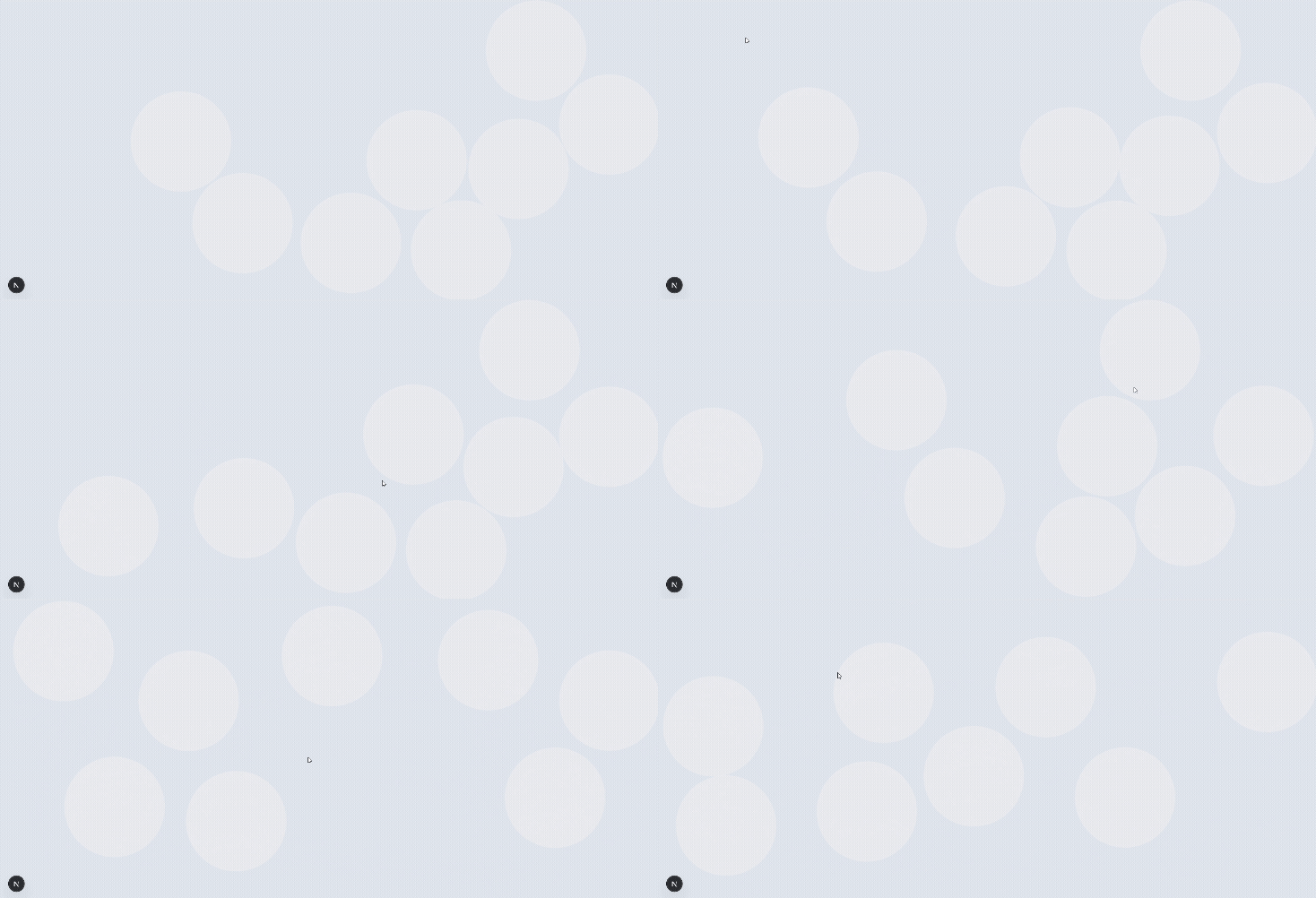
이제 마우스를 움직이면 공도 같이 움직이게 된다.
최종 코드
import { useEffect, useRef } from "react";
import {
  Bodies,
  Body,
  Composite,
  Engine,
  Events,
  Mouse,
  MouseConstraint,
  Render,
  Runner,
} from "matter-js";

interface DroppingBallsProps {
  ballColor: string;
  backgroundColor: string;
}

const DroppingBalls = ({ ballColor, backgroundColor }: DroppingBallsProps) => {
  const containerRef = useRef<HTMLDivElement | null>(null);
  const canvasRef = useRef<HTMLCanvasElement | null>(null);

  useEffect(() => {
    const container = containerRef.current;
    const canvas = canvasRef.current;
    if (!container || !canvas) return;

    const rect = container.getBoundingClientRect();
    const width = rect.width;
    const height = rect.height;

    const engine = Engine.create();
    // 중력 세기 설정
    engine.gravity.y = 0;

    const render = Render.create({
      element: container,
      engine,
      canvas,
      bounds: {
        min: { x: 0, y: 0 },
        max: { x: width, y: height },
      },
      options: {
        width,
        height,
        wireframes: false,
        background: backgroundColor,
      },
    });

    function computeRadius(width: number, height: number, n: number) {
      const cols = Math.ceil(Math.sqrt(n));
      const rows = Math.ceil(n / cols);

      const cellWidth = width / cols;
      const cellHeight = height / rows;

      return Math.min(cellWidth, cellHeight) / 2;
    }

    function getBalls(width: number, height: number, n: number) {
      const radius = computeRadius(width, height, n);
      const balls: Matter.Body[] = [];

      for (let i = 0; i < n; i++) {
        const x = radius + Math.random() * (width - radius * 2);
        const y = radius + Math.random() * (height - radius * 2);

        const ball = Bodies.circle(x, y, radius, {
          render: {
            fillStyle: ballColor,
            opacity: 0.3,
          },
          restitution: 1,
          frictionAir: 0,
          friction: 0,
          frictionStatic: 0,
          density: 0.08,
        });

        Body.setVelocity(ball, {
          x: (Math.random() - 0.5) * 3,
          y: (Math.random() - 0.5) * 3,
        });

        balls.push(ball);
      }
      return balls;
    }

    const n = 8;
    let balls = getBalls(width, height, n);
    Composite.add(engine.world, balls);

    // 벽 생성
    function getWalls(width: number, height: number) {
      const topWall = Bodies.rectangle(width / 2, 0, width, 1, {
        isStatic: true,
        render: { visible: false },
      });
      const leftWall = Bodies.rectangle(0, height / 2, 1, height, {
        isStatic: true,
        render: { visible: false },
      });
      const rightWall = Bodies.rectangle(width, height / 2, 1, height, {
        isStatic: true,
        render: { visible: false },
      });
      const bottomWall = Bodies.rectangle(width / 2, height, width, 1, {
        isStatic: true,
        render: { visible: false },
      });

      return [topWall, leftWall, rightWall, bottomWall];
    }
    let walls = getWalls(width, height);
    Composite.add(engine.world, walls);

    // 마우스 위치 추적
    const mousePos = { x: width / 2, y: height / 2 };

    const handleMouseMove = (e: MouseEvent) => {
      const canvasRect = canvas.getBoundingClientRect();
      mousePos.x = e.clientX - canvasRect.left;
      mousePos.y = e.clientY - canvasRect.top;
    };

    canvas.addEventListener("mousemove", handleMouseMove);

    const repelHandler = () => {
      const repelRadius = 200;
      const targetAccel = 0.015;

      balls.forEach((ball) => {
        const dx = ball.position.x - mousePos.x;
        const dy = ball.position.y - mousePos.y;
        const dist = Math.sqrt(dx * dx + dy * dy) || 1;

        if (dist < repelRadius) {
          const t = 1 - dist / repelRadius;
          const accel = t * t * targetAccel;
          const forceMag = accel * ball.mass; // F = m * a

          Body.applyForce(ball, ball.position, {
            x: (dx / dist) * forceMag,
            y: (dy / dist) * forceMag,
          });
        }
      });
    };

    Events.on(engine, "beforeUpdate", repelHandler);

    // 윈도우 리사이즈 시 바뀐 윈도우 크기에 맞춰 공, 벽 다시 만들기
    const handleResize = () => {
      const rect = container.getBoundingClientRect();
      const newWidth = rect.width;
      const newHeight = rect.height;

      Render.setSize(render, newWidth, newHeight);

      Composite.remove(engine.world, balls);
      Composite.remove(engine.world, walls);

      balls = getBalls(newWidth, newHeight, n);
      walls = getWalls(newWidth, newHeight);
      Composite.add(engine.world, [...balls, ...walls]);
    };

    window.addEventListener("resize", handleResize);

    // 마우스 조작 설정
    const mouse = Mouse.create(render.canvas);
    const mouseConstraint = MouseConstraint.create(engine, {
      mouse,
      constraint: {
        stiffness: 0.2,
        render: {
          visible: false,
        },
      },
    });
    Composite.add(engine.world, [mouseConstraint]);
    // 스크롤이 가능하도록 wheel 이벤트 핸들러 제거
    const mouseWithSource = mouse as any;
    mouseConstraint.mouse.element.removeEventListener(
      "wheel",
      mouseWithSource.mousewheel
    );

    const runner = Runner.create();
    Runner.run(runner, engine);
    Render.run(render);

    return () => {
      window.removeEventListener("resize", handleResize);
      canvas.removeEventListener("mousemove", handleMouseMove);
      Events.off(engine, "beforeUpdate", repelHandler);
      Render.stop(render);
      Runner.stop(runner);
      Composite.clear(engine.world, false);
      Engine.clear(engine);
    };
  }, [ballColor, backgroundColor]);

  return (
    <div ref={containerRef}>
      <canvas ref={canvasRef} />
    </div>
  );
};

export default DroppingBalls;
마무리
생각보다 중력, 공의 탄성력(restitution), 밀도(density) 등 파라미터를 조정하는데 오랜 시간이 걸렸다. 처음엔 움직이지 않아서 엔진이 작동하지 않는건가, 계산 값이 잘못되었나 의심도 했지만, 디버깅을 해보니 너무 미미한 변화라 눈에 띄지 않았던 것이었다. (저와 같은 문제를 겪고 있다면 여러 파라미터 값을 바꿔가며 테스트해보길 바랍니다..!)
목표했던 느낌의 인터랙션을 만들어내는 과정이 재밌었다. 다음에 조금 더 복잡한 요소를 만들어보면 좋을 것 같다.