Javascript를 이용한 공튀기기 구현
이번 수업시간에는 javascript를 이용하여 간단한 공튀기기 예제를 해보면서 캔버스 설정, document, context를 사용하고 알아보았다.
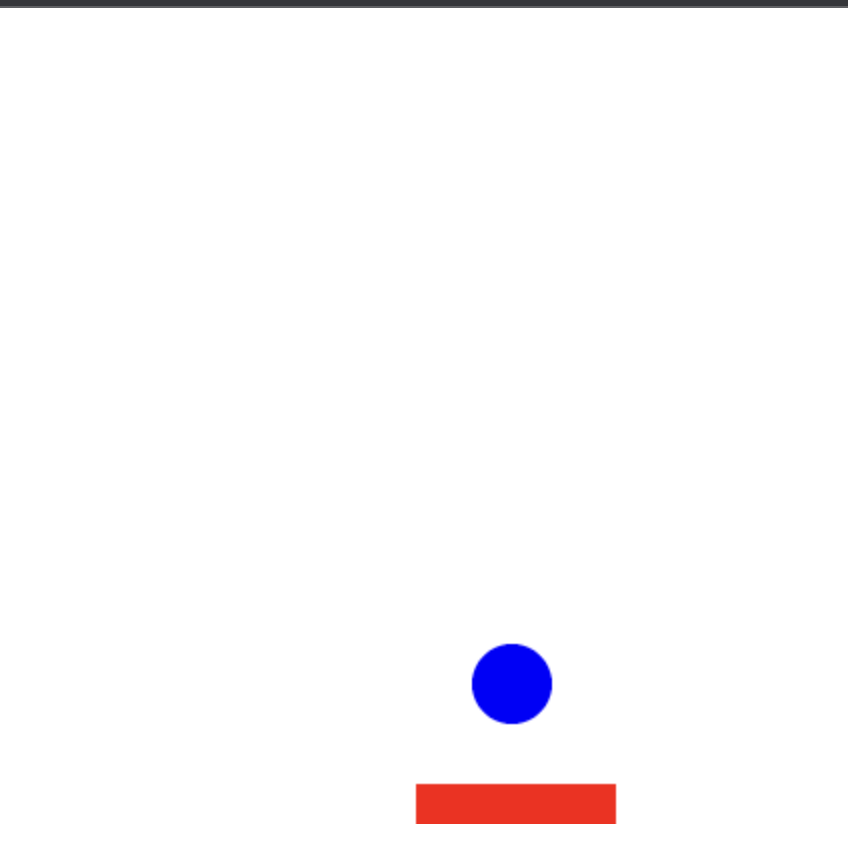
폴더구조
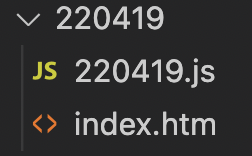
폴더 구조는 화면에 뛰울 html파일과 js파일로 간단하게 구성되어 있다.
소스코드
220419/index.html
<!DOCTYPE html>
<html lang="ko"> <!-- html page 기본 언어 설정 -->
<head>
    <meta charset="UTF-8">
    <title>Document</title>
</head>
<body>
    <canvas id="myCanvas" width='400' height = '400'></canvas>
    <!-- 불러 올떄 한번에 complie 되어서 한번에 처리된다 -->
    <script src="220419.js"></script>

    <!-- html 파일이 만들어질떄 complie되어서 한번에 처리되지 않음 -->

</body>
</html>
220419/220419.js
const canvas = document.getElementById('myCanvas');   //아이디를 가지고 특정 태그에 접근을 한다.
const context = canvas.getContext('2d');

// 공에 대한 시작위치, 반지름, 부딪혔을때 이동할 범위, 속도를 먼저 변수로 선언 해준다.
const arcRadius = 20;
let arcPosX = canvas.width / 2 + 100;
let arcPosY = canvas.height / 2;
let arcMoveDirX = -1;
let arcMoveDirY = -1;                                 // -1을 주면 Y가 위로 움직인다.
let arcMoveSpeed = 1;

let ball = {
    left:0, right:0, top:0, bottom:0,
};
// bar의 넓이, 높이, 시작위치, 눌렀을때 움직이는 속도를 변수로 선언 해준다.
const barWidth = 100;
const barHeight = 20;
let barPosX = canvas.width / 2 - barWidth / 2;
let barPosY = canvas.height - barHeight;
let barMoveSpeed = 10;
// 가운데가 0.0

let paddle = {
    left:0, right:0, top:0, bottom:0,
};
// 이벤트가 잇을때 해당함수를 호출해준다.
document.addEventListener('keydown', keyDownEventHandler);
document.addEventListener('keyup', keyUpEventHandler);

function keyDownEventHandler(e)
{
    if (e.key == 'ArrowRight')
    {
        // 바를 오른쪽으로 이동
        if (barPosX + barWidth < canvas.width)
        {
            barPosX += barMoveSpeed;
            //1
        }
    }
    else if (e.key == 'ArrowLeft')
    {
        // 바를 왼쪽으로 이동
        if (barPosX > 0)
        {
            barPosX -= barMoveSpeed;
            //1
        }
    }

    //2 코드가 많이 중복되면 함수를 빼던가 연산량이 많지않으면 한번에 써주는 것이 좋다.
    paddle.left = barPosX;
    paddle.right = barPosX + barWidth;
    paddle.top = barPosY;
    paddle.bottom = barPosY + barWidth;
}

function update()
{
    // 데이터 수정 (도형의 위치 이동)
    if (arcPosX - arcRadius  < 0) //arcPosX - 50 원의 좌측끝
    {
        arcMoveDirX = 1;
    }
    else if (arcPosX + arcRadius > canvas.width)  // arcPosX + 50 원의 우측 끝
    {
        arcMoveDirX = -1;
    }
    if (arcPosY - arcRadius < 0)
    {
        arcMoveDirY = 1;
    }
    else if (arcPosY + arcRadius > canvas.width)
    {
        arcMoveDirY = -1;
    }
    arcPosX += arcMoveDirX * arcMoveSpeed;
    arcPosY += arcMoveDirY * arcMoveSpeed;

    ball.left = arcPosX - (arcRadius); // 위치가 계속 바낄때마다 바낀다.
    ball.right = arcPosX + (arcRadius); // 위치가 계속 바낄때마다 바낀다.
    ball.top = arcPosY - (arcRadius); // 위치가 계속 바낄때마다 바낀다.
    ball.bottom = arcPosY + (arcRadius); // 위치가 계속 바낄때마다 바낀다.

    // 충돌확인
    if (isCollisionRectToRect(ball, paddle))
    {
        arcMoveDirY = -1;
        arcPosY = paddle.top - arcRadius;
    }

}
// 충돌 확인
function isCollisionRectToRect(rectA, rectB)
{
    // a의 왼쪽과 b의 오른쪽
    // a의 오른쪽과 b의 왼쪽
    // a의 아래쪽과 b의 위쪽
    // a의 위쪽과 b의 아래쪽
    if (rectA.left > rectB.right ||
        rectA.right < rectB.left ||
        rectA.top > rectB.bottom ||
        rectA.bottom < rectB.top)
        {
            return false;
        }

    return true;
}

function draw()
{
    // 화면 클리어
    context.clearRect(0, 0, canvas.width, canvas.height);
    drawCanvas();
    // 다른 도형 그리기
    drawRect();
    drawArc();
}

function drawCanvas() {
    context.beginPath();
    context.clearRect(0, 0, canvas.width, canvas.height);
    context.fillStyle = '#CA9B89';
    context.fill();

    context.closePath();
}
// 공 구현
function drawArc()  // 컴파일 순간에 내용물이 정해지고 호출된 시점에 사용이 된다.
{

    context.beginPath(); //선을 그릴 때 시작하는 함수
    context.arc(arcPosX, arcPosY, arcRadius, 0, 2 * Math.PI);
    context.fillStyle = 'blue';
    context.fill();
    context.closePath(); // 선을 그릴 때 닫아서 시작점과 잇는 함수
}
// paddle 구현
function drawRect()
{
    context.beginPath(); //선을 그릴 때 시작하는 함수
    context.rect(barPosX, barPosY, barWidth, barHeight);
    context.fillStyle = 'red';
    context.fill();
    context.closePath(); // 선을 그릴 때 닫아서 시작점과 잇는 함수
}

setInterval(update, 10);   // 1000=1초, 10=0.01초 호출
setInterval(draw, 10); // setInterval은 주기적으로 인자를 실행하는 함수
ㅇ

꿈을 찾는 Frontend 개발자 입니다.