Sage 50 Won’t Update? Causes, Fixes & Troubleshooting Guide
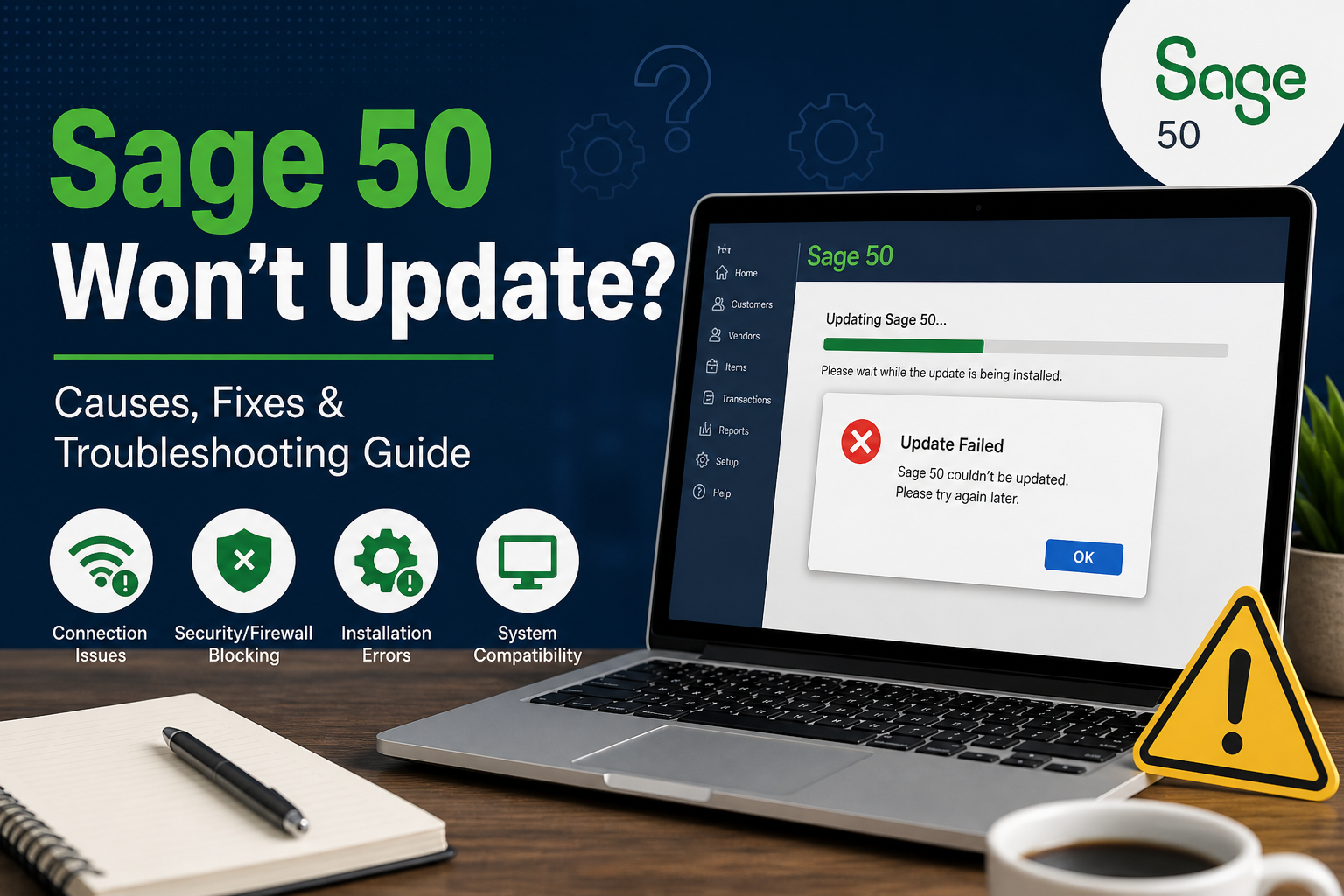
Discover the most common reasons Sage 50 update failures happen and learn how to resolve them quickly.
When Sage 50 won’t update, it can create serious disruptions for your business. Accounting teams rely on Sage 50 for invoicing, payroll, reporting, reconciliations, and daily financial management. If the software cannot update properly, you may miss important security patches, performance improvements, tax changes, and feature enhancements. Whether the update freezes, fails to install, or displays an error code, identifying the root cause is the first step toward a solution.
Why Sage 50 Updates Are Important
Regular Sage 50 updates help maintain software stability, improve speed, and address bugs found in earlier versions. Updates may also include payroll changes, tax compliance adjustments, and enhanced security protections. Delaying updates for too long can expose your system to compatibility issues and outdated functionality.
That is why resolving update problems quickly is essential for uninterrupted business operations.
Common Reasons Sage 50 Won’t Update
1. Lack of Administrator Permissions
Many Sage 50 updates require administrator-level access to install system files and make software changes. If you attempt the update using a standard Windows account, the installation may fail or stop midway.
Running the update as an administrator is often the simplest solution.
2. Antivirus or Firewall Blocking the Process
Security software may incorrectly flag Sage update files or block connections needed to download installation packages. Firewalls in managed office networks can also restrict update traffic.
Temporarily disabling antivirus software or whitelisting Sage 50 can help complete the update.
3. Poor Internet Connection
A weak or unstable internet connection can interrupt update downloads, leading to incomplete or corrupted installation files. This often results in failed updates or repeated retry messages.
Using a stable wired connection or updating during low-traffic hours may improve success.
4. Corrupted Program Files
If a previous update was interrupted or some program files became damaged, Sage 50 may refuse to install future updates. Missing components can block the process entirely.
Using the Repair feature in Windows Programs and Features may fix damaged files.
5. System Compatibility Problems
Older versions of Windows, insufficient disk space, outdated Microsoft .NET Framework files, or unsupported hardware may prevent updates from running successfully.
Ensure your computer meets the latest Sage 50 system requirements before updating.
How to Fix Sage 50 Update Issues
Start by restarting your computer and closing all background applications. Then run Sage 50 as administrator and retry the update.
If the issue continues:
- Check your internet connection
- Disable antivirus temporarily
- Install pending Windows updates
- Free up disk space
- Use the Sage 50 repair option
- Reinstall Sage 50 if necessary
For multi-user environments, make sure all users are logged out before updating shared files.
Always Backup Before Updating
Before making any repairs or installing updates, create a complete backup of your Sage 50 company data. A backup ensures you can recover quickly if something goes wrong during the process.
Store backups securely on local drives, servers, or cloud storage.
When to Contact Support
If Sage 50 still won’t update after troubleshooting, note the exact error code or message displayed. This information can help Sage support or an experienced consultant identify the problem faster.
Professional support is especially useful for data corruption, licensing issues, or network-related update failures.
Final Thoughts
When Sage 50 won’t update, the problem is usually linked to permissions, connectivity, corrupted files, or compatibility issues. Most update failures can be fixed with basic troubleshooting steps and proper preparation. Keeping Sage 50 updated ensures your business continues to run securely, efficiently, and without unnecessary downtime.
