AEWS 11주차
🏁 Getting Started: GenAI with Inferentia & FSx Workshop
1. AWS Cloud9 이동
genaifsxworkshoponeks Cloud9 IDE Open 클릭

2. New Terminal 생성
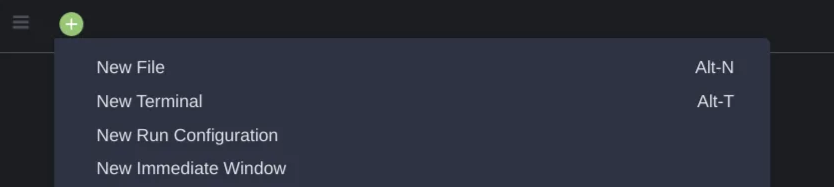
Cloud9 IDE 화면 로드 후 상단 탭의 (+) 버튼 > 새 터미널 클릭하여 터미널 생성
3. 자격 증명 비활성화
WSParticipantRole:~/environment $ aws cloud9 update-environment --environment-id ${C9_PID} --managed-credentials-action DISABLE
WSParticipantRole:~/environment $ rm -vf ${HOME}/.aws/credentials

# 결과
removed '/home/ec2-user/.aws/credentials'
4. IAM 역할 확인
WSParticipantRole:~/environment $ aws sts get-caller-identity

{
    "UserId": "XXXXXXXXXXXXXXXXXXXXXX:x-xxxxxxxxxxxxxxxxxx",
    "Account": "xxxxxxxxxxxxx",
    "Arn": "arn:aws:sts::xxxxxxxxxxxxx:assumed-role/genaifsxworkshoponeks-C9Role-NsrVsrgsvUf3/x-xxxxxxxxxxxxxxxxxx"
}
5. 리전 및 EKS 클러스터명 설정
WSParticipantRole:~/environment $ TOKEN=`curl -s -X PUT "http://169.254.169.254/latest/api/token" -H "X-aws-ec2-metadata-token-ttl-seconds: 21600"`
WSParticipantRole:~/environment $ export AWS_REGION=$(curl -s -H "X-aws-ec2-metadata-token: $TOKEN" http://169.254.169.254/latest/meta-data/placement/region)
WSParticipantRole:~/environment $ export CLUSTER_NAME=eksworkshop6. 리전 및 EKS 클러스터명 확인
WSParticipantRole:~/environment $ echo $AWS_REGION
us-west-2

WSParticipantRole:~/environment $ echo $CLUSTER_NAME
eksworkshop
7. kube-config 업데이트
WSParticipantRole:~/environment $ aws eks update-kubeconfig --name $CLUSTER_NAME --region $AWS_REGION

# 결과
Added new context arn:aws:eks:us-west-2:xxxxxxxxxxxxx:cluster/eksworkshop to /home/ec2-user/.kube/config
8. EKS 노드 상태 확인
WSParticipantRole:~/environment $ kubectl get nodes
NAME                                        STATUS   ROLES    AGE   VERSION
ip-10-0-108-71.us-west-2.compute.internal   Ready    <none>   47h   v1.30.9-eks-5d632ec
ip-10-0-67-165.us-west-2.compute.internal   Ready    <none>   47h   v1.30.9-eks-5d632ec
9. Karpenter Deployment 조회
WSParticipantRole:~/environment $ kubectl -n karpenter get deploy/karpenter -o yaml✅ 출력
apiVersion: apps/v1
kind: Deployment
metadata:
  annotations:
    deployment.kubernetes.io/revision: "1"
    meta.helm.sh/release-name: karpenter
    meta.helm.sh/release-namespace: karpenter
  creationTimestamp: "2025-04-17T02:22:13Z"
  generation: 1
  labels:
    app.kubernetes.io/instance: karpenter
    app.kubernetes.io/managed-by: Helm
    app.kubernetes.io/name: karpenter
    app.kubernetes.io/version: 1.0.1
    helm.sh/chart: karpenter-1.0.1
  name: karpenter
  namespace: karpenter
  resourceVersion: "3161"
  uid: 51294e16-448c-48f8-93ce-179331c7e2ca
spec:
  progressDeadlineSeconds: 600
  replicas: 2
  revisionHistoryLimit: 10
  selector:
    matchLabels:
      app.kubernetes.io/instance: karpenter
      app.kubernetes.io/name: karpenter
  strategy:
    rollingUpdate:
      maxSurge: 25%
      maxUnavailable: 1
    type: RollingUpdate
  template:
    metadata:
      creationTimestamp: null
      labels:
        app.kubernetes.io/instance: karpenter
        app.kubernetes.io/name: karpenter
    spec:
      affinity:
        nodeAffinity:
          requiredDuringSchedulingIgnoredDuringExecution:
            nodeSelectorTerms:
            - matchExpressions:
              - key: karpenter.sh/nodepool
                operator: DoesNotExist
        podAntiAffinity:
          requiredDuringSchedulingIgnoredDuringExecution:
          - labelSelector:
              matchLabels:
                app.kubernetes.io/instance: karpenter
                app.kubernetes.io/name: karpenter
            topologyKey: kubernetes.io/hostname
      containers:
      - env:
        - name: KUBERNETES_MIN_VERSION
          value: 1.19.0-0
        - name: KARPENTER_SERVICE
          value: karpenter
        - name: WEBHOOK_PORT
          value: "8443"
        - name: WEBHOOK_METRICS_PORT
          value: "8001"
        - name: DISABLE_WEBHOOK
          value: "false"
        - name: LOG_LEVEL
          value: info
        - name: METRICS_PORT
          value: "8080"
        - name: HEALTH_PROBE_PORT
          value: "8081"
        - name: SYSTEM_NAMESPACE
          valueFrom:
            fieldRef:
              apiVersion: v1
              fieldPath: metadata.namespace
        - name: MEMORY_LIMIT
          valueFrom:
            resourceFieldRef:
              containerName: controller
              divisor: "0"
              resource: limits.memory
        - name: FEATURE_GATES
          value: SpotToSpotConsolidation=false
        - name: BATCH_MAX_DURATION
          value: 10s
        - name: BATCH_IDLE_DURATION
          value: 1s
        - name: CLUSTER_NAME
          value: eksworkshop
        - name: CLUSTER_ENDPOINT
          value: https://53E5113441C691170249AE781B50CCEE.gr7.us-west-2.eks.amazonaws.com
        - name: VM_MEMORY_OVERHEAD_PERCENT
          value: "0.075"
        - name: INTERRUPTION_QUEUE
          value: karpenter-eksworkshop
        - name: RESERVED_ENIS
          value: "0"
        image: public.ecr.aws/karpenter/controller:1.0.1@sha256:fc54495b35dfeac6459ead173dd8452ca5d572d90e559f09536a494d2795abe6
        imagePullPolicy: IfNotPresent
        livenessProbe:
          failureThreshold: 3
          httpGet:
            path: /healthz
            port: http
            scheme: HTTP
          initialDelaySeconds: 30
          periodSeconds: 10
          successThreshold: 1
          timeoutSeconds: 30
        name: controller
        ports:
        - containerPort: 8080
          name: http-metrics
          protocol: TCP
        - containerPort: 8001
          name: webhook-metrics
          protocol: TCP
        - containerPort: 8443
          name: https-webhook
          protocol: TCP
        - containerPort: 8081
          name: http
          protocol: TCP
        readinessProbe:
          failureThreshold: 3
          httpGet:
            path: /readyz
            port: http
            scheme: HTTP
          initialDelaySeconds: 5
          periodSeconds: 10
          successThreshold: 1
          timeoutSeconds: 30
        resources: {}
        securityContext:
          allowPrivilegeEscalation: false
          capabilities:
            drop:
            - ALL
          readOnlyRootFilesystem: true
          runAsGroup: 65532
          runAsNonRoot: true
          runAsUser: 65532
          seccompProfile:
            type: RuntimeDefault
        terminationMessagePath: /dev/termination-log
        terminationMessagePolicy: File
      dnsPolicy: ClusterFirst
      nodeSelector:
        kubernetes.io/os: linux
      priorityClassName: system-cluster-critical
      restartPolicy: Always
      schedulerName: default-scheduler
      securityContext:
        fsGroup: 65532
      serviceAccount: karpenter
      serviceAccountName: karpenter
      terminationGracePeriodSeconds: 30
      tolerations:
      - key: CriticalAddonsOnly
        operator: Exists
      topologySpreadConstraints:
      - labelSelector:
          matchLabels:
            app.kubernetes.io/instance: karpenter
            app.kubernetes.io/name: karpenter
        maxSkew: 1
        topologyKey: topology.kubernetes.io/zone
        whenUnsatisfiable: DoNotSchedule
status:
  availableReplicas: 2
  conditions:
  - lastTransitionTime: "2025-04-17T02:22:23Z"
    lastUpdateTime: "2025-04-17T02:22:23Z"
    message: Deployment has minimum availability.
    reason: MinimumReplicasAvailable
    status: "True"
    type: Available
  - lastTransitionTime: "2025-04-17T02:22:13Z"
    lastUpdateTime: "2025-04-17T02:22:33Z"
    message: ReplicaSet "karpenter-86d7868f9f" has successfully progressed.
    reason: NewReplicaSetAvailable
    status: "True"
    type: Progressing
  observedGeneration: 1
  readyReplicas: 2
  replicas: 2
updatedReplicas: 210. Karpenter Pod 상태 확인
WSParticipantRole:~/environment $ kubectl get pods --namespace karpenter✅ 출력
NAME                         READY   STATUS    RESTARTS   AGE
karpenter-86d7868f9f-2dmfd   1/1     Running   0          47h
karpenter-86d7868f9f-zjbl8   1/1     Running   0          47h
11. Karpenter 로그 스트리밍
터미널에서 별칭 설정 후, Karpenter 컨트롤러 로그 스트리밍
WSParticipantRole:~/environment $ alias kl='kubectl -n karpenter logs -l app.kubernetes.io/name=karpenter --all-containers=true -f --tail=20'
WSParticipantRole:~/environment $ kl
✅ 출력
{"level":"INFO","time":"2025-04-17T02:22:21.024Z","logger":"controller.controller-runtime.metrics","message":"Starting metrics server","commit":"62a726c"}
{"level":"INFO","time":"2025-04-17T02:22:21.025Z","logger":"controller","message":"starting server","commit":"62a726c","name":"health probe","addr":"[::]:8081"}
{"level":"INFO","time":"2025-04-17T02:22:21.025Z","logger":"controller.controller-runtime.metrics","message":"Serving metrics server","commit":"62a726c","bindAddress":":8080","secure":false}
{"level":"INFO","time":"2025-04-17T02:22:21.126Z","logger":"controller","message":"attempting to acquire leader lease karpenter/karpenter-leader-election...","commit":"62a726c"}
{"level":"INFO","time":"2025-04-17T02:22:19.397Z","logger":"controller","message":"Starting workers","commit":"62a726c","controller":"nodeclaim.consistency","controllerGroup":"karpenter.sh","controllerKind":"NodeClaim","worker count":10}
{"level":"INFO","time":"2025-04-17T02:22:19.397Z","logger":"controller","message":"Starting workers","commit":"62a726c","controller":"nodeclaim.disruption","controllerGroup":"karpenter.sh","controllerKind":"NodeClaim","worker count":10}
{"level":"ERROR","time":"2025-04-17T02:22:19.663Z","logger":"webhook.ConversionWebhook","message":"Reconcile error","commit":"62a726c","knative.dev/traceid":"85caea6f-8f7a-4cd3-9dcc-642a21a15959","knative.dev/key":"nodeclaims.karpenter.sh","duration":"154.257731ms","error":"failed to update webhook: Operation cannot be fulfilled on customresourcedefinitions.apiextensions.k8s.io \"nodeclaims.karpenter.sh\": the object has been modified; please apply your changes to the latest version and try again"}
{"level":"ERROR","time":"2025-04-17T02:22:19.686Z","logger":"webhook.ConversionWebhook","message":"Reconcile error","commit":"62a726c","knative.dev/traceid":"72b3cf48-22e3-410a-9667-962c8534b26d","knative.dev/key":"nodepools.karpenter.sh","duration":"97.713552ms","error":"failed to update webhook: Operation cannot be fulfilled on customresourcedefinitions.apiextensions.k8s.io \"nodepools.karpenter.sh\": the object has been modified; please apply your changes to the latest version and try again"}
{"level":"INFO","time":"2025-04-17T02:23:05.822Z","logger":"controller","message":"discovered ssm parameter","commit":"62a726c","controller":"nodeclass.status","controllerGroup":"karpenter.k8s.aws","controllerKind":"EC2NodeClass","EC2NodeClass":{"name":"sysprep"},"namespace":"","name":"sysprep","reconcileID":"859590e8-76f0-4884-9c38-ac6378cc40c3","parameter":"/aws/service/eks/optimized-ami/1.30/amazon-linux-2/amazon-eks-node-1.30-v20240917/image_id","value":"ami-05f7e80c30f28d8b9"}
{"level":"INFO","time":"2025-04-17T02:23:05.852Z","logger":"controller","message":"discovered ssm parameter","commit":"62a726c","controller":"nodeclass.status","controllerGroup":"karpenter.k8s.aws","controllerKind":"EC2NodeClass","EC2NodeClass":{"name":"sysprep"},"namespace":"","name":"sysprep","reconcileID":"859590e8-76f0-4884-9c38-ac6378cc40c3","parameter":"/aws/service/eks/optimized-ami/1.30/amazon-linux-2-arm64/amazon-eks-arm64-node-1.30-v20240917/image_id","value":"ami-0b402b9a4c1bacaa5"}
{"level":"INFO","time":"2025-04-17T02:23:05.881Z","logger":"controller","message":"discovered ssm parameter","commit":"62a726c","controller":"nodeclass.status","controllerGroup":"karpenter.k8s.aws","controllerKind":"EC2NodeClass","EC2NodeClass":{"name":"sysprep"},"namespace":"","name":"sysprep","reconcileID":"859590e8-76f0-4884-9c38-ac6378cc40c3","parameter":"/aws/service/eks/optimized-ami/1.30/amazon-linux-2-gpu/amazon-eks-gpu-node-1.30-v20240917/image_id","value":"ami-0356f40aea17e9b9e"}
{"level":"INFO","time":"2025-04-17T02:23:07.175Z","logger":"controller","message":"found provisionable pod(s)","commit":"62a726c","controller":"provisioner","namespace":"","name":"","reconcileID":"869e7086-1212-4127-b4b3-94480c1680cf","Pods":"default/sysprep-l4wpv","duration":"350.444011ms"}
{"level":"INFO","time":"2025-04-17T02:23:07.175Z","logger":"controller","message":"computed new nodeclaim(s) to fit pod(s)","commit":"62a726c","controller":"provisioner","namespace":"","name":"","reconcileID":"869e7086-1212-4127-b4b3-94480c1680cf","nodeclaims":1,"pods":1}
{"level":"INFO","time":"2025-04-17T02:23:07.186Z","logger":"controller","message":"created nodeclaim","commit":"62a726c","controller":"provisioner","namespace":"","name":"","reconcileID":"869e7086-1212-4127-b4b3-94480c1680cf","NodePool":{"name":"sysprep"},"NodeClaim":{"name":"sysprep-r6fgf"},"requests":{"cpu":"180m","memory":"120Mi","pods":"9"},"instance-types":"c5.large, c5.xlarge, c5a.large, c5a.xlarge, c5ad.large and 55 other(s)"}
{"level":"INFO","time":"2025-04-17T02:23:13.205Z","logger":"controller","message":"launched nodeclaim","commit":"62a726c","controller":"nodeclaim.lifecycle","controllerGroup":"karpenter.sh","controllerKind":"NodeClaim","NodeClaim":{"name":"sysprep-r6fgf"},"namespace":"","name":"sysprep-r6fgf","reconcileID":"f2b2ec5c-bcf7-4402-a919-a8280a1e9cac","provider-id":"aws:///us-west-2a/i-0dd7235d205d3547d","instance-type":"c6i.large","zone":"us-west-2a","capacity-type":"on-demand","allocatable":{"cpu":"1930m","ephemeral-storage":"89Gi","memory":"3114Mi","pods":"29","vpc.amazonaws.com/pod-eni":"9"}}
{"level":"INFO","time":"2025-04-17T02:23:30.109Z","logger":"controller","message":"registered nodeclaim","commit":"62a726c","controller":"nodeclaim.lifecycle","controllerGroup":"karpenter.sh","controllerKind":"NodeClaim","NodeClaim":{"name":"sysprep-r6fgf"},"namespace":"","name":"sysprep-r6fgf","reconcileID":"8f45ee82-92e7-47b2-92e7-43449a500f45","provider-id":"aws:///us-west-2a/i-0dd7235d205d3547d","Node":{"name":"ip-10-0-43-213.us-west-2.compute.internal"}}
{"level":"INFO","time":"2025-04-17T02:23:41.271Z","logger":"controller","message":"initialized nodeclaim","commit":"62a726c","controller":"nodeclaim.lifecycle","controllerGroup":"karpenter.sh","controllerKind":"NodeClaim","NodeClaim":{"name":"sysprep-r6fgf"},"namespace":"","name":"sysprep-r6fgf","reconcileID":"5a63fb88-bcb2-4e50-87b2-30ffbd131697","provider-id":"aws:///us-west-2a/i-0dd7235d205d3547d","Node":{"name":"ip-10-0-43-213.us-west-2.compute.internal"},"allocatable":{"cpu":"1930m","ephemeral-storage":"95551679124","hugepages-1Gi":"0","hugepages-2Mi":"0","memory":"3232656Ki","pods":"29"}}
{"level":"INFO","time":"2025-04-17T02:33:56.588Z","logger":"controller","message":"tainted node","commit":"62a726c","controller":"node.termination","controllerGroup":"","controllerKind":"Node","Node":{"name":"ip-10-0-43-213.us-west-2.compute.internal"},"namespace":"","name":"ip-10-0-43-213.us-west-2.compute.internal","reconcileID":"e8b2aa8b-bb75-4566-9aa1-8c787ae1b7bf","taint.Key":"karpenter.sh/disrupted","taint.Value":"","taint.Effect":"NoSchedule"}
{"level":"INFO","time":"2025-04-17T02:34:23.083Z","logger":"controller","message":"deleted node","commit":"62a726c","controller":"node.termination","controllerGroup":"","controllerKind":"Node","Node":{"name":"ip-10-0-43-213.us-west-2.compute.internal"},"namespace":"","name":"ip-10-0-43-213.us-west-2.compute.internal","reconcileID":"90b9486f-add1-444b-872c-1fc3d748f6a8"}
{"level":"INFO","time":"2025-04-17T02:34:23.320Z","logger":"controller","message":"deleted nodeclaim","commit":"62a726c","controller":"nodeclaim.termination","controllerGroup":"karpenter.sh","controllerKind":"NodeClaim","NodeClaim":{"name":"sysprep-r6fgf"},"namespace":"","name":"sysprep-r6fgf","reconcileID":"0260c674-f67d-4d57-84e0-b1c9db150229","Node":{"name":"ip-10-0-43-213.us-west-2.compute.internal"},"provider-id":"aws:///us-west-2a/i-0dd7235d205d3547d"}
{"level":"ERROR","time":"2025-04-17T14:35:52.758Z","logger":"controller","message":"Failed to update lock optimitically: etcdserver: request timed out, falling back to slow path","commit":"62a726c"}
{"level":"INFO","time":"2025-04-18T02:23:23.974Z","logger":"controller","message":"discovered ssm parameter","commit":"62a726c","controller":"nodeclass.status","controllerGroup":"karpenter.k8s.aws","controllerKind":"EC2NodeClass","EC2NodeClass":{"name":"default"},"namespace":"","name":"default","reconcileID":"fc30a0be-2ef1-47bd-a48b-b6d491061241","parameter":"/aws/service/eks/optimized-ami/1.30/amazon-linux-2/amazon-eks-node-1.30-v20240917/image_id","value":"ami-05f7e80c30f28d8b9"}
{"level":"INFO","time":"2025-04-18T02:23:24.000Z","logger":"controller","message":"discovered ssm parameter","commit":"62a726c","controller":"nodeclass.status","controllerGroup":"karpenter.k8s.aws","controllerKind":"EC2NodeClass","EC2NodeClass":{"name":"default"},"namespace":"","name":"default","reconcileID":"fc30a0be-2ef1-47bd-a48b-b6d491061241","parameter":"/aws/service/eks/optimized-ami/1.30/amazon-linux-2-arm64/amazon-eks-arm64-node-1.30-v20240917/image_id","value":"ami-0b402b9a4c1bacaa5"}
{"level":"INFO","time":"2025-04-18T02:23:24.016Z","logger":"controller","message":"discovered ssm parameter","commit":"62a726c","controller":"nodeclass.status","controllerGroup":"karpenter.k8s.aws","controllerKind":"EC2NodeClass","EC2NodeClass":{"name":"default"},"namespace":"","name":"default","reconcileID":"fc30a0be-2ef1-47bd-a48b-b6d491061241","parameter":"/aws/service/eks/optimized-ami/1.30/amazon-linux-2-gpu/amazon-eks-gpu-node-1.30-v20240917/image_id","value":"ami-0356f40aea17e9b9e"}
control + c : 종료
^C🗄️ Configure storage - Host model data on Amazon FSx for Lustre
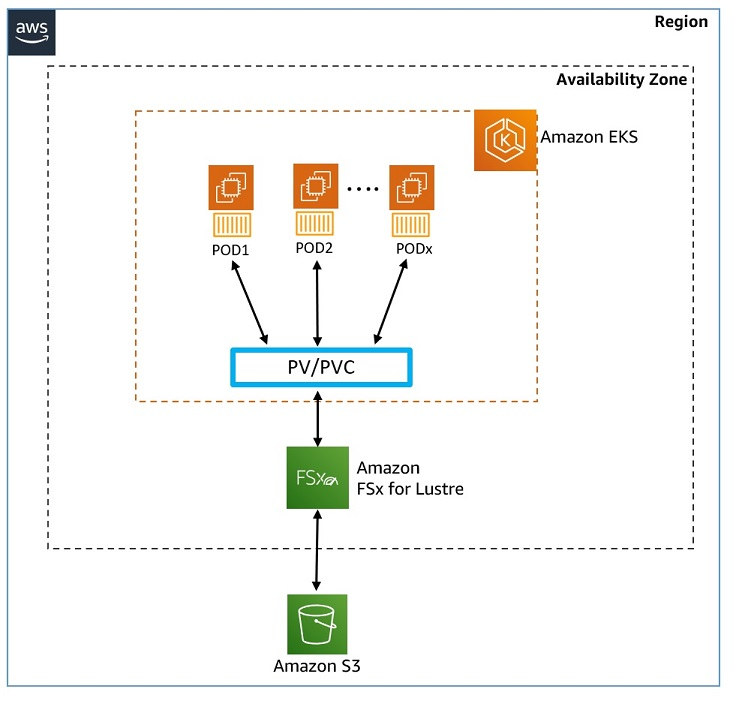
Amazon FSx for Lustre
- https://docs.aws.amazon.com/fsx/latest/LustreGuide/what-is.html
- 완전관리형 고성능 파일 시스템 제공: Machine Learning, 분석, HPC 등 속도가 중요한 워크로드에 적합
- 밀리초 이하 지연 시간 및 대규모 성능 확장: TB/s 처리량과 수백만 IOPS로 확장 지원
- Amazon S3 연동: S3 객체를 파일로 제공, 변경 사항 자동 동기화
CSI 드라이버 배포
1. account-id 환경변수 설정
WSParticipantRole:~/environment $ ACCOUNT_ID=$(aws sts get-caller-identity --query "Account" --output text)2. IAM 서비스 계정 생성
AWS API 호출 권한을 가진 IAM 정책 생성 후 서비스 계정에 연결
WSParticipantRole:~/environment $ cat << EOF >  fsx-csi-driver.json
> {
>     "Version":"2012-10-17",
>     "Statement":[
>         {
>             "Effect":"Allow",
>             "Action":[
>                 "iam:CreateServiceLinkedRole",
>                 "iam:AttachRolePolicy",
>                 "iam:PutRolePolicy"
>             ],
>             "Resource":"arn:aws:iam::*:role/aws-service-role/s3.data-source.lustre.fsx.amazonaws.com/*"
>         },
>         {
>             "Action":"iam:CreateServiceLinkedRole",
>             "Effect":"Allow",
>             "Resource":"*",
>             "Condition":{
>                 "StringLike":{
>                     "iam:AWSServiceName":[
>                         "fsx.amazonaws.com"
>                     ]
>                 }
>             }
>         },
>         {
>             "Effect":"Allow",
>             "Action":[
>                 "s3:ListBucket",
>                 "fsx:CreateFileSystem",
>                 "fsx:DeleteFileSystem",
>                 "fsx:DescribeFileSystems",
>                 "fsx:TagResource"
>             ],
>             "Resource":[
>                 "*"
>             ]
>         }
>     ]
> }
> EOF
3. IAM 정책 생성
WSParticipantRole:~/environment $ aws iam create-policy \
>         --policy-name Amazon_FSx_Lustre_CSI_Driver \
>         --policy-document file://fsx-csi-driver.json
✅ 출력
{
    "Policy": {
        "PolicyName": "Amazon_FSx_Lustre_CSI_Driver",
        "PolicyId": "ANPATNWURYOGXHAZW6A6U",
        "Arn": "arn:aws:iam::xxxxxxxxxxxxx:policy/Amazon_FSx_Lustre_CSI_Driver",
        "Path": "/",
        "DefaultVersionId": "v1",
        "AttachmentCount": 0,
        "PermissionsBoundaryUsageCount": 0,
        "IsAttachable": true,
        "CreateDate": "2025-04-19T02:18:02+00:00",
        "UpdateDate": "2025-04-19T02:18:02+00:00"
    }
}
4. 서비스 계정 생성 및 정책 연결
아래 명령 실행해 드라이버용 서비스 계정 생성 후 3단계 IAM 정책 연결
WSParticipantRole:~/environment $ eksctl create iamserviceaccount \
>     --region $AWS_REGION \
>     --name fsx-csi-controller-sa \
>     --namespace kube-system \
>     --cluster $CLUSTER_NAME \
>     --attach-policy-arn arn:aws:iam::$ACCOUNT_ID:policy/Amazon_FSx_Lustre_CSI_Driver \
>     --approve
✅ 출력
2025-04-19 02:19:20 [ℹ]  1 iamserviceaccount (kube-system/fsx-csi-controller-sa) was included (based on the include/exclude rules)
2025-04-19 02:19:20 [!]  serviceaccounts that exist in Kubernetes will be excluded, use --override-existing-serviceaccounts to override
2025-04-19 02:19:20 [ℹ]  1 task: {
    2 sequential sub-tasks: {
        create IAM role for serviceaccount "kube-system/fsx-csi-controller-sa",
        create serviceaccount "kube-system/fsx-csi-controller-sa",
    } }2025-04-19 02:19:20 [ℹ]  building iamserviceaccount stack "eksctl-eksworkshop-addon-iamserviceaccount-kube-system-fsx-csi-controller-sa"
2025-04-19 02:19:20 [ℹ]  deploying stack "eksctl-eksworkshop-addon-iamserviceaccount-kube-system-fsx-csi-controller-sa"
2025-04-19 02:19:20 [ℹ]  waiting for CloudFormation stack "eksctl-eksworkshop-addon-iamserviceaccount-kube-system-fsx-csi-controller-sa"
2025-04-19 02:19:50 [ℹ]  waiting for CloudFormation stack "eksctl-eksworkshop-addon-iamserviceaccount-kube-system-fsx-csi-controller-sa"
2025-04-19 02:19:50 [ℹ]  created serviceaccount "kube-system/fsx-csi-controller-sa"
5. 역할(Role) ARN 저장
WSParticipantRole:~/environment $ export ROLE_ARN=$(aws cloudformation describe-stacks --stack-name "eksctl-${CLUSTER_NAME}-addon-iamserviceaccount-kube-system-fsx-csi-controller-sa" --query "Stacks[0].Outputs[0].OutputValue"  --region $AWS_REGION --output text)
WSParticipantRole:~/environment $ echo $ROLE_ARN
✅ 출력
arn:aws:iam::xxxxxxxxxxxxx:role/eksctl-eksworkshop-addon-iamserviceaccount-ku-Role1-eALfDkUyCxWi6. Lustre용 FSx CSI 드라이버 배포
WSParticipantRole:~/environment $ kubectl apply -k "github.com/kubernetes-sigs/aws-fsx-csi-driver/deploy/kubernetes/overlays/stable/?ref=release-1.2"✅ 출력
# Warning: 'bases' is deprecated. Please use 'resources' instead. Run 'kustomize edit fix' to update your Kustomization automatically.
Warning: resource serviceaccounts/fsx-csi-controller-sa is missing the kubectl.kubernetes.io/last-applied-configuration annotation which is required by kubectl apply. kubectl apply should only be used on resources created declaratively by either kubectl create --save-config or kubectl apply. The missing annotation will be patched automatically.
serviceaccount/fsx-csi-controller-sa configured
serviceaccount/fsx-csi-node-sa created
clusterrole.rbac.authorization.k8s.io/fsx-csi-external-provisioner-role created
clusterrole.rbac.authorization.k8s.io/fsx-csi-node-role created
clusterrole.rbac.authorization.k8s.io/fsx-external-resizer-role created
clusterrolebinding.rbac.authorization.k8s.io/fsx-csi-external-provisioner-binding created
clusterrolebinding.rbac.authorization.k8s.io/fsx-csi-node-getter-binding created
clusterrolebinding.rbac.authorization.k8s.io/fsx-csi-resizer-binding created
deployment.apps/fsx-csi-controller created
daemonset.apps/fsx-csi-node created
csidriver.storage.k8s.io/fsx.csi.aws.com created
CSI 드라이버 설치 확인
WSParticipantRole:~/environment $ kubectl get pods -n kube-system -l app.kubernetes.io/name=aws-fsx-csi-driver✅ 출력
NAME                                  READY   STATUS    RESTARTS   AGE
fsx-csi-controller-6f4c577bd4-4wxrs   4/4     Running   0          38s
fsx-csi-controller-6f4c577bd4-r6kgd   4/4     Running   0          38s
fsx-csi-node-c4spk                    3/3     Running   0          38s
fsx-csi-node-k9dd6                    3/3     Running   0          38s
7. 서비스 계정에 주석 달기
WSParticipantRole:~/environment $ kubectl annotate serviceaccount -n kube-system fsx-csi-controller-sa \
>  eks.amazonaws.com/role-arn=$ROLE_ARN --overwrite=true

# 결과
serviceaccount/fsx-csi-controller-sa annotated
서비스 계정 세부 정보 조회
WSParticipantRole:~/environment $ kubectl get sa/fsx-csi-controller-sa -n kube-system -o yaml✅ 출력
apiVersion: v1
kind: ServiceAccount
metadata:
  annotations:
    eks.amazonaws.com/role-arn: arn:aws:iam::xxxxxxxxxxxxx:role/eksctl-eksworkshop-addon-iamserviceaccount-ku-Role1-eALfDkUyCxWi
    kubectl.kubernetes.io/last-applied-configuration: |
      {"apiVersion":"v1","kind":"ServiceAccount","metadata":{"annotations":{},"labels":{"app.kubernetes.io/name":"aws-fsx-csi-driver"},"name":"fsx-csi-controller-sa","namespace":"kube-system"}}
  creationTimestamp: "2025-04-19T02:19:50Z"
  labels:
    app.kubernetes.io/managed-by: eksctl
    app.kubernetes.io/name: aws-fsx-csi-driver
  name: fsx-csi-controller-sa
  namespace: kube-system
  resourceVersion: "873913"
  uid: 7abe6847-4225-4740-9835-acd4ef985cd6
📦 Create Persistent Volume on EKS Cluster
- 정적 프로비저닝: 관리자가 FSx 인스턴스와 PV 정의를 미리 생성하고 PVC 요청 시 활용함
- 동적 프로비저닝: PVC 요청 시 CSI 드라이버가 PV와 FSx 인스턴스까지 자동으로 생성함
- 이 랩에서는 정적 프로비저닝 방식을 사용함
1. 작업 디렉터리 이동
WSParticipantRole:~/environment $ cd /home/ec2-user/environment/eks/FSxL
WSParticipantRole:~/environment/eks/FSxL $
2. FSx Lustre 인스턴스 변수 설정
WSParticipantRole:~/environment/eks/FSxL $ FSXL_VOLUME_ID=$(aws fsx describe-file-systems --query 'FileSystems[].FileSystemId' --output text)
WSParticipantRole:~/environment/eks/FSxL $ DNS_NAME=$(aws fsx describe-file-systems --query 'FileSystems[].DNSName' --output text)
WSParticipantRole:~/environment/eks/FSxL $ MOUNT_NAME=$(aws fsx describe-file-systems --query 'FileSystems[].LustreConfiguration.MountName' --output text)
3. Persistent Volume 파일 확인
# fsxL-persistent-volume.yaml
apiVersion: v1
kind: PersistentVolume
metadata:
  name: fsx-pv
spec:
  persistentVolumeReclaimPolicy: Retain
  capacity:
    storage: 1200Gi
  volumeMode: Filesystem
  accessModes:
    - ReadWriteMany
  mountOptions:
    - flock
  csi:
    driver: fsx.csi.aws.com
    volumeHandle: FSXL_VOLUME_ID
    volumeAttributes:
      dnsname: DNS_NAME
mountname: MOUNT_NAMEFSXL_VOLUME_ID, DNS_NAME, MOUNT_NAME FSx Lustre 인스턴스의 실제 값으로 치환
WSParticipantRole:~/environment/eks/FSxL $ sed -i'' -e "s/FSXL_VOLUME_ID/$FSXL_VOLUME_ID/g" fsxL-persistent-volume.yaml
WSParticipantRole:~/environment/eks/FSxL $ sed -i'' -e "s/DNS_NAME/$DNS_NAME/g" fsxL-persistent-volume.yaml
WSParticipantRole:~/environment/eks/FSxL $ sed -i'' -e "s/MOUNT_NAME/$MOUNT_NAME/g" fsxL-persistent-volume.yaml

WSParticipantRole:~/environment/eks/FSxL $ cat fsxL-persistent-volume.yaml
✅ 출력
apiVersion: v1
kind: PersistentVolume
metadata:
  name: fsx-pv
spec:
  persistentVolumeReclaimPolicy: Retain
  capacity:
    storage: 1200Gi
  volumeMode: Filesystem
  accessModes:
    - ReadWriteMany
  mountOptions:
    - flock
  csi:
    driver: fsx.csi.aws.com
    volumeHandle: fs-032691accd783ccb1
    volumeAttributes:
      dnsname: fs-032691accd783ccb1.fsx.us-west-2.amazonaws.com
      mountname: u42dbb4v
4. PersistentVolume(PV) 배포
WSParticipantRole:~/environment/eks/FSxL $ kubectl apply -f fsxL-persistent-volume.yaml

# 결과
persistentvolume/fsx-pv created
PersistentVolume 생성 확인
WSParticipantRole:~/environment/eks/FSxL $ kubectl get pv✅ 출력
NAME                                       CAPACITY   ACCESS MODES   RECLAIM POLICY   STATUS      CLAIM                                                                      STORAGECLASS   VOLUMEATTRIBUTESCLASS   REASON   AGE
fsx-pv                                     1200Gi     RWX            Retain           Available                                                                                             <unset>                          24s
pvc-47fa9ff1-7e9f-435d-9bfb-513f0df382e9   50Gi       RWO            Delete           Bound       kube-prometheus-stack/data-prometheus-kube-prometheus-stack-prometheus-0   gp3            <unset>                          2d
5. PersistentVolumeClaim 파일 확인
# fsxL-claim.yaml
apiVersion: v1
kind: PersistentVolumeClaim
metadata:
  name: fsx-lustre-claim
spec:
  accessModes:
    - ReadWriteMany
  storageClassName: ""
  resources:
    requests:
      storage: 1200Gi
  volumeName: fsx-pv
6. PersistentVolumeClaim 배포
WSParticipantRole:~/environment/eks/FSxL $ kubectl apply -f fsxL-claim.yaml

# 결과
persistentvolumeclaim/fsx-lustre-claim created
7. PV/PVC 바인딩 확인
WSParticipantRole:~/environment/eks/FSxL $ kubectl get pv,pvc✅ 출력
NAME                                                        CAPACITY   ACCESS MODES   RECLAIM POLICY   STATUS   CLAIM                                                                      STORAGECLASS   VOLUMEATTRIBUTESCLASS   REASON   AGE
persistentvolume/fsx-pv                                     1200Gi     RWX            Retain           Bound    default/fsx-lustre-claim                                                                  <unset>                          2m29s
persistentvolume/pvc-47fa9ff1-7e9f-435d-9bfb-513f0df382e9   50Gi       RWO            Delete           Bound    kube-prometheus-stack/data-prometheus-kube-prometheus-stack-prometheus-0   gp3            <unset>                          2d

NAME                                     STATUS   VOLUME   CAPACITY   ACCESS MODES   STORAGECLASS   VOLUMEATTRIBUTESCLASS   AGE
persistentvolumeclaim/fsx-lustre-claim   Bound    fsx-pv   1200Gi     RWX                           <unset>                 28s
🔍 Amazon FSx 콘솔에서 옵션 및 성능 세부정보 확인
1. FSx 콘솔 이동 후, Create file system 선택
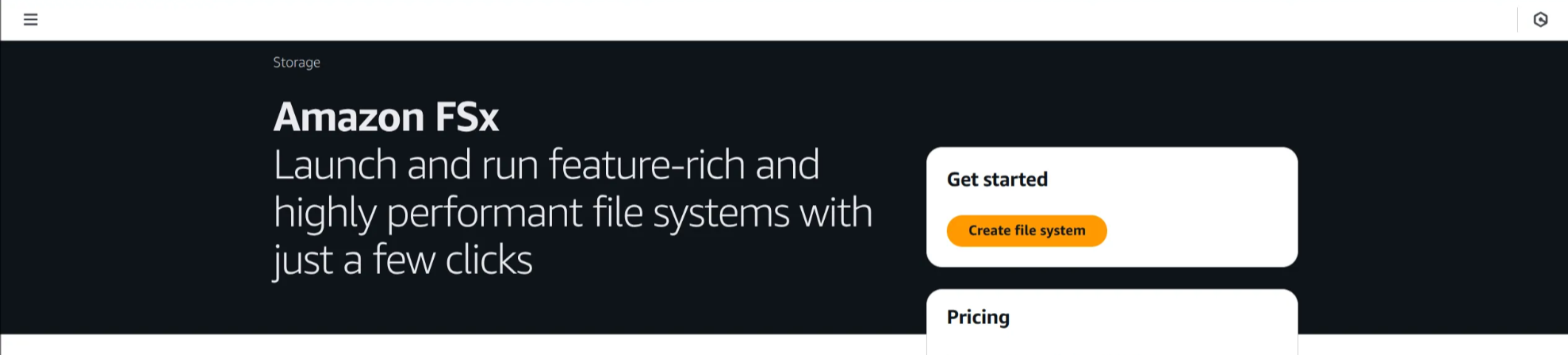
2. Amazon FSx for Lustre 선택 후, Next 클릭
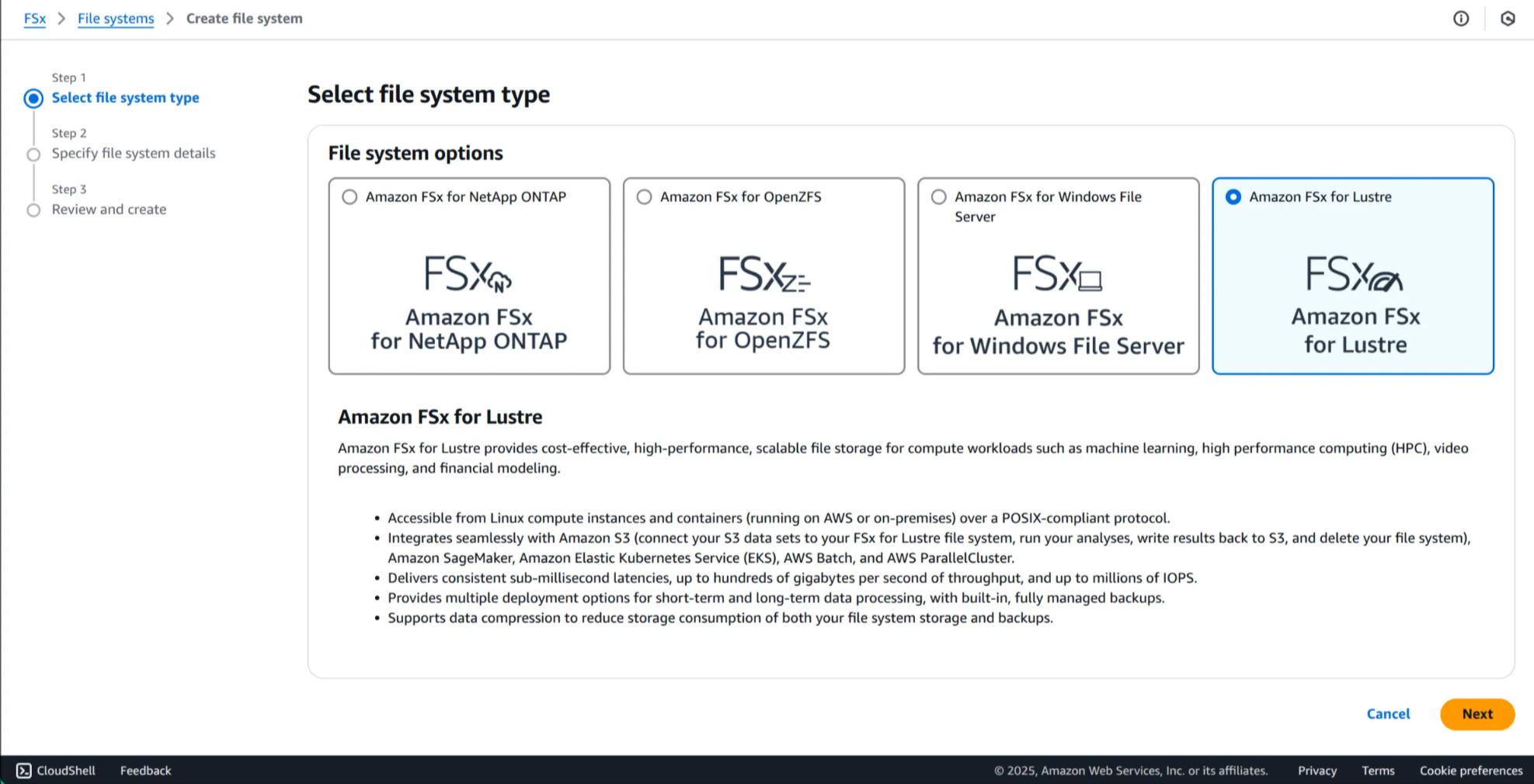
3. FSx for Lustre 배포 옵션 세부사항 확인
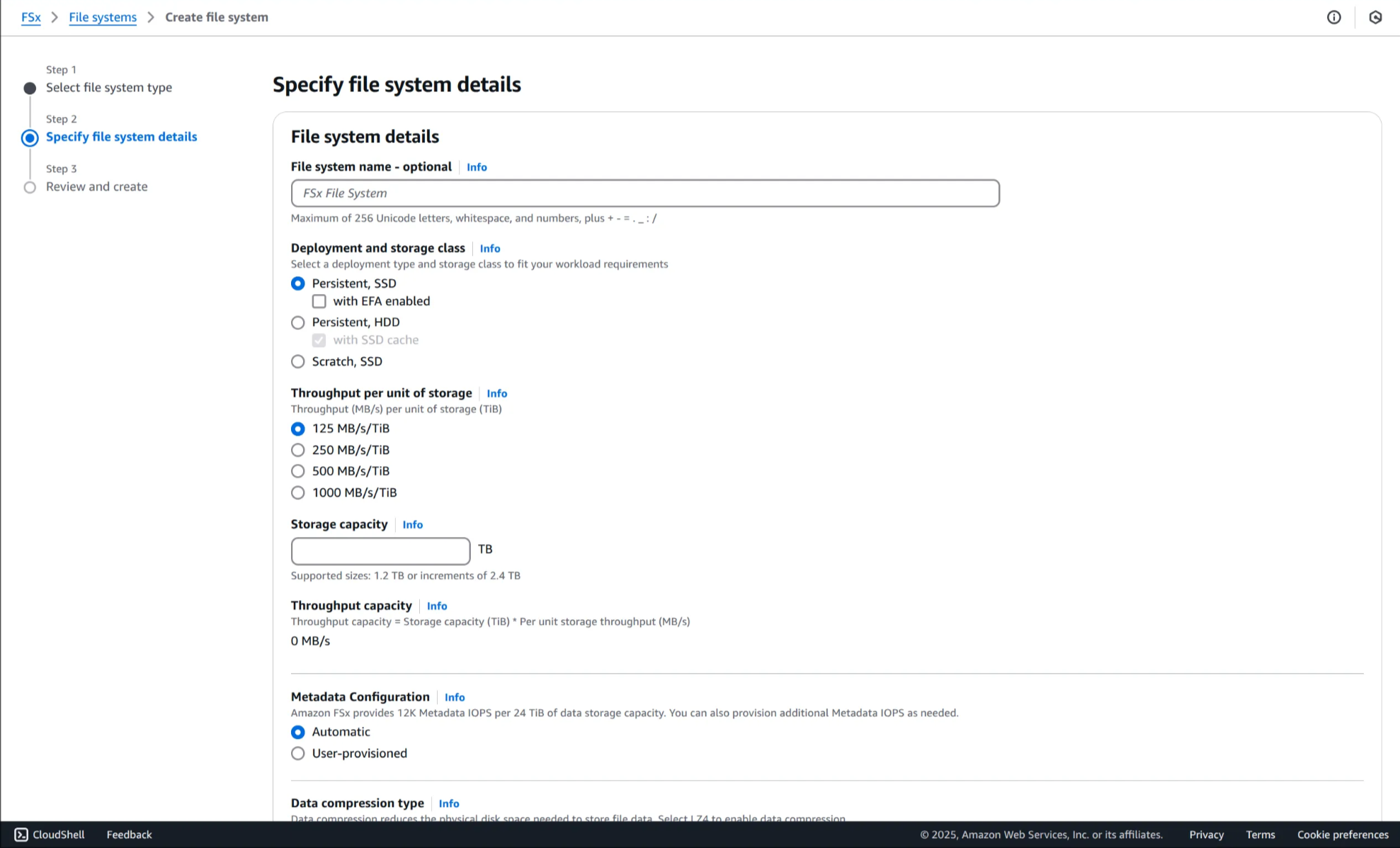
4. Cancel 클릭해 설정 화면 종료 후, FSx 목록으로 복귀
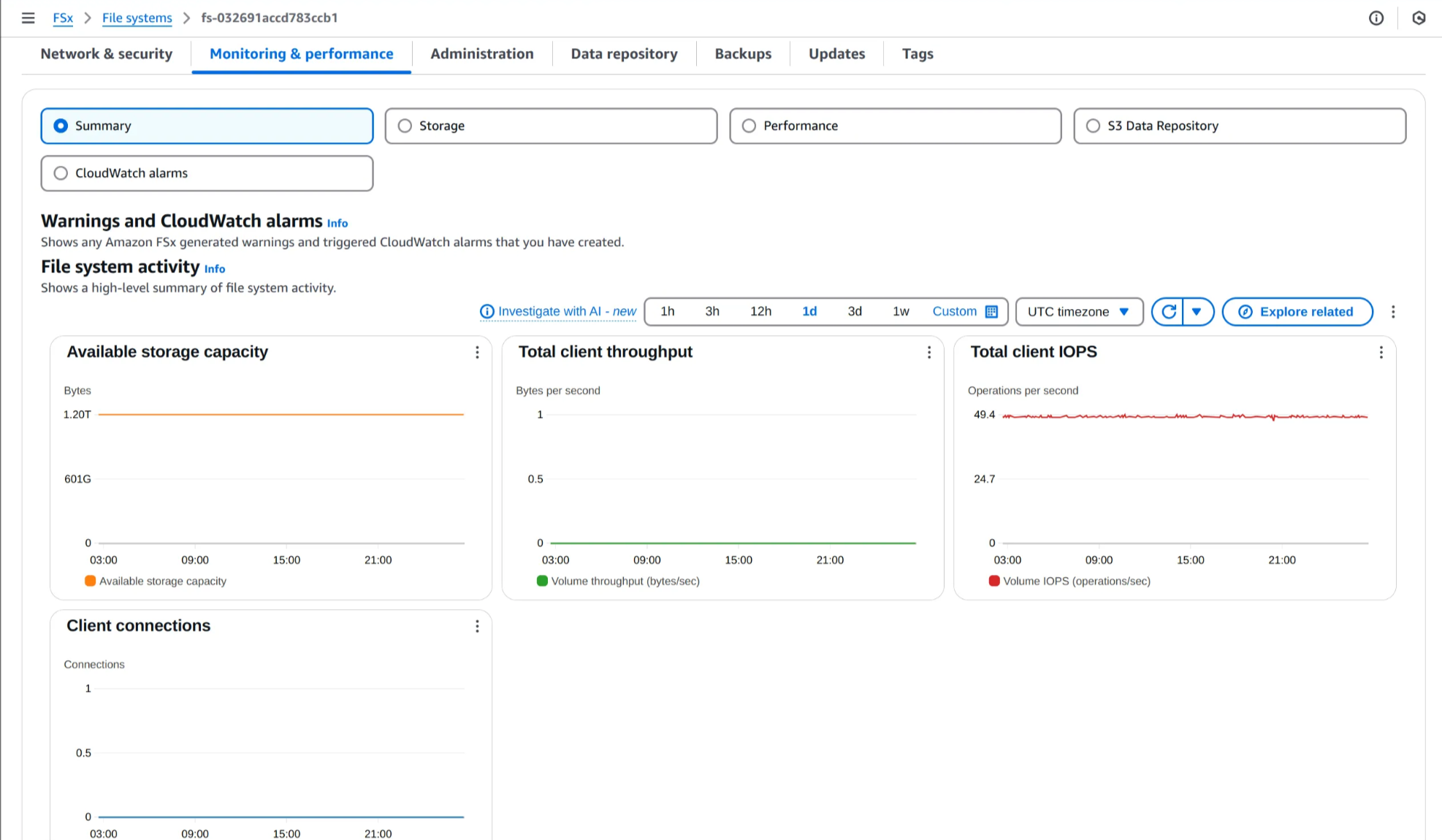
1200GiB FSx for Lustre 인스턴스가 이미 프로비저닝 되어 있음

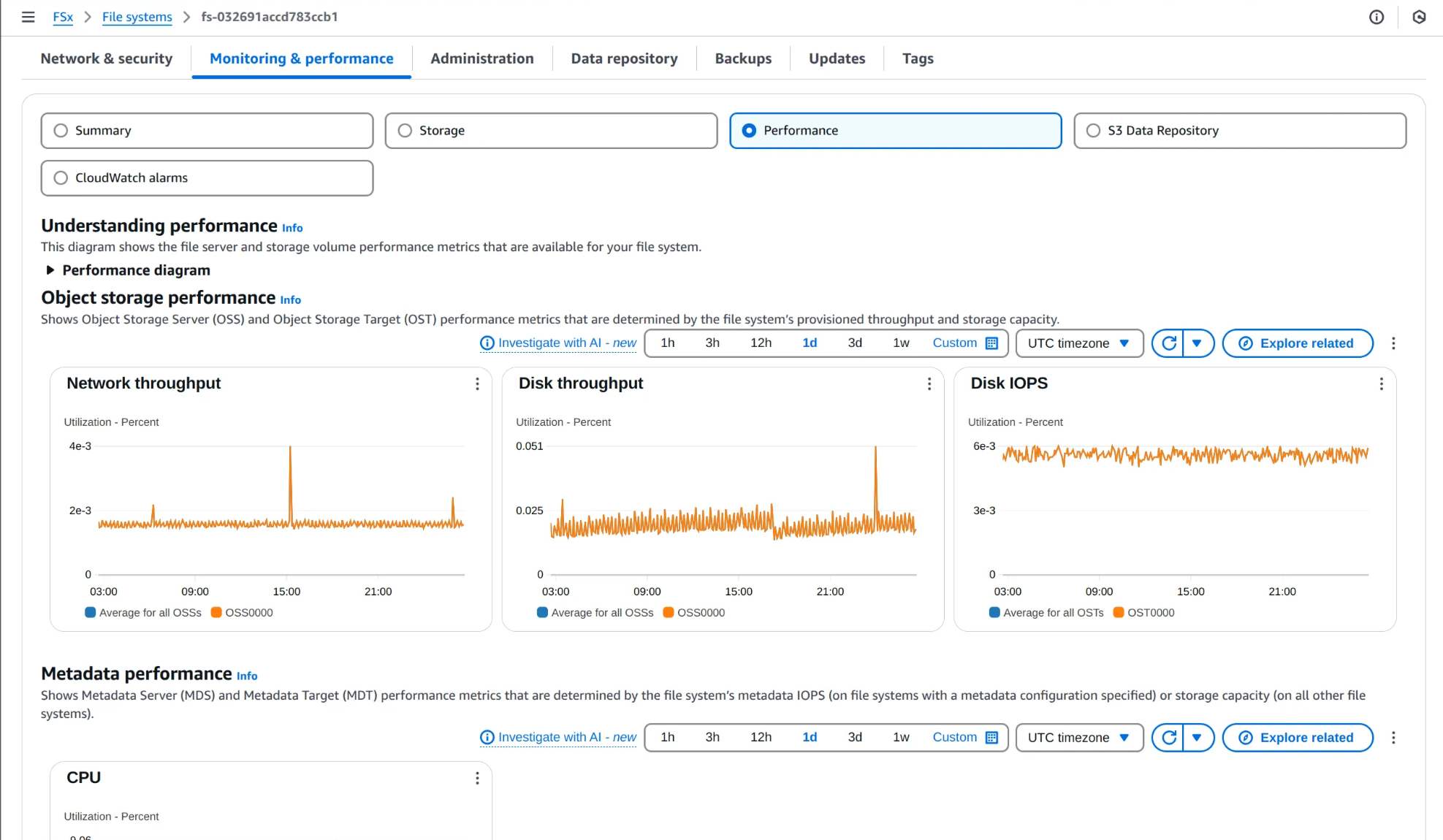
5. 모니터링 및 성능 탭 확인
용량, 처리량, IOPS 요약 지표부터 메타데이터 성능, 네트워크 지표 확인
🤖 생성형 AI 채팅 애플리케이션 배포
1. AWS Inferentia Accelerators용 Karpenter NodePool 및 EC2NodeClass 생성
(1) Cloud9 터미널에서 작업 디렉토리로 이동
WSParticipantRole:~/environment/eks/FSxL $ cd /home/ec2-user/environment/eks/genai
WSParticipantRole:~/environment/eks/genai $
(2) NodePool 정의 확인
WSParticipantRole:~/environment/eks/genai $ cat inferentia_nodepool.yaml✅ 출력
apiVersion: karpenter.sh/v1
kind: NodePool
metadata:
  name: inferentia
  labels:
    intent: genai-apps
    NodeGroupType: inf2-neuron-karpenter
spec:
  template:
    spec:
      taints:
        - key: aws.amazon.com/neuron
          value: "true"
          effect: "NoSchedule"
      requirements:
        - key: "karpenter.k8s.aws/instance-family"
          operator: In
          values: ["inf2"]
        - key: "karpenter.k8s.aws/instance-size"
          operator: In
          values: [ "xlarge", "2xlarge", "8xlarge", "24xlarge", "48xlarge"]
        - key: "kubernetes.io/arch"
          operator: In
          values: ["amd64"]
        - key: "karpenter.sh/capacity-type"
          operator: In
          values: ["spot", "on-demand"]
      nodeClassRef:
        group: karpenter.k8s.aws
        kind: EC2NodeClass
        name: inferentia
  limits:
    cpu: 1000
    memory: 1000Gi
  disruption:
    consolidationPolicy: WhenEmpty
    # expireAfter: 720h # 30 * 24h = 720h
    consolidateAfter: 180s
  weight: 100
---
apiVersion: karpenter.k8s.aws/v1
kind: EC2NodeClass
metadata:
  name: inferentia
spec:
  amiFamily: AL2
  amiSelectorTerms:
  - alias: al2@v20240917
  blockDeviceMappings:
    - deviceName: /dev/xvda
      ebs:
        deleteOnTermination: true
        volumeSize: 100Gi
        volumeType: gp3
  role: "Karpenter-eksworkshop"
  subnetSelectorTerms:
    - tags:
        karpenter.sh/discovery: "eksworkshop"
  securityGroupSelectorTerms:
    - tags:
        karpenter.sh/discovery: "eksworkshop"
  tags:
    intent: apps
    managed-by: karpenter
(3) NodePool 및 EC2NodeClass 배포
WSParticipantRole:~/environment/eks/genai $ kubectl apply -f inferentia_nodepool.yaml

# 결과
nodepool.karpenter.sh/inferentia created
ec2nodeclass.karpenter.k8s.aws/inferentia created
(4) 생성된 리소스 상태 확인
WSParticipantRole:~/environment/eks/genai $ kubectl get nodepool,ec2nodeclass inferentia✅ 출력
NAME                               NODECLASS    NODES   READY   AGE
nodepool.karpenter.sh/inferentia   inferentia   0       True    35s

NAME                                        READY   AGE
ec2nodeclass.karpenter.k8s.aws/inferentia   True    35s
2. 뉴런 디바이스 플러그인 및 스케줄러 설치
(1) 뉴런 디바이스 플러그인 설치
WSParticipantRole:~/environment/eks/genai $ kubectl apply -f https://raw.githubusercontent.com/aws-neuron/aws-neuron-sdk/master/src/k8/k8s-neuron-device-plugin-rbac.yml

# 결과
Warning: resource clusterroles/neuron-device-plugin is missing the kubectl.kubernetes.io/last-applied-configuration annotation which is required by kubectl apply. kubectl apply should only be used on resources created declaratively by either kubectl create --save-config or kubectl apply. The missing annotation will be patched automatically.
clusterrole.rbac.authorization.k8s.io/neuron-device-plugin configured
Warning: resource serviceaccounts/neuron-device-plugin is missing the kubectl.kubernetes.io/last-applied-configuration annotation which is required by kubectl apply. kubectl apply should only be used on resources created declaratively by either kubectl create --save-config or kubectl apply. The missing annotation will be patched automatically.
serviceaccount/neuron-device-plugin configured
Warning: resource clusterrolebindings/neuron-device-plugin is missing the kubectl.kubernetes.io/last-applied-configuration annotation which is required by kubectl apply. kubectl apply should only be used on resources created declaratively by either kubectl create --save-config or kubectl apply. The missing annotation will be patched automatically.
clusterrolebinding.rbac.authorization.k8s.io/neuron-device-plugin configured
WSParticipantRole:~/environment/eks/genai $ kubectl apply -f https://raw.githubusercontent.com/aws-neuron/aws-neuron-sdk/master/src/k8/k8s-neuron-device-plugin.yml
# 결과
daemonset.apps/neuron-device-plugin-daemonset created(2) 뉴런 스케줄러 설치
WSParticipantRole:~/environment/eks/genai $ kubectl apply -f https://raw.githubusercontent.com/aws-neuron/aws-neuron-sdk/master/src/k8/k8s-neuron-scheduler-eks.yml

# 결과
clusterrole.rbac.authorization.k8s.io/k8s-neuron-scheduler created
serviceaccount/k8s-neuron-scheduler created
clusterrolebinding.rbac.authorization.k8s.io/k8s-neuron-scheduler created
Warning: spec.template.metadata.annotations[scheduler.alpha.kubernetes.io/critical-pod]: non-functional in v1.16+; use the "priorityClassName" field instead
deployment.apps/k8s-neuron-scheduler created
service/k8s-neuron-scheduler created
WSParticipantRole:~/environment/eks/genai $ kubectl apply -f https://raw.githubusercontent.com/aws-neuron/aws-neuron-sdk/master/src/k8/my-scheduler.yml
# 결과
serviceaccount/my-scheduler created
clusterrolebinding.rbac.authorization.k8s.io/my-scheduler-as-kube-scheduler created
clusterrolebinding.rbac.authorization.k8s.io/my-scheduler-as-volume-scheduler created
clusterrole.rbac.authorization.k8s.io/my-scheduler created
clusterrolebinding.rbac.authorization.k8s.io/my-scheduler created
configmap/my-scheduler-config created
deployment.apps/my-scheduler created3. vLLM 애플리케이션 파드 배포
(1) vLLM 파드 및 서비스 배포 - 대략 7~8분 소요
WSParticipantRole:~/environment/eks/genai $ kubectl apply -f mistral-fsxl.yaml

# 결과
deployment.apps/vllm-mistral-inf2-deployment created
service/vllm-mistral7b-service created
(2) mistral-fsxl.yaml 파일 확인
WSParticipantRole:~/environment/eks/genai $ cat mistral-fsxl.yaml✅ 출력
apiVersion: apps/v1
kind: Deployment
metadata:
  name: vllm-mistral-inf2-deployment
spec:
  replicas: 1
  selector:
    matchLabels:
      app: vllm-mistral-inf2-server
  template:
    metadata:
      labels:
        app: vllm-mistral-inf2-server
    spec:
      tolerations:
      - key: "aws.amazon.com/neuron"
        operator: "Exists"
        effect: "NoSchedule"
      containers:
      - name: inference-server
        image: public.ecr.aws/u3r1l1j7/eks-genai:neuronrayvllm-100G-root
        resources:
          requests:
            aws.amazon.com/neuron: 1
          limits:
            aws.amazon.com/neuron: 1
        args:
        - --model=$(MODEL_ID)
        - --enforce-eager
        - --gpu-memory-utilization=0.96
        - --device=neuron
        - --max-num-seqs=4
        - --tensor-parallel-size=2
        - --max-model-len=10240
        - --served-model-name=mistralai/Mistral-7B-Instruct-v0.2-neuron
        env:
        - name: MODEL_ID
          value: /work-dir/Mistral-7B-Instruct-v0.2/
        - name: NEURON_COMPILE_CACHE_URL
          value: /work-dir/Mistral-7B-Instruct-v0.2/neuron-cache/
        - name: PORT
          value: "8000"
        volumeMounts:
        - name: persistent-storage
          mountPath: "/work-dir"
      volumes:
      - name: persistent-storage
        persistentVolumeClaim:
          claimName: fsx-lustre-claim
---
apiVersion: v1
kind: Service
metadata:
  name: vllm-mistral7b-service
spec:
  selector:
    app: vllm-mistral-inf2-server
  ports:
  - protocol: TCP
    port: 80
    targetPort: 8000
(3) 배포 상태 모니터링
WSParticipantRole:~/environment/eks/genai $ kubectl get pod✅ 출력
NAME                                            READY   STATUS              RESTARTS   AGE
kube-ops-view-5d9d967b77-w75cm                  1/1     Running             0          2d
vllm-mistral-inf2-deployment-7d886c8cc8-n6sbb   0/1     ContainerCreating   0          87s
4. EKS 콘솔에서 Inferentia 노드 확인
(1) eksworkshop 클러스터 선택

(2) Compute 탭에서 inf2.xlarge 노드 확인
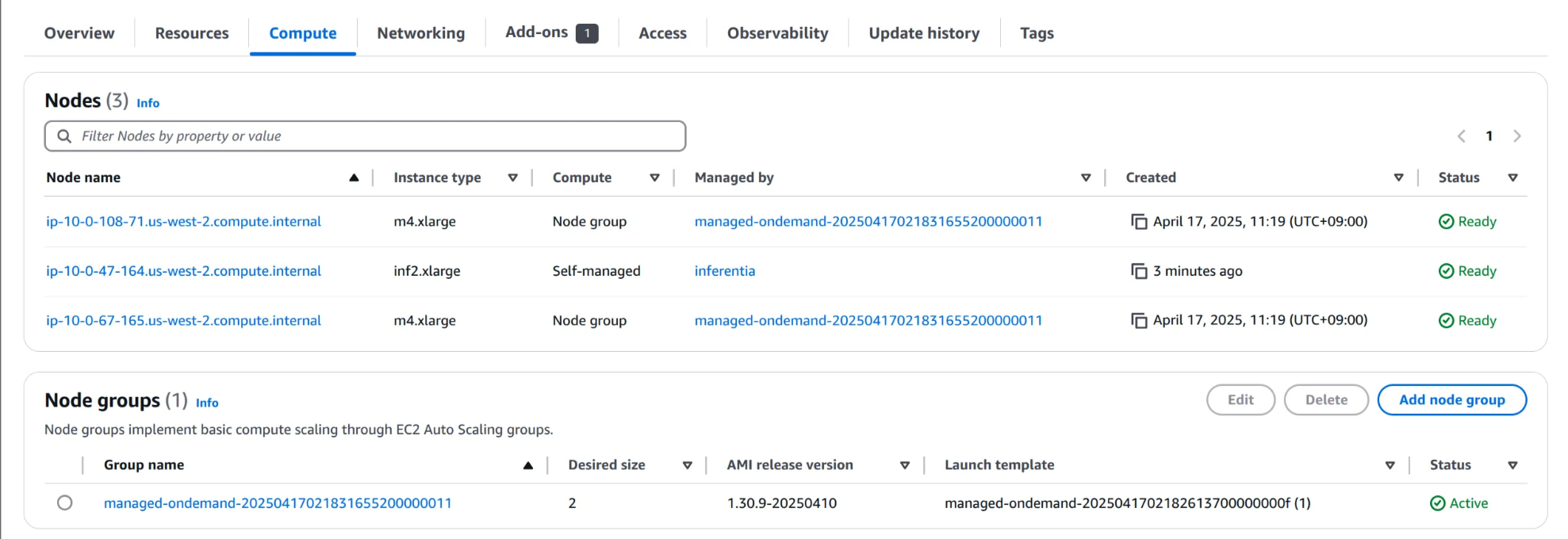
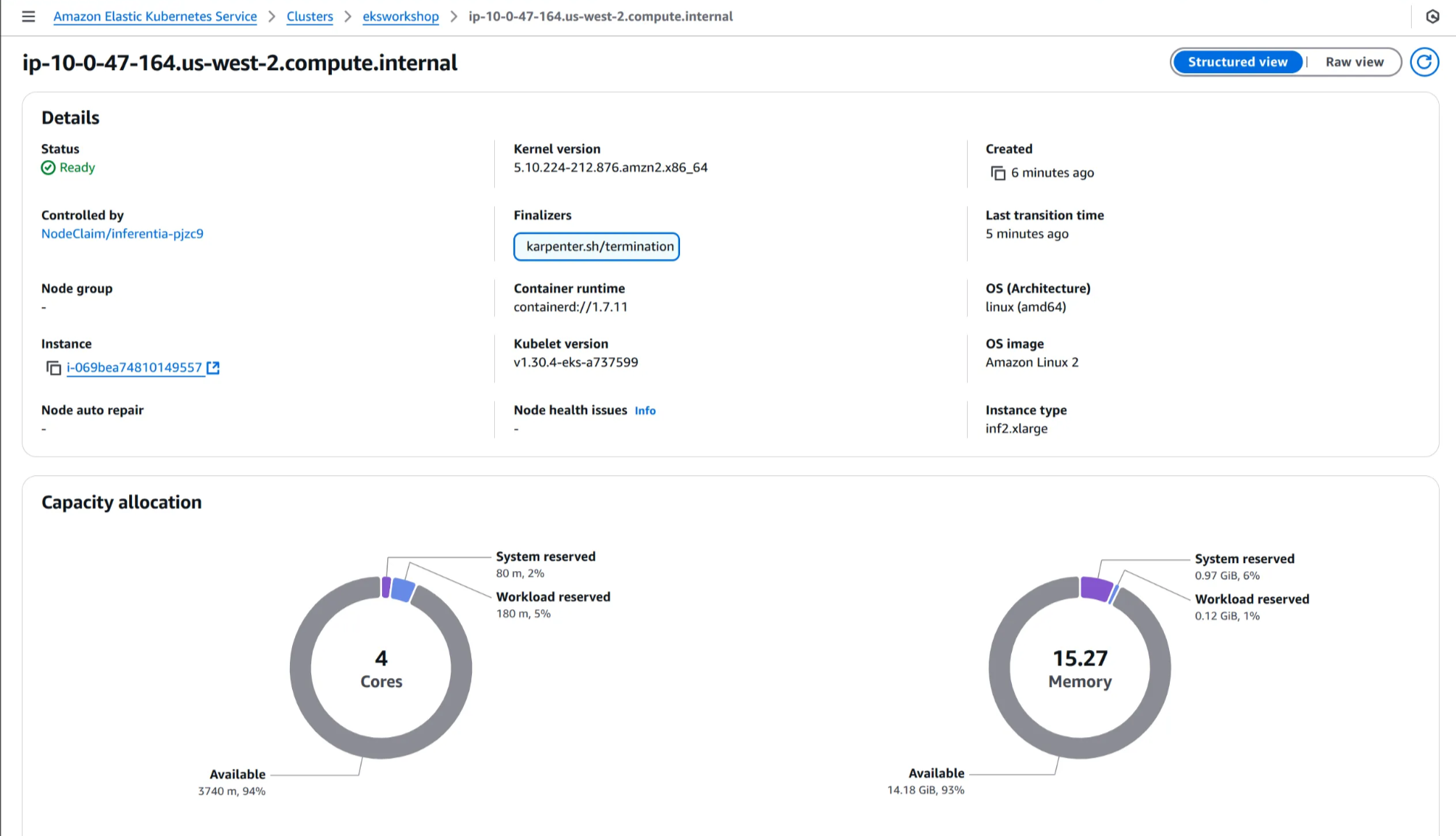
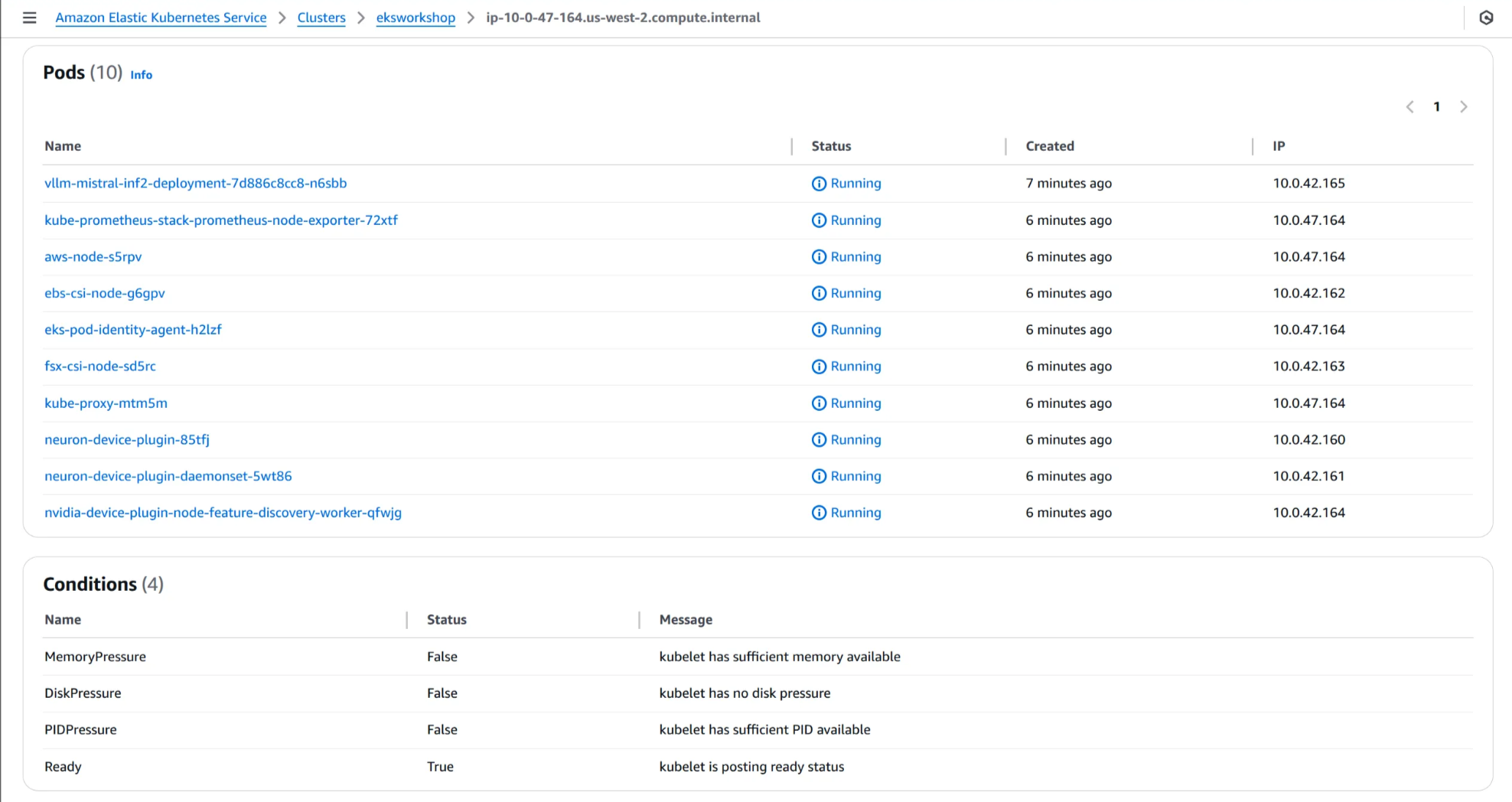
(3) 노드 이름 클릭 후, 용량 할당 및 Pod 세부 정보 확인
WSParticipantRole:~/environment/eks/genai $ kubectl get pod
NAME                                            READY   STATUS    RESTARTS   AGE
kube-ops-view-5d9d967b77-w75cm                  1/1     Running   0          2d
vllm-mistral-inf2-deployment-7d886c8cc8-n6sbb   1/1     Running   0          8m2s
💬 모델과 상호 작용하기 위한 WebUI 채팅 애플리케이션 배포
1. WebUI 애플리케이션 배포
WSParticipantRole:~/environment/eks/genai $ kubectl apply -f open-webui.yaml

# 결과
deployment.apps/open-webui-deployment created
service/open-webui-service created
ingress.networking.k8s.io/open-webui-ingress created
2. WebUI 인터페이스 URL 확인
WSParticipantRole:~/environment/eks/genai $ kubectl get ing✅ 출력
NAME                 CLASS   HOSTS   ADDRESS                                                    PORTS   AGE
open-webui-ingress   alb     *       open-webui-ingress-628580148.us-west-2.elb.amazonaws.com   80      32s
3. WebUI 접속
open-webui-ingress-628580148.us-west-2.elb.amazonaws.com
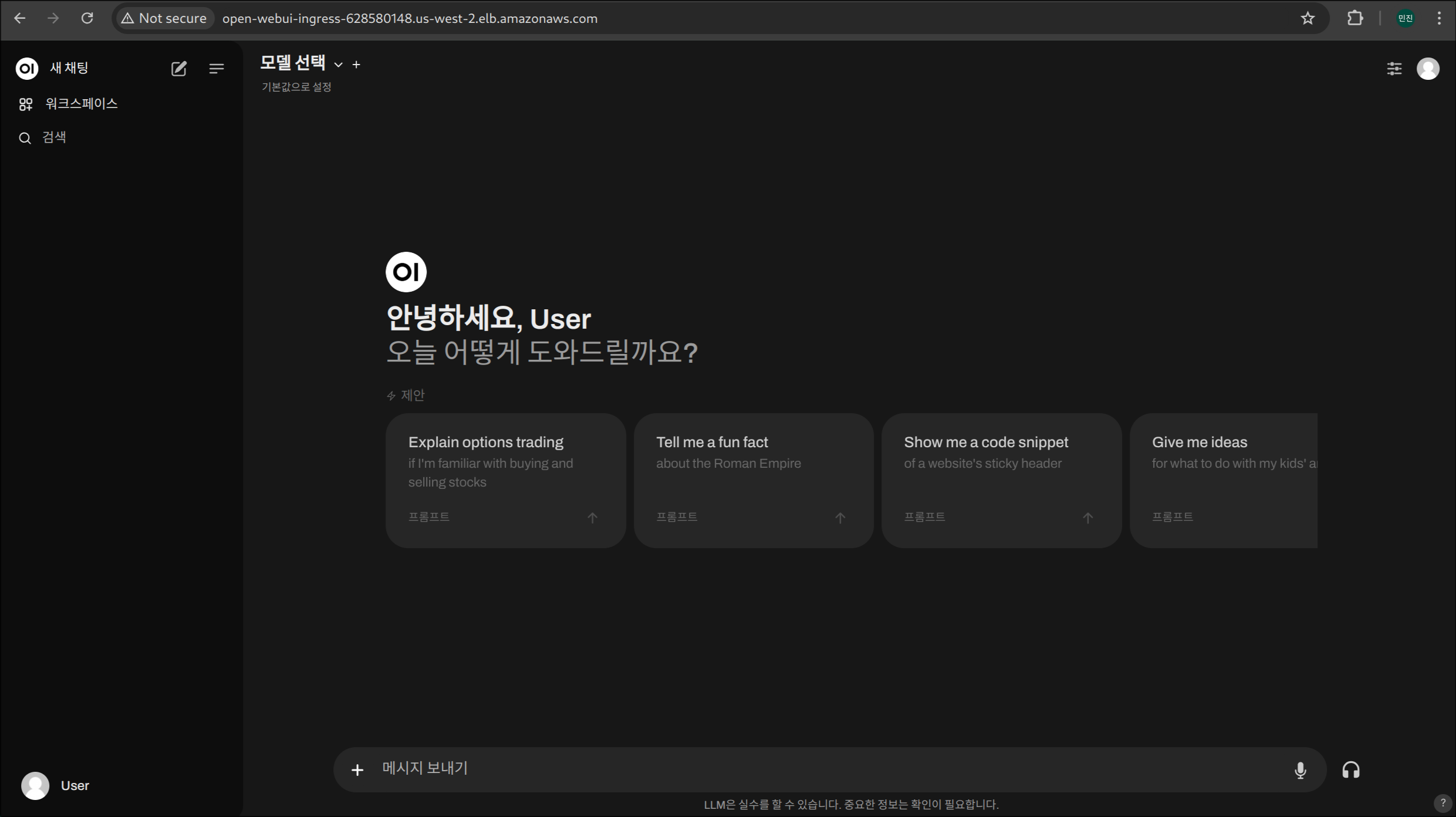
4. 모델 선택 및 채팅 시작
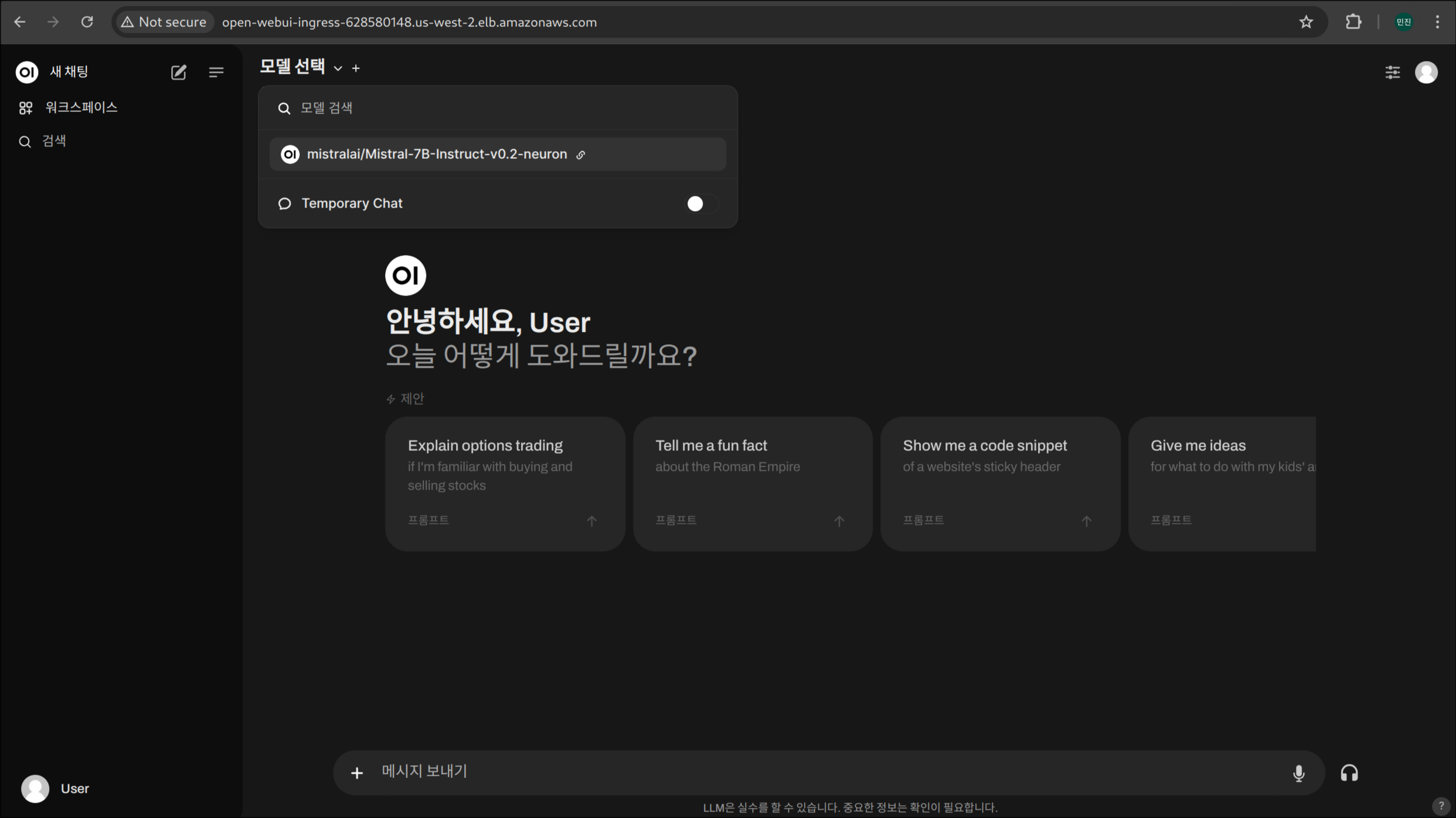
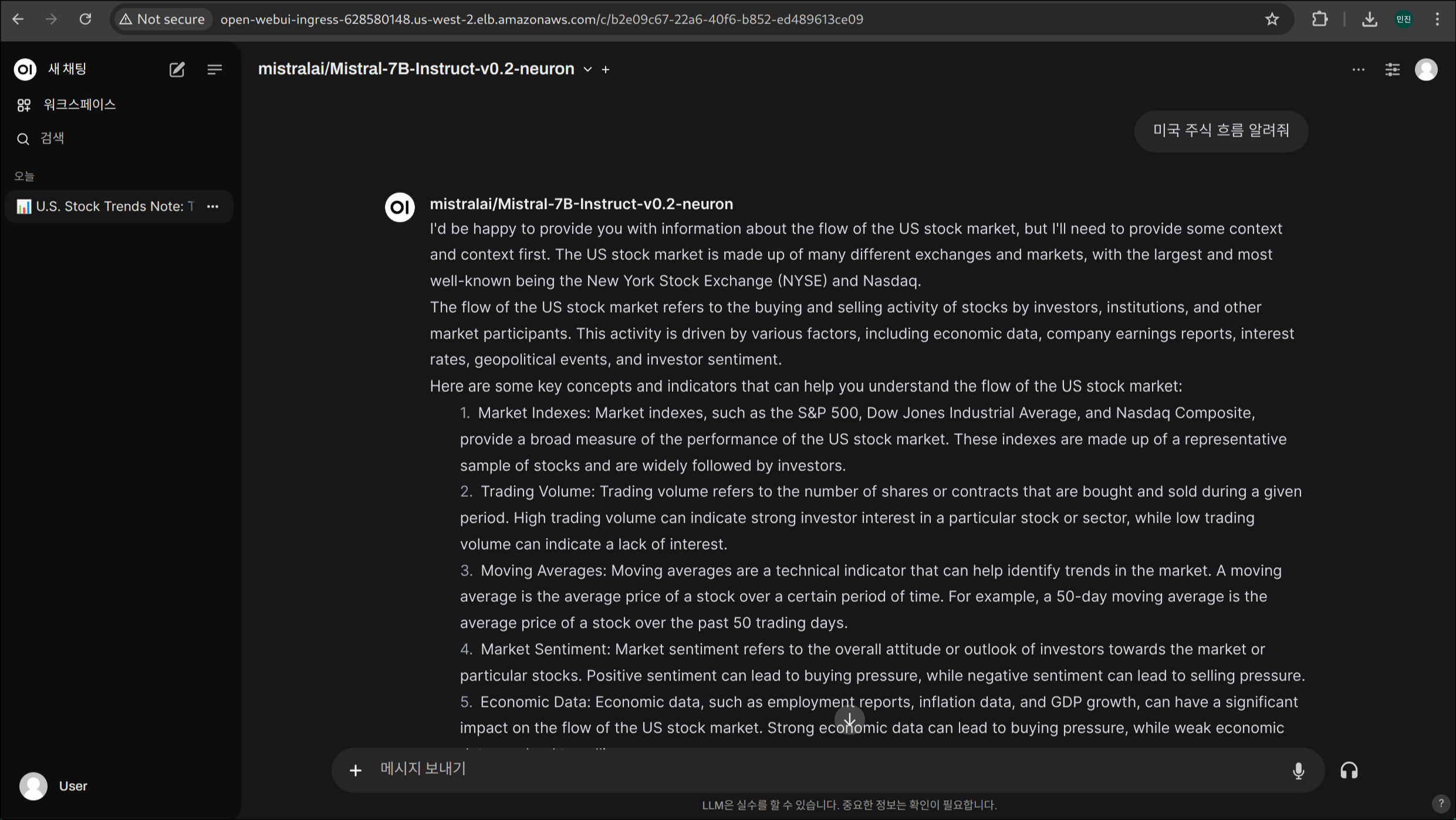
Mistral‑7B 데이터 확인 및 생성된 데이터 자산 공유 · 복제
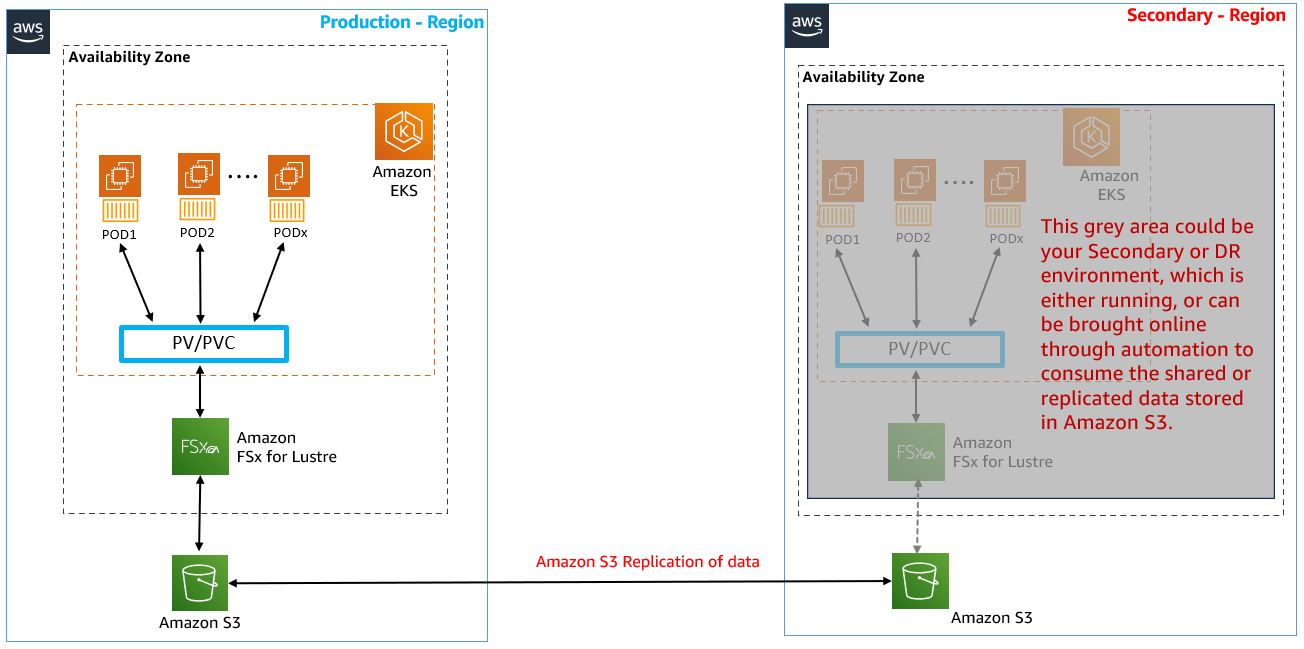
🔄 S3와 연동된 FSx for Lustre 인스턴스에 대한 크로스 리전 복제 설정하기
1. Amazon S3 콘솔 접속
2. 해당 지역에 생성된 S3 버킷 선택 (2ndregion이 있는 S3 버킷 x)
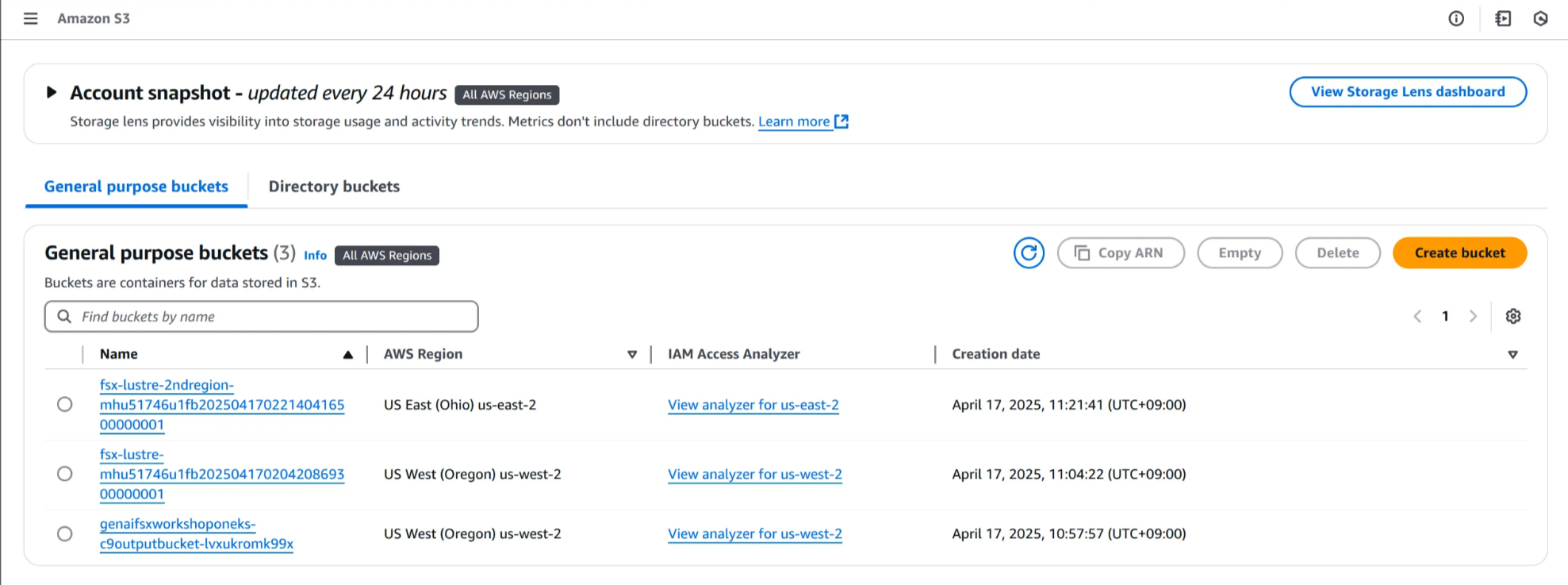
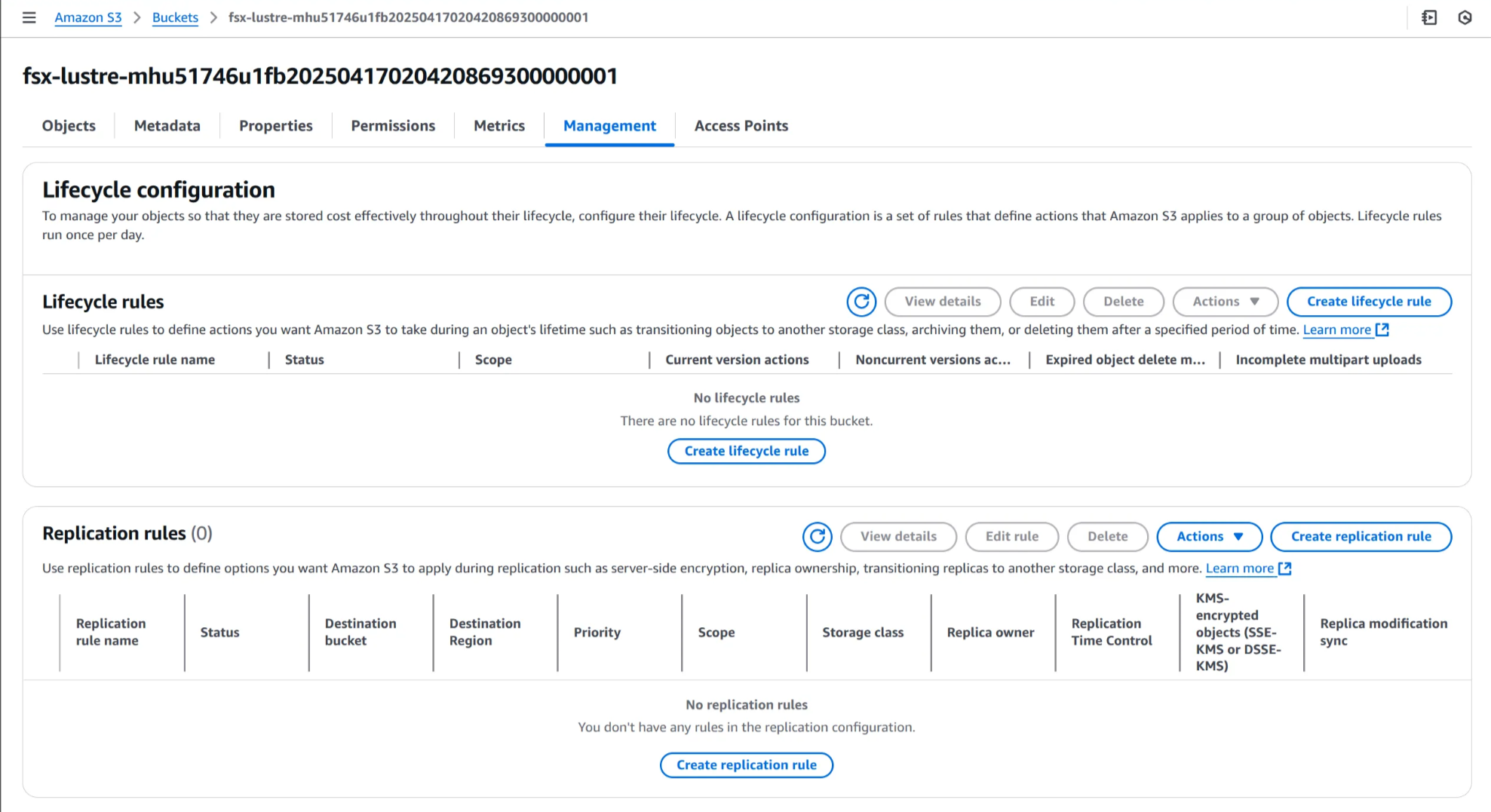
3. Replication rules 생성
Management → Create replication rules 선택
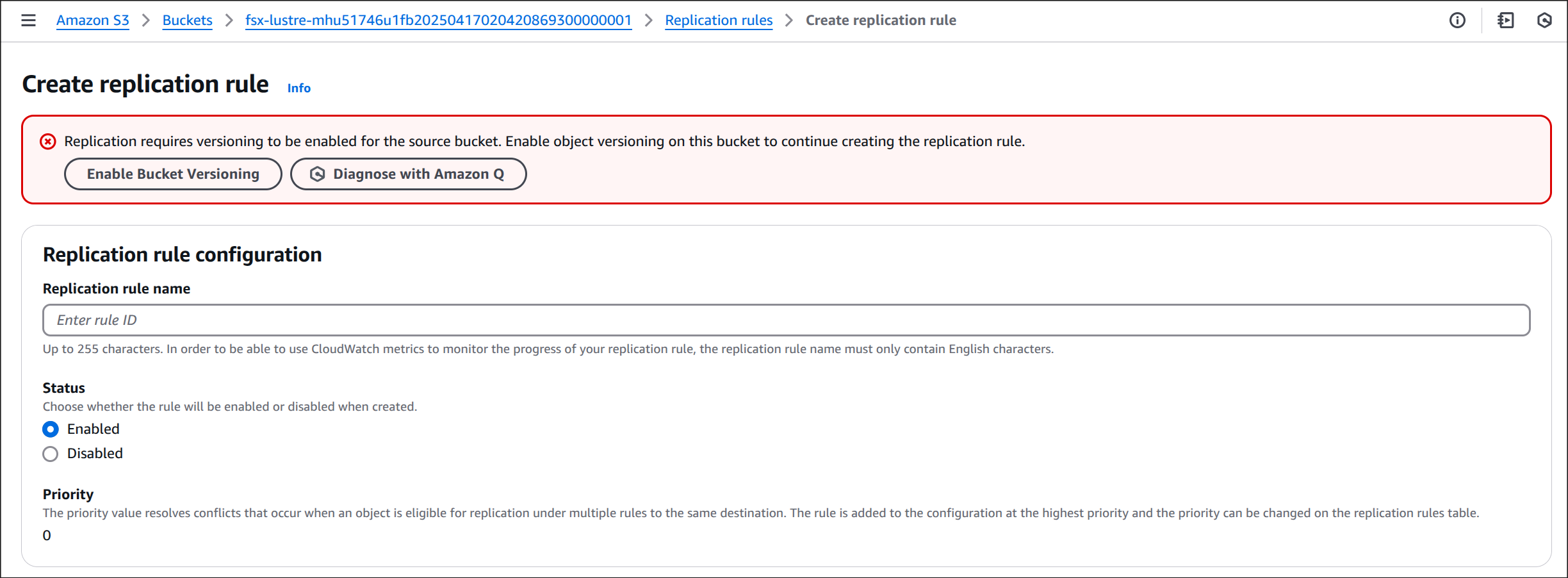
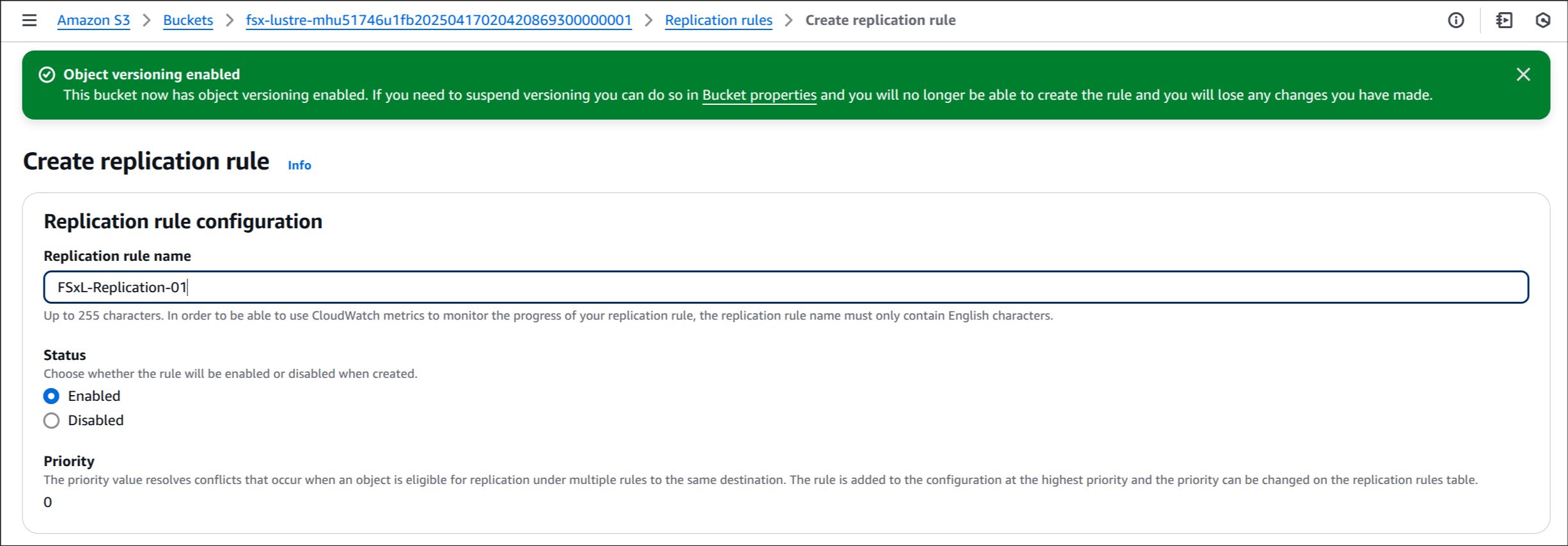
4. Enable Bucket Versioning 선택
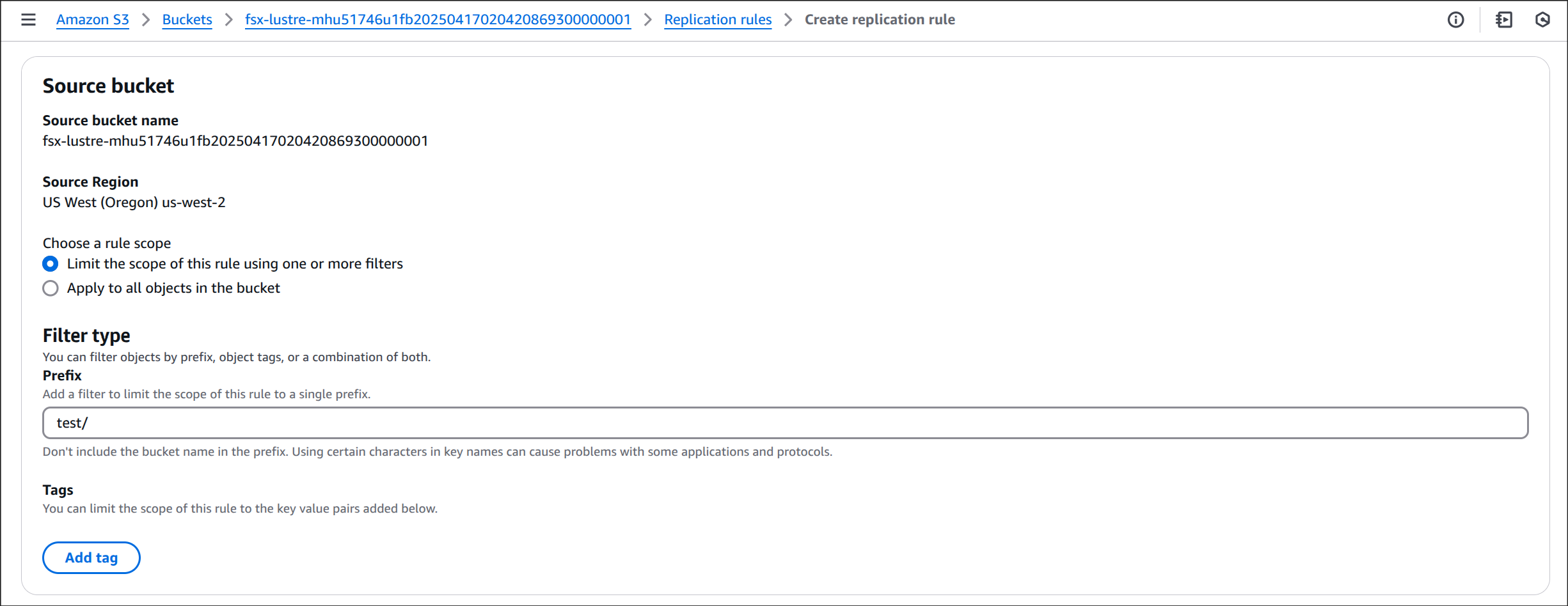
5. Source bucket 설정
Limit the scope of this rule using one or more filters 선택 후, 필터값으로 test/ 입력
6. Destination
Browse S3 → fsx-lustre-bucket-2ndregion-xxxx → Choose path 선택
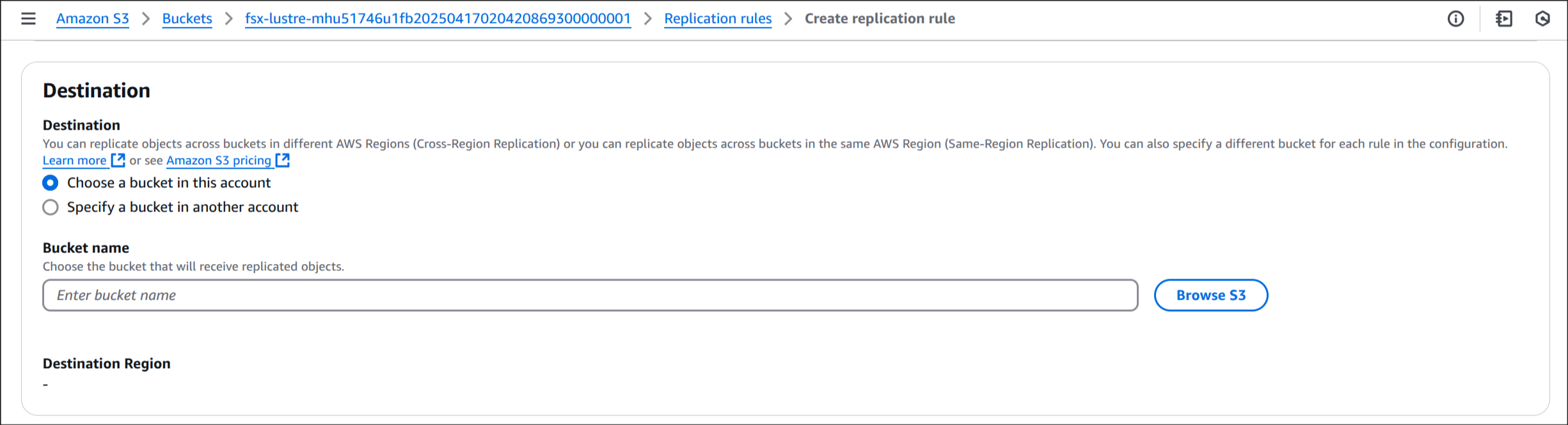
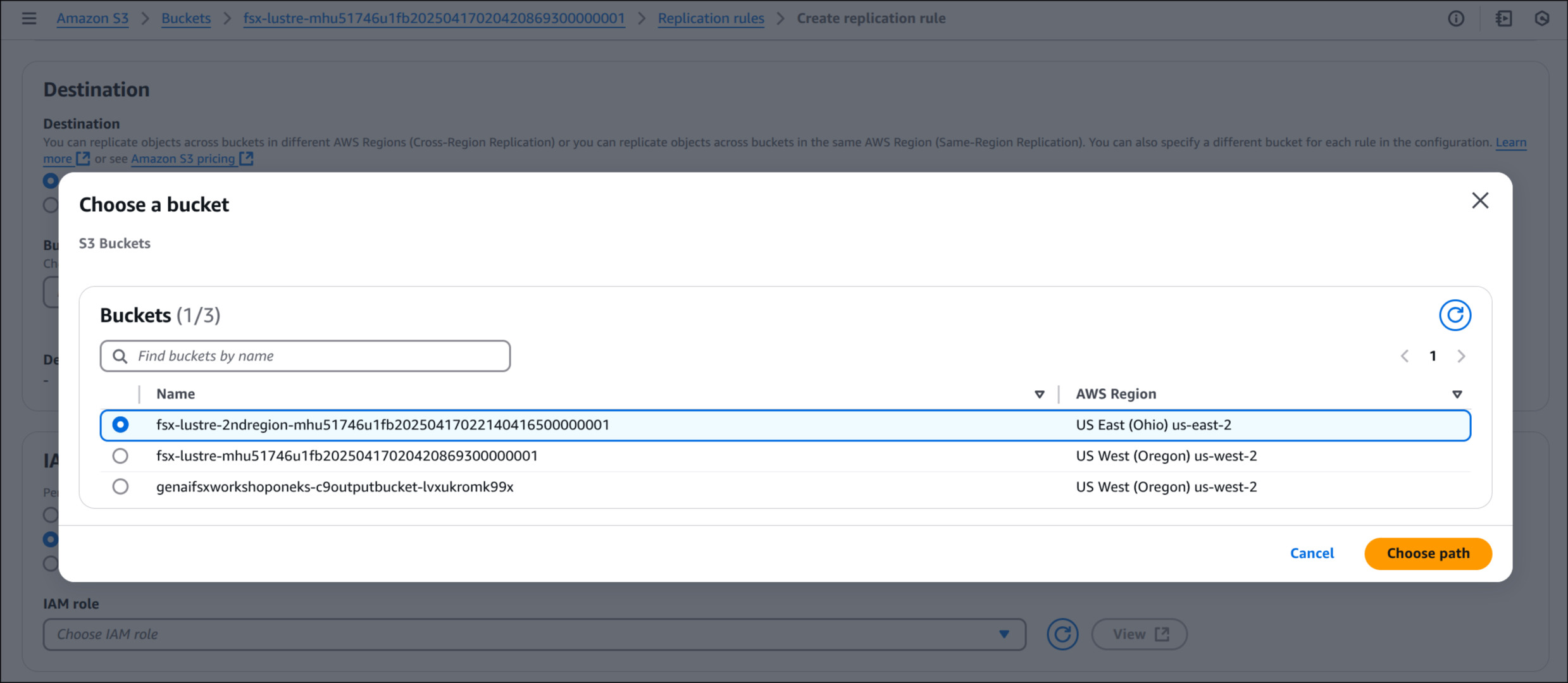
Enable Versioning 선택
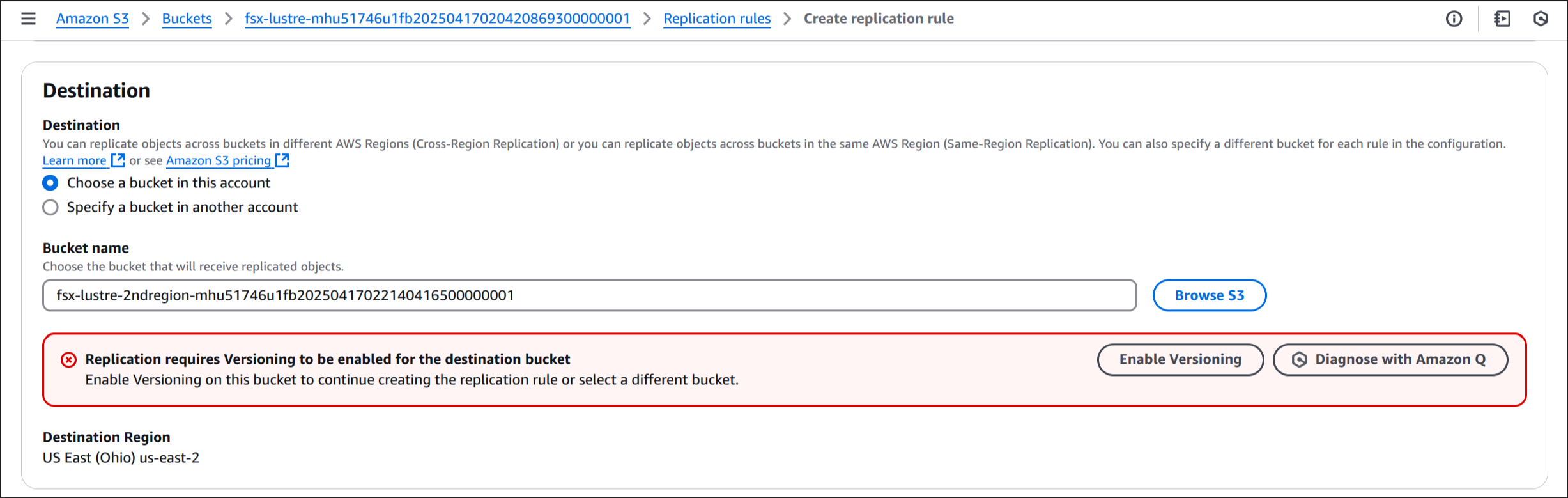
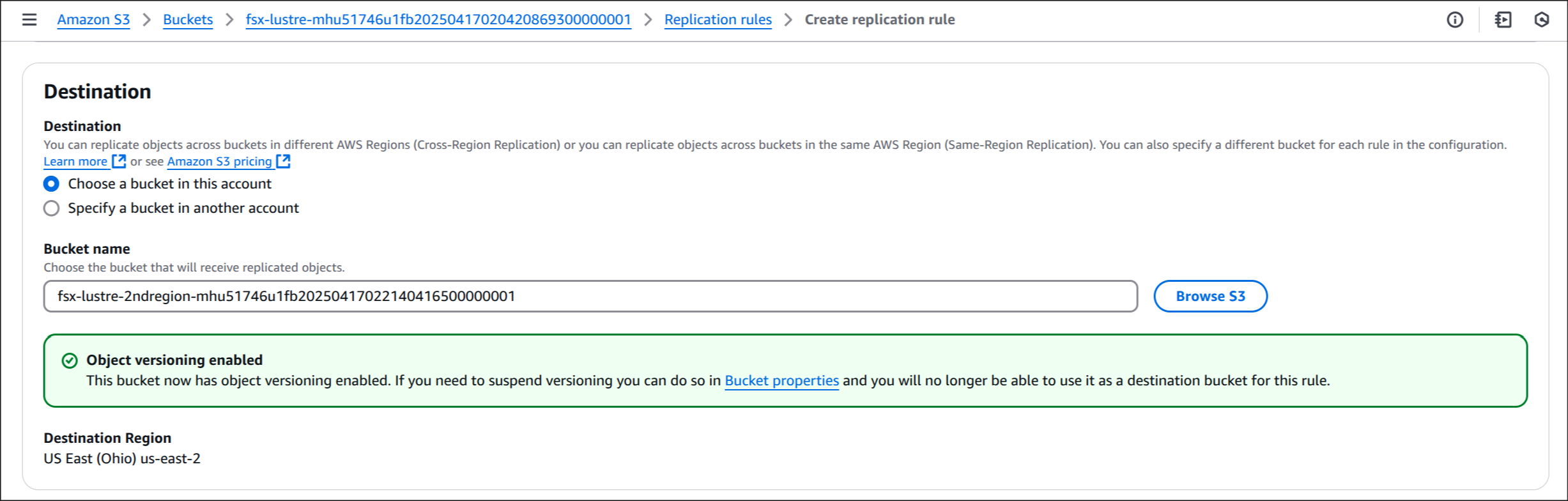
7. IAM 역할 지정
s3-cross-region-replication-role* 선택


8. Encryption
Choose from your AWS KSM keys
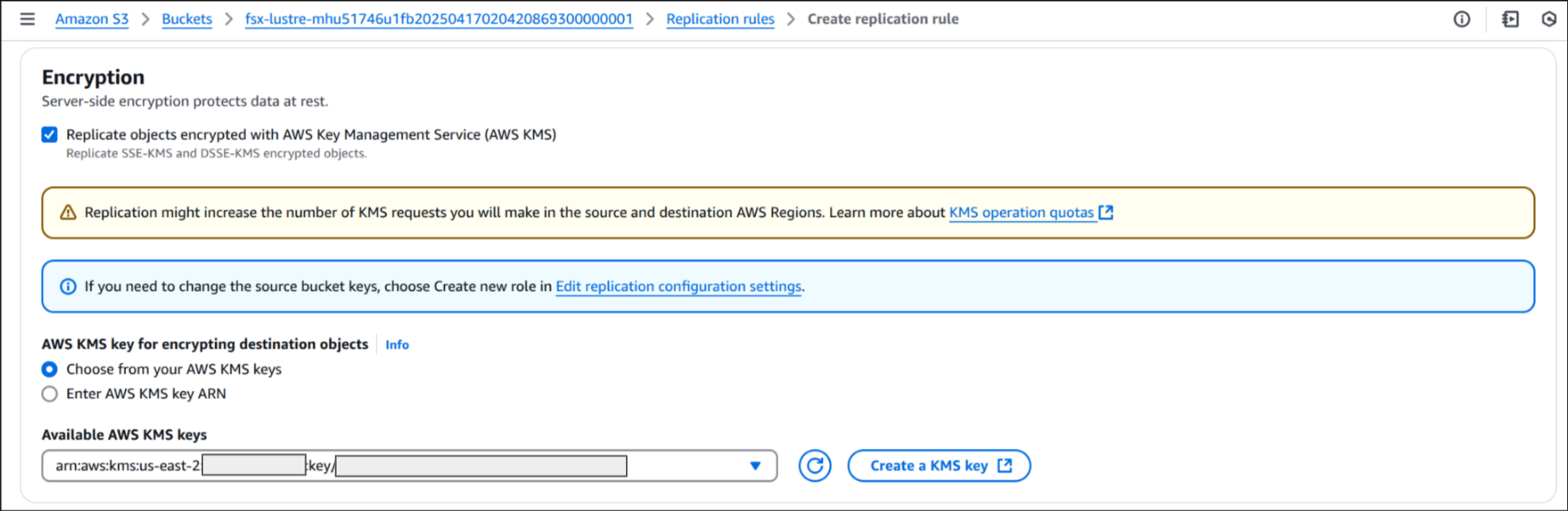
9. Save
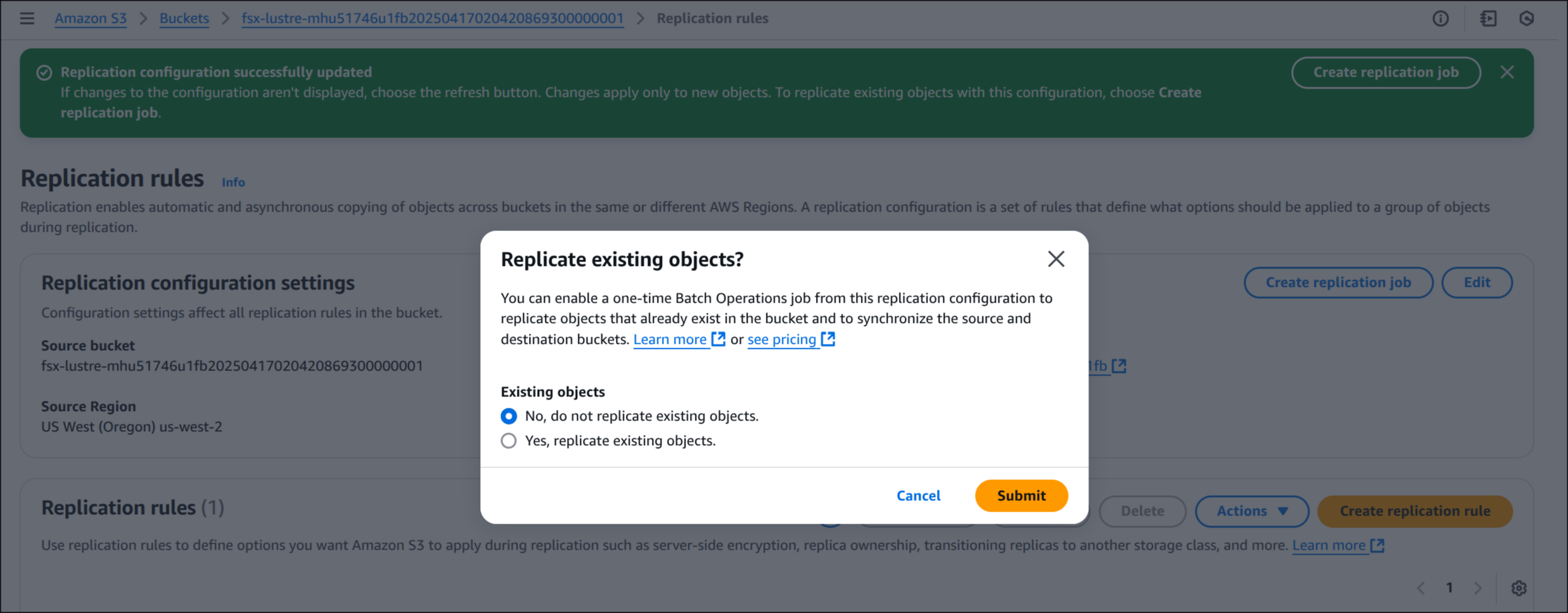
Replicate existing objects? → No, do not replicate existing objects → Submit
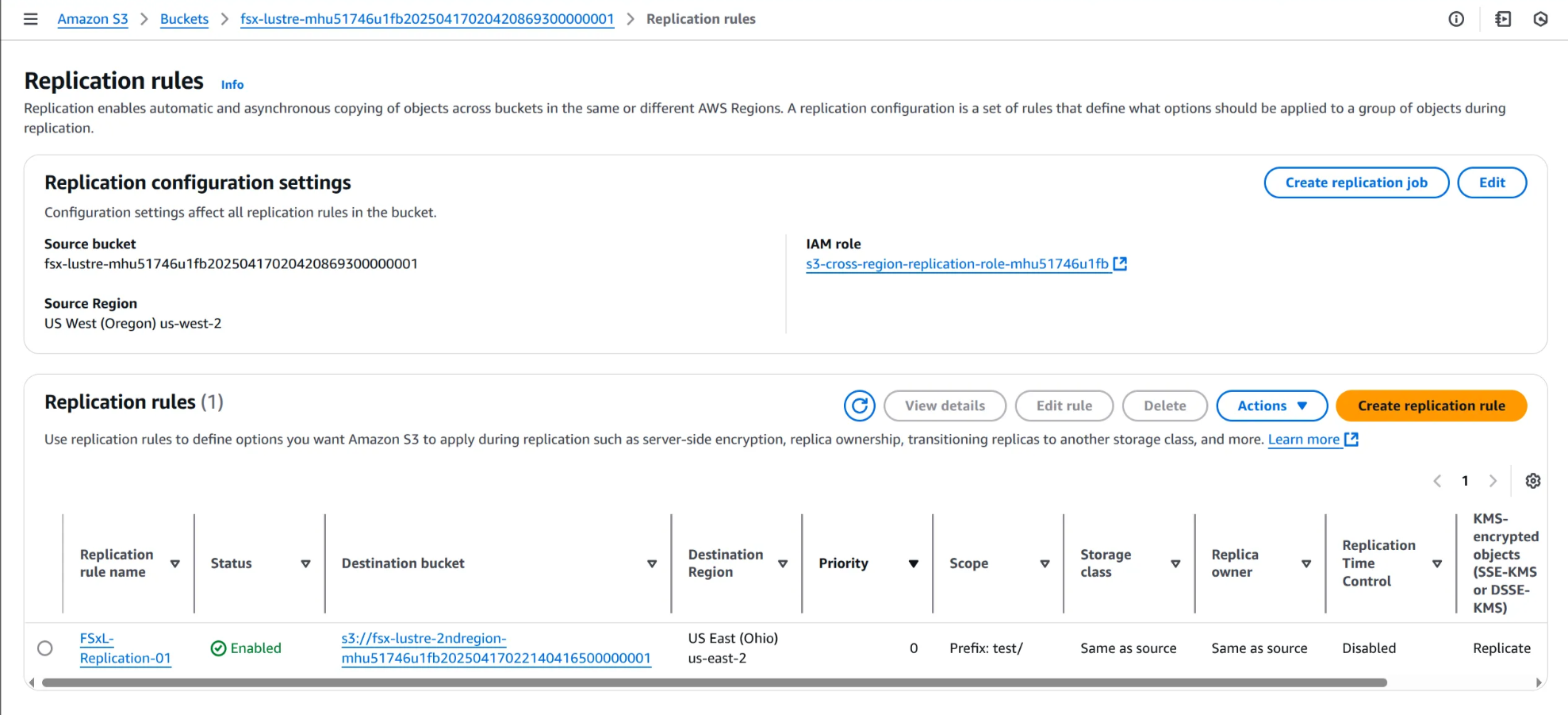
10. Replication rules 생성 확인
🧪 Mistral-7B 데이터 검사 및 테스트 파일 생성
1. 작업 디렉터리 이동
WSParticipantRole:~/environment/eks/genai $ cd /home/ec2-user/environment/eks/FSxL
WSParticipantRole:~/environment/eks/FSxL $
2. 파드 목록 조회
WSParticipantRole:~/environment/eks/FSxL $ kubectl get pods
NAME                                            READY   STATUS    RESTARTS   AGE
kube-ops-view-5d9d967b77-w75cm                  1/1     Running   0          2d1h
open-webui-deployment-5d7ff94bc9-wfv9v          1/1     Running   0          26m
vllm-mistral-inf2-deployment-7d886c8cc8-n6sbb 1/1 Running 0 35mvllm-으로 시작하는 파드 이름 복사
vllm-mistral-inf2-deployment-7d886c8cc8-n6sbb3. vLLM 파드 로그인
WSParticipantRole:~/environment/eks/FSxL $ kubectl exec -it vllm-mistral-inf2-deployment-7d886c8cc8-n6sbb -- bash
bash: /home/ray/anaconda3/lib/libtinfo.so.6: no version information available (required by bash)
(base) root@vllm-mistral-inf2-deployment-7d886c8cc8-n6sbb:~#
4. PV 마운트 위치 확인
(base) root@vllm-mistral-inf2-deployment-7d886c8cc8-n6sbb:~# df -h✅ 출력
Filesystem                 Size  Used Avail Use% Mounted on
overlay                    100G   23G   78G  23% /
tmpfs                       64M     0   64M   0% /dev
tmpfs                      7.7G     0  7.7G   0% /sys/fs/cgroup
10.0.34.188@tcp:/u42dbb4v  1.2T   28G  1.1T   3% /work-dir
/dev/nvme0n1p1             100G   23G   78G  23% /etc/hosts
shm                         64M     0   64M   0% /dev/shm
tmpfs                       15G   12K   15G   1% /run/secrets/kubernetes.io/serviceaccount
tmpfs                      7.7G     0  7.7G   0% /proc/acpi
tmpfs                      7.7G     0  7.7G   0% /sys/firmware
work -dir은 FSx for Lustre 기반 PV임
5. PV에 저장된 내용 확인
(base) root@vllm-mistral-inf2-deployment-7d886c8cc8-n6sbb:~# cd /work-dir/
(base) root@vllm-mistral-inf2-deployment-7d886c8cc8-n6sbb:/work-dir# ls -ll
✅ 출력
total 297
drwxr-xr-x 5 root root  33280 Apr 16 19:30 Mistral-7B-Instruct-v0.2
-rw-r--r-- 1 root root 151289 Apr 16 19:32 sysprep
Mistral-7B 모델 폴더 확인
(base) root@vllm-mistral-inf2-deployment-7d886c8cc8-n6sbb:/work-dir# cd Mistral-7B-Instruct-v0.2/
(base) root@vllm-mistral-inf2-deployment-7d886c8cc8-n6sbb:/work-dir/Mistral-7B-Instruct-v0.2# ls -ll
✅ 출력
total 2550
drwxr-xr-x 3 root root   33280 Apr 16 19:30 -split
-rwxr-xr-x 1 root root    5471 Apr 16 19:05 README.md
-rwxr-xr-x 1 root root     596 Apr 16 19:05 config.json
-rwxr-xr-x 1 root root     111 Apr 16 19:05 generation_config.json
-rwxr-xr-x 1 root root   25125 Apr 16 19:05 model.safetensors.index.json
drwxr-xr-x 3 root root   33280 Apr 16 19:30 neuron-cache
-rwxr-xr-x 1 root root   23950 Apr 16 19:05 pytorch_model.bin.index.json
-rwxr-xr-x 1 root root     414 Apr 16 19:05 special_tokens_map.json
-rwxr-xr-x 1 root root 1795188 Apr 16 19:05 tokenizer.json
-rwxr-xr-x 1 root root  493443 Apr 16 19:05 tokenizer.model
-rwxr-xr-x 1 root root    2103 Apr 16 19:05 tokenizer_config.json
6. 테스트 폴더 및 파일 생성
(base) root@vllm-mistral-inf2-deployment-7d886c8cc8-n6sbb:/work-dir/Mistral-7B-Instruct-v0.2# cd /work-dir
(base) root@vllm-mistral-inf2-deployment-7d886c8cc8-n6sbb:/work-dir# mkdir test
(base) root@vllm-mistral-inf2-deployment-7d886c8cc8-n6sbb:/work-dir# cd test
(base) root@vllm-mistral-inf2-deployment-7d886c8cc8-n6sbb:/work-dir/test# cp /work-dir/Mistral-7B-Instruct-v0.2/README.md /work-dir/test/testfile
(base) root@vllm-mistral-inf2-deployment-7d886c8cc8-n6sbb:/work-dir/test# ls -ll /work-dir/test
✅ 출력
total 1
-rwxr-xr-x 1 root root 5471 Apr 18 20:33 testfile
9. S3 버킷 복제 결과 확인
(1) S3 콘솔 접속
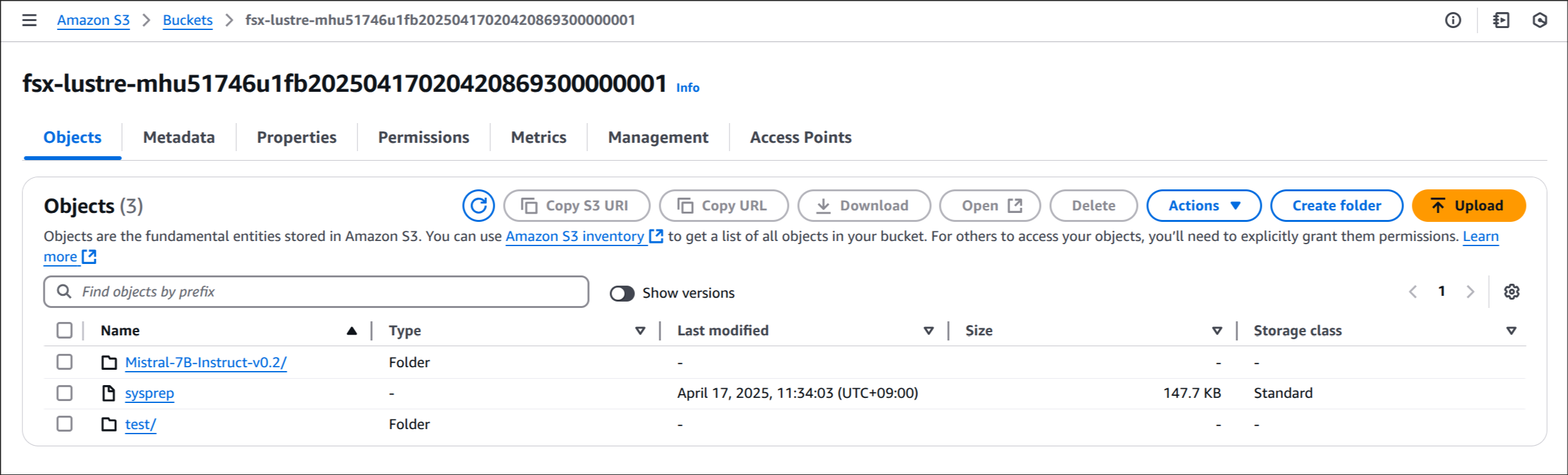
(2) 원본 버킷에서 데이터 확인
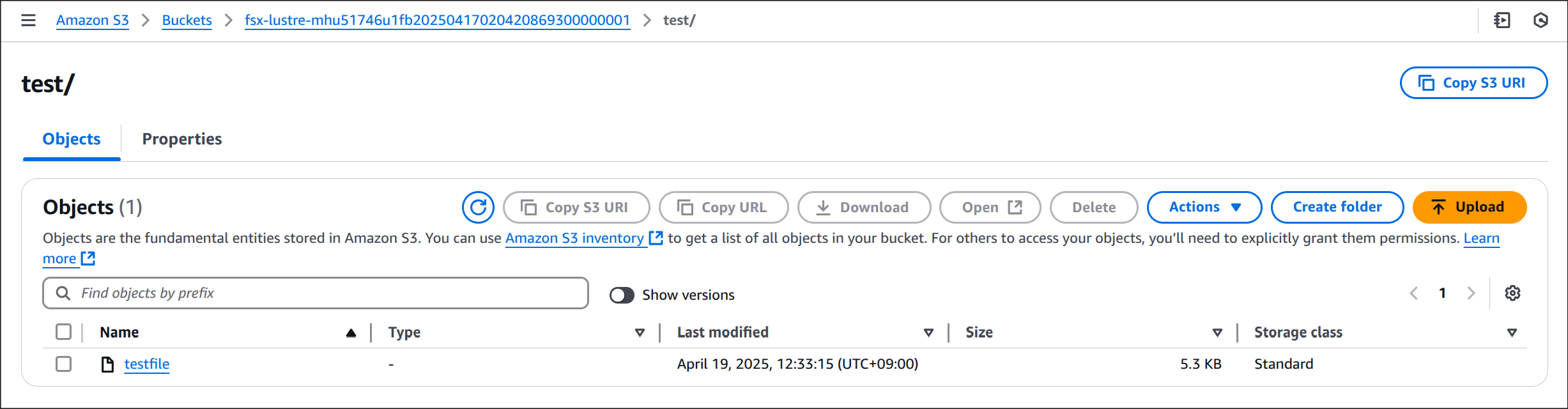
(3) 대상 버킷(2ndregion)에서 복제된 데이터 확인
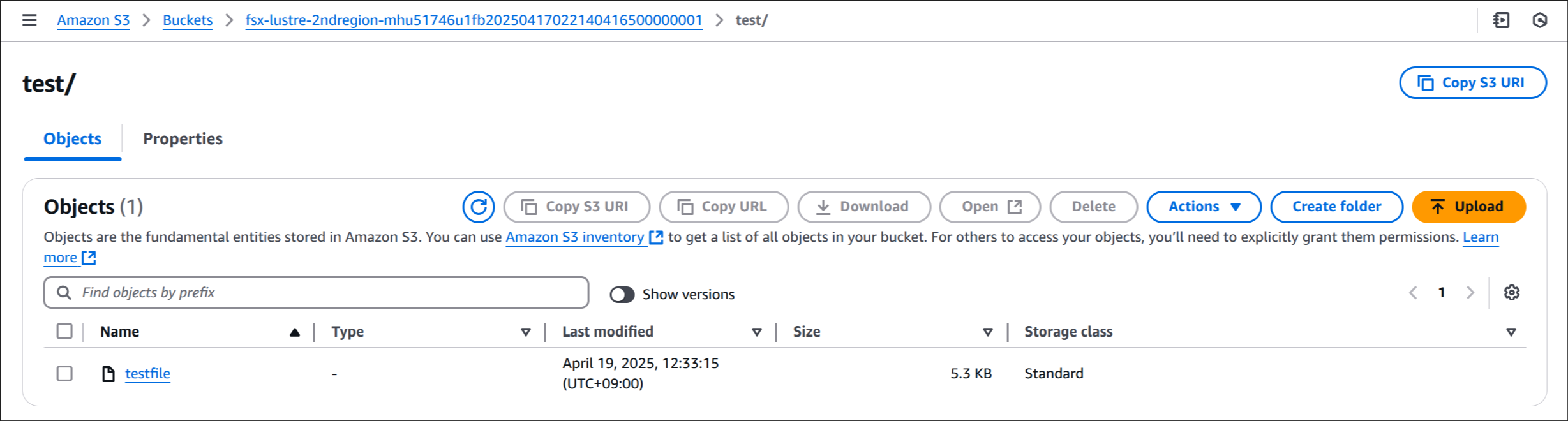
⚙️ 데이터 계층 테스트를 위한 자체 환경 생성
1. 환경 변수 설정
WSParticipantRole:~/environment/eks/FSxL $ VPC_ID=$(aws eks describe-cluster --name $CLUSTER_NAME --region $AWS_REGION --query "cluster.resourcesVpcConfig.vpcId" --output text)
WSParticipantRole:~/environment/eks/FSxL $ SUBNET_ID=$(aws eks describe-cluster --name $CLUSTER_NAME --region $AWS_REGION --query "cluster.resourcesVpcConfig.subnetIds[0]" --output text)
WSParticipantRole:~/environment/eks/FSxL $ SECURITY_GROUP_ID=$(aws ec2 describe-security-groups --filters Name=vpc-id,Values=${VPC_ID} Name=group-name,Values="FSxLSecurityGroup01"  --query "SecurityGroups[*].GroupId" --output text)
WSParticipantRole:~/environment/eks/FSxL $ echo $SUBNET_ID
subnet-047814202808347bc
WSParticipantRole:~/environment/eks/FSxL $ echo $SECURITY_GROUP_ID
sg-00e9611cf170ffb252. 작업 디렉토리 이동
WSParticipantRole:~/environment/eks/FSxL $ cd /home/ec2-user/environment/eks/FSxL
WSParticipantRole:~/environment/eks/FSxL $
3. StorageClass 생성
(1) fsxL-storage-class.yaml 확인
# fsxL-storage-class.yaml
kind: StorageClass
apiVersion: storage.k8s.io/v1
metadata:
    name: fsx-lustre-sc
provisioner: fsx.csi.aws.com
parameters:
  subnetId: SUBNET_ID
  securityGroupIds: SECURITY_GROUP_ID
  deploymentType: SCRATCH_2
  fileSystemTypeVersion: "2.15"
mountOptions:
  - flock
(2) SUBNET_ID, SECURITY_GROUP_ID 치환
WSParticipantRole:~/environment/eks/FSxL $ sed -i'' -e "s/SUBNET_ID/$SUBNET_ID/g" fsxL-storage-class.yaml
WSParticipantRole:~/environment/eks/FSxL $ sed -i'' -e "s/SECURITY_GROUP_ID/$SECURITY_GROUP_ID/g" fsxL-storage-class.yaml
(3) fsxL-storage-class.yaml 재확인
WSParticipantRole:~/environment/eks/FSxL $ cat fsxL-storage-class.yaml✅ 출력
---
kind: StorageClass
apiVersion: storage.k8s.io/v1
metadata:
    name: fsx-lustre-sc
provisioner: fsx.csi.aws.com
parameters:
  subnetId: subnet-047814202808347bc
  securityGroupIds: sg-00e9611cf170ffb25
  deploymentType: SCRATCH_2
  fileSystemTypeVersion: "2.15"
mountOptions:
  - flock
(4) StorageClass 배포
WSParticipantRole:~/environment/eks/FSxL $ kubectl apply -f fsxL-storage-class.yaml

# 결과
storageclass.storage.k8s.io/fsx-lustre-sc created
(5) StorageClass 생성 확인
WSParticipantRole:~/environment/eks/FSxL $ kubectl get sc✅ 출력
NAME            PROVISIONER             RECLAIMPOLICY   VOLUMEBINDINGMODE      ALLOWVOLUMEEXPANSION   AGE
fsx-lustre-sc   fsx.csi.aws.com         Delete          Immediate              false                  28s
gp2             kubernetes.io/aws-ebs   Delete          WaitForFirstConsumer   false                  2d1h
gp3 (default)   ebs.csi.aws.com         Delete          WaitForFirstConsumer   true                   2d1h
5. PVC 생성
(1) fsxL-dynamic-claim.yaml 확인
WSParticipantRole:~/environment/eks/FSxL $ cat fsxL-dynamic-claim.yaml✅ 출력
apiVersion: v1
kind: PersistentVolumeClaim
metadata:
  name: fsx-lustre-dynamic-claim
spec:
  accessModes:
    - ReadWriteMany
  storageClassName: fsx-lustre-sc
  resources:
    requests:
      storage: 1200Gi
(2) PersistentVolumeClaim(PVC) 생성
WSParticipantRole:~/environment/eks/FSxL $ kubectl apply -f fsxL-dynamic-claim.yaml

# 결과
persistentvolumeclaim/fsx-lustre-dynamic-claim created
(3) PVC 상태 확인
WSParticipantRole:~/environment/eks/FSxL $ kubectl describe pvc/fsx-lustre-dynamic-claim✅ 출력
Name:          fsx-lustre-dynamic-claim
Namespace:     default
StorageClass:  fsx-lustre-sc
Status:        Pending
Volume:
Labels:        <none>
Annotations:   volume.beta.kubernetes.io/storage-provisioner: fsx.csi.aws.com
               volume.kubernetes.io/storage-provisioner: fsx.csi.aws.com
Finalizers:    [kubernetes.io/pvc-protection]
Capacity:
Access Modes:
VolumeMode:    Filesystem
Used By:       <none>
Events:
  Type    Reason                Age                From                                                                                      Message
  ----    ------                ----               ----                                                                                      -------
  Normal  Provisioning          28s                fsx.csi.aws.com_fsx-csi-controller-6f4c577bd4-4wxrs_3244bfde-da2e-414b-913b-9a55b306d020  External provisioner is provisioning volume for claim "default/fsx-lustre-dynamic-claim"
  Normal  ExternalProvisioning  11s (x4 over 28s)  persistentvolume-controller                                                               Waiting for a volume to be created either by the external provisioner 'fsx.csi.aws.com' or manually by the system administrator. If volume creation is delayed, please verify that the provisioner is running and correctly registered.
바인딩 대기 상태 확인
WSParticipantRole:~/environment/eks/FSxL $ kubectl get pvc✅ 출력
NAME                       STATUS    VOLUME   CAPACITY   ACCESS MODES   STORAGECLASS    VOLUMEATTRIBUTESCLASS   AGE
fsx-lustre-claim           Bound     fsx-pv   1200Gi     RWX                            <unset>                 73m
fsx-lustre-dynamic-claim   Pending                                      fsx-lustre-sc   <unset>                 77s
6. PVC 바인딩 완료 확인
약 15분 정도 기다린 후, PVC 상태 Bound 확인
WSParticipantRole:~/environment/eks/FSxL $ kubectl get pvc
NAME                       STATUS   VOLUME                                     CAPACITY   ACCESS MODES   STORAGECLASS    VOLUMEATTRIBUTESCLASS   AGE
fsx-lustre-claim           Bound    fsx-pv                                     1200Gi     RWX                            <unset>                 96m
fsx-lustre-dynamic-claim   Bound    pvc-1c121fa2-7362-4c0b-a2bf-dfe4d0a24b11   1200Gi     RWX            fsx-lustre-sc   <unset>                 24m
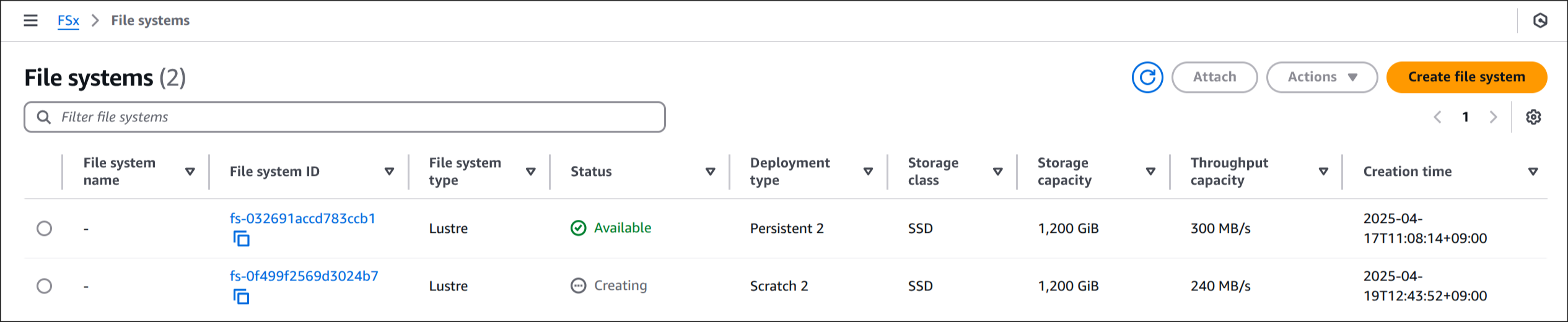
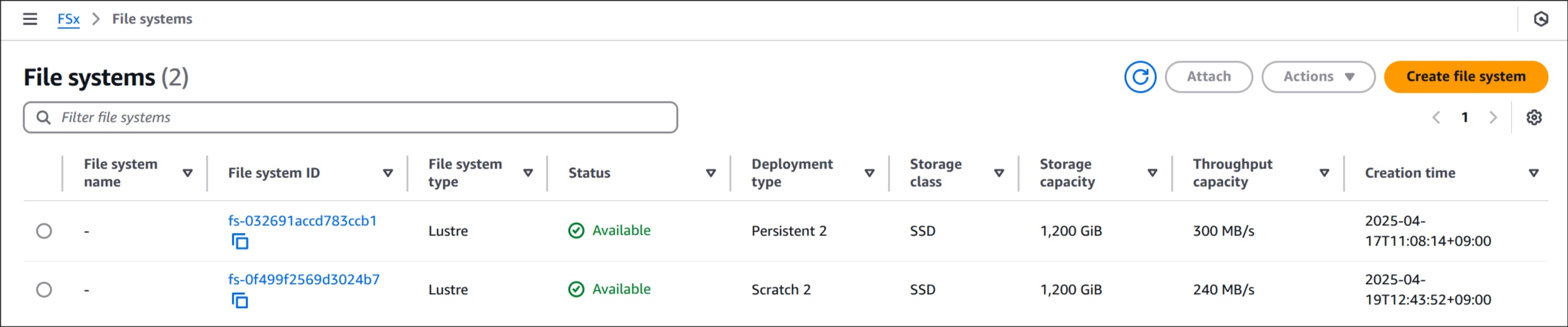
FSx 콘솔에서 인스턴스 상태 확인
📈 성능 테스트
1. 작업 디렉토리 이동
WSParticipantRole:~/environment/eks/FSxL $ cd /home/ec2-user/environment/eks/FSxL
WSParticipantRole:~/environment/eks/FSxL $
2. 가용성 영역 확인
WSParticipantRole:~/environment/eks/FSxL $ aws ec2 describe-subnets --subnet-id $SUBNET_ID --region $AWS_REGION | jq .Subnets[0].AvailabilityZone✅ 출력
"us-west-2b"3. 파드 구성 수정
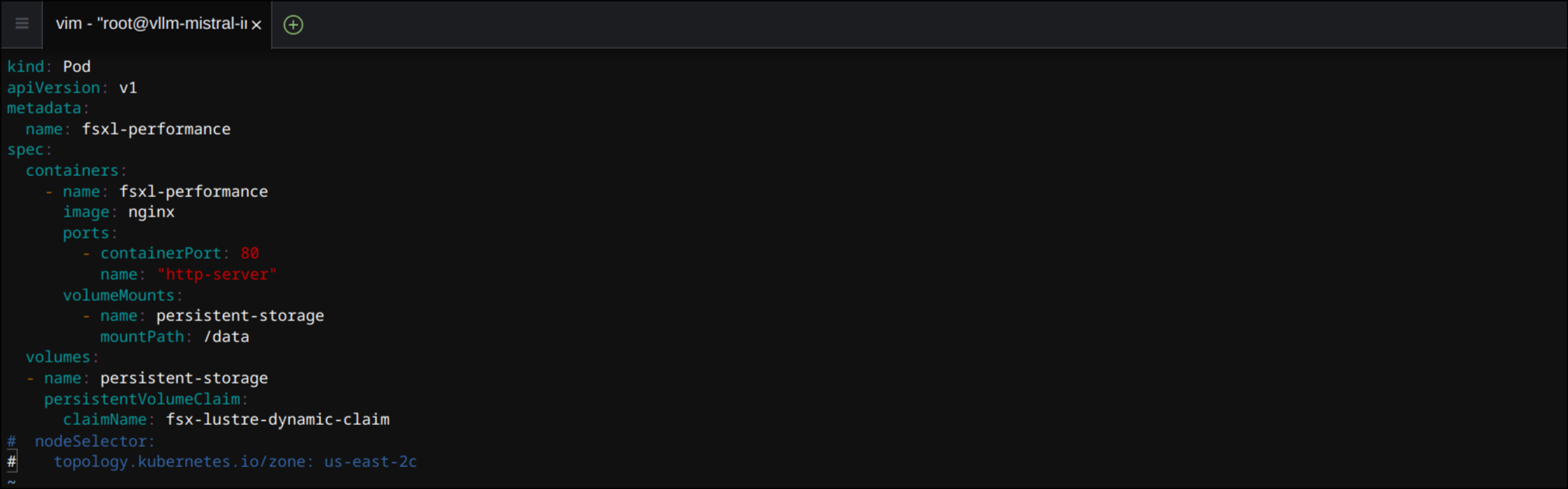
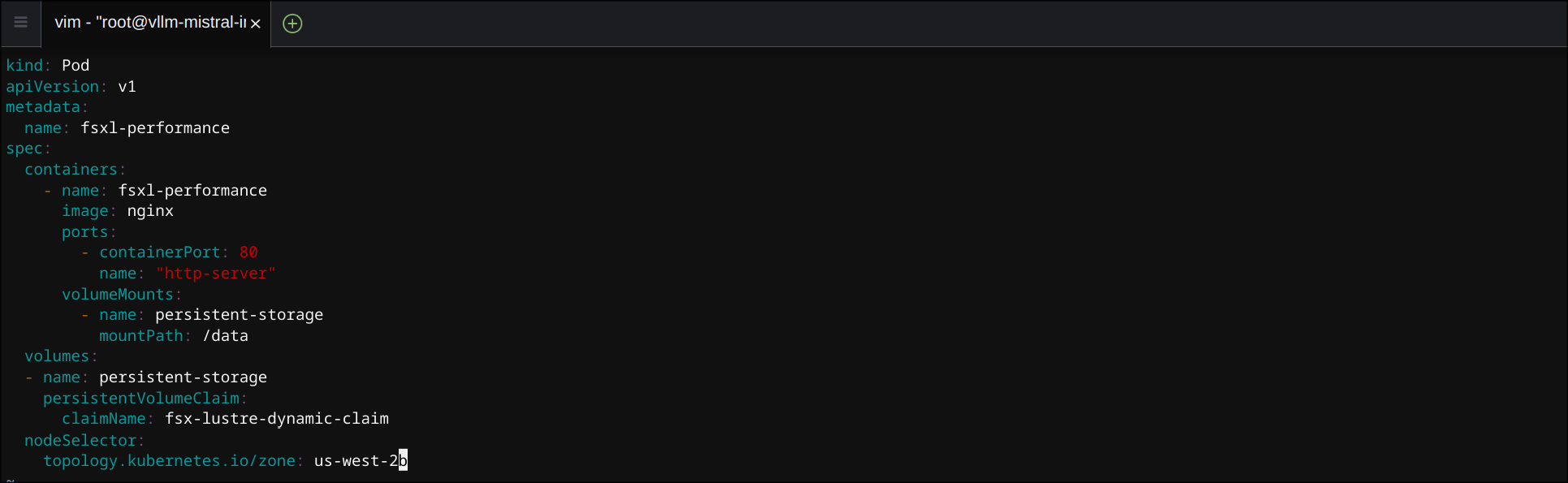
nodeSelector,topology.kubernetes.io/zone주석 처리 제거- 가용성 영역 변경 (
us-west-2b)
4. 파드 생성
WSParticipantRole:~/environment/eks/FSxL $ kubectl apply -f pod_performance.yaml

# 결과
pod/fsxl-performance created
5. 파드 상태 확인
WSParticipantRole:~/environment/eks/FSxL $ kubectl get pods✅ 출력
NAME                                            READY   STATUS    RESTARTS   AGE
fsxl-performance                                1/1     Running   0          12s
kube-ops-view-5d9d967b77-w75cm                  1/1     Running   0          2d1h
open-webui-deployment-5d7ff94bc9-wfv9v          1/1     Running   0          75m
vllm-mistral-inf2-deployment-7d886c8cc8-n6sbb   1/1     Running   0          84m
6. 컨테이너 로그인
WSParticipantRole:~/environment/eks/FSxL $ kubectl exec -it fsxl-performance  -- bash

root@fsxl-performance:/#
7. FIO 및 IOping 설치
root@fsxl-performance:/# apt-get update

# 결과
Get:1 http://deb.debian.org/debian bookworm InRelease [151 kB]
Get:2 http://deb.debian.org/debian bookworm-updates InRelease [55.4 kB]
Get:3 http://deb.debian.org/debian-security bookworm-security InRelease [48.0 kB]
Get:4 http://deb.debian.org/debian bookworm/main amd64 Packages [8792 kB]
Get:5 http://deb.debian.org/debian bookworm-updates/main amd64 Packages [512 B]
Get:6 http://deb.debian.org/debian-security bookworm-security/main amd64 Packages [255 kB]
Fetched 9303 kB in 1s (6521 kB/s)
Reading package lists... Doneroot@fsxl-performance:/# apt-get install fio ioping -y
# 결과
Reading package lists... Done
Building dependency tree... Done
Reading state information... Done
...
Processing triggers for libc-bin (2.36-9+deb12u10) ...8. 지연 시간 테스트 (IOping)
root@fsxl-performance:/# ioping -c 20 .✅ 출력
4 KiB <<< . (overlay overlay 19.9 GiB): request=1 time=459.7 us (warmup)
4 KiB <<< . (overlay overlay 19.9 GiB): request=2 time=1.07 ms
4 KiB <<< . (overlay overlay 19.9 GiB): request=3 time=693.1 us
4 KiB <<< . (overlay overlay 19.9 GiB): request=4 time=720.3 us
4 KiB <<< . (overlay overlay 19.9 GiB): request=5 time=634.4 us
4 KiB <<< . (overlay overlay 19.9 GiB): request=6 time=661.2 us
4 KiB <<< . (overlay overlay 19.9 GiB): request=7 time=581.8 us
4 KiB <<< . (overlay overlay 19.9 GiB): request=8 time=742.6 us
4 KiB <<< . (overlay overlay 19.9 GiB): request=9 time=647.6 us
4 KiB <<< . (overlay overlay 19.9 GiB): request=10 time=730.4 us
4 KiB <<< . (overlay overlay 19.9 GiB): request=11 time=809.5 us
4 KiB <<< . (overlay overlay 19.9 GiB): request=12 time=713.6 us
4 KiB <<< . (overlay overlay 19.9 GiB): request=13 time=604.9 us
4 KiB <<< . (overlay overlay 19.9 GiB): request=14 time=1.34 ms
4 KiB <<< . (overlay overlay 19.9 GiB): request=15 time=700.8 us
4 KiB <<< . (overlay overlay 19.9 GiB): request=16 time=591.3 us
4 KiB <<< . (overlay overlay 19.9 GiB): request=17 time=698.9 us
4 KiB <<< . (overlay overlay 19.9 GiB): request=18 time=928.0 us
4 KiB <<< . (overlay overlay 19.9 GiB): request=19 time=638.9 us
4 KiB <<< . (overlay overlay 19.9 GiB): request=20 time=632.7 us

--- . (overlay overlay 19.9 GiB) ioping statistics ---
19 requests completed in 14.1 ms, 76 KiB read, 1.34 k iops, 5.25 MiB/s
generated 20 requests in 19.0 s, 80 KiB, 1 iops, 4.21 KiB/s
min/avg/max/mdev = 581.8 us / 744.1 us / 1.34 ms / 181.8 us
9. 부하 테스트
root@fsxl-performance:/# mkdir -p /data/performance
root@fsxl-performance:/# cd /data/performance
root@fsxl-performance:/data/performance# root@fsxl-performance:/data/performance# fio --randrepeat=1 --ioengine=libaio --direct=1 --gtod_reduce=1 --name=fiotest --filename=testfio8gb --bs=1MB --iodepth=64 --size=8G --readwrite=randrw --rwmixread=50 --numjobs=8 --group_reporting --runtime=10✅ 출력
fiotest: (g=0): rw=randrw, bs=(R) 1024KiB-1024KiB, (W) 1024KiB-1024KiB, (T) 1024KiB-1024KiB, ioengine=libaio, iodepth=64
...
fio-3.33
Starting 8 processes
fiotest: Laying out IO file (1 file / 8192MiB)
Jobs: 6 (f=5): [f(1),_(1),m(3),_(1),m(2)][38.9%][r=89.0MiB/s,w=100MiB/s][r=89,w=100 IOPS][eta 00m:22s]
fiotest: (groupid=0, jobs=8): err= 0: pid=723: Sat Apr 19 04:24:09 2025
  read: IOPS=96, BW=96.4MiB/s (101MB/s)(1394MiB/14460msec)
   bw (  KiB/s): min=20461, max=390963, per=100.00%, avg=120798.95, stdev=11723.27, samples=156
   iops        : min=   17, max=  380, avg=116.50, stdev=11.43, samples=156
  write: IOPS=97, BW=97.2MiB/s (102MB/s)(1406MiB/14460msec); 0 zone resets
   bw (  KiB/s): min=18403, max=391048, per=100.00%, avg=116698.51, stdev=11301.16, samples=161
   iops        : min=   13, max=  380, avg=112.42, stdev=11.04, samples=161
  cpu          : usr=0.09%, sys=0.76%, ctx=5389, majf=0, minf=53
  IO depths    : 1=0.3%, 2=0.6%, 4=1.1%, 8=2.3%, 16=4.6%, 32=9.1%, >=64=82.0%
     submit    : 0=0.0%, 4=100.0%, 8=0.0%, 16=0.0%, 32=0.0%, 64=0.0%, >=64=0.0%
     complete  : 0=0.0%, 4=99.7%, 8=0.0%, 16=0.0%, 32=0.0%, 64=0.3%, >=64=0.0%
     issued rwts: total=1394,1406,0,0 short=0,0,0,0 dropped=0,0,0,0
     latency   : target=0, window=0, percentile=100.00%, depth=64

Run status group 0 (all jobs):
   READ: bw=96.4MiB/s (101MB/s), 96.4MiB/s-96.4MiB/s (101MB/s-101MB/s), io=1394MiB (1462MB), run=14460-14460msec
  WRITE: bw=97.2MiB/s (102MB/s), 97.2MiB/s-97.2MiB/s (102MB/s-102MB/s), io=1406MiB (1474MB), run=14460-14460msec
10. 테스트 종료
root@fsxl-performance:/data/performance# exit
exit