CompositionalLayout, DiffableDataSource를 활용해 구현했습니다.
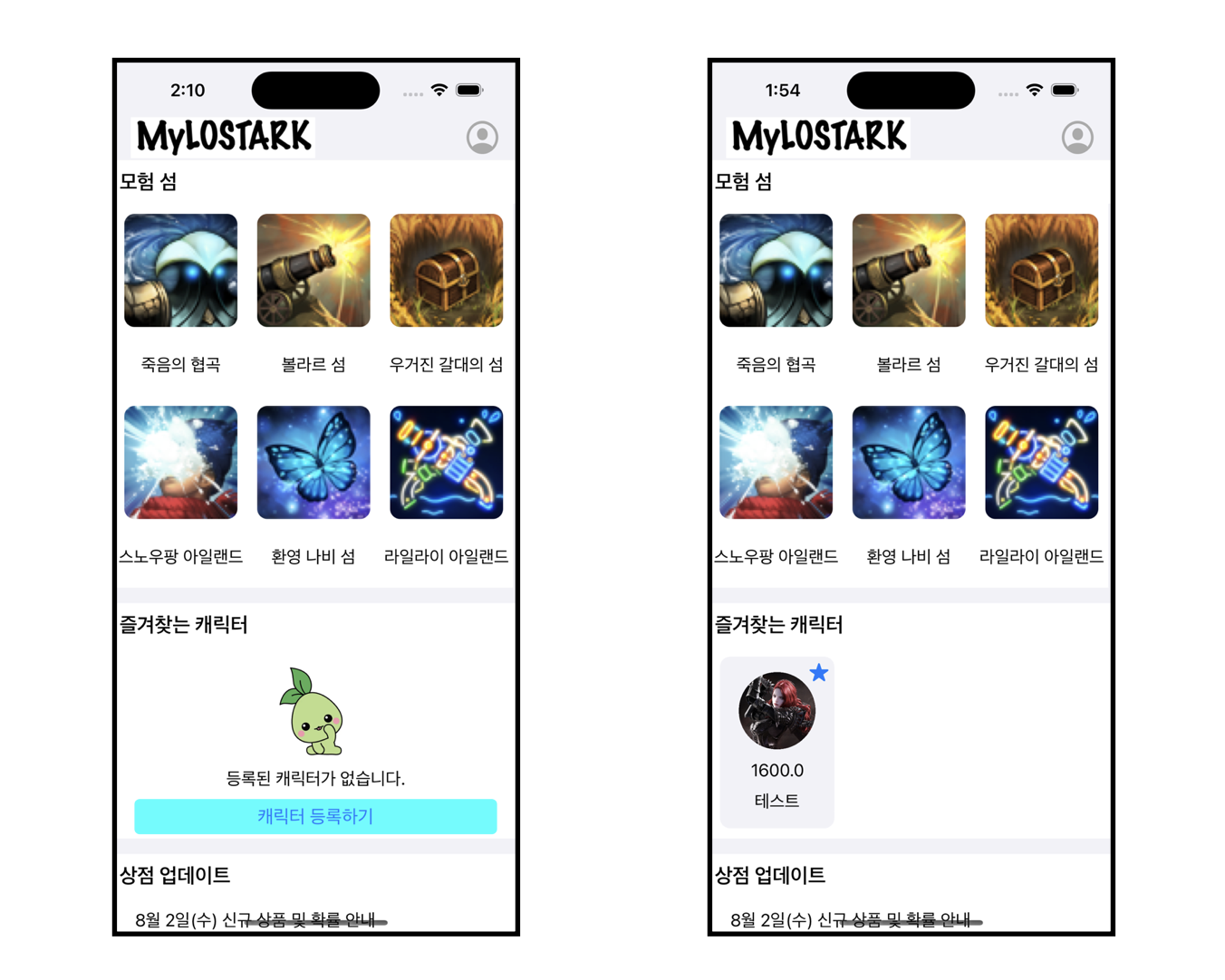
사진처럼 Section에 데이터가 없는 경우와 있는 경우 다른 Layout과 Cell이 필요한 경우가 있습니다.
여기서 중요한 포인트는 placeholder 역할을 할 수 있는 Section을 하나 더 만드는 것입니다.
enum Section: CaseIterable {
	case bookmark
    case placeholder
}
데이터가 있다면 bookmark Section을 이용하고 없다면 placeholder Section을 이용하면 됩니다.
좀 더 구체적으로 알아보겠습니다.
CompositionalLayout을 이용해 CollectionView를 구현하기 위해서는 item, group, section의 layout을 설정해 주어야 합니다.
    func setBookmarkLayout() -> NSCollectionLayoutSection {
        let itemSize = NSCollectionLayoutSize(widthDimension: .fractionalWidth(0.3), heightDimension: .fractionalHeight(1.0))
        let item = NSCollectionLayoutItem(layoutSize: itemSize)

        let groupSize = NSCollectionLayoutSize(widthDimension: .fractionalWidth(1.0), heightDimension: .fractionalHeight(0.22))
        let group = NSCollectionLayoutGroup.horizontal(layoutSize: groupSize, subitems: [item])
        group.contentInsets = NSDirectionalEdgeInsets(top: 10, leading: 10, bottom: 10, trailing: 10)

        let section = NSCollectionLayoutSection(group: group)
        section.orthogonalScrollingBehavior = .continuous
        section.interGroupSpacing = 10

        return section
    }

    func setPlaceholderLayout() -> NSCollectionLayoutSection {
        let itemSize = NSCollectionLayoutSize(widthDimension: .fractionalWidth(1.0), heightDimension: .fractionalHeight(1.0))
        let item = NSCollectionLayoutItem(layoutSize: itemSize)

        let groupSize = NSCollectionLayoutSize(widthDimension: .fractionalWidth(1.0), heightDimension: .fractionalHeight(0.22))
        let group = NSCollectionLayoutGroup.horizontal(layoutSize: groupSize, subitems: [item])

        let section = NSCollectionLayoutSection(group: group)

        return section
    }
저는 각 Section의 Layout을 생성하고 Section의 Identifier를 활용해 Layout을 설정해 주었습니다.
여기서 DiffableDataSource을 활용할 수 있습니다. 우리는 기존에 CollectionView의 Section을 구분짓기 위해 IndePath를 활용했지만 여기에는 큰 문제점이 있습니다.
바로 데이터의 유무에 따라 하나의 Section을 제거해야 하기 때문에 IndexPath로 구분 짓기에는 한계가 존재합니다.
    func setCompositionalLayout() -> UICollectionViewLayout {
        let sectionProvider = { [weak self] (sectionIndex: Int, layoutEnvironment: NSCollectionLayoutEnvironment) -> NSCollectionLayoutSection? in
            guard let self = self else { return nil }
            let sectionKind = dataSource.sectionIdentifier(for: sectionIndex)

            switch sectionKind {
            case .bookmark:
                return setBookmarkLayout()
            case .placeholder:
                return setPlaceholderLayout()
            case .none:
                return nil
            }
        }

        let configuration = UICollectionViewCompositionalLayoutConfiguration()
        configuration.interSectionSpacing = 15

        let layout = UICollectionViewCompositionalLayout(sectionProvider: sectionProvider, configuration: configuration)

        return layout
    }
코드처럼 dataSource의 sectionIdentifier(for: Int)를 활용해 위에서 선언한 Section 타입의 Indentifier를 구할 수 있습니다.
Indentifier를 이용해 이제 CollectionView에서 사용하는 Section의 Layout을 설정할 수 있습니다.
Cell을 생성하는 방법도 똑같습니다. Section의 Identifier를 얻어 Section 별로 Cell을 생성하면 됩니다.
    func createCell() {
        let bookmarkRegistration = createBookmarkSectionCell()
        let placeholderRegistration = createPlaceholderSectionCell()

        self.dataSource = DataSource(collectionView: self.collectionView) { (collectionView, indexPath, itemIdentifier) in
            let sectionIdentifier = self.dataSource.sectionIdentifier(for: indexPath.section)

            switch sectionIdentifier {
            case .bookmark:
                return collectionView.dequeueConfiguredReusableCell(
                    using: bookmarkRegistration,
                    for: indexPath,
                    item: itemIdentifier as? CharacterBookmark
                )
            case .placeholder:
                return collectionView.dequeueConfiguredReusableCell(
                    using: placeholderRegistration,
                    for: indexPath,
                    item: itemIdentifier as? CharacterBookmark
                )
            case .none:
                return UICollectionViewCell()
            }
        }
    }

    func createBookmarkSectionCell() -> UICollectionView.CellRegistration<BookmarkCell, Bookmark> {
        return UICollectionView.CellRegistration { cell, indexPath, itemIdentifier in
			// Cell의 Content 설정
        }
    }

        func createPlaceholderSectionCell() -> UICollectionView.CellRegistration<PlaceholderCell, Bookmark> {
        return UICollectionView.CellRegistration { cell, indexPath, itemIdentifier in
			// Cell의 Content 설정
        }
    }
코드에서 보이는 createBookmarkSectionCell 함수 같은 경우에는 CellRegistration을 생성하는 함수 입니다.
주의 사항 : iOS 15.0 이상 버전에서 DataSource를 생성하는 클로저 내부에서 Registration을 생성하면 Cell이 재사용이 안되는 경우가 존재합니다.
그럼 마지막으로 Snapshot을 만들어 DataSource에 적용하는 코드를 살펴보겠습니다.
여기서 우리는 데이터 유무에 따라 bookmark와 placeholder Section 중 하나를 제거해야 합니다.
우선 초기 Snapshot을 구현해야 합니다.
    func initailSnapshot() {
        var snapshot = NSDiffableDataSourceSnapshot<MainViewSection, AnyHashable>()

        snapshot.appendSections(Section.allCases)
        self.dataSource.apply(snapshot)
    }
모든 Section을 Snapshot에 추가한 뒤 DataSource에 적용합니다. 이 과정에서 데이터를 각 Section에 추가할 수 있지만 저는 NSDiffableDataSourceSectionSnapshot 을 이용해 데이터에 변화가 발생하면 SectionSnapshot을 만들어 주도록 하겠습니다.
var data: [Bookmark] {
	didSet {
    	self.makeSectionSnapshot()
    }
}

func subscribeBookmark() {
    var sectionSnapshot = NSDiffableDataSourceSectionSnapshot<AnyHashable>()
    var snapshot = self.dataSource.snapshot() // NSDiffableDataSourceSnapshot

    if data.isEmpty {
    	snapshot.deleteSections([.bookmark])
        self.dataSource.apply(snapshot)
		// 최소 하나의 데이터를 생성해 넣어주어야 합니다.
		sectionSnapshot.append([Bookmark()])
        self.dataSource.apply(sectionSnapshot, to: .placeholder)
    } else {
    	snapshot.deleteSections([.placeholder])
        self.dataSource.apply(snapshot)
		sectionSnapshot.append(self.bookmark)
        self.dataSource.apply(sectionSnapshot, to: .bookmark)
    }
}
데이터 없는 경우 왜 데이터를 생성해야 하는지 의문이 생길 수 있습니다. SectionSnapshot에 데이터가 없다면 Cell 자체를 생성하지 않습니다.
오늘은 Section 데이터 유무에 따라 Section Layout과 Cell을 변경하는 방법에 대해 알아봤습니다.
혹시 더 좋은 방법이 있으면 공유 부탁드립니다. 🙇🏻
참고 자료
stack overflow