
Podman 이란?
create and maintain containers
Podman은 오픈 소스 컨테이너, 포드 및 컨테이너 이미지 관리 엔진.
Podman을 사용하면 컨테이너를 쉽게 찾고, 실행하고, 구축하고, 공유할 수 있다.
설치방법
- 설치 환경: Mac OS
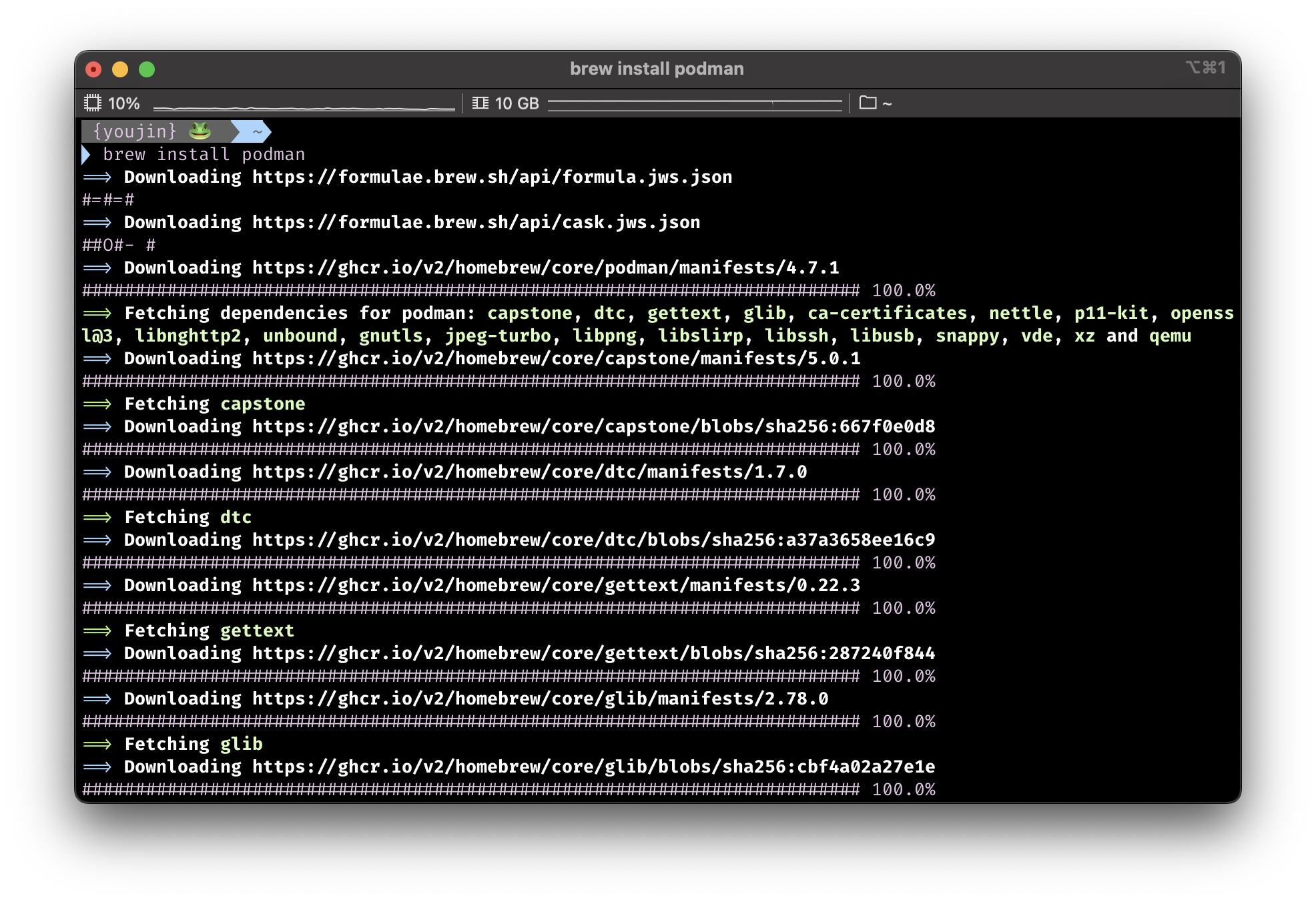
- 사전 조건: Homebrew 설치
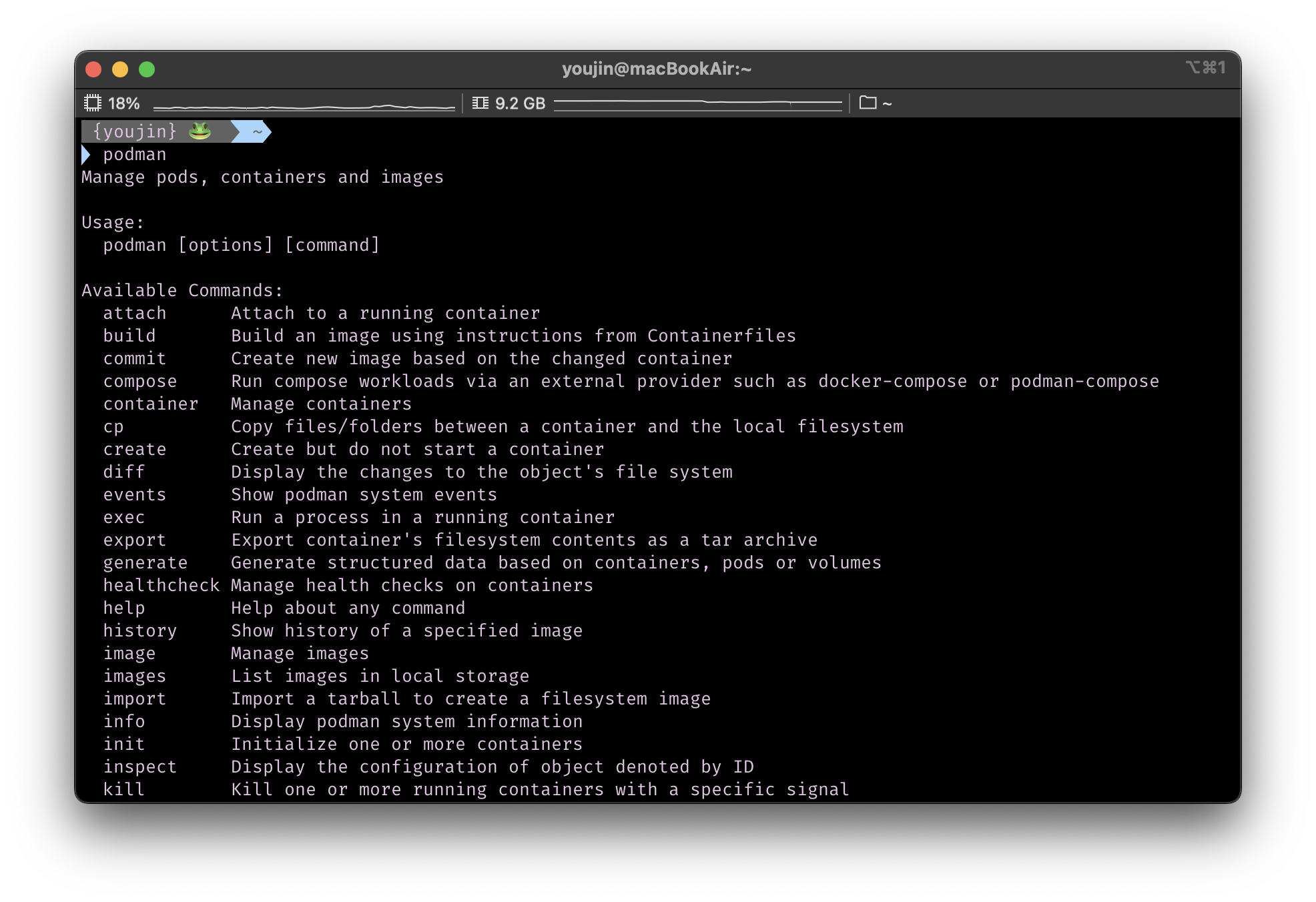
$brew install podman$podman입력 시 command 설명이 나오면 설치가 잘 된 것!
실행 방법
$podman machine init # podman machine 생성
$podman machine start # podman machine 시작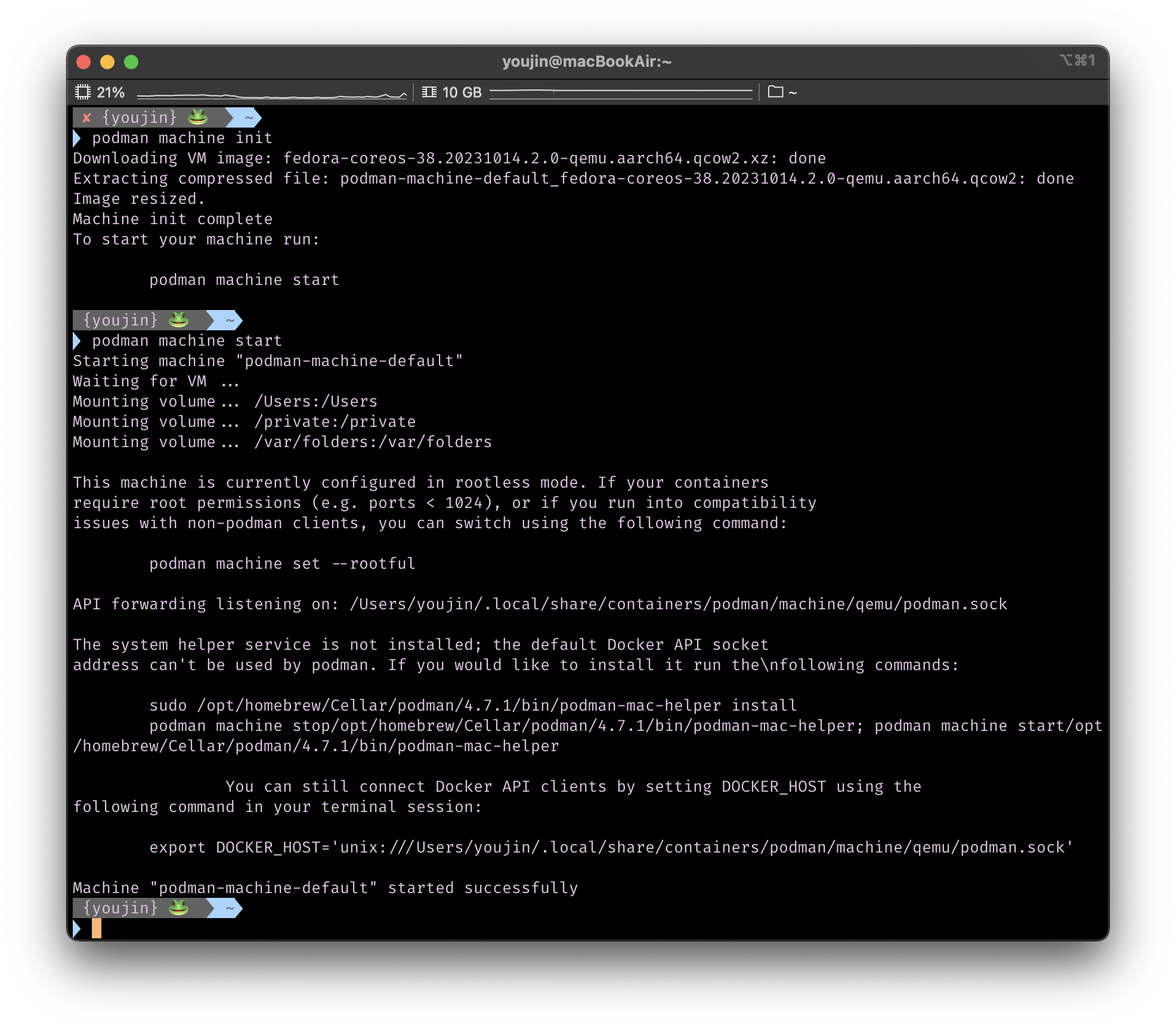
명령어
https://docs.podman.io/en/latest/Introduction.html
PODMAN Git - Tutorial
Container image 검색하기
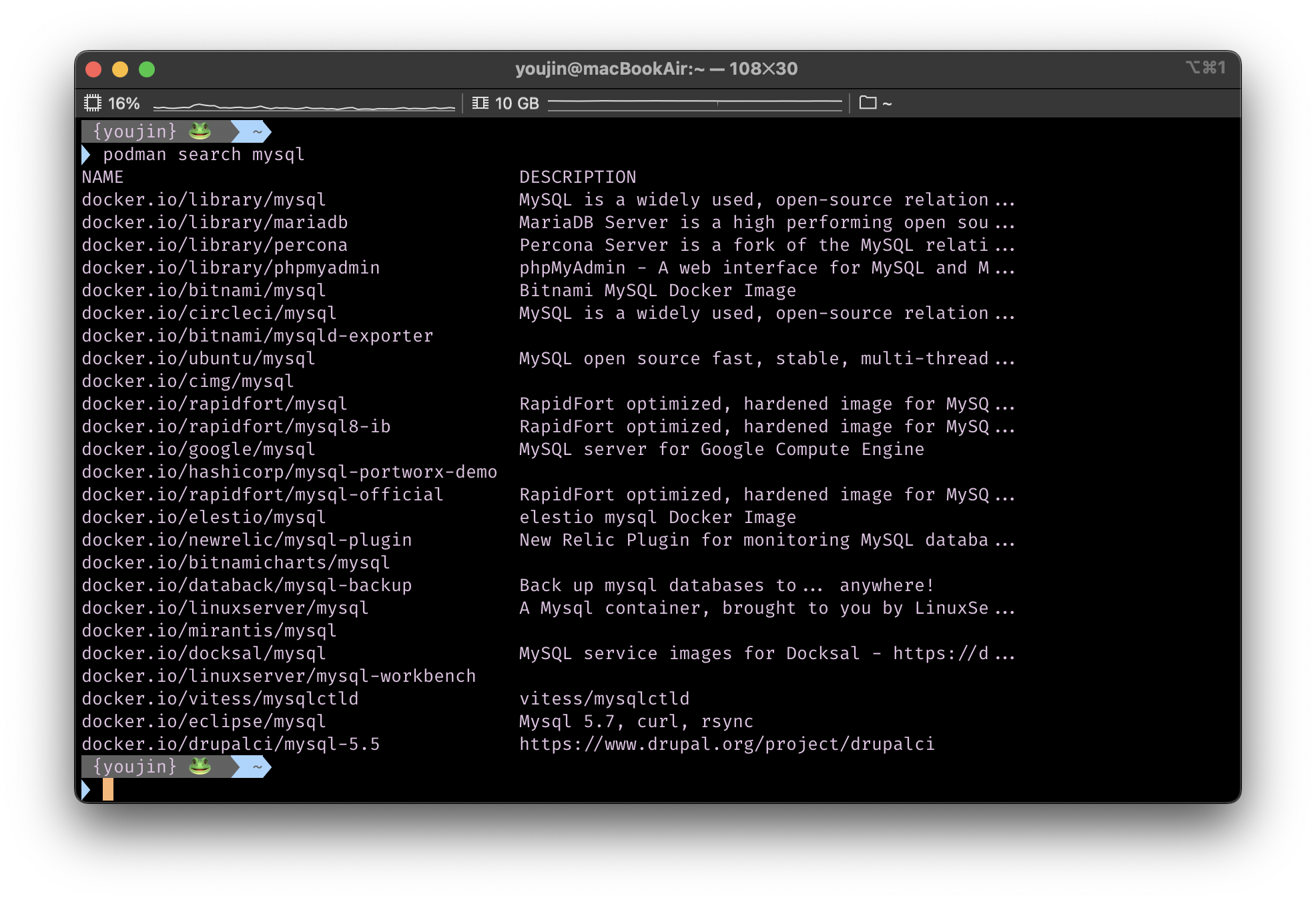
$podman search [image_name]
$podman search mysql
저는 mysql container image를 찾을거에요.
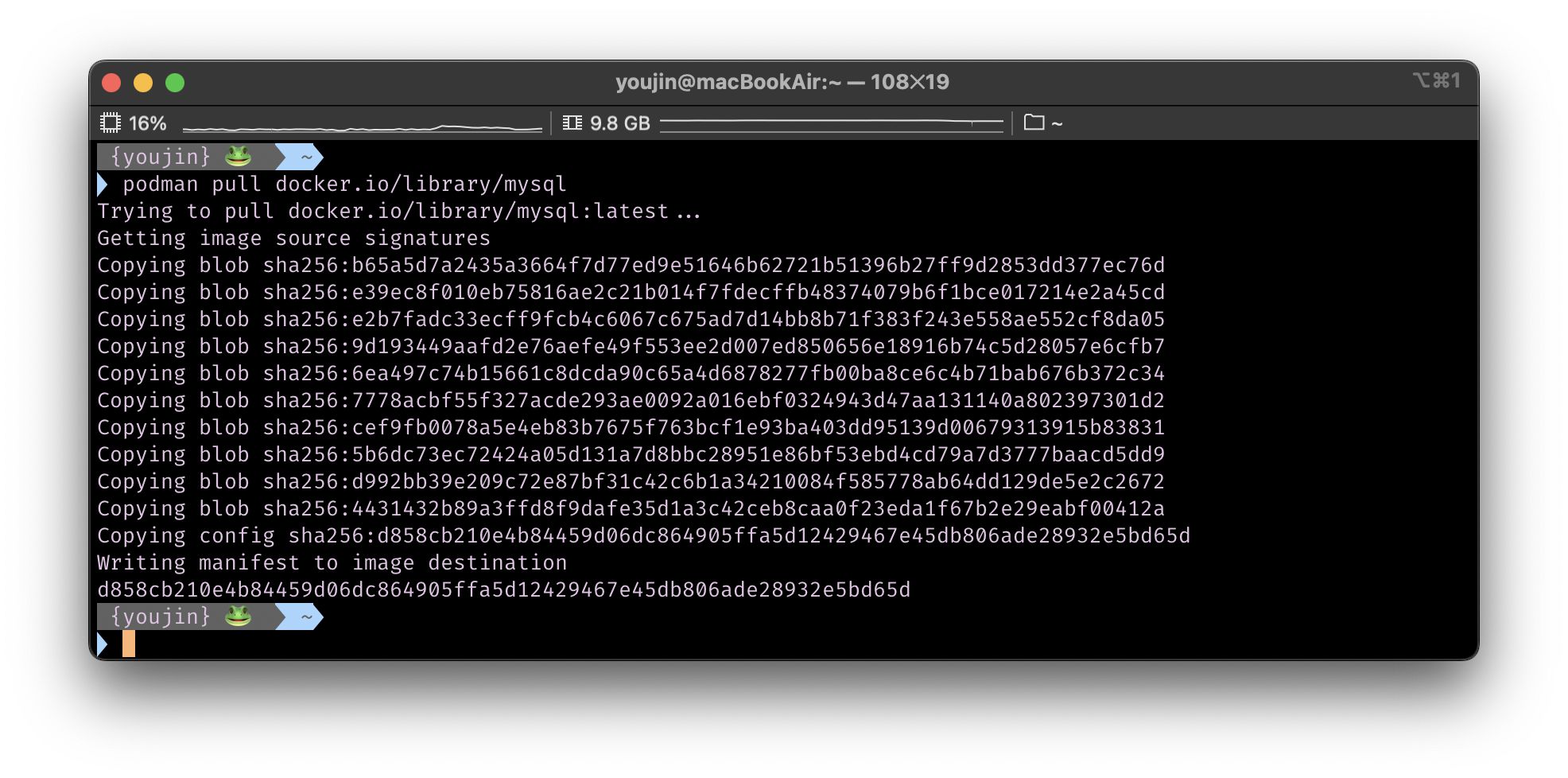
MySQL image pull받기
$podman pull docker.io/library/mysql- 위에서 검색한 image의 name으로 pull을 받아줍니다
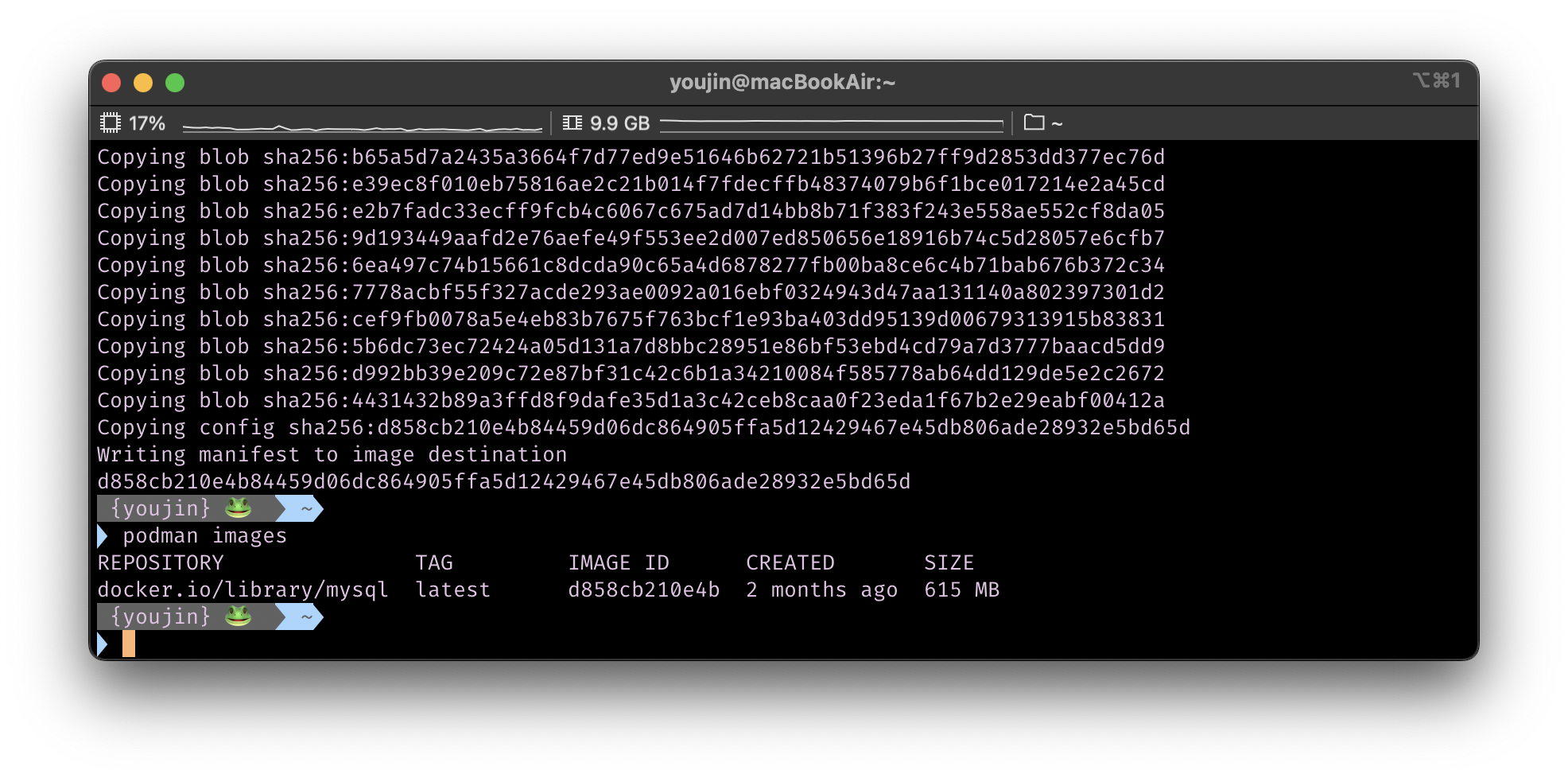
Host에 Pull 받은 image list 확인
$podman images- 방금 pull 받은 mysql image를 확인할 수 있습니다
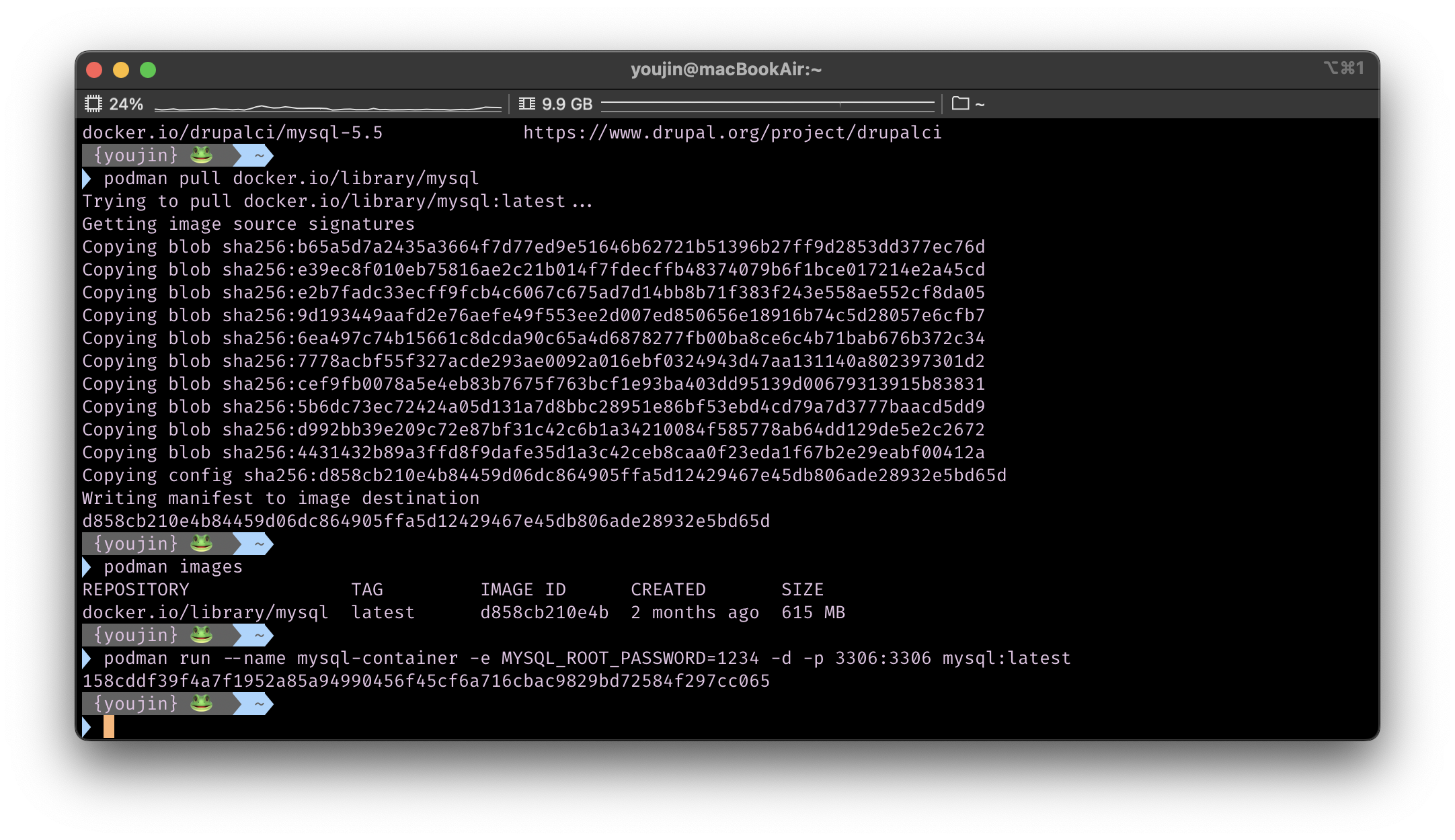
MySQL container 실행하기
$podman run --name mysql-container -e MYSQL_ROOT_PASSWORD=[PASSWORD] -d -p 3306:3306 mysql:latest- container 이름은 mysql-container로 했습니다
- 예시로 password는 1234로 했습니다
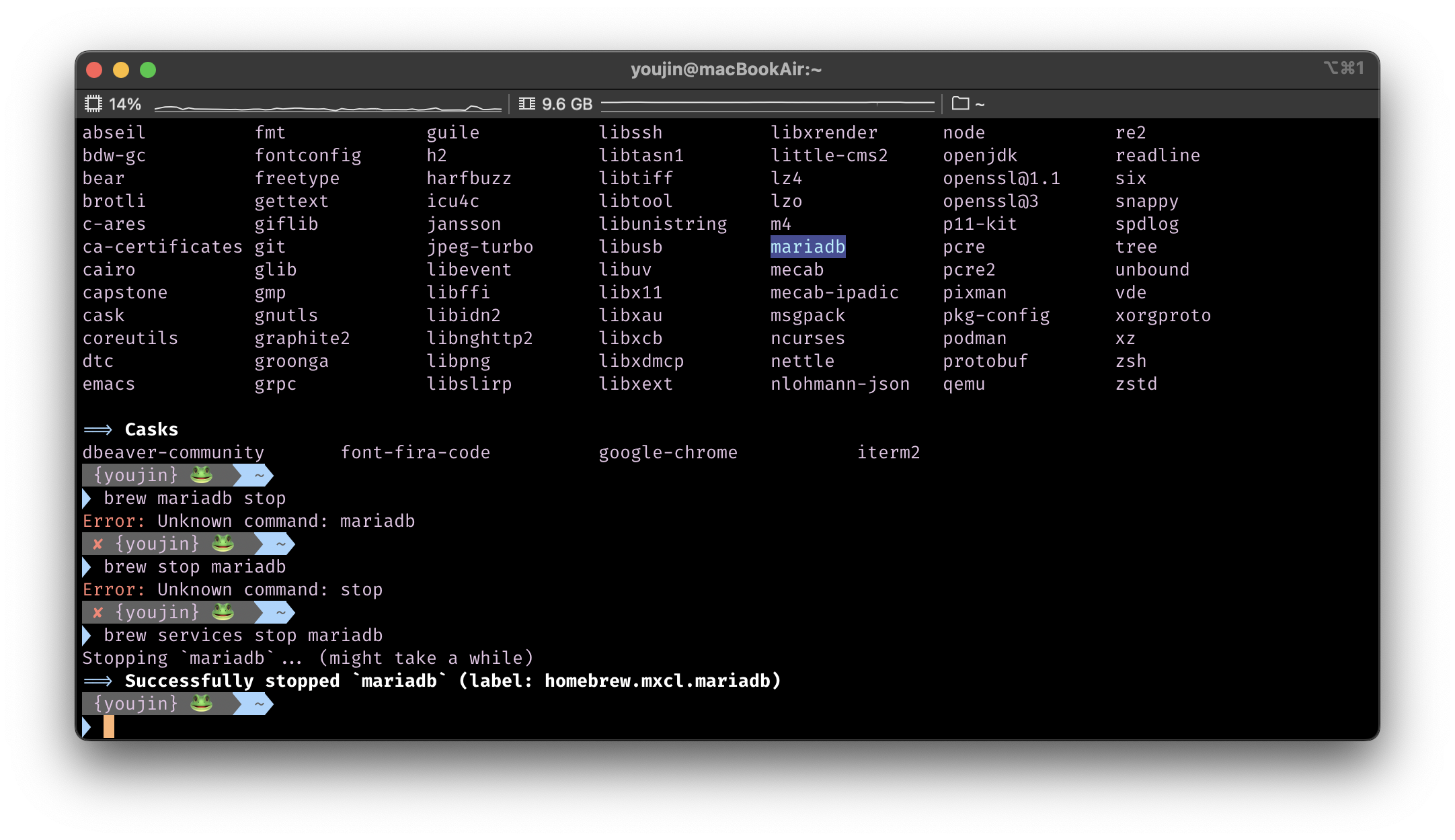
- container를 실행할 때, 3306 port가 자꾸 사용중이라고 뜬다면?
-> 이전에 brew로 실행시킨 db 목록이 있는지 확인하고 stop 해주세요
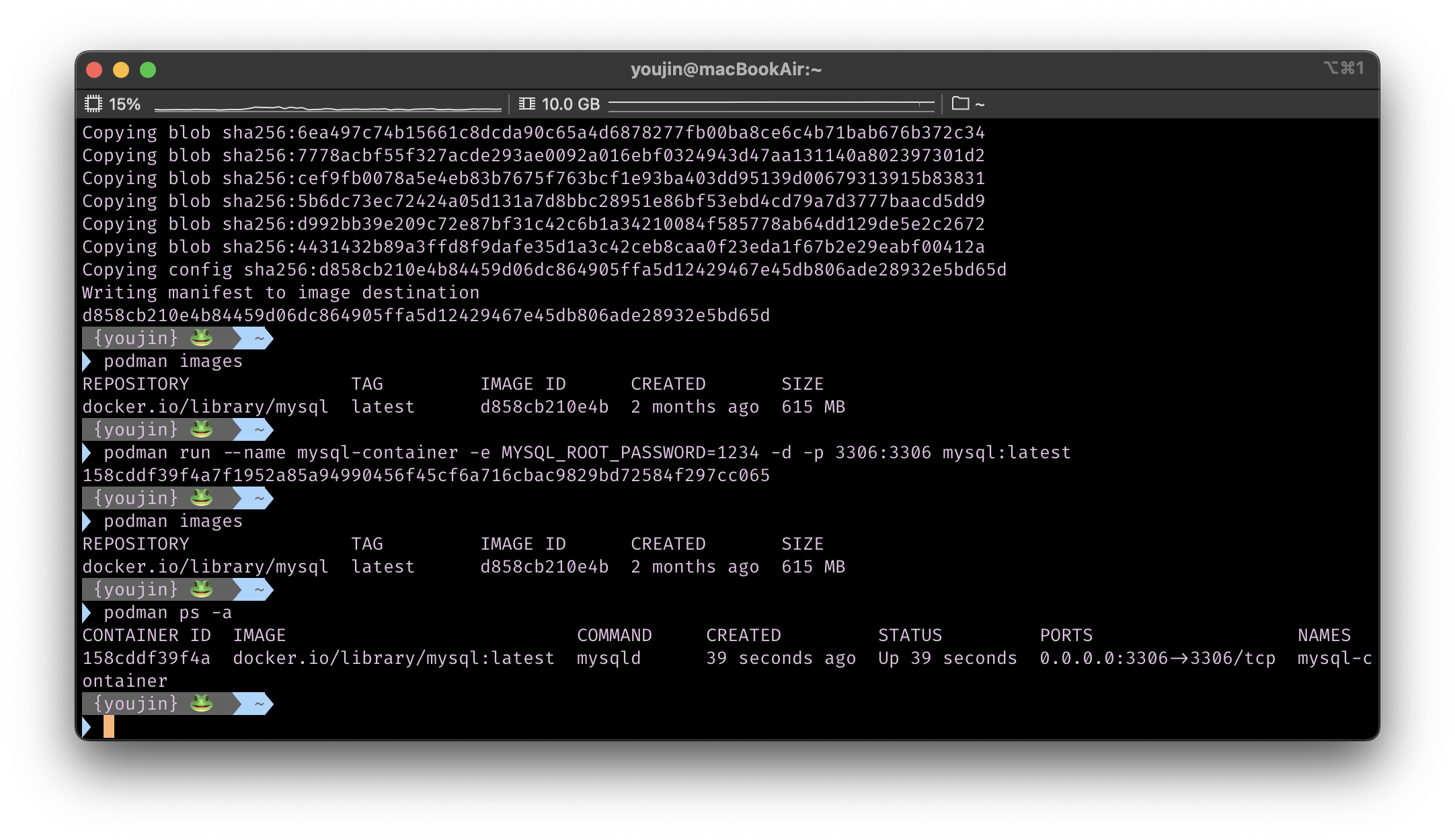
container 실행 확인
$podman ps -a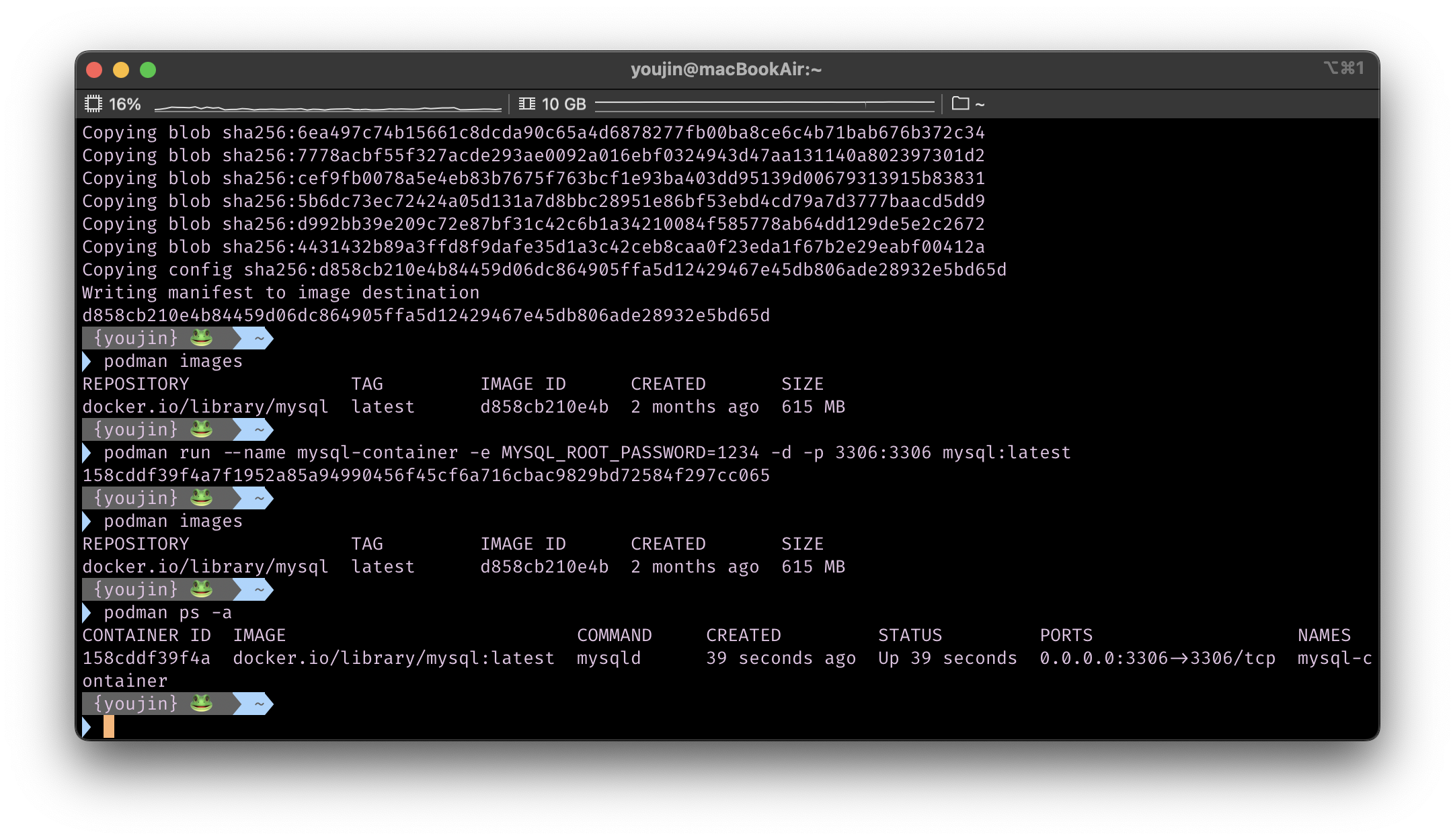
Container 중지 및 삭제
$podman stop [CONTAINER NAME] # 중지
$podman rm [CONTAINER NAME] # 삭제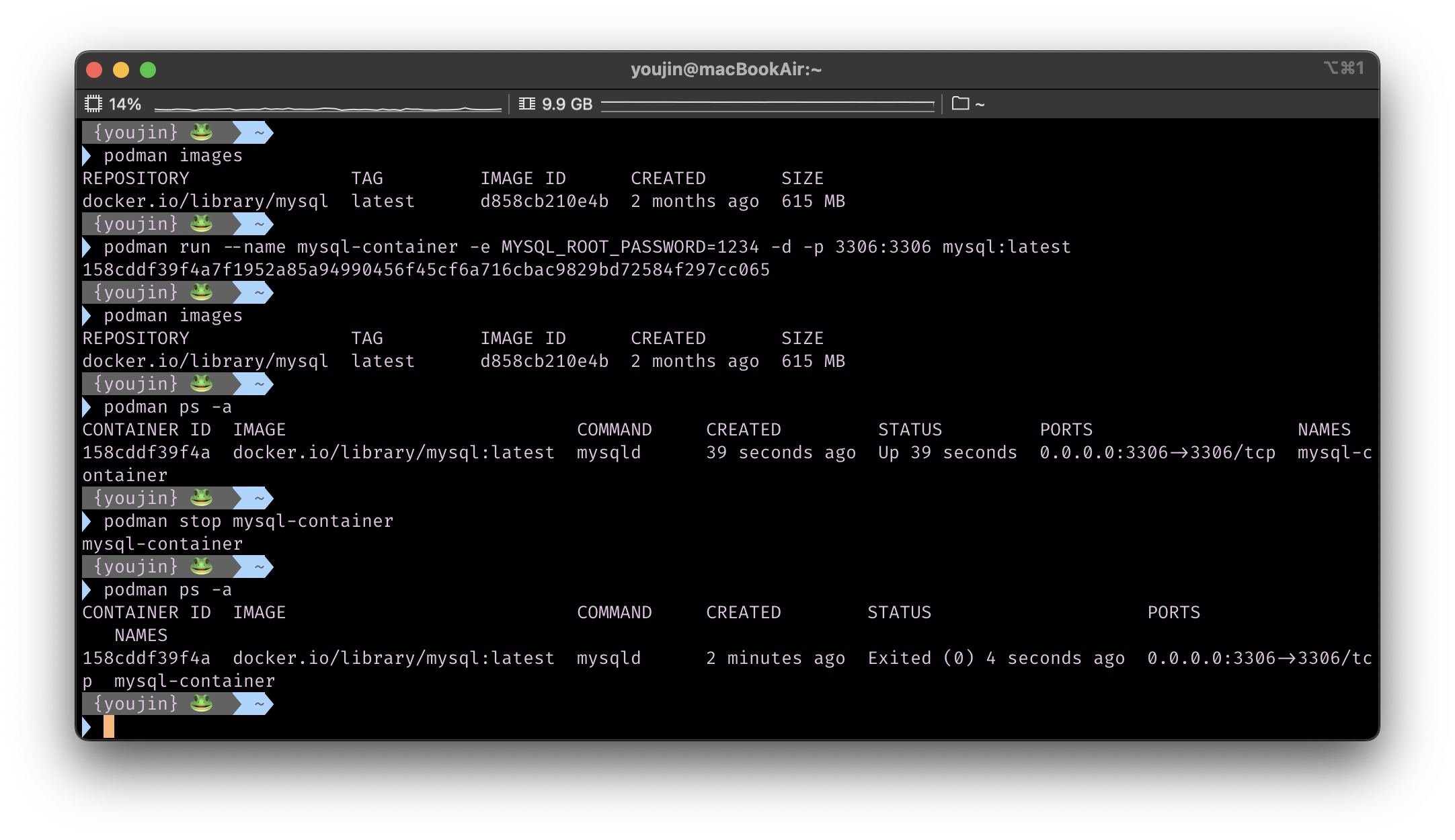
Image 삭제
$podman rmi [IMAGE ID]MySQL 접속하기
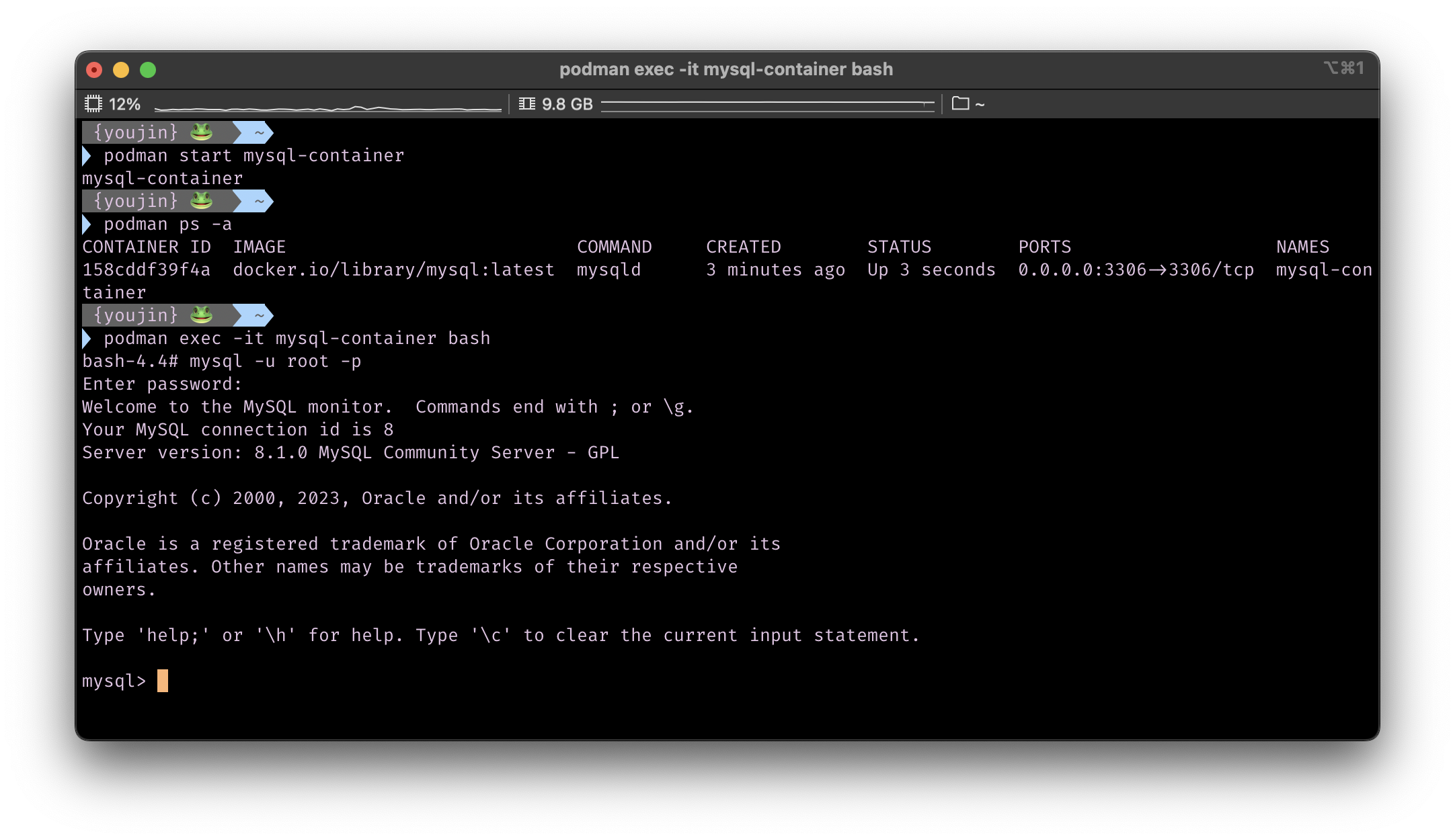
$podman start mysql-container
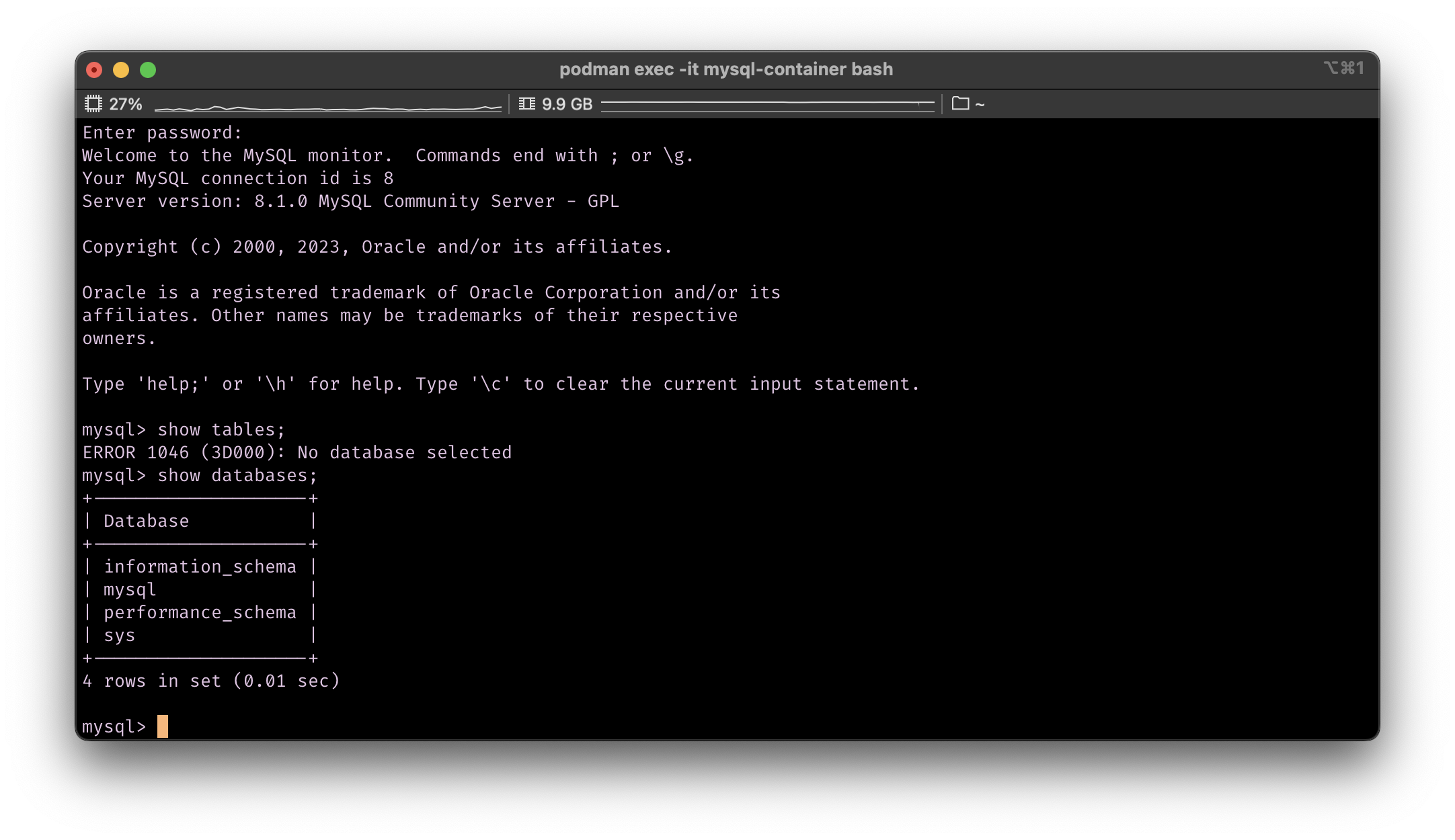
$podman exec -it mysql-container bash
# mysql -u root -p- enter password가 뜨면, container 생성 시 입력했던 비밀번호를 눌러주세요

BackEnd Developer