✏231215 금요일 TIL(Today I learned) 오늘 배운 것
📖Lv3. 자기소개 페이지 만들기 (HomeActivity)
[UI구현]
<?xml version="1.0" encoding="utf-8"?>
<androidx.constraintlayout.widget.ConstraintLayout xmlns:android="http://schemas.android.com/apk/res/android"
    xmlns:app="http://schemas.android.com/apk/res-auto"
    xmlns:tools="http://schemas.android.com/tools"
    android:layout_width="match_parent"
    android:layout_height="match_parent"
    android:background="#DFEFCC"
    tools:context=".HomeActivity">

    <LinearLayout
        android:layout_width="match_parent"
        android:layout_height="match_parent"
        android:layout_marginLeft="40dp"
        android:layout_marginRight="40dp"
        android:orientation="vertical">


        <ImageView
            android:id="@+id/iv_home"
            android:layout_width="180dp"
            android:layout_height="140dp"
            android:layout_gravity="center"
            android:layout_marginTop="50dp"
            android:src="@drawable/profile1" />

        <LinearLayout
            android:layout_width="wrap_content"
            android:layout_height="wrap_content"
            android:layout_gravity="center"
            android:layout_marginTop="40dp"
            android:orientation="horizontal">

            <TextView
                android:id="@+id/tv_id"
                android:layout_width="wrap_content"
                android:layout_height="wrap_content"
                android:textSize="20sp"
                android:text="@string/tv_id"
                app:layout_constraintEnd_toStartOf="@+id/tv_user_id"
                tools:layout_editor_absoluteY="275dp" />

            <TextView
                android:id="@+id/tv_user_id"
                android:layout_width="wrap_content"
                android:layout_height="wrap_content"
                android:textSize="20sp"
                android:textStyle="bold"
                android:hint="유저아이디"
                app:layout_constraintBottom_toBottomOf="@+id/tv_id"
                app:layout_constraintTop_toTopOf="@+id/tv_id"
                tools:layout_editor_absoluteX="187dp" />

        </LinearLayout>


        <LinearLayout
            android:layout_width="wrap_content"
            android:layout_height="wrap_content"
            android:layout_gravity="center"
            android:layout_marginTop="15dp"
            android:orientation="horizontal">

            <TextView
                android:id="@+id/tv_name"
                android:layout_width="wrap_content"
                android:layout_height="wrap_content"
                android:textSize="20sp"
                android:text="@string/tv_name"
                app:layout_constraintEnd_toStartOf="@+id/tv_user_name"
                tools:layout_editor_absoluteY="349dp" />

            <TextView
                android:id="@+id/tv_user_name"
                android:layout_width="wrap_content"
                android:layout_height="wrap_content"
                android:textSize="20sp"
                android:textStyle="bold"
                android:text="@string/tv_user_name"
                app:layout_constraintBottom_toBottomOf="@+id/tv_name"
                app:layout_constraintTop_toTopOf="@+id/tv_name"
                tools:layout_editor_absoluteX="185dp" />
        </LinearLayout>

        <LinearLayout
            android:layout_width="wrap_content"
            android:layout_height="wrap_content"
            android:layout_gravity="center"
            android:layout_marginTop="15dp"
            android:orientation="horizontal">

            <TextView
                android:id="@+id/tv_birth"
                android:layout_width="wrap_content"
                android:layout_height="wrap_content"
                android:textSize="20sp"
                android:text="@string/tv_birth"
                app:layout_constraintEnd_toStartOf="@+id/tv_user_birth"
                tools:layout_editor_absoluteY="420dp" />

            <TextView
                android:id="@+id/tv_user_birth"
                android:layout_width="wrap_content"
                android:layout_height="wrap_content"
                android:textSize="20sp"
                android:textStyle="bold"
                android:text="@string/tv_user_birth"
                app:layout_constraintBottom_toBottomOf="@+id/tv_birth"
                app:layout_constraintTop_toTopOf="@+id/tv_birth"
                tools:layout_editor_absoluteX="187dp" />
        </LinearLayout>

        <LinearLayout
            android:layout_width="wrap_content"
            android:layout_height="wrap_content"
            android:layout_gravity="center"
            android:layout_marginTop="15dp"
            android:orientation="horizontal">


            <TextView
                android:id="@+id/tv_mbti"
                android:layout_width="wrap_content"
                android:layout_height="wrap_content"
                android:textSize="20sp"
                android:text="@string/tv_mbti"
                app:layout_constraintEnd_toStartOf="@+id/tv_user_mbti"
                tools:layout_editor_absoluteY="499dp" />

            <TextView
                android:id="@+id/tv_user_mbti"
                android:layout_width="wrap_content"
                android:layout_height="wrap_content"
                android:textSize="20sp"
                android:textStyle="bold"
                android:text="@string/tv_user_mbti"
                app:layout_constraintBottom_toBottomOf="@+id/tv_mbti"
                app:layout_constraintTop_toTopOf="@+id/tv_mbti"
                tools:layout_editor_absoluteX="187dp" />
        </LinearLayout>

        <LinearLayout
            android:layout_width="wrap_content"
            android:layout_height="wrap_content"
            android:layout_gravity="center"
            android:layout_marginTop="15dp"
            android:orientation="vertical">


            <TextView
                android:id="@+id/tv_blog"
                android:layout_width="wrap_content"
                android:layout_height="wrap_content"
                android:layout_gravity="center"
                android:textSize="20sp"
                android:text="@string/tv_blog"
                tools:layout_editor_absoluteX="151dp"
                tools:layout_editor_absoluteY="561dp" />

            <TextView
                android:id="@+id/tv_user_blog"
                android:layout_width="wrap_content"
                android:layout_height="wrap_content"
                android:layout_gravity="center"
                android:layout_marginTop="5dp"
                android:textSize="20sp"
                android:textStyle="bold"
                android:text="@string/tv_user_blog"
                app:layout_constraintEnd_toEndOf="@+id/tv_blog"
                app:layout_constraintStart_toStartOf="@+id/tv_blog"
                app:layout_constraintTop_toBottomOf="@+id/tv_blog" />
        </LinearLayout>

        <Button
            android:id="@+id/btn_close"
            android:layout_width="match_parent"
            android:layout_height="wrap_content"
            android:layout_marginTop="40dp"
            android:text="종료"
            android:backgroundTint="#4CAF50"
            tools:layout_editor_absoluteX="175dp"
            tools:layout_editor_absoluteY="781dp" />


    </LinearLayout>
</androidx.constraintlayout.widget.ConstraintLayout>-
ConstraintLayout안에 Lv1, Lv2와 마찬가지로 LinearLayout로 감싸서 수직 정렬이 될 수 있게 해주었다.
-
ImageView는 프로필에 걸맞는 이미지를 drawable에 저장하여 연결해주고, gravity를 center로 설정해 중앙정렬되게 했다.
-
그 밑에 항목명 : 실제값 들이 가로 정렬 될 수 있도록 각 세트씩LinearLayout로 감싸서 수평정렬될 수 있게 만들었다. gravity도 center로 주어서 묶음 자체가 가운데 정렬이 될 수 있도록 했다.
-
각 TextView들의 android:text=""는 하드코딩하지 않고, strings.xml에 따로 설정해준 값을 가져오도록 했다. 또 사이즈는 width, height 모두 wrap_content로 설정하여, 들어오는 값에 크기를 맞추도록 했다.
-
아이디의 실제값은 SignInActivity에서 넘어온 값을 받을 것이기 때문에, android:text=""으로 설정하지않고, android:hint="유저아이디"로 설정해 주었다.
-
마지막으로 블로그 주소는 주소들이 짧지 않기 때문에 수평정렬보다는 수직정렬을 선택하여 보기 깔끔하게 만들어 주었다.
-
그 밑에 누르면 액티비티가 종료될 수 있게 연결하는 버튼을 만들었다. backgroundTint를 사용하여 버튼색상을 배경색과 같은 초록색 계열로 설정해주었다.
[기능구현]
package com.example.myintroduction

import androidx.appcompat.app.AppCompatActivity
import android.os.Bundle
import android.widget.Button
import android.widget.TextView

class HomeActivity : AppCompatActivity() {
    override fun onCreate(savedInstanceState: Bundle?) {
        super.onCreate(savedInstanceState)
        setContentView(R.layout.activity_home)

        val str_data = intent.getStringExtra("dataId")
        val tv_user_id = findViewById<TextView>(R.id.tv_user_id)
        tv_user_id.setText(str_data)

        val btn_close = findViewById<Button>(R.id.btn_close)
        btn_close.setOnClickListener{
            finish()
        }
    }
}-
SignActivity에서 넘긴 값을 받기 위해 str_data 선언해주고, getStringExtra("SignIn에서 putExtra로 넘긴 dt_id의 키값")으로 가져온 값을 저장했다.
-
이렇게 가져온 값은 activity_home에서 받아온 값이 들어갈 TextView의 아이디(tv_user_id)를 UI에서 가져와서 findViewById( )로 연결해주고, 연결해준 변수에 .setText(str_data)로 실제 값을 설정해준다.
-
마지막으로 btn_close를 누르면 종료하는 이벤트를 연결하기 위해서 UI와 findViewById를 통해 연결해주고, setOnClickListener{ }에 액티비티가 종료되는 finish( ) 함수를 작성하여 현재 액티비티가 종료되고 이전에 사용했던 SignIn액티비티로 돌아갈 수 있게 만들었다.
📖Lv3의 레이아웃과 느낀점
SignIn액티비티에서 아이디를 입력하면,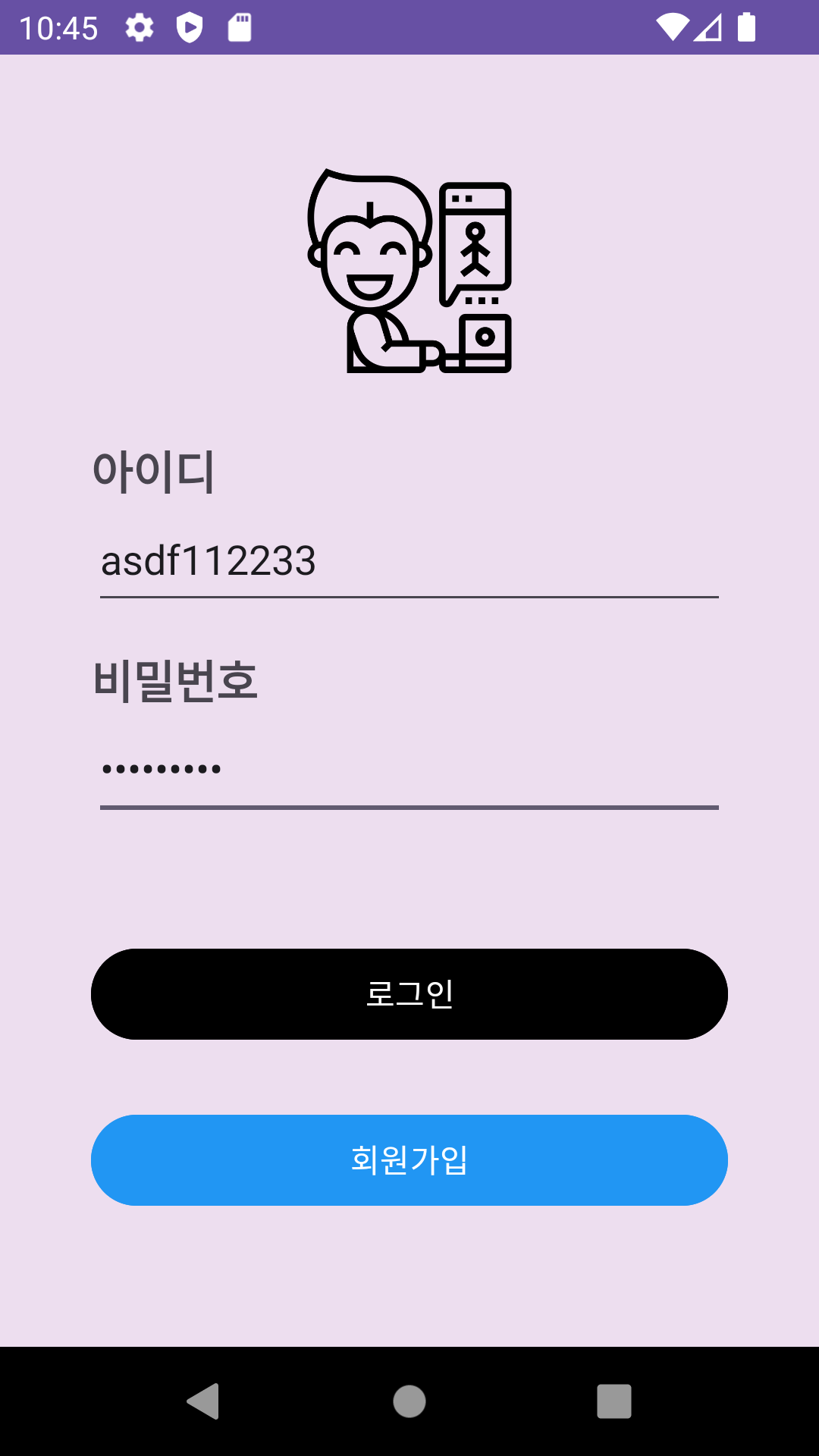 | HomeActivity에 정상적으로 데이터가 넘어간다.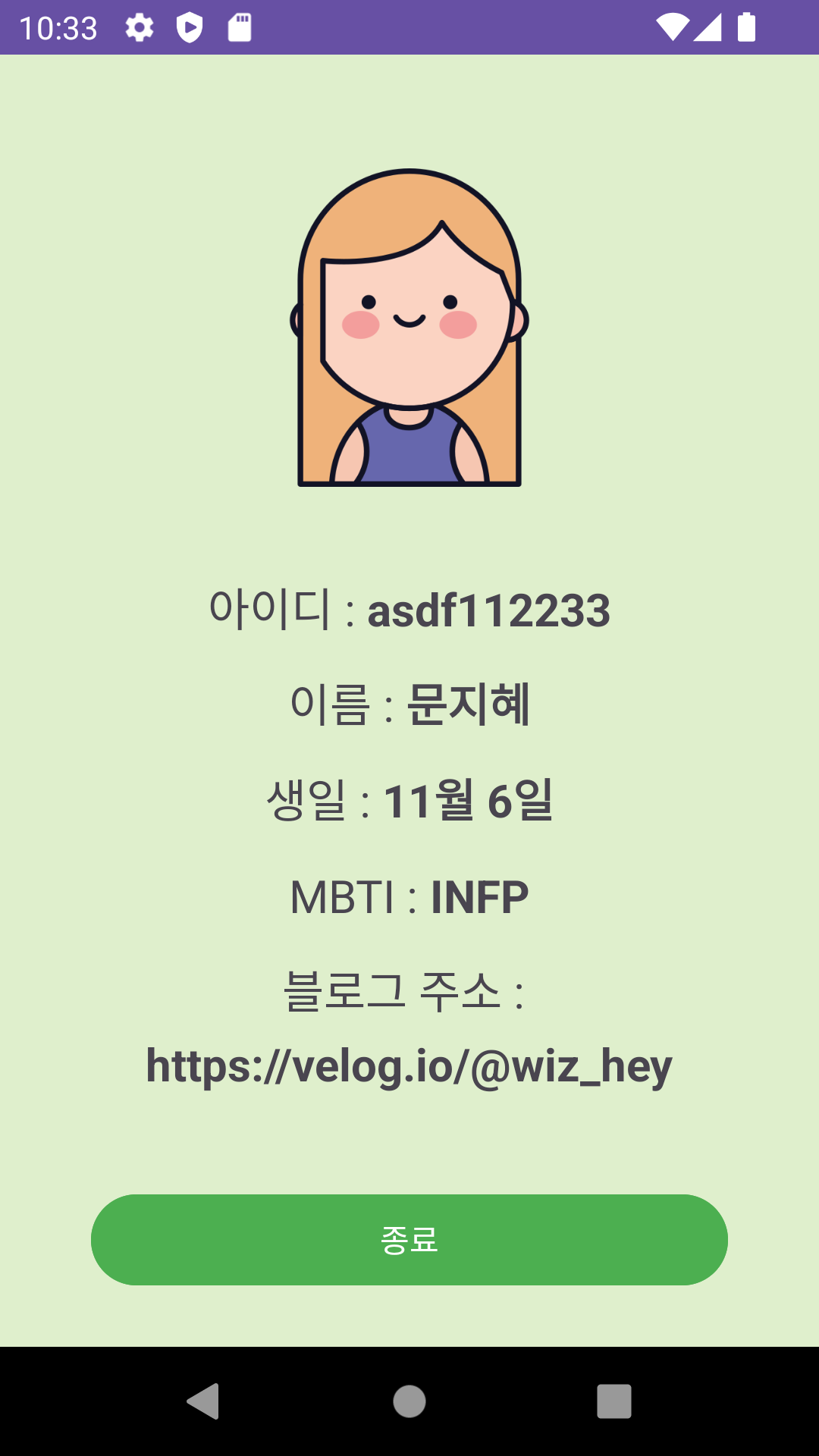 |
|---|
-
수직 수평 정렬에는 LinearLayout이 확실히 편한 것 같다. 근데 레이아웃뎁스.. 가 이정도면 깊은건 아니겠지..? 따지자면 겹으로는 3겹정도인건데.. 가볍게 만드는거니까 일단은 괜찮을거라고 생각한다.
=> 찾아보니까 기본 최대 깊이가 10이라는데, 어쨋든 구조 최적화를 할 수 있게 검사도 할 수 있고 수정하는 방법도 도와준다고 하니까 나중에 복잡한 레이아웃을 만들게 될 때 까먹지말고 최적화에 대해 유의해야겠다. -
기능 구현에서 액티비티끼리 값을 전달할 때 나는 배운대로 .setText( )를 썼는데, 찾아보니까 setText가 아니고 그냥 text(tv_user_id.text = strData 형식)로 작성한 모습을 봤다.
=>검색해보니까 따로 차이점이 나오는건 아니였고, 다만 안드로이드 스튜디오에서 text에 대해 자동완성이 뜰 때 (from getText( )/setText( ))라고 회색으로 같이 뜨는데, 아무래도 getText나 setText로 부터 text가 왔다고 하는 것 같으니까, text자체로 setText역할을 해주는 것 같다. 다음주에 선택과제에 대한 추가 구현을 할건데, 그 때 쓸일이 있다면 써보도록 해봐야겠다.
