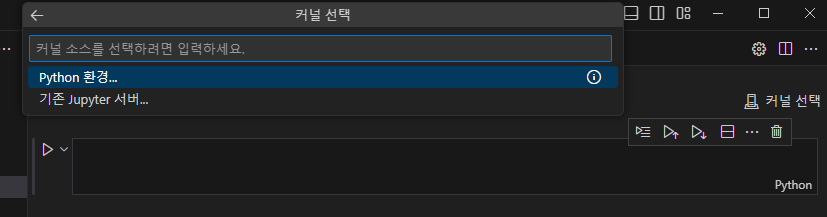
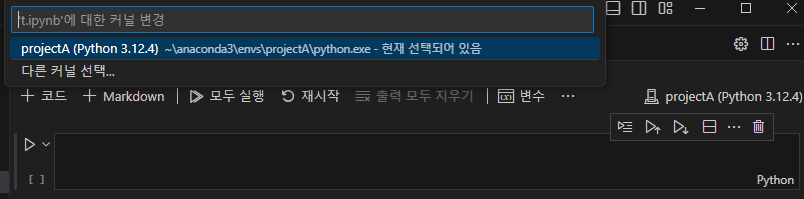
Python 환경 설정
- 커널 선택
- Project A 선택
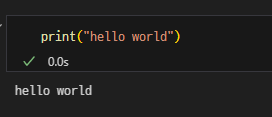
- 코드 출력
데이터 추출
모듈 설치
%pip install requests
- res변수 담고 다운받기 = 웹 페이지 내용 가져오기
https://www.worldometers.info/gdp/gdp-by-country/ 사이트에서 데이터를 수집하는 것import requests url = 'https://www.worldometers.info/gdp/gdp-by-country/' res = requests.get(url) print(res.text)
- BeautifulSoup 라이브러리 = html 형식으로 파일 모듈화
%pip install beautifulsoup4
- 앞에서 불러온 html문서를 형식에 맞게 구조화
from bs4 import BeautifulSoup
soup = BeautifulSoup(res.content, 'html.parser')
print(soup)
- 구조화된 html 문서에서 불러올 좌표 지정
css_selector = '#example2 > tbody > tr:nth-child(1) > td:nth-child(3)'
usa_gdp = soup.select_one(css_selector)
usa_gdp_value = usa_gdp.text #25,462,700,000,000 저장

'''
chat gpt
usa_gdp_value라는 변수에 $25,462,700,000,000 라는 값이 저장되어 있다.
여기서 $와 , 문자열을 제거하는 python코드를 작성해줘
'''
cleaned_value = usa_gdp_value.replace("$","").replace(",","")

print(usa_gdp)
print(usa_gdp.text)
print(cleaned_value)
- 부모를 가져오면 자식까지 한번에 반환
seletor = '#example2 > tbody'
tbody = soup.select_one(seletor)

print(tbody)
select all
- 원하는 내용 콘텐츠 출력
td에 있는 자식들을 모두 가져와서 list를 만들고 원하는 것 추출selector = '#example2 > tbody' tbody = soup.select_one(selector) rows = tbody.find_all('tr') # list for row in rows: cols = row.find_all('td') # list. 0: 순위, 1:국가명, 2: GDP country = cols[1].text gdp = cols[2].text print('{} - {}'.format(country, gdp))Dictionary
# 딕셔너리(Dictionary)
# 키와 벨류로 관리할 수 있는 자료구조
d = {'name':'taedon','age':45}
# print(d['name'])

customers = dict()
customers['count'] = 2
customers['customer_list'] = list()
customers['customer_list'].append({'name':'michael','city':'seoul'})
customers['customer_list'].append({'name':'bill','city':'busan'})

# print(customers)

# michael만 추출
print(customers['customer_list'][0]['name'])
API 데이터 출력
홈플러스에서 사과, 배 카테고리 데이터 가져오기
- 잘못된 코드
전체 코드를 출력했지만 상품 정보가 없음
가져온 것은 웹 서버에서 껍데기만 가져온 것이고 실제 데이터는 웹 브라우저에 있기 때문에
현재 출력한 것은 웹 서버에서 겉만 가져온 것import requests # url에서 데이터 가져오기 url = 'https://mfront.homeplus.co.kr/list?categoryDepth=2&categoryId=200009' res = requests.get(url) # html로 구조화 from bs4 import BeautifulSoup soup = BeautifulSoup(res.content, 'html.parser') print(soup)해결방법 = API에서 데이터를 가져온 뒤 데이터 가져오기
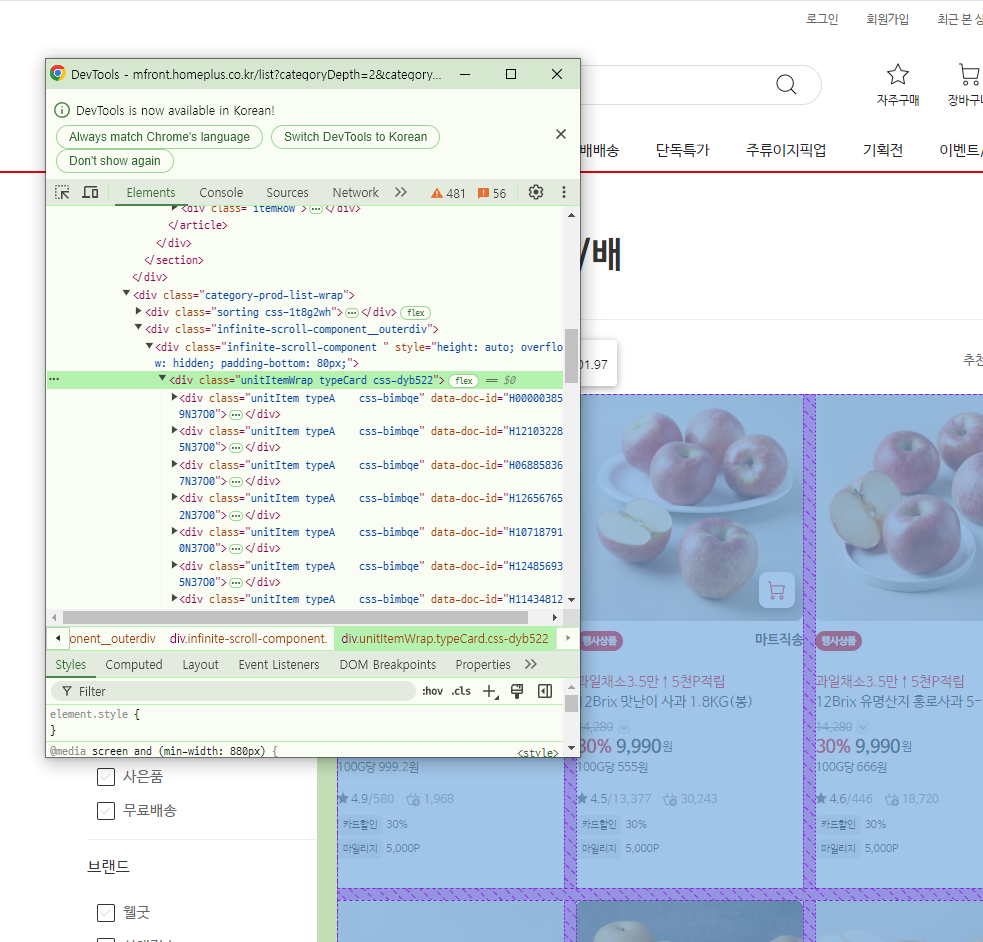
- F12 작업 환경에서 copy selector로 원하는 부분 가져오기
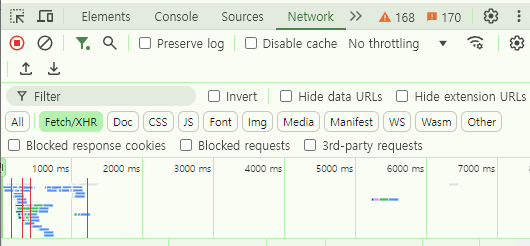
- 웹 페이지에서 설치한 API 확인
Network > Fetch/XHR > 화면 F5
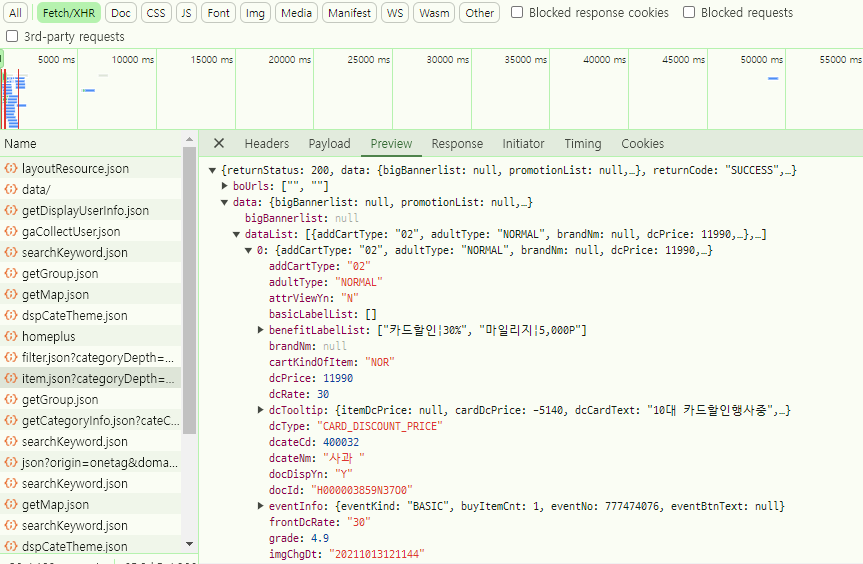
- 상품 목록 반환 API 확인 > Copy > Copy URL
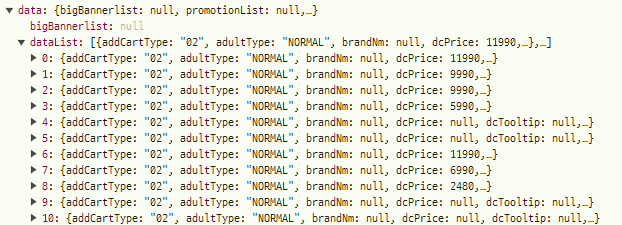
- data 밑 datalist에 상품 정보 확인
- 옳은 추출
import requests
url = 'https://mfront.homeplus.co.kr/category/item.json?categoryDepth=2&categoryId=200009&page=1&perPage=20&sort=RANK'
# AIP 호출
res = requests.get(url)

import json
j = json.loads(res.text) # list,dict 형태로 접근 가능 - 구조화

items = j['data']['dataList']
for item in items:
    print(item['itemNm'])
웹에서 데이터를 가져올 때
1) API가 있는지 확인
2) 있으면 호출한 뒤 JSON형태로 변환한 다음 사용하기 ex) 홈플러스 데이터가져오기실습
- 롯데마트 '사과' 검색 정보 추출
import requests
url = 'https://www.lotteon.com/search/search/search.ecn?&u2=60&u3=60&render=qapi&platform=pc&collection_id=301&q=%EC%82%AC%EA%B3%BC&x_param=&mallId=4&u39=0'

# AIP 호출
res = requests.get(url)

import json
j = json.loads(res.text)
items = j['itemList']

for item in items:
    print(item['productName'])
웹 브라우저로 데이터 추출
- Chrome 버전과 일치하는 파일 downloads > chromedriver > win64 다운
모듈 설치
%pip install selenium
- 롯데마트에서 불러오기
from selenium import webdriver
from selenium.webdriver.chrome.service import Service
from bs4 import BeautifulSoup
driver_path = r'D:\pml\chromedriver-win64\chromedriver.exe' #  각자 환경에 맞게 변경
service = Service(executable_path=driver_path)
driver = webdriver.Chrome(service=service)
url = 'https://www.lotteon.com/search/render/render.ecn?render=nqapi&platform=pc&collection_id=9&u9=navigate&u8=FC01200800&login=Y&mallId=1'
driver.get(url)
- 데이터 추출하기
soup = BeautifulSoup(driver.page_source, 'html.parser')
selector = '#s-category-app > div.srchResultInnerSection.active._c9_product_area > div > div.s-goods-layout.s-goods-layout__grid > div.s-goods-grid.s-goods-grid--col-4 > ul'
items = soup.select_one(selector).find_all('li')

for item in items:
    item_name = item.find('div', class_="s-goods-title")
    item_price = item.find('span', class_="s-goods-price__number")
    print(item_name.text, item_price.text)
웹 브라우저 자동화
- 카카오데이터 브라우저 불러오기
from selenium import webdriver
from selenium.webdriver.chrome.service import Service
from selenium.webdriver.common.by import By

driver_path = r'D:\pml\chromedriver-win64\chromedriver.exe' #  각자 환경에 맞게 변경
service = Service(executable_path=driver_path)
driver = webdriver.Chrome(service=service)

url = 'https://datatrend.kakao.com/'
driver.get(url)
- 검색어 입력 자동화
import time
# 검색어 입력
selector = '#keyword'
input_box = driver.find_element(By.CSS_SELECTOR, selector)
input_box.clear()   # 기존 내용을 삭제
input_box.send_keys('사과')
time.sleep(3)   # 3초 대기

# 기간을 전체로 설정
selector = '#root > div > div > main > article > div.wrap_select > div.box_select > div.wrap_period > div.option_check > label:nth-child(1) > span'
button = driver.find_element(By.CSS_SELECTOR, selector)
button.click()
time.sleep(3)   # 3초 대기

# 조회버튼 클릭
selector = '#root > div > div > main > article > div.wrap_btn > button.btn_search'
button = driver.find_element(By.CSS_SELECTOR, selector)
button.click()
time.sleep(3)   # 3초 대기
판다스
- 파이썬 판다스는 파이썬에서 데이터 분석과 조작을 쉽고 빠르게 할 수 있는 오픈 소스 라이브러리
- 판다스는 넘파이, 사이파이, 스탯모델스, 사이킷런, 맷플롯립 등의 다른 파이썬 라이브러리와 함께 사용
- 판다스의 주요 자료구조는 시리즈와 데이터프레임
- 시리즈는 일차원 배열과 인덱스로 이루어진 객체이고, 데이터 프레임은 행과 열로 이루어진 데이터프레임 형태
- 모듈 설치
%pip install pandas
- 열 2개를 가진 데이터프레임 생성
import pandas as pd

# 행 단위로 데이터 입력
df = pd.DataFrame([[1,2],[2,3],[3,4]])
df
- 행 단위로 데이터 입력
# 열 이름 지정
# 인덱스 지정
df = pd.DataFrame([[1,2],[2,3],[3,4]],
                  columns = ['ColA','CplB'],
                  index = ['Row1','Row2','Row3'])
df
- 딕셔너리를 이용해 데이터프레임 생성
# 딕셔너리는 키(열이름) : 값(행)
data = [
    {'ColA' : 1, 'ColB' : 'A'},
    {'ColA' : 2, 'ColB' : 'B'},
    {'ColA' : 3, 'ColB' : 'C'}
]
df = pd.DataFrame(data)
df
- 열 단위로 데이터 입력
data = {'ColA':[1,2,3], 'ColB':['A','B','C']}
df = pd.DataFrame(data)
df
- cvs파일 불러오기
df = pd.read_csv('data/iris_noheader.csv',
                 header=None,
                 names = ['ColA','ColB','ColC','ColD','ColE']
                 )
df
- 엑셀 파일 불러오기
%pip install openpyxl 다운df = pd.read_excel('data/seoul.xlsx', sheet_name='Sheet1') df
문제
- 지피티한테
아래 코드는 어떤 api를 호출해서 상품명과 가격을 추출하는
코드를 나타낸다. 아래 코드를 수정하여 그 결과를 csv 파일로
저장할 수 있는 코드를 수정해줘. 이때 pandas를 사용해줘.############ 코드 ############
import requests
url = 'https://mfront.homeplus.co.kr/category/item.json?categoryDepth=2&categoryId=200009&page=1&perPage=20&sort=RANK'
res = requests.get(url)

import json
j = json.loads(res.text)    # 이제 list, dict 형태로 접근 가능

items = j['data']['dataList']
for item in items:
    print(item['itemNm'], item['dcPrice'])
보내기
- 결과물
import requests
import json
import pandas as pd

# API 호출
url = 'https://mfront.homeplus.co.kr/category/item.json?categoryDepth=2&categoryId=200009&page=1&perPage=20&sort=RANK'
res = requests.get(url)

# JSON 데이터를 파싱
j = json.loads(res.text)

# 상품명과 가격 추출
items = j['data']['dataList']

# 상품명과 가격을 저장할 리스트 생성
data = []
for item in items:
    data.append({'상품명': item['itemNm'], '가격': item['dcPrice']})

# pandas DataFrame으로 변환
df = pd.DataFrame(data)

# CSV 파일로 저장
df.to_csv('상품정보.csv', index=False, encoding='utf-8-sig')

print("CSV 파일로 저장 완료.")
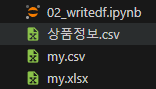
- cvs 파일 생성