EKS Autoscaling
K8S의 Auto Scling 은 3가지 버전이 있습니다 오늘은 EKS 오토스케일링에 대하여 실습하겠습니다
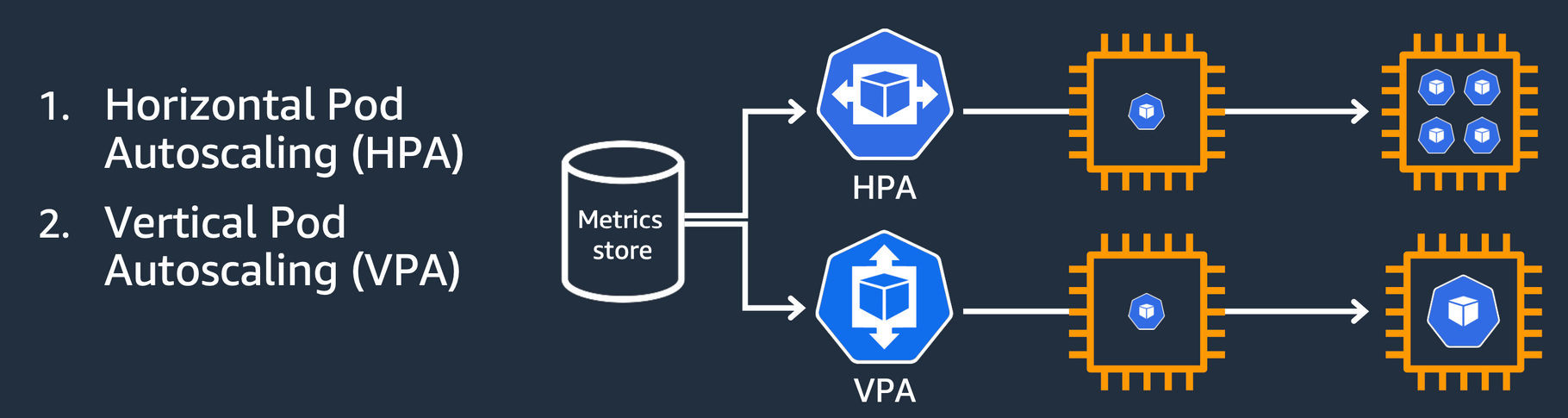
1. HPA(Horizontal POD autoscaler / Scale In,Out)
2. VPA(Vertical POD Autoscaler / Scale Up, Down)
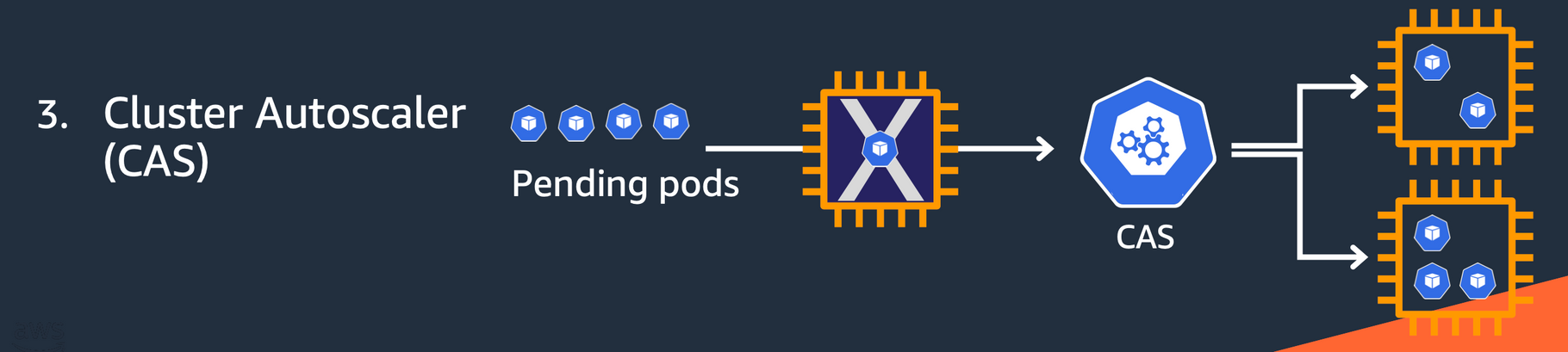
3. CA(Cluster Autoscaler, Node level)
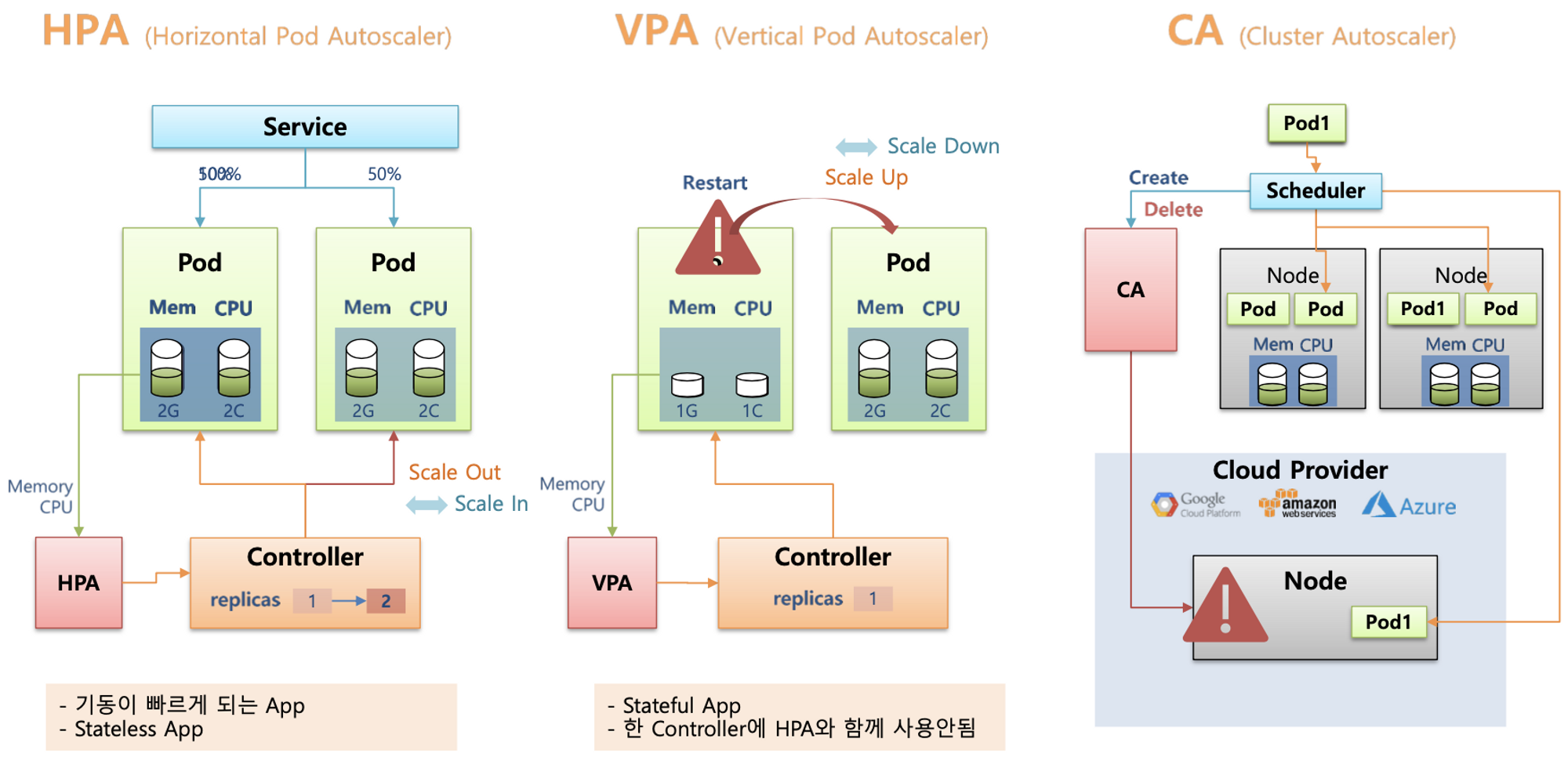
(출처 : https://kubetm.github.io/k8s/08-intermediate-controller/hpa/)
- Kubernetes autoscaling overview - CON324_Optimizing-Amazon-EKS-for-performance-and-cost-on-AWS.pdf 발췌
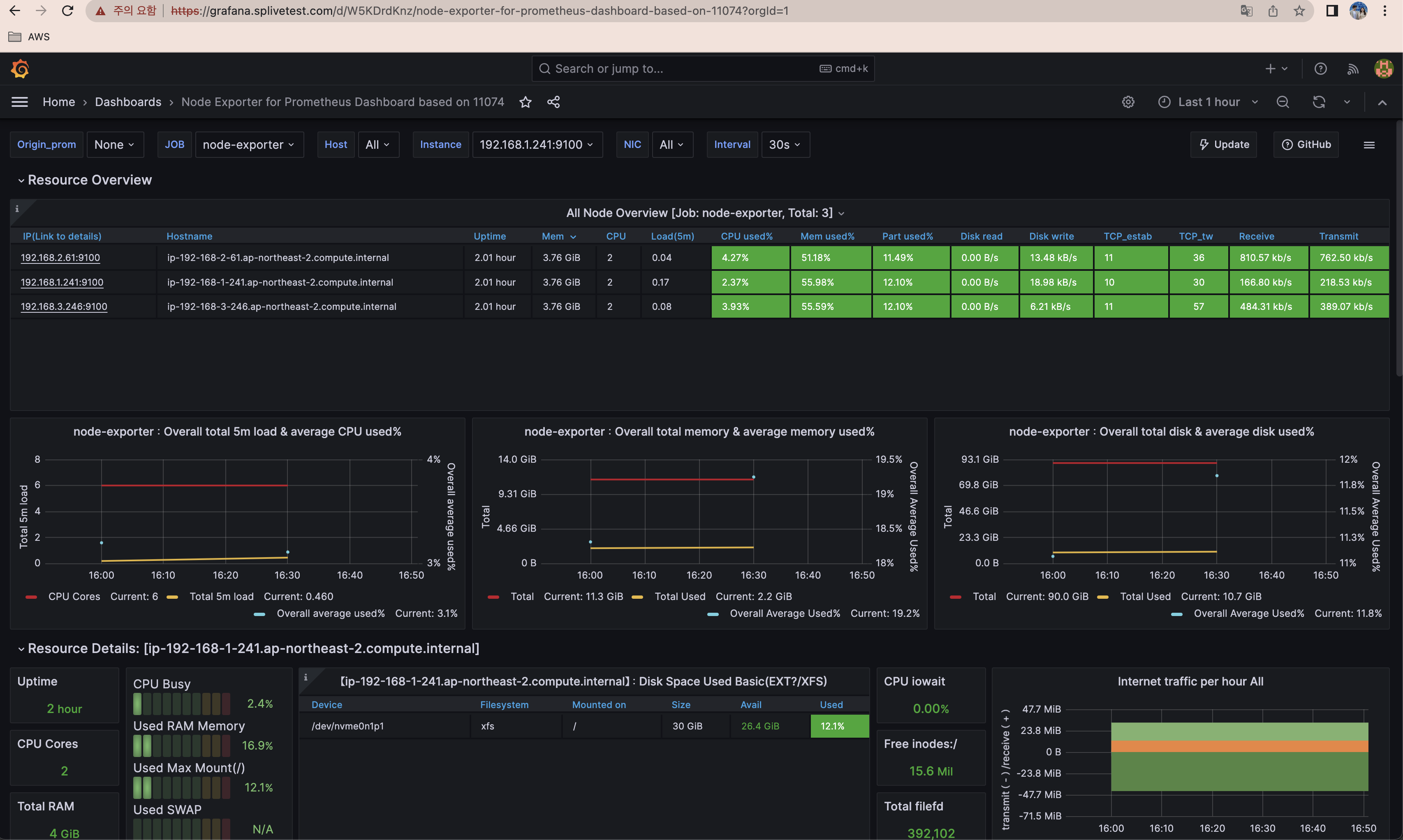
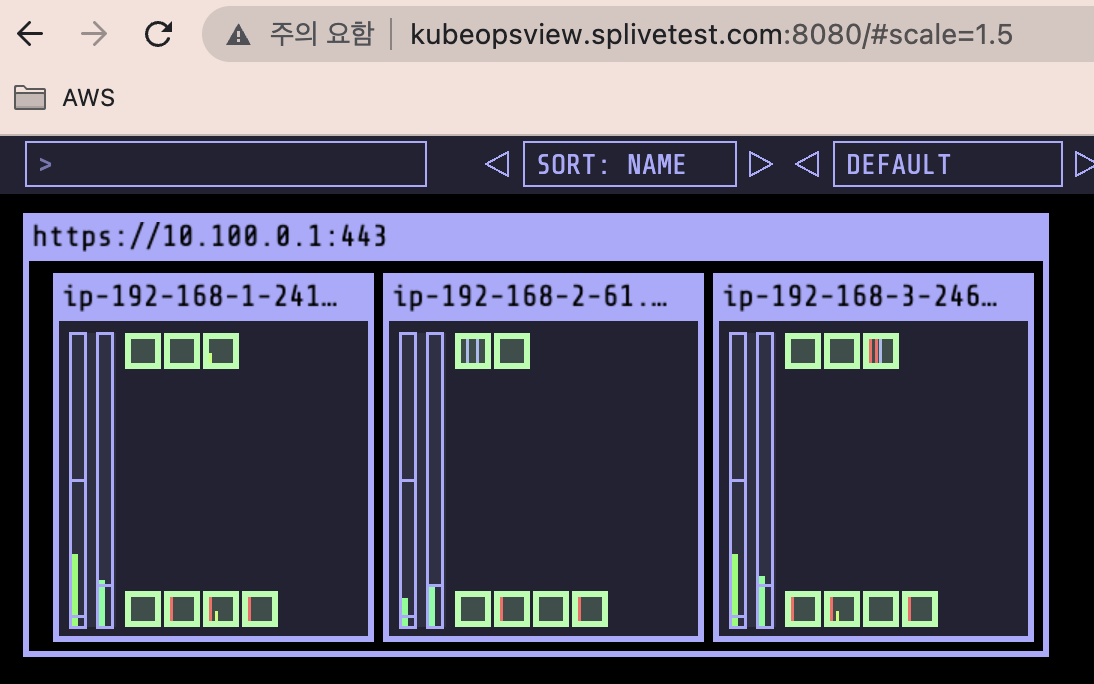
준비 : 그라파나, EKS Node viewer(노드 할당 가능 용량과 요청 request 리소스 표시, 실제 파드 리소스 사용량 X), kube-ops-view

1. HPA - Horizontal Pod Autoscaler

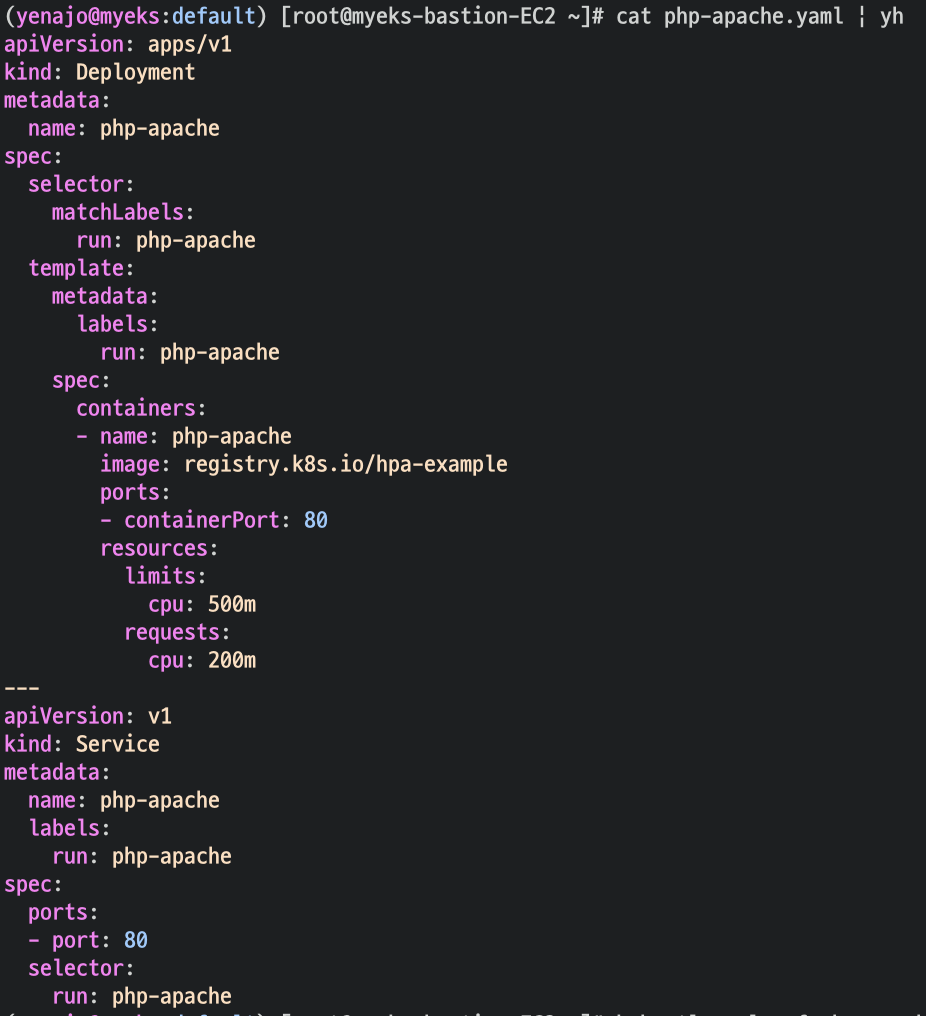
- cpu 과부하 연산 수행을 하기 위한 apache 배포
- HPA 생성 및 부하 발생 후 오토 스케일링 테스트
# Create the HorizontalPodAutoscaler : requests.cpu=200m - 알고리즘
# Since each pod requests 200 milli-cores by kubectl run, this means an average CPU usage of 100 milli-cores.
kubectl autoscale deployment php-apache --cpu-percent=50 --min=1 --max=10
cpu 50 프로 넘으면 오토스케일링
- HPA 설정 확인
# HPA 설정 확인
kubectl krew install neat
kubectl get hpa php-apache -o yaml
kubectl get hpa php-apache -o yaml | kubectl neat | yh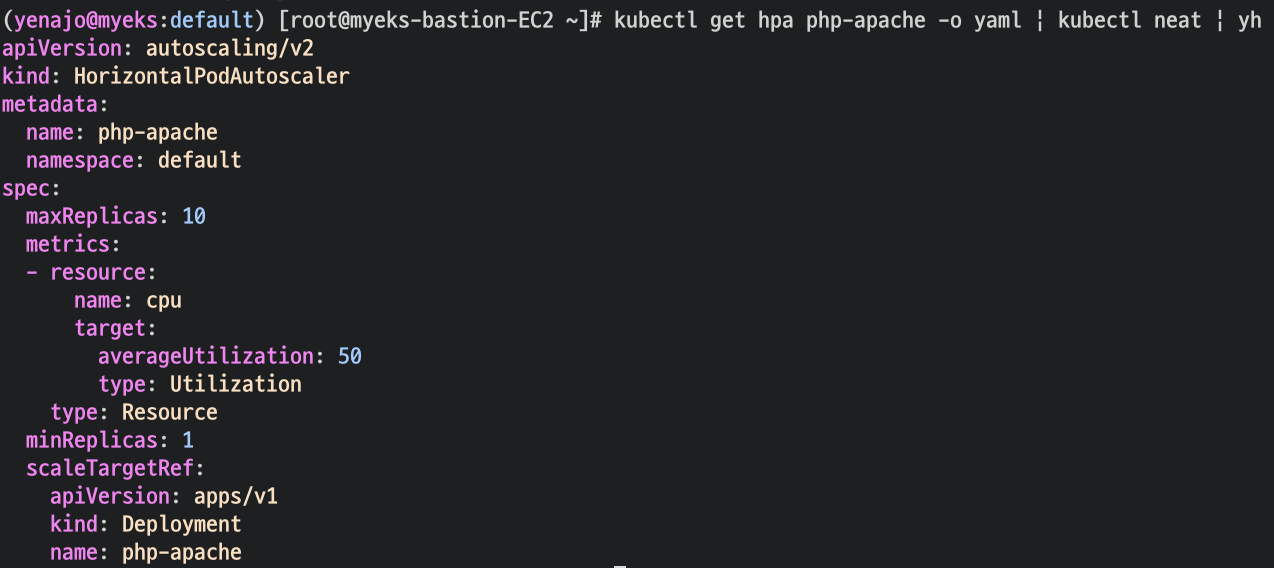
- 반복 접속 테스트
# 반복 접속 1 (파드1 IP로 접속) >> 증가 확인 후 중지
while true;do curl -s $PODIP; sleep 0.5; done

# 반복 접속 2 (서비스명 도메인으로 접속) >> 증가 확인(몇개까지 증가되는가? 그 이유는?) 후 중지 >> 중지 5분 후 파드 갯수 감소 확인
# Run this in a separate terminal
# so that the load generation continues and you can carry on with the rest of the steps
kubectl run -i --tty load-generator --rm --image=busybox:1.28 --restart=Never -- /bin/sh -c "while sleep 0.01; do wget -q -O- http://php-apache; done"
2번으로 해보겠습니다
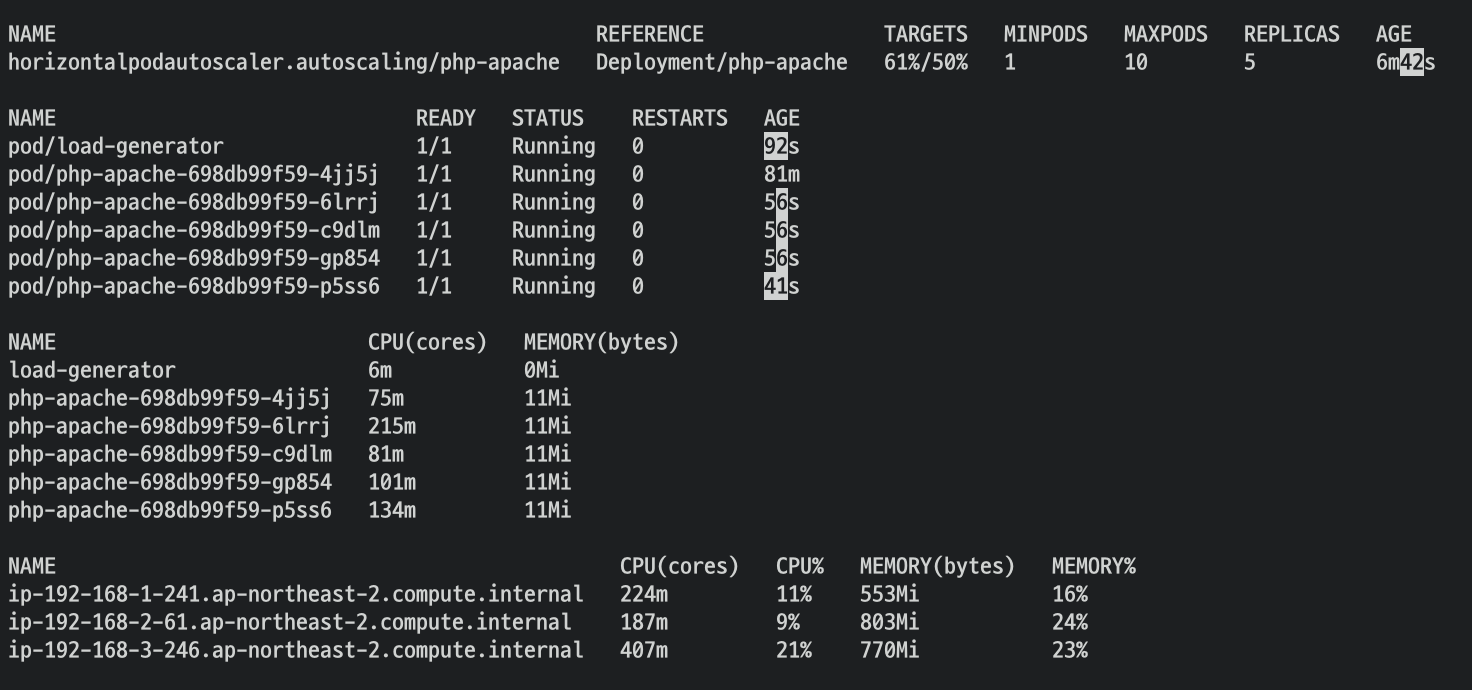
target의 수치가 올라가 replicas 가 늘어난 것을 확인해볼 수 있습니다.
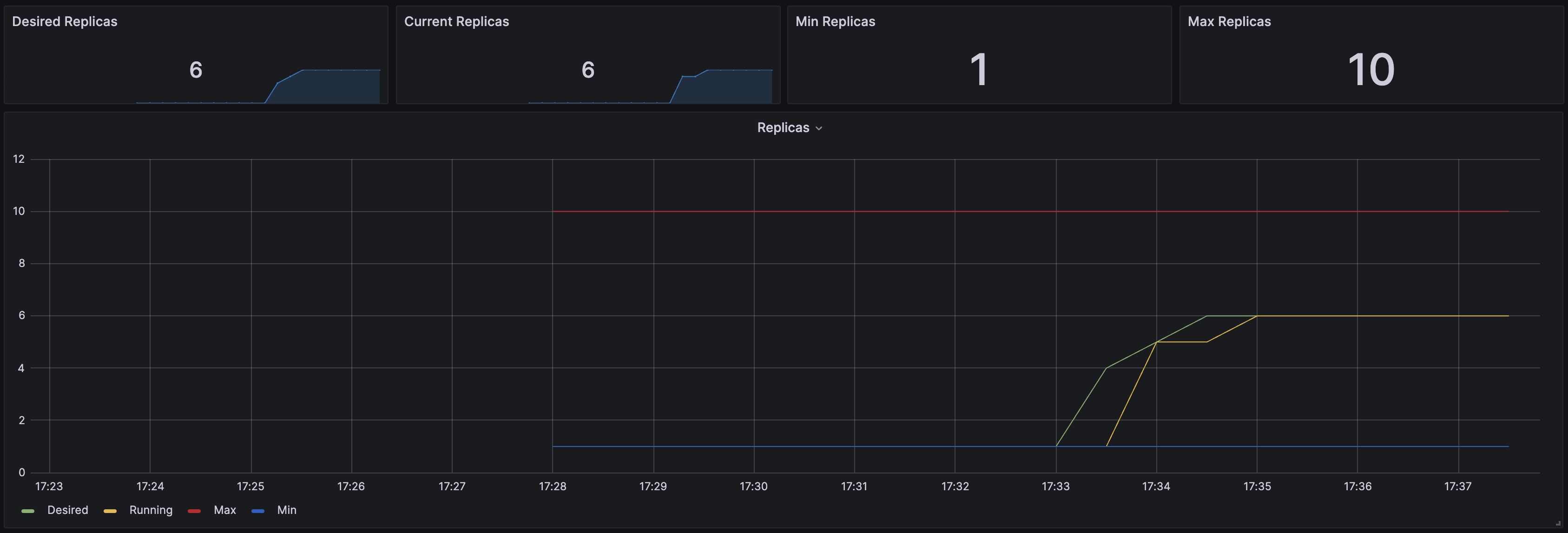
grafana에서도 확인 가능
2. KEDA - Kubernetes based Event Driven Autoscaler
KEDA AutoScaler란?
기존의 HPA(Horizontal Pod Autoscaler)는 리소스(CPU, Memory) 메트릭을 기반으로 스케일 여부를 결정하게 됩니다.
반면에 KEDA는 특정 이벤트를 기반으로 스케일 여부를 결정할 수 있습니다.
예를 들어 airflow는 metadb를 통해 현재 실행 중이거나 대기 중인 task가 얼마나 존재하는지 알 수 있습니다.
이러한 이벤트를 활용하여 worker의 scale을 결정한다면 queue에 task가 많이 추가되는 시점에 더 빠르게 확장할 수 있습니다.
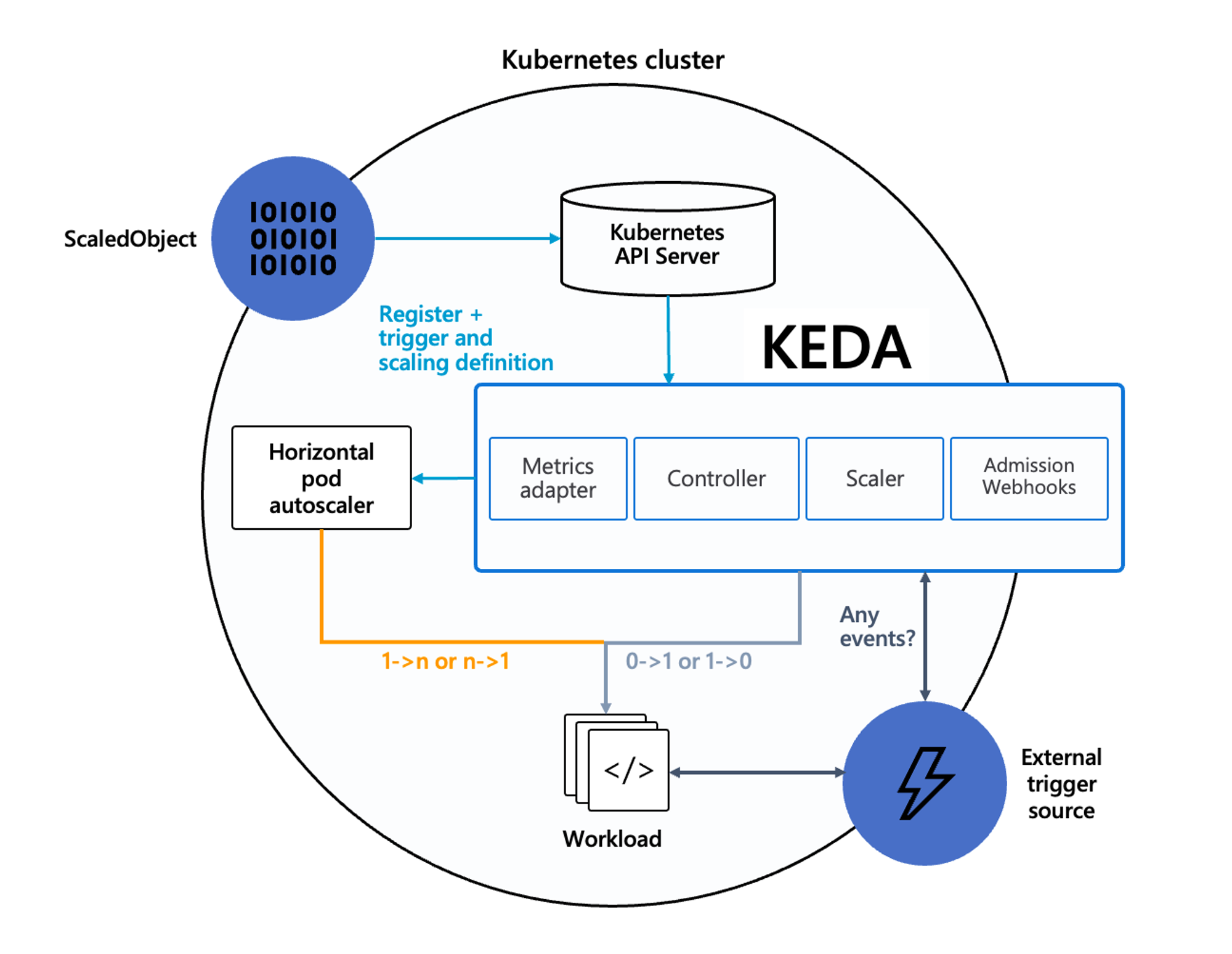
출처 : https://keda.sh/docs/2.10/concepts/ , AEWS노션
KEDA 설치

cat <<EOT > keda-values.yaml
metricsServer:
  useHostNetwork: true

prometheus:
  metricServer:
    enabled: true
    port: 9022
    portName: metrics
    path: /metrics
    serviceMonitor:
      # Enables ServiceMonitor creation for the Prometheus Operator
      enabled: true
    podMonitor:
      # Enables PodMonitor creation for the Prometheus Operator
      enabled: true
  operator:
    enabled: true
    port: 8080
    serviceMonitor:
      # Enables ServiceMonitor creation for the Prometheus Operator
      enabled: true
    podMonitor:
      # Enables PodMonitor creation for the Prometheus Operator
      enabled: true

  webhooks:
    enabled: true
    port: 8080
    serviceMonitor:
      # Enables ServiceMonitor creation for the Prometheus webhooks
      enabled: true
EOT

kubectl create namespace keda
helm repo add kedacore https://kedacore.github.io/charts
helm install keda kedacore/keda --version 2.10.2 --namespace keda -f keda-values.yaml
설치 확인
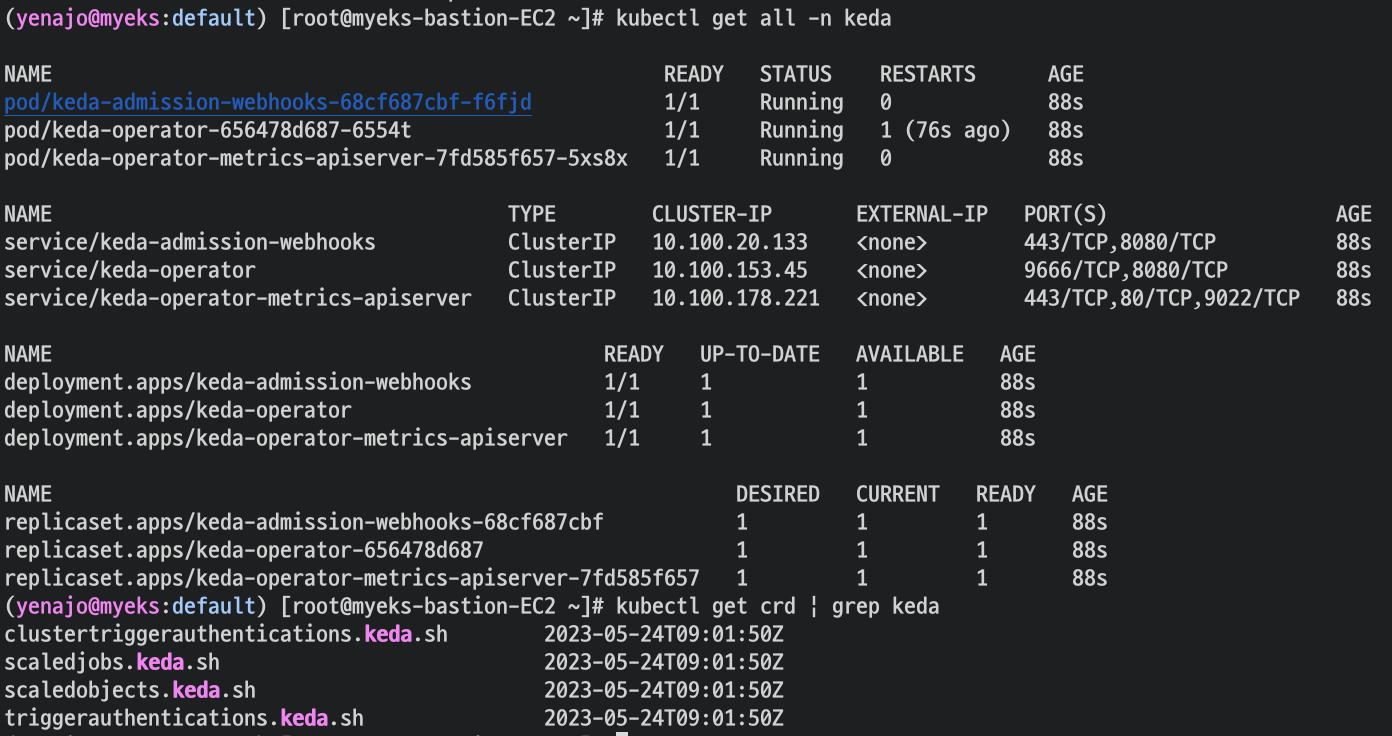
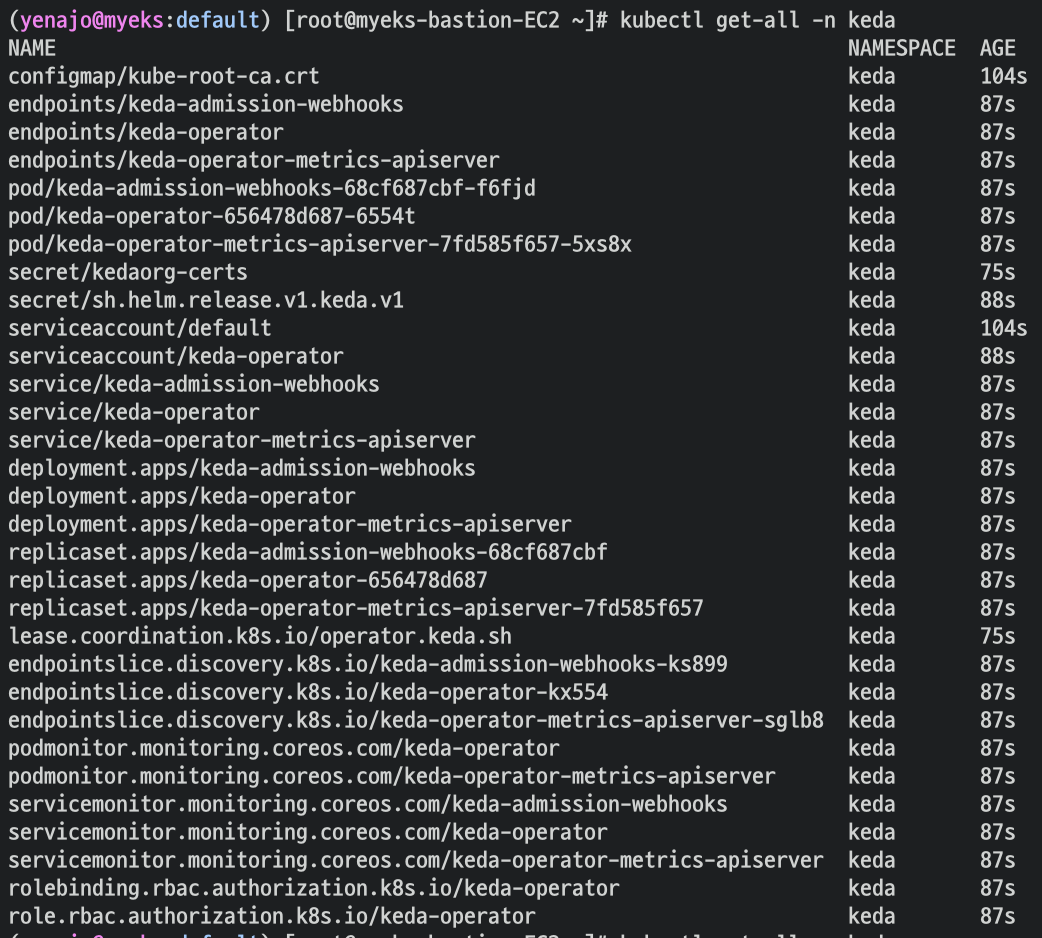
참고로 , KEDA는 KEDA전용 메트릭 서버를 사용한다.
keda 네임스페이스에 디플로이먼트 생성
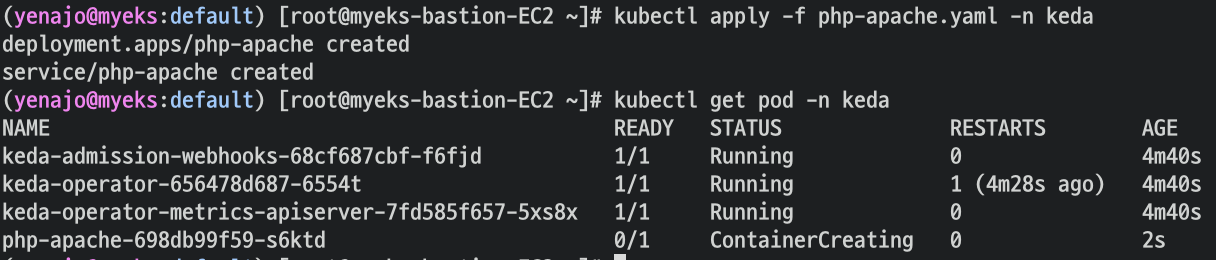
ScaledObject 정책 생성 : cron
cat <<EOT > keda-cron.yaml
apiVersion: keda.sh/v1alpha1
kind: ScaledObject
metadata:
  name: php-apache-cron-scaled
spec:
  minReplicaCount: 0
  maxReplicaCount: 2
  pollingInterval: 30
  cooldownPeriod: 300
  scaleTargetRef:
    apiVersion: apps/v1
    kind: Deployment
    name: php-apache
  triggers:
  - type: cron
    metadata:
      timezone: Asia/Seoul
      start: 00,15,30,45 * * * *
      end: 05,20,35,50 * * * *
      desiredReplicas: "1"
EOT
kubectl apply -f keda-cron.yaml -n keda
cron식으로 15분마다 replicas가 증가하게 해뒀기 때문에 잠시 다른것을 하다보면 grafana에서 아래와 같은 결과를 확인해볼 수 있다

3. VPA - Vertical Pod Autoscaler
VPA(Vertical Pod Autoscaler)란?
pod resources.request을 최대한 최적값으로 수정합니다. 수정된 request값이 기존 값보다 위 또는 아래 범위에 속하므로 Vertical라고 표현합니다.
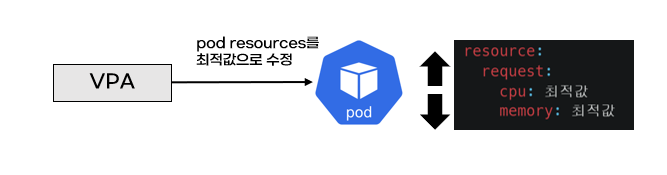
pod마다 resource.request를 최적값으로 설정하면, 쿠버네티스 노드 자원 효율성이 좋아집니다. pod가 스케쥴링될 때 pod resources.request만큼 노드에 자원이 있어야 합니다. VPA를 설정하면 쿠버네티스 노드 cpu와 메모리를 최대한 확보할 수 있으므로 자원 효율성이 증가합니다.
주의사항은
VPA는 HPA와 같이 사용할 수 없고
VPA는 pod자원을 최적값으로 수정하기 위해 pod를 재실행(기존 pod를 종료하고 새로운 pod실행)합니다
출처 : https://malwareanalysis.tistory.com/603
code다운로드
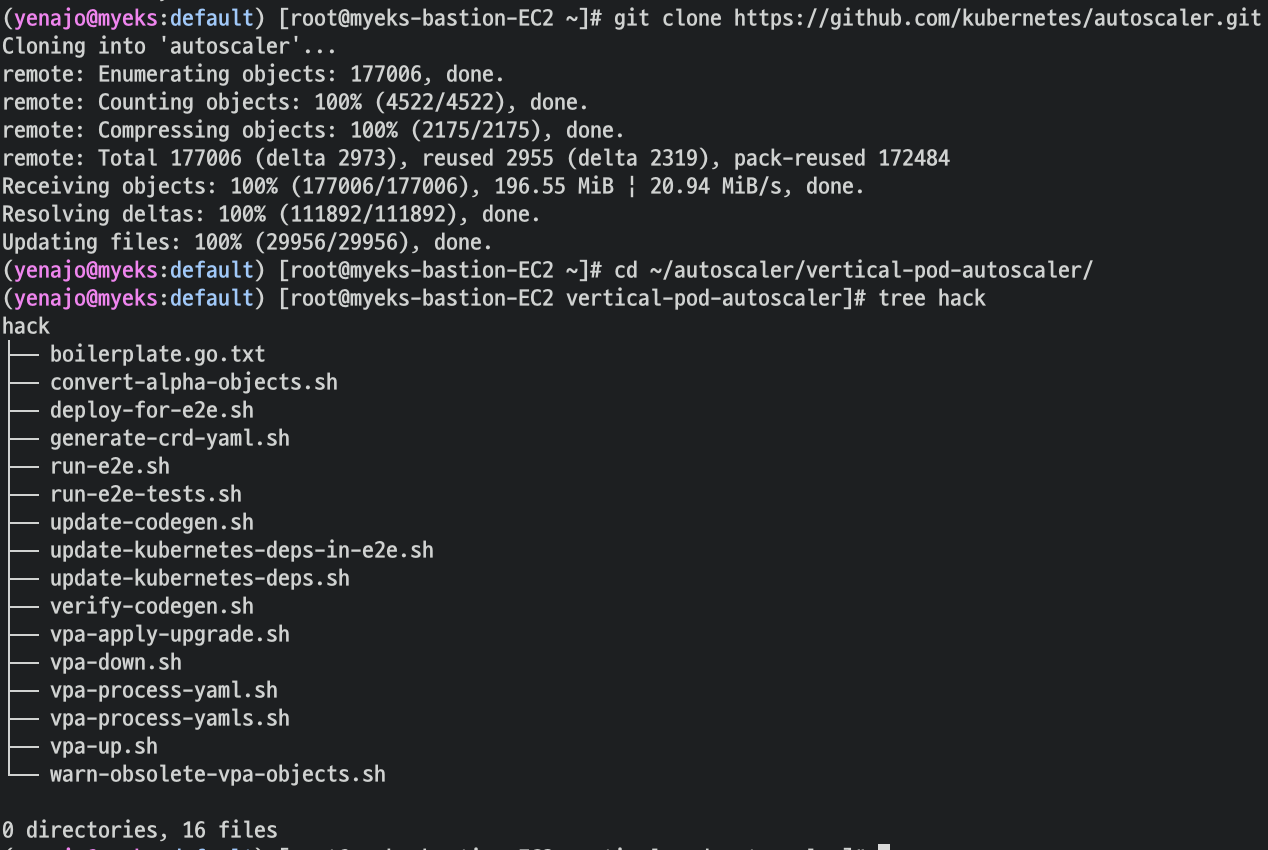
git clone https://github.com/kubernetes/autoscaler.git
cd ~/autoscaler/vertical-pod-autoscaler/
tree hack
OPEN SSL 버전 확인

Open SSL 버전 11 이상 필요하여 설치
yum install openssl11 -y
openssl11 version
스크립트파일내에 openssl11 수정
sed -i 's/openssl/openssl11/g' ~/autoscaler/vertical-pod-autoscaler/pkg/admission-controller/gencerts.sh
Deploy the Vertical Pod Autoscaler to your cluster with the following command.
watch -d kubectl get pod -n kube-system
cat hack/vpa-up.sh
./hack/vpa-up.sh
kubectl get crd | grep autoscaling
공식 예제 배포
cd ~/autoscaler/vertical-pod-autoscaler/
cat examples/hamster.yaml | yh
kubectl apply -f examples/hamster.yaml && kubectl get vpa -w
VPA에 의해 기존 파드 삭제되고 신규 파드가 생성됨
그라파나는 기다려봐도 뜨지 않았습니다 ㅠ
4. CA - Cluster Autoscaler
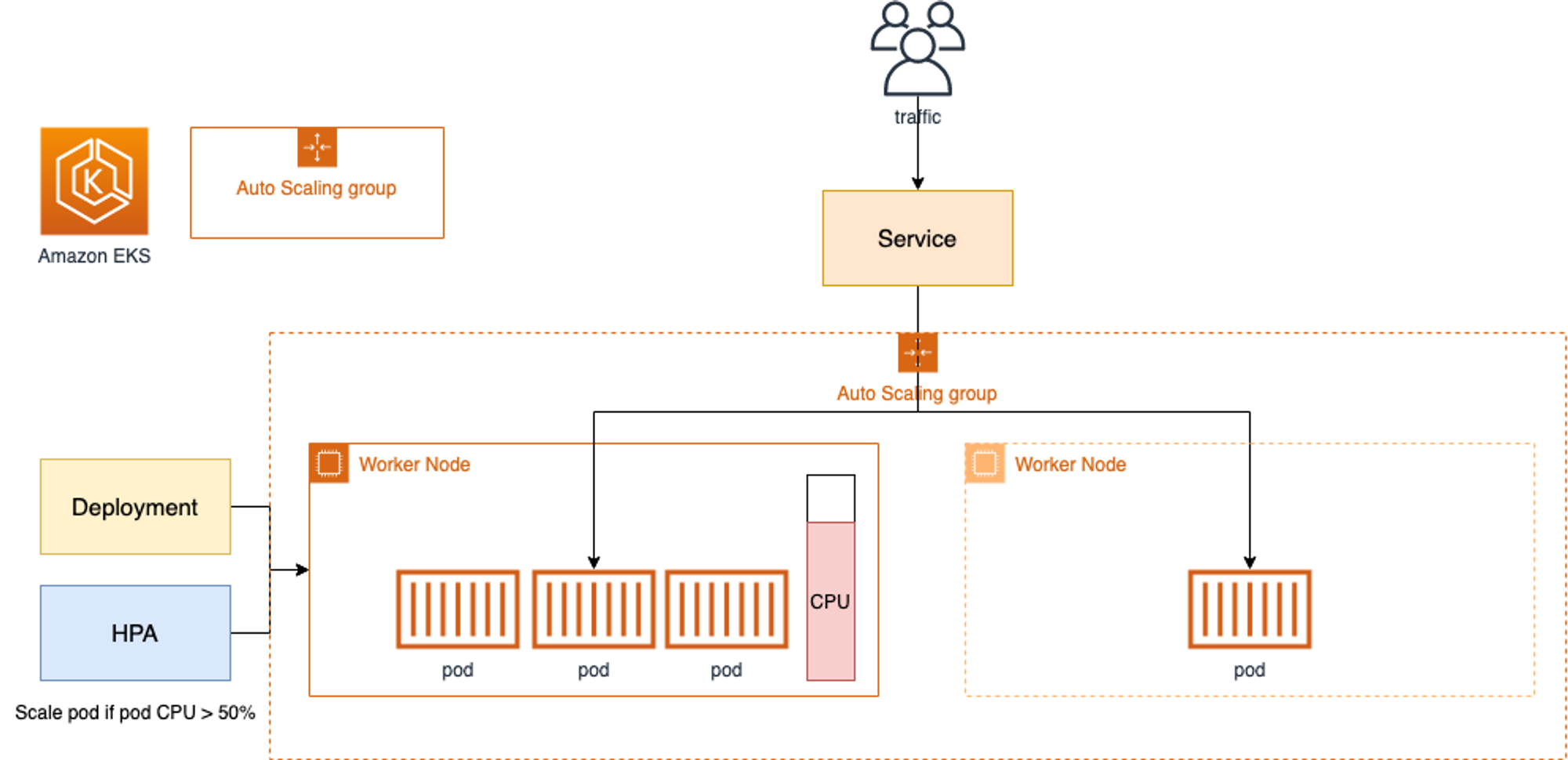
- Cluster Autoscale 동작을 하기 위한 cluster-autoscaler 파드(디플로이먼트)를 배치합니다.
- Cluster Autoscaler(CA)는 pending 상태인 파드가 존재할 경우, 워커 노드를 스케일 아웃합니다.
- 특정 시간을 간격으로 사용률을 확인하여 스케일 인/아웃을 수행합니다. 그리고 AWS에서는 Auto Scaling Group(ASG)을 사용하여 Cluster Autoscaler를 적용합니다.
Cluster Autoscaler(CA) 설정
설정 전 확인
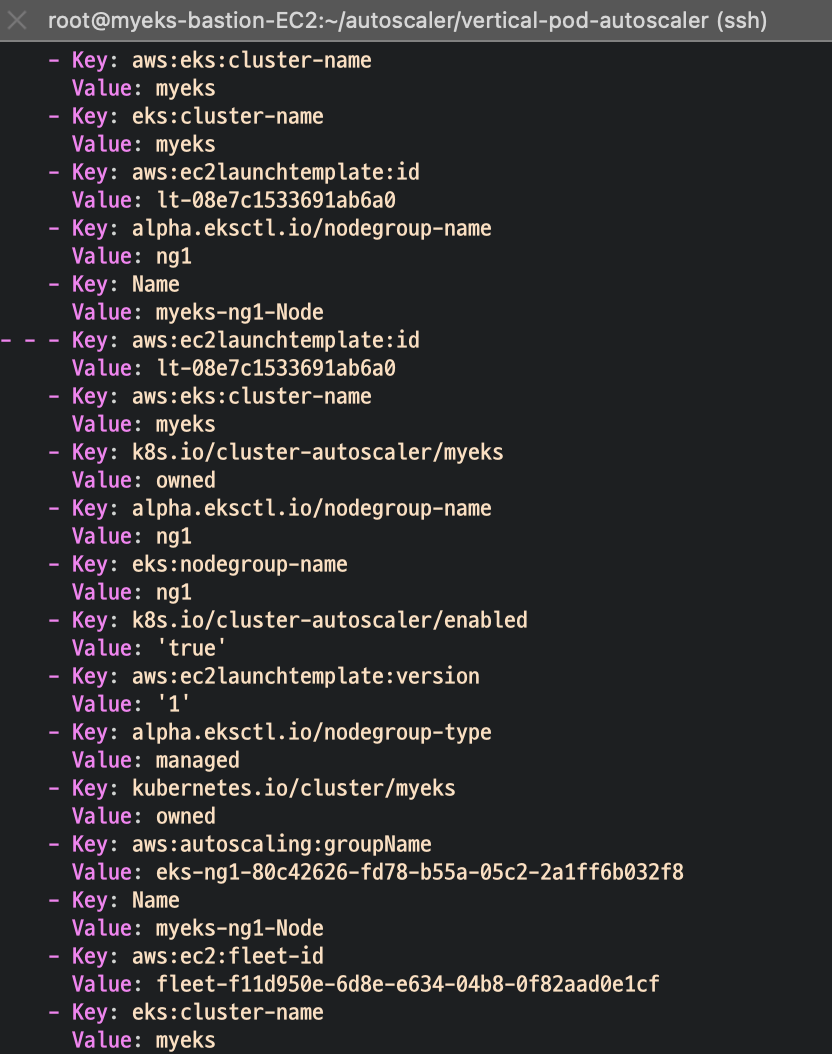
EKS 노드에 이미 아래 tag가 들어가 있음
현재 autoscaling(ASG) 정보 확인

MaxSize 6개로 수정
export ASG_NAME=$(aws autoscaling describe-auto-scaling-groups --query "AutoScalingGroups[? Tags[? (Key=='eks:cluster-name') && Value=='myeks']].AutoScalingGroupName" --output text)
aws autoscaling update-auto-scaling-group --auto-scaling-group-name ${ASG_NAME} --min-size 3 --desired-capacity 3 --max-size 6
확인
aws autoscaling describe-auto-scaling-groups --query "AutoScalingGroups[? Tags[? (Key=='eks:cluster-name') && Value=='myeks']].[AutoScalingGroupName, MinSize, MaxSize,DesiredCapacity]" --output table

배포
curl -s -O https://raw.githubusercontent.com/kubernetes/autoscaler/master/cluster-autoscaler/cloudprovider/aws/examples/cluster-autoscaler-autodiscover.yaml
sed -i "s/<YOUR CLUSTER NAME>/$CLUSTER_NAME/g" cluster-autoscaler-autodiscover.yaml
kubectl apply -f cluster-autoscaler-autodiscover.yaml
확인

(옵션) cluster-autoscaler 파드가 동작하는 워커 노드가 퇴출(evict) 되지 않게 설정
SCALE A CLUSTER WITH Cluster Autoscaler(CA)
간단한 app 을 배포
cat <<EoF> nginx.yaml
apiVersion: apps/v1
kind: Deployment
metadata:
  name: nginx-to-scaleout
spec:
  replicas: 1
  selector:
    matchLabels:
      app: nginx
  template:
    metadata:
      labels:
        service: nginx
        app: nginx
    spec:
      containers:
      - image: nginx
        name: nginx-to-scaleout
        resources:
          limits:
            cpu: 500m
            memory: 512Mi
          requests:
            cpu: 500m
            memory: 512Mi
EoF

kubectl apply -f nginx.yaml
kubectl get deployment/nginx-to-scaleout
레플리카스 스케일아웃
kubectl scale --replicas=15 deployment/nginx-to-scaleout && date
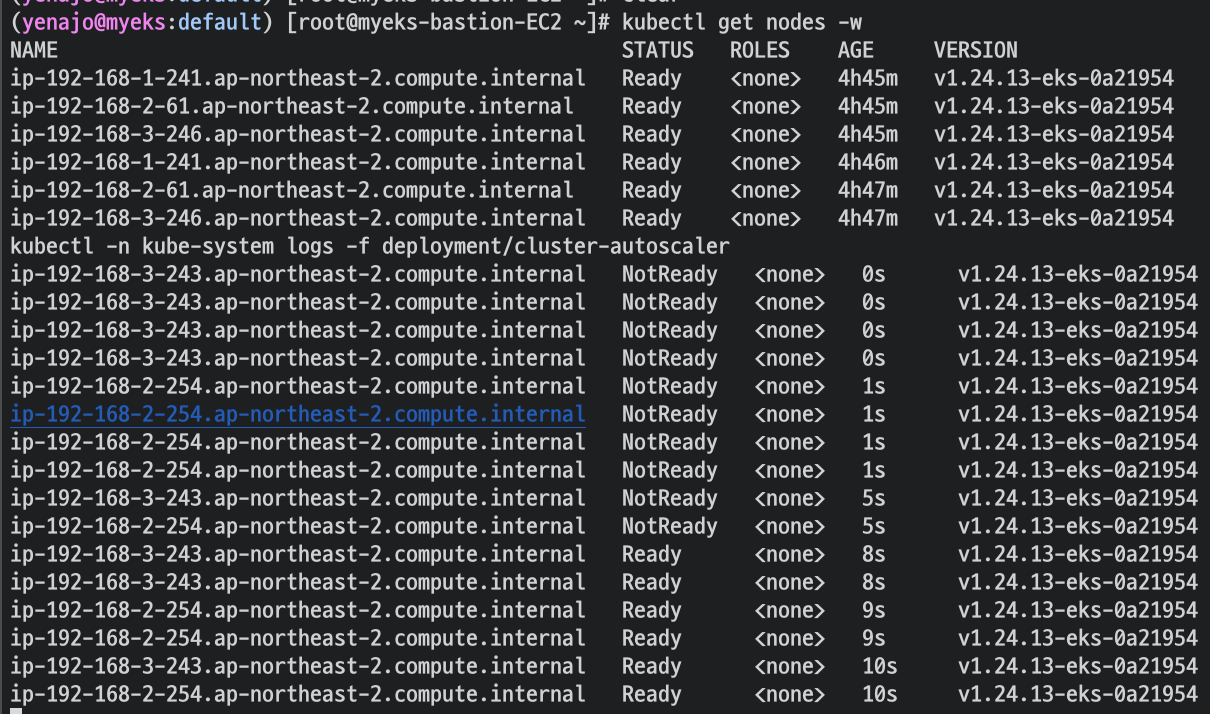
노드가 계속 증가된다
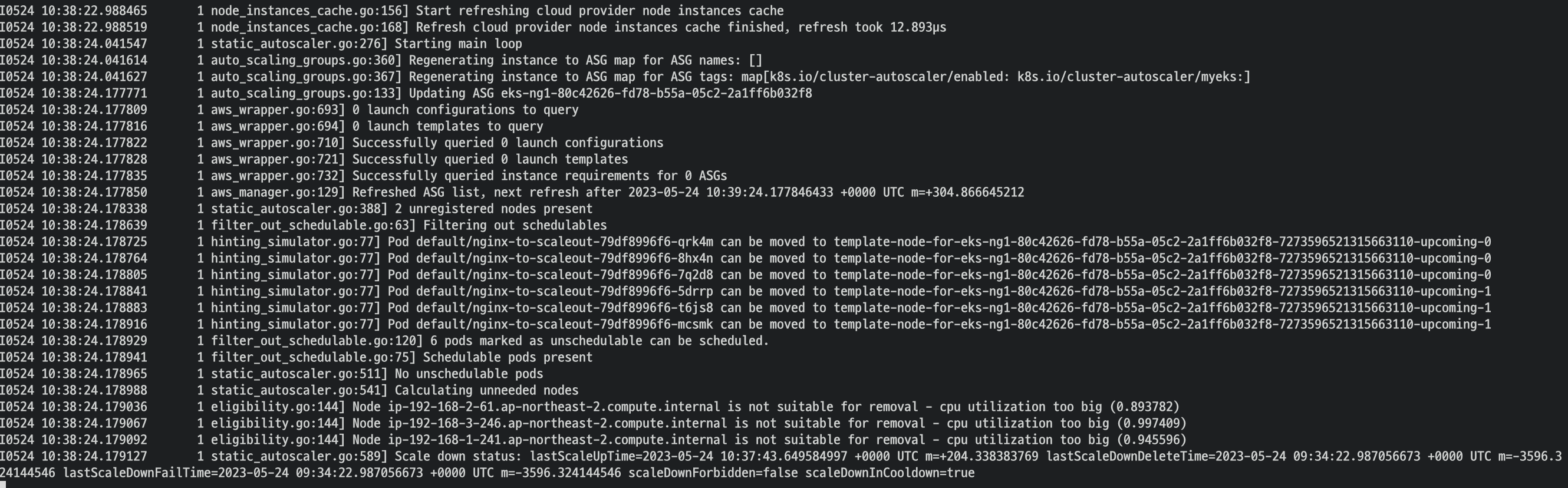
로그도 확인해볼 수 있음
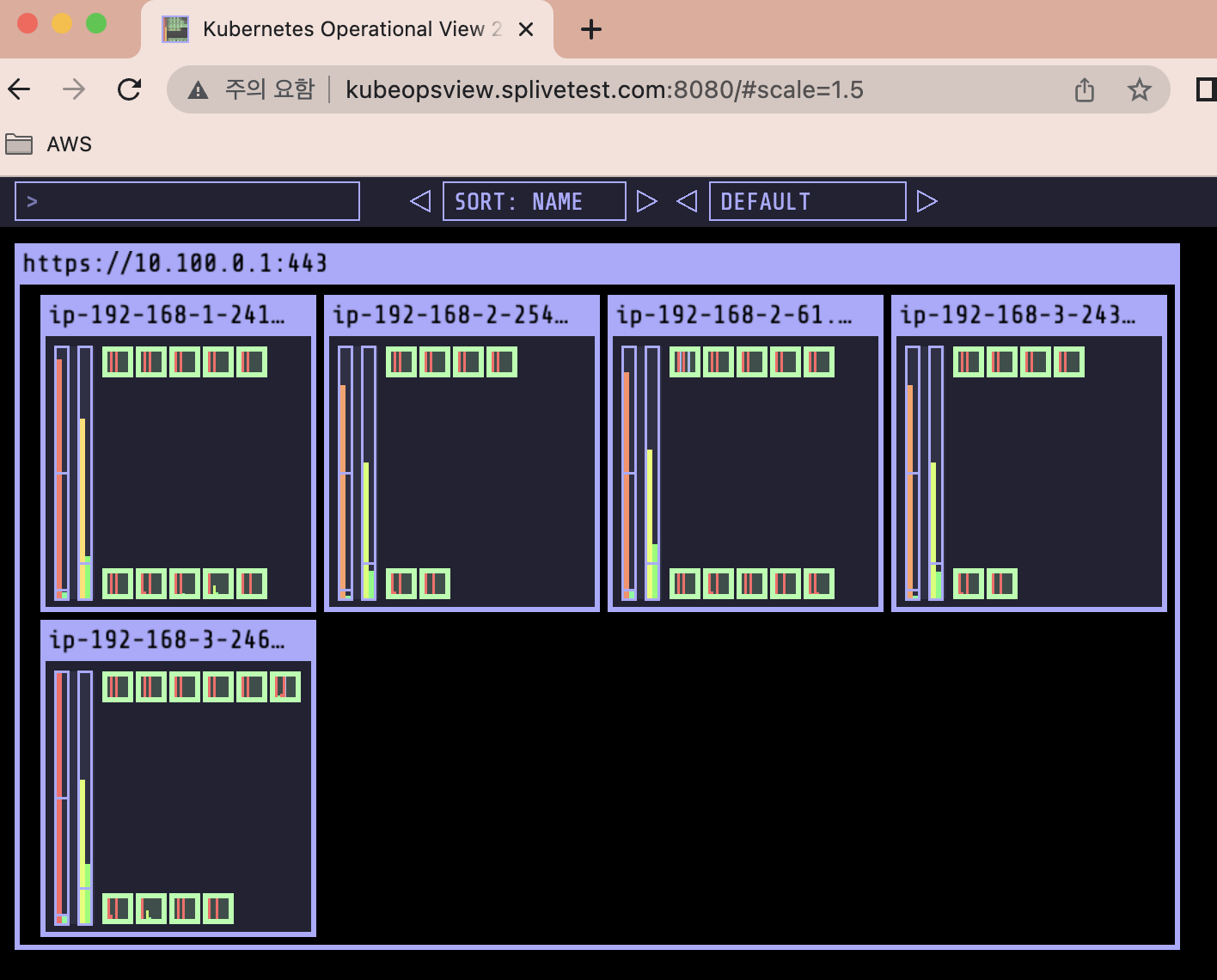
kube-ops-view

deployment 삭제 후 노드 수 감소하는지 확인해보기
kubectl delete -f nginx.yaml && date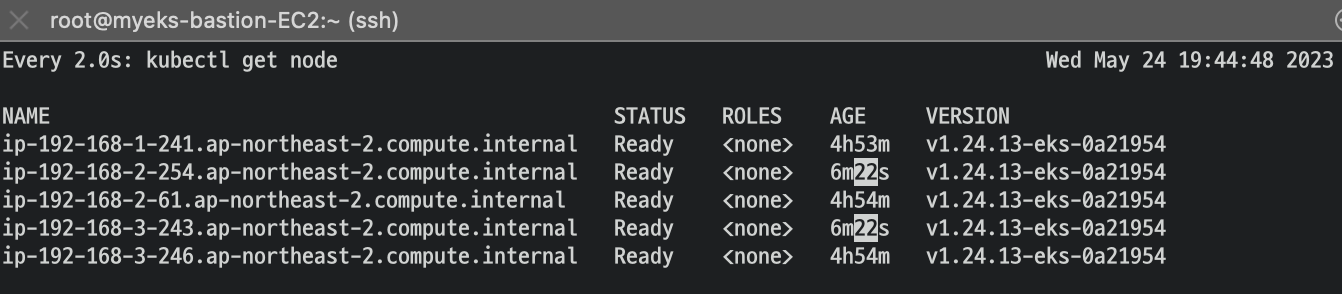
약 8분 후


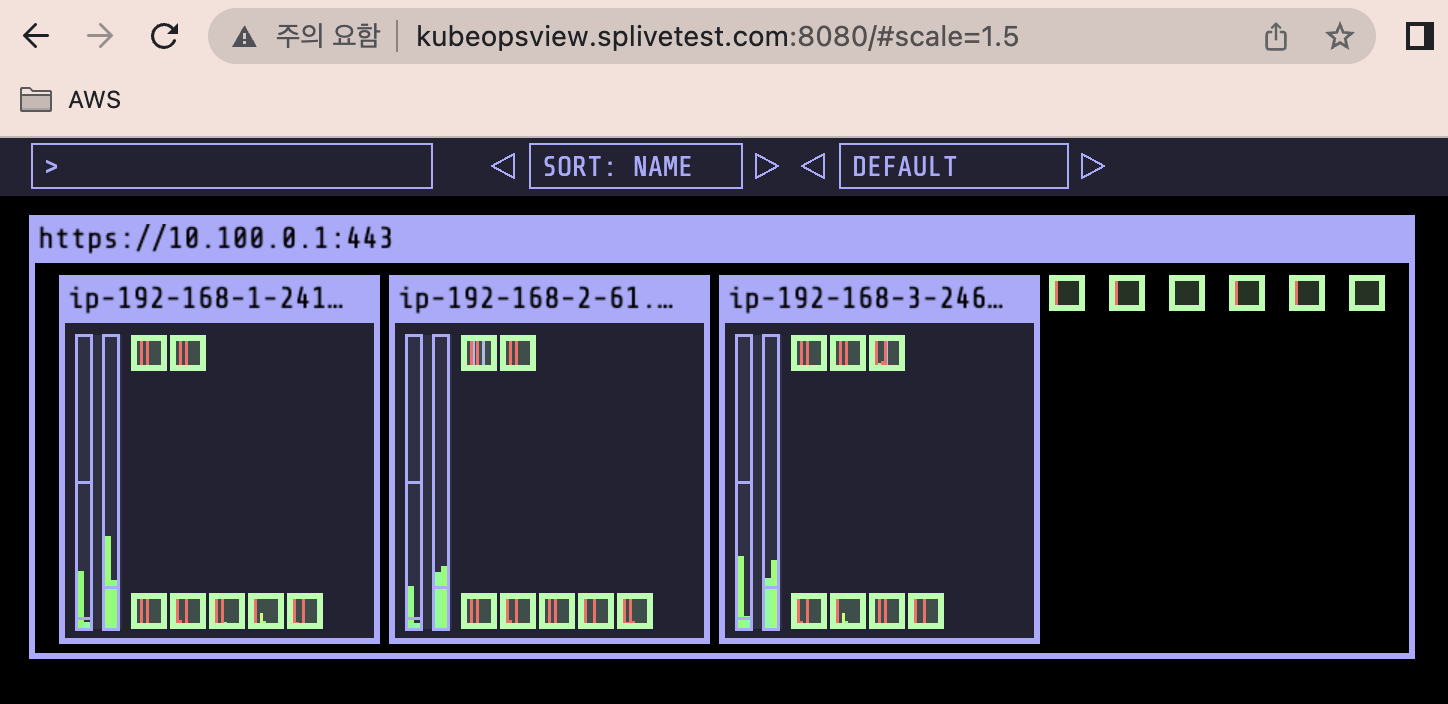
size 수정
aws autoscaling update-auto-scaling-group --auto-scaling-group-name ${ASG_NAME} --min-size 3 --desired-capacity 3 --max-size 3
aws autoscaling describe-auto-scaling-groups --query "AutoScalingGroups[? Tags[? (Key=='eks:cluster-name') && Value=='myeks']].[AutoScalingGroupName, MinSize, MaxSize,DesiredCapacity]" --output table

CA 문제점 : 하나의 자원에 대해 두군데 (AWS ASG vs AWS EKS)에서 각자의 방식으로 관리 ⇒ 관리 정보가 서로 동기화되지 않아 다양한 문제 발생
5. CPA - Cluster Proportional Autoscaler
CPA란?
CPA(cluster-proportional-autoscaler)는 노드 개수에 비례(proportional)하여 pod 개수 관리합니다.
예를 들어 노드가 추가될 때마다 coredns pod개수 증가시켜, coredns부하를 줄일 수 있습니다. CPA를 사용하면 node개수가 2개일 때 coredns 1개를, node개수가 5개일 때 coredns를 3개 등을 설정할 수있습니다.
CPA는 의존성이 적습니다. Metrics server 등을 사용하지 않고 kubapi server API를 사용합니다. 여러분은 노드 개수에 비례하여 pod를 얼마나 배포할지만 규칙만 설정하면 됩니다.
출처 : https://malwareanalysis.tistory.com/604
배포
#
helm repo add cluster-proportional-autoscaler https://kubernetes-sigs.github.io/cluster-proportional-autoscaler

# CPA규칙을 설정하고 helm차트를 릴리즈 필요
helm upgrade --install cluster-proportional-autoscaler cluster-proportional-autoscaler/cluster-proportional-autoscaler
CPA 규칙 설정
cat <<EOF > cpa-values.yaml
config:
  ladder:
    nodesToReplicas:
      - [1, 1]
      - [2, 2]
      - [3, 3]
      - [4, 3]
      - [5, 5]
options:
  namespace: default
  target: "deployment/nginx-deployment"
EOF
helm 업그레이드
helm upgrade --install cluster-proportional-autoscaler -f cpa-values.yaml cluster-proportional-autoscaler/cluster-proportional-autoscaler

노드 5개로 증가
export ASG_NAME=$(aws autoscaling describe-auto-scaling-groups --query "AutoScalingGroups[? Tags[? (Key=='eks:cluster-name') && Value=='myeks']].AutoScalingGroupName" --output text)
aws autoscaling update-auto-scaling-group --auto-scaling-group-name ${ASG_NAME} --min-size 5 --desired-capacity 5 --max-size 5
aws autoscaling describe-auto-scaling-groups --query "AutoScalingGroups[? Tags[? (Key=='eks:cluster-name') && Value=='myeks']].[AutoScalingGroupName, MinSize, MaxSize,DesiredCapacity]" --output table

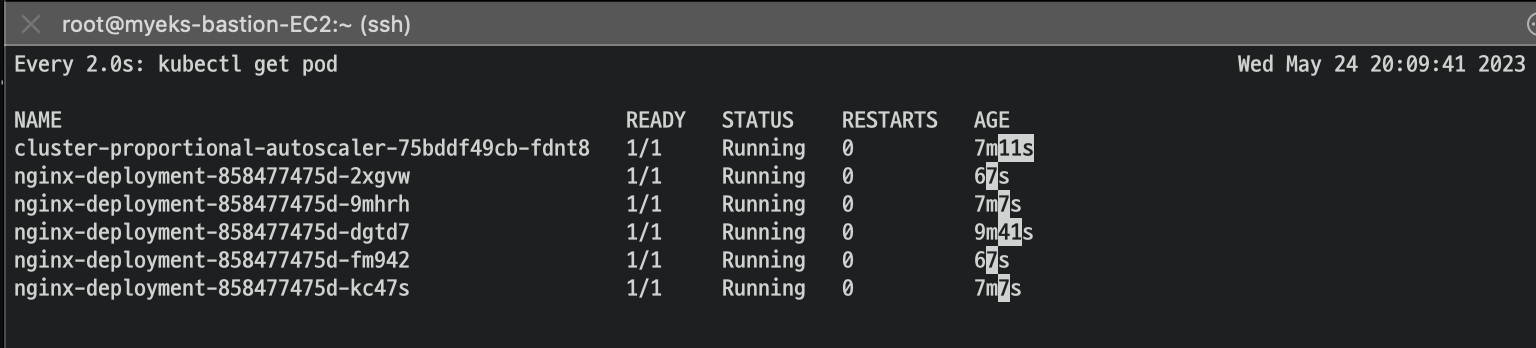

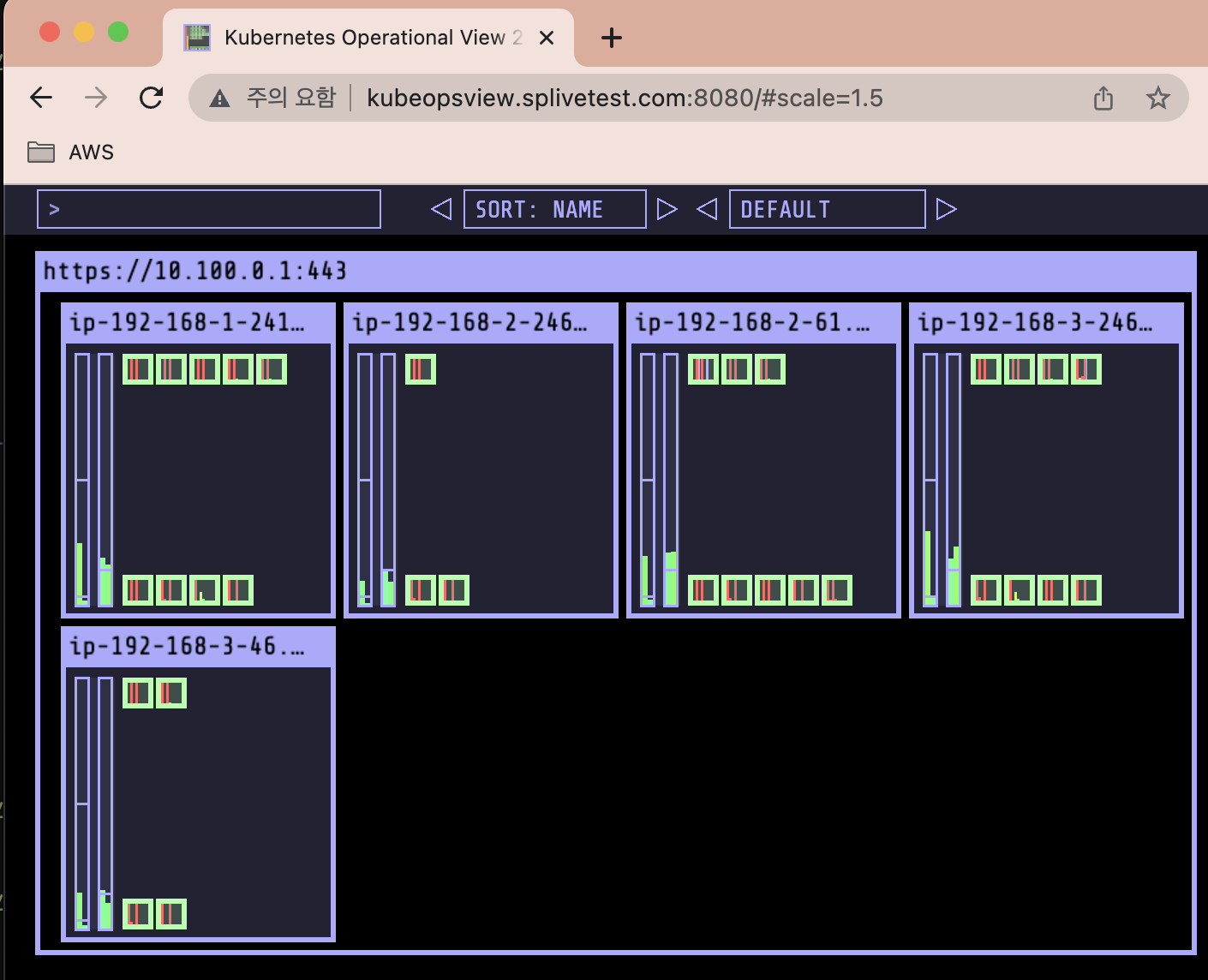
노드가 5개여서 규칙에 따라 nginx pod가 5개가 된 것을 확인 가능하다.
노드 4개로 축소

aws autoscaling update-auto-scaling-group --auto-scaling-group-name ${ASG_NAME} --min-size 4 --desired-capacity 4 --max-size 4
aws autoscaling describe-auto-scaling-groups --query "AutoScalingGroups[? Tags[? (Key=='eks:cluster-name') && Value=='myeks']].[AutoScalingGroupName, MinSize, MaxSize,DesiredCapacity]" --output table
규칙에 의해 pod는 3개로 축소 됨!
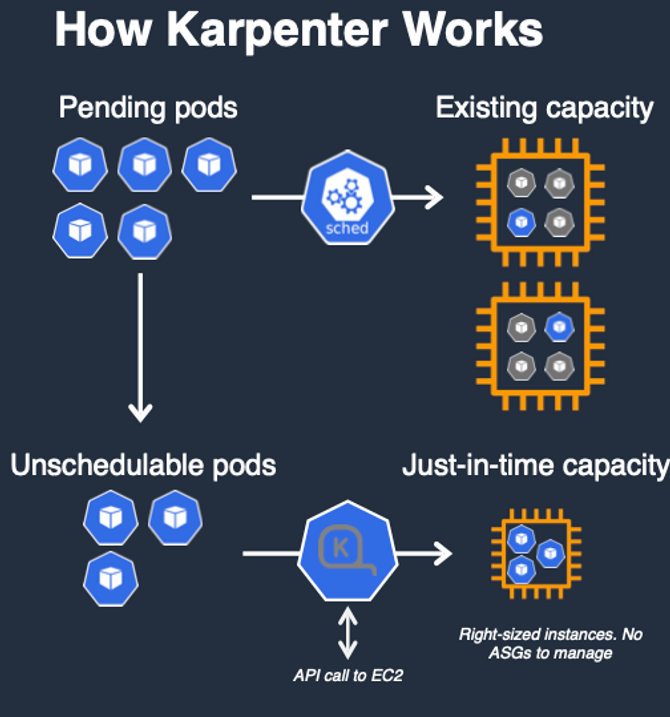
6. Karpenter : K8S Native AutoScaler & Fargate
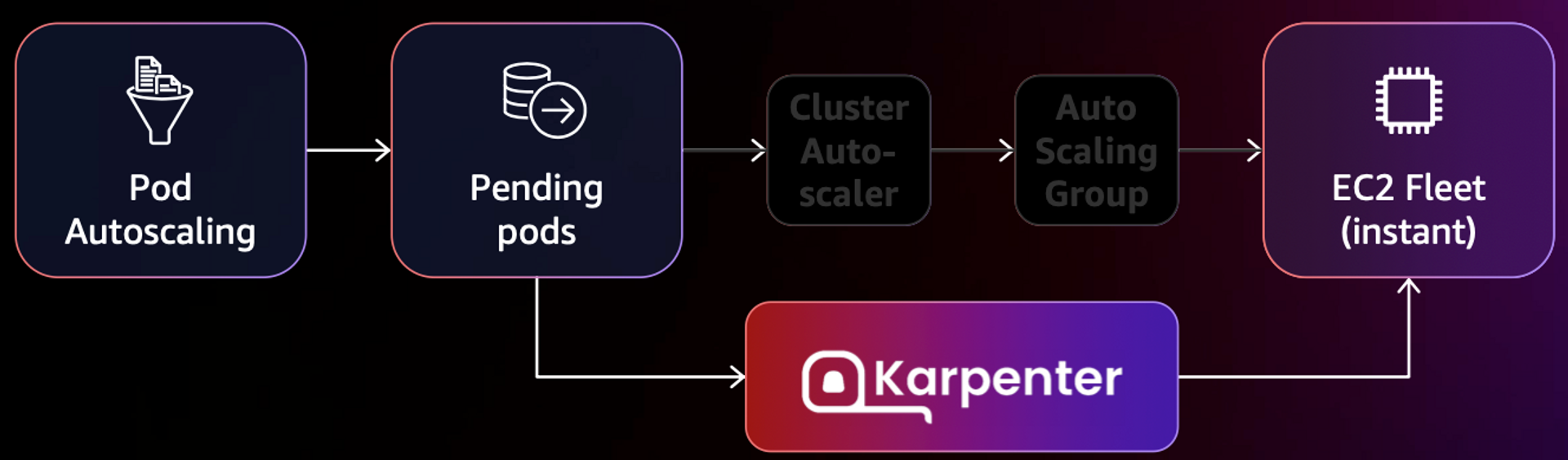
카펜터는 CA, ASG 과정을 건너뛰고 즉시 pod를 새로운 노드에 실행시킵니다.
- 작동 방식
- 모니터링 → (스케줄링 안된 Pod 발견) → 스펙 평가 → 생성 ⇒ Provisioning
- 모니터링 → (비어있는 노드 발견) → 제거 ⇒ Deprovisioning
CloudFormation 스택으로 IAM Policy, Role, EC2 Instance Profile 생성
curl -fsSL https://karpenter.sh/"${KARPENTER_VERSION}"/getting-started/getting-started-with-karpenter/cloudformation.yaml  > $TEMPOUT \
&& aws cloudformation deploy \
  --stack-name "Karpenter-${CLUSTER_NAME}" \
  --template-file "${TEMPOUT}" \
  --capabilities CAPABILITY_NAMED_IAM \
  --parameter-overrides "ClusterName=${CLUSTER_NAME}"
클러스터 생성 : myeks2 EKS 클러스터 생성
eksctl create cluster -f - <<EOF
---
apiVersion: eksctl.io/v1alpha5
kind: ClusterConfig
metadata:
  name: ${CLUSTER_NAME}
  region: ${AWS_DEFAULT_REGION}
  version: "1.24"
  tags:
    karpenter.sh/discovery: ${CLUSTER_NAME}

iam:
  withOIDC: true
  serviceAccounts:
  - metadata:
      name: karpenter
      namespace: karpenter
    roleName: ${CLUSTER_NAME}-karpenter
    attachPolicyARNs:
    - arn:aws:iam::${AWS_ACCOUNT_ID}:policy/KarpenterControllerPolicy-${CLUSTER_NAME}
    roleOnly: true

iamIdentityMappings:
- arn: "arn:aws:iam::${AWS_ACCOUNT_ID}:role/KarpenterNodeRole-${CLUSTER_NAME}"
  username: system:node:{{EC2PrivateDNSName}}
  groups:
  - system:bootstrappers
  - system:nodes

managedNodeGroups:
- instanceType: m5.large
  amiFamily: AmazonLinux2
  name: ${CLUSTER_NAME}-ng
  desiredCapacity: 2
  minSize: 1
  maxSize: 10
  iam:
    withAddonPolicies:
      externalDNS: true

## Optionally run on fargate
# fargateProfiles:
# - name: karpenter
#  selectors:
#  - namespace: karpenter
EOF
배포 확인
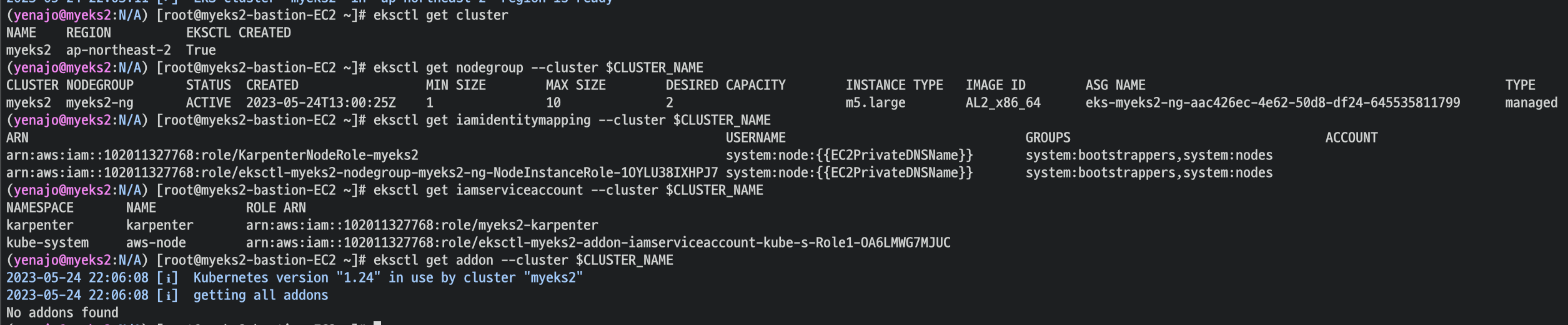
K8S 확인
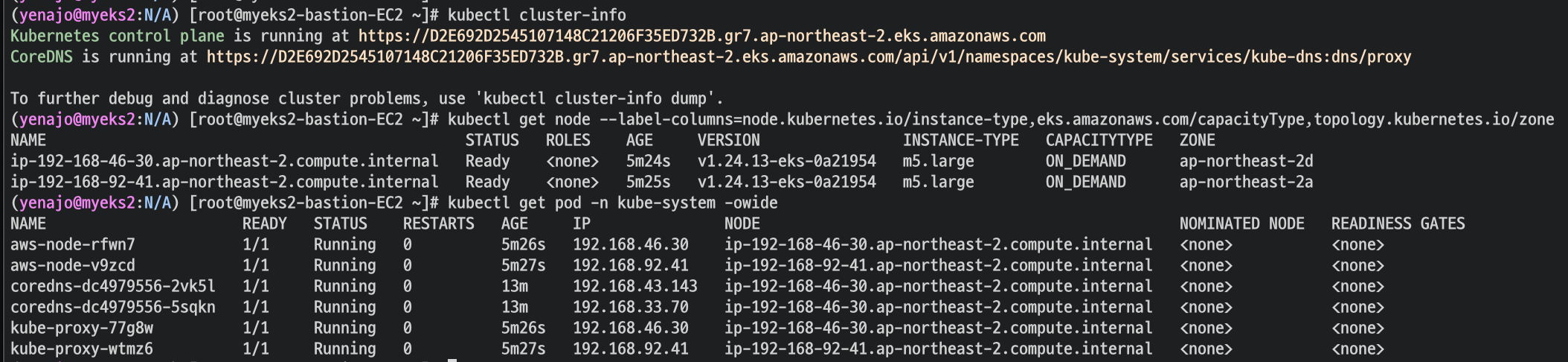
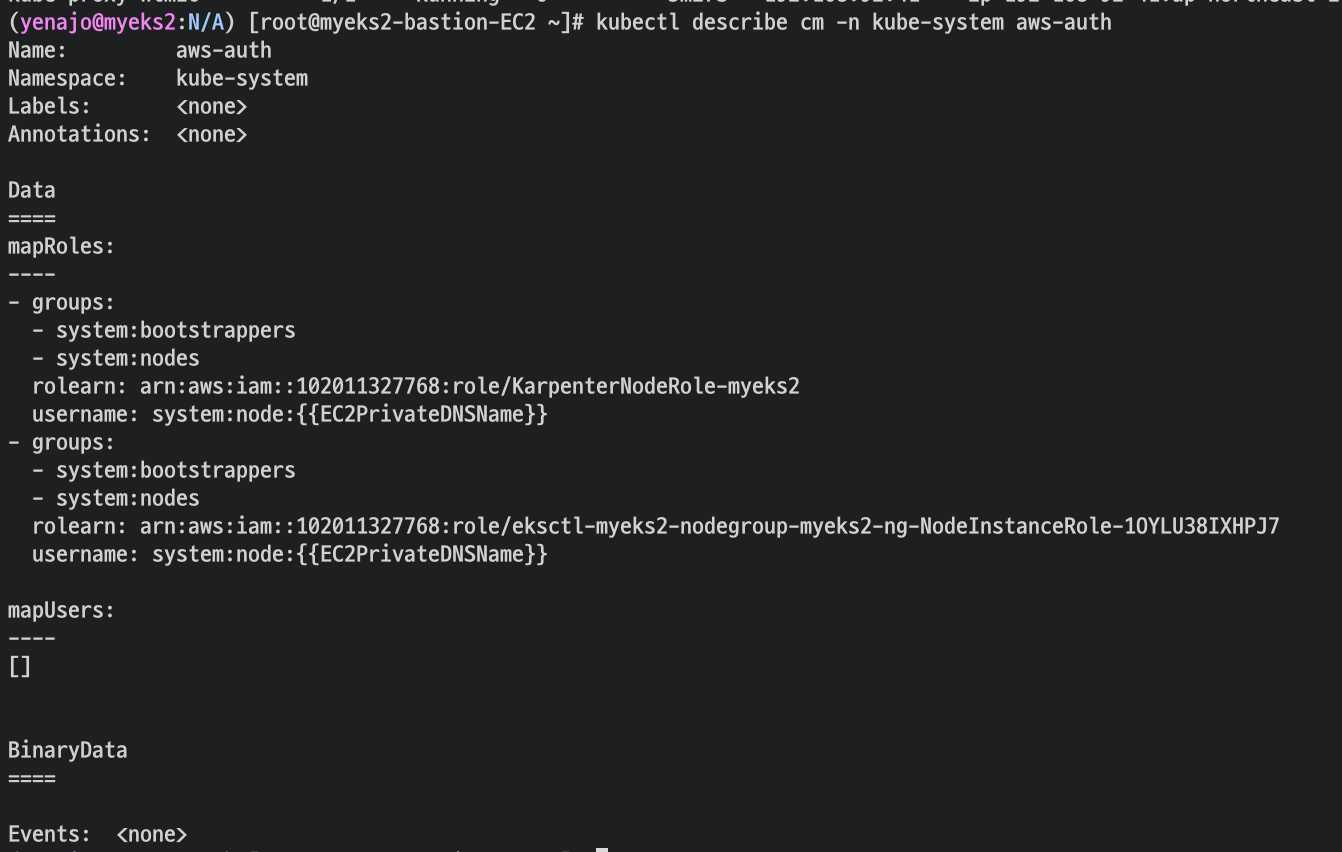
카펜터 설치를 위한 환경 변수 설정 및 확인
export CLUSTER_ENDPOINT="$(aws eks describe-cluster --name ${CLUSTER_NAME} --query "cluster.endpoint" --output text)"
export KARPENTER_IAM_ROLE_ARN="arn:aws:iam::${AWS_ACCOUNT_ID}:role/${CLUSTER_NAME}-karpenter"
echo $CLUSTER_ENDPOINT $KARPENTER_IAM_ROLE_ARN
docker logout : Logout of docker to perform an unauthenticated pull against the public ECR

karpenter 설치
helm upgrade --install karpenter oci://public.ecr.aws/karpenter/karpenter --version ${KARPENTER_VERSION} --namespace karpenter --create-namespace \
  --set serviceAccount.annotations."eks\.amazonaws\.com/role-arn"=${KARPENTER_IAM_ROLE_ARN} \
  --set settings.aws.clusterName=${CLUSTER_NAME} \
  --set settings.aws.defaultInstanceProfile=KarpenterNodeInstanceProfile-${CLUSTER_NAME} \
  --set settings.aws.interruptionQueueName=${CLUSTER_NAME} \
  --set controller.resources.requests.cpu=1 \
  --set controller.resources.requests.memory=1Gi \
  --set controller.resources.limits.cpu=1 \
  --set controller.resources.limits.memory=1Gi \
  --wait
확인
kubectl get-all -n karpenter
kubectl get all -n karpenter
kubectl get cm -n karpenter karpenter-global-settings -o jsonpath={.data} | jq
kubectl get crd | grep karpenter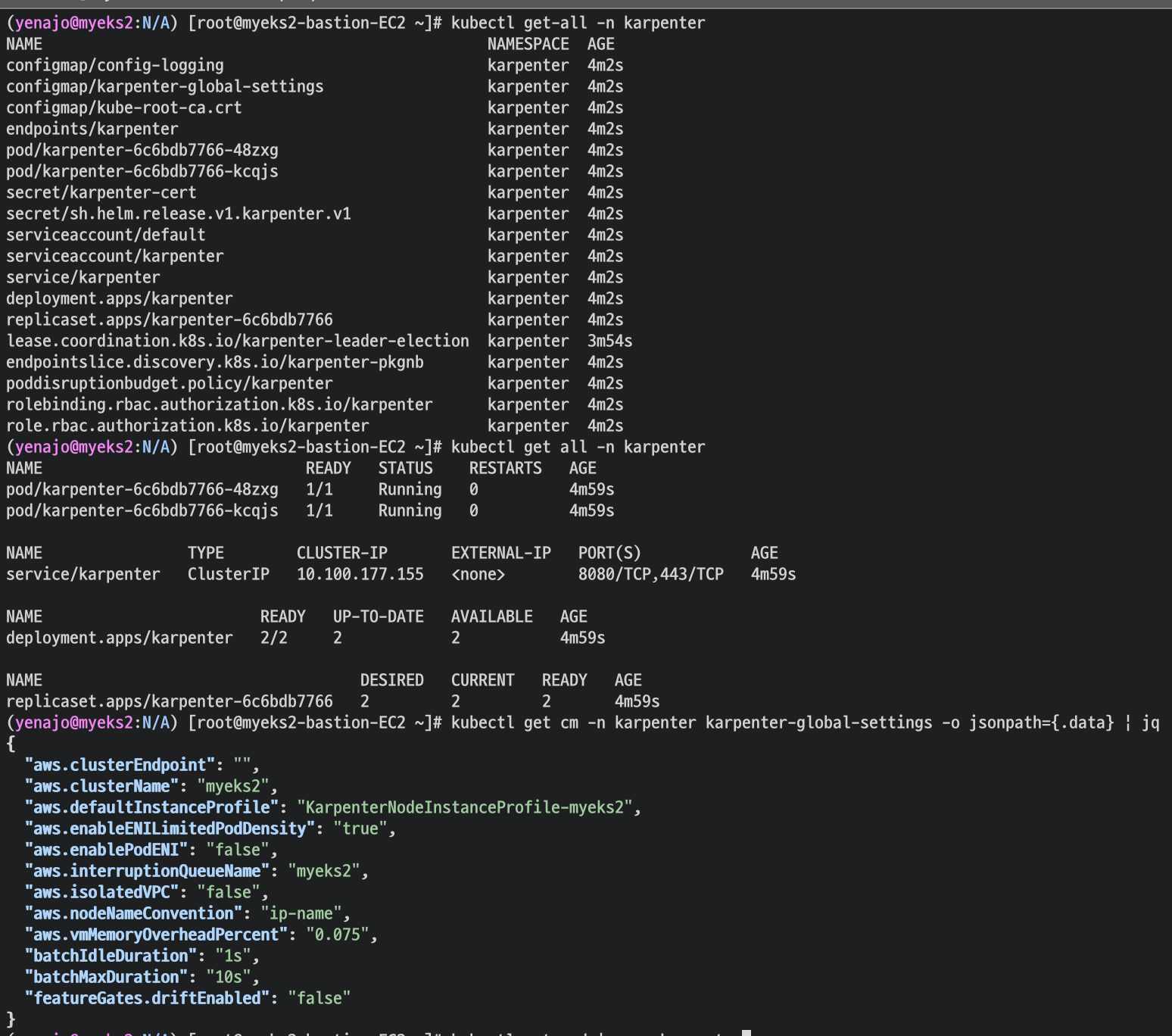

Create Provisioner : 관리 리소스는 securityGroupSelector and subnetSelector로 찾음, ttlSecondsAfterEmpty(미사용 노드 정리, 데몬셋 제외)
cat <<EOF | kubectl apply -f -
apiVersion: karpenter.sh/v1alpha5
kind: Provisioner
metadata:
  name: default
spec:
  requirements:
    - key: karpenter.sh/capacity-type
      operator: In
      values: ["spot"]
  limits:
    resources:
      cpu: 1000
  providerRef:
    name: default
  ttlSecondsAfterEmpty: 30
---
apiVersion: karpenter.k8s.aws/v1alpha1
kind: AWSNodeTemplate
metadata:
  name: default
spec:
  subnetSelector:
    karpenter.sh/discovery: ${CLUSTER_NAME}
  securityGroupSelector:
    karpenter.sh/discovery: ${CLUSTER_NAME}
EOF
확인

프로비저너와, 노드템플릿
spec 에 spot : spot 인스턴스로 카펜터를 띄운 다는 내용.
TTL Seconds After Empty : node가 데몬셋 외 아무런 pod가 없으면 삭제
subnetSelector : 서브넷 지정
securitygroupselect : 보안그룹지정
pause 파드 1개에 CPU 1개 최소 보장 할당
cat <<EOF | kubectl apply -f -
apiVersion: apps/v1
kind: Deployment
metadata:
  name: inflate
spec:
  replicas: 0
  selector:
    matchLabels:
      app: inflate
  template:
    metadata:
      labels:
        app: inflate
    spec:
      terminationGracePeriodSeconds: 0
      containers:
        - name: inflate
          image: public.ecr.aws/eks-distro/kubernetes/pause:3.7
          resources:
            requests:
              cpu: 1
EOF
kubectl scale deployment inflate --replicas 5
kubectl logs -f -n karpenter -l app.kubernetes.io/name=karpenter -c controller
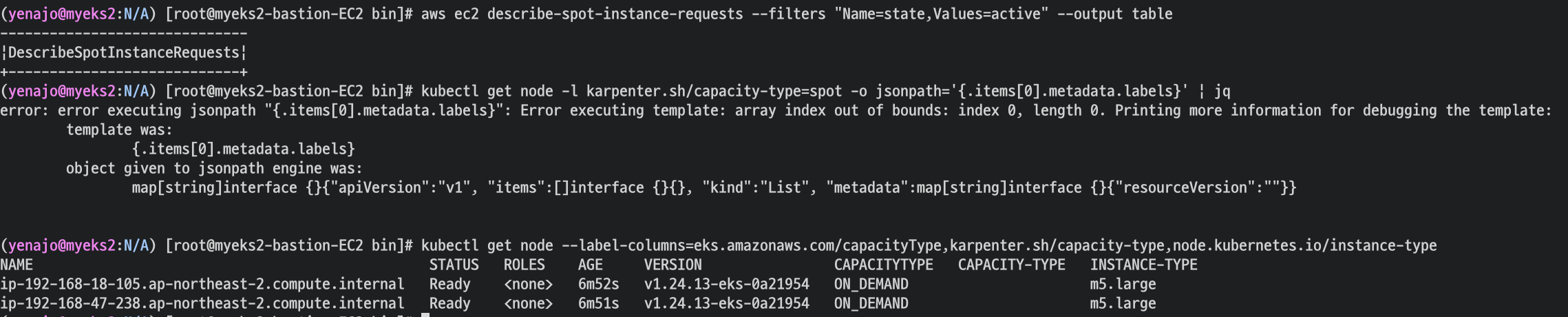
스팟 인스턴스 확인
aws ec2 describe-spot-instance-requests --filters "Name=state,Values=active" --output table
kubectl get node -l karpenter.sh/capacity-type=spot -o jsonpath='{.items[0].metadata.labels}' | jq
kubectl get node --label-columns=eks.amazonaws.com/capacityType,karpenter.sh/capacity-type,node.kubernetes.io/instance-type
scale down
kubectl delete deployment inflate
kubectl logs -f -n karpenter -l app.kubernetes.io/name=karpenter -c controller
Consolidation
배포
kubectl delete provisioners default
cat <<EOF | kubectl apply -f -
apiVersion: karpenter.sh/v1alpha5
kind: Provisioner
metadata:
  name: default
spec:
  consolidation:
    enabled: true
  labels:
    type: karpenter
  limits:
    resources:
      cpu: 1000
      memory: 1000Gi
  providerRef:
    name: default
  requirements:
    - key: karpenter.sh/capacity-type
      operator: In
      values:
        - on-demand
    - key: node.kubernetes.io/instance-type
      operator: In
      values:
        - c5.large
        - m5.large
        - m5.xlarge
EOF

#
cat <<EOF | kubectl apply -f -
apiVersion: apps/v1
kind: Deployment
metadata:
  name: inflate
spec:
  replicas: 0
  selector:
    matchLabels:
      app: inflate
  template:
    metadata:
      labels:
        app: inflate
    spec:
      terminationGracePeriodSeconds: 0
      containers:
        - name: inflate
          image: public.ecr.aws/eks-distro/kubernetes/pause:3.7
          resources:
            requests:
              cpu: 1
EOF
kubectl scale deployment inflate --replicas 12
kubectl logs -f -n karpenter -l app.kubernetes.io/name=karpenter -c controller
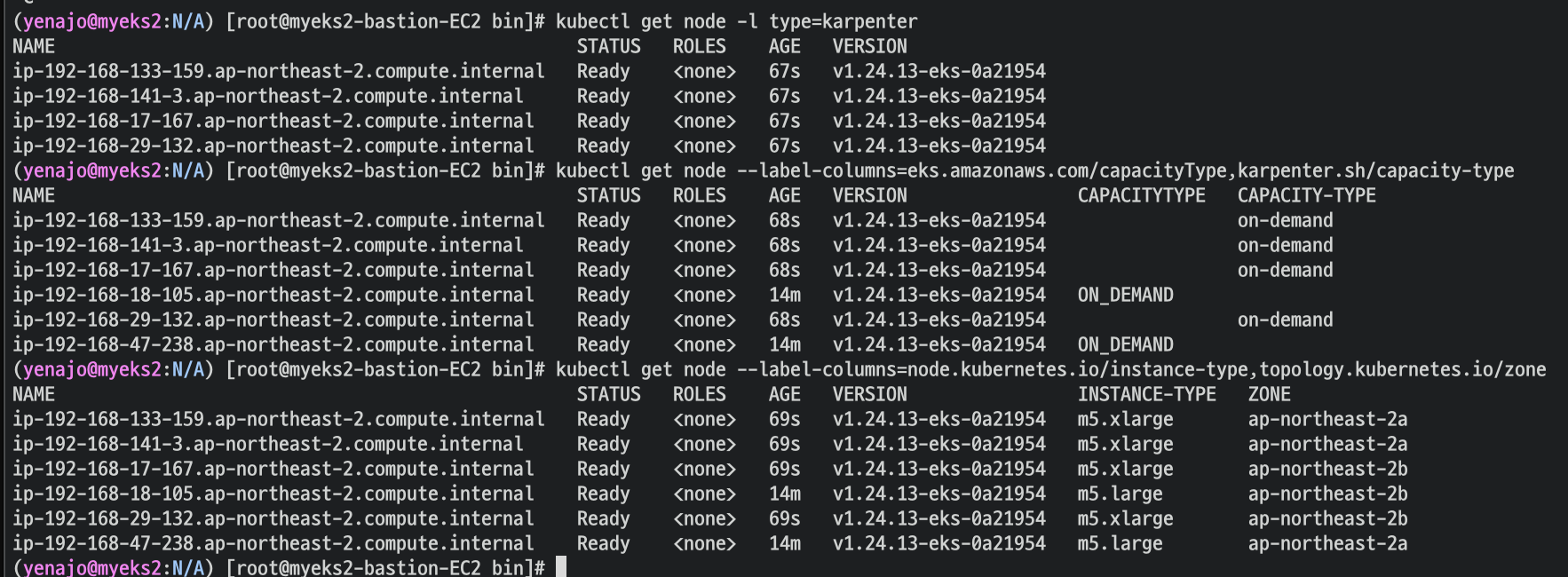
인스턴스 확인
This changes the total memory request for this deployment to around 12Gi,
which when adjusted to account for the roughly 600Mi reserved for the kubelet on each node means that this will fit on 2 instances of type m5.large:
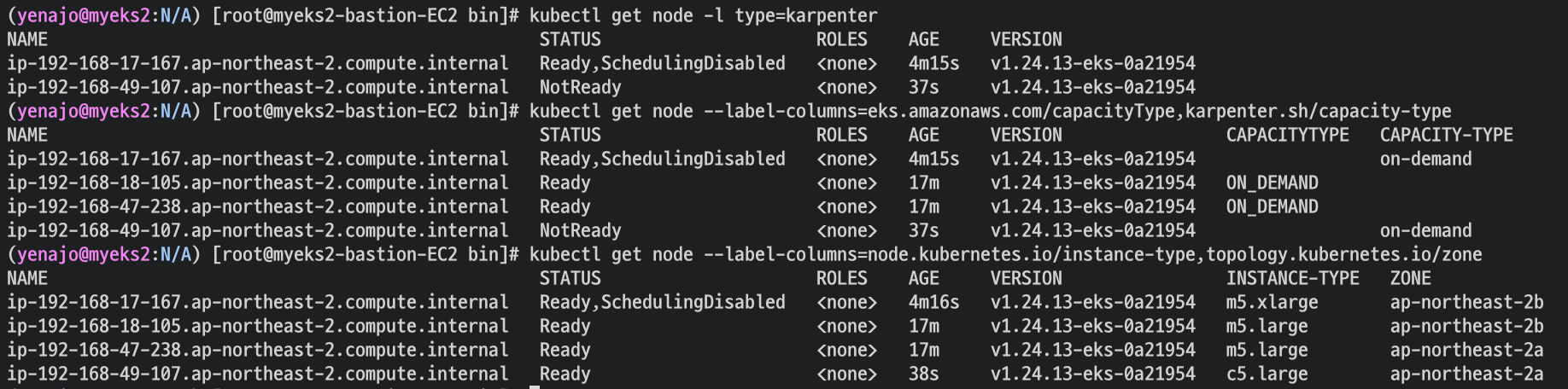
kubectl get node -l type=karpenter
kubectl get node --label-columns=eks.amazonaws.com/capacityType,karpenter.sh/capacity-type
kubectl get node --label-columns=node.kubernetes.io/instance-type,topology.kubernetes.io/zone
Next, scale the number of replicas back down to 5:
kubectl scale deployment inflate --replicas 5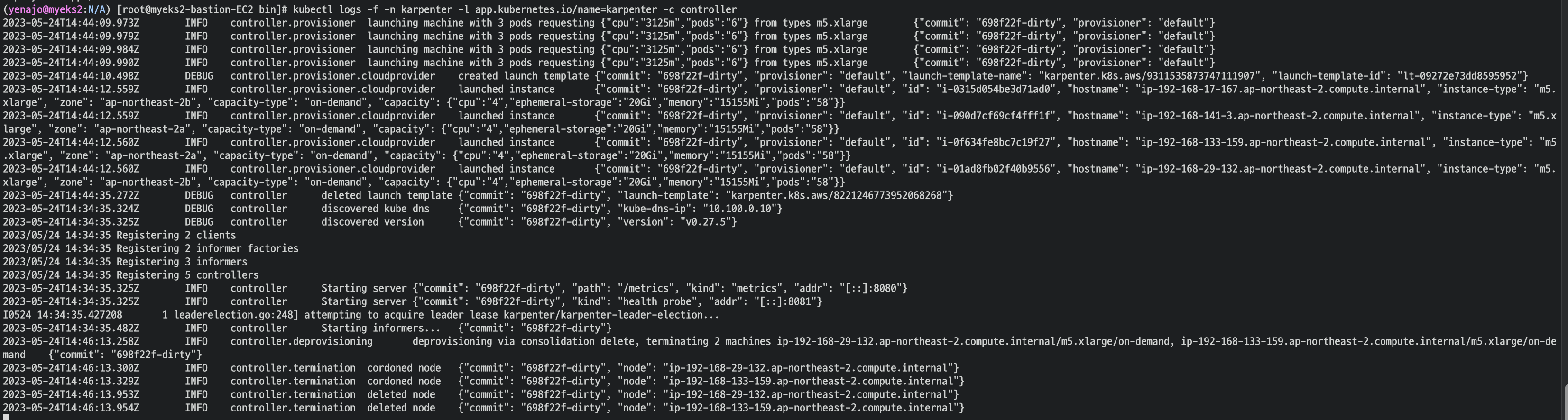
cordon, delete 로그 확인 가능
스케일 다운
kubectl scale deployment inflate --replicas 1
kubectl logs -f -n karpenter -l app.kubernetes.io/name=karpenter -c controller
인스턴스 확인
kubectl get node -l type=karpenter
kubectl get node --label-columns=eks.amazonaws.com/capacityType,karpenter.sh/capacity-type
kubectl get node --label-columns=node.kubernetes.io/instance-type,topology.kubernetes.io/zone