[Github Actions] Error: can't connect without a private SSH key or password 에러 해결
Github Actions
목록 보기
3/4
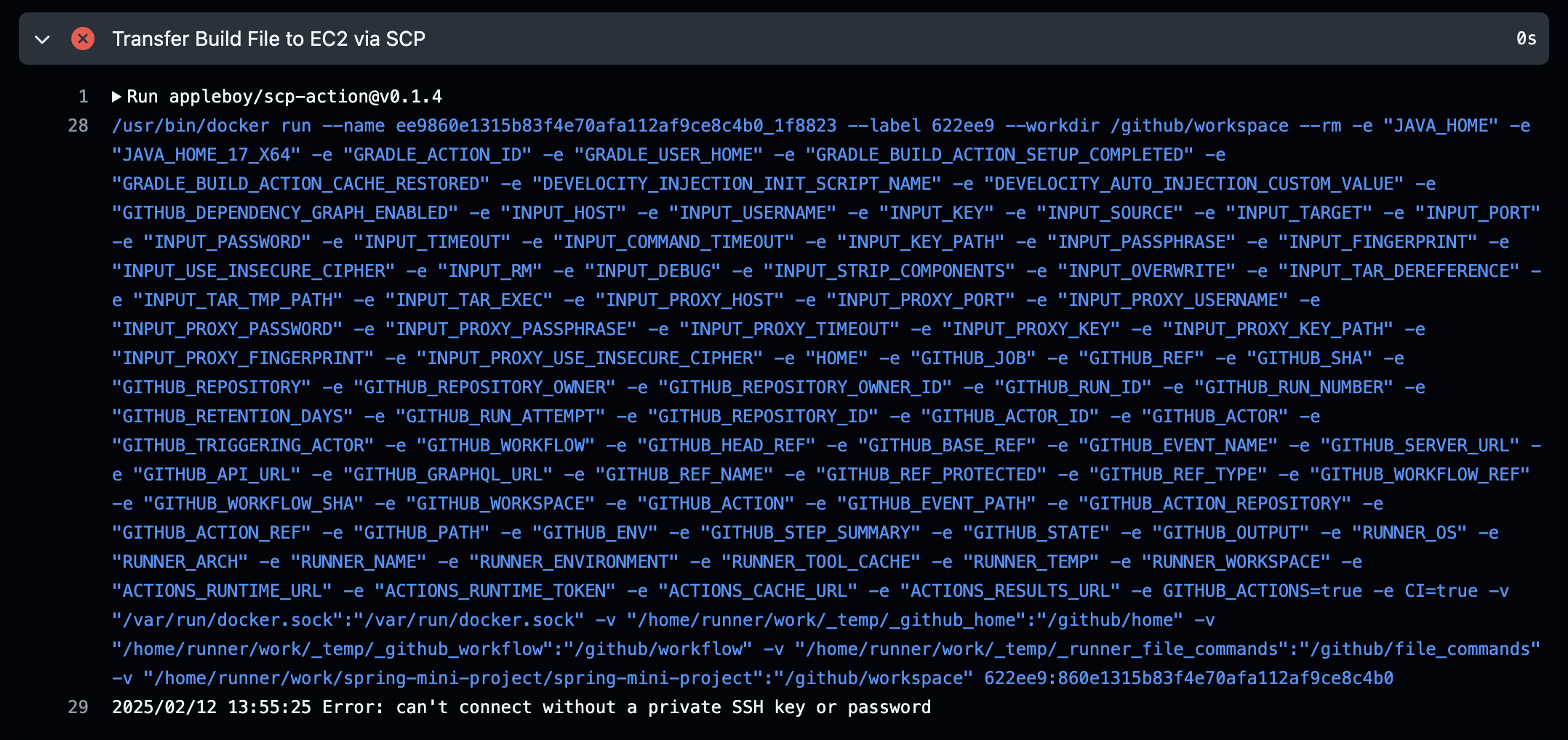
🚨 에러 발생
깃허브 액션에 be-cd.yml 스크립트 파일을 다음과 같이 작성해서 푸시했는데 자꾸 ssh 에러가 발생했다.
# This workflow will build and push a new container image to Amazon ECR,
# and then will deploy a new task definition to Amazon ECS, when there is a push to the "main" branch.
#
# To use this workflow, you will need to complete the following set-up steps:
#
# 1. Create an ECR repository to store your images.
#    For example: `aws ecr create-repository --repository-name my-ecr-repo --region us-east-2`.
#    Replace the value of the `ECR_REPOSITORY` environment variable in the workflow below with your repository's name.
#    Replace the value of the `AWS_REGION` environment variable in the workflow below with your repository's region.
#
# 2. Create an ECS task definition, an ECS cluster, and an ECS service.
#    For example, follow the Getting Started guide on the ECS console:
#      https://us-east-2.console.aws.amazon.com/ecs/home?region=us-east-2#/firstRun
#    Replace the value of the `ECS_SERVICE` environment variable in the workflow below with the name you set for the Amazon ECS service.
#    Replace the value of the `ECS_CLUSTER` environment variable in the workflow below with the name you set for the cluster.
#
# 3. Store your ECS task definition as a JSON file in your repository.
#    The format should follow the output of `aws ecs register-task-definition --generate-cli-skeleton`.
#    Replace the value of the `ECS_TASK_DEFINITION` environment variable in the workflow below with the path to the JSON file.
#    Replace the value of the `CONTAINER_NAME` environment variable in the workflow below with the name of the container
#    in the `containerDefinitions` section of the task definition.
#
# 4. Store an IAM user access key in GitHub Actions secrets named `AWS_ACCESS_KEY_ID` and `AWS_SECRET_ACCESS_KEY`.
#    See the documentation for each action used below for the recommended IAM policies for this IAM user,
#    and best practices on handling the access key credentials.

name: Deploy Spring Boot to Amazon EC2

on:
  push:
    branches: [ "main" ]
  pull_request:
    branches: [ "main" ]

permissions:
  contents: read

jobs:
  build:
    runs-on: ubuntu-latest

    steps:
      - name: Checkout
        uses: actions/checkout@v4

      - name: Set up JDK 17
        uses: actions/setup-java@v4
        with:
          java-version: '17'
          distribution: 'temurin'

      - name: Setup Gradle
        uses: gradle/actions/setup-gradle@af1da67850ed9a4cedd57bfd976089dd991e2582 # v4.0.0

      - name: Build with Gradle Wrapper
        run: |
          chmod +x gradlew
          ./gradlew clean build -x test
      - name: Rename Build File
        run: mv ./build/libs/*SNAPSHOT.jar ./cdtest.jar

      - name: Debug SSH Key # 디버깅
        run: echo "${{ secrets.EC2_SSH_KEY }}" | wc -l

      - name: Transfer Build File to EC2 via SCP # 이 작업에서 에러 발생
        uses: appleboy/scp-action@v0.1.4
        with:
          host: ${{ secrets.EC2_HOST }}
          username: ${{ secrets.EC2_USERNAME }}
          key: ${{ secrets.EC2_SSH_KEY }}
          source: cdtest.jar
          target: /home/ubuntu

  deploy:
    runs-on: ubuntu-latest
    needs: build

    steps:
      - name: Deploy to EC2 via SSH
        uses: appleboy/ssh-action@v0.1.10
        with:
          host: ${{ secrets.EC2_HOST }}
          username: ${{ secrets.EC2_USERNAME }}
          key: ${{ secrets.EC2_SSH_KEY }}
          port: ${{ secrets.EC2_PORT }}
          script: |
            sudo fuser -k -n tcp 8080 || true
            sudo nohup java -jar cdtest.jar > ./output.log 2>&1 &
          debug: true
Error: can't connect without a private SSH key or password
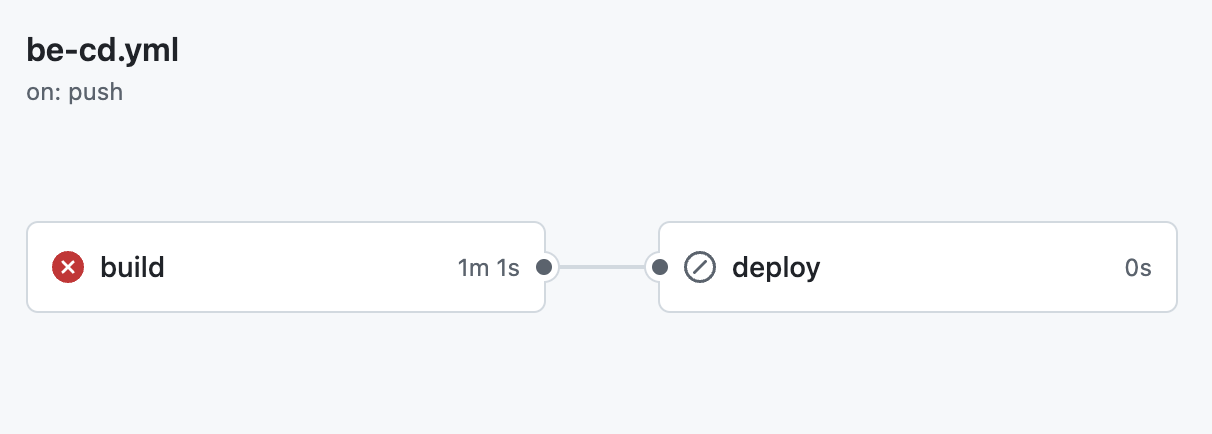
deploy(배포)까지 가지도 못하고 빌드 작업에서 에러가 발생해서 답답했다.
💡 해결 과정
환경변수 디버깅
일단 환경변수가 잘 들어갔는지 확인하기 위해 디버깅을 해보았다.
# 디버깅
- name: Debug SSH Key
        run: echo "${{ secrets.EC2_SSH_KEY }}" | wc -l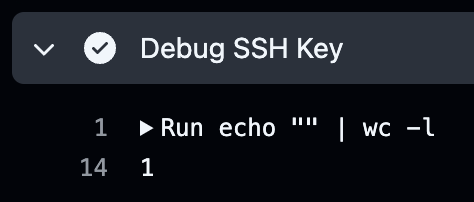
환경변수가 정상적으로 들어갔다면 숫자가 꽤 크게 나와야 하는데 1이 나온걸 봐선 환경변수 적용이 제대로 안된 것 같다.
깃허브 레포지토리 확인
열심히 구글링을 하다보니 싸한걸 발견했다.
깃허브 레포지토리에서 Settings > Security > Secrets and Variables > Actions 에 들어가면 다음과 같은 화면에 설정한 환경변수들이 뜬다.
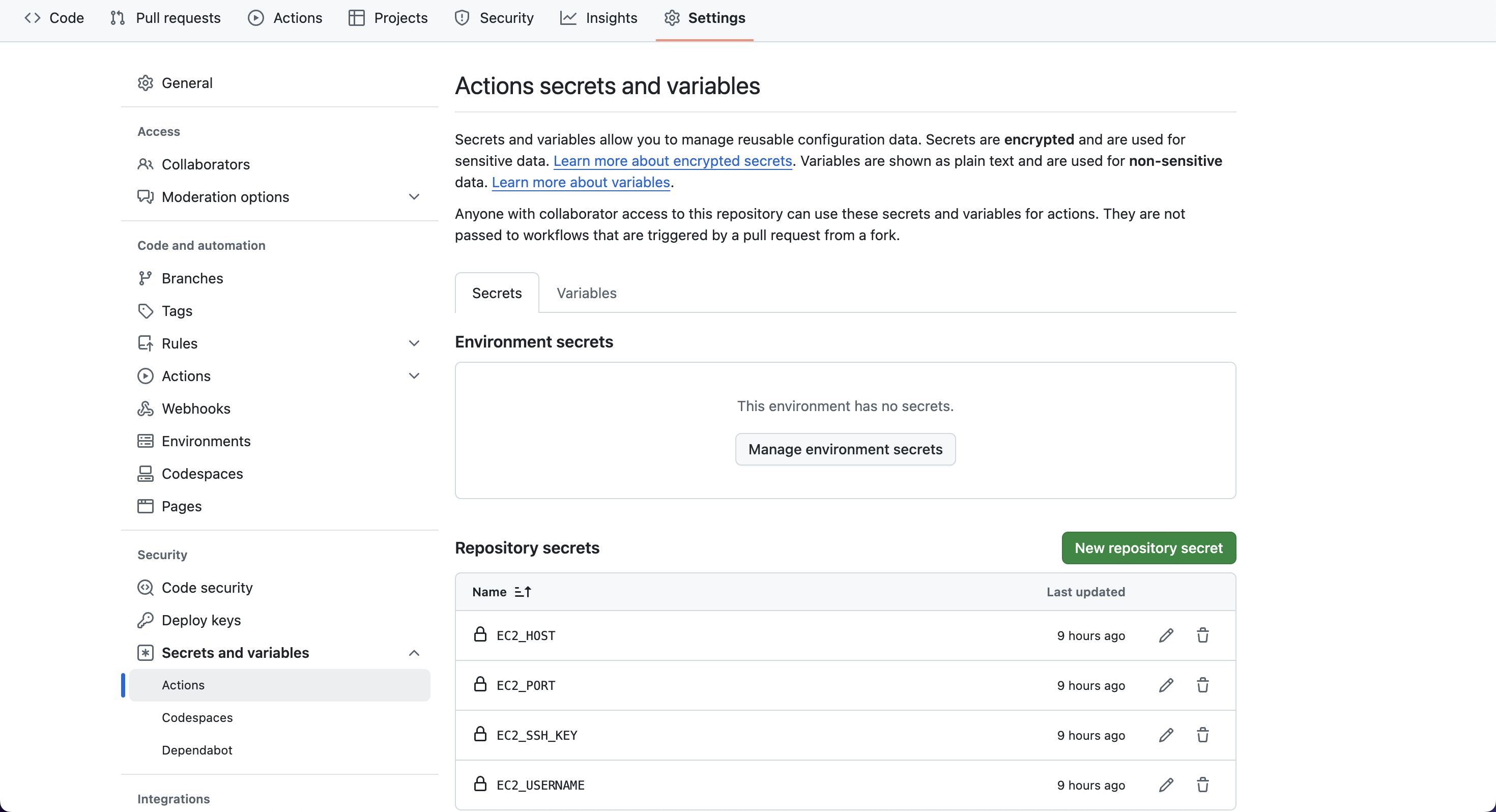
여기서 오류가 있었다.(위에 사진은 정상 작동)
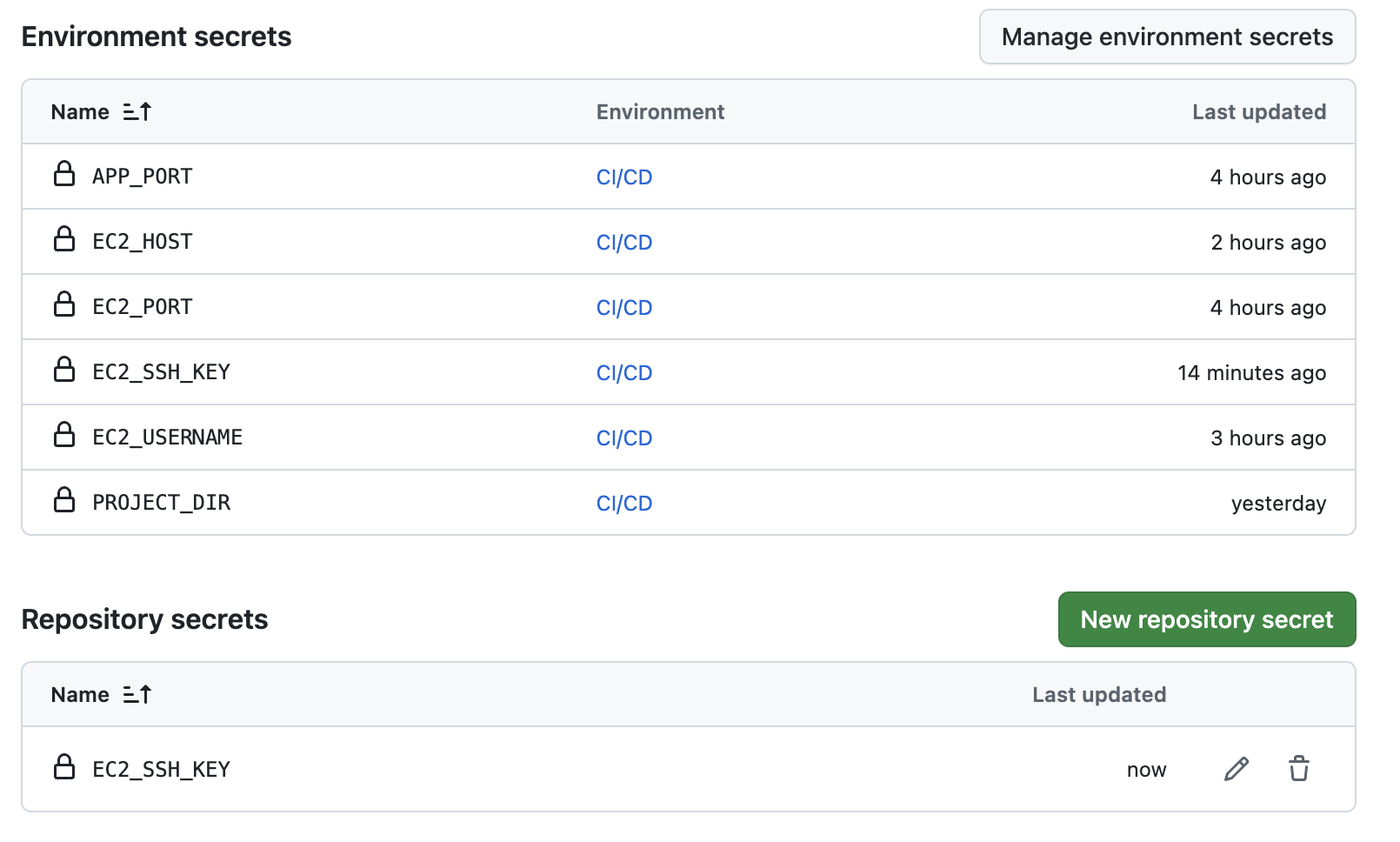
위의 사진과 차이가 보이는가...?
Environment secrets가 아니라 Repository secrets에 추가를 해줘야 한다!!!
계속 Environment secrets에 환경변수를 추가해줘서 yml 파일에서 환경변수 인식을 못한 것이었다.(한 10번 넘게 지우고 추가하고 반복했는데...)
이외에도 변수명을 잘못 쓰거나 스크립트 형식이 맞지 않아서 위와 같은 오류가 발생하기도 하니 꼼꼼하게 살펴보길 바란다.
최종 스크립트 파일
최종적으로 성공한 스크립트는 디버깅 부분만 추가돼고 크게 달라진건 없다.
# This workflow will build and push a new container image to Amazon ECR,
# and then will deploy a new task definition to Amazon ECS, when there is a push to the "main" branch.
#
# To use this workflow, you will need to complete the following set-up steps:
#
# 1. Create an ECR repository to store your images.
#    For example: `aws ecr create-repository --repository-name my-ecr-repo --region us-east-2`.
#    Replace the value of the `ECR_REPOSITORY` environment variable in the workflow below with your repository's name.
#    Replace the value of the `AWS_REGION` environment variable in the workflow below with your repository's region.
#
# 2. Create an ECS task definition, an ECS cluster, and an ECS service.
#    For example, follow the Getting Started guide on the ECS console:
#      https://us-east-2.console.aws.amazon.com/ecs/home?region=us-east-2#/firstRun
#    Replace the value of the `ECS_SERVICE` environment variable in the workflow below with the name you set for the Amazon ECS service.
#    Replace the value of the `ECS_CLUSTER` environment variable in the workflow below with the name you set for the cluster.
#
# 3. Store your ECS task definition as a JSON file in your repository.
#    The format should follow the output of `aws ecs register-task-definition --generate-cli-skeleton`.
#    Replace the value of the `ECS_TASK_DEFINITION` environment variable in the workflow below with the path to the JSON file.
#    Replace the value of the `CONTAINER_NAME` environment variable in the workflow below with the name of the container
#    in the `containerDefinitions` section of the task definition.
#
# 4. Store an IAM user access key in GitHub Actions secrets named `AWS_ACCESS_KEY_ID` and `AWS_SECRET_ACCESS_KEY`.
#    See the documentation for each action used below for the recommended IAM policies for this IAM user,
#    and best practices on handling the access key credentials.

name: Deploy Spring Boot to Amazon EC2

on:
  push:
    branches: [ "main" ]
  pull_request:
    branches: [ "main" ]

permissions:
  contents: read

jobs:
  build:
    runs-on: ubuntu-latest

    steps:
      - name: Checkout
        uses: actions/checkout@v4

      - name: Set up JDK 17
        uses: actions/setup-java@v4
        with:
          java-version: '17'
          distribution: 'temurin'

      - name: Setup Gradle
        uses: gradle/actions/setup-gradle@af1da67850ed9a4cedd57bfd976089dd991e2582 # v4.0.0

      - name: Build with Gradle Wrapper
        run: |
          chmod +x gradlew
          ./gradlew clean build -x test
      - name: Rename Build File
        run: mv ./build/libs/*SNAPSHOT.jar ./cdtest.jar

      - name: Debug Secrets
        run: |
          echo "EC2_HOST: '${{ secrets.EC2_HOST }}'"
          echo "EC2_USERNAME: '${{ secrets.EC2_USERNAME }}'"
          echo "EC2_SSH_KEY length: $(echo "${{ secrets.EC2_SSH_KEY }}" | wc -c)"
      - name: Transfer Build File to EC2 via SCP
        uses: appleboy/scp-action@master
        with:
          host: ${{ secrets.EC2_HOST }}
          username: ${{ secrets.EC2_USERNAME }}
          key: ${{ secrets.EC2_SSH_KEY }}
          port: ${{ secrets.EC2_PORT }}
          source: cdtest.jar
          target: /home/ubuntu

  deploy:
    runs-on: ubuntu-latest
    needs: build

    steps:
      - name: Deploy to EC2 via SSH
        uses: appleboy/ssh-action@v0.1.10
        with:
          host: ${{ secrets.EC2_HOST }}
          username: ${{ secrets.EC2_USERNAME }}
          key: ${{ secrets.EC2_SSH_KEY }}
          port: ${{ secrets.EC2_PORT }}
          script: |
            sudo fuser -k -n tcp 8080 || true
            sudo nohup java -jar cdtest.jar > ./output.log 2>&1 &
          debug: true
📍 결론
환경변수란걸 처음 설정해봐서 발생한 해프닝이었다...🥹
근데 이 에러 다음에 또 에러가 터졌다🤯

안정적인 쳇바퀴를 돌리는 삶