이번 실습에서는 ROS 2의 Action을 실제로 실행하면서 Action의 구성과 동작 과정을 확인했다.
TurtleSim에서 제공하는 /turtle1/rotate_absolute Action을 대상으로 Action 목록과 Client·Server 연결 관계를 확인하고, Action Interface를 살펴본 뒤 직접 Goal을 전달하여 회전 작업을 수행했다.
또한 --feedback 옵션을 사용하여 Action이 수행되는 동안 전달되는 Feedback과 작업 완료 후 반환되는 Result를 확인했다.
1. 실행 중인 Action 확인
현재 ROS 2에서 실행 중인 Action을 확인하기 위해 다음 명령어를 사용했다.
ros2 action list -t실행 결과:
/turtle1/rotate_absolute [turtlesim/action/RotateAbsolute]현재 TurtleSim에서 /turtle1/rotate_absolute Action이 실행되고 있으며, 해당 Action은 turtlesim/action/RotateAbsolute 인터페이스를 사용하는 것을 확인했다.
2. Action Client와 Server 확인
/turtle1/rotate_absolute Action에 연결된 Client와 Server를 확인하기 위해 다음 명령어를 실행했다.
ros2 action info /turtle1/rotate_absolute실행 결과:
Action: /turtle1/rotate_absolute
Action clients: 1
    /teleop_turtle
Action servers: 1
    /turtlesim
이를 통해 다음과 같은 연결 관계를 확인할 수 있었다.
/teleop_turtle
      │
      │ Action Client
      ↓
/turtle1/rotate_absolute
      │
      │ Action Server
      ↓
/turtlesim
즉, /teleop_turtle이 Action Client로 동작하면서 회전 작업을 요청하고, /turtlesim이 Action Server로서 해당 작업을 처리하고 있다.
3. Action Interface 확인
이번에 사용한 Action의 인터페이스 내용을 확인하기 위해 다음 명령어를 실행했다.
ros2 interface show turtlesim/action/RotateAbsolute실행 결과:
# The desired heading in radians
float32 theta
---
# The angular displacement in radians to the starting position
float32 delta
---
# The remaining rotation in radians
float32 remaining
Action Interface에서는 ---를 기준으로 Goal, Result, Feedback이 구분된다.
Goal
 └─ theta
      ↓
Action 수행
      ↓
Result
 └─ delta

Feedback
 └─ remaining
각 항목은 다음과 같이 확인할 수 있다.
theta: 목표 방향을 나타내는 값delta: 작업 완료 후 시작 위치를 기준으로 회전한 각도remaining: 작업 수행 중 목표까지 남은 회전량
세 값은 모두 라디안 단위를 사용한다.
4. Action Goal 전달
실제로 /turtle1/rotate_absolute Action에 Goal을 전달하기 위해 다음 명령어를 실행했다.
ros2 action send_goal /turtle1/rotate_absolute turtlesim/action/RotateAbsolute "{theta: 1.57}"실행 결과:
Waiting for an action server to become available...
Sending goal:
     theta: 1.57

Goal accepted with ID: 2d67cf7670944a2d80a7e91c79a15dee

Result:
    delta: -0.7200000286102295

Goal finished with status: SUCCEEDED
theta: 1.57을 Goal로 전달하자 Action Server가 해당 Goal을 받아들였고, 작업이 완료된 후 다음과 같은 Result를 반환했다.
Result:
    delta: -0.7200000286102295
마지막으로 다음 메시지가 출력되었다.
Goal finished with status: SUCCEEDED이를 통해 전달한 Goal이 정상적으로 처리되고 작업이 완료된 것을 확인했다.
5. Feedback 확인
이번에는 Action이 수행되는 동안 전달되는 Feedback을 확인하기 위해 --feedback 옵션을 추가하여 실행했다.
ros2 action send_goal /turtle1/rotate_absolute turtlesim/action/RotateAbsolute "{theta: 1.57}" --feedback실행 결과:
Waiting for an action server to become available...
Sending goal:
     theta: 1.57

Feedback:
    remaining: 0.008370637893676758

Goal accepted with ID: bf590f5e93594a8a9fc490069d391463

Result:
    delta: 0.0

Goal finished with status: SUCCEEDED
이번에는 Goal을 전달한 후 다음과 같은 Feedback을 확인할 수 있었다.
Feedback:
    remaining: 0.008370637893676758
remaining 값은 Action이 수행되는 동안 목표까지 남은 회전량을 나타낸다.
작업이 완료된 후에는 다음과 같이 Result가 반환되었다.
Result:
    delta: 0.0
그리고 최종적으로:
Goal finished with status: SUCCEEDED가 출력되어 Action이 정상적으로 완료된 것을 확인했다.
6. TurtleSim에서 실행 결과 확인
Action을 실행하는 동안 TurtleSim에서도 실제 회전 동작이 수행되는 것을 확인했다.
터미널에서는 Action Goal이 전달되고 Feedback과 Result가 출력되었으며, TurtleSim 화면에서는 거북이가 회전하면서 이동한 경로를 확인할 수 있었다.
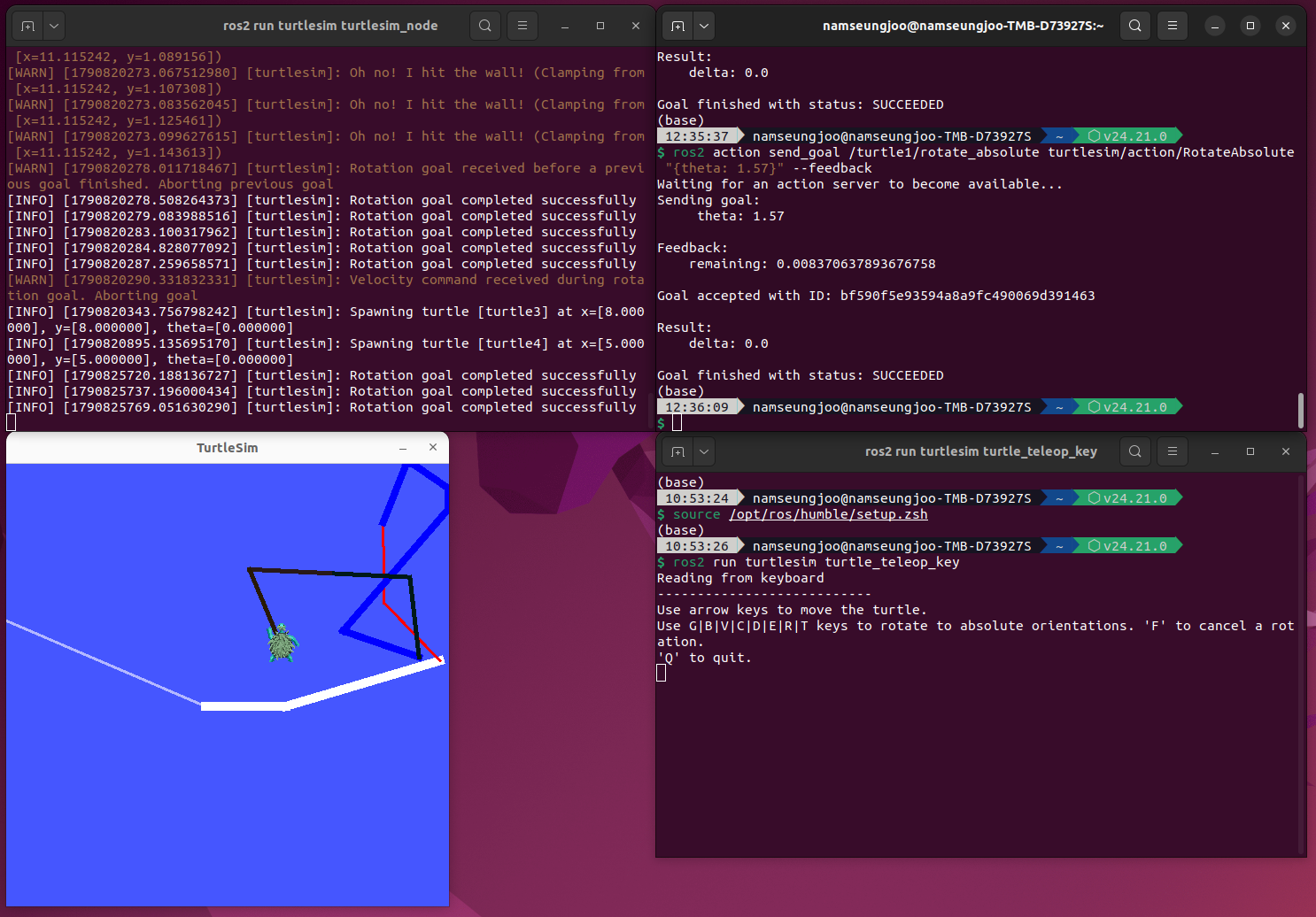
실습 화면에서는 다음과 같은 환경에서 Action을 실행했다.
- TurtleSim 실행
/turtle1/rotate_absoluteAction 실행ros2 action send_goal을 통한 Goal 전달--feedback옵션을 통한 Feedback 확인- Action 완료 후 Result 및
SUCCEEDED상태 확인
이를 통해 터미널에서 전달한 Action 요청이 실제 TurtleSim의 회전 동작으로 연결되는 과정을 확인할 수 있었다.
마무리
이번 실습에서는 TurtleSim의 /turtle1/rotate_absolute Action을 직접 실행하면서 ROS 2 Action의 실제 동작 과정을 확인했다.
먼저 ros2 action list -t를 이용하여 실행 중인 Action과 인터페이스 타입을 확인했다.
이후 ros2 action info를 통해 /teleop_turtle이 Action Client, /turtlesim이 Action Server로 연결되어 있는 것을 확인했다.
또한 ros2 interface show 명령어를 이용하여 RotateAbsolute Action이 theta, delta, remaining으로 구성되는 것을 확인했다.
마지막으로 ros2 action send_goal을 이용해 theta: 1.57을 Goal로 전달하고, --feedback 옵션을 사용하여 작업 중 remaining 값을 확인했다. 작업이 완료된 후에는 delta와 SUCCEEDED 상태를 통해 최종 결과를 확인했다.
이번 실습의 전체 흐름은 다음과 같이 정리할 수 있다.
ros2 action list -t
        ↓
실행 중인 Action 확인
        ↓
ros2 action info
        ↓
Client / Server 관계 확인
        ↓
ros2 interface show
        ↓
Action Interface 확인
        ↓
ros2 action send_goal
        ↓
Goal 전달
        ↓
Feedback 확인
        ↓
Result 및 SUCCEEDED 확인
이번 실습을 통해 ROS 2에서 Action을 실제 명령어로 실행하고, Goal 전달 → Feedback 확인 → Result 반환 → 작업 완료의 과정을 직접 확인할 수 있었다.
