Setting Up the Local Repository
- cd Desktop - Move to the Desktop directory
- cd git-practice-folder - Move into your specific practice folder
- mkdir new-project - Create a new directory for the project
- cd new-project - Move into the newly created folder
- git init - Initialize a empty Git repository (.git folder created)
- code . - Open the current directory in VS Code
The Git Workflow: Working Directory to Staging Area
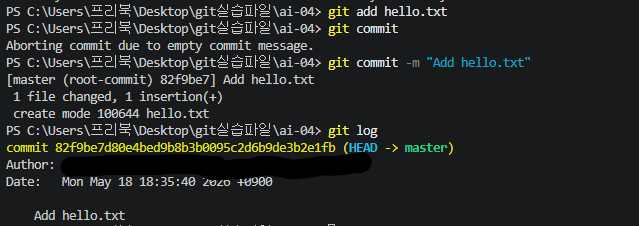
Once VS Code opens, let's create a file named hello.txt and check its status.
'git status'
- outputOn branch master
No commits yet
Untracked files: (use "git add ..." to include in what will be committed) hello.txt
nothing added to commit but untracked files present (use "git add" to track)
let's move the file to the Staging Area and take a snapshot (Commit).
git add hello.txt
- Move the file to the Staging Area (Like putting it in a shopping cart)
git commit -m "Add hello.txt"
- Permanently save the snapshot to the Repository with a message
Tracking History and Time Travel (Checkout)
Let's make a second file, hi.txt, commit it, and look at our project timeline.
1. Create hi.txt, write some content, then stage and commitTime-Traveling to a Previous Commit
git add hi.txt
git commit -m "Add hi.txt" 2. View the project commit history git log
git log --oneline
* Use this for a cleaner, one-line summary when history gets long
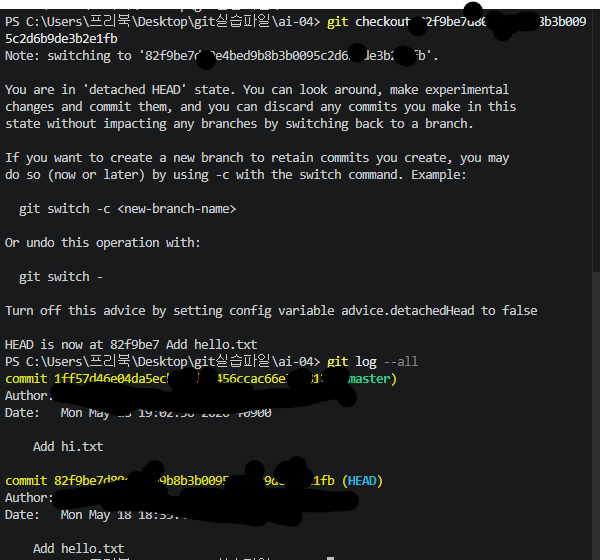
git checkout [commit_hash_of_hello.txt] outputNote: switching to '82f9be7d80e4bed9b8b3b0095c2d6b9de3b2e1fb'.Returning to the Present
You are in 'detached HEAD' state...
HEAD is now at 82f9be7 Add hello.txt
git checkout master or 'main' depending on your default branch name
Relative Shortcuts and Branching
Instead of copying long commit hashes every time, you can travel backward relatively using HEAD
1. git checkout HEAD~1 - Move back exactly 1 commit before the current one
2. Creating a New Branch
git branch feat/python - Create a new branch named 'feat/python'
git switch feat/python - Switch your active workspace to the new branch
Handling Secrets and Visualizing History
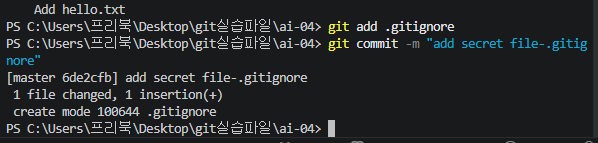
- .env and .gitignore
In real-world projects, we often handle configuration files like secret.env. These contain sensitive system environment variables (API keys, passwords) that should never be exposed online.
To hide them from Git, we use a special file named .gitignore.
- Visualizing the Git
As branches grow, the timeline can get messy. You can display a beautiful, text-based visual graph of all your branches splitting and merging using this ultimate command
*, /, and |, acting like a roadmap for your project history.
- git log --all --graph --oneline
