--04.Matplotlib.ipynb--
Matplotlib

파이썬의 자료(DataFrame, Series 등..)을 차트(chart) 나 플롯(plot) 으로
시각화(visualization) 하는 모듈
Matplotlib는 다음과 같은 정형화된 차트나 플롯 이외에도
저수준 api를 사용한 다양한 시각화 기능을 제공한다.
라인 플롯(line plot)
스캐터 플롯(scatter plot)
컨투어 플롯(contour plot)
서피스 플롯(surface plot)
바 차트(bar chart)
히스토그램(histogram)
박스 플롯(box plot)
※ "맷플롯립" 라이브러리 로 읽힌다.
matplotlib 시각화 예제 갤러리
https://matplotlib.org/stable/gallery/index.html
import numpy as np
import pandas as pd
import matplotlib.pyplot as plt
Line plot
가장 간단한 플롯, 선을 그리는 라인 플롯
데이터가 시간, 순서 등에 따라 어떻게 변화하는지 보여주기 위한 용도
http://Matplotlib.org/api/pyplot_api.html#Matplotlib.pyplot.plot
arr = np.array([10, 30, 14, 20])
plt.plot(arr)
plt.show() # 리턴값 : None # 노트북환경에서 생략 가능.
↓ index 는 x 축으로 value 는 y 축으로 표현된다
2차원 array 의 경우는?
arr = np.array([
[10, 30, 14, 20],
[20, 50, 33, 10],
[30, 20, 5, 0]
])
plt.plot(arr)
두개의 array 객체로 각각 x, y
x = np.arange(0, 1, 0.01)
y = x ** 2
plt.plot(x, y)
Series로 line plot 그리기
s = pd.Series(np.random.randn(10).cumsum(), index = np.arange(0, 100, 10))
s
plt.plot(s)
s.plot() # pandas 객체는 자체적으로 plot() 메소드 제공해준다.
df = pd.DataFrame(np.random.randn(10, 4).cumsum(axis=0),
columns=["A", "B", "C", "D"],
index=np.arange(0, 100, 10))
df
df.plot()
df.B.plot()
df[['B', 'A']].plot()
plt.plot(df[['B', 'A']])
Bar plot
s2 = pd.Series(np.random.rand(16), index=list("abcdefghijklmnop"))
s2
s2.plot()
s2.plot(kind='bar')
s2.plot(kind='barh')
df2 = pd.DataFrame(np.random.rand(6, 4),
index=["one", "two", "three", "four", "five", "six"],
columns=pd.Index(["A", "B", "C", "D"], name="Genus"))
df2
df2.plot(kind='bar')
df2.plot(kind='barh', stacked = True)
Histogram 그리기
도수분포표의 하나, 가로축이 계급, 세로축에 도수,
histogram은 index가 필요없다.
s3 = pd.Series(np.random.normal(0, 1, size=200))
s3
s3.hist()
x축이 value 구간 <- bin 이라고 한다.
세로축이 분포(수량)
s3.hist(bins=100)
Scatter plot 그리기
산점도 : 산점도의 경우에는 서로 다른 두 개의 독립변수에 대해 두 변수가 어떤 관계가 있는지 살펴보기 위해 사용된다.
x1 = np.random.normal(1, 1, size=(100, 1))
x2 = np.random.normal(-2, 4, size=(100, 1))
X = np.concatenate((x1, x2), axis = 1)
X
df3 = pd.DataFrame(X, columns=['x1', 'x2'])
df3
plt.scatter(df3['x1'], df3['x2'])
여러 line 그리기
x = np.arange(0, 1, 0.01)
plt.plot(
x, x, 'g--',
x, x2, 'k--',
x, x3, 'b--',
)
Colab notebook에서의 한글 문제
s4 = pd.Series(np.random.rand(10), index=list("가나다라마바사아자차"))
s4
s4.plot()
한글 fonts-nanum 설치
!sudo apt-get install -y fonts-nanum
!sudo fc-cache -fv
!rm ~/.cache/matplotlib -rf
plt.rc('font', family='NanumBarunGothic')
s4.plot()
figure, subplot
- figure(그림)
- subplot(그림 안의 공간)
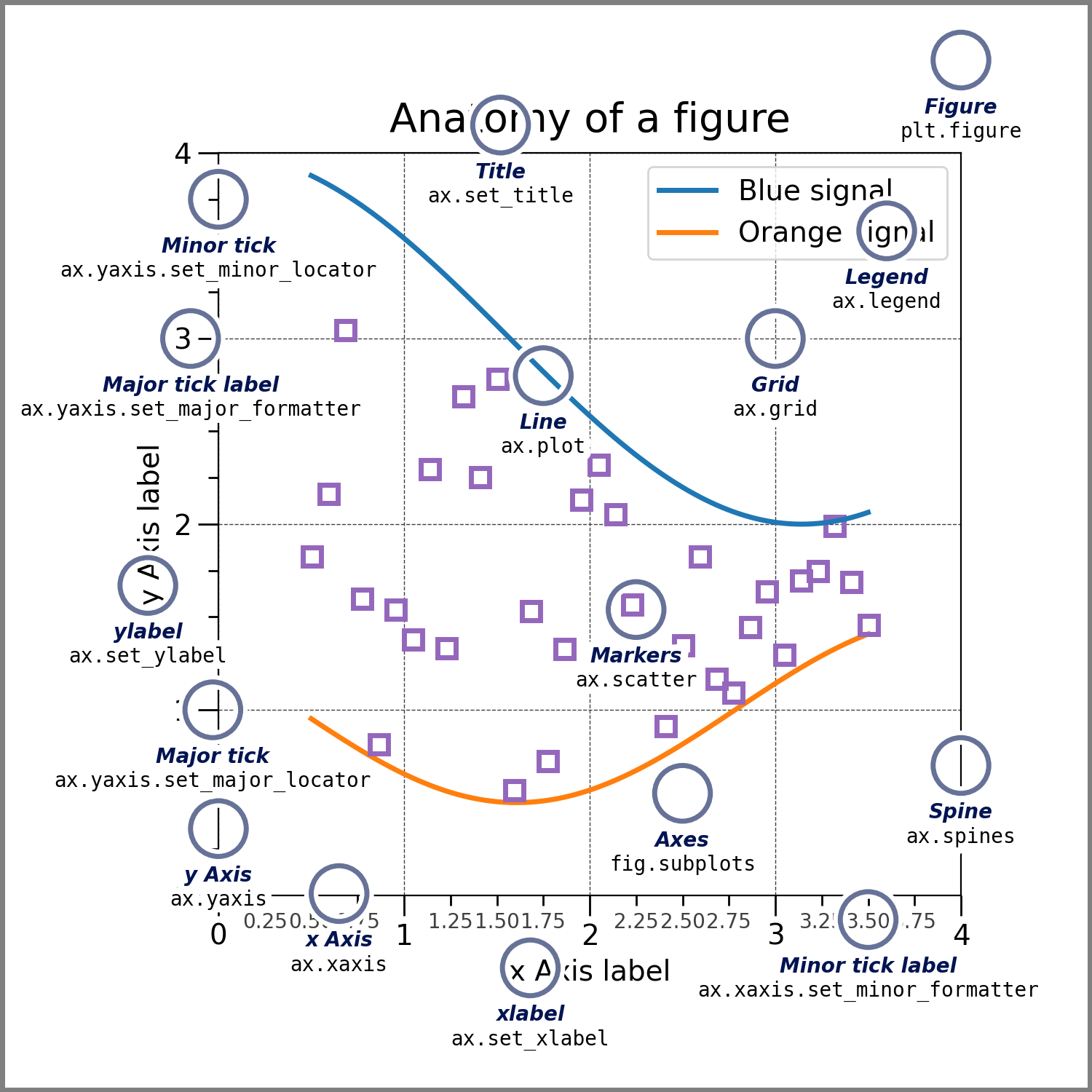
fig = plt.figure() # figure 객체 생성
fig
그래프 공간 추가(그림 내에서)
ax1 = fig.add_subplot(2, 2, 1) # 2 x 2 그림공간 생성 하고, 그중에서 1번째(첫번째) 그래프를 그릴것임
ax1
AxesSubplot 객체 생성
ax4 = fig.add_subplot(2, 2, 4)
fig
현재는 add_subplot() 보다는
plt.subplots(row, col)를 추천한다.
fig, (ax1, ax2, ax3) = plt.subplots(1,3)
fig, ((ax1, ax2), (ax3, ax4)) = plt.subplots(2, 2)
title 변경
ax1.set_title('1st graph')
ax4.set_title('2nd graph')
fig
fig, ((ax1, ax2), (ax3, )) = plt.subplots(2, 2) # 는 파이썬에서 사용가능한 '사용하지 않는다'는 뜻.
ax1.hist(np.random.randn(100), bins=20)
ax2.plot(np.random.randn(50).cumsum())
ax3.scatter(np.arange(30), np.arange(30) + 3 * np.random.randn(30))
fig
plot을 만들었던 방법들 (정리)
1. Series 나 DataFrame 에서 plot() 호출하여 직접 작성
s = pd.Series(np.random.randn(10).cumsum(), index=np.arange(0, 100, 10))
s.plot()
2. pyplot 의 plot() 호출하여 생성
plt.plot(s)
figure 생성 후 subplot에 그리기
fig = plt.figure()
ax1 = fig.add_subplot(1, 1, 1)
ax1.plot(s)
1. plt module(matplotlib.pyplot) API
plt.plot(...), plt.title(...) <-- 거의 대부분 이 함수만 사용할거다.
장점: 간결. 간편
단점: 복잡한 그래프를 그리는데 한계 있다.
2. Figure, Subplot 을 이용해서 직접 그래프를 그리는 방법
그래프 는 여러 파트로 구성되어 있는데
전체 그림 --> Figure
Figure 안의 세부 그림 --> Subplot
코드는 좀더 복잡하지만.. (개인적으로 자주 애용)
3. Pandas ( pd.Series, pd.DataFrame )
Series 와 DataFrame 에선 Figure, Subplot 을 다루고 생성하는 함수들 제공
Series.____, DataFrame._
=> Figure, Subplot
그러나, 결국 커스터 마이징을 하려면 2 번 방법을 알아야 함
Plot 꾸미기
plt.plot(np.random.randn(50), color='g', marker='o', linestyle='--')
plot 꾸미기 옵션
color
값 색상
"b" blue
"g" green
"r" red
"c" cyan
"m" magenta
"y" yellow
"k" black
"w" white
marker
값 마킹
"." point
"," pixel
"o" circle
"v" triangle_down
"^" triangle_up
"<" triangle_left
">" triangle_right
"8" octagon
"s" square
"p" pentagon
"*" star
"h" hexagon
"+" plus
"x" x
"D" diamond
line style
값 라인 스타일
"-" solid line
"--" dashed line
"-." dash-dotted line
":" dotted line
"None" draw nothing
plt.plot(np.random.randn(30), 'k.-')
data = pd.Series(np.random.rand(16), index=list('abcdefghijklmnop'))
data
data.plot(kind='bar', color='k', alpha=0.7) # alpha는 투명도. Scatter에서 주로 쓰이고 투명한 값들이 겹치면 진해지므로 분포알 수 있음.
data.plot(kind='barh', color='g', alpha=0.3)
fig, axes = plt.subplots(2, 1)
data.plot(kind='bar', color='k', alpha=0.7, ax=axes[0])
data.plot(kind='barh', color='g', alpha=0.3, ax=axes[1])
fig, ax = plt.subplots(1,1, figsize=(8, 8))
for i in range(3) :
ax.plot(np.random.randn(1000).cumsum(), label=f'{i} value')
ax.set_xticks([0, 250, 500, 750, 1000])
ax.set_xticklabels(['one', 'two', 'three', 'four', 'five'], rotation = 30)
ax.set_title('random walk plot')
ax.set_xlabel('Statges')
ax.set_ylabel('Values')
ax.grid(True)
ax.legend() # index값이 없는 데이터라 안뜸. 허나 4번줄에 label= 하고 index값을 준 이후에는 legend가 뜸.
그래프(figure) -> 이미지 저장하기
import os
base_path = r'/content/drive/MyDrive/dataset'
print(r'print\nworld')
x = [1, 2, 3]
y = [10, 20, 30]
plt.plot(x, y, color="Green", linestyle="-", marker="v")
plt.title("3rd Green Graph")
plt.savefig(os.path.join(base_path, 'figimage1.png'))
plt.savefig(os.path.join(base_path, 'figimage2.png'), dpi=200)
plt.savefig(os.path.join(base_path, 'figimage3.svg'))
plt.savefig(os.path.join(base_path, 'figimage4.pdf'))
저장된 이미지 읽어와서 보여주기
from IPython.display import Image
img_path = os.path.join(base_path, 'panda.jpg')
Image(img_path)
arr = plt.imread(img_path) # 이미지 => array로 리턴
arr
이미지 크기
(heigh, width, color channel)
arr.shape
arr.ndim
arr[0]
arr[0, 5] # row : 0, col : 5 의 pixel rgb
arr[0, 5, 1] # row : 0, col : 5의 green값
이미지 slicing
특정 부분만 잘라내기
plt.imshow(arr)
arr[100:360]
plt.imshow(arr[100:360])
arr[:, 0:230]
pubao = arr[100:360, 0:230]
plt.imshow(pubao)
좌우 반전, 상하 반전
arr[:, ::-1, :]
arr[::-1, :, :]
gray scale 변경
arr.shape
red만 추출
r = arr[:, :, 0]
r
# image_arr.shape == (1200, 1600, 3)
r = image_arr[:, :, 0] # r.shape = (1200, 1600)
g = image_arr[:, :, 1]
b = image_arr[:, :, 2]
r, g, b '3개의 색값'을 사용하여 '한개의 색' 로 변경하는 공식 예
r 0.299 + g 0.587 + b * 0.114 (green 값 강조)
즉
(1200 x 1600 x 3) ...→ ... ( 1200 x 1600 ) 으로 변화시키면 된다.
이는 다음과 같은 행렬 곱을 하면 된다.
(1200 x 1600 x 3) x ( 3 x 1 ) => 1200 x 1600
def color_to_grayscale(image_arr) :
return np.dot(
image_arr, # (h x w x 3 : rgb 행렬)
np.array([0.299, 0.587, 0.144] # (3 x 1) 행렬
))
gray = color_to_grayscale(arr)
gray.shape
gray[0, 0] # grag scale, 값이 하나.
plt.imshow(gray)
plt.imshow(gray, cmap=plt.get_cmap('gray'))
plt.imshow(gray, cmap=plt.get_cmap('hot'))
Seaborn 패키지

Seaborn은 matplotlib 패키지를 기반으로 하여 보다 편하게 통계를 시각화할 수 있는 도구입니다. 일반적으로 데이터 사이언스에서 사용하는 대부분의 그래프를 지원합니다.
공식: https://seaborn.pydata.org/
갤러리: https://seaborn.pydata.org/examples/index.html
import seaborn as sns
col_id = pd.Series(data=[5, 14, 21, 25])
col_team = pd.Series(data=['A', 'A', 'B', 'B'])
col_name = pd.Series(data=['홍승현', '변유송', '황희지', '이주홍'])
col_score = pd.Series(data=[100, 95, 60, 80])
df = pd.DataFrame(data={'Id': col_id,
'Team': col_team,
'Name': col_name,
'Score': col_score})
df.set_index('Id', inplace=True)
df
df['Score']
df['Score'].hist()
data : 원본 데이터
x축 : Score 컬럼
sns.histplot(x='Score', data=df)
sns.histplot(x='Score', data=df, bins=20)
hue(색조를 달리한다.)
df
Team 은 'A', 'B' 값을 가지고 있다.
이를 hue 를 사용하여 표현 가능
sns.histplot(x='Score', data=df, hue='Team')
boxplot()
주로 분류형 데이터 시각화 에 많이 쓰임
평균, 이상치 등에 대한 분포 확인
sns.boxplot(y='Score', x='Team',data=df, hue='Team')