공공 데이터 포털에서 전국 미세먼지 현황? 을 가져와서 알려주는 앱을 만들어보았다.
공공 데이터 포털
나는 여기서 "한국환경공단-에어코리아-대기오염정보" 를 신청하고 API를 받아왔다.
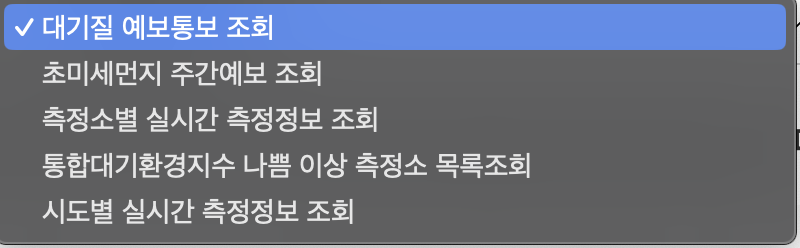
여기서는 이렇게 5가지의 정보를 받아올 수 있는데, 여기서 시도별 실시간 측정 정보를 가져왔다.
해당값을 누르면
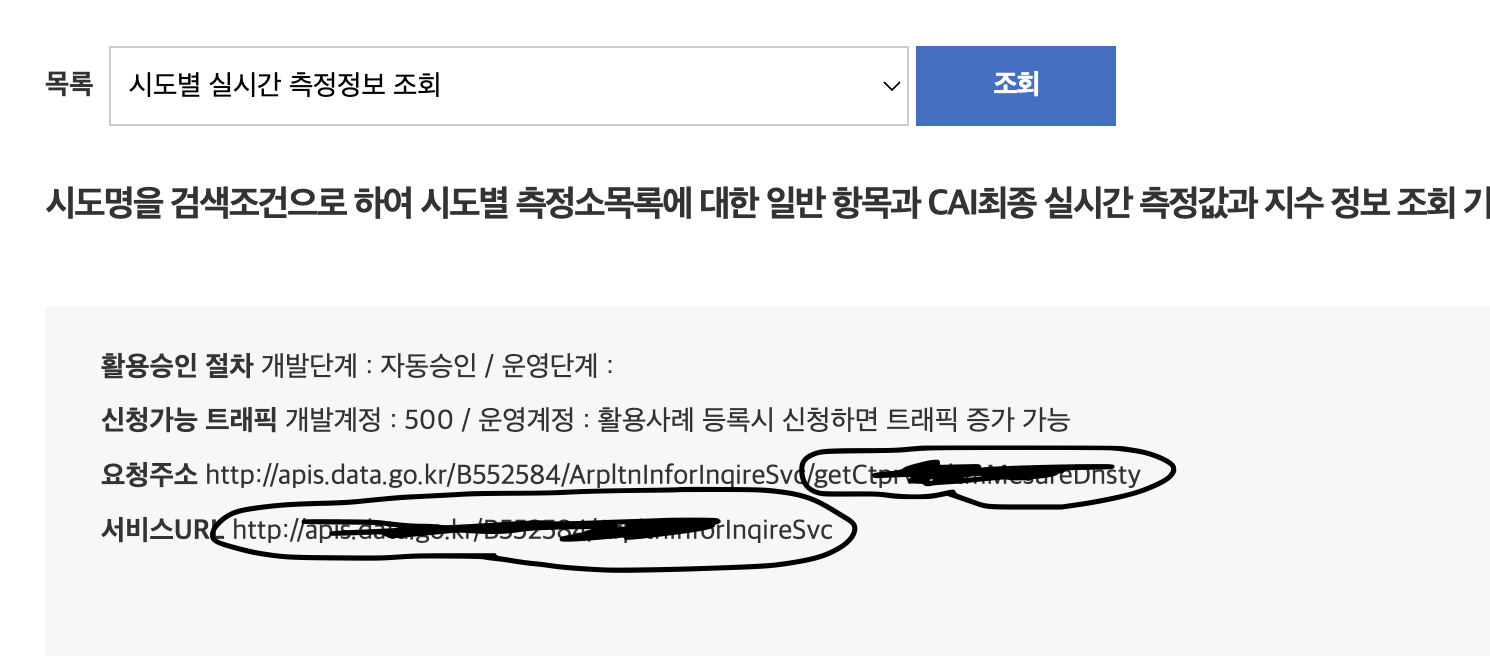
이렇게 요청주소와 서비스 URL을 가져올 수 있다. 동그라미 친 부분은 사용될 내용이다.
그리고

여기 일반 인증키도 필요하다.
이제 안드로이드 스튜디오로 돌아와서 종속성을 추가해준다. 이쁜 spinner 사용을 위해서 github에서 새로운 스피너를 하나 가져왔다.
    implementation ("com.google.code.gson:gson:2.10.1")
    implementation ("com.squareup.retrofit2:retrofit:2.9.0")
    implementation ("com.squareup.retrofit2:converter-gson:2.9.0")
    implementation ("com.squareup.okhttp3:okhttp:4.10.0")
    implementation ("com.squareup.okhttp3:logging-interceptor:4.10.0")
    implementation ("com.github.skydoves:powerspinner:1.2.6")
다음으로 manifests에서 인터넷 권한을 추가해준다.
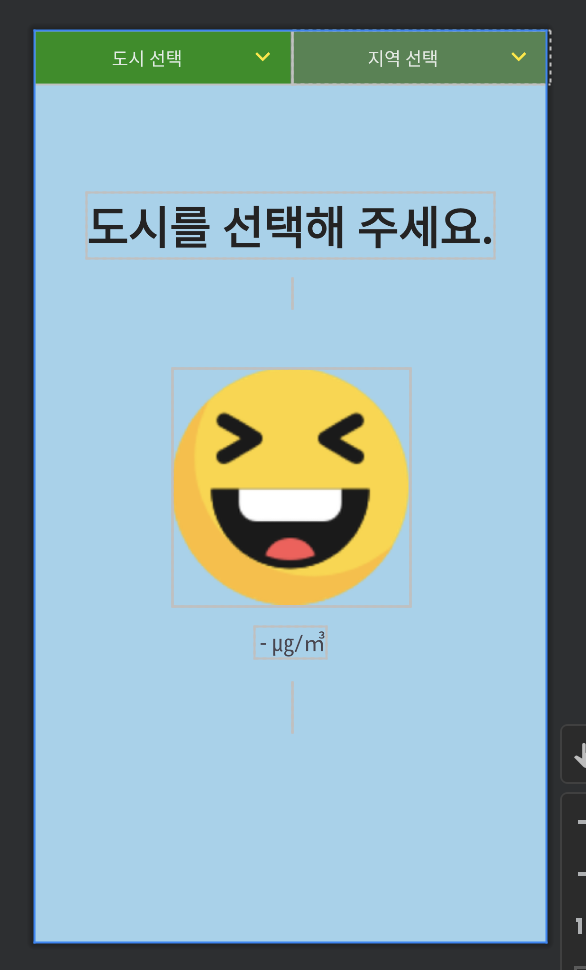
<uses-permission android:name="android.permission.INTERNET"/>다음 xml을 만들어줄건데 아래와같은 화면으로 구성했다.
<?xml version="1.0" encoding="utf-8"?>
<androidx.constraintlayout.widget.ConstraintLayout xmlns:android="http://schemas.android.com/apk/res/android"
    xmlns:app="http://schemas.android.com/apk/res-auto"
    xmlns:tools="http://schemas.android.com/tools"
    android:id="@+id/main_bg"
    android:layout_width="match_parent"
    android:layout_height="match_parent"
    android:background="#9ED2EC"
    tools:context=".MainActivity">


    <com.skydoves.powerspinner.PowerSpinnerView
        android:id="@+id/spinnerView_sido"
        android:layout_width="0dp"
        android:layout_height="wrap_content"
        android:background="@color/md_green_200"
        android:foreground="?attr/selectableItemBackground"
        android:gravity="center"
        android:hint="도시 선택"
        android:padding="10dp"
        android:textColor="@color/white_93"
        android:textColorHint="@color/white_70"
        android:textSize="14.5sp"
        app:layout_constraintStart_toStartOf="parent"
        app:layout_constraintTop_toTopOf="parent"
        app:layout_constraintEnd_toStartOf="@+id/spinnerView_goo"
        app:spinner_arrow_gravity="end"
        app:spinner_arrow_tint="@color/yellow"
        app:spinner_divider_color="@color/white_70"
        app:spinner_divider_show="true"
        app:spinner_divider_size="0.4dp"
        app:spinner_item_array="@array/Sido"
        app:spinner_item_height="46dp"
        app:spinner_popup_animation="normal"
        app:spinner_popup_background="@color/background800"
        app:spinner_popup_elevation="14dp"
        tools:ignore="HardcodedText,UnusedAttribute" />

    <com.skydoves.powerspinner.PowerSpinnerView
        android:id="@+id/spinnerView_goo"
        android:layout_width="0dp"
        android:layout_height="wrap_content"
        android:background="@color/md_green_100"
        android:foreground="?attr/selectableItemBackground"
        android:gravity="center"
        android:hint="지역 선택"
        android:padding="10dp"
        android:textColor="@color/white_93"
        android:textColorHint="@color/white_70"
        android:textSize="14.5sp"
        app:layout_constraintEnd_toEndOf="parent"
        app:layout_constraintStart_toEndOf="@+id/spinnerView_sido"
        app:layout_constraintTop_toTopOf="parent"
        app:spinner_arrow_gravity="end"
        app:spinner_arrow_tint="@color/yellow"
        app:spinner_divider_color="@color/white_70"
        app:spinner_divider_show="true"
        app:spinner_divider_size="0.4dp"
        app:spinner_item_height="46dp"
        app:spinner_popup_animation="normal"
        app:spinner_popup_background="@color/background800"
        app:spinner_popup_elevation="14dp"
        tools:ignore="HardcodedText,UnusedAttribute" />


    <ImageView
        android:id="@+id/iv_face"
        android:layout_width="wrap_content"
        android:layout_height="wrap_content"
        android:layout_marginStart="8dp"
        android:layout_marginTop="8dp"
        android:layout_marginEnd="8dp"
        android:layout_marginBottom="8dp"
        app:layout_constraintBottom_toBottomOf="parent"
        app:layout_constraintEnd_toEndOf="parent"
        app:layout_constraintStart_toStartOf="parent"
        app:layout_constraintTop_toTopOf="parent"
        app:srcCompat="@drawable/mise1" />

    <TextView
        android:id="@+id/tv_p10value"
        android:layout_width="wrap_content"
        android:layout_height="wrap_content"
        android:layout_marginTop="16dp"
        android:text=" - ㎍/㎥"
        android:textSize="18sp"
        app:layout_constraintEnd_toEndOf="parent"
        app:layout_constraintStart_toStartOf="parent"
        app:layout_constraintTop_toBottomOf="@+id/iv_face" />

    <TextView
        android:id="@+id/tv_p10grade"
        android:layout_width="wrap_content"
        android:layout_height="wrap_content"
        android:layout_marginTop="20dp"
        android:text=""
        android:textColor="#048578"
        android:textSize="30sp"
        app:layout_constraintEnd_toEndOf="parent"
        app:layout_constraintStart_toStartOf="parent"
        app:layout_constraintTop_toBottomOf="@+id/tv_p10value" />

    <TextView
        android:id="@+id/tv_cityname"
        android:layout_width="wrap_content"
        android:layout_height="wrap_content"
        android:layout_marginStart="8dp"
        android:layout_marginTop="50dp"
        android:layout_marginEnd="8dp"
        android:layout_marginBottom="8dp"
        android:text="도시를 선택해 주세요."
        android:textColor="#242323"
        android:textSize="36sp"
        android:textStyle="bold"
        app:layout_constraintBottom_toTopOf="@+id/iv_face"
        app:layout_constraintEnd_toEndOf="parent"
        app:layout_constraintStart_toStartOf="parent"
        app:layout_constraintTop_toTopOf="parent" />

    <TextView
        android:id="@+id/tv_date"
        android:layout_width="wrap_content"
        android:layout_height="wrap_content"
        android:layout_marginStart="8dp"
        android:layout_marginTop="16dp"
        android:layout_marginEnd="8dp"
        android:text=""
        android:textSize="18sp"
        app:layout_constraintEnd_toEndOf="parent"
        app:layout_constraintStart_toStartOf="parent"
        app:layout_constraintTop_toBottomOf="@+id/tv_cityname" />
</androidx.constraintlayout.widget.ConstraintLayout>
다음으로 데이터를 받아올건데, 사이트에서 보내는 값들을 틀리지않고 그대로 받아와야한다. 사이트 안에서 미리보기로 데이터를 확인할 수 있다.
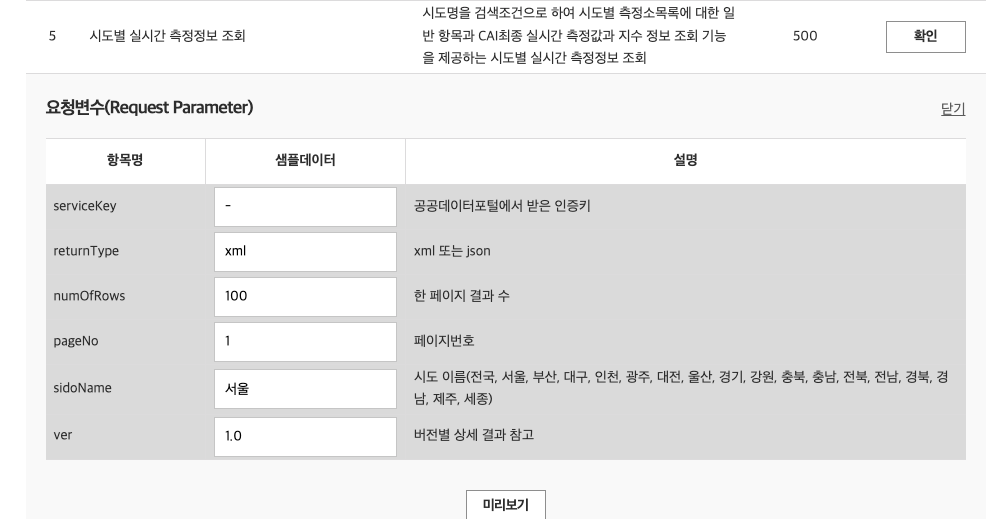
serviceKey에는 위에서 저장해둔 일반 인증키를 넣어주고 미리보기를 누르면
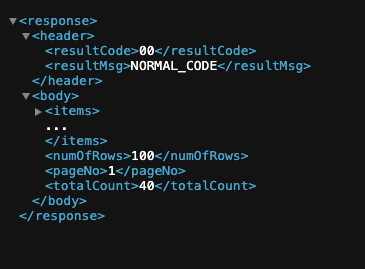
이런식으로 보이게된다.
response안에 header,body가 있고
response-header안에는 resultCode, resultMsg가있고
response-body안에는 items, numOfRows, pageNo, totalCount가 있다.
response-body-items안에는
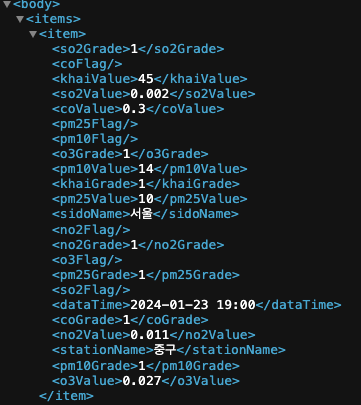
이렇게 가져올 수 있는 값들이 있다. 이렇게 되어있는 내용을 gson을 이용해서 AndroidStudio안에서 data class형태로 바꿔줄 수 있는데,
data class Dust(val response: DustResponse)

data class DustResponse(
    @SerializedName("body")
    val dustBody: DustBody,
    @SerializedName("header")
    val dustHeader: DustHeader
)

data class DustBody(
    val totalCount: Int,
    @SerializedName("items")
    val dustItem: MutableList<DustItem>?,
    val pageNo: Int,
    val numOfRows: Int
)

data class DustHeader(
    val resultCode: String,
    val resultMsg: String
)

data class DustItem(
    val so2Grade: String,
    val coFlag: String?,
    val khaiValue: String,
    val so2Value: String,
    val coValue: String,
    val pm25Flag: String?,
    val pm10Flag: String?,
    val o3Grade: String,
    val pm10Value: String,
    val khaiGrade: String,
    val pm25Value: String,
    val sidoName: String,
    val no2Flag: String?,
    val no2Grade: String,
    val o3Flag: String?,
    val pm25Grade: String,
    val so2Flag: String?,
    val dataTime: String,
    val coGrade: String,
    val no2Value: String,
    val stationName: String,
    val pm10Grade: String,
    val o3Value: String
)
이렇게 똑같이 변수명을 틀리지 않고 가져와주면 된다.
다음으로 retrofit설정을 해준다. 먼저 interface를 만들어준다.
interface NetWorkInterface {
    @GET("요청주소 동그라미친부분 가져오기") //시도별 실시간 측정정보 조회 주소
    suspend fun getDust(@QueryMap param: HashMap<String, String>): Dust
}
다음으로 singleton형식으로 NetWorkClient를 만들어준다.
object NetWorkClient {
	//여기서 값을 가져올때 맨뒤에 /붙이기! 안붙이면 에러가 난다..,.
    private const val DUST_BASE_URL = "서비스URL동그라미친부분/"

    private fun createOkHttpClient(): OkHttpClient {
        val interceptor = HttpLoggingInterceptor()

        if (BuildConfig.DEBUG)
            interceptor.level = HttpLoggingInterceptor.Level.BODY
        else
            interceptor.level = HttpLoggingInterceptor.Level.NONE

        return OkHttpClient.Builder()
            .connectTimeout(20, TimeUnit.SECONDS)
            .readTimeout(20, TimeUnit.SECONDS)
            .writeTimeout(20, TimeUnit.SECONDS)
            .addNetworkInterceptor(interceptor)
            .build()
    }

    private val dustRetrofit = Retrofit.Builder()
        .baseUrl(DUST_BASE_URL).addConverterFactory(GsonConverterFactory.create()).client(
            createOkHttpClient()
        ).build()

    val dustNetWork: NetWorkInterface = dustRetrofit.create(NetWorkInterface::class.java)

}
여기서 처음에 BuildConfig부분이 import되지 않았다.. 이 문제는
gradle-properties에서 android.defaults.buildfeatures.buildconfig=true를 추가해주고,
gradle에서 아래와 같이 추가해줘서 해결했다.
    buildFeatures{
        buildConfig = true
    }
마지막으로 메인액티비티이다.
class MainActivity : AppCompatActivity() {
    private val binding by lazy { ActivityMainBinding.inflate(layoutInflater) }
    var items = mutableListOf<DustItem>()

    override fun onCreate(savedInstanceState: Bundle?) {
        super.onCreate(savedInstanceState)
        setContentView(binding.root)

        binding.spinnerViewSido.setOnSpinnerItemSelectedListener<String> { _, _, _, text ->
            communicateNetWork(setUpDustParameter(text))
        }

        binding.spinnerViewGoo.setOnSpinnerItemSelectedListener<String> { _, _, _, text ->

            var selectedItem = items.filter { f -> f.stationName == text }

            binding.tvCityname.text = selectedItem[0].sidoName + "  " + selectedItem[0].stationName
            binding.tvDate.text = selectedItem[0].dataTime
            binding.tvP10value.text = selectedItem[0].pm10Value + " ㎍/㎥"

            when (getGrade(selectedItem[0].pm10Value)) {
                1 -> {
                    binding.mainBg.setBackgroundColor(Color.parseColor("#9ED2EC"))
                    binding.ivFace.setImageResource(R.drawable.mise1)
                    binding.tvP10grade.text = "좋음"
                }

                2 -> {
                    binding.mainBg.setBackgroundColor(Color.parseColor("#D6A478"))
                    binding.ivFace.setImageResource(R.drawable.mise2)
                    binding.tvP10grade.text = "보통"
                }

                3 -> {
                    binding.mainBg.setBackgroundColor(Color.parseColor("#DF7766"))
                    binding.ivFace.setImageResource(R.drawable.mise3)
                    binding.tvP10grade.text = "나쁨"
                }

                4 -> {
                    binding.mainBg.setBackgroundColor(Color.parseColor("#BB3320"))
                    binding.ivFace.setImageResource(R.drawable.mise4)
                    binding.tvP10grade.text = "매우나쁨"
                }
            }
        }
    }

    private fun communicateNetWork(param: HashMap<String, String>) = lifecycleScope.launch() {
        val responseData = NetWorkClient.dustNetWork.getDust(param)

        val adapter = IconSpinnerAdapter(binding.spinnerViewGoo)
        items = responseData.response.dustBody.dustItem!!

        val goo = ArrayList<String>()
        items.forEach {
            goo.add(it.stationName)
        }

        runOnUiThread {
            binding.spinnerViewGoo.setItems(goo)
        }

    }

    private fun setUpDustParameter(sido: String): HashMap<String, String> {
        val authKey =
          "여기에 사이트에서 가져온 인증키 넣기"
        return hashMapOf(
            "serviceKey" to authKey,
            "returnType" to "json",
            "numOfRows" to "100",
            "pageNo" to "1",
            "sidoName" to sido,
            "ver" to "1.0"
        )
    }

    fun getGrade(value: String): Int {
        val mValue = value.toInt()
        var grade = 1
        grade = if (mValue >= 0 && mValue <= 30) {
            1
        } else if (mValue >= 31 && mValue <= 80) {
            2
        } else if (mValue >= 81 && mValue <= 100) {
            3
        } else 4
        return grade
    }
}
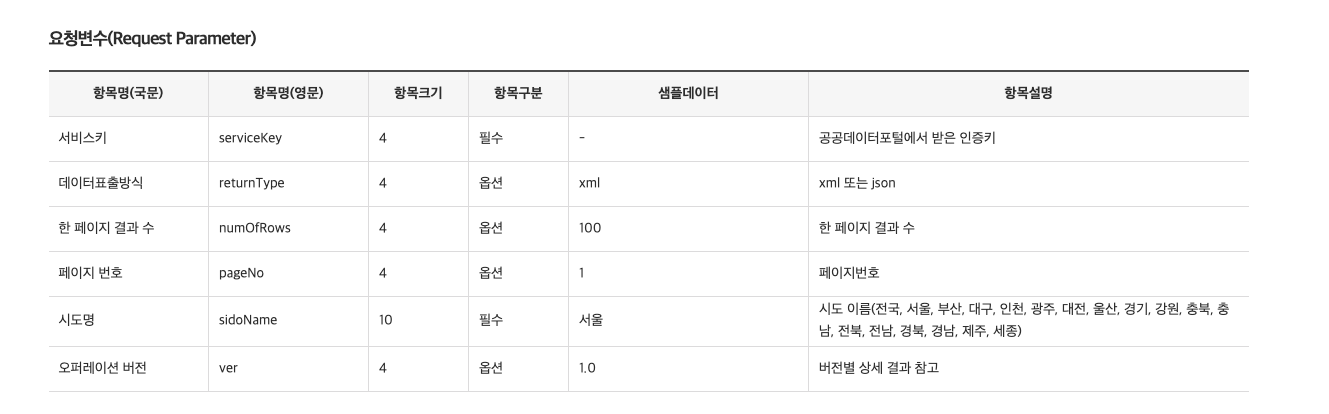
마지막에 setUpDustParameter는 홈페이지에서 요구하는 데이터를 넣어주면된다.
이렇게 해서 외부 API를 이용할 수 있다.