
Overview
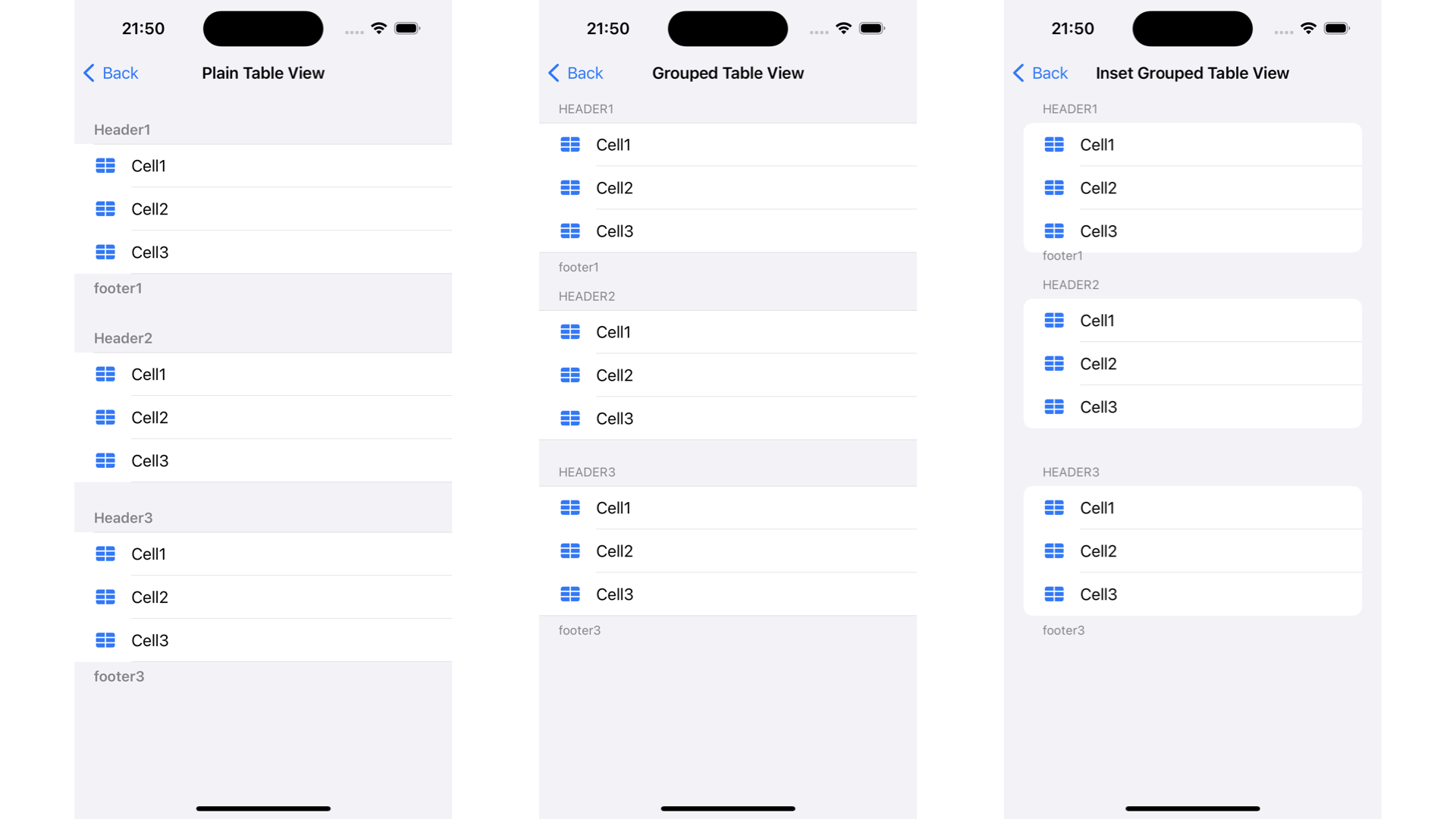
- Table View Cell은 header, rows, footer로 구성
- Table View Cell은 3가지 스타일로 생성 가능
Table View Cell Style
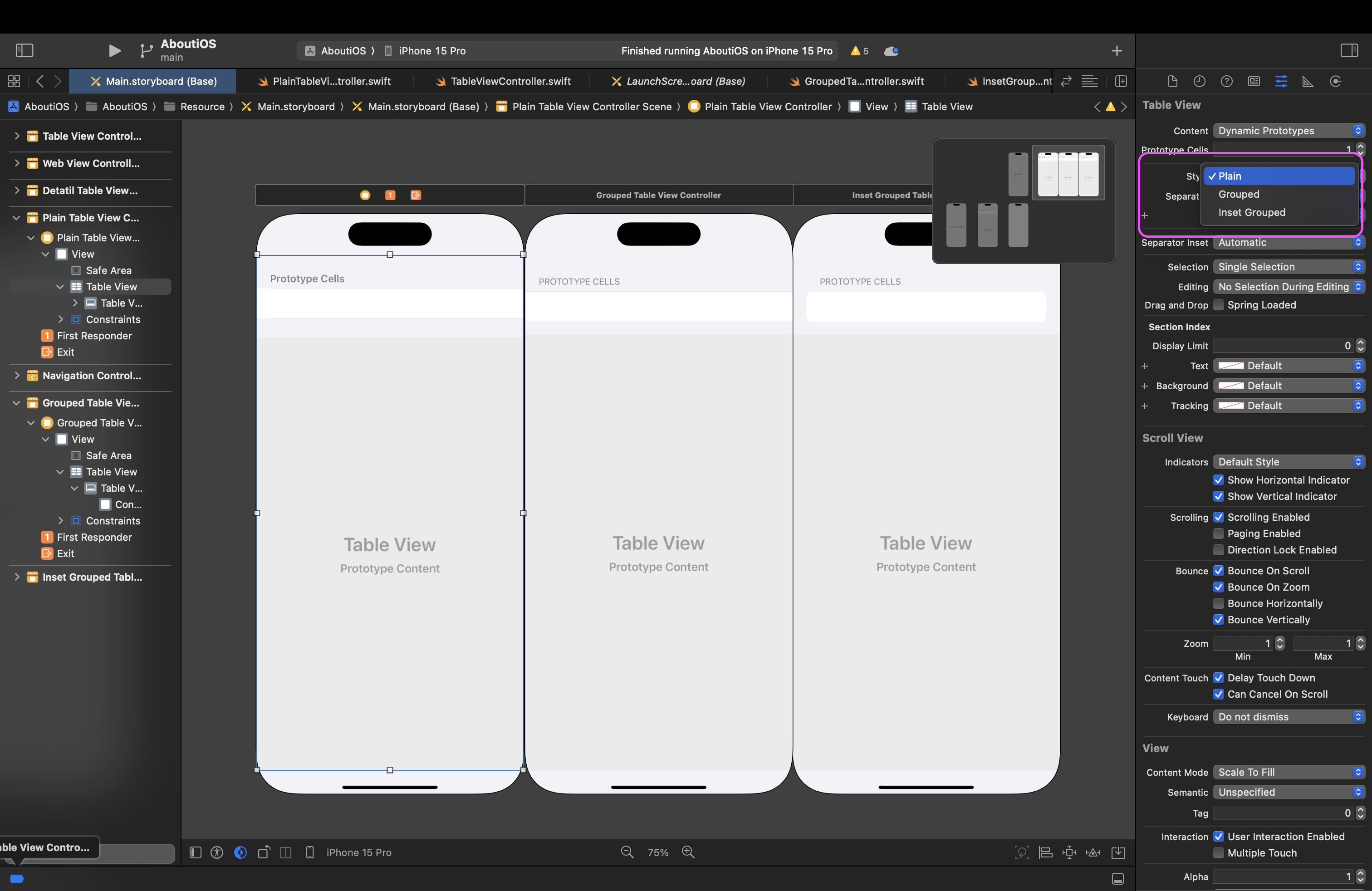
- Storyboard -> table view 클릭-> inspectors -> Attributes inspector -> Style
Plain
let tableView = UITableView(frame: .zero, style: .plain)- 기본적인 테이블 뷰 스타일
- 행이 연속적으로 배치되며 구분선(Separator)이 전체 너비로 표시
- section의 header와 footer가 스크롤해도 화면에 고정되지 않음
- 일반적인 목록 형태(연락처 리스트)에서 많이 사용
Grouped
let tableView = UITableView(frame: .zero, style: .grouped)- section마다 개별적인 스타일의 박스로 구분
- header와 footer가 section 안에서 함께 그룹화
- section의 header와 footer가 스크롤하면 함께 이동
- 설정 화면이나 시계 같은 곳에서 사용
Inset Grouped
let tableView = UITableView(frame: .zero, style: .insetGrouped)- grouped 스타일과 유사하지만, 양쪽에 패딩이 추가되어 중앙에 배치
- iOS 13부터 추가된 스타일
- 더 정돈된 UI가 필요할 때 사용(설정 화면, 앱 내 세부 정보 페이지)
header와 footer setting 코드
private let allSections: [Section] = [
    Section(header: "Header1", footer: "footer1", items: [
        Item(imageName: "tablecells.fill", title: "Cell1"),
        Item(imageName: "tablecells.fill", title: "Cell2"),
        Item(imageName: "tablecells.fill", title: "Cell3")
    ]),
    Section(header: "Header2", footer: nil, items: [
        Item(imageName: "tablecells.fill", title: "Cell1"),
        Item(imageName: "tablecells.fill", title: "Cell2"),
        Item(imageName: "tablecells.fill", title: "Cell3")
    ]),
    Section(header: "Header3", footer: "footer3", items: [
        Item(imageName: "tablecells.fill", title: "Cell1"),
        Item(imageName: "tablecells.fill", title: "Cell2"),
        Item(imageName: "tablecells.fill", title: "Cell3")
    ])
]

//MARK: - 섹션 header 설정
func tableView(_ tableView: UITableView, titleForHeaderInSection section: Int) -> String? {
    return allSections[section].header
}

//MARK: - 섹션 header의 높이 설정
func tableView(_ tableView: UITableView, heightForHeaderInSection section: Int) -> CGFloat {
    return allSections[section].header == nil ? 0 : 30
}

//MARK: - 섹션 footer 설정
func tableView(_ tableView: UITableView, titleForFooterInSection section: Int) -> String? {
    return allSections[section].footer
}

//MARK: - 섹션 footer의 높이 설정
func tableView(_ tableView: UITableView, heightForFooterInSection section: Int) -> CGFloat {
    return allSections[section].footer == nil ? 0 : 30
}
UITableView.Style.insetGrouped를 사용할 때 문제점
- 첫 번째 섹션 header가 테이블 뷰의 상단과 겹쳐지는 문제
- contentInset이나 sectionHeaderHeight와 상호작용하면서 가려지는 것으로 추정하여 높이를 설정해주는 코드 작성
- footer가 rows와 겹쳐지는 문제
- 마찬가지로 높이를 설정해주는 코드 작성
전체코드
PlainTableView
https://github.com/zongbeen/AboutiOS/blob/main/AboutiOS/VIew/SubTableViewController/Style/PlainTableViewController.swift
GroupedTableView
https://github.com/zongbeen/AboutiOS/blob/main/AboutiOS/VIew/SubTableViewController/Style/GroupedTableViewController.swift
InsetGroupedTableView https://github.com/zongbeen/AboutiOS/blob/main/AboutiOS/VIew/SubTableViewController/Style/InsetGroupedTableViewController.swift
- 스토리보드로 설정했기에 세가지 스타일에 대한 코드는 동일
- 코드로는 Table View 생성 시 설정
let tableView = UITableView(frame: .zero, style: .원하는 스타일)

vis ta vie