📖 Creating Groups
Group Your Data
- Group is used only for Dimensions (X)
- 데이터 패널(Dimensions Shelf) → 차원 우클릭 후 그룹 생성 → 클립 모양 아이콘
1) visualization using labels (막대 하단의 라벨 클릭)
Tableau will add a new consolidated mark
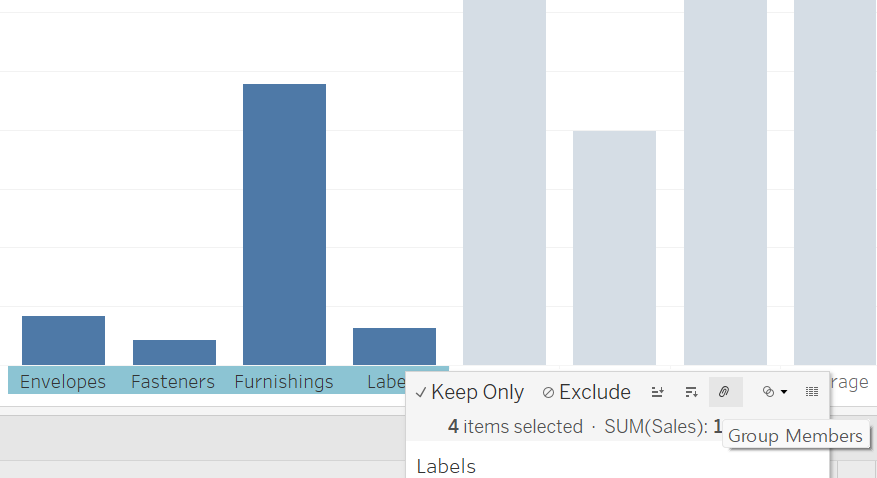

2) visualization using marks (막대 클릭)
Tableau will use color to distinguish the group from all oher values
→ 그룹으로 묶인 것 + Other
📖 Creating Sets
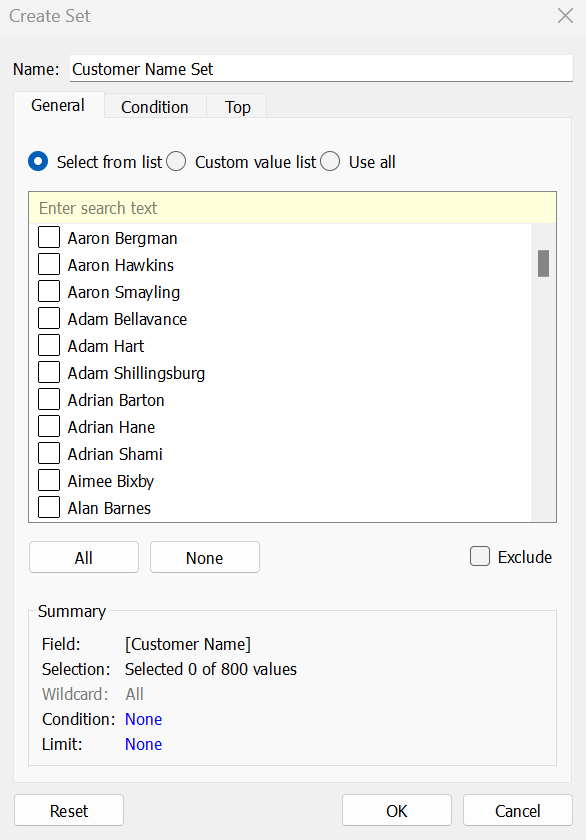
1) a dynamic set
2) a fixed set
3) Combined Set
- Data pane - right click a dimension and select Create - Set
- Using Label in the view
- From Mark in the view
- 연결된 원본 데이터를 수정하면 Set를 만들때 걸어둔 조건에도 반영됨
📖 Creating Hierarchies
- using hierarchies for unknown geographic locations
- It is possible to add a field to more than one hierarchy
- to organize related fields together
- to add drilldown functionality for fields
📖 Adding a Filter
- viewing only certain fields in your view
- ONLY filtering the values from the particular worksheet
- When creating a new sheet, original data will be present by default
- 차원, 측정값에 적용되는 필터가 다르다.
- 날짜도 차원 또는 측정값 필터로 적용 가능
- Relative dates
For a relative date filter, the default anchor is Today's date - Range of dates
- Starting date
- Ending date
- Special
- Relative dates
- discrete dimension → General / Wildcard / Condition / Top
- filter options(discrete dimension)
- Single Value (list)
- Single Value (dropdown)
- Single Value (slider)
- Multiple Values (list)
- Multiple Values (dropdown)
- Multiple Values (custom list)
- Wildcard Match
- filter options(continuous measures)
- Range of values
- At most
- At least
📖 Create Clusters
- To identify marks with similar characteristics
- Clustering helps to reduce data noise based on measure values.
📖 Create Parameters
- Allowable values
- All
- List
- Range
- Parameter is used to replace constant value in Calculated Field, Reference line, Set, and Bins
- We cannot use Multi-Select option in Parameter
