65.내일배움캠프 57일차 TIL <Unity Unity 2D 팀프로젝트- MartialGod:Reborn - 6일차> 06/30
TIL (Today I Learned)
목록 보기
66/122

드롭다운을 이용한 해상도 설정 구현
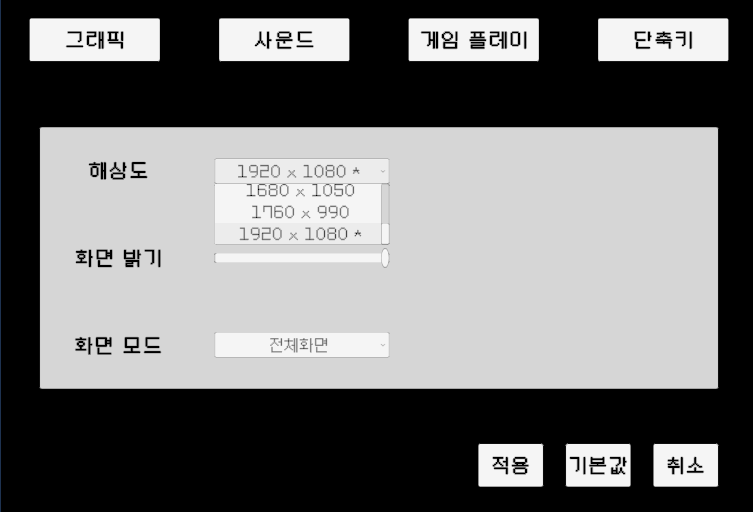
사진처럼 드롭다운을 누르면 해상도 목록이 나오고 누르면 적용까지 됨.
// Screen.resolutions에서 사용 가능한 모든 해상도(내 모니터 해상도 목록)를 가져옴
Resolution[] unityResolutions = Screen.resolutions;이 코드가 내 모니터가 사용할 수 있는 모든 해상도를 가져온다.
배열에 모든 해상도를 담아 게임 속 해상도 설정 목록에 나오도록 함.
// HashSet: 동일한 요소가 두 번 이상 추가되는 것을 허용하지 않음 - 중복 제거
HashSet<string> uniqueResolution = new HashSet<string>();

for (int i = 0; i < unityResolutions.Length; i++)
{
	Resolution resolution = unityResolutions[i];

	// "1920 x 1080"처럼 표시
	string resolutionText = resolution.width + " x " + resolution.height;

	if (uniqueResolution.Add(resolutionText)) // 중복된 해상도 문자열이 아니라면
	{
		resolutions.Add(resolution); // 리스트에 해상도 추가
HashSet는 중복된 요소를 허용하지 않고, 요소의 순서가 중요하지 않을 때
사용하는 컬렉션(자료 구조)이다.
이걸 사용하는 이유는 Resolution[] unityResolutions = Screen.resolutions;
저 코드는 해상도는 같지만 주사율이 다른 것들도 존재하기 때문에 그것들을 제외하기 위해 사용한다.
<코드>
using System.Collections.Generic;
using TMPro;
using UnityEngine;
public class GraphicOption : MonoBehaviour
{
[Header("옵션 설정 오브젝트")]
[SerializeField] private TMP_Dropdown resolutionDropdown; // 해상도 드롭다운
// Resolution: 유니티 엔진에서 화면 해상도 정보를 편리하게 다루기 위해 미리 정의해 둔 구조체
// 화면 해상도 목록을 저장할 리스트
private List<Resolution> resolutions = new List<Resolution>();
private int optimalResolutionIndex = 0; // 권장 해상도 인덱스
const string ResolutionDropdownString = "Dropdown - Resolution";
// PlayerPrefs 저장 키 문자열
const string ResolutionIdxString = "ResolutionIndex";
private void Awake()
{
resolutionDropdown = this.TryGetChildComponent<TMP_Dropdown>(ResolutionDropdownString);
}
private void Start()
{
InitResolutionDropdown();
}
public void InitResolutionDropdown() // 초기 해상도 드롭다운 설정
{
// 모든 항목들을 리스트에서 제거 - 드롭다운 UI 초기화
resolutionDropdown.ClearOptions();
// Screen.resolutions에서 사용 가능한 모든 해상도(내 모니터 해상도 목록)를 가져옴
Resolution[] unityResolutions = Screen.resolutions;
// 화면에 표시할 해상도 옵션 문자열을 저장할 빈 리스트 (1920 x 1080)
List<string> resolutionTextList = new List<string>();
// HashSet: 동일한 요소가 두 번 이상 추가되는 것을 허용하지 않음 - 중복 제거
HashSet<string> uniqueResolution = new HashSet<string>();
for (int i = 0; i < unityResolutions.Length; i++)
{
Resolution resolution = unityResolutions[i];
// "1920 x 1080"처럼 표시
string resolutionText = resolution.width + " x " + resolution.height;
if (uniqueResolution.Add(resolutionText)) // 중복된 해상도 문자열이 아니라면
{
resolutions.Add(resolution); // 리스트에 해상도 추가
// 현재 사용자의 모니터 해상도와 설정에 있는 해상도와 일치하면
if (resolution.width == Screen.currentResolution.width &&
resolution.height == Screen.currentResolution.height)
{
optimalResolutionIndex = resolutions.Count - 1; // 해상도 인덱스 번호 저장
resolutionText += " *"; // "1920 x 1080 *"같이 표시
}
// "1920 x 1080 *" 이 상태로 해상도 문자열 리스트에 저장
resolutionTextList.Add(resolutionText);
}
}
// 드롭다운 목록으로 "1920 x 1080 *", "1366 x 768" 이런 식으로 출력
resolutionDropdown.AddOptions(resolutionTextList);
// 현재 사용 중인 모니터의 해상도로 기본 해상도를 설정
// value: 드롭다운에서 현재 선택된 옵션의 인덱스를 나타내는 속성
resolutionDropdown.value = optimalResolutionIndex;
// 현재 설정된 값에 해당하는 텍스트를 화면에 표시하도록 갱신
resolutionDropdown.RefreshShownValue();
}
public void SetResolution(int resolutionIndex) // 해상도 변경
{
// 드롭다운에서 선택된 인덱스에 해당하는 해상도 정보를 resolutions리스트에서 가져옴
Resolution resolution = resolutions[resolutionIndex];
// 가져온 해상도 정보로 실제 화면 해상도로 변경
// Screen.SetResolution: 실제 게임 화면의 해상도를 변경하는 유니티 전용 함수
// Screen.fullScreen: 해상도를 변경할 때 현재의 화면 모드(전체 화면인지 창모드인지)를 그대로 유지하라는 의미
// 현재 내 화면이 전체 화면이면 Screen.fullScreen은 true, 창모드면 false
Screen.SetResolution(resolution.width, resolution.height, Screen.fullScreen);
}
} Template오브젝트의 Height를 조절하면 표시할 목록의 창 크기를 조절할 수 있다.
 Content의 Height를 조절하면 왼쪽의 텍스트 표시칸을 조절할 수 있다. Height값이 작으면 해상도 목록 텍스트가 겹치는 현상이 생긴다.

내배캠 Unity_9기 / 게임 서버 단기 심화_9기