Course
Implementing Cloud Load Balancing for Compute Engine
Lab
목록
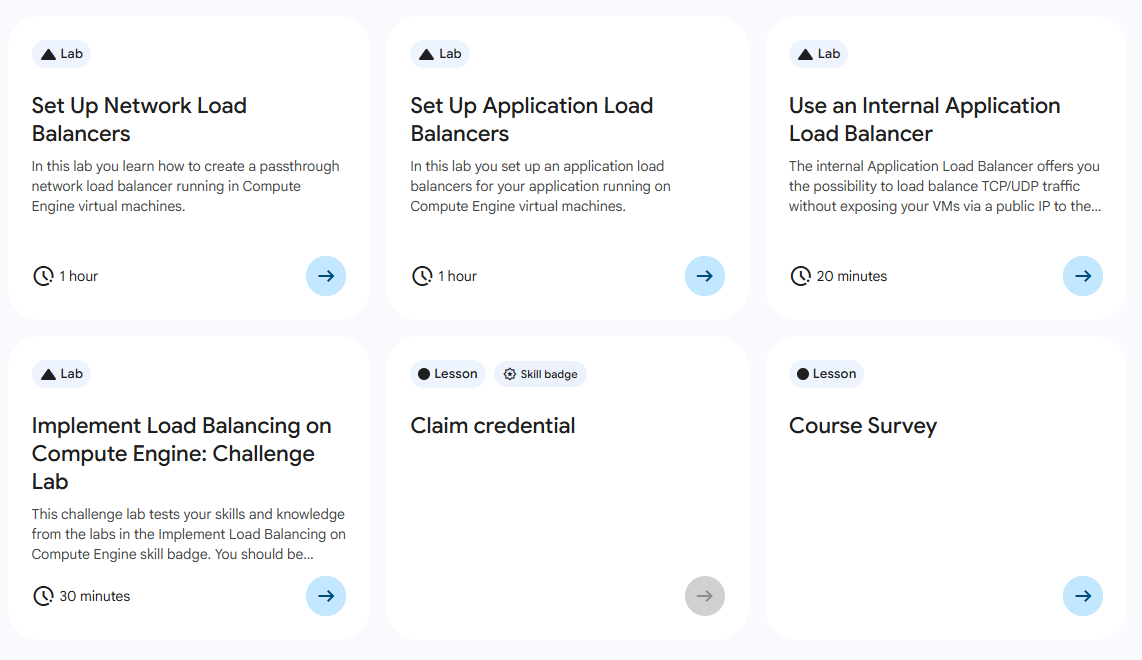
- Set Up Network Load Balancers
- Set Up Application Load Balancers
- Use an Internal Application Load Balancer
- Implement Load Balancing on Compute Engine: Challenge Lab ⬅️ 오늘의 Lab!
🌠 Implement Load Balancing on Compute Engine: Challenge Lab
Task1. 다중 웹 서버 인스턴스 만들기
0. 조건
(1) 인스턴스 설정 값
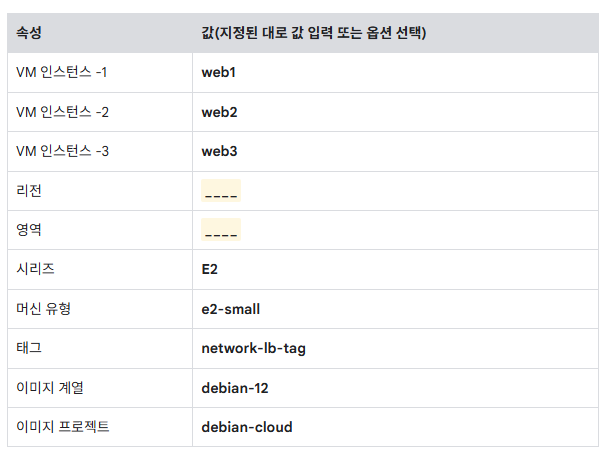
➡️ 빈칸인 부분은 실습 계정별로 상이하므로, 수정 필요!
(2) Apache 설치 스크립트
#!/bin/bash
apt-get update
apt-get install apache2 -y
service apache2 restart
echo "<h3>Web Server: web-number</h3>" | tee /var/www/html/index.html
➡️ 스턴스 이름에 따라 web1, web2, web3 같은 web-number를 업데이트 필요
1. 인스턴스 생성
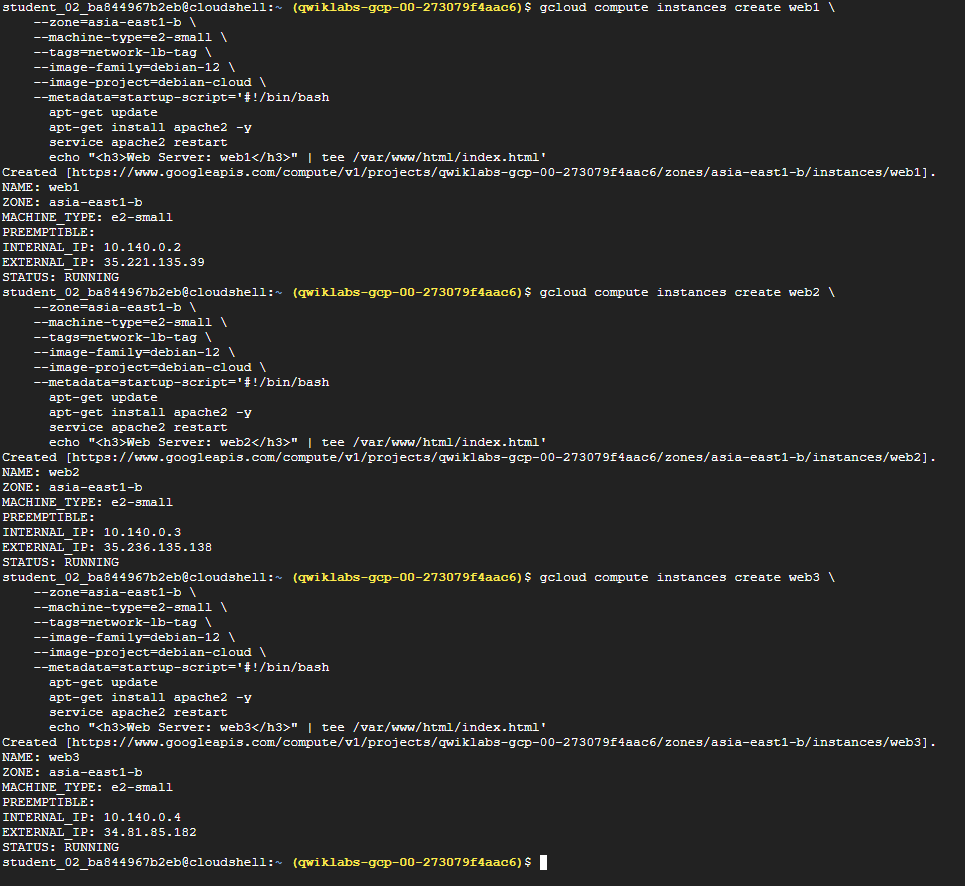
# web1 생성
gcloud compute instances create web1 \
    --zone=asia-east1-b \
    --machine-type=e2-small \
    --tags=network-lb-tag \
    --image-family=debian-12 \
    --image-project=debian-cloud \
    --metadata=startup-script='#!/bin/bash
      apt-get update
      apt-get install apache2 -y
      service apache2 restart
      echo "<h3>Web Server: web1</h3>" | tee /var/www/html/index.html'

# web2 생성
gcloud compute instances create web2 \
    --zone=asia-east1-b \
    --machine-type=e2-small \
    --tags=network-lb-tag \
    --image-family=debian-12 \
    --image-project=debian-cloud \
    --metadata=startup-script='#!/bin/bash
      apt-get update
      apt-get install apache2 -y
      service apache2 restart
      echo "<h3>Web Server: web2</h3>" | tee /var/www/html/index.html'

# web3 생성
gcloud compute instances create web3 \
    --zone=asia-east1-b \
    --machine-type=e2-small \
    --tags=network-lb-tag \
    --image-family=debian-12 \
    --image-project=debian-cloud \
    --metadata=startup-script='#!/bin/bash
      apt-get update
      apt-get install apache2 -y
      service apache2 restart
      echo "<h3>Web Server: web3</h3>" | tee /var/www/html/index.html'
✅ zone은 개개인 실습 환경에 따라 상이하므로 수정 필요
2. HTTP 트래픽 허용 방화벽 규칙 생성
gcloud compute firewall-rules create www-firewall-network-lb \
    --target-tags network-lb-tag --allow tcp:80
Task2. 부하 분산 서비스 구성
<과정 미리보기>
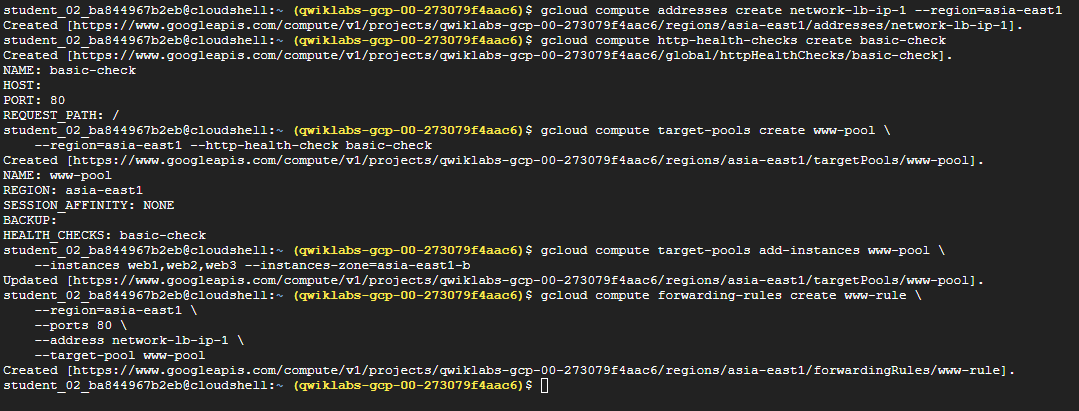
0. 조건
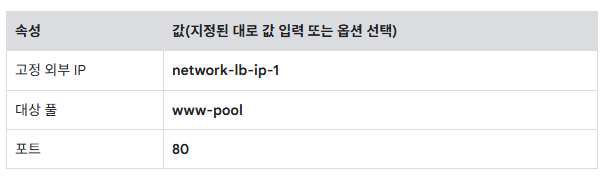
1. 고정 외부 IP 주소 예약
gcloud compute addresses create network-lb-ip-1 --region=asia-east1✅ Region은 실습용 계정에 따라 상이하므로 수정 필요
2. HTTP 상태 점검 생성
gcloud compute http-health-checks create basic-check3. 타켓 풀 생성
gcloud compute target-pools create www-pool \
    --region=asia-east1 --http-health-check basic-check
4. 타켓 풀에 인스턴스 추가
gcloud compute target-pools add-instances www-pool \
    --instances web1,web2,web3 --instances-zone=asia-east1-b
5. 전달 규칙 생성
gcloud compute forwarding-rules create www-rule \
    --region=asia-east1 \
    --ports 80 \
    --address network-lb-ip-1 \
    --target-pool www-pool
Task3. HTTP 부하 분산기 만들기
<과정 미리보기>
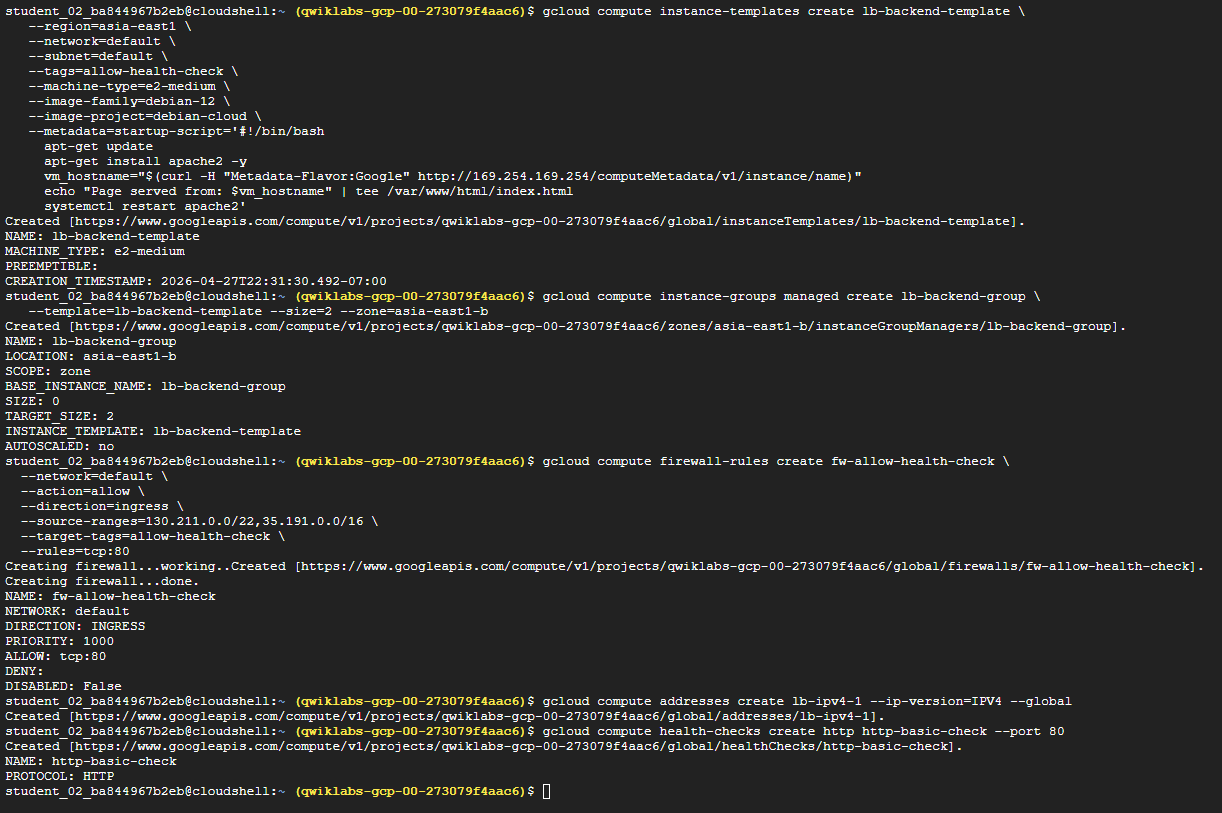
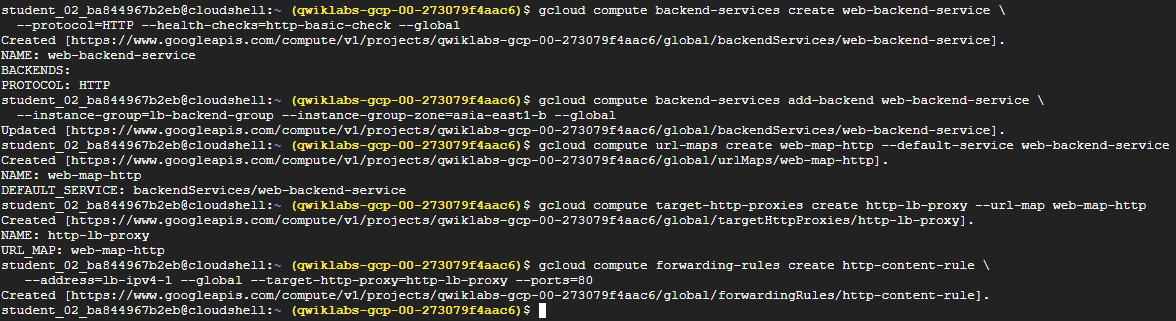
0. 조건
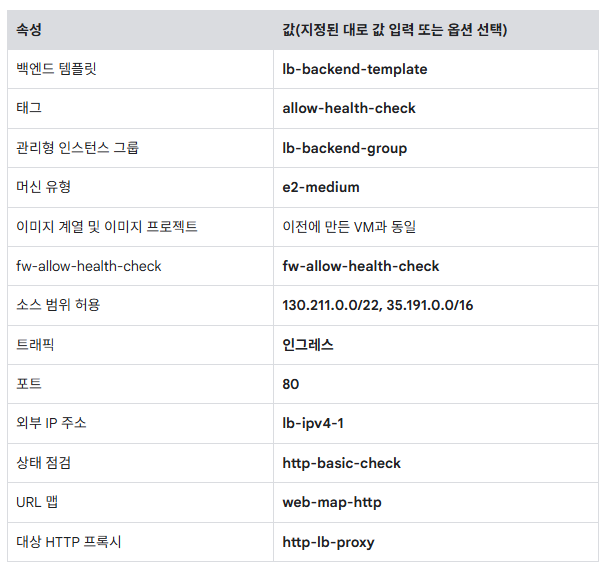
1. 인스턴스 템플릿 생성
gcloud compute instance-templates create lb-backend-template \
   --region=asia-east1 \
   --network=default \
   --subnet=default \
   --tags=allow-health-check \
   --machine-type=e2-medium \
   --image-family=debian-12 \
   --image-project=debian-cloud \
   --metadata=startup-script='#!/bin/bash
     apt-get update
     apt-get install apache2 -y
     vm_hostname="$(curl -H "Metadata-Flavor:Google" http://169.254.169.254/computeMetadata/v1/instance/name)"
     echo "Page served from: $vm_hostname" | tee /var/www/html/index.html
     systemctl restart apache2'
2. 관리형 인스턴스 그룹 생성
gcloud compute instance-groups managed create lb-backend-group \
   --template=lb-backend-template --size=2 --zone=asia-east1-b
3. 구글 상태 점검 시스템 허용 방화벽 규칙 설정
gcloud compute firewall-rules create fw-allow-health-check \
  --network=default \
  --action=allow \
  --direction=ingress \
  --source-ranges=130.211.0.0/22,35.191.0.0/16 \
  --target-tags=allow-health-check \
  --rules=tcp:80
4. 전역 IP 주소 예약
gcloud compute addresses create lb-ipv4-1 --ip-version=IPV4 --global5. HTTP 상태 점검 생성
gcloud compute health-checks create http http-basic-check --port 806. 백엔드 서비스 생성 및 그룹 연결
# 생성
gcloud compute backend-services create web-backend-service \
  --protocol=HTTP --health-checks=http-basic-check --global

# 연결(추가)
gcloud compute backend-services add-backend web-backend-service \
  --instance-group=lb-backend-group --instance-group-zone=asia-east1-b --global
7. URL 맵 설정
gcloud compute url-maps create web-map-http --default-service web-backend-service8. 프록시 설정
gcloud compute target-http-proxies create http-lb-proxy --url-map web-map-http9. 전역 전달 규칙 설정
gcloud compute forwarding-rules create http-content-rule \
   --address=lb-ipv4-1 --global --target-http-proxy=http-lb-proxy --ports=80
Test
L4 IP 확인
gcloud compute forwarding-rules describe www-rule --region=asia-east1 --format="get(IPAddress)"L4 부하 분산 확인
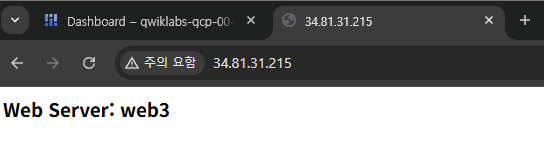
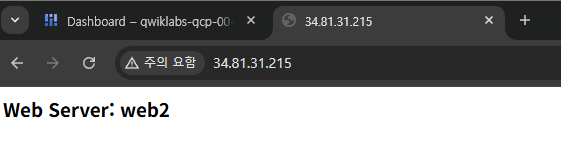
➡️ 새로고침할 때마다 접속하는 웹 서버가 다른 것을 확인할 수 있다.
L7 IP 확인
gcloud compute addresses describe lb-ipv4-1 --global --format="get(address)"L7 부하 분산 확인
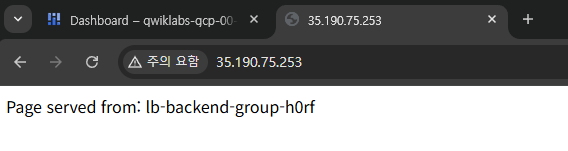
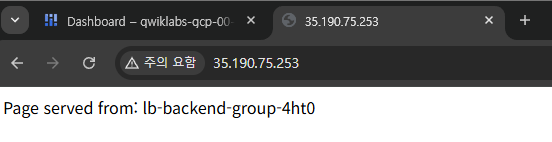
➡️ 새로고침할 때마다 접속하는 백엔드 서비스가 다른 것을 확인할 수 있다.

새싹 개발자