Course
Use APIs to Work with Cloud Storage
Lab
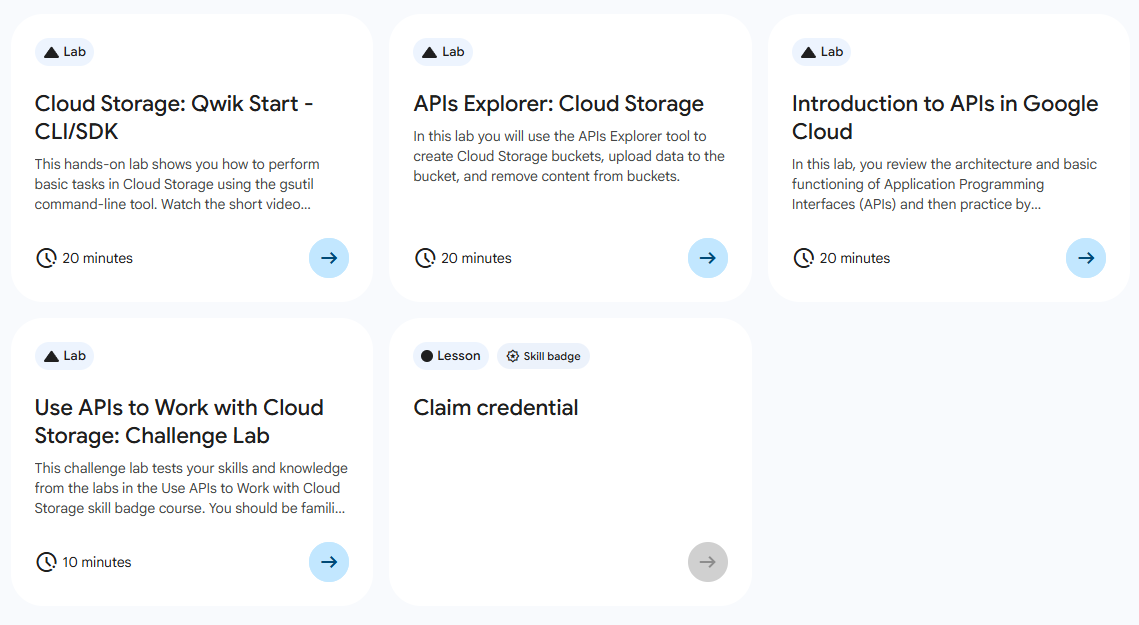
목록
- Cloud Storage: Qwik Start - CLI/SDK ⬅️ 오늘의 Lab!
- APIs Explorer: Cloud Storage
- Introduction to APIs in Google Cloud
- Use APIs to Work with Cloud Storage: Challenge Lab
🌠 Cloud Storage: Qwik Start - CLI/SDK
개요
Google Cloud 명령줄을 사용하여 스토리지 버킷을 만들고, 여기에 객체를 업로드하고, 폴더 및 하위 폴더를 만들고, 객체에 공개적으로 액세스할 수 있도록 설정하는 방법을 알아보자.
실습과정
1. 리전 설정

# Region 수정 필요
gcloud config set compute/region "REGION"
2. 버킷 만들기

# unique한 버킷 이름으로 수정 필요
gcloud storage buckets create gs://<YOUR-BUCKET-NAME>
3. 버킷에 객체 업로드
(1) 이미지 다운로드

curl https://upload.wikimedia.org/wikipedia/commons/thumb/a/a4/Ada_Lovelace_portrait.jpg/800px-Ada_Lovelace_portrait.jpg --output ada.jpg(2) 버킷에 업로드

# 생성한 버킷 이름으로 변경 필요
gcloud storage cp ada.jpg gs://YOUR-BUCKET-NAME
(3) 다운로드한 이미지 삭제

rm ada.jpg4. 버킷에서 객체 다운로드

# 버킷 이름 변경 필요
gcloud storage cp -r gs://YOUR-BUCKET-NAME/ada.jpg .
5. 버킷의 폴더에 객체 복사

# 버킷 이름 변경 필요
gcloud storage cp gs://YOUR-BUCKET-NAME/ada.jpg gs://YOUR-BUCKET-NAME/image-folder/
➡️ image-folder 폴더 생성 후, 이미지를 폴더 안에 복사
6. 버킷 또는 폴더의 콘텐츠 목록 표시

# 버킷 이름 수정 필요
gcloud storage ls gs://YOUR-BUCKET-NAME
7. 객체 세부정보 표시

# 버킷 이름 수정 필요
gcloud storage ls -l gs://YOUR-BUCKET-NAME/ada.jpg
8. 객체에 공개 액세스 설정

# 버킷 이름 수정 필요
gcloud storage objects update gs://YOUR-BUCKET-NAME/ada.jpg --add-acl-grant=entity=allUsers,role=READER
9. 공개 액세스 권한 삭제

# 버킷 이름 수정 필요
gcloud storage objects update gs://YOUR-BUCKET-NAME/ada.jpg --remove-acl-grant=allUsers
10. 객체 삭제

# 버킷 이름 수정 필요
gcloud storage rm gs://YOUR-BUCKET-NAME/ada.jpg
➡️ 버킷의 이미지 파일인 객체를 삭제
➡️ 새로고침하면 이미지 파일의 복사본이 Cloud Storage에 저장되어 있지 않지만, image-folder/ 폴더에 만든 사본은 계속 남아 있다.

새싹 개발자