TBEG Template Syntax Complete Guide
🇰🇷 한국어 버전
In Part 2, we walked through the basics of TBEG - creating an Excel template, binding data, and generating a report. Now it's time to dive deeper.
This part is a comprehensive guide to TBEG's template syntax. We'll cover every ${...} marker in detail - what it does, how to use it, and how to combine them for complex reports.
Two Types of Markers
Everything dynamic in a TBEG template is expressed through markers. There are two types:
Variable Markers
${variableName}
${emp.name}
${emp.department.name}
These are replaced with actual data values. Dot notation enables nested property access.
Function Markers
${repeat(employees, A3:C3, emp)}
${image(logo, B2, 200:150)}
${merge(emp.dept)}
${bundle(A5:H12)}
${size(employees)}
These perform special operations. You can also write them in formula style:
| Text Form | Formula Form |
|---|---|
${repeat(col, range, var)} | =TBEG_REPEAT(col, range, var) |
${image(name)} | =TBEG_IMAGE(name) |
${merge(item.field)} | =TBEG_MERGE(item.field) |
${bundle(range)} | =TBEG_BUNDLE(range) |
Both forms behave identically.
Writing in formula form is convenient because you can use Excel's cell reference features (click, drag) to specify ranges.
Case sensitivity: Function names and keywords (
DOWN,RIGHT,fit, etc.) are case-insensitive. Data keys (emp.name,employeeName, etc.) are case-sensitive.
Variable Substitution
Marker: ${variableName}
Simple Variables
| Template | Result |
|---|---|
${title} | Monthly Report |
${date} | 2026-01-15 |
${author} | Yongho Hwang |
Multiple variables can appear in a single cell:
Author: ${author} (${department})Formula Binding
When a bound value starts with =, TBEG treats it as an Excel formula.
mapOf("formula" to "=SUM(A1:A10)")
// Template: ${formula}
// Result: the cell contains the actual formula =SUM(A1:A10)
This works inside repeat items too - formulas are automatically adjusted for row shifting and range expansion.
Auto-Adjustment Inside Repeat
Formula bindings within a repeat block automatically get row-shifted and range-expanded.
Template
| A | B | C | D | |
|---|---|---|---|---|
| 1 | ${repeat(sales, A3:D3, s)} | |||
| 2 | Name | Revenue | Target | Rate |
| 3 | ${s.name} | ${s.amount} | ${s.target} | ${s.rateFormula} |
| 4 | Total | ${totalRevenue} |
Data
mapOf(
    "sales" to listOf(
        mapOf("name" to "Team A", "amount" to 15000, "target" to 20000, "rateFormula" to "=B3/C3"),
        mapOf("name" to "Team B", "amount" to 22000, "target" to 18000, "rateFormula" to "=B3/C3"),
    ),
    "totalRevenue" to "=SUM(B3:B3)"
)
Result (2 items)
| A | B | C | D | |
|---|---|---|---|---|
| 1 | ||||
| 2 | Name | Revenue | Target | Rate |
| 3 | Team A | 15,000 | 20,000 | =B3/C3 |
| 4 | Team B | 22,000 | 18,000 | =B4/C4 |
| 5 | Total | =SUM(B3:B4) |
rateFormula(=B3/C3) becomes=B3/C3,=B4/C4- row-shifted per itemtotalRevenue(=SUM(B3:B3)) becomes=SUM(B3:B4)- range expanded to cover all items
Tip: All string values starting with
=are treated as formulas. To output literal text starting with=, prepend a space.
Repeat Processing
Marker: ${repeat(collection, range, variable, direction, fallbackRange)}
The workhorse of TBEG. Repeats a template range once for each item in a collection.
Basic Repeat (DOWN)
Template
| A | B | C | |
|---|---|---|---|
| 1 | ${repeat(employees, A3:C3, emp)} | ||
| 2 | Name | Position | Salary |
| 3 | ${emp.name} | ${emp.position} | ${emp.salary} |
Result (3 items)
| A | B | C | |
|---|---|---|---|
| 2 | Name | Position | Salary |
| 3 | Yongho Hwang | Director | 8,000 |
| 4 | Yongho Han | Manager | 6,500 |
| 5 | Yongho Hong | Asst. Manager | 4,500 |
Rightward Repeat (RIGHT)
Add RIGHT as the 4th parameter to expand columns instead of rows.
Template
| A | B | |
|---|---|---|
| 1 | ${repeat(months, B1:B2, m, RIGHT)} | ${m.month} |
| 2 | ${m.sales} |
Result
| A | B | C | D | |
|---|---|---|---|---|
| 1 | Jan | Feb | Mar | |
| 2 | 100 | 150 | 200 |
Multi-Row Repeat
Specifying multiple rows repeats them as a group.
Template
| A | B | |
|---|---|---|
| 1 | ${repeat(employees, A2:B3, emp)} | |
| 2 | Name: ${emp.name} | Position: ${emp.position} |
| 3 | Salary: ${emp.salary} |
A2:B3 (2 rows) is one repeat unit - each employee renders as 2 rows.
Result (2 items)
| A | B | |
|---|---|---|
| 1 | ||
| 2 | Name: Yongho Hwang | Position: Director |
| 3 | Salary: 8,000 | |
| 4 | Name: Yongho Han | Position: Manager |
| 5 | Salary: 6,500 |
Empty Collection Handling
The 5th parameter specifies a fallback range displayed when the collection is empty.
Template
| A | B | C | |
|---|---|---|---|
| 1 | ${repeat(employees, A3:C3, emp, DOWN, A10)} | ||
| 2 | Name | Position | Salary |
| 3 | ${emp.name} | ${emp.position} | ${emp.salary} |
| ... | |||
| 10 | (No data available) |
When the fallback range is a single cell (A10), the entire repeat region (A3:C3) is automatically merged.
Result (empty collection)
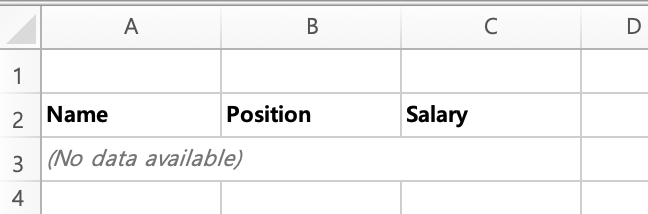
- The content and style from A10 are copied to A3, and A3:C3 is merged into a single cell
- If the fallback range spans multiple cells (e.g.,
A10:C10), each cell is copied individually without merging
Image Insertion
Marker: ${image(name, position, size)}
Inserts images into the cell (or merged region) where the marker is placed.
val provider = simpleDataProvider {
    image("logo", logoBytes)                             // ByteArray
    imageUrl("banner", "https://example.com/banner.png") // URL (auto-downloaded)
}
Size Options
| Notation | Description |
|---|---|
fit or 0:0 | Fit to cell/range (default) |
original or -1:-1 | Original size |
200:150 | 200px wide, 150px tall |
200:-1 | 200px wide, proportional height |
-1:150 | 150px tall, proportional width |
${image(logo, B2)}            // Fit to cell (default)
${image(logo, B2, original)}  // Original size
${image(logo, B2, 200:150)}   // 200x150 pixels
Automatic Cell Merge
Marker: ${merge(item.field)}
Automatically merges consecutive cells with the same value during repeat expansion. Useful for grouped tables like department-based reports.
Example
Template
| A | B | C | D | |
|---|---|---|---|---|
| 1 | Department | Name | Rank | ${repeat(employees, A2:C2, emp)} |
| 2 | ${merge(emp.dept)} | ${emp.name} | ${emp.rank} |
Data - employee list sorted by department
mapOf(
    "employees" to listOf(
        mapOf("dept" to "Sales", "name" to "Yongho Hwang", "rank" to "Staff"),
        mapOf("dept" to "Sales", "name" to "Yongho Han", "rank" to "Assistant Manager"),
        mapOf("dept" to "Engineering", "name" to "Yongho Hong", "rank" to "Manager"),
    )
)
Result - "Sales" is automatically merged across rows 2-3
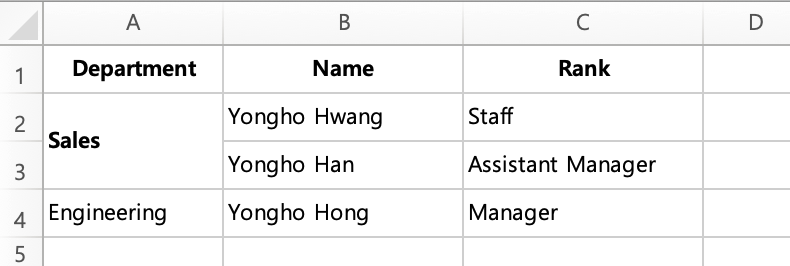
Column A's "Sales" appears in 2 consecutive rows, so TBEG automatically merges them vertically. For multi-column merging (e.g., department + team), simply add a merge marker to each column.
Data must be pre-sorted by the merge key field.
Element Bundling
Marker: ${bundle(range)}
Treats all elements within the specified range as a single unit, ensuring they move together during repeat expansion.
Why Is This Needed?
When repeat adds rows, only the columns within the repeat range shift down - columns outside the range stay at their original rows. This causes different content to end up on the same row, breaking the table layout.
Example
Consider a template where columns A-B have a department repeat, and a detailed table spanning columns A-E sits below (rows 4-6).
Template
| A | B | C | D | E | |
|---|---|---|---|---|---|
| 1 | ${repeat(depts, A2:B2, dept)} | ||||
| 2 | ${dept.name} | ${dept.revenue} | |||
| 3 | ${bundle(A4:E6)} | ||||
| 4 | Name | Revenue | Cost | Profit | Total |
| 5 | Yongho Hwang | 1000 | 500 | 500 | 2000 |
| 6 | Total | =SUM() |
Without bundle - only repeat columns (A-B) shift, the C-E table stays put:
| A | B | C | D | E | |
|---|---|---|---|---|---|
| 2 | Sales | 52000 | |||
| 3 | Engineering | 38000 | |||
| 4 | Planning | 28000 | Cost | Profit | Total |
| 5 | 500 | 500 | 2000 | ||
| 6 | Name | Revenue | =SUM() | ||
| 7 | Yongho Hwang | 1000 | |||
| 8 | Total |
The A-B table (Name, Revenue, ...) was pushed down to row 6 by the repeat expansion, but the C-E table (Cost, Profit, Total) stayed at its original row 4. Columns from the same table are scattered across different rows - the layout is completely broken.
With bundle(A4:E6) - all columns A-E move together:
| A | B | C | D | E | |
|---|---|---|---|---|---|
| 2 | Sales | 52000 | |||
| 3 | Engineering | 38000 | |||
| 4 | Planning | 28000 | |||
| 5 | |||||
| 6 | Name | Revenue | Cost | Profit | Total |
| 7 | Yongho Hwang | 1000 | 500 | 500 | 2000 |
| 8 | Total | =SUM() |
All columns start at the same row - the table stays intact.
Other Useful Markers
Collection Size
Marker: ${size(collection)}
Total employees: ${size(employees)} → Total employees: 5Variables in Formulas
TBEG variables can be used within Excel formulas.
=HYPERLINK("${linkUrl}", "${linkText}")
=SUM(B${startRow}:B${endRow})
Automatic Adjustment of Related Elements
When a repeat region expands, TBEG automatically adjusts:
| Element | Adjustment |
|---|---|
| Formula references | =SUM(B2:B2) → =SUM(B2:B4) (range expanded) |
| Charts | Data source ranges expanded |
| Pivot tables | Source data ranges expanded |
| Merged cells | Positions shifted |
| Conditional formats | Applied ranges expanded |
Controlling Expansion with Absolute References
Use absolute references ($) when you want a formula range to stay fixed despite repeat expansion.
=SUM(B3:B3)      → =SUM(B3:B5)     // Relative: expanded
=SUM($B$3:$B$3)  → =SUM($B$3:$B$3) // Absolute: preserved
=SUM($B3:$B3)    → =SUM($B3:$B5)   // Column-absolute: row expansion applies
Selective Field Visibility (hideable)
Marker: ${hideable(value=item.field, ...)}
You can hide or deactivate specific fields (columns) based on conditions. For example, generate both a "salary-included report" and a "salary-excluded report" from the same template.
Basic Usage
Place a hideable marker on the field that can be hidden:
${hideable(value=emp.salary)}In code, specify which fields to hide:
val provider = simpleDataProvider {
    items("employees", employeeList)
    hideFields("employees", "salary")  // Hide salary field
}
If hideFields is not specified, the value is rendered like a regular field.
HideMode
| Mode | Behavior | Example |
|---|---|---|
| DELETE (default) | Physically removes the column/row and shifts the rest | Salary column disappears entirely |
| DIM | Removes value and applies deactivation style (column/row preserved) | Salary column exists but empty + gray background |
${hideable(value=emp.salary, mode=dim)}Bundle Range
To hide a header and data cells together, specify the range with the bundle parameter:
${hideable(value=emp.salary, bundle=C1:C3)}This hides everything from C1 (header) to C3 (data) at once.
Formula Marker
=TBEG_HIDEABLE(value=emp.salary, bundle=C1:C3, mode=DELETE)Note: The hideable marker can only be used on item fields within a repeat region. It cannot be used on simple variables.
Practical Tips
Marker placement: Function markers can be placed anywhere outside the target range - even on a different sheet. Grouping them on a separate sheet improves template readability.
Explicit parameters: For long parameter lists, naming them improves clarity.
${repeat(collection=employees, range=A3:C3, var=emp, direction=DOWN)}No boundary overlap: Ranges of repeat, bundle, merge, etc. must not partially overlap. Each element must be either fully contained within another or fully outside.
Wrap-Up
Here's a summary of everything we covered:
| Marker | Purpose |
|---|---|
${variableName} | Simple substitution, dot notation, formula binding |
${repeat(...)} | Expand lists into rows/columns, empty collection handling |
${image(...)} | Insert images, auto-download from URL |
${merge(...)} | Auto-merge consecutive identical values |
${bundle(...)} | Keep elements moving as a unit |
${size(...)} | Collection item count |
${hideable(...)} | Selective field visibility (DELETE/DIM) |
For the full parameters and edge cases of each syntax, please refer to the Template Syntax Reference on GitHub.
Next up: Part 4 - Spring Boot Integration Guide. We'll cover auto-configuration, @RestController Excel responses, and more.