시작
저번 글에서는 키 서비스를 이용하여 키 바인더 UI를 구성하는 과정을 보였다. 하지만 키 바인더 UI가 존재함에도 이를 열지 못했다. 이게 무슨 소용인가..
그래서 키 바인더 UI를 포함하여 앞으로 등장할 팝업 UI들의 모든 활성화와 비활성화의 책임을 가지는 팝업 UI 관리자를 구현해보고자 한다.
앞서는 PopupUIManager라고 지칭했지만.. 생각해보니 팝업 UI 관리자가 더 직관적일 것 같다.
아이디어
생각보다 애를 먹은 것은 팝업 UI 관리자에서 사용할 데이터 구조를 결정하는 일이었다. 게임에서의 팝업 UI는 특성 상 위에 켜져 있는 UI가 먼저 꺼지는 구조다.
이것을 다른 말로 하면 나중에 활성화 된 UI가 먼저 비활성화된다는 말이다. 이러한 특징은 LIFO 구조로 스택을 떠올리게끔 한다. 뭐.. 실제로 스택으로도 구현할 수 있는 게임이 존재할지도 모른다. 내 게임은 아니었지만.
왜냐하면 나중에 활성화된 UI가 먼저 비활성화된다는 특성을 가지고는 있지만 중간에서 키 입력을 통해서 먼저 활성화된 UI가 비활성화되는 경우도 존재한다.
이것을 생각하면 List<T>를 생각할 수도 있다. 하지만 List<T>의 중간 요소 삭제는 의 시간 복잡도를 가지기 때문에 정말 최악이다.
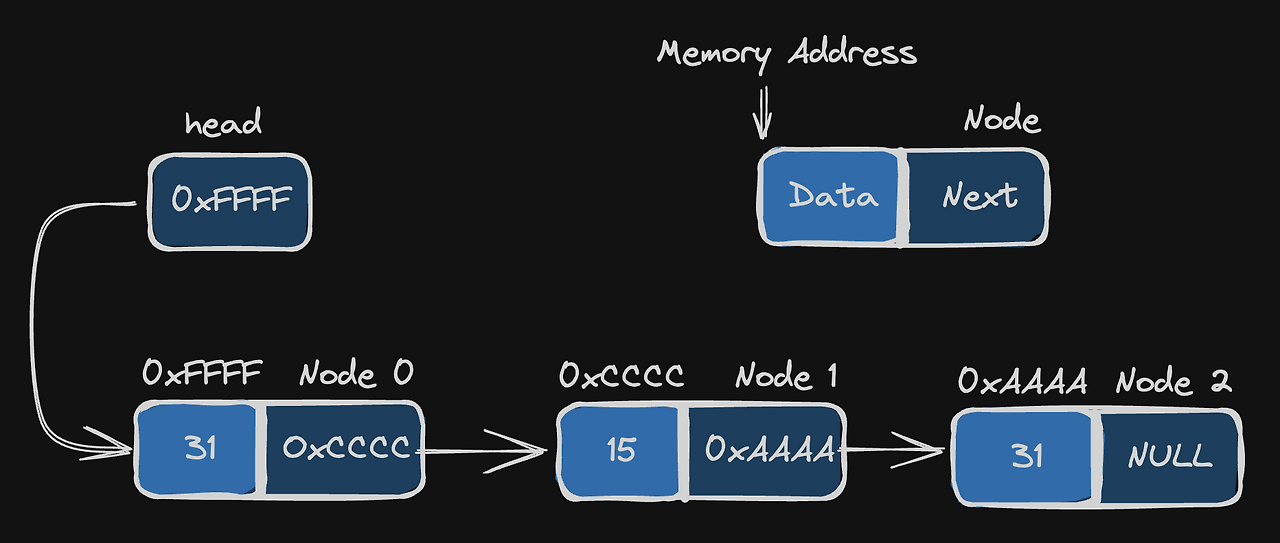
결론부터 말하자면 LinkedList<T>가 정답이다. 스택과 같이 한 방향으로만 데이터의 흐름을 결정할 수도 있고 중간 요소의 삭제도 매우 멀끔하게 처리하는 멋진 데이터 구조다.
팝업 UI 관리자
자. 앞서 설명한 아이디어를 토대로 상상해봤다면 더 이상 이 글을 볼 필요가 없다고 느낄 수도 있다. 심지어 앞서 필요한 인터페이스들을 전부 구현했다.
내가 정답은 분명 아니겠지만 나는 팝업 UI 관리자를 다음과 같이 구현했다.
using System.Collections.Generic;
using KeyService;
using UnityEngine;

public class PopupUIManager : MonoBehaviour
{
    private IKeyService m_key_service;

    private LinkedList<IPopupPresenter> m_active_popup_list;		// 활성화 된 UI 프레젠터를 저장할 연결 리스트
    private Dictionary<string, IPopupPresenter> m_presenter_dict;	// 팝업 UI 프레젠터를 전부 보관하는 딕셔너리

    private void Awake()
    {
        m_key_service = ServiceLocator.Get<IKeyService>();
        m_active_popup_list = new();
    }

    private void Update()
    {
    	// "Pause"키는 KeyCode.Escape에 매핑되어 있다.
        // ESC 키를 눌렀을 때 발생하는 행동을 정의한다.
        if (Input.GetKeyDown(m_key_service.GetKeyCode("Pause")))
        {
        	// 활성화된 팝업 UI가 있다면 이들을 켜진 순서와 반대로 비활성화한다.
            if (m_active_popup_list.Count > 0)
            {
                CloseUI(m_active_popup_list.First.Value);
            }
            else
            {
            	// 활성화된 팝업 UI가 없다면 일시정지 UI를 활성화시킨다.
                if (m_presenter_dict.TryGetValue("Pause", out var presenter))
                {
                    OpenUI(presenter);
                    GameEventBus.Publish(GameEventType.SETTING); // SETTING 모드로 변경. 지금 주제와는 무관.
                }
            }
        }

		// SETTING일 때는 키 입력을 받지 않는 것이 일반적이다.
        if (GameManager.Instance.Event != GameEventType.SETTING)
        {
        	// 각 팝업 UI에 해당하는 문자열을 통하여 키 입력을 대기한다.
            InputToggleKey("Binder");
            // ...
        }
    }

	// 팝업 UI 프레젠터의 목록을 Inject()를 통해 주입받는다.
    public void Inject(List<PopupData> popup_data_list)
    {
        m_presenter_dict = new();

		// 팝업 UI 프레젠터의 목록을 이용하여 딕셔너리를 초기화한다.
        foreach (var popup_data in popup_data_list)
        {
            m_presenter_dict.TryAdd(popup_data.Name, popup_data.Presenter);
        }
    }

	// 키 입력을 통하여 활성화/비활성화 여부를 결정한다.
    private void InputToggleKey(string key_name)
    {
        if (Input.GetKeyDown(m_key_service.GetKeyCode(key_name)))
        {
            if (m_presenter_dict.TryGetValue(key_name, out var presenter))
            {
                ToggleUI(presenter);
            }
        }
    }

    private void ToggleUI(IPopupPresenter presenter)
    {
    	// 연결 리스트에 프레젠터가 포함되어 있다면 그 팝업 UI는 활성화 상태다.
        if (m_active_popup_list.Contains(presenter))
        {
            CloseUI(presenter);
        }
        else
        {
            OpenUI(presenter);
        }

        SortDepth();
    }

	// 어댑터를 통해서 UI를 활성화시킬 수 없는 경우에 사용한다.
    public void AddPresenter(IPopupPresenter presenter)
    {
        if (m_active_popup_list.Contains(presenter))		// 활성화되어 있다면 우선순위를 최고로 올리고
        {
            m_active_popup_list.Remove(presenter);
        }

        m_active_popup_list.AddFirst(presenter);
        GameEventBus.Publish(GameEventType.INTERACTING);

        SortDepth();										// UI 깊이 순서를 재정렬한다.
    }

	// 어댑터를 통해서 UI를 비활성화시킬 수 없는 경우에 사용한다.
    public void RemovePresenter(IPopupPresenter presenter)
    {
        if (m_active_popup_list.Contains(presenter))		// 활성화되어 있다면
        {
            m_active_popup_list.Remove(presenter);			// 비활성화하고
            SortDepth();									// UI 깊이 순서를 재정렬한다.

            if (m_active_popup_list.Count == 0)				// 다 꺼져 있다면 PLAYING 모드로 변경한다.
            {
                GameEventBus.Publish(GameEventType.PLAYING);
            }
        }
    }

	// 연결 리스트에 프레젠터를 추가하고 UI를 활성화한다.
    public void OpenUI(IPopupPresenter presenter)
    {
        m_active_popup_list.AddFirst(presenter);
        presenter.OpenUI();

        GameEventBus.Publish(GameEventType.INTERACTING);
    }

	// 연결 리스트에서 프레젠터를 삭제하고 UI를 비활성화한다.
    public void CloseUI(IPopupPresenter presenter)
    {
        m_active_popup_list.Remove(presenter);
        presenter.CloseUI();

        if (m_active_popup_list.Count == 0)
        {
            GameEventBus.Publish(GameEventType.PLAYING);
        }
    }

	// UI 깊이 순서를 재정렬한다.
    private void SortDepth()
    {
        foreach (var presenter in m_active_popup_list)
        {
            presenter.SortDepth();
        }
    }
}
인스톨러 등록
팝업 UI 관리자를 구현했다면 이를 인스톨러에 등록해야 한다. 따라서 PopupUIManagerInstaller를 구현하고 이를 Bootstrapper 하위의 자식 오브젝트로 등록한다.
using System.Collections.Generic;
using UnityEngine;

public class PopupUIManagerInstaller : MonoBehaviour, IInstaller
{
    [Header("팝업UI 매니저")]
    [SerializeField] private PopupUIManager m_popup_manager;

    public void Install()
    {
        var popup_data_list = new List<PopupData>{
            new("Binder", DIContainer.Resolve<KeyBinderPresenter>()),
            // ...
        };

        m_popup_manager.Inject(popup_data_list);
    }
}
마무리
당연하겠지만 앞선 키 바인딩 UI에 팝업 UI 관리자를 반드시 등록해야 한다.
놓치는 일이 없으시기를..