Create and Publish PowerShell Module
0. Overview
In this post, I will create my own custom powershell module and publish to PSGallery.
It's really easy. Let's find out.
1. Create function
Obviously, we need to create module.
I just created a simple function like below.
And ensure that the extension should be .psm1 when you save this ps1 file.
As you can see, it's for the used for module.
Quick description the function below:
Check the tenant's expiration date with admin account.
Because of the Graph module is not provide the created date, I think it's reasonable to check the admin account which is bulit in account when the demo tenant is created.
function Test-DemoTenantValid {

    Connect-MgGraph -Scopes "User.Read.All"

    $adminUser = Get-MgUser -All -Property DisplayName, UserPrincipalName, CreatedDateTime |
        Where-Object { $_.DisplayName -eq "MOD Administrator" } |
        Select-Object -First 1 DisplayName, UserPrincipalName, CreatedDateTime

    $TenantCreatedDateTime = $adminUser.CreatedDateTime
    $TenantIsValidUntil = $TenantCreatedDateTime.AddDays(90)
    $today = Get-Date

    if ($today -gt $TenantIsValidUntil) {
        Write-Host "Your tenant is expired. It was valid until $TenantIsValidUntil" -ForegroundColor Red
    }
    else {
        Write-Host "Your tenant is still valid. It is valid until $TenantIsValidUntil" -ForegroundColor Green
    }
}
2. Create API Key
To publish this module file to PSGallery, you need to sign in https://www.powershellgallery.com/ and create your secret API Key.
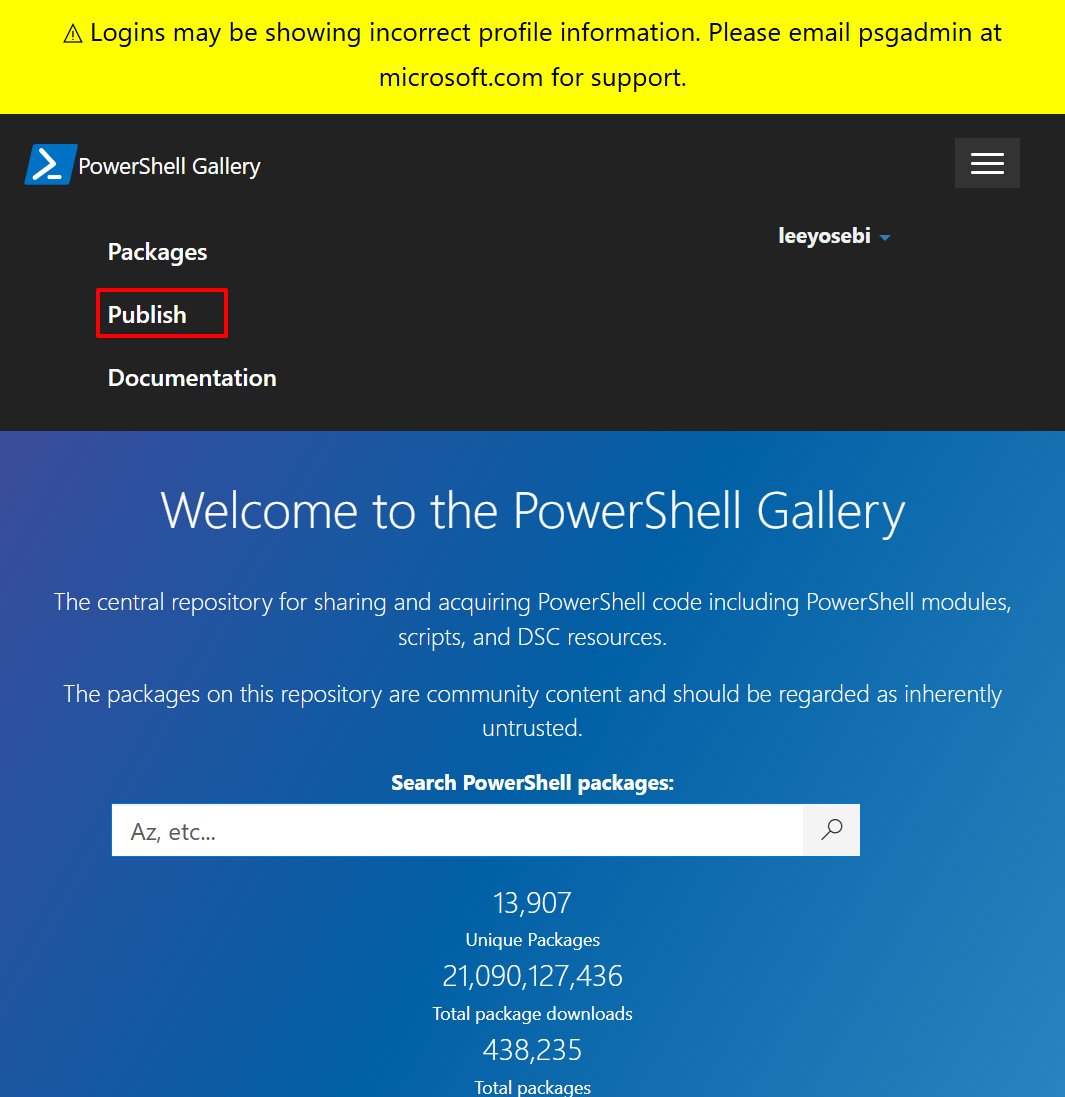
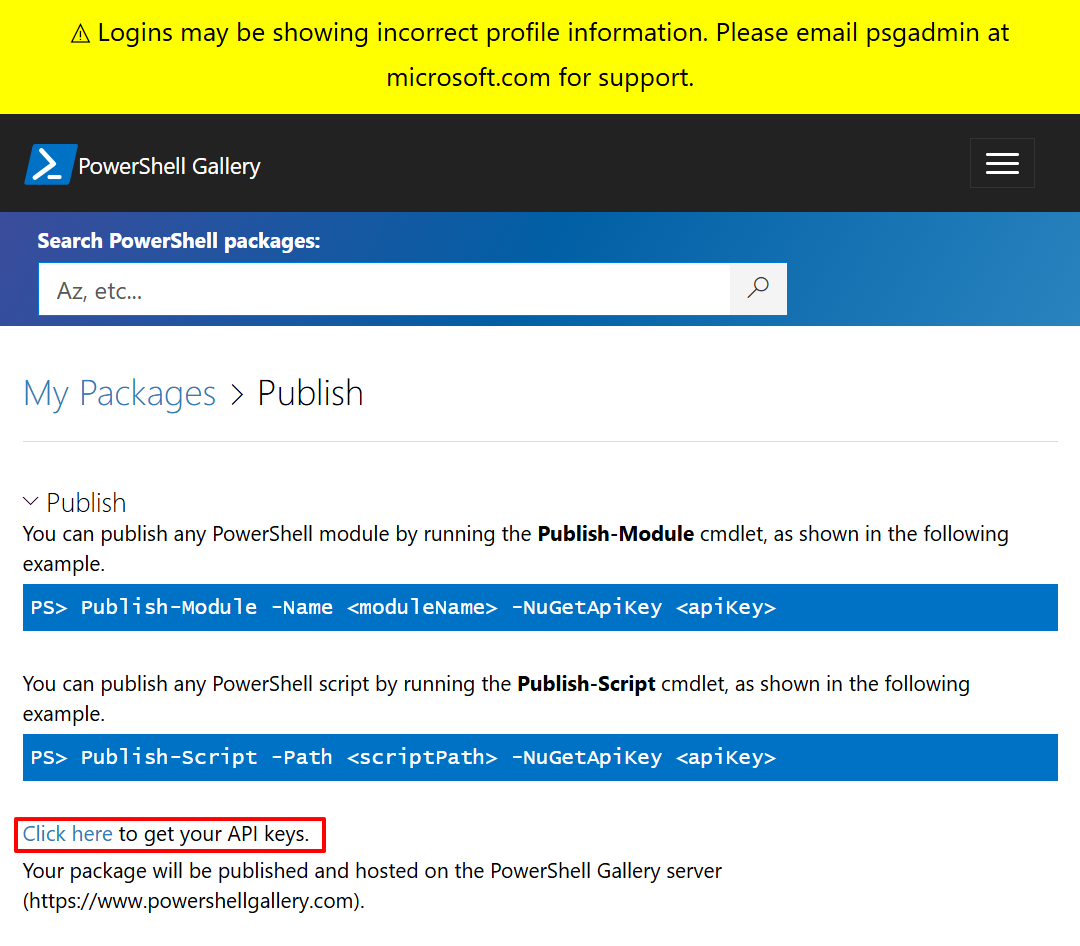
Move to Publish > Click here.
Click Create
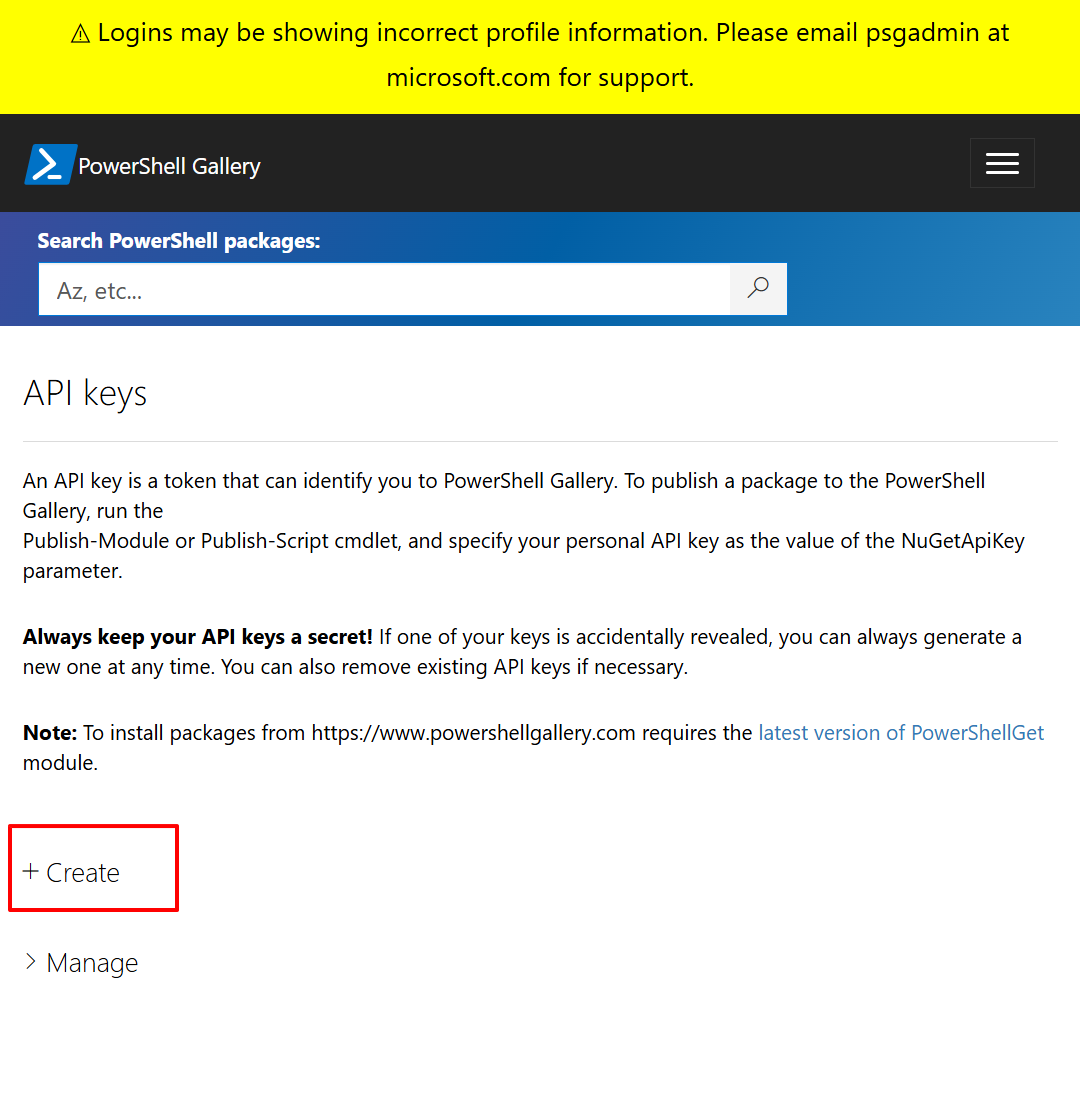
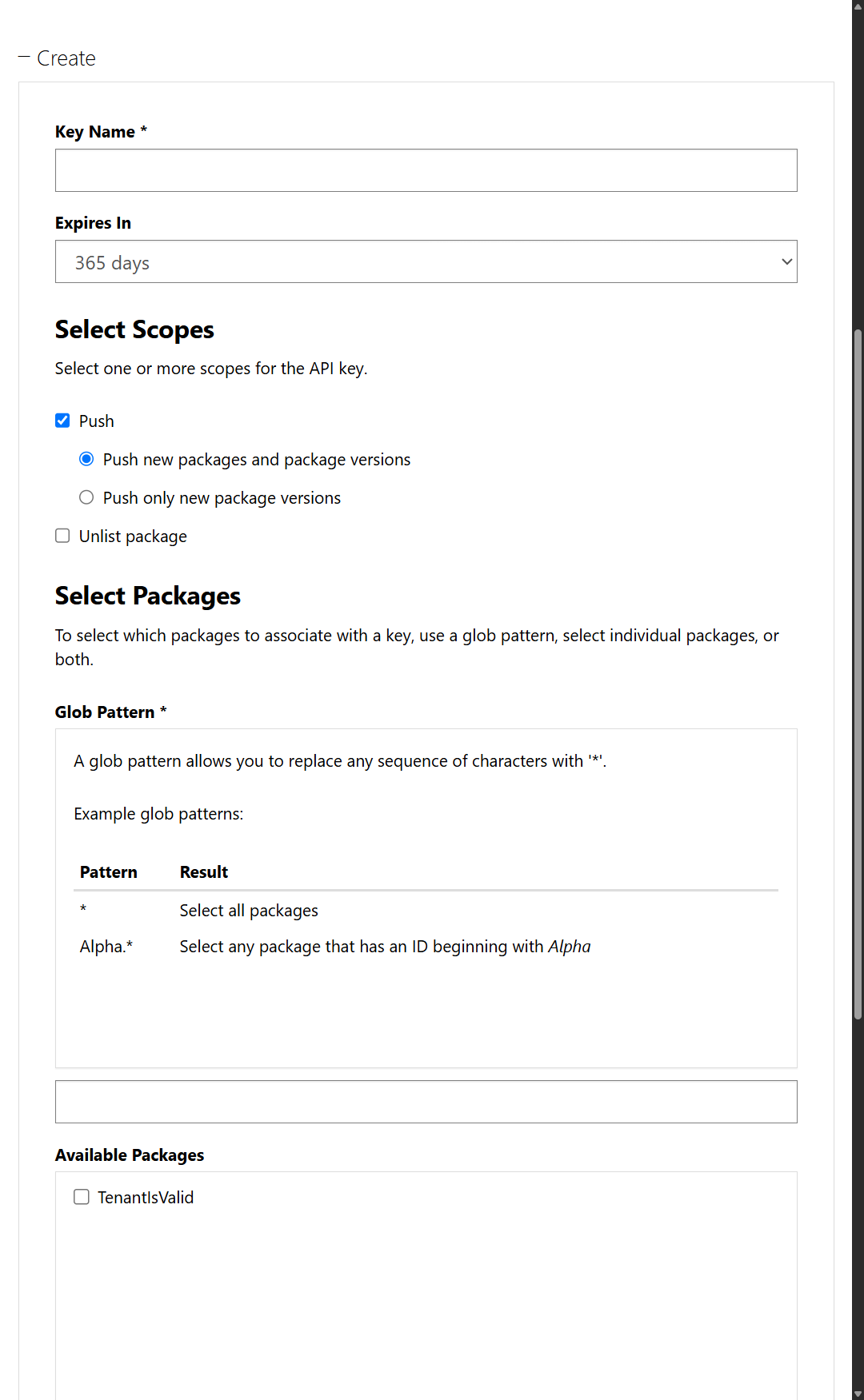
Make sure to remember your key. If you forgot the key, it's totally fine. You can Regenerate the key.
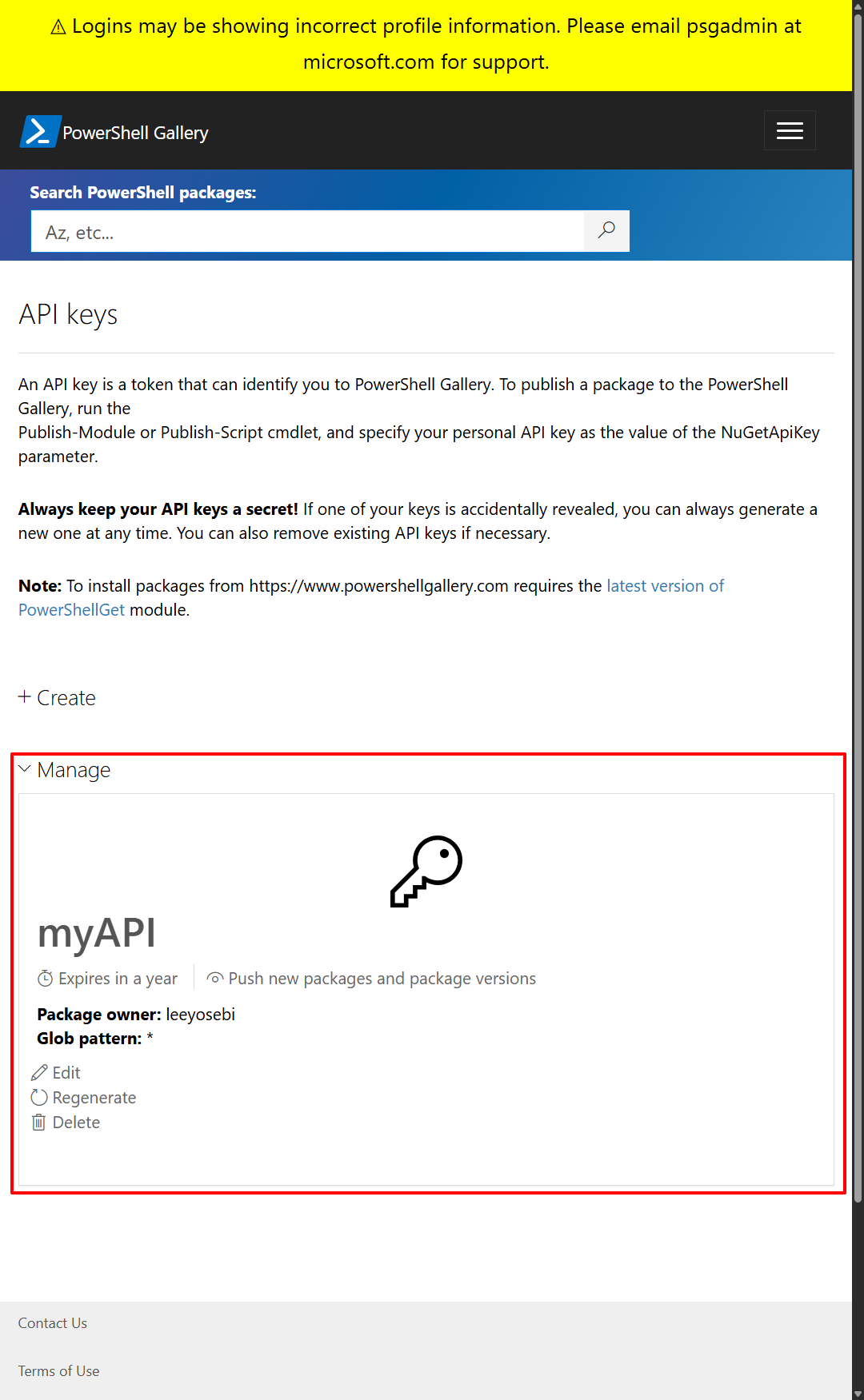
3. Publish Module
Now we are all set to publish the module.
Oh make sure that the module should be in the directory.
And you need to make module manifest first
Use this cmdlet below which is excatlly the same as on the PSGallery>Publish.
# Execute 1
New-ModuleManifest -Path ".\DemoTenantIsValid\DemoTenantIsValid.psd1" `
    -RootModule "DemoTenantIsValid.psm1" `
    -ModuleVersion "1.0.0" `
    -Author "Joseph" `
    -Description "first version."

# Execute 2
Publish-Module -Path <filePath> -NugetAPIKey <Your API Key>
Your directory and files would be like this:

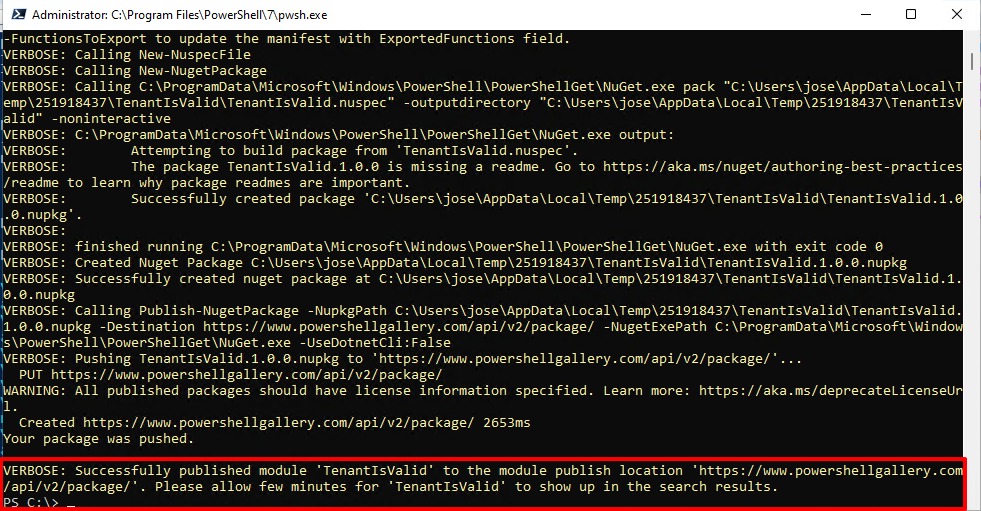
And here is my example when I execute the 'Execute 2':
(I highly recommend to user PowerShell7)
The module has been uploaded to the gallery.
After that, the package ID is displayed on my packages.
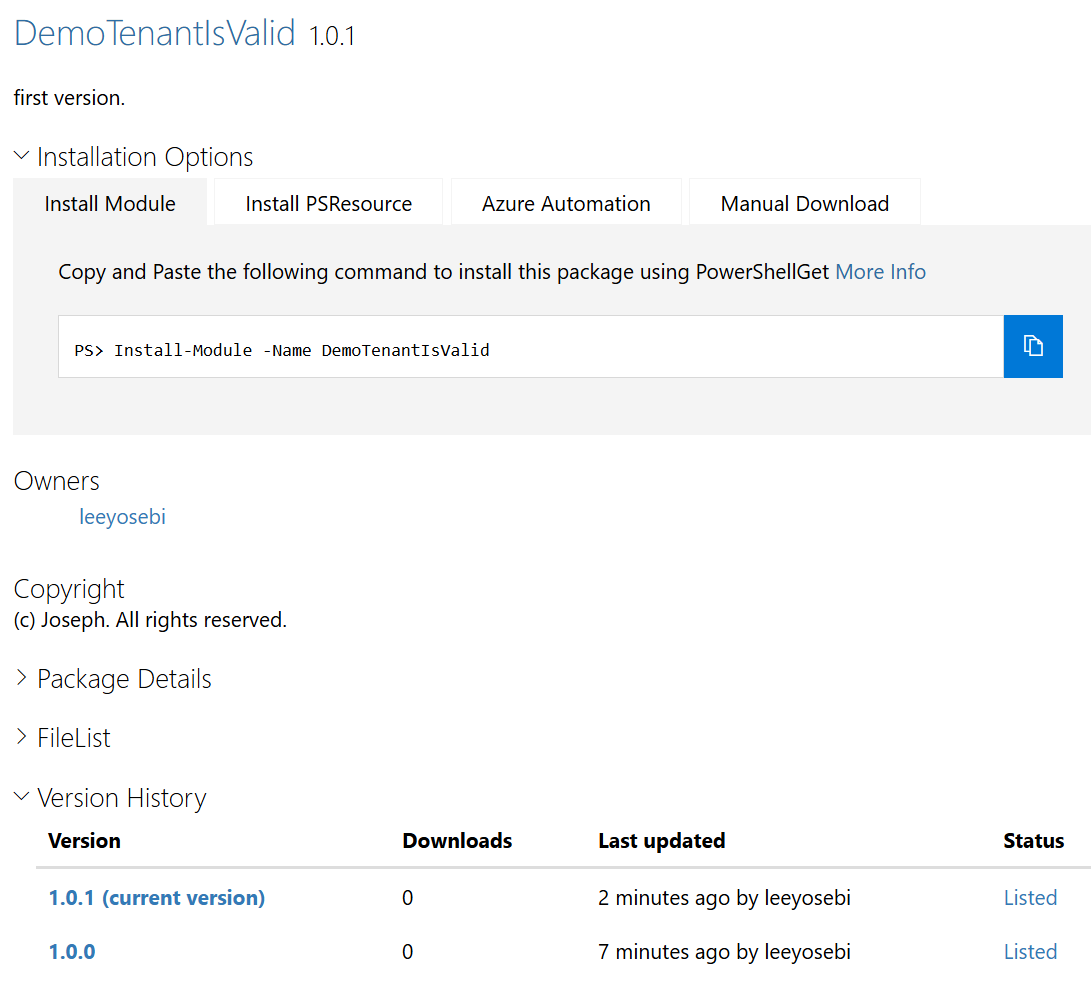
And also can searched on the public modules.

4. Install Module and Use
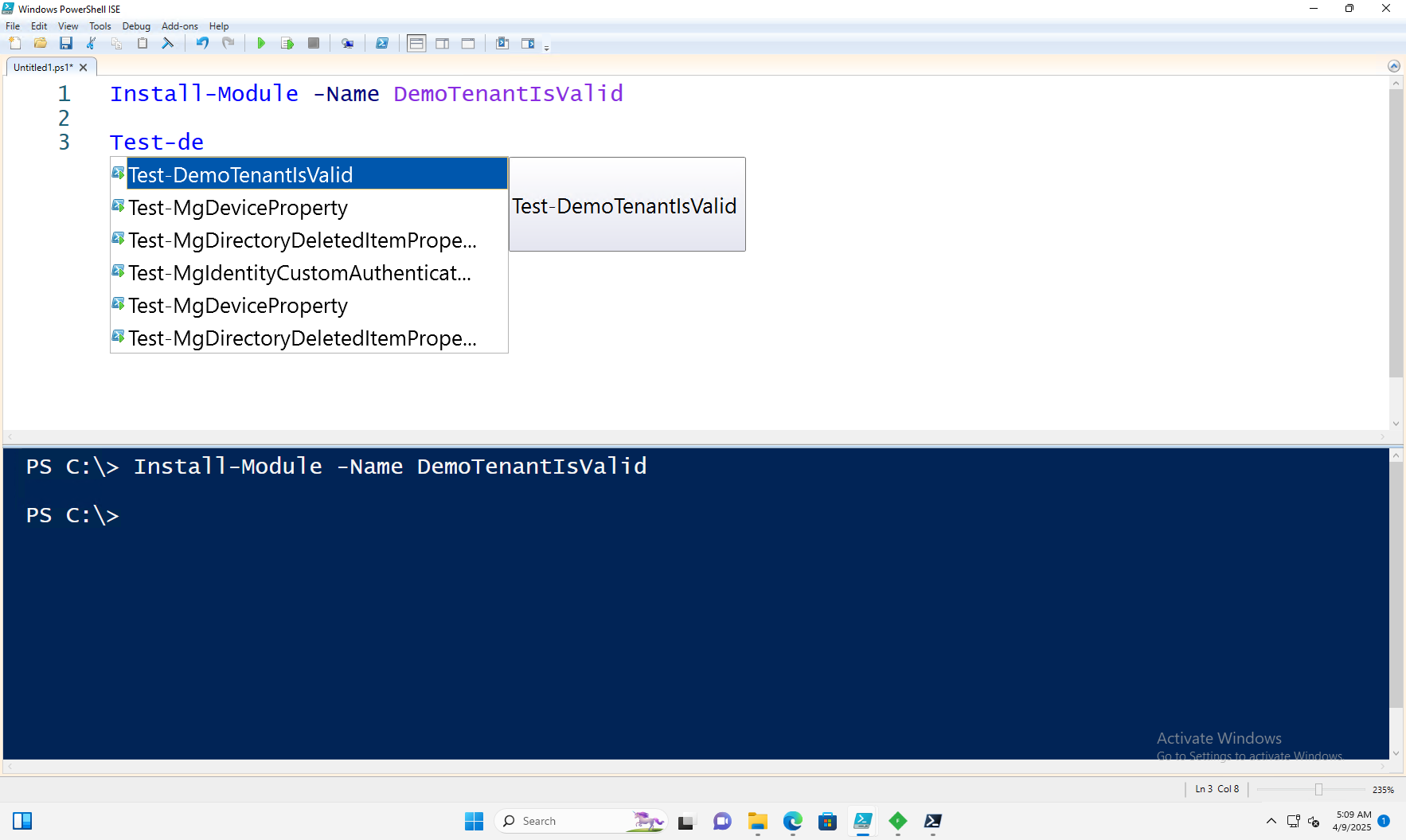
Now that we publish to the public PowerShell Gallery, let's test to install module in other computers.
Open new powershell session and execute this command below.
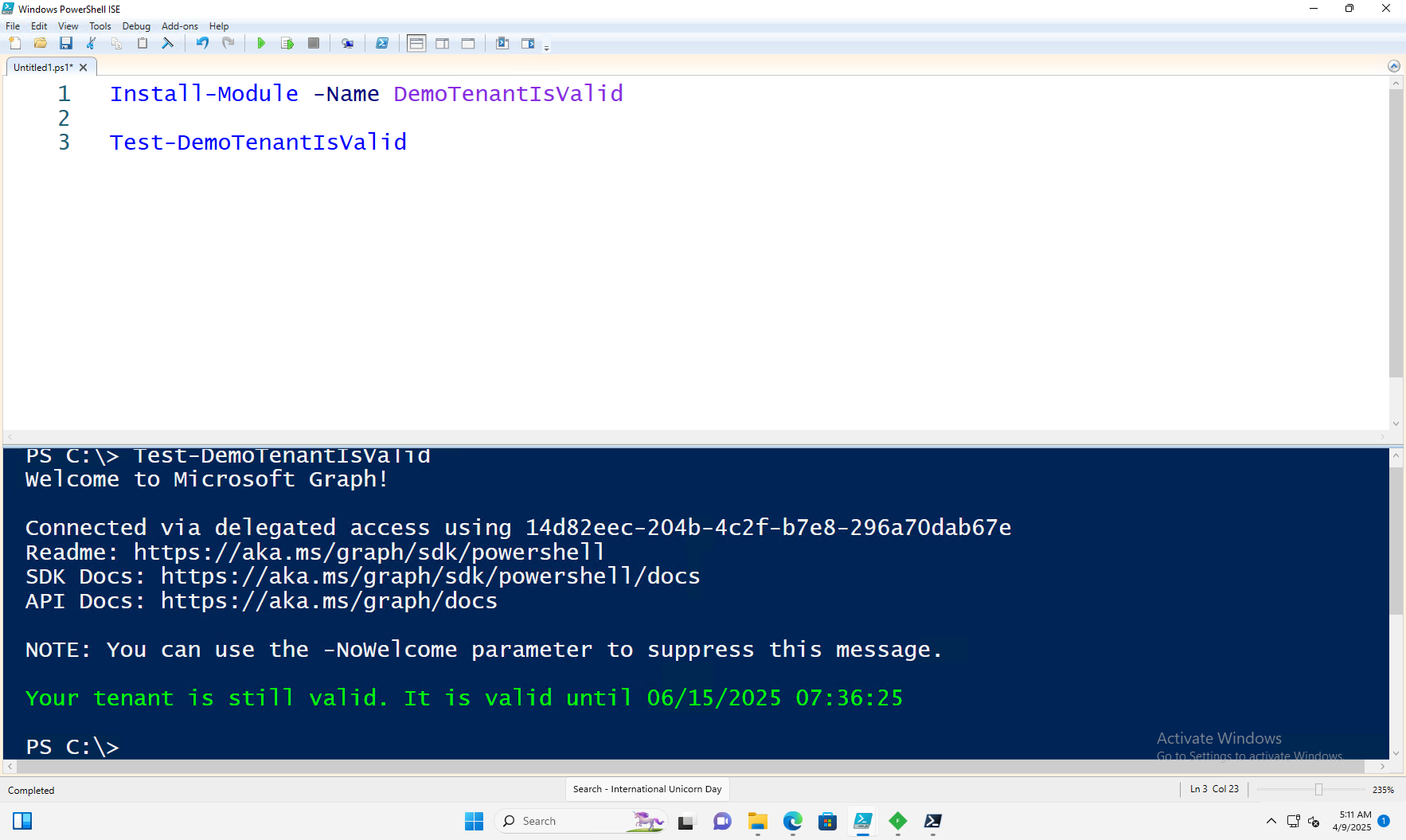
Install-Module -Name DemoTenantIsValid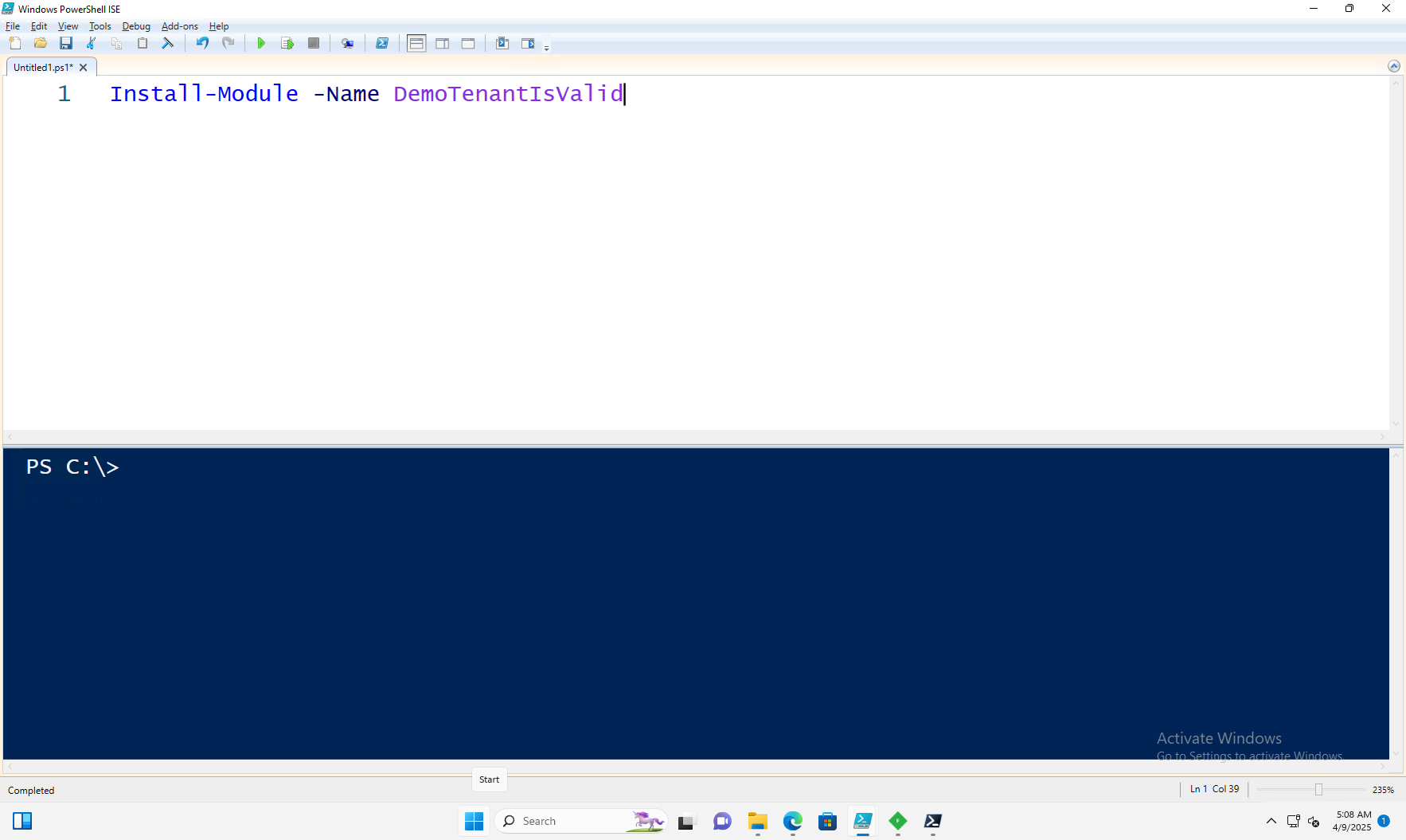
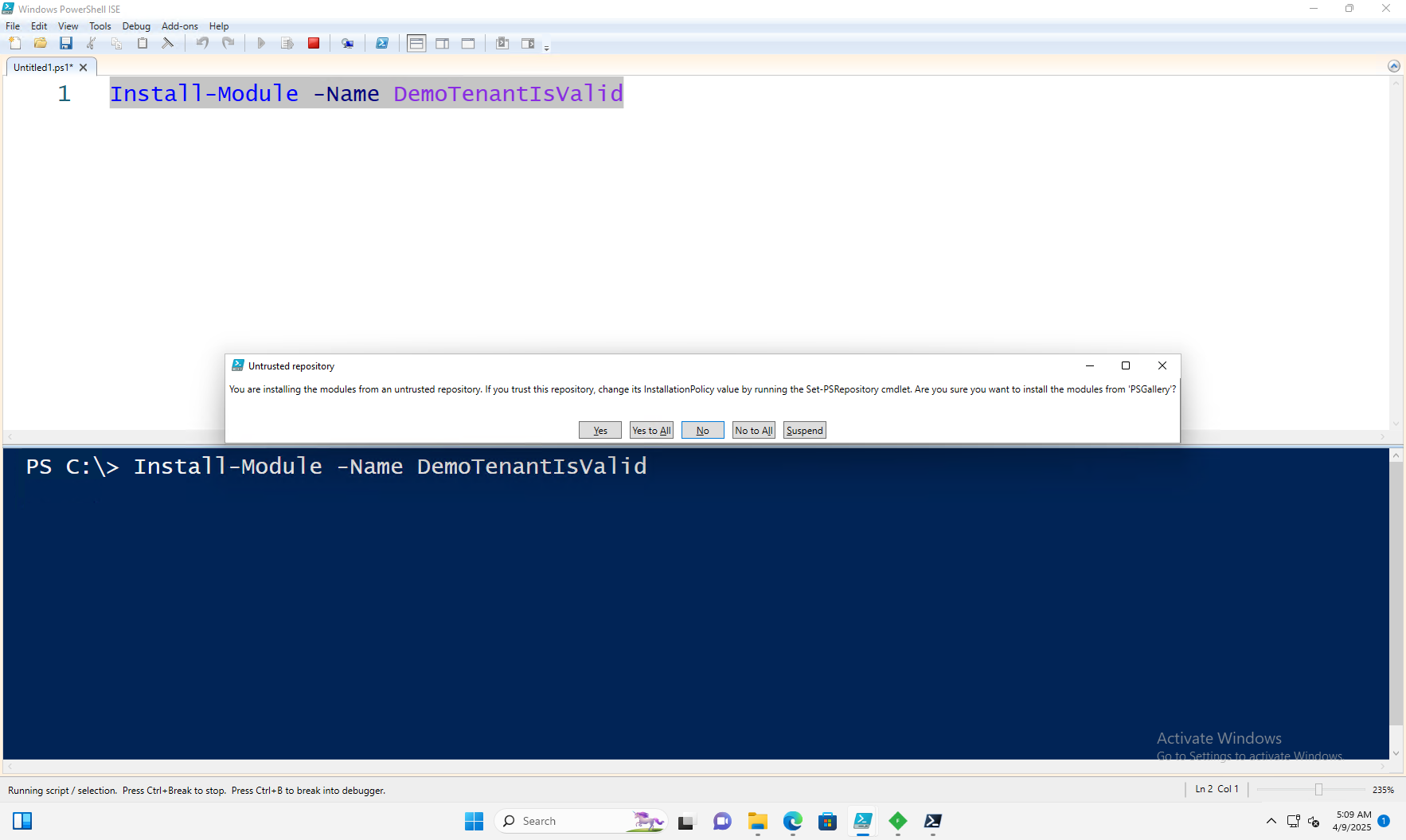
Good the module has found in the PSGallery. Click 'Yes to All'
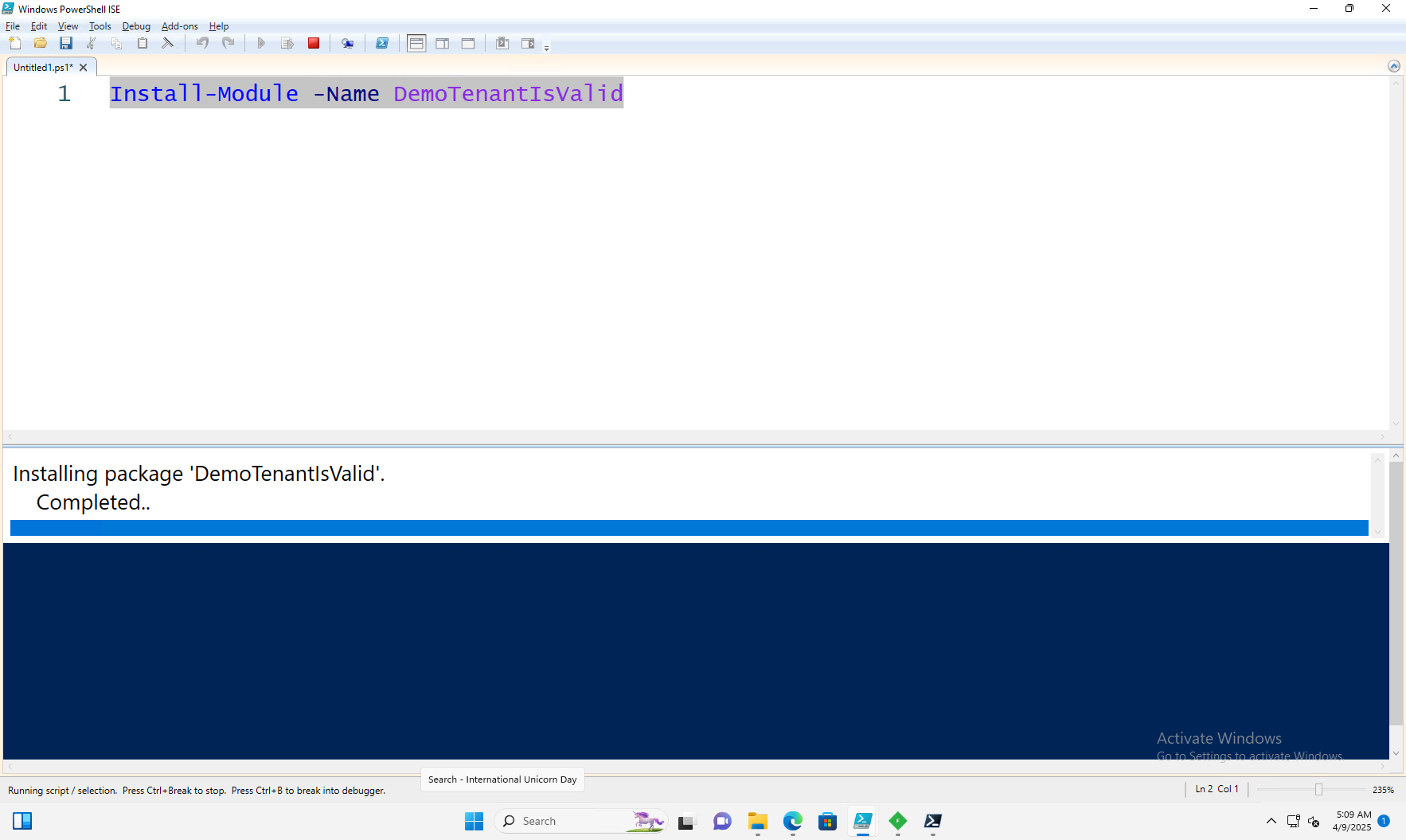
Once the module installed, you can check the module location on your local device with following command.
Get-Module -ListAvailable -Name DemoTenantIsValid | Select-Object ModuleBase
and the funtion that I made is displayed and can be used.

The function works. It trys to connect mggraph which I put in the function.
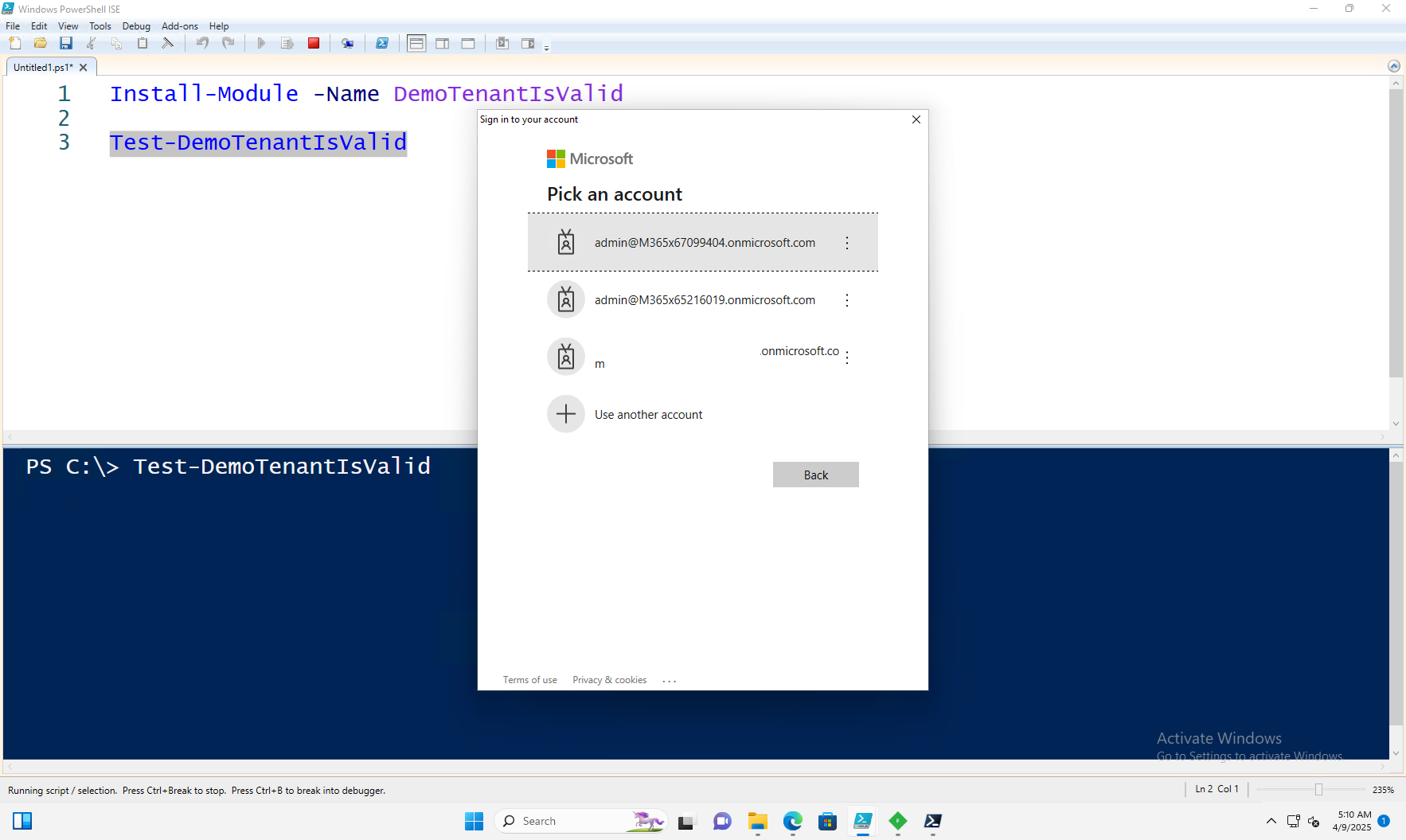
Once you success to log in, it says your tenant is valid or not.
5. Ref
- https://learn.microsoft.com/en-us/powershell/gallery/how-to/publishing-packages/publishing-a-package?view=powershellget-3.x
- https://learn.microsoft.com/en-us/powershell/scripting/learn/ps101/09-functions?view=powershell-7.5
- https://learn.microsoft.com/en-us/powershell/module/microsoft.powershell.core/new-modulemanifest?view=powershell-7.5