Unity 인벤토리 드래그 앤 드롭 구현하기
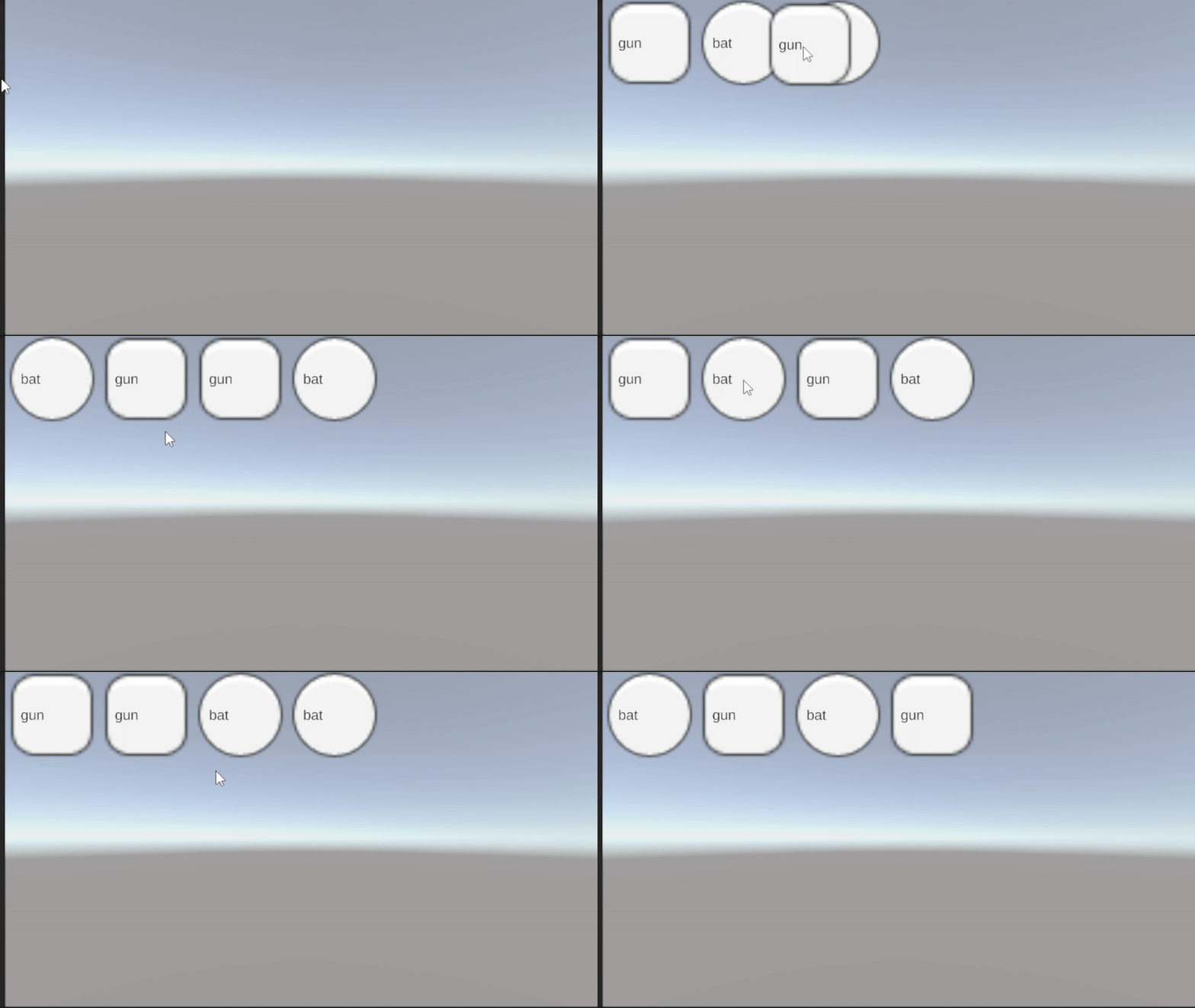
오늘은 문득 게임에서 자주 보이는 인벤토리 드래그 앤 드롭 기능이 떠올라, 유니티에서 인벤토리 리스트와 연동시키고 직접 구현해봤다.
아이템 데이터는 ScriptableObject로 관리하고, 슬롯 UI를 동적으로 생성한 후 드래그 앤 드롭으로 아이템 위치를 바꾸는 기능까지 구현했다.
📦 1. 아이템 데이터는 ScriptableObject로 관리
먼저, 인벤토리에 들어갈 아이템을 ScriptableObject로 만들었다.
유지 보수하기도 좋고, 아이템 종류가 많아질 경우 유용하다.
[CreateAssetMenu(fileName = "Item", menuName = "ScriptableObject/ItemData")]
public class ItemData : ScriptableObject
{
    public enum ItemType
    {
        Melee,
        Range
    }

    [Header("Main Info")]
    public ItemType Type;
    public int itemId;
    public string itemName;
    public string itemDescription;
    public Sprite itemIcon;
}
🎒 2. Inventory 클래스 작성 (아이템 목록 관리)
public class Inventory : MonoBehaviour
{
    public List<ItemData> items = new List<ItemData>();

    public void AddItem(ItemData item)
    {
        items.Add(item);
        FindObjectOfType<InventoryUI>().UpdateInventoryUI();
    }

    public void RemoveItem(ItemData item)
    {
        items.Remove(item);
    }

    public void DropItem(ItemData item, Vector3 dropPosition)
    {
        items.Remove(item);
        // 실제 드롭 구현은 생략
    }
}
단순한 리스트 기반 인벤토리.
아이템 추가/제거/드롭 처리를 한다.
🧩 3. InventoryUI 클래스 (슬롯 UI 동적 생성)
public class InventoryUI : MonoBehaviour
{
    public Inventory inventory;
    public Transform itemPanel;
    public GameObject itemSlot; // 프리팹
    private List<GameObject> itemSlots = new List<GameObject>();

    public void UpdateInventoryUI()
    {
        // 기존 슬롯 삭제
        foreach (GameObject slot in itemSlots)
            Destroy(slot);
        itemSlots.Clear();

        // 새로운 슬롯 생성
        for (int i = 0; i < inventory.items.Count; i++)
        {
            var item = inventory.items[i];
            GameObject slot = Instantiate(itemSlot, itemPanel);
            slot.GetComponentInChildren<TextMeshProUGUI>().text = item.itemName;
            slot.GetComponentInChildren<Image>().sprite = item.itemIcon;

            // 인덱스 설정
            var slotScript = slot.GetComponent<InventorySlot>();
            slotScript.itemData = item;
            slotScript.inventory = inventory;
            slotScript.index = i;

            itemSlots.Add(slot);
        }
    }
}
아이템이 추가되면 UI를 새로 그려주는 방식.
슬롯에 인덱스를 할당해 드래그 시 사용한다.
🖱️ 4. InventorySlot 클래스 (드래그 앤 드롭 로직)
public class InventorySlot : MonoBehaviour, IBeginDragHandler, IDragHandler, IEndDragHandler, IDropHandler
{
    public ItemData itemData;
    public Inventory inventory;
    public int index;

    private CanvasGroup canvasGroup;
    private RectTransform rectTransform;
    private Transform originalParent;

    void Awake()
    {
        canvasGroup = GetComponent<CanvasGroup>();
        if (canvasGroup == null)
        {
            canvasGroup = gameObject.AddComponent<CanvasGroup>();
        }

        rectTransform = GetComponent<RectTransform>();
    }

    public void OnBeginDrag(PointerEventData eventData)
    {
        originalParent = transform.parent;
        transform.SetParent(transform.root); // 최상위로 올려서 UI 겹침 방지
        canvasGroup.blocksRaycasts = false;  // 드롭 가능하게 설정
    }

    public void OnDrag(PointerEventData eventData)
    {
        rectTransform.anchoredPosition += eventData.delta / transform.lossyScale;
    }

    public void OnEndDrag(PointerEventData eventData)
    {
        transform.SetParent(originalParent);
        canvasGroup.blocksRaycasts = true;
    }

    public void OnDrop(PointerEventData eventData)
    {
        var otherSlot = eventData.pointerDrag?.GetComponent<InventorySlot>();
        if (otherSlot != null && otherSlot != this)
        {
            // 아이템 리스트 순서 교체
            var temp = inventory.items[index];
            inventory.items[index] = inventory.items[otherSlot.index];
            inventory.items[otherSlot.index] = temp;

            // UI 갱신
            FindObjectOfType<InventoryUI>().UpdateInventoryUI();
        }
    }
}
중요 포인트:
CanvasGroup이 꼭 필요하다. 없으면 드래그 시 오류 발생.
드래그 중에는 최상위로 이동해서 다른 슬롯 위로 올라가게 한다.
슬롯 간 OnDrop()을 통해 아이템 순서를 바꾼다.
🧪 5. 테스트 방법
빈 GameObject에 Inventory와 InventoryUI 붙이기
itemPanel에 Grid Layout이 적용된 부모 오브젝트 지정
itemSlot에는 프리팹을 연결
(Text + Image + CanvasGroup + InventorySlot 컴포넌트 필요)
시작 시 inventory.AddItem()으로 테스트 아이템 몇 개 넣기
UpdateInventoryUI() 호출해서 UI 생성
🧱 6. 시행착오
CanvasGroup 누락 오류 때문에 드래그 시 에러 발생
슬롯 인덱스를 잘못 참조해서 ArgumentOutOfRangeException도 발생함 → 드래그 중인 슬롯과 드롭 대상 슬롯이 다를 때만 처리하도록 조건 수정
드래그된 오브젝트의 SetParent(transform.root) 없이 하면 UI 겹침 문제 발생
📌 마무리
오늘은 간단한 인벤토리 드래그 앤 드롭을 구현하면서 유니티의 EventSystem, CanvasGroup, RectTransform, ScriptableObject까지 다양한 요소를 활용해봤다. 실제 게임에 넣기에는 아직 부족하지만, UI 상호작용을 구현하는 흐름을 잘 익힐 수 있는 좋은 경험이었다.
영상