🗂️ Day22 프로젝트 : 퐁 게임
두 명의 플레이어가 각각 패들을 움직이며 공을 주고받는 고전 아케이드 게임
1. 메인화면 구성하기
🔍 유의 사항
- 화면 크기 : 800x600
- 배경색 : 검정
⌨️ main.py
from turtle import Turtle, Screen

screen = Screen()
screen.setup(width=800, height=600)
screen.bgcolor("black")
screen.title("Pong Game")

screen.exitonclick()
2. 키로 조작할 수 있는 패들 만들기
🔍 유의 사항
- 오른쪽 패들 생성
- 폭 : 20
- 높이 : 100
- x좌표 : 350
- y좌표 : 0
- shapesize( stretch_wid=None, stretch_len=None, outline=None )
(기본값에서 변경하지 않으려면 1 입력 = 1배 확장)
- stretch_wid : 터틀의 너비 변경(바라보는 방향 기준에서 양 옆으로 두꺼워짐)
- stretch_len : 터틀의 길이 변경(바라보는 방향 기준에서 앞 뒤로 길쭉해짐)
- outline : 외곽선의 굵기 변경
- 위, 아래 방향키로 패들을 움직일 수 있도록 한다 (키를 누를 때마다 20 픽셀씩 이동)
- 패들이 정가운데에서 생성된 후, 지정된 위치로 이동하는 애니메이션 없애기
(tracer, update 메소드 이용)
⌨️ main.py
from turtle import Turtle, Screen

…
screen.tracer(0)

paddle = Turtle()
paddle.shape("square")
paddle.color("white")
paddle.shapesize(stretch_wid=5, stretch_len=1)
paddle.penup()
paddle.setposition(350, 0)

def go_up():
    new_y = paddle.ycor() + 20
    paddle.goto(paddle.xcor(), new_y)
def go_down():
    new_y = paddle.ycor() - 20
    paddle.goto(paddle.xcor(), new_y)


screen.listen()
screen.onkey(go_up, "Up")
screen.onkey(go_down, "Down")

game_is_on = True
while game_is_on:
    screen.update()

screen.exitonclick()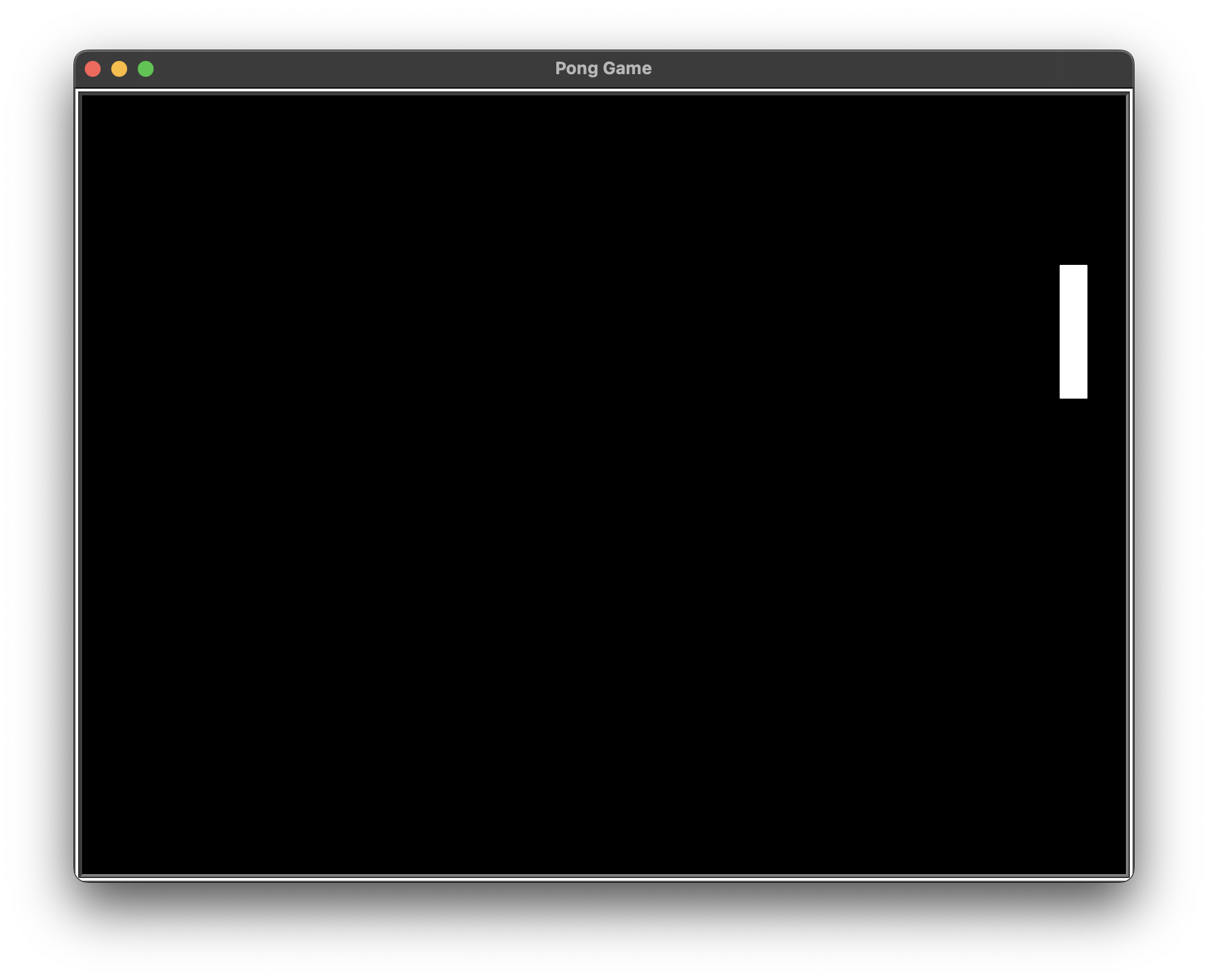
3. Paddle 클래스 생성하고 2번째 패들 만들기
🔍 유의 사항
- 📄 paddle.py에 패들 관련 코드를 클래스로 리팩토링하고 왼쪽 패들도 클래스로 생성
paddle.메소드()→self.메소드()로 변경해야 한다- 객체 생성 시 인수로 각 패들의 좌표를 넘김
- 패들 객체 생성 시 r_paddle과 l_paddle로 구분짓기
- 왼쪽 패들은 키보드 'w', 's'키를 사용하여 위 아래로 움직임
⌨️ paddle.py
from turtle import Turtle
from types import new_class


class Paddle(Turtle):

    def __init__(self, position):
        super().__init__()
        self.shape("square")
        self.color("white")
        self.shapesize(stretch_wid=5, stretch_len=1)
        self.penup()
        self.setposition(position)

    def go_up(self):
        new_y = self.ycor() + 20
        self.goto(self.xcor(), new_y)

    def go_down(self):
        new_y = self.ycor() - 20
        self.goto(self.xcor(), new_y)
⌨️ main.py
from turtle import Screen
from paddle import Paddle

…
screen.tracer(0)

r_paddle = Paddle((350, 0))
l_paddle = Paddle((-350, 0))

screen.listen()
screen.onkey(r_paddle.go_up, "Up")
screen.onkey(r_paddle.go_down, "Down")
screen.onkey(l_paddle.go_up, "w")
screen.onkey(l_paddle.go_down, "s")

game_is_on = True
while game_is_on:
    screen.update()

screen.exitonclick()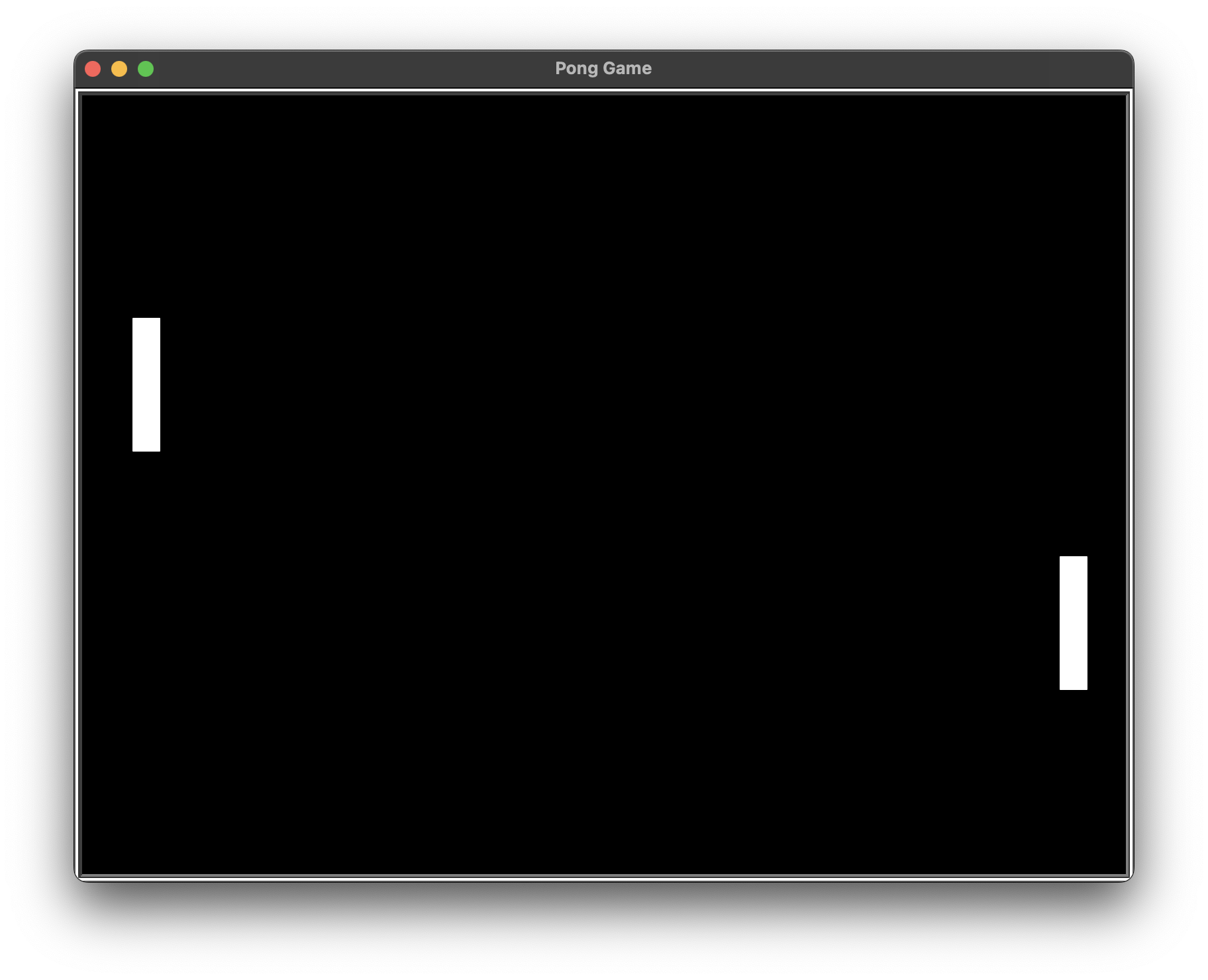
4. Ball 클래스 생성하고 공 움직이기
🔍 유의 사항
- 📄 ball.py에 볼 클래스 생성
- 너비 : 20
- 높이 : 20
- 시작 위치 : (0, 0)
- 화면이 업데이트되면 자동으로 우측 상단을 향해 대각선으로 움직임
- 공의 속도 낮추기
- 방법 1 : 한 번에 1픽셀 씩 움직이게 설정
- 방법 2 : 반복문을 돌 때마다 잠깐 정지(time 모듈 사용)
⌨️ ball.py
from turtle import Turtle

class Ball(Turtle):

    def __init__(self):
        super().__init__()
        self.shape("circle")
        self.color("white")
        self.penup()

    def move(self):
        new_x = self.xcor() + 10
        new_y = self.ycor() + 10
        self.goto(new_x, new_y)
⌨️ main.py
from turtle import Screen
from paddle import Paddle
from ball import Ball
import time

…
screen.tracer(0)

r_paddle = Paddle((350, 0))
l_paddle = Paddle((-350, 0))
ball = Ball()

screen.listen()
…

game_is_on = True
while game_is_on:
    time.sleep(0.1)
    screen.update()
    ball.move()

screen.exitonclick()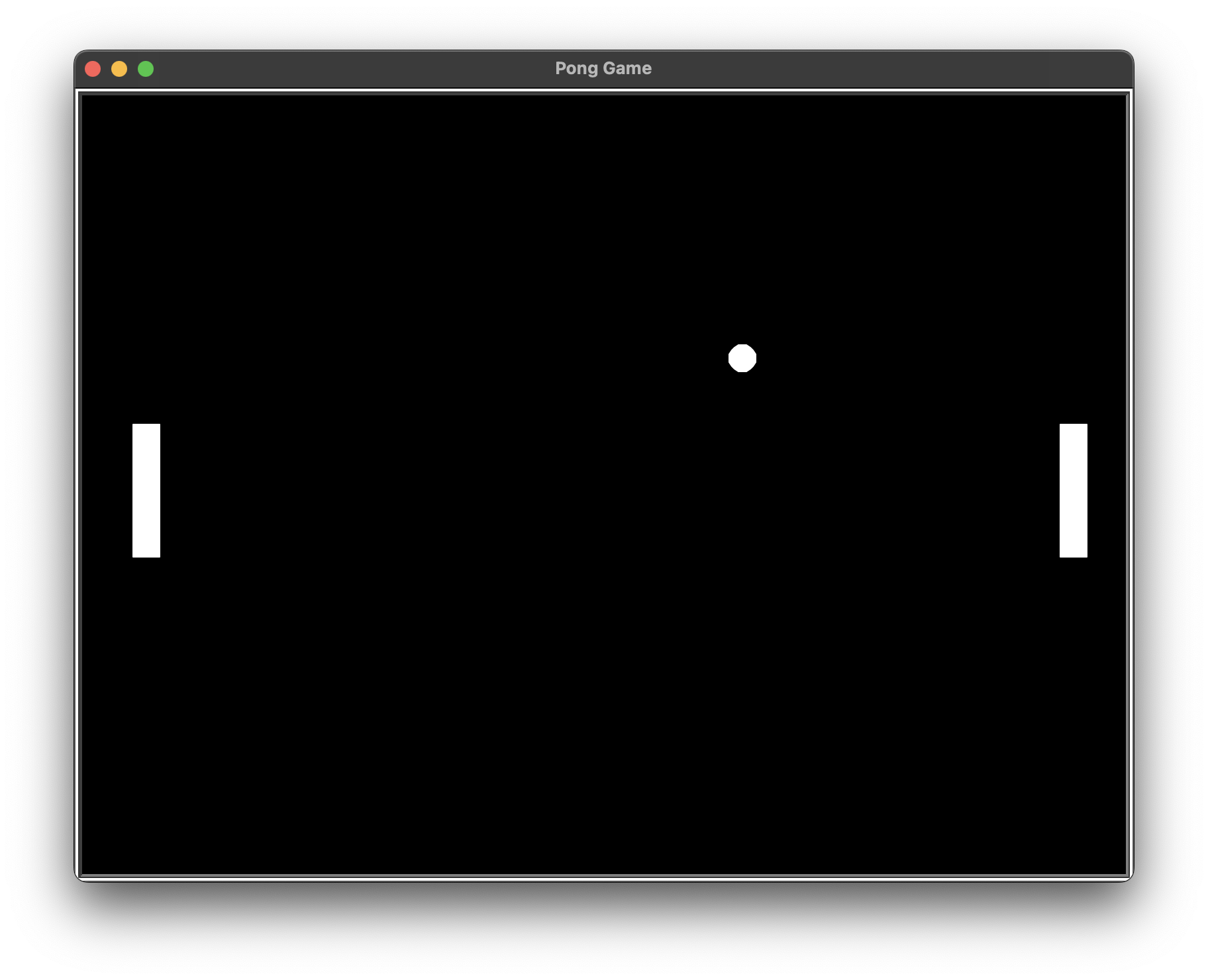
5. 공이 튕기는 로직 추가하기
🔍 유의 사항
- 공이 상하단 벽에 부딪혔을 때, 공이 튕겨 나가야 한다
(양쪽 가장자리는 점수 계산과 관련 있기 때문에 제외)- 부딪히는 지점의 좌표를 알맞게 설정하기(창 끝에 딱 맞으면 공이 화면 밖으로 넘어가버림)
- 공이 벽에 튕겼을 때, 좌표의 변화에 주의
- 벽에 부딪히면 좌표만 반대로 변경(였다면 , 였다면 )
- 원래 좌표 활용
⌨️ ball.py
from turtle import Turtle

class Ball(Turtle):

    def __init__(self):
        super().__init__()
        self.shape("circle")
        self.color("white")
        self.penup()
        # 공이 움직일 때마다 이동하는 픽셀 수
        self.x_move = 10
        self.y_move = 10

    def move(self):
        …

    def bounce(self):
        self.y_move *= -1
⌨️ main.py
from turtle import Screen
from paddle import Paddle
from ball import Ball
import time

…

game_is_on = True
while game_is_on:
    time.sleep(0.1)
    screen.update()
    ball.move()

    # 상하단 벽과의 충돌 감지
    if ball.ycor() > 280 or ball.ycor() < -280:
        ball.bounce()

screen.exitonclick()
6. 패들이 공을 받아냈는지 알아내기
🔍 유의 사항
- 단순히 공과 패들 사이의 거리만 측정하면 안 됨 (패들 중앙과의 거리만 측정하기 때문)
- 공이 축 상에서 특정 지점을 넘어감
and패들과의 거리가 50픽셀보다 가까움- 축 지점은 패들 바로 위 부분이 되어야 자연스럽게 튕기는 모습이 나옴
(너무 가까우면 패들 안쪽으로 공이 파뭍혀버림)- 공이 패들에 튕길 경우, 좌표만 반대로 변경(였다면 , 였다면 )
- 두 패들에 모두 적용하기
⌨️ ball.py
from turtle import Turtle

class Ball(Turtle):

    def __init__(self):
        …

    def move(self):
        …

    def bounce_y(self):
        self.y_move *= -1

    def bounce_x(self):
        self.x_move *= -1
⌨️ main.py
from turtle import Screen
from paddle import Paddle
from ball import Ball
import time

…

game_is_on = True
while game_is_on:
    time.sleep(0.1)
    screen.update()
    ball.move()

    # 상하단 벽과의 충돌 감지
    …

    # 패들과의 충돌 감지
    if ball.distance(r_paddle) < 50 and ball.xcor() > 320 or ball.distance(l_paddle) < 50 and ball.xcor() < -320:
        ball.bounce_x()

screen.exitonclick()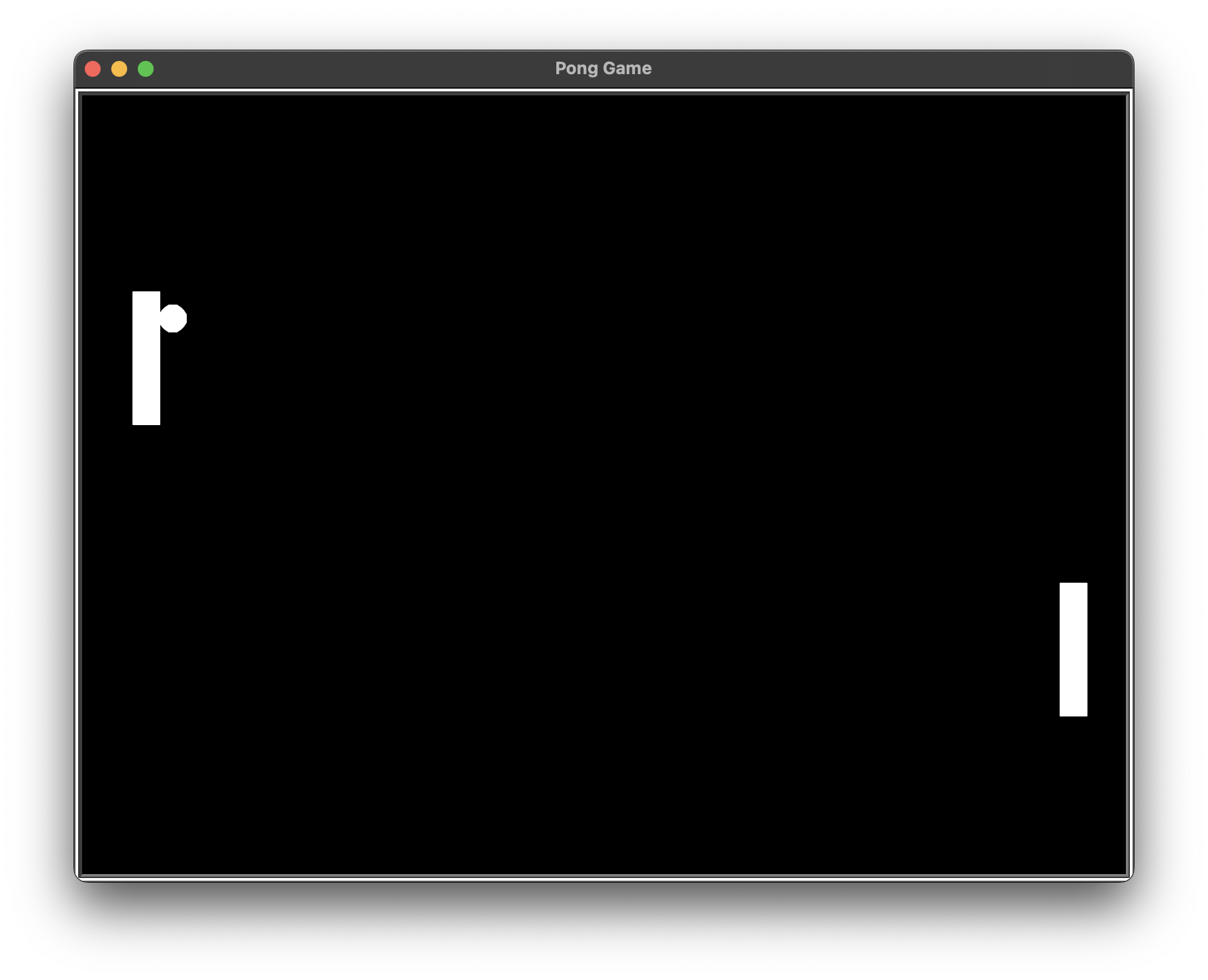
7. 패들이 공을 놓쳤는지 알아내기
🔍 유의 사항
- 어느 한 쪽이 공을 놓치면 게임이 재시작되어야 함
- 공이 중앙으로 이동
- 재시작시 진 쪽의 반대쪽으로 공이 움직이게 하기
⌨️ ball.py
from turtle import Turtle

class Ball(Turtle):

    def __init__(self):
        …

    def move(self):
        …

    def bounce_y(self):
        self.y_move *= -1

    def bounce_x(self):
        self.x_move *= -1

    def reset_position(self):
        self.home()
        self.bounce_x()
⌨️ main.py
from turtle import Screen
from paddle import Paddle
from ball import Ball
import time

…

game_is_on = True
while game_is_on:
    time.sleep(0.1)
    screen.update()
    ball.move()

    # 상하단 벽과의 충돌 감지
    …
    # 패들과의 충돌 감지
    …

    # 오른쪽 패들이 공을 놓쳤는지 감지
    if ball.xcor() > 380:
        ball.reset_position()

    # 왼쪽 패들이 공을 놓쳤는지 감지
    if ball.xcor() < -380:
        ball.reset_position()

screen.exitonclick()
8. 점수를 기록하고 공의 속도 올리기
🔍 유의 사항
- 📄 scoreboard.py에 Scoreboard 클래스 생성
- 점수 계산하기
- 오른쪽 패들이 공을 놓치면 왼쪽 플레이어가 +1점
- 왼쪽 패들이 공을 놓치면 오른쪽 플레이어가 +1점
- 패들이 공을 받아낼 때마다, 공의 속도를 증가시키기
- while문의 지연시간이 짧아질수록 공의 속도가 빨라짐 (음수값은 안됨)
- speed 라는 이름은 터틀 클래스에 이미 있으므로, 사용하지 말기
- 게임 재시작시 원래 값으로 변경시켜야 함
⌨️ scoreboard.py
from turtle import Turtle

ALIGNMENT = "center"
FONT = ("Courier", 80, "normal")

class Scoreboard(Turtle):

    def __init__(self):
        super().__init__()
        self.color("white")
        self.penup()
        self.hideturtle()
        self.l_score = 0
        self.r_score = 0
        self.update_scoreboard()

    def update_scoreboard(self):
        self.clear()
        self.goto(-100, 200)
        self.write(self.l_score, align=ALIGNMENT, font=FONT)
        self.goto(100, 200)
        self.write(self.r_score, align=ALIGNMENT, font=FONT)

    def l_point(self):
        self.l_score += 1
        self.update_scoreboard()

    def r_point(self):
        self.r_score += 1
        self.update_scoreboard()
⌨️ ball.py
from turtle import Turtle

class Ball(Turtle):

    def __init__(self):
        …
        # 공의 속도
        self.move_speed = 0.1

    def move(self):
        …

    def bounce_y(self):
        …

    def bounce_x(self):
        self.x_move *= -1
        self.move_speed *= 0.9

    def reset_position(self):
        self.home()
        self.move_speed = 0.1
        self.bounce_x()
⌨️ main.py
from turtle import Screen
from paddle import Paddle
from ball import Ball
from scoreboard import Scoreboard
import time

…

r_paddle = Paddle((350, 0))
l_paddle = Paddle((-350, 0))
ball = Ball()
scoreboard = Scoreboard()

…

game_is_on = True
while game_is_on:
    time.sleep(ball.move_speed)
    screen.update()
    ball.move()

    # 상하단 벽과의 충돌 감지
    …
    # 패들과의 충돌 감지
    …

    # 오른쪽 패들이 공을 놓쳤는지 감지
    if ball.xcor() > 380:
        ball.reset_position()
        scoreboard.l_point()

    # 왼쪽 패들이 공을 놓쳤는지 감지
    if ball.xcor() < -380:
        ball.reset_position()
        scoreboard.r_point()

screen.exitonclick()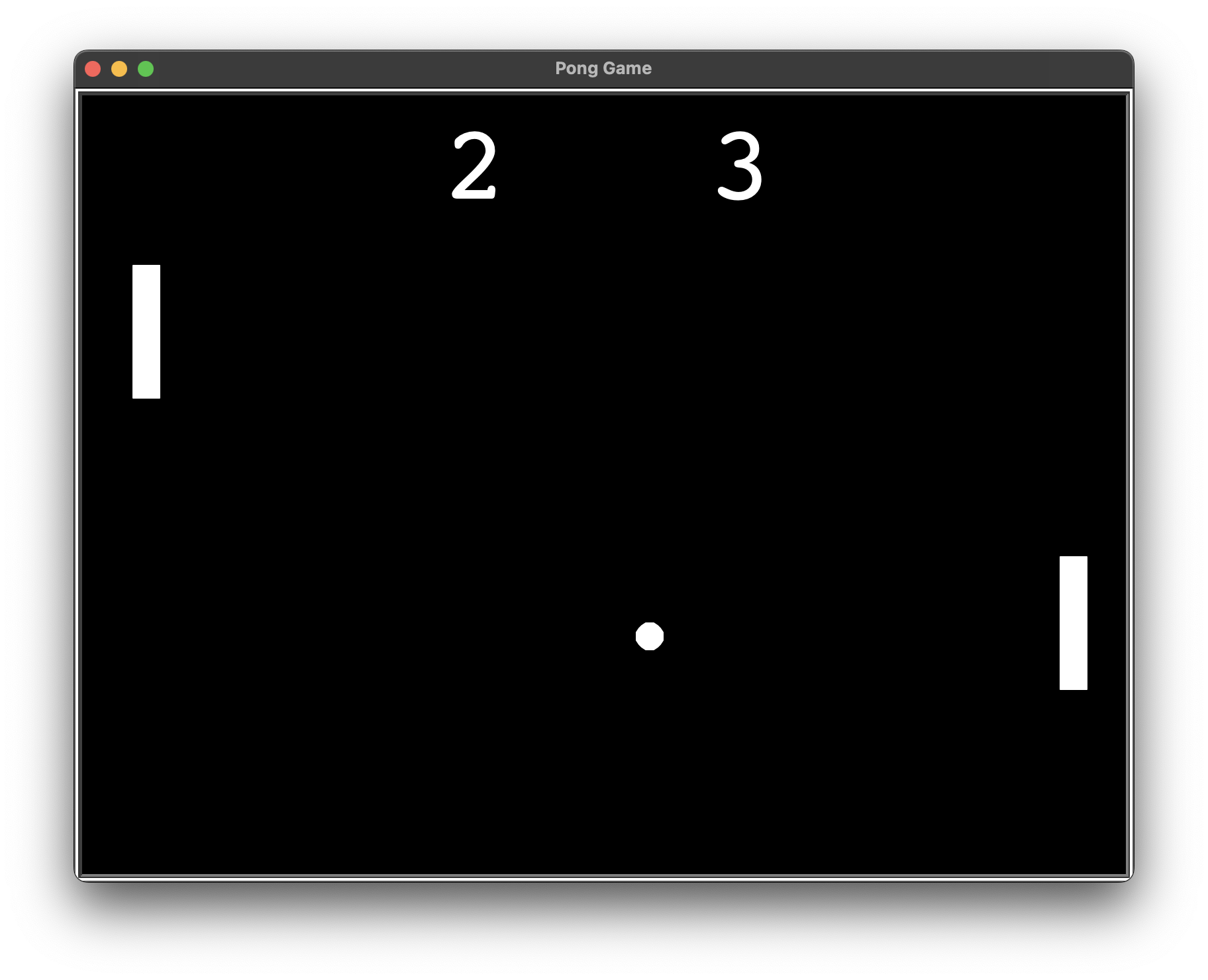
🖍️ 최종 답안
##########################################################📄paddle.py
from turtle import Turtle


class Paddle(Turtle):

    def __init__(self, position):
        super().__init__()
        self.shape("square")
        self.color("white")
        self.shapesize(stretch_wid=5, stretch_len=1)
        self.penup()
        self.goto(position)

    def go_up(self):
        new_y = self.ycor() + 20
        self.goto(self.xcor(), new_y)

    def go_down(self):
        new_y = self.ycor() - 20
        self.goto(self.xcor(), new_y)


##########################################################📄ball.py
from turtle import Turtle


class Ball(Turtle):

    def __init__(self):
        super().__init__()
        self.color("white")
        self.shape("circle")
        self.penup()
        self.x_move = 3
        self.y_move = 3
        self.move_speed = 0.1

    def move(self):
        new_x = self.xcor() + self.x_move
        new_y = self.ycor() + self.y_move
        self.goto(new_x, new_y)

    def bounce_y(self):
        self.y_move *= -1

    def bounce_x(self):
        self.x_move *= -1
        self.move_speed *= 0.9

    def reset_position(self):
        self.goto(0, 0)
        self.move_speed = 0.1
        self.bounce_x()


##########################################################📄scoreboard.py
from turtle import Turtle


class Scoreboard(Turtle):

    def __init__(self):
        super().__init__()
        self.color("white")
        self.penup()
        self.hideturtle()
        self.l_score = 0
        self.r_score = 0
        self.update_scoreboard()

    def update_scoreboard(self):
        self.clear()
        self.goto(-100, 200)
        self.write(self.l_score, align="center", font=("Courier", 80, "normal"))
        self.goto(100, 200)
        self.write(self.r_score, align="center", font=("Courier", 80, "normal"))

    def l_point(self):
        self.l_score += 1
        self.update_scoreboard()

    def r_point(self):
        self.r_score += 1
        self.update_scoreboard()


##########################################################📄main.py
from turtle import Screen, Turtle
from paddle import Paddle
from ball import Ball
from scoreboard import Scoreboard
import time

screen = Screen()
screen.bgcolor("black")
screen.setup(width=800, height=600)
screen.title("Pong")
screen.tracer(0)

r_paddle = Paddle((350, 0))
l_paddle = Paddle((-350, 0))
ball = Ball()
scoreboard = Scoreboard()

screen.listen()
screen.onkey(r_paddle.go_up, "Up")
screen.onkey(r_paddle.go_down, "Down")
screen.onkey(l_paddle.go_up, "w")
screen.onkey(l_paddle.go_down, "s")

game_is_on = True
while game_is_on:
    screen.update()
    ball.move()

    #Detect collision with wall
    if ball.ycor() > 280 or ball.ycor() < -280:
        ball.bounce_y()

    #Detect collision with paddle
    if ball.distance(r_paddle) < 50 and ball.xcor() > 320 or ball.distance(l_paddle) < 50 and ball.xcor() < -320:
        ball.bounce_x()

    #Detect R paddle misses
    if ball.xcor() > 380:
        ball.reset_position()
        scoreboard.l_point()

    #Detect L paddle misses:
    if ball.xcor() < -380:
        ball.reset_position()
        scoreboard.r_point()

screen.exitonclick()