
1. Blur, Canny, Erod, Dilation의 정의 및 사용 이유
1) Blur
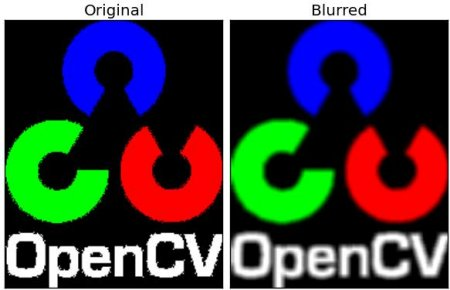
Blur 처리는 이미지에서 높은 주파수의 세부 정보를 감소시키며, 결과적으로 전체적인 이미지가 부드러워진다. 이는 픽셀 값들이 주변 픽셀 값들과 평균화되어 달성된다.
이미지의 노이즈를 감소시키고, 불필요한 세부 정보를 제거하는 데 사용된다. 이는 이미지를 분석하거나 처리하기 전에 이미지의 품질을 향상시키는 데 도움이 된다.
2) Canny
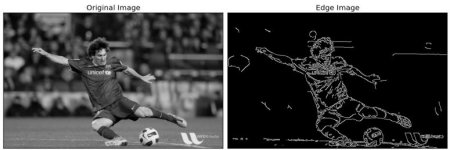
Canny 가장자리 검출기는 이미지에서 명확한 가장자리를 식별하기 위해 사용되는 알고리즘이다. 이 알고리즘은 이미지의 밝기 변화를 분석하여 가장자리를 찾는다.
높은 정확도로 가장자리를 검출할 수 있으며, 이미지 내의 중요한 구조적 정보를 추출하는 데 사용된다. 이는 객체 인식, 이미지 분할 등에 필수적인 전처리 단계이다.
3) Erode
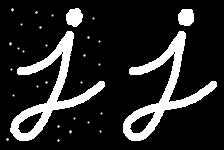
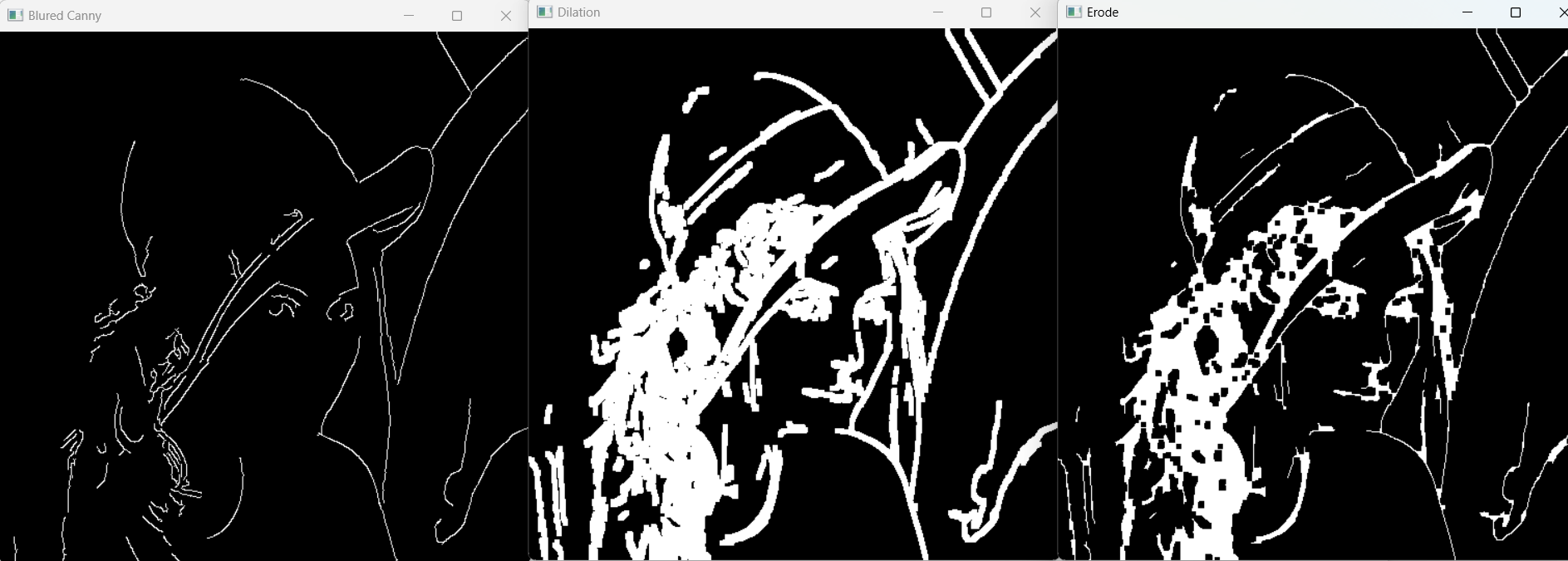
Erode(침식) 처리는 이미지의 경계 부분을 축소시키는 형태학적 변환으로, 주변 픽셀 중 최소값을 중심 픽셀에 적용한다.
작은 잡음을 제거하거나, 두 객체 사이의 간격을 넓히는데 사용된다. 이는 객체의 분리 및 형태 분석에 유용하다.
4) Dilation
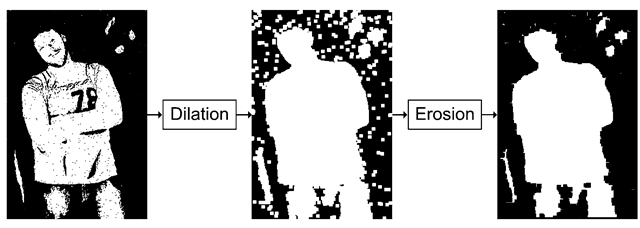
Dilation(팽창) 처리는 이미지의 경계 부분을 확장시키는 형태학적 변환으로, 주변 픽셀 중 최대값을 중심 픽셀에 적용한다.
침식으로 인해 손실된 객체의 크기를 복원하거나, 객체 내의 작은 구멍을 메우는 데 사용된다. 이는 객체의 형태를 강조하고, 전체적인 구조를 개선하는 데 도움이 된다.
5) 사용 예시 코드
import cv2
import numpy as np
from matplotlib import pyplot as plt

img = cv2.imread('data/lena.jpg')
img = cv2.cvtColor(img, cv2.COLOR_BGR2GRAY)

kernal = np.ones((5,5), np.uint8)

blur = cv2.blur(img, (5, 5))
canny = cv2.Canny(img, 100, 200)
blured_canny = cv2.Canny(blur, 100, 200)
dilation = cv2.dilate(canny, kernal, iterations = 1)
eroded = cv2.erode(dilation, kernal, iterations = 1)

cv2.imshow('Blur', blur)
cv2.imshow('Canny', canny)
cv2.imshow('Blured Canny', blured_canny)
cv2.imshow('Dilation', dilation)
cv2.imshow('Erode', eroded)

cv2.waitKey()
cv2.destroyAllWindows()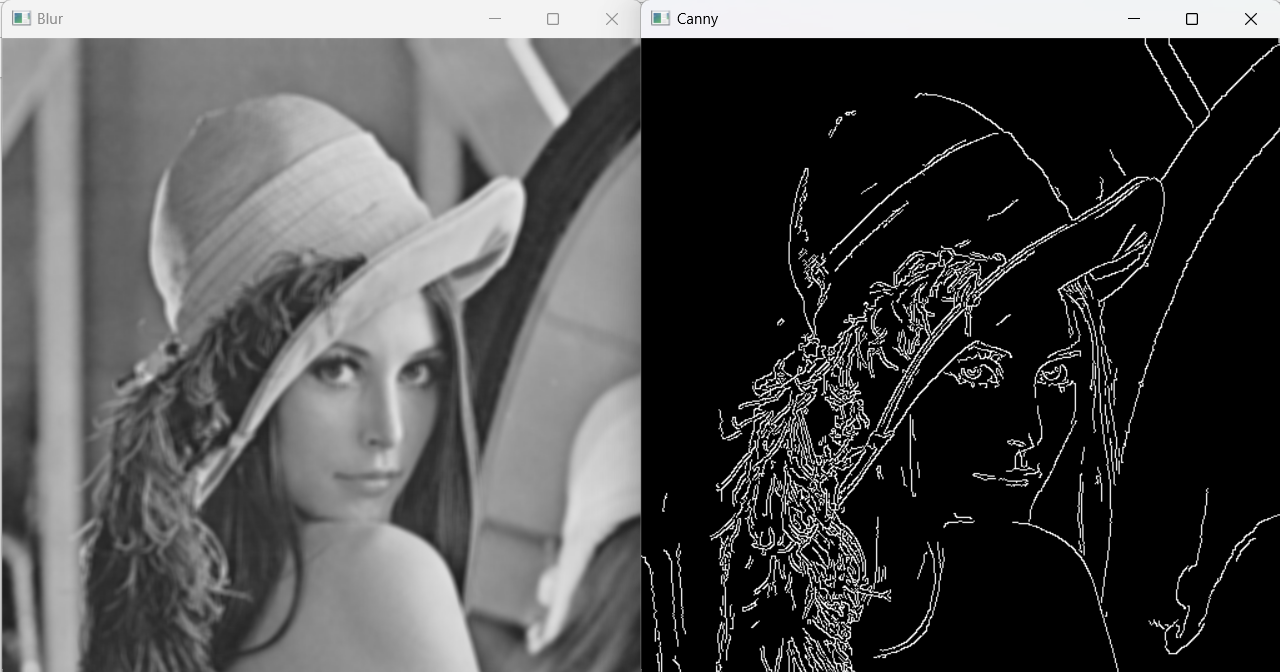
2. 여러 가지 Affine
Affine 변환은 이미지의 기하학적 변형을 다루는 데 사용되는 중요한 툴 중 하나이다. Affine 변환을 이용하면
이미지를 회전하거나,크기를 조절하거나,이동시키는 등의 작업을 할 수 있다.
Affine 변환은 선의 평행성은 유지하면서 이미지를 변형한다. 기본적으로 affine 변환은 2D 좌표계에서의 변환을 의미하며, 3x3 변환 행렬을 사용한다.
OpenCV에서는 cv2.getAffineTransform()과 cv2.warpAffine() 함수를 주로 사용하여 affine 변환을 구현한다.
1) cv2.getAffineTransform(points1, points2)
- points1: 원본 이미지에서 변환할 3개의 점
- points2: 결과 이미지에서 해당 점들이 위치할 3개의 점
이 함수는 주어진 점들을 기반으로 2x3 변환 행렬을 계산한다.
2) cv2.warpAffine(src, M, dsize)
- src: 원본 이미지
- M: cv2.getAffineTransform()을 통해 얻은 변환 행렬
- dsize: 결과 이미지의 크기
이 함수는 변환 행렬 M을 사용하여 원본 이미지에 affine 변환을 적용한다.
3) 사용 예시 코드
import cv2
import numpy as np

img = cv2.imread('data/messi5.jpg',0)
rows,cols = img.shape

M1 = np.float32([[1,0,100],[0,1,50]])
dst1 = cv2.warpAffine(img,M1,(cols,rows))

M2 = cv2.getRotationMatrix2D((cols/2,rows/2),90,1)
dst2 = cv2.warpAffine(img,M2,(cols,rows))

cv2.imshow('img',img)
cv2.imshow('dst1',dst1)
cv2.imshow('dst2',dst2)
cv2.waitKey(0)
cv2.destroyAllWindows()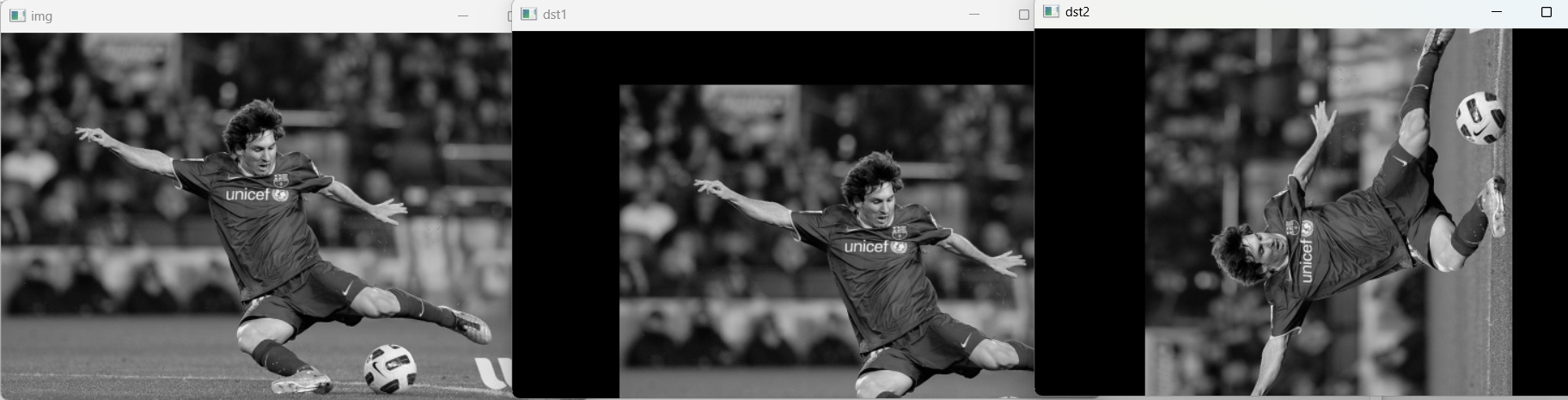
3. Contour란?
Contour는 동일한 색상이나 강도를 가진 영역의 경계선을 연결한 선이다.
이미지에서 객체를 구분하거나 형태를 분석하는 데 사용된다.
OpenCV에서는 Contour를 찾음으로써 객체의 크기, 모양, 위치 등을 파악할 수 있으며, 이를 통해 객체 인식이나 분류 작업에 활용할 수 있다.
1) cv2.findContours()
contours, hierarchy = cv2.findContours(image, mode, method)-
image: 검출 작업을 수행할 이진 이미지. 보통 이진화, Canny 엣지 검출 등의 전처리 과정을 거친 후 사용한다.
-
mode: 윤곽선을 찾는 방법을 지정. 예를 들어, cv2.RETR_TREE는 모든 윤곽선을 검출하고, 계층 정보를 재구성한다.
-
method: 윤곽선을 근사하는 방법을 지정. 예를 들어, cv2.CHAIN_APPROX_SIMPLE은 수직, 수평, 대각선 세그먼트로 구성된 윤곽선을 압축하여 불필요한 점을 제거한다.
2) 사용 예시 코드
import cv2

img = cv2.imread('data/opencv-logo.png')
imgray = cv2.cvtColor(img, cv2.COLOR_BGR2GRAY)
ret, thresh = cv2.threshold(imgray, 70, 255, 0)
cv2.imshow("thresh", thresh)
contours, hierarchy = cv2.findContours(thresh, cv2.RETR_TREE, cv2.CHAIN_APPROX_NONE)
#등치선 추출 대상 이미지, 등치선 추출 방식, 등치선 결과에 대한 근사치화 방식
print("Number of contours = " + str(len(contours)))
print(contours[0])

cv2.drawContours(img, contours, -1, (0, 255, 0), 3)
cv2.drawContours(imgray, contours, -1, (0, 255, 0), 3)

cv2.imshow('Image', img)
cv2.imshow('Image GRAY', imgray)
cv2.waitKey(0)
cv2.destroyAllWindows()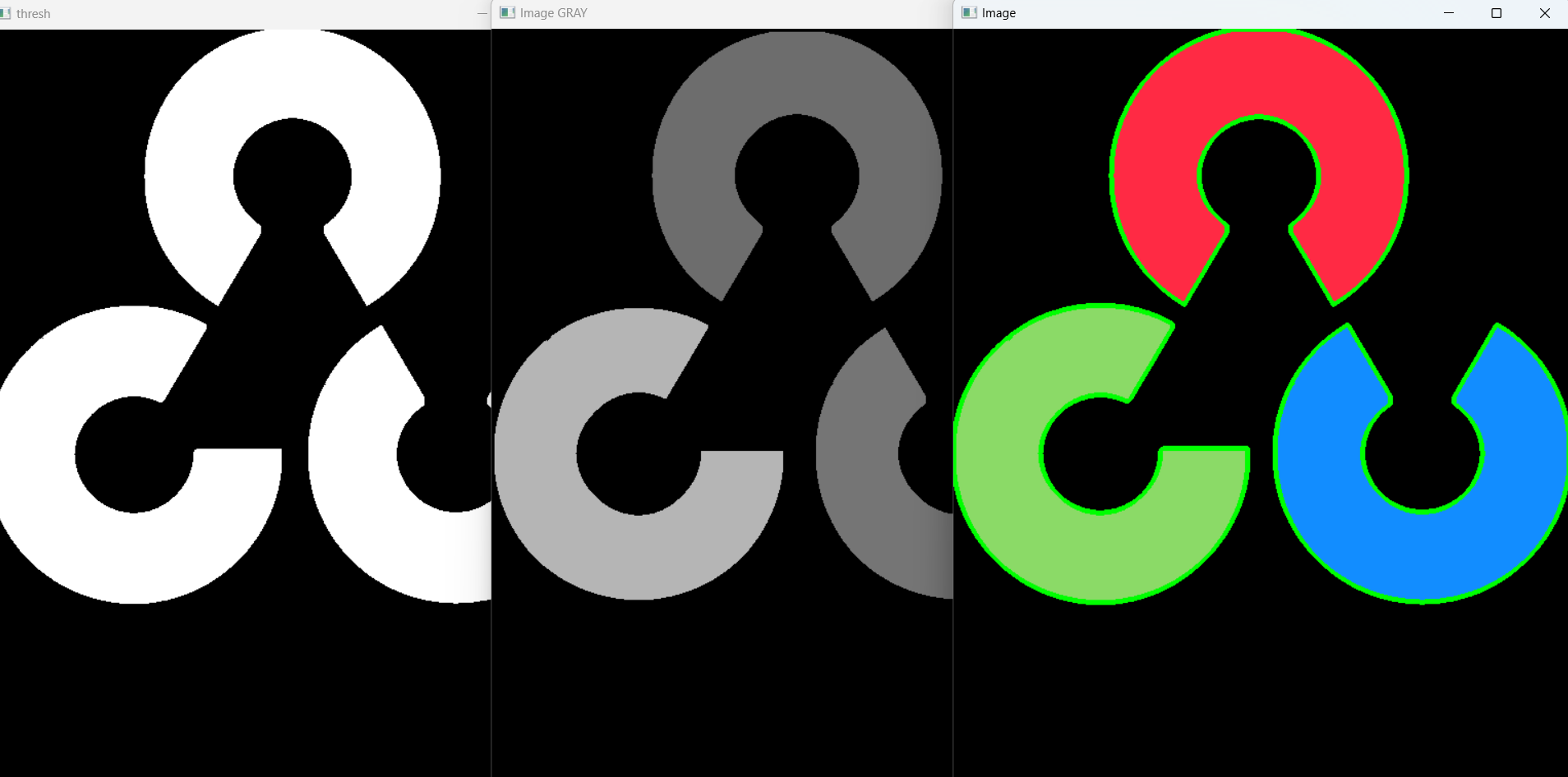
4. [퀴즈] 노트북 사진으로 배운 거 활용해 보기 ①
Quiz
- 내 노트북 찍기
- 내 노트북 사진 열기
- 내 노트북 사진 canny로 외곽선 따기
- 내 노트북 사진 erode dilation blur 등을 이용해서 외곽선 잘 뜨게 해 보기
- 노트북 사진 삐딱한 거 Perspective 써서 직사각형 만들기
요 퀴즈를 하나씩 해 보자.
1) 내 노트북 찍기
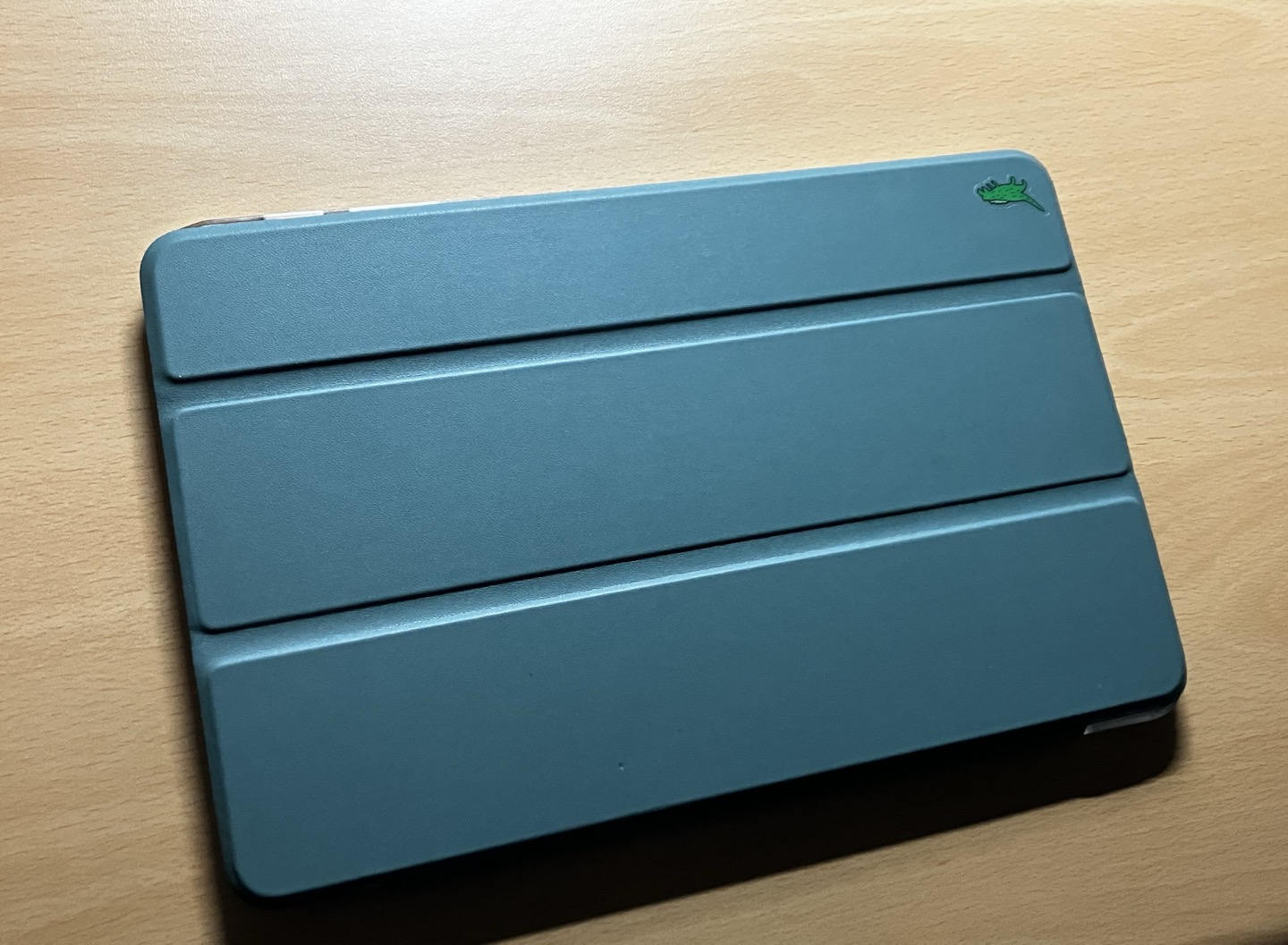
노트북은 아니지만... 삐뚤어진 태블릿 사진을 가져왔다.
2) 내 노트북 사진 열기
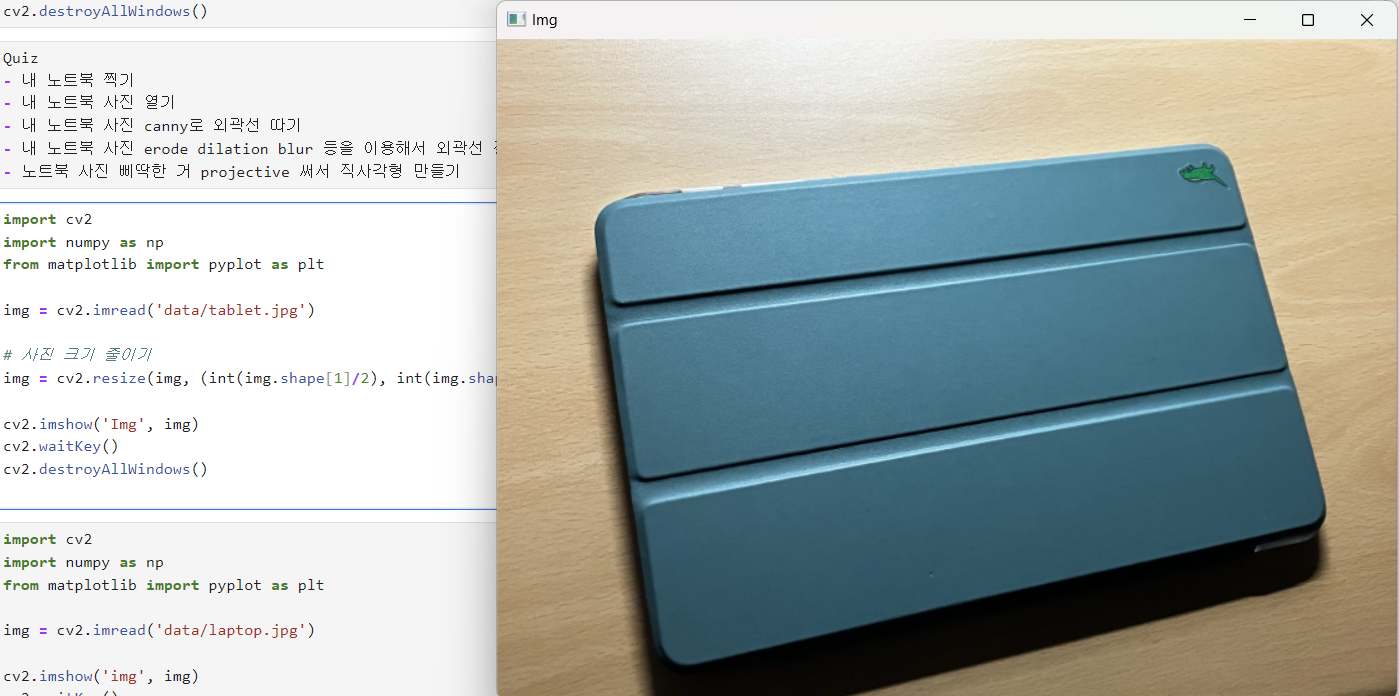
import cv2
import numpy as np
from matplotlib import pyplot as plt

img = cv2.imread('data/tablet.jpg')

# 사진 크기 줄이기
img = cv2.resize(img, (int(img.shape[1]/2), int(img.shape[0]/2)))

cv2.imshow('Img', img)
cv2.waitKey()
cv2.destroyAllWindows()
이미지가 너무 커서 resize()와 img.shape[1]/2로 원본 크기에서 절반으로 줄였다.
3) 내 노트북 canny로 외곽선 따기
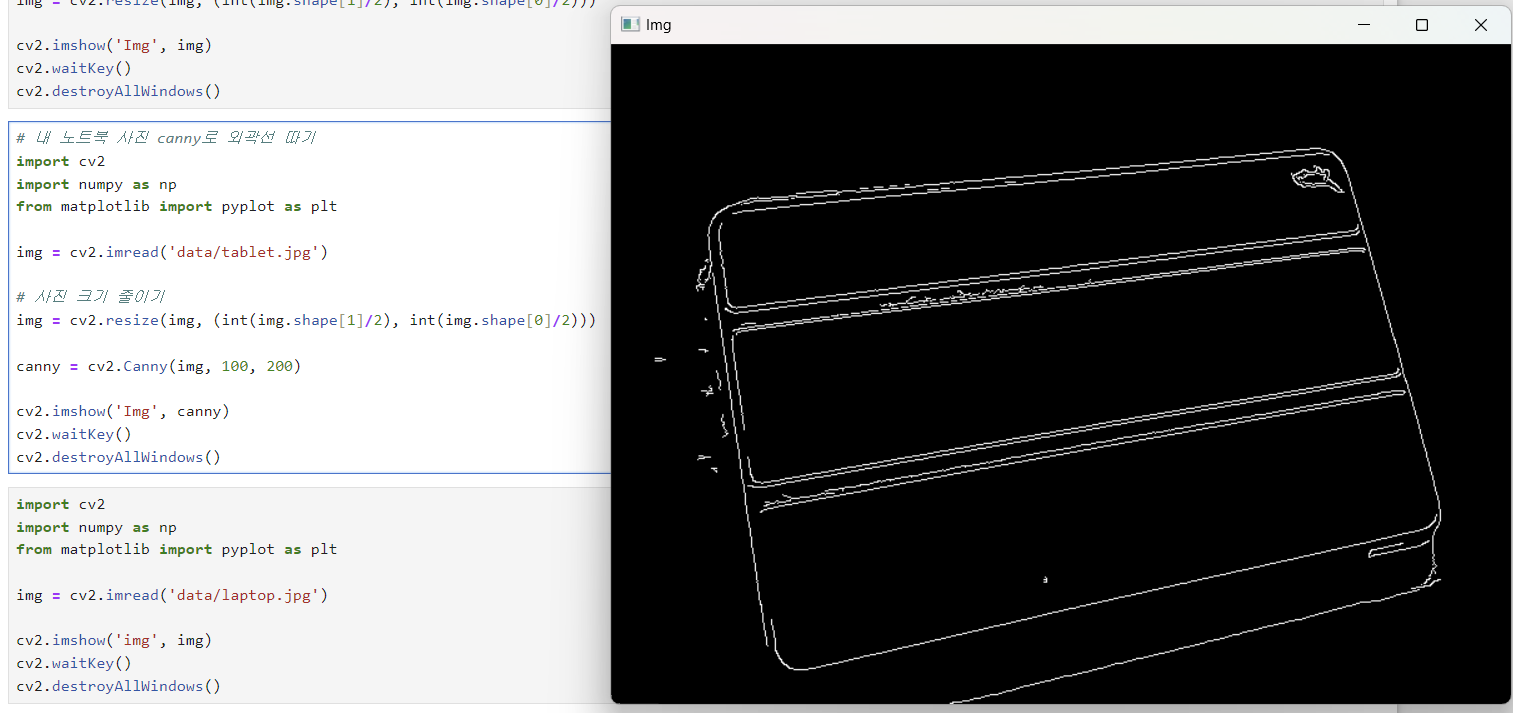
# 내 노트북 사진 canny로 외곽선 따기
import cv2
import numpy as np
from matplotlib import pyplot as plt

img = cv2.imread('data/tablet.jpg')

# 사진 크기 줄이기
img = cv2.resize(img, (int(img.shape[1]/2), int(img.shape[0]/2)))

canny = cv2.Canny(img, 100, 200)

cv2.imshow('Img', canny)
cv2.waitKey()
cv2.destroyAllWindows()
4) 내 노트북 사진 erode dilation blur 등을 이용해서 외곽선 잘 뜨게 해 보기
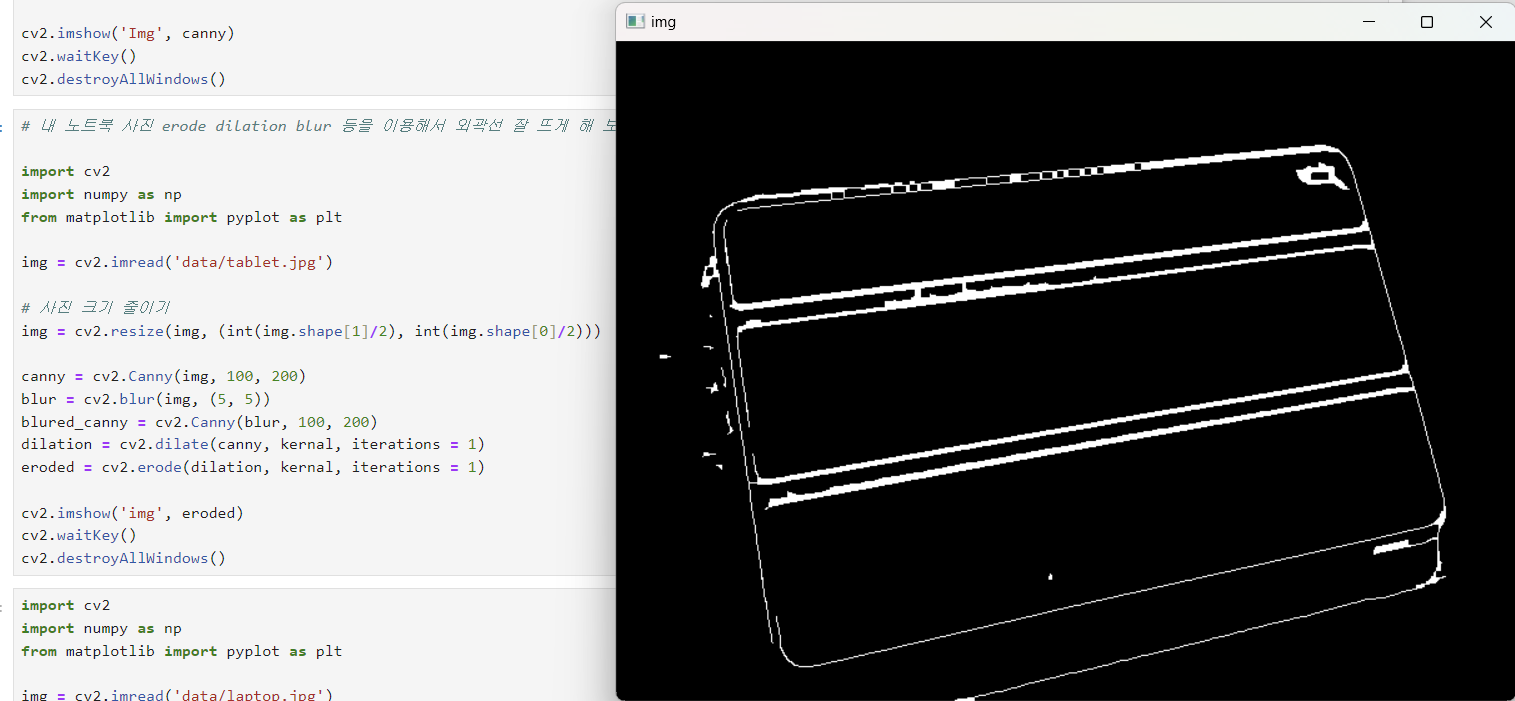
(잘 된 건지 모르겠다)
# 내 노트북 사진 erode dilation blur 등을 이용해서 외곽선 잘 뜨게 해 보기

import cv2
import numpy as np
from matplotlib import pyplot as plt

img = cv2.imread('data/tablet.jpg')

# 사진 크기 줄이기
img = cv2.resize(img, (int(img.shape[1]/2), int(img.shape[0]/2)))

canny = cv2.Canny(img, 100, 200)
blur = cv2.blur(img, (5, 5))
blured_canny = cv2.Canny(blur, 100, 200)
dilation = cv2.dilate(canny, kernal, iterations = 1)
eroded = cv2.erode(dilation, kernal, iterations = 1)

cv2.imshow('img', eroded)
cv2.waitKey()
cv2.destroyAllWindows()
5) 노트북 사진 삐딱한 거 Perspective 써서 직사각형 만들기
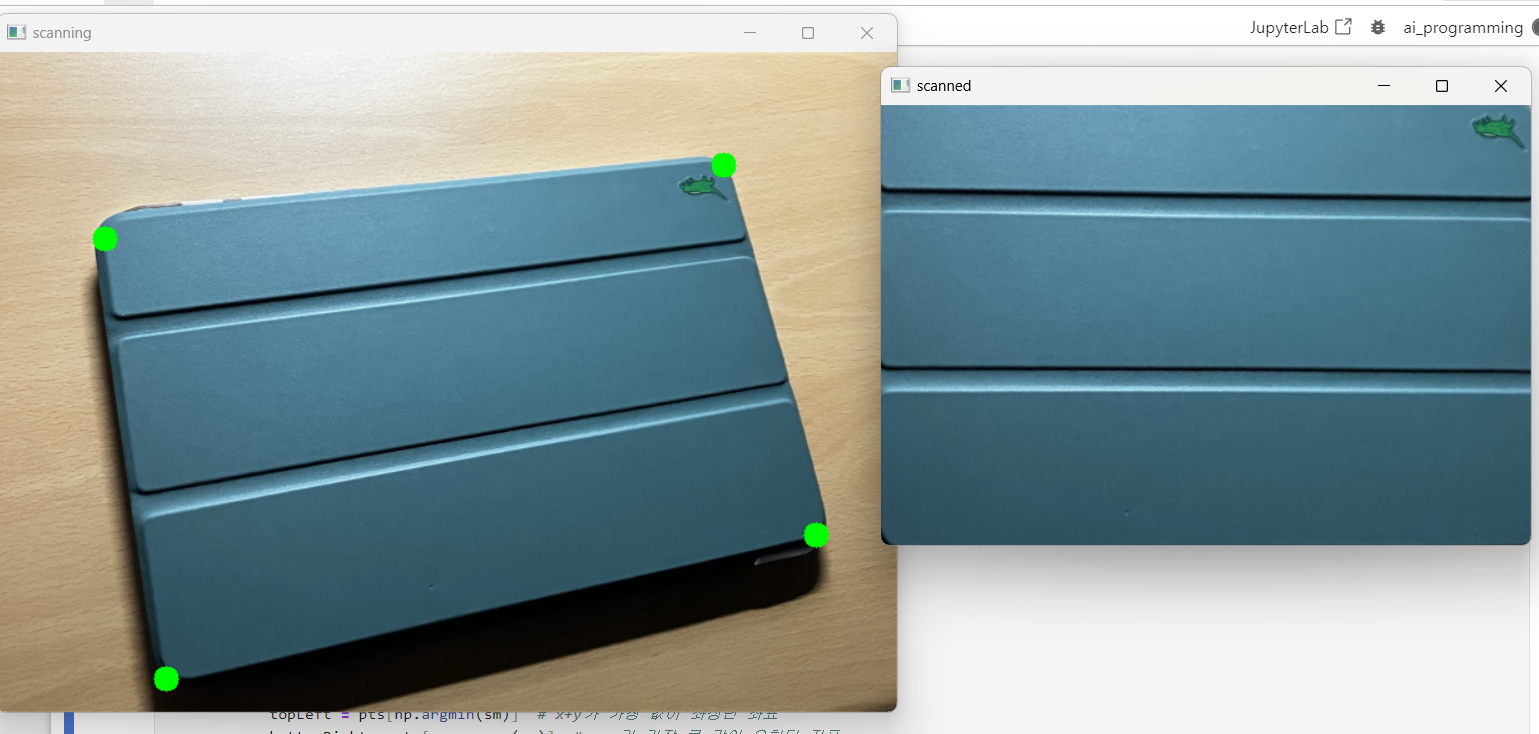
import cv2
import numpy as np

win_name = "scanning"
img = cv2.imread("data/tablet.jpg")
# 사진 크기 줄이기
img = cv2.resize(img, (int(img.shape[1]/2), int(img.shape[0]/2)))
rows, cols = img.shape[:2]
draw = img.copy()
pts_cnt = 0
pts = np.zeros((4, 2), dtype=np.float32)

def onMouse(event, x, y, flags, param):
    global pts_cnt
    if event == cv2.EVENT_LBUTTONDOWN:
        # 좌표에 초록색 동그라미 표시
        cv2.circle(draw, (x, y), 10, (0, 255, 0), -1)
        cv2.imshow(win_name, draw)

        # 마우스 좌표 저장
        pts[pts_cnt] = [int(x), int(y)]
        pts_cnt += 1
        if pts_cnt == 4:
            # 좌표 4개 중 상하좌우 찾기
            sm = pts.sum(axis=1)  # 4쌍의 좌표 각각 x+y 계산
            diff = np.diff(pts, axis=1)  # 4쌍의 좌표 각각 x-y 계산

            topLeft = pts[np.argmin(sm)]  # x+y가 가장 값이 좌상단 좌표
            bottomRight = pts[np.argmax(sm)]  # x+y가 가장 큰 값이 우하단 좌표
            topRight = pts[np.argmin(diff)]  # x-y가 가장 작은 것이 우상단 좌표
            bottomLeft = pts[np.argmax(diff)]  # x-y가 가장 큰 값이 좌하단 좌표

            # 변환 전 4개 좌표
            pts1 = np.float32([topLeft, topRight, bottomRight, bottomLeft])

            # 변환 후 영상에 사용할 서류의 폭과 높이 계산
            w1 = abs(bottomRight[0] - bottomLeft[0])
            w2 = abs(topRight[0] - topLeft[0])
            h1 = abs(topRight[1] - bottomRight[1])
            h2 = abs(topLeft[1] - bottomLeft[1])
            width = int(max([w1, w2]))  # 두 좌우 거리간의 최대값이 서류의 폭
            height = int(max([h1, h2]))  # 두 상하 거리간의 최대값이 서류의 높이

            # 변환 후 4개 좌표
            pts2 = np.float32([[0, 0], [width - 1, 0],
                               [width - 1, height - 1], [0, height - 1]])

            # 변환 행렬 계산
            mtrx = cv2.getPerspectiveTransform(pts1, pts2)
            # 원근 변환 적용
            result = cv2.warpPerspective(img, mtrx, (width, height))
            cv2.imshow('scanned', result)

cv2.imshow(win_name, img)
cv2.setMouseCallback(win_name, onMouse)
cv2.waitKey(0)
cv2.destroyAllWindows()
이 부분은 블로그를 참고했다. (출처)
5. [퀴즈] 노트북 사진으로 배운 거 활용해 보기 ②
Quiz
- 아까 노트북 사진 contour 하기
- 노트북이 무슨 도형에 가까운지 검출하고
- 검출한 결과 노트북 근처에 글자로 띄우기
이번에는 이 퀴즈를 해 보자.
노트북 사진 contour + 노트북이 무슨 도형과 비슷한지 검출하기
import numpy as np
import cv2

img = cv2.imread('data/tablet.jpg')
img = cv2.resize(img, (800, 500))
imgGrey = cv2.cvtColor(img, cv2.COLOR_BGR2GRAY)
canny = cv2.Canny(imgGrey, 150, 150)
# canny = cv2.Canny(imgGrey, 280, 280) # Canny 엣지 검출로 이미지의 가장자리 찾기
kernal = np.ones((5,5), np.uint8) # 5x5 크기의 모든 요소가 1인 행렬 생성
dilation = cv2.dilate(canny, kernal, iterations = 1) # 이미지를 팽창시켜 경계 강조
eroded = cv2.erode(dilation, kernal, iterations = 1) # 이미지를 침식시켜 작은 노이즈를 제거

cv2.imshow("eroded", eroded)
_, thrash = cv2.threshold(eroded, 200, 255, cv2.THRESH_BINARY) # 이미지 이진화
contours, _ = cv2.findContours(thrash, cv2.RETR_TREE, cv2.CHAIN_APPROX_NONE) # 이미지에서 윤곽선 찾기

print(len(contours))
cv2.imshow("thrash", thrash)
for contour in contours:
    if cv2.contourArea(contour) < 100:
        continue

    # 윤곽선을 대략적인 다각형으로 근사화 이 때, 근사 정도는 윤곽선의 길이에 비례
    approx = cv2.approxPolyDP(contour, 0.01* cv2.arcLength(contour, True), True) # 윤곽선을 대략적인 다각형으로 근사화 이 때, 근사 정도는 윤곽선의 길이에 비례
    cv2.drawContours(img, [approx], 0, (0, 255, 0), 5) # 근사화된 도형을 이미지에 그리기
    x = approx.ravel()[0]
    y = approx.ravel()[1] - 5
    # 면의 개수를 알아내서 무슨 도형인지 검출하는 과정
    if len(approx) == 3: # 꼭짓점이 3개면 삼각형으로 식별

        cv2.putText(img, "Triangle", (x, y), cv2.FONT_HERSHEY_COMPLEX, 0.5, (0, 0, 0))
    elif len(approx) == 4: # 꼭짓점이 4개면 사각형으로 식별, 가로세로 비율을 계산하여 정사각형과 직사각형을 구분
        x1 ,y1, w, h = cv2.boundingRect(approx)
        aspectRatio = float(w)/h
        print(aspectRatio)
        if aspectRatio >= 0.95 and aspectRatio <= 1.05:
            cv2.putText(img, "square", (x, y), cv2.FONT_HERSHEY_COMPLEX, 0.5, (0, 0, 0))
        else:
            cv2.putText(img, "rectangle", (x, y), cv2.FONT_HERSHEY_COMPLEX, 0.5, (0, 0, 0))
    elif len(approx) == 5: # 꼭짓점이 5개면 오각형으로 식별
        cv2.putText(img, "Pentagon", (x, y), cv2.FONT_HERSHEY_COMPLEX, 0.5, (0, 0, 0))
    elif len(approx) == 10: # 꼭짓점이 10개면 별 모양으로 식별
        cv2.putText(img, "Star", (x, y), cv2.FONT_HERSHEY_COMPLEX, 0.5, (0, 0, 0))
    else:
        cv2.putText(img, "Circle", (x, y), cv2.FONT_HERSHEY_COMPLEX, 0.5, (0, 0, 0))


cv2.imshow("shapes", img)
cv2.waitKey()
cv2.destroyAllWindows()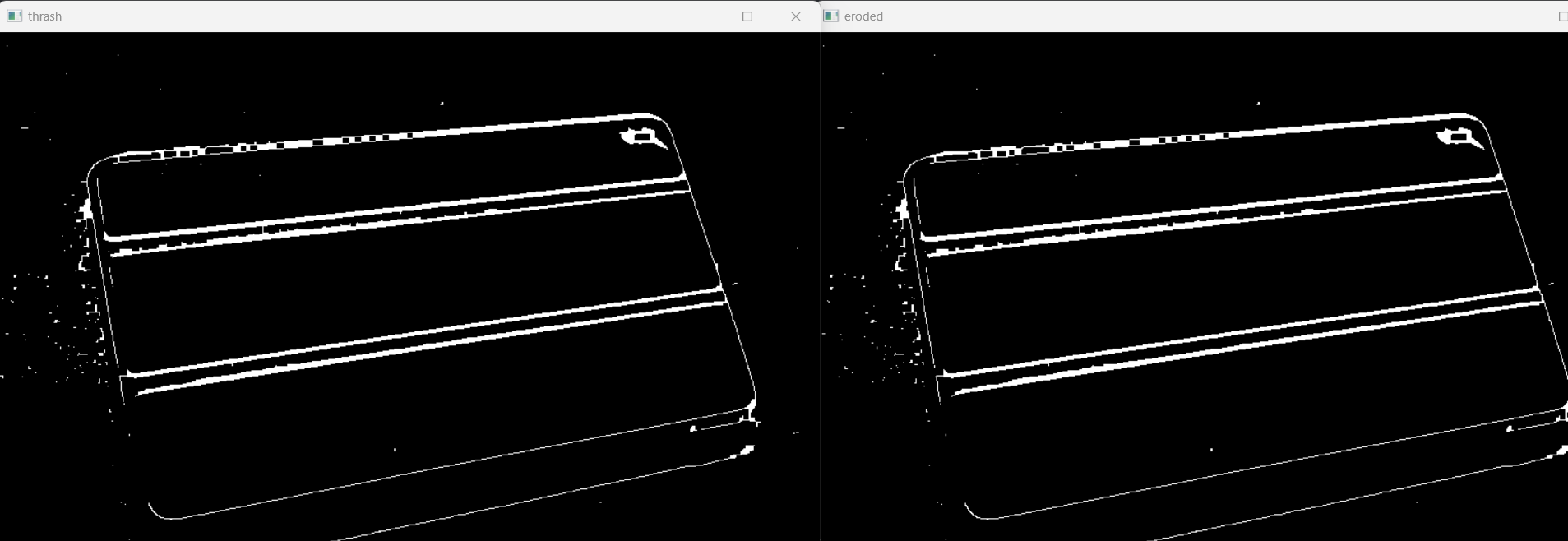
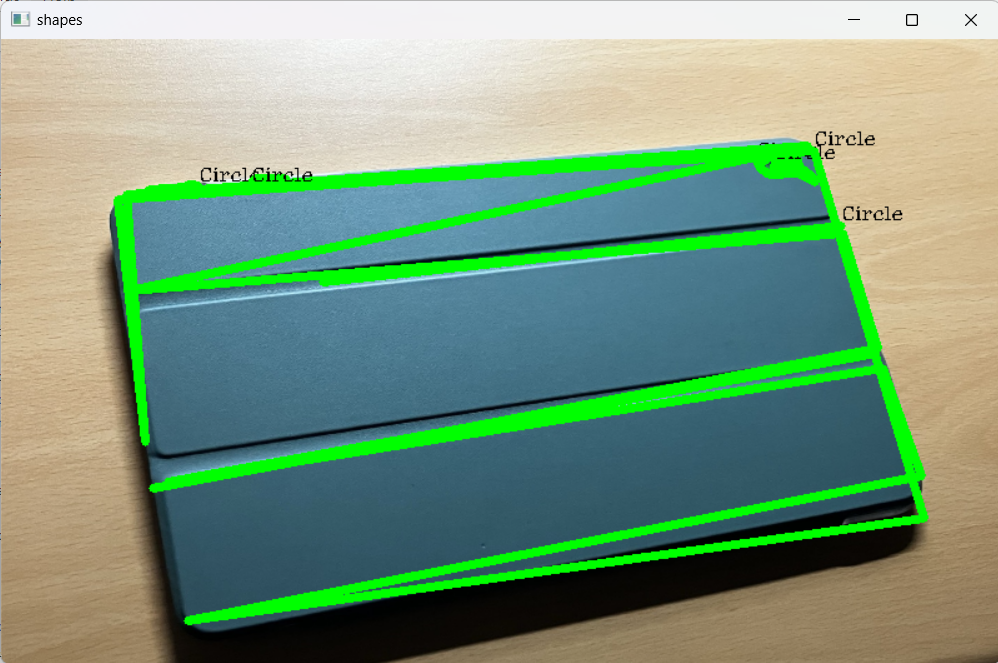
ㅇㅓ... 태블릿에서 꼭짓점이 4개로 확인이 안 되나 보다.
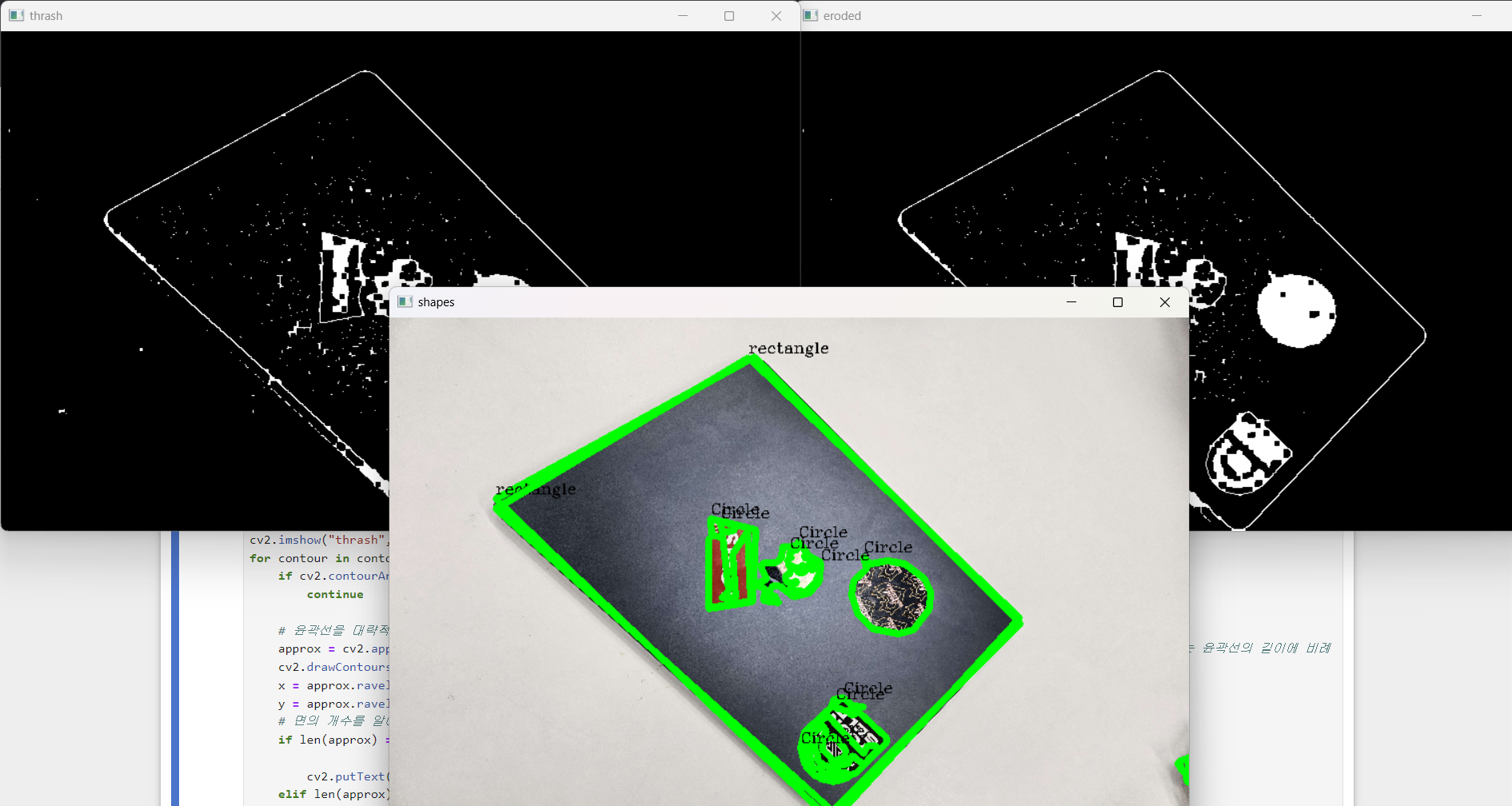
다른 예시 사진은 꽤 된다.
6. haar cascade란?
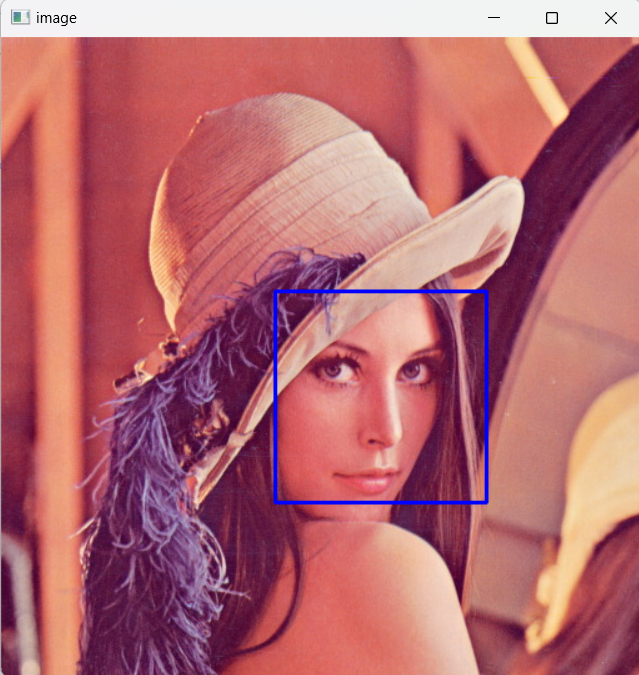
Haar Cascade는 객체 검출을 위한 기계 학습 기반의 접근 방식 중 하나다. 특히
얼굴 검출에 많이 사용되며, 여러 단계의 분류기를 거쳐객체를 검출한다.
Haar Cascade를 사용하면 빠르고 효율적으로 이미지 내에서 얼굴과 같은 객체를 찾을 수 있으며, 이는 보안, 모니터링, 인터랙티브 미디어 등 다양한 분야에서 활용될 수 있다.
사용 예시 코드
import cv2

faceCascade= cv2.CascadeClassifier("data/haarcascade_frontalface_default.xml")

img = cv2.imread('data/lena.jpg')
imgGray = cv2.cvtColor(img,cv2.COLOR_BGR2GRAY)

faces = faceCascade.detectMultiScale(imgGray,1.1,4)

for (x,y,w,h) in faces:
    cv2.rectangle(img,(x,y),(x+w,y+h),(255,0,0),2)

cv2.imshow('image', img)
cv2.waitKey()
cv2.destroyAllWindows()
7. 얼굴 모자이크 처리하는 웹캠 프로그램 만들기 퀴즈 정답 및 결과 사진
cascade를 사용해 얼굴 모자이크 웹캠 프로그램을 만들어 보자.
import cv2

faceCascade= cv2.CascadeClassifier("data/haarcascade_frontalface_default.xml")
cap = cv2.VideoCapture(0)
fourcc = cv2.VideoWriter_fourcc(*'XVID')
out = cv2.VideoWriter('output.avi', fourcc, 20.0, (640,480))

print(cap.isOpened())# 소스가 열리는지 확인
while(cap.isOpened()):# 소스가 열리는 동안
    ret, frame = cap.read() # 소스로부터 이미지 객체, ret: 성공여부 frame: 이미지객체
    if ret == True: # 성공했다면
        imgGray = cv2.cvtColor(frame,cv2.COLOR_BGR2GRAY)
        faces = faceCascade.detectMultiScale(imgGray,1.1,4)

        for (x,y,w,h) in faces:
            roi = frame[y:y+h, x:x+w]

            factor = 30
            small_roi = cv2.resize(roi, (w//factor, h//factor))
            mosaic_roi = cv2.resize(small_roi, (w,h), interpolation=cv2.INTER_NEAREST)

            frame[y:y+h, x:x+w] = mosaic_roi
        cv2.imshow('frame', frame) # 이미지객체를 frame이라는 윈도우에 출력

        if cv2.waitKey(1) & 0xFF == ord('q'):
            break
    else:
        break

cap.release()
out.release()
cv2.destroyAllWindows()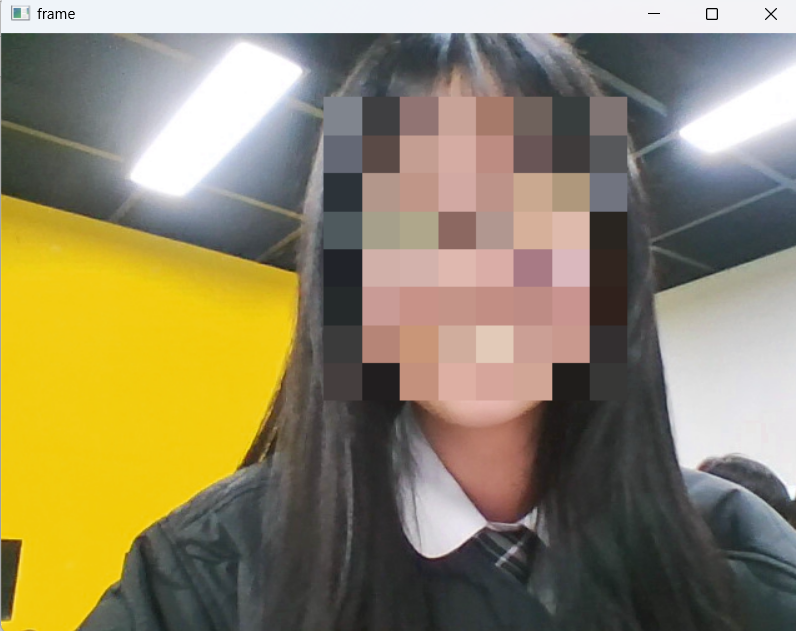
모자이크가 잘 된다.
