1. press

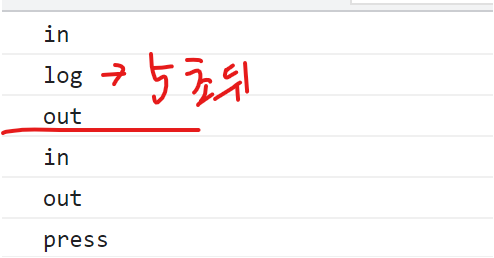
- onPressIn : 사용자가 처음 터치했을 때 호출
- onPress : onPressOut 이후에 호출
- onLongPress : 터치를 일정시간 이상하고 있으면 호출
- onPressOut : 터치를 땠을 때 호출
delayLongPress
만약 onLongPress가 호출되는 시간을 설정하고 싶다면 delayLongPress를 설정하면 된다.
        <TouchableOpacity
            onPress={()=>console.log("press")}
            onPressIn={()=>console.log("in")}
            onPressOut={()=>console.log("out")}
            onLongPress={()=>console.log("log")}
            delayLongPress={5000} //초 뒤 호출
> 
2. Change
사용자의 입력을 받는 텍스트 인풋 컴포넌트에서 많이 사용되는 이벤트. Change 이벤트를 통해 사용자가 입력하는 내용의 변화를 감지하고 그에 맞춰 화면에 변화를 주거나 값의 유효성을 체크하는 등 다양하게 이용 가능
2-1. TextInput 컴포넌트에서 Change 이벤트 설정
import React from 'react';
import { StyleSheet,Text, View, TextInput} from 'react-native';

export default function App() {
  return (
    <View style={styles.container}>
      <TextInput onChange={event => console.log(event.nativeEvent)}
        style={{borderWidth:1, padding:10, fontSize:20}}
      />
    </View>
  );
}

const styles = StyleSheet.create({
  container: {
    flex: 1,
    backgroundColor: '#fff',
    alignItems: 'center',
    justifyContent: 'center',
  },
});
텍스트에 글을 써보면 아래와 같이 나온다.

2-2. onChangeText
TextInput 컴포넌트에 입력되는 텍스트만 필요하다면 onChangeText 이용
import Reactfrom 'react';
import { StyleSheet, View, TextInput} from 'react-native';

export default function App() {
  return (
    <View style={styles.container}>
      <TextInput
      // onChange={event => console.log(event.nativeEvent.text)}
      onChangeText={text=> console.log(text)}
        style={{borderWidth:1, padding:10, fontSize:20}}
      />
    </View>
  );
}

const styles = StyleSheet.create({
  container: {
    flex: 1,
    backgroundColor: '#fff',
    alignItems: 'center',
    justifyContent: 'center',
  },
});