지난번엔 아이템 드래그앤드롭으로 아이템을 바닥에 떨구기까지 해봤다.
이번에는 아이템을 드래그앤드롭으로 인벤토리 내에서 이동하는 시스템을 구현해보자
추가로 아이템의 회전 기능도 추가해보자
1. 아이템을 인벤토리 내에 드래그 드롭
- 먼저
IntentoryGirdWidget클래스에서 필요한 함수NativeOnDrop과NativeOnDragOver추가해보자
(1) NativeOnDrop()
- 아이템을 클릭 후 드랍했을 때 칸이 이용가능한지를 판별해서 가능하다면 그 위치에 아이템을 추가하자
bool UInventoryGridWidget::NativeOnDrop(const FGeometry& InGeometry, const FDragDropEvent& InDragDropEvent, UDragDropOperation* InOperation)
{
	// Operation에 저장된 값이 있다면const
	if (InOperation->Payload)
	{
		AItemBase* droppedItem = Cast<AItemBase>(InOperation->Payload);

		// 아이템을 인벤토리 내에 드랍했을때 가능한지를 판별
		if (IsRoomAvailableForPayload(droppedItem))
		{
			InventoryComponent->AddItemAt(droppedItem, InventoryComponent->TileToIndex(DraggedItemTopLeftTile));
		}
		return true;
	}

	return false;
}
IsRoomAvailableForPayload()
InventoryComponent의IsRoomAvailable()함수를 통해서 우리가 드랍할 아이템이 해당 칸에 이용 가능한지를 판별해서 리턴해주자.- 여기서
DraggedItemTopLeftTile변수는 Drag함수에서 값을 지정해줄 것이다.
bool UInventoryGridWidget::IsRoomAvailableForPayload(AItemBase* Item)
{
	if (Item)
	{
		return InventoryComponent->IsRoomAvailable(Item, InventoryComponent->TileToIndex(DraggedItemTopLeftTile));
	}

	return false;
}
(2) NativeOnDragOver()
- 아이템을 Drag했을때 호출되는 이벤트함수
- 드래그했을때
InDragDropEvent를 통해서 스크린 좌표값을 가져오고 ->InGeometry를 통해 인벤토리의 Local좌표값을 가져온다 - 이때 Local좌표값은 인벤토리의 중앙을 기점이기에 좌상단이 마이너스값이다
- 그래서 한번더 인벤토리의 좌상단을 0,0으로 맞춰주기 위해서 Border의 Position값을 가지고 와서 좌상단좌표인
adjustedPosition변수를 만들어준다. - 이 좌표를 통해서
MousePositionInTileResult()를 통해 마우스의 위치가 인벤토리 한 칸의 4분면중에 어디에 위치하는지를 찾아서 그 타일좌표resultTile값을 잡아준다. ->reusltTile은 아이템의Dimension값을 사용한다. - 마우스가 있는 칸에서 아이템의
resultTile의 절반값으로 드래그중인 아이템의 좌상단 타일좌표를 잡아준다.
bool UInventoryGridWidget::NativeOnDragOver(const FGeometry& InGeometry, const FDragDropEvent& InDragDropEvent, UDragDropOperation* InOperation)
{
	if (InOperation->Payload)
	{
		AItemBase* draggedItem = Cast<AItemBase>(InOperation->Payload);

		// InDragDropEvent를 사용해서 스크린 좌표값을 가져오고 스크린 좌표값을 localPosition으로 변환
		FVector2D screenPosition = InDragDropEvent.GetScreenSpacePosition();
		FVector2D localPosition = InGeometry.AbsoluteToLocal(screenPosition);

		FVector2D gridStarterCoordinate = GridBorder->GetCachedGeometry().GetLocalPositionAtCoordinates(FVector2D(0.f, 0.f));
		FVector2D adjustedPosition = localPosition - gridStarterCoordinate;
		GEngine->AddOnScreenDebugMessage(-1, 3.f, FColor::Green, FString::Printf(TEXT("X : %.2f, Y : %.2f"),adjustedPosition.X, adjustedPosition.Y));

		// 마우스의 위치가 타일의 중앙보다 위인지 아래인지를 확인하기
		FIntPoint resultTile;

		bool down = MousePositionInTileResult(adjustedPosition).Down;
		bool right = MousePositionInTileResult(adjustedPosition).Right;

		if (right)
		{
			resultTile.X = FMath::Clamp(draggedItem->GetDimension().X - 1, 0, draggedItem->GetDimension().X - 1);
		}
		else
		{
			resultTile.X = FMath::Clamp(draggedItem->GetDimension().X, 0, draggedItem->GetDimension().X);
		}

		if (down)
		{
			resultTile.Y = FMath::Clamp(draggedItem->GetDimension().Y - 1, 0, draggedItem->GetDimension().Y - 1);
		}
		else
		{
			resultTile.Y = FMath::Clamp(draggedItem->GetDimension().Y, 0, draggedItem->GetDimension().Y);
		}

		DraggedItemTopLeftTile = FIntPoint(FMath::TruncToInt32(adjustedPosition.X / InventoryComponent->TileSize),
						FMath::TruncToInt32(adjustedPosition.Y / InventoryComponent->TileSize)) - (resultTile / 2);

		return true;
	}

	return false;
}
MousePositionInTileResult
- 마우스 위치값이 한개의 타일에서 4방향중에 어디에 있는지를 판별해주는 함수
FMousePositionInTile UInventoryGridWidget::MousePositionInTileResult(FVector2D MousePosition)
{
	MousePositionInTile.Right = fmod(MousePosition.X, InventoryComponent->TileSize) > (InventoryComponent->TileSize / 2);
	MousePositionInTile.Down = fmod(MousePosition.Y, InventoryComponent->TileSize) > (InventoryComponent->TileSize / 2);

	return MousePositionInTile;
}
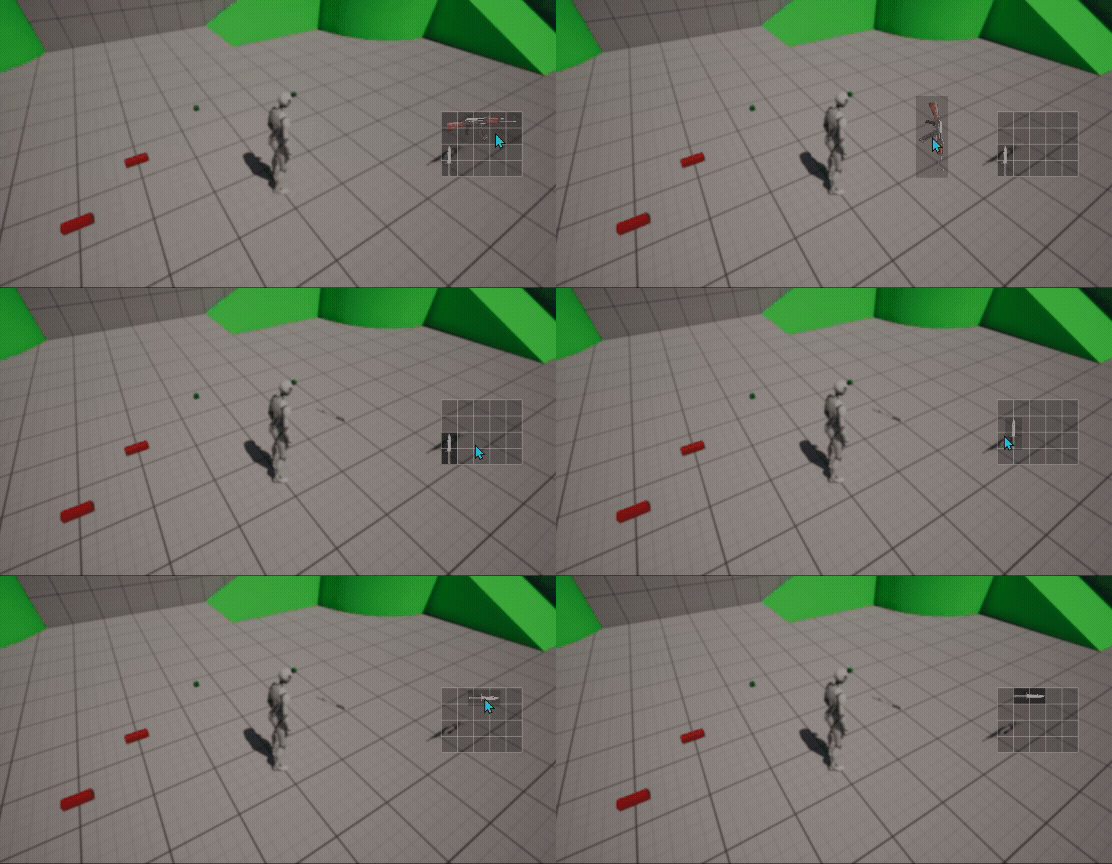
결과
- 문제점 : 결과처럼 아이템을 옮겨도 원래 자리에 아이콘이 생성되지만 옮긴 자리에 아이템이 안보일뿐 위치해 있다는 것을 볼 수 있다.
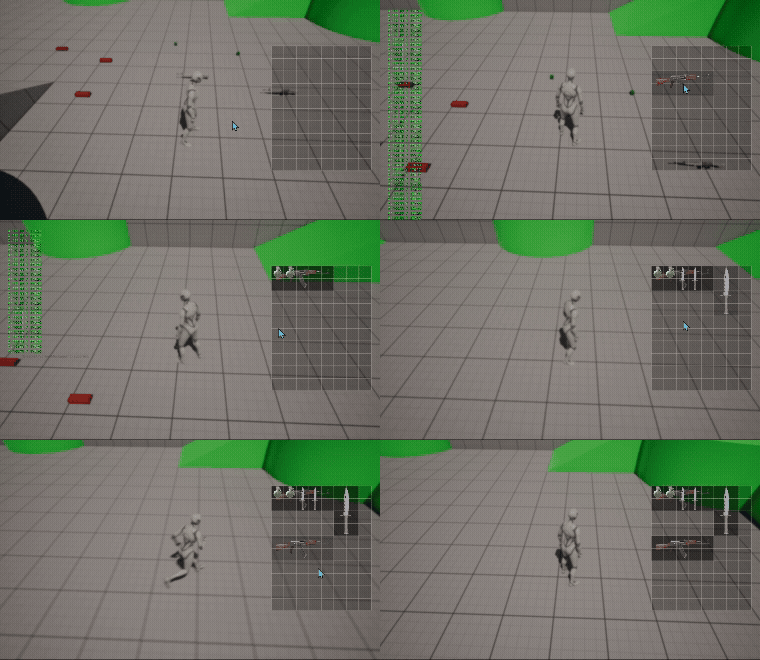
문제 해결(아이템이 옮겨지지만 시작적으로 이상해지는 부분)
- 위 결과와 같은 문제점을 해결하기 위해서 아이템을 인벤토리 내에 드래그드랍을 하게 되면 인벤토리 내부를 Refresh해주는 코드를 추가하자
InventoryComponent
InventoryComponent에서RefreshAllItem()를 추가해주고, Drop했을때 호출해주자
// InventoryComponent.cpp
void UInventoryComponent::RefreshAllItem()
{
	AllItems.Empty();
	for (int32 i = 0; i < Items.Num(); i++)
	{
		if (Items[i])
		{
			AllItems.Add(Items[i], IndexToTile(i));
		}
	}
}

// InventoryGridWidget.cpp
bool UInventoryGridWidget::NativeOnDrop(const FGeometry& InGeometry, const FDragDropEvent& InDragDropEvent, UDragDropOperation* InOperation)
{
	// Operation에 저장된 값이 있다면const
	if (InOperation->Payload)
	{
		AItemBase* droppedItem = Cast<AItemBase>(InOperation->Payload);

		// 아이템을 인벤토리 내에 드랍했을때 가능한지를 판별
		if (IsRoomAvailableForPayload(droppedItem))
		{
			InventoryComponent->RefreshAllItem();

			InventoryComponent->AddItemAt(droppedItem, InventoryComponent->TileToIndex(DraggedItemTopLeftTile));
		}
		return true;
	}

	return false;
}
결과
- 아이콘이 잘 이동하는 것을 확인할 수 있다.
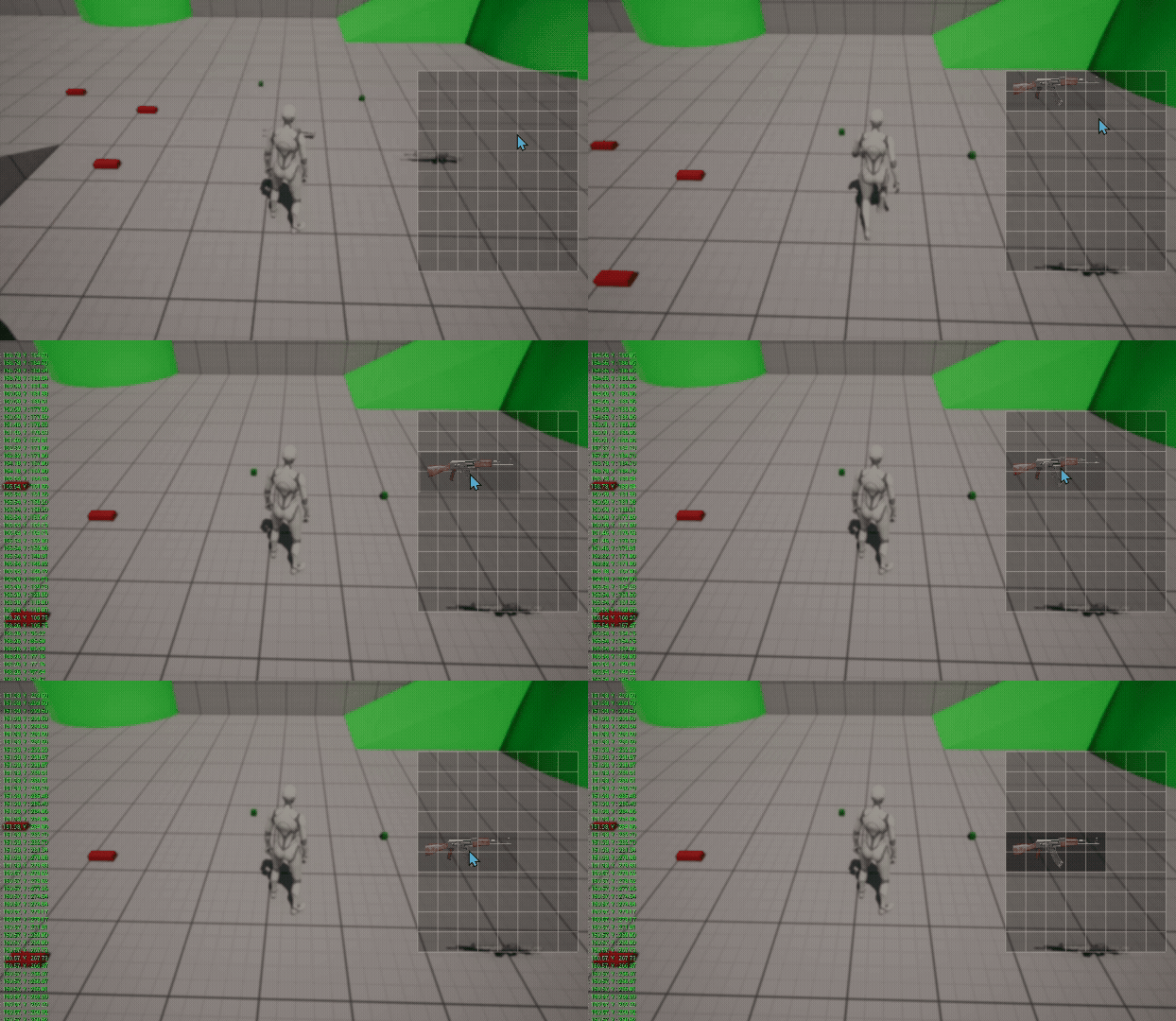
- 문제점 : 하지만 수류탄을 먹고나서 총을 이동시키면 이동한 위치에 수류탄이 생기는 걸 볼 수 있다.
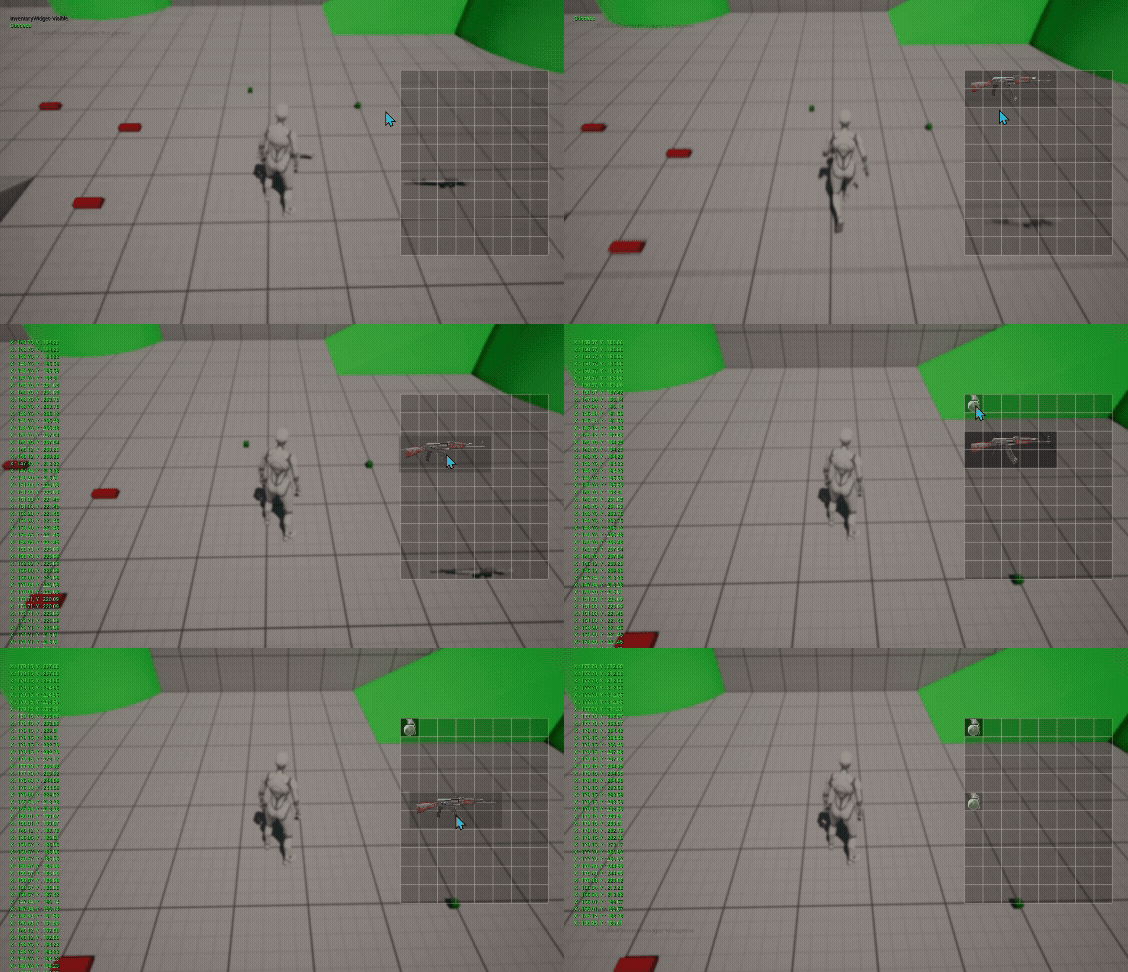
문제 해결 (드래그드롭할때 아이템 변경되는부분 )
InventoryGridWidget에서 Drop했는지를 체크할 bool변수Dropped추가GridInventoryCharacter에서 Overlap했을때Dropped를 false로 설정- 아이템을 드롭할때
Dropped를 true로 설정 ItemWidgetNativeConstruct()에서Dropped가 true면 드랍한 아이템을 Refresh하고, 아니면 추가된 아이템을 Refresh하도록 코드 수정하자
// GridInventoryCharacter.cpp
void AGridInventoryCharacter::OnBeginOverlap(class UPrimitiveComponent* HitComp, class AActor* OtherActor,
	class UPrimitiveComponent* OtherComp, int32 OtherBodyIndex, bool bFromSweep, const FHitResult& SweepResult)
{
	AItemBase* item = Cast<AItemBase>(OtherActor);

	if (item)
	{
		ItemToAdd = OtherActor;
		InventoryComponent->InventoryGridWidgetReference->Dropped = false; // 추가

		//GEngine->AddOnScreenDebugMessage(-1, 5.f, FColor::Red, FString::Printf(TEXT("Item is picked up %s"), *item->GetName()));
		// 아이템이 인벤토리에 추가가 가능하다면
		if (InventoryComponent->TryAddItem(item))
		{
			item->Destroy();
		}
	}
}
// InventoryGridWidget.cpp
bool UInventoryGridWidget::NativeOnDrop(const FGeometry& InGeometry, const FDragDropEvent& InDragDropEvent, UDragDropOperation* InOperation)
{
// Operation에 저장된 값이 있다면const
if (InOperation->Payload)
{
DroppedItem = Cast<AItemBase>(InOperation->Payload);
// 아이템을 인벤토리 내에 드랍했을때 가능한지를 판별
if (IsRoomAvailableForPayload(DroppedItem))
{
InventoryComponent->RefreshAllItem();
InventoryComponent->AddItemAt(DroppedItem, InventoryComponent->TileToIndex(DraggedItemTopLeftTile));
}
Dropped = true; // 추가
return true;
}
return false;
}void UItemWidget::NativeConstruct()
{
Super::NativeConstruct();
CharacterReference = Cast<AGridInventoryCharacter>(UGameplayStatics::GetPlayerCharacter(GetWorld(), 0));
if (CharacterReference)
{
if (CharacterReference->GetInventoryComponent()->InventoryGridWidgetReference->Dropped)
{
Refresh(CharacterReference->GetInventoryComponent()->InventoryGridWidgetReference->DroppedItem); // 추가
}
else
{
Refresh(CharacterReference->ItemToAdd);
}
}
}결과
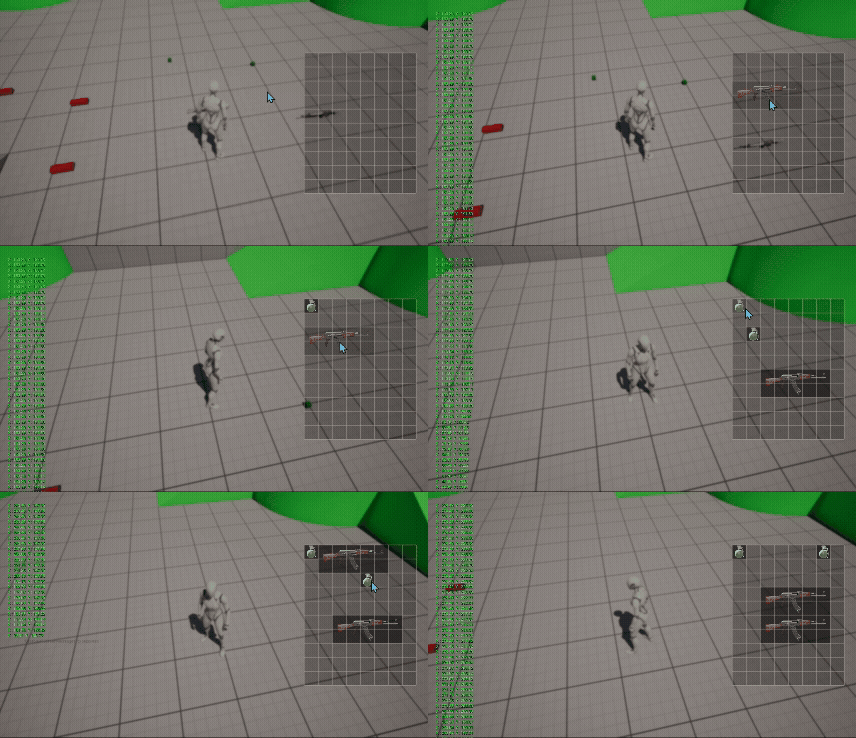
- 하지만 추가적으로 문제가 하나더 있다.
- 아이템을 겹쳐서 드랍하게 되면 해당 아이템이 원래자리로 돌아가게 하는게 아닌 사라지는 문제점이 있다.
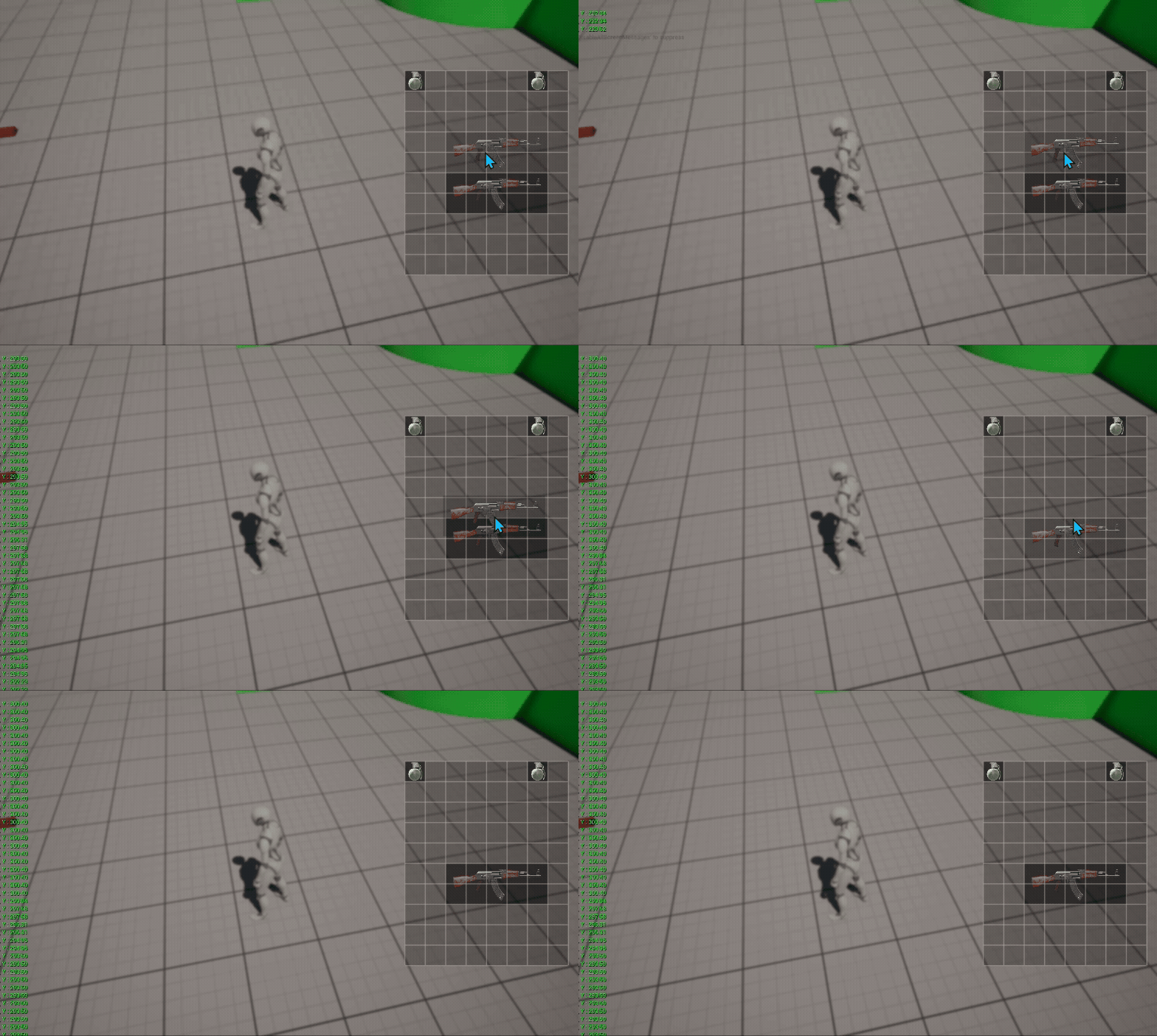
문제 해결 (아이템 겹칠 시 아이템이 사라지는 부분)
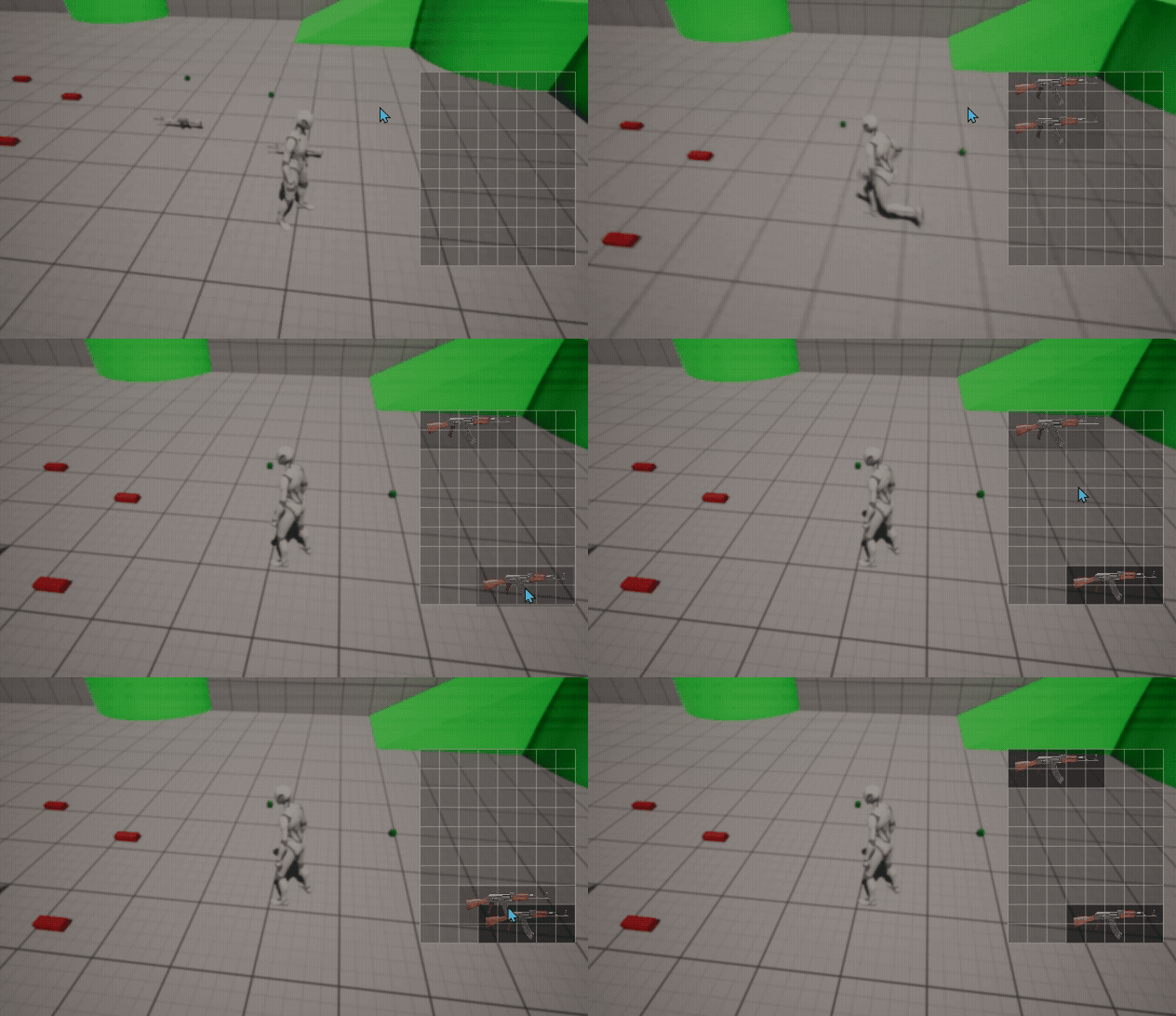
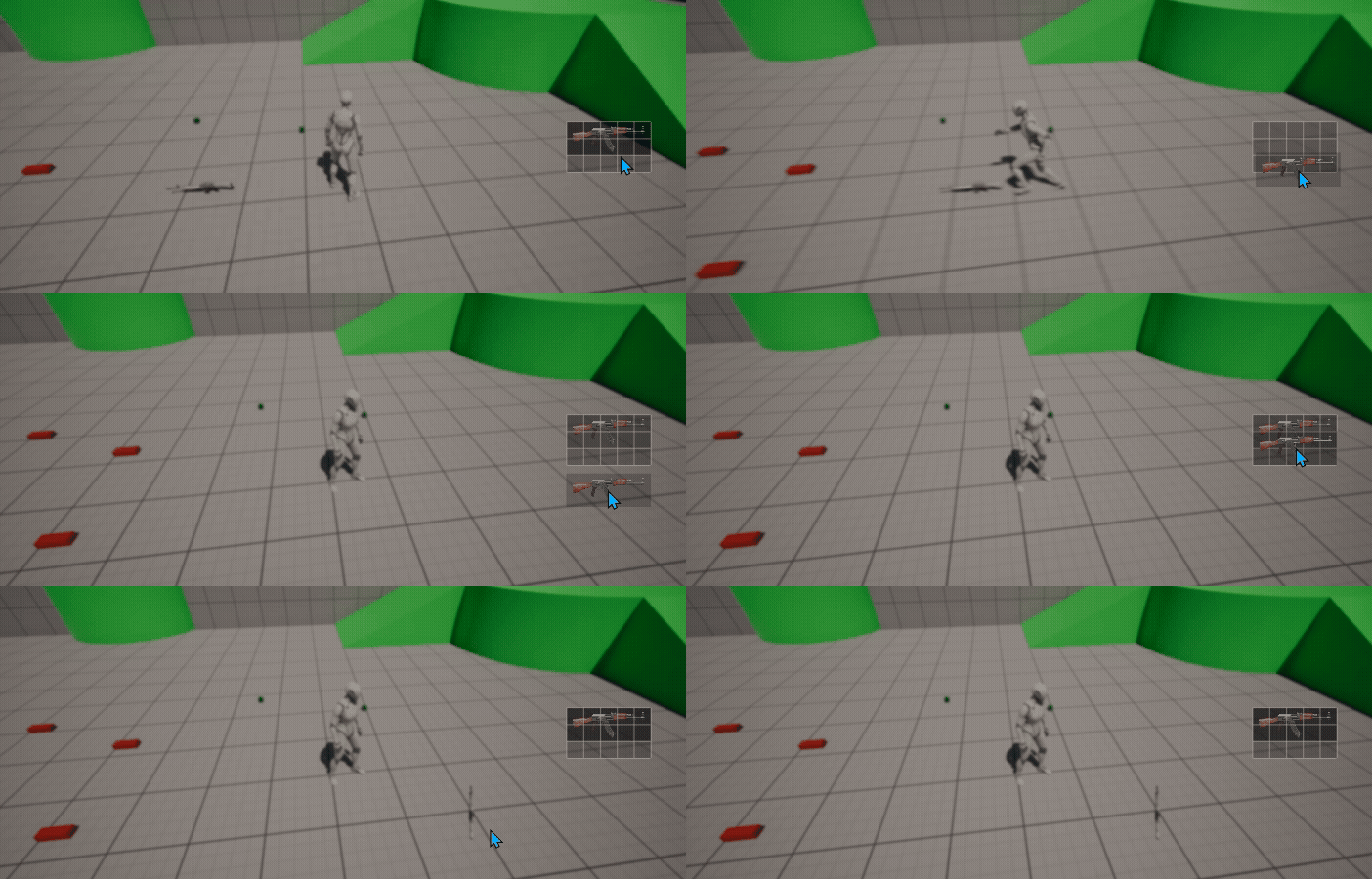
- 드랍이 불가능할때 새롭게 RefreshAll()을 해주고 인벤토리에 공간이 없다면 캐릭터 앞에 드랍하는 방식으로 코드 수정
bool UInventoryGridWidget::NativeOnDrop(const FGeometry& InGeometry, const FDragDropEvent& InDragDropEvent, UDragDropOperation* InOperation)
{
	// Operation에 저장된 값이 있다면const
	if (InOperation->Payload)
	{
		DroppedItem = Cast<AItemBase>(InOperation->Payload);

		// 아이템을 인벤토리 내에 드랍했을때 가능한지를 판별
		if (IsRoomAvailableForPayload(DroppedItem))
		{
			InventoryComponent->RefreshAllItem();

			InventoryComponent->AddItemAt(DroppedItem, InventoryComponent->TileToIndex(DraggedItemTopLeftTile));
		}
		else // 드랍이 불가능하면 원래 자리로 돌아가기 // 추가부분
		{
			InventoryComponent->RefreshAllItem();
			if (!InventoryComponent->TryAddItem(DroppedItem))
			{
				FVector spawnLocation = CharacterReference->GetActorLocation() + CharacterReference->GetActorForwardVector() * 200.f;
				FRotator spawnRotation = CharacterReference->GetActorRotation();

				FActorSpawnParameters spawnParams;
				spawnParams.SpawnCollisionHandlingOverride = ESpawnActorCollisionHandlingMethod::AdjustIfPossibleButAlwaysSpawn;

				AItemBase* spawnedItem = GetWorld()->SpawnActor<AItemBase>(InOperation->Payload->GetClass(), spawnLocation * FVector(1, 1, 0), spawnRotation, spawnParams);
			}
		}

		Dropped = true;
		return true;
	}

	return false;
}
결과
2. 아이템 Rotate 로직
ItemBase
- 먼저 아이템에서
RotatedIcon을 추가해주자 - 그리고
GetDimension()과GetIcon()울 수정하고,RoatateItem()추가하자
// ItemBase.h
public:
	void RotateItem();
protected:
	bool IsRotated = false;
// ItemBase.cpp
FIntPoint AItemBase::GetDimension() const
{
if (!IsRotated)
return Dimension;
else
return FIntPoint(Dimension.Y, Dimension.X);
}
UMaterialInterface* AItemBase::GetIcon()
{
if (IsRotated)
return RotatedIcon;
else
return Icon;
}
void AItemBase::RotateItem()
{
if (IsRotated)
IsRotated = false;
else
IsRotated = true;
}InventoryGridWidget
- 키다운이벤트 함수인
NativeOnPreviewKeyDown()과NativeOnDragEnter()함수 추가하기 NativeOnPreviewKeyDown(): 위젯이 키 입력을 받기 직전(preview)단계에서 R키를 잡아서 내부 코드를 실행해주는 함수NativeOnDragEnter(): 드래그 한 상태로 인벤토리로 들어와 있을때 호출해주는 함수
FReply UInventoryGridWidget::NativeOnPreviewKeyDown(const FGeometry& InGeometry, const FKeyEvent& InKeyEvent)
{
	// 위젯이 키보드 포커스를 받을 수 있도록 설정
    // 실제로 키 이벤트를 받으려면 "실제 포커스"도 잡혀 있어야 한다.
	bIsFocusable = true;

	// R키를 눌렀다면
	if (InKeyEvent.GetKey() == EKeys::R)
	{
    	// 드래그 중인 아이템이 있다면
		if (DraggedItem)
		{
        	// 아이템을 회전시켜주고
			DraggedItem->RotateItem();

			// 진행중인 드래그 오퍼레이션이 저장되었다면
			if (StorredDragOperation)
			{
            	// 시각적 프리뷰 위젯을 아이템위젯타입으로 캐스팅
				UItemWidget* visualDraggedItem = Cast<UItemWidget>(StorredDragOperation->DefaultDragVisual);

				if (visualDraggedItem)
				{
                	// 실제 데이터의 회전 변경을 프리뷰 위젯에도 반영
					visualDraggedItem->Refresh(DraggedItem);
				}
				return FReply::Handled();
			}
		}
	}

	return Super::NativeOnPreviewKeyDown(InGeometry, InKeyEvent);
}

void UInventoryGridWidget::NativeOnDragEnter(const FGeometry& InGeometry, const FDragDropEvent& InDragDropEvent, UDragDropOperation* InOperation)
{
	Super::NativeOnDragEnter(InGeometry, InDragDropEvent, InOperation);

	if (InOperation)
	{
		StorredDragOperation = InOperation;
	}
}
에디터
- 각 아이템의 RotateIcon을 만들어주고, 생성자에서 값 설정해주기
- MaterialInstance을 하나 복사해서 추가하고,
IconRoation값을 -0.25로 설정
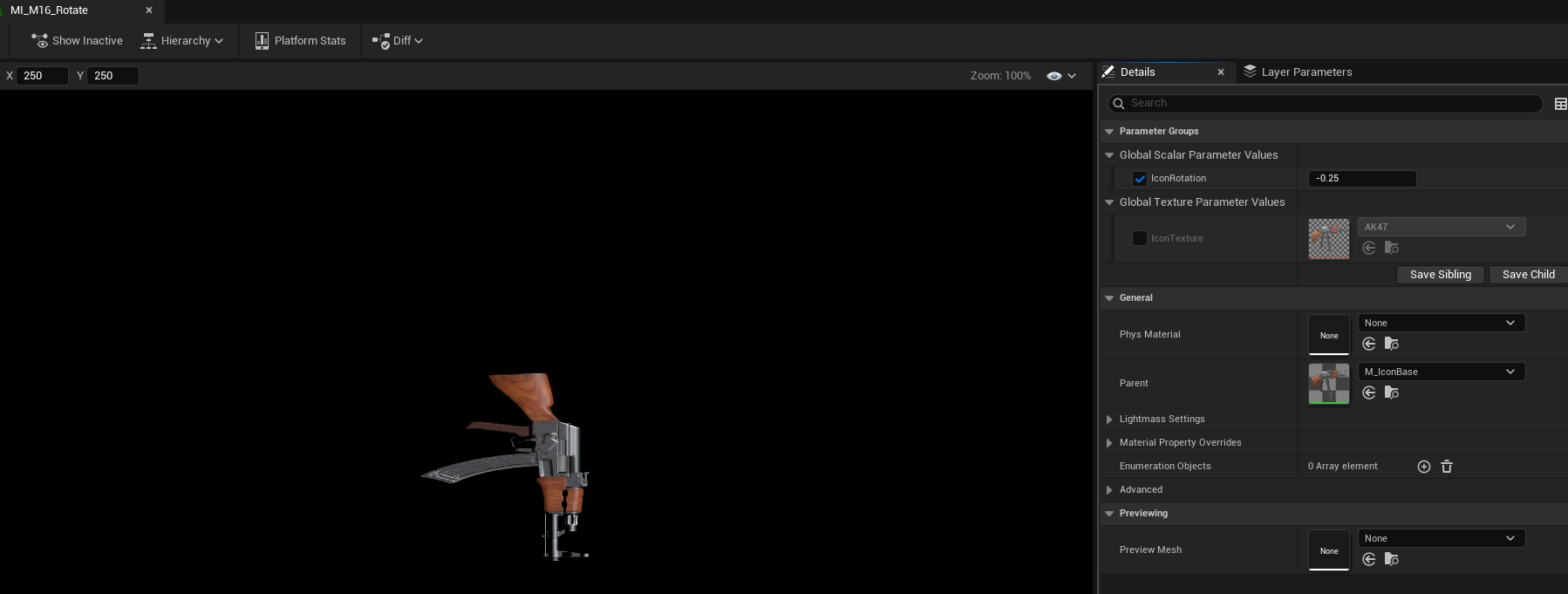
	static ConstructorHelpers::FObjectFinder<UMaterialInterface> rotateMaterialRef(TEXT("/Game/Project/Icon/MaterialIcons/MI_M16_Rotate"));
	if (rotateMaterialRef.Succeeded())
	{
		RotatedIcon = rotateMaterialRef.Object;
	}
결과
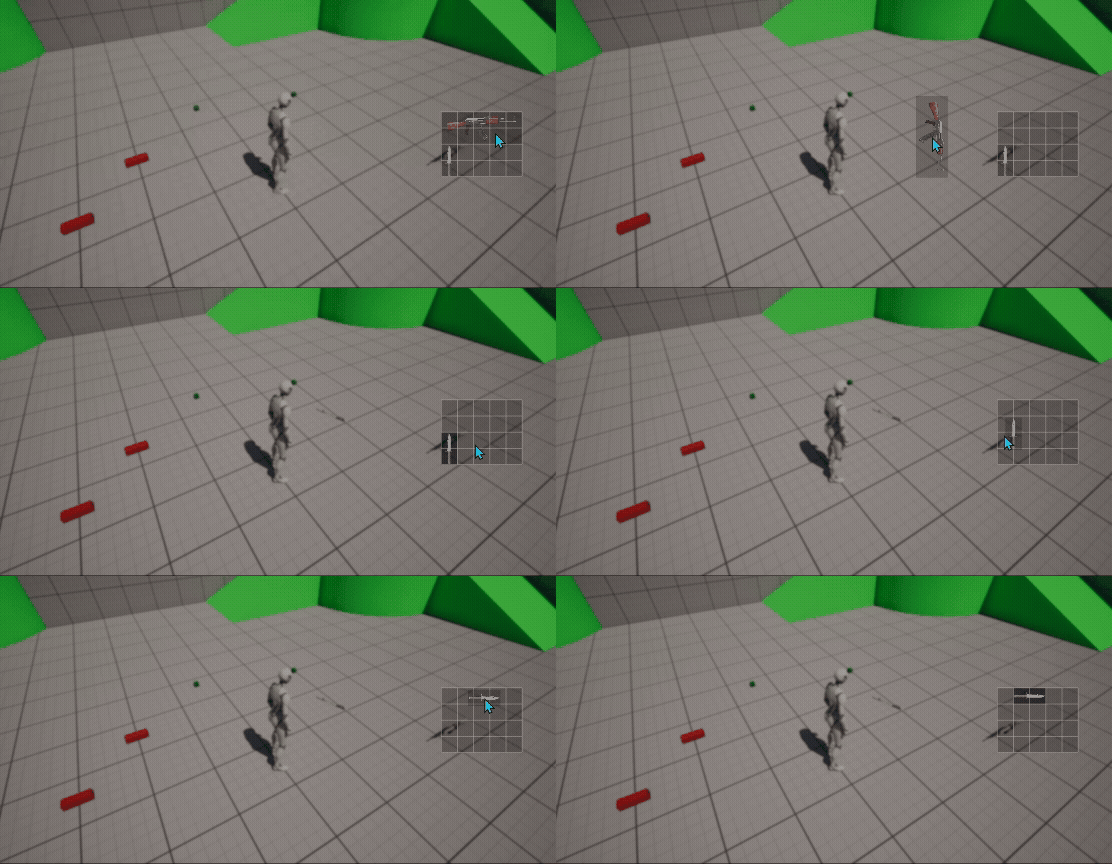
아이템 획득 시에도 회전 적용
- 아이템을 획득할때에도 회전을 적용하려면
InventoryComponent클래스에서TryAddItem()내부를 수정해야한다. - 처음 가능한지 탐색으로하고나서, 회전시키고 다시 탐색하는 방식으로 진행하면 된다.
bool UInventoryComponent::TryAddItem(AItemBase* ItemToAdd)
{
	if (ItemToAdd)
	{
		// 인벤토리 칸수 만큼 for문
		for (int32 i = 0; i < Items.Num(); i++)
		{
			if (IsRoomAvailable(ItemToAdd, i))
			{
				AddItemAt(ItemToAdd, i);
				return true;
			}
		}

		// 회전 후 다시 시도
		ItemToAdd->RotateItem();
		for (int32 i = 0; i < Items.Num(); i++)
		{
			if (IsRoomAvailable(ItemToAdd, i))
			{
				AddItemAt(ItemToAdd, i);
				return true;
			}
		}
		// 실패했다면 다시 원상복구
		ItemToAdd->RotateItem();
		return false;
	}
	return false;
}
결과
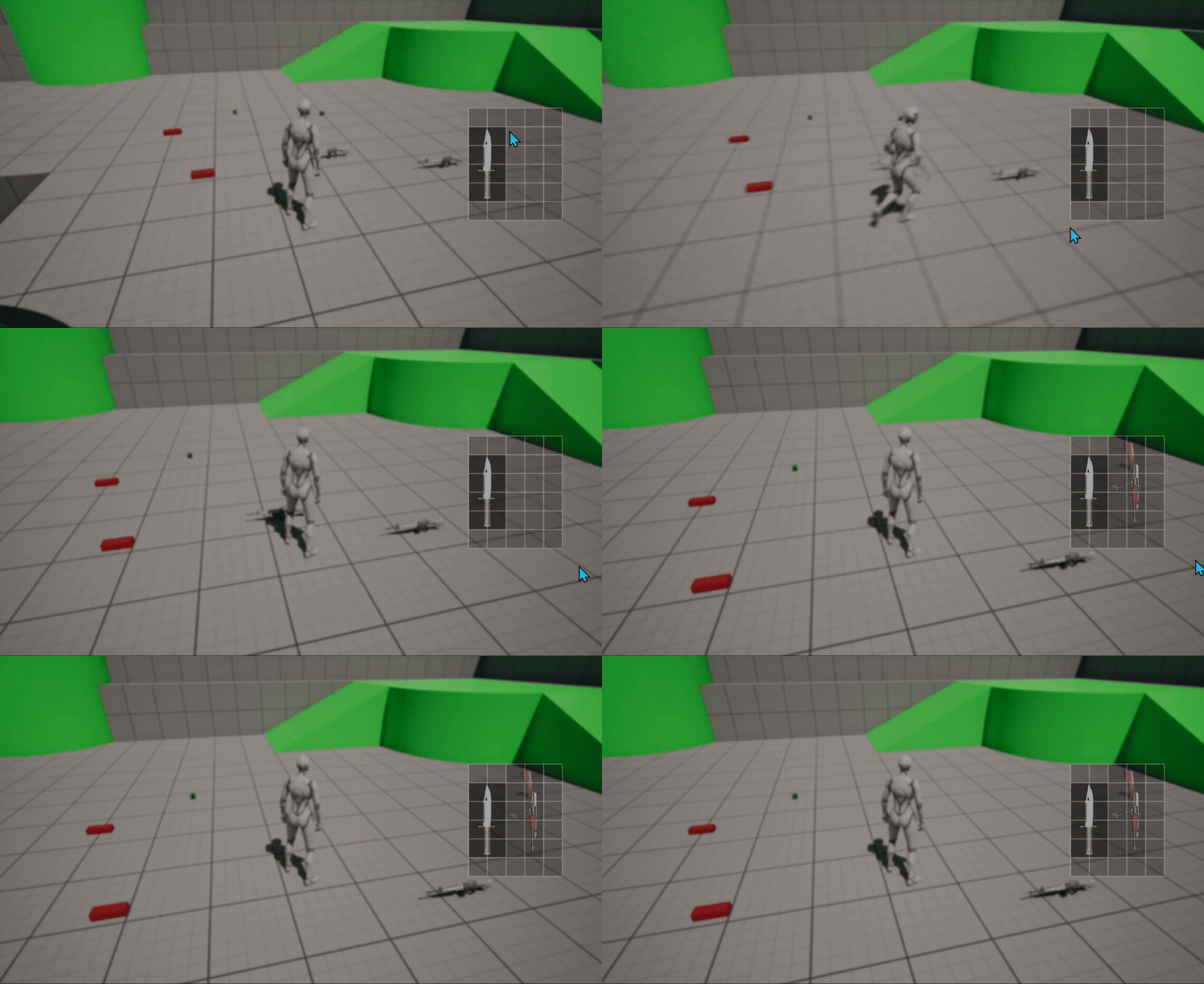
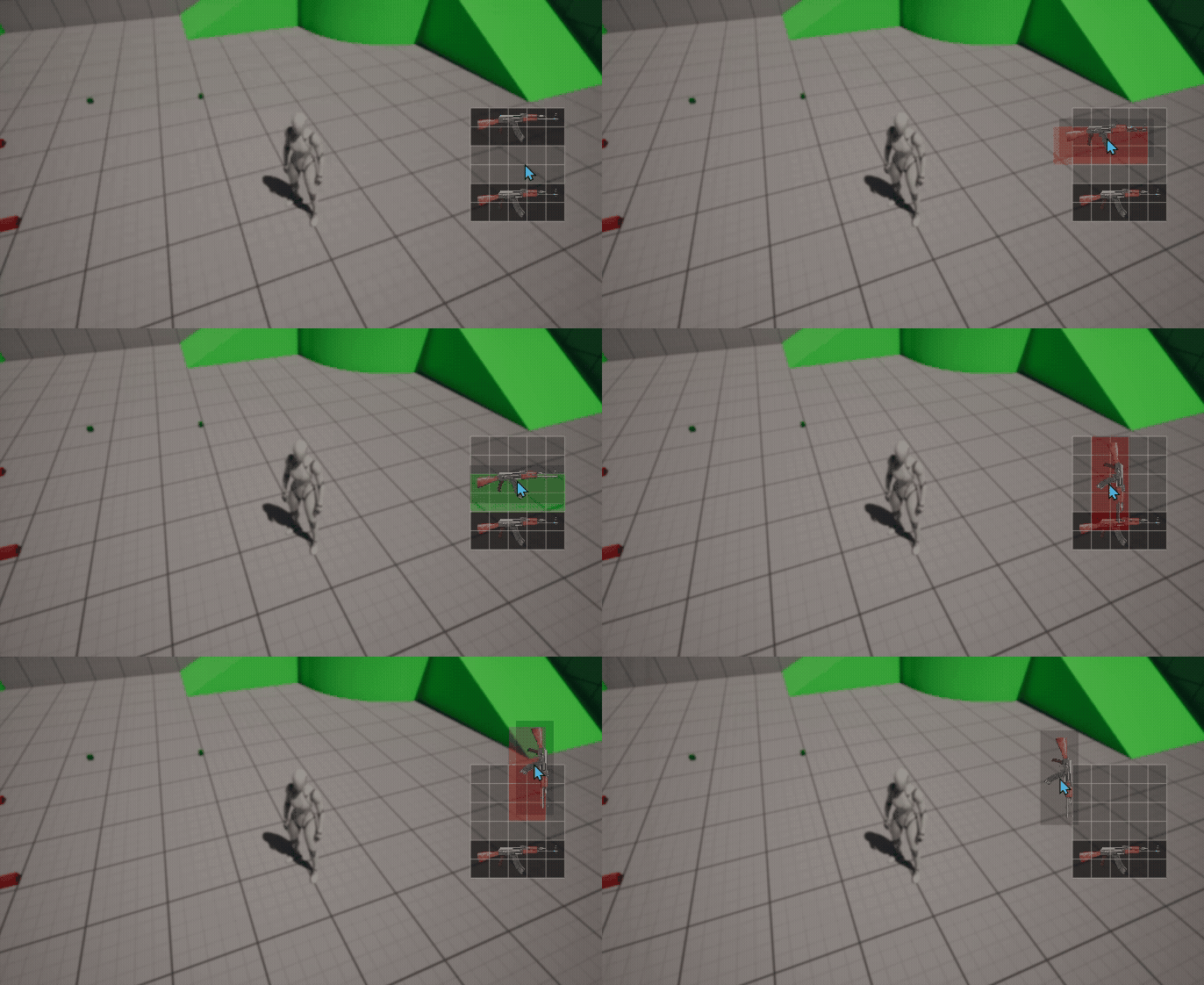
아이템 드래그할때 해당 칸 표시하기
- 드랍할 위치에 표시를 그릴지 말지를 판별해줄 bool값
DrawDropLocation추가하기 ->NativeOnDrop()에서는 false,NativeOnDragEnter()와NativeOnDragLeave()에서는 true값으로 설정 - 드래그 중 인벤토리를 벗어날때 호출되는 함수
NativeOnDragLeave()추가하기 - 다랍할 위치에 박스를 그려줄
DrawBackgroundBox()추가하기 NativePaint()에서DrawDropLocation이 true이면 드랍이 가능한 위치는 초록색, 불가능한 위치는 빨간색으로 표시하기
// InventoryGridWidget.h

protected:
	void NativeOnDragLeave(const FDragDropEvent& InDragDropEvent, UDragDropOperation* InOperation) override;

	void DrawBackgroundBox(AItemBase* Item, FLinearColor MyTintColor, const FGeometry& AllottedGeometry, FVector2D TopLeftCorner, FSlateWindowElementList& OutDrawElements, int32 LayedId) const;

protected:
	UObject* DraggedPayload;	// NativePaint에서는 Payload값을 가져올수 없기에, 따로 값을 받아둘 변수 추가해두기
	bool DrawDropLocation;
// InventoryGridWidget.cpp
int32 UInventoryGridWidget::NativePaint(const FPaintArgs& Args, const FGeometry& AllottedGeometry, const FSlateRect& MyCullingRect,
FSlateWindowElementList& OutDrawElements, int32 LayerId, const FWidgetStyle& InWidgetStyle, bool bParentEnabled) const
{
// ... 위 내용은 생략 (전과 동일)
if (DrawDropLocation)
{
AItemBase* item = Cast<AItemBase>(DraggedPayload);
if (IsRoomAvailableForPayload(item))
{
DrawBackgroundBox(item, FLinearColor(0.f, 1.f, 0.f, 0.25f), AllottedGeometry, topLeftCorner, OutDrawElements, LayerId);
}
else
{
DrawBackgroundBox(item, FLinearColor(1.f, 0.f, 0.f, 0.25f), AllottedGeometry, topLeftCorner, OutDrawElements, LayerId);
}
}
return int32();
}
bool UInventoryGridWidget::NativeOnDrop(const FGeometry& InGeometry, const FDragDropEvent& InDragDropEvent, UDragDropOperation* InOperation)
{
// Operation에 저장된 값이 있다면const
if (InOperation->Payload)
{
// 위 내용은 동일해서 생략
Dropped = true;
DrawDropLocation = false; // 추가
return true;
}
return false;
}
void UInventoryGridWidget::NativeOnDragLeave(const FDragDropEvent& InDragDropEvent, UDragDropOperation* InOperation)
{
Super::NativeOnDragLeave(InDragDropEvent, InOperation);
DrawDropLocation = true;
DraggedPayload = nullptr;
IsInInventory = false;
IsDragging = false;
}
void UInventoryGridWidget::DrawBackgroundBox(AItemBase* Item, FLinearColor MyTintColor, const FGeometry& AllottedGeometry,
FVector2D TopLeftCorner, FSlateWindowElementList& OutDrawElements, int32 LayedId) const
{
if (not IsInInventory)
return;
FSlateBrush boxBrush;
boxBrush.DrawAs = ESlateBrushDrawType::Box;
FVector2D boxSize(Item->GetDimension().X * InventoryComponent->TileSize, Item->GetDimension().Y * InventoryComponent->TileSize);
FIntPoint boxPositon(DraggedItemTopLeftTile.X * InventoryComponent->TileSize, DraggedItemTopLeftTile.Y * InventoryComponent->TileSize);
FPaintGeometry paintGeopetry = AllottedGeometry.ToPaintGeometry(boxSize, FSlateLayoutTransform(TopLeftCorner + boxPositon));
FSlateDrawElement::MakeBox(OutDrawElements, LayedId, paintGeopetry, &boxBrush, ESlateDrawEffect::None, MyTintColor);
}문제발생
- 아이템을 드래그 중에 인벤토리 밖으로 나가게 되면 크러쉬가 나는 문제점
- 결국 예외처리가 필요하다
- 첫번째는 인벤토리 안에 있는지 아닌지를 판단해야한다.
- 총 4개의 함수에서 처리를 해주자
bool UInventoryGridWidget::NativeOnDrop(const FGeometry& InGeometry, const FDragDropEvent& InDragDropEvent, UDragDropOperation* InOperation)
{
	if (InOperation->Payload)
	{
    	IsDragging = false;
	}
}

bool UInventoryGridWidget::NativeOnDragOver(const FGeometry& InGeometry, const FDragDropEvent& InDragDropEvent, UDragDropOperation* InOperation)
{
	IsDragging = (InOperation != nullptr);

    // 다른 코드들은 생략
}

void UInventoryGridWidget::NativeOnDragEnter(const FGeometry& InGeometry, const FDragDropEvent& InDragDropEvent, UDragDropOperation* InOperation)
{
	Super::NativeOnDragEnter(InGeometry, InDragDropEvent, InOperation);

    // 다른 코드들은 생략

	IsDragging = (InOperation != nullptr);
}

void UInventoryGridWidget::NativeOnDragLeave(const FDragDropEvent& InDragDropEvent, UDragDropOperation* InOperation)
{
	Super::NativeOnDragLeave(InDragDropEvent, InOperation);

    // 다른 코드들은 생략

	IsDragging = false;
}
결과
참고 영상

게임 클라이언트 프로그래머 준비중 (공부 및 기록용)