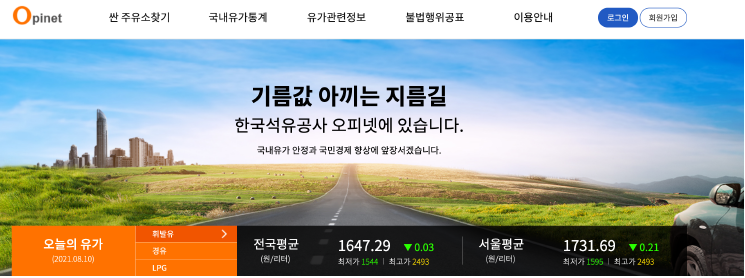
1.셀프 주유소가 일반 주유소보다 저렴한가
데이터 확보위한 작업
- 사이트 구조 확인
- 목표 데이터
- 브랜드
- 가격
- 셀프 주유 여부
- 위치
출처 : https://www.opinet.co.kr/searRgSelect.do
사이트 구조 확인 (주유 가격 알아보는 사이트)
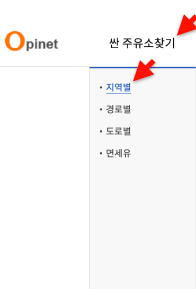
싼 주유소 찾기에서 지역별 선택
목표 데이터는 브랜드, 가격, 셀프 주유 여부와 위치
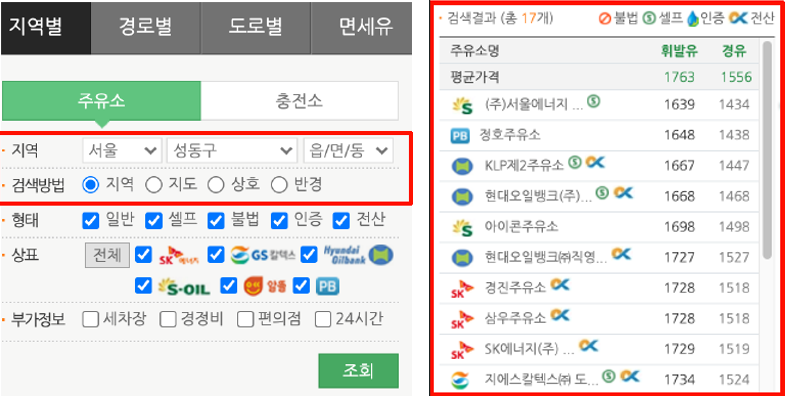
해당 사이트 특징 - Beautiful Soup으로 접근하기 쉽지않음
- 마우스를 클릭하여 지역 선택
- 지역을 선택해도 웹 주소가 변경되지 않음
- HTML 소스에서 원하는 정보 찾기 쉽지않음
2. Selenium으로 접근
from selenium import webdriver

url = "https://www.opinet.co.kr/searRgSelect.do"
driver=webdriver.Chrome()
driver.get(url)
데이터를 얻기 위해 바꿔야 하는 부분

id는 SIDO_NM0
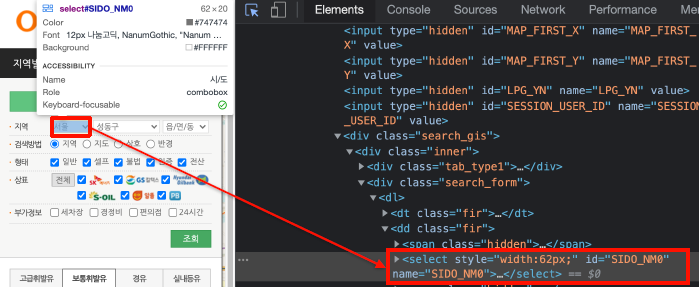
Option 값에서 지역 값 얻기
sido_list = sido_list_raw.find_elements_by_tag_name("option")
len(sido_list), sido_list[17].text
sido_list[1].get_attribute("value")
지역 리스트 뽑기
sido_names = [option.get_attribute("value") for option in sido_list]
sido_name.remove("")
sido_name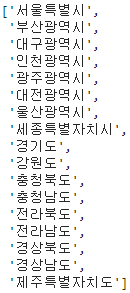
send key로 값 보내주기 - 테스트
sido_list_raw.send_keys(sido_names[0])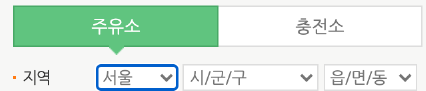
같은 방법으로 시/군/구 항목 적용
gu_list_raw = driver.find_element_by_id("SIGUNGU_NM0")
gu_list = gu_list_raw.find_elements_by_tag_name("option")

gu_names = [option.get_attribute("value") for option in gu_list]
gu_names = gu_names[1:]
gu_names[:5], len(gu_names)
send key로 값 보내주기 - 테스트
gu_list_raw.send_keys(gu_names[15])엑셀저장 태그 id 확인
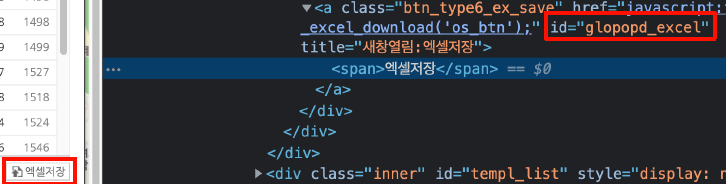
저장 후 내용 확인하고 다시 삭제
driver.find_element_by_css_selector("#glopopd_excel").click()반복문으로 모든 구의 데이터 엑셀로 저장 - 총 25개의 엑셀 확인
import time
from tqdm import tqdm_notebook

for gu in tqdm_notebook(gu_names):
    element = driver.find_element_by_id("SIGUNGU_NM0")
    element.send_keys(gu)
    time.sleep(3)

    element_get_excel = driver.find_element_by_id("glopopd_excel").click()
    time.sleep(3)
하나 열어서 내용 확인 (지역, 상호, 주소, 상표, 전화번호, 셀프여부, 종류)

다 확인 후 열려있는 driver 닫아주기
driver.close() 3. 데이터 정리하기
다운 받은 엑셀 목록 가져오기
import pandas as pd
from glob import glob

glob("../data/지역_*.xls")
파일명 저장
stations_files = glob("../data/지역_*.xls")
stations_files[:5]
받은 데이터 하나 읽기
tmp = pd.read_excel(stations_files[0], header=2)
tmp.tail(2)
Concat 사용해서 형식이 동일한 데이터 합치기
stations_raw = pd.concat(tmp_raw)
stations_raw.head()
데이터 기본 정보 확인
stations_raw.info()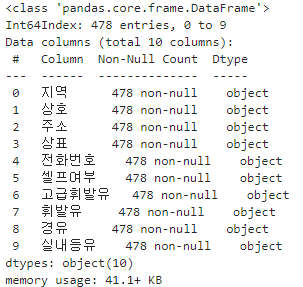
Columns 정보 확인
stations_raw.columns

원하는 정보로 데이터 다듬기
stations = pd.DataFrame({
    "상호": stations_raw["상호"],
    "주소": stations_raw["주소"],
    "가격": stations_raw["휘발유"],
    "셀프": stations_raw["셀프여부"],
    "상표": stations_raw["상표"]
})
stations.tail()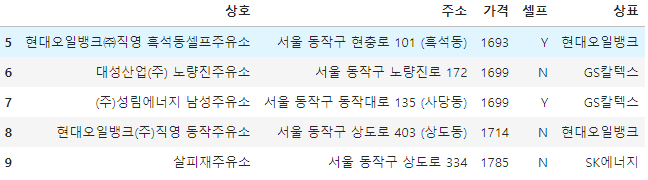
구 정보를 추가하기
stations["구"] = [eachAddress.split()[1] for eachAddress in stations["주소"]]
stations.head()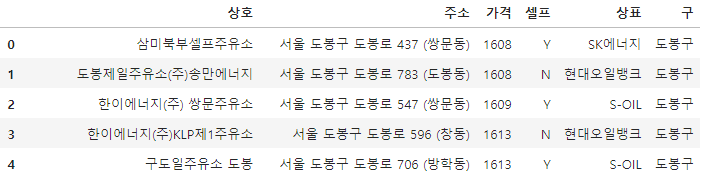
중복되지 않은 값과 갯수 확인
stations["구"].unique(), len(stations["구"].unique())
가격 데이터를 기존 object에서 float (수치적 연산 위해)
- 가격에 정보가 없는 ("-") 데이터 빼고 처리
	stations = stations[stations["가격"] != "-"]
	stations.tail()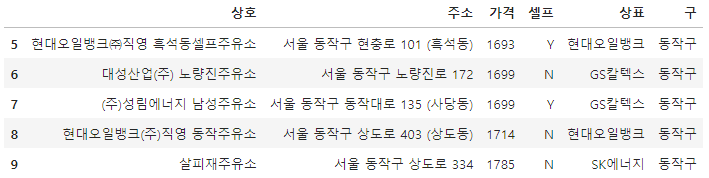
stations["가격"] = stations["가격"].astype("float")데이터 기본 정보 확인
stations.info()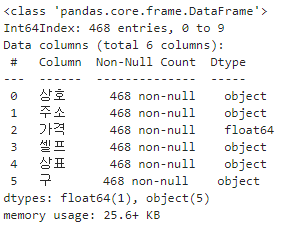
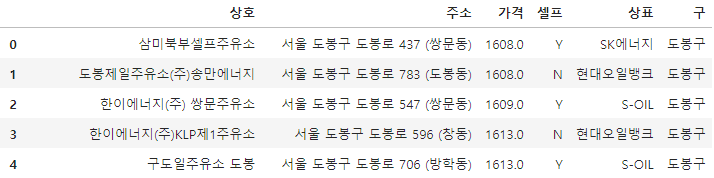
데이터 확인
stations.head()
인덱스 재정렬
stations.reset_index(inplace=True)
stations.tail()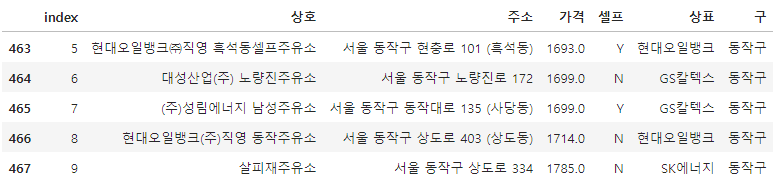
del stations["index"]
stations.head()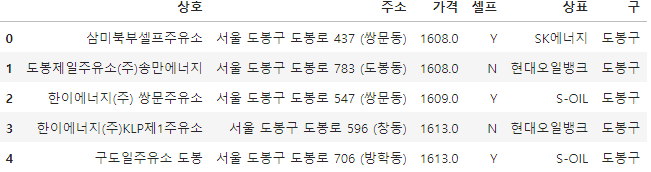
4. 주유 가격 정보 시각화
필요한 모듈 호출
import matplotlib.pyplot as plt
%matplotlib inline
import seaborn as sns
import platform
from matplotlib import font_manager, rc
rc("font", family="Malgun Gothic")
각 브랜드 별 셀프 주유 여부를 포함한 가격 분포
- Boxplot으로 표시 (x=셀프, y=가격, hue=셀프) using seaborn
plt.figure(figsize=(12, 8))
sns.boxplot(x="상표", y="가격", hue="셀프", data=stations, palette="Set3")
plt.grid(True)
plt.show()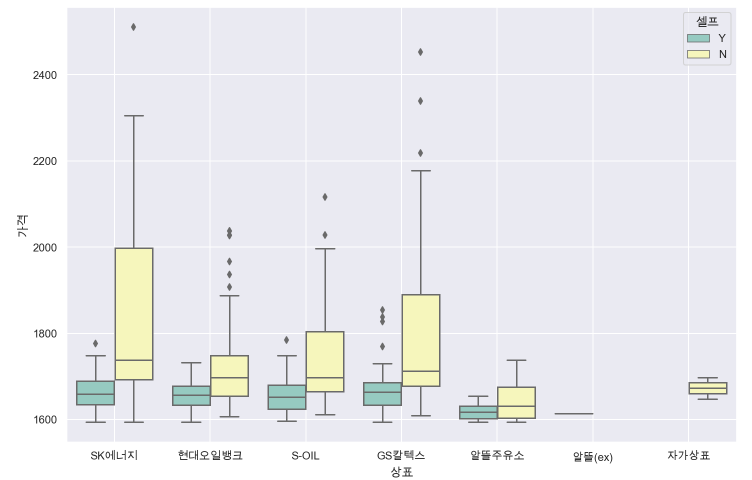
지도 시각화
필요 모듈 호출
import json
import folium
import warnings
warnings.simplefilter(action="ignore", category=FutureWarning)
가장 비싼 주유소 TOP 10
stations.sort_values(by="가격", ascending=False).head(10)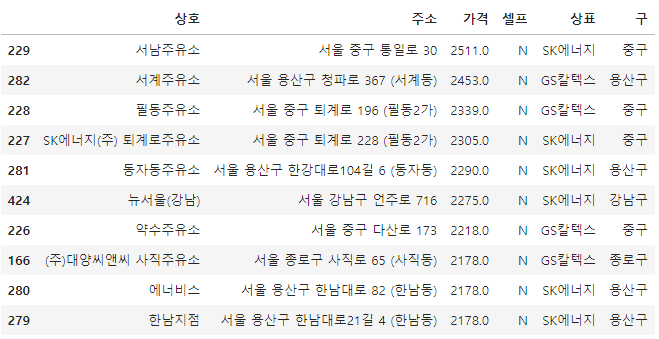
가장 싼 주유소 TOP 10
stations.sort_values(by="가격", ascending=True).head(10)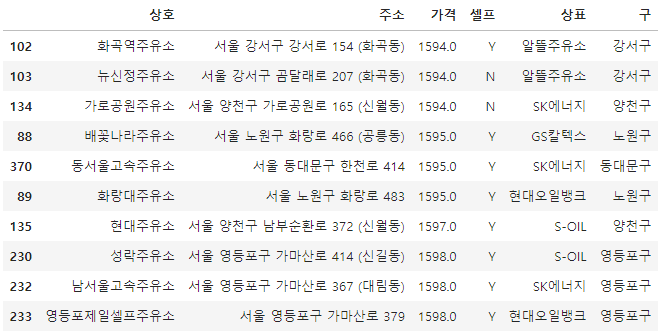
Pivot table 생성
import numpy as np

gu_data = pd.pivot_table(data=stations, index="구", values="가격", aggfunc=np.mean)
gu_data.head()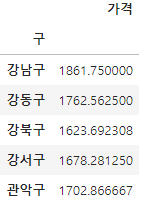
지도 위에 표시
geo_path = "../data/02. skorea_municipalities_geo_simple.json"
geo_str = json.load(open(geo_path, encoding="utf-8"))

my_map = folium.Map(location=[37.5502, 126.982], zoom_start=10.5)

folium.Choropleth(
    geo_data=geo_str,
    data=gu_data,
    columns=[gu_data.index, "가격"],
    key_on="feature.id",
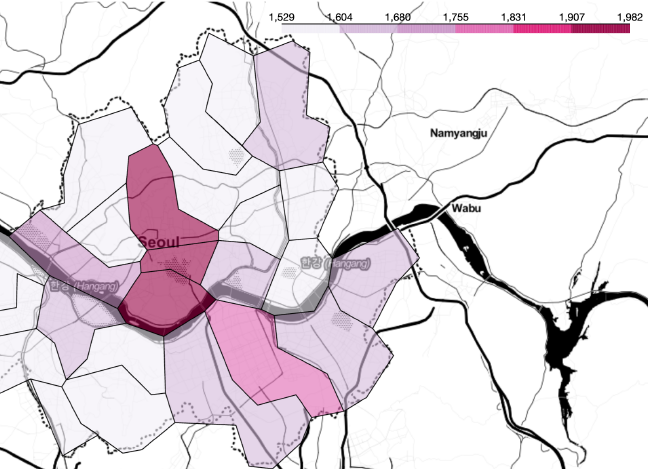
    fill_color="PuRd",).add_to(my_map)