개요
저번 포스팅에선 게임오버 타이머를 구현해 두어서 이번엔 게임 클리어 조건을 추가해 주겠습니다.
게임 클리어 조건
- 제한시간 안에 플레이어는 맵에 존재하는 열쇠를 다먹어야 한다.
- 게임 난이도에 따라 열쇠의 개수가 증가한다.
- 플레이어의 체력이 다하면 게임실패
난이도에 따라 전부먹어야 하는 열쇠 개수
- Easy - 3개
- Normal - 5개
- Hard - 8개
GameDifficulty.cs
우선 난이도에 따라 열쇠 개수가 달라지기 때문에 게임 난이도 먼저 구현해 주겠습니다.
public enum Difficulty
    {
        Easy,
        Normal,
        Hard
    }
먼저 가장 기본인 난이도를 선택해야 되기에 선택지 목록을 만드는 자료형인 enum을 이용해 Easy, Normal, Hard를 선언해 주었습니다.
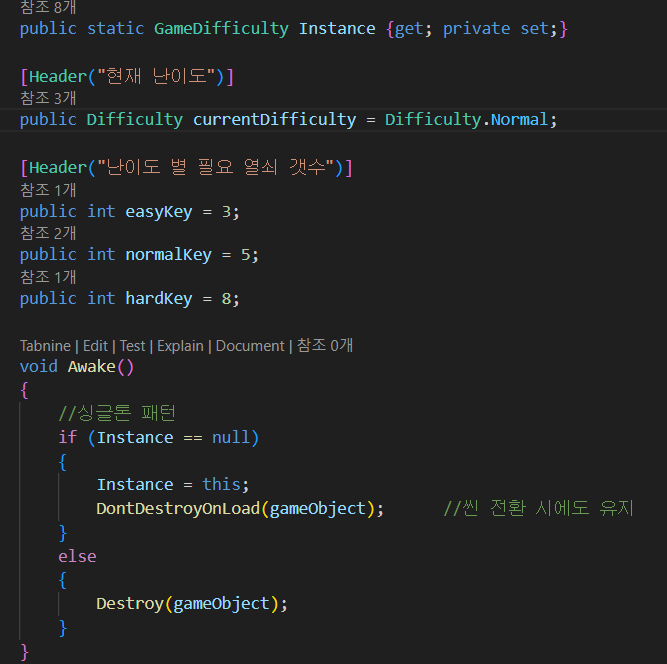
게임 전체에서 하나만 존재하는 객체를 만들기 위해 싱글톤 인스턴스를 사용했습니다.
또한 기본 난이도는 Normal 난이도로 설정해 두었고
 void Awake()
    {
        //싱글톤 패턴
        if (Instance == null)
        {
            Instance = this;
            DontDestroyOnLoad(gameObject);      //씬 전환 시에도 유지
        }
        else
        {
            Destroy(gameObject);
        }
    }
Awake는 씬이 로드 될때 실행되는데 void Start( ) 보다 더 빨리 실행됩니다.
또한 DontDestroyOnLoad(gameObject); 사용한 이유는 씬이 바뀌어도 난이도 설정을 유지하기 위해 사용하였습니다.
public void SetDifficulty(Difficulty difficulty)
    {
        currentDifficulty = difficulty;
        Debug.Log($"난이도 설정 : {difficulty}");
    }

    //현재 난이도에 필요한 열쇠 개수 가져오기
    public int GetRequiredKey()
    {
        switch(currentDifficulty)
        {
            case Difficulty.Easy:
                return easyKey;
            case Difficulty.Normal:
                return normalKey;
            case Difficulty.Hard:
                return hardKey;
            default:
                return normalKey;
        }
    }

    //현재 난이도 가져오기
    public Difficulty GetCurrentDifficulty()
    {
        return currentDifficulty;
    }
publi void SetDifficulty 메서드는 UI 버튼으로 난이도를 변경할 수 있게 하기 위함으로 사용하였고 주석에 달아 놓은 것 처럼 Switch문으로 난이도에 따른 열쇠 개수를 반환해 주었습니다.
KeyItem.cs
	[Header("난이도 설정")]
    public Difficulty requireDifficulty = Difficulty.Easy;
    //열쇠가 활성화 되는 최소 난이도

    [Header("회전 애니메이션")]
    public bool rotateKey = true;
    public float rotationSpeed = 50f;
    private bool isCollected = false;

    void Start()
    {
        //현재 난이도에 따라 열쇠 활성/비활성
        CheckDifficultyActive();
    }

    //Key 아이템을 회전
    void Update()
    {
        if(rotateKey && !isCollected)
        {
            transform.Rotate(Vector3.right, rotationSpeed * Time.deltaTime);
        }
    }
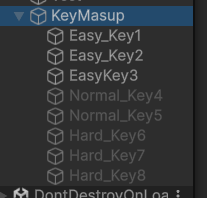
난이도에 따라 활성/비활성화를 하기 때문에 KeyItem은 총 8개 만들어 두었습니다.
Easy 모드라면 3개만 활성화 되고 남은 5개는 비활성화 되는 방식입니다.
- Easy 모드로 게임실행한 Key의 활성/비활성화 된 모습
void CheckDifficultyActive()
    {
        if(GameDifficulty.Instance == null)
        {
            Debug.LogWarning($"GameDifficulty 인스턴스가 없습니다!");
            return;
        }
        Difficulty currentDifficulty = GameDifficulty.Instance.GetCurrentDifficulty();

        bool shouldActive = false;

        switch(requireDifficulty)
        {
            case Difficulty.Easy:       //난이도가 쉬움일 경우 항상 활성화
                shouldActive = true;
                break;
            case Difficulty.Normal:
                shouldActive = (currentDifficulty == Difficulty.Normal || currentDifficulty == Difficulty.Hard);
                break;
            case Difficulty.Hard:
                shouldActive = (currentDifficulty == Difficulty.Hard);
                break;
        }
        gameObject.SetActive(shouldActive);
    }

    void OnTriggerEnter(Collider other)		//플레이어와 충돌감지
    {
        if (isCollected) return;

        if(other.CompareTag("Player"))
        {
            CollectKey();				//만약 충돌했다면 CollectKey 메서드 호출
        }
    }

    void CollectKey()		//열쇠 수집 메서드
    {
        isCollected = true;

        if(KeyManager.Instance != null)
        {
            KeyManager.Instance.CollectKey();
        }
        Destroy(gameObject);
    }
void CheckDifficultyActive( )
GameDifficulty.cs 에서 현재 게임 난이도를 받아와서 해당 난이도에 따라 열쇠를 활성화 합니다.
활성화 여부는 기본으로 False를 해주었습니다.
void OnTriggerEnter( )
예전 블로그에서도 작성했던 충돌이벤트 관련 메서드 입니다.
그당시 블로그에선 플레이어가 키를 충돌했을 때 구현했는데 이번엔 반대로
키 스크립트에서 플레이어가 충돌할때로 적용했습니다.
충돌을 한다면 void CollectKey( ) 메서드를 호출하고 해당 오브젝트인 열쇠 아이템을 삭제합니다.
void CollectKey( )
열쇠 수집 메서드로 부딫쳐 호출된다면 열쇠아이템의 개수를 관리하는 KeyManager.cs 에게 정보를 넘겨 열쇠수를 증가시킵니다.
KeyItem.cs 전체 흐름
- 씬 시작 → 난이도 확인
- 조건에 맞으면 열쇠 활성화
- 플레이어가 닿으면 수집
- KeyManager로 개수 전달
- 열쇠 삭제
KeyManager.cs
구조 자체를 난이도 -> 열쇠 -> 키메니저 -> 게임클리어 순서로 개발하였습니다. KeyManager를 통해 게임클리어시 게임클리어 패널도 구현해 두었습니다.
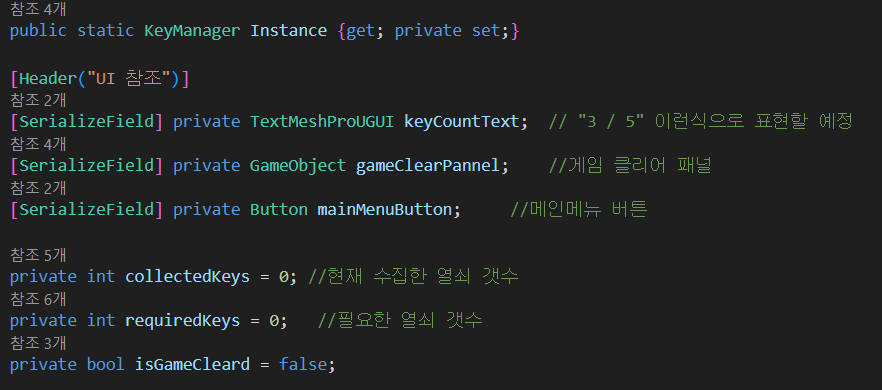
KeyManager도 마찬가지로 어디서나 접근할 수있게 싱글톤으로 선언해 주었습니다.
 void Awake()
    {
        //싱글톤 패턴
        if(Instance == null)
        {
            Instance = this;
        }
        else
        {
            Destroy(gameObject);
        }
    }
싱글톤 보장을 위해 Awake 코드도 작성해 주었습니다.
void Start()
    {
        //현재 필요한 열쇠 갯수를 난이도에 따라 가져오기
        if(GameDifficulty.Instance != null)
        {
            requiredKeys = GameDifficulty.Instance.GetRequiredKey();
        }
        else
        {
            //Debug.LogWarning("GameDifficulty가 없습니다. 기본값 5개로 설정합니다.");
            requiredKeys = 5;
        }

        //게임클리어 패널 숨기기
        if(gameClearPannel != null)
        {
            gameClearPannel.SetActive(false);
        }

        if(mainMenuButton != null)
        {
            mainMenuButton.onClick.AddListener(GoToMainMenu);
        }
        UpdateKeyUI();
    }
Start 메서드를 이용해 GameDifficulty에서 난이도에 따른 필요한 열쇠 개수를 받아와줍니다.
그리고 위에서 설명드린 것 처럼 KeyManager에서 게임 클리어 패널도 추가해 주었기때문에 클리어하기 전까지 패널도 숨겨주었습니다.
public void CollectKey()
    {
        if (isGameCleard) return;

        collectedKeys++;
        UpdateKeyUI();

        Debug.Log($"열쇠 수집! {collectedKeys} / {requiredKeys}");

        if (collectedKeys >= requiredKeys)
        {
            GameClear();
        }
    }

    void UpdateKeyUI()
    {
        if(keyCountText != null)
        {
            keyCountText.text = $"{collectedKeys} / {requiredKeys}";
        }
    }
Public void CollectKey( )
외부 KeyItem에서 CollectKey 메서드를 호출해 주어 열쇠수는 증가하고 업데이트된 정보를 UI에 표시해 줍니다.
UpdateKeyUI( )
KeyCountText 변수를 유니티 UI에 추가해 주어
현재먹은 열쇠 개수와 먹어야 하는 열쇠 개수를 표시해 주었습니다.
void GameClear()
    {
        isGameCleard = true;
        //Debug.Log("게임클리어!");

        //타이머 정지
        if (GameTimer.Instance != null)
        {
            GameTimer.Instance.StopTimer();
        }
        Time.timeScale = 0f;
        Cursor.lockState = CursorLockMode.None;
        Cursor.visible = true;

        if(gameClearPannel != null)
        {
            gameClearPannel.SetActive(true);
        }
    }

    void GoToMainMenu()
    {
        Time.timeScale = 1f;
        Cursor.lockState = CursorLockMode.None;
        Cursor.visible = true;

        SceneManager.LoadScene("MainMenu");
    }
GameClear( ), GoToMainMenu( )
게임을 클리어 하고 난 뒤 메인메뉴로 갈 수 있게 구현해둔 메서드 입니다. 게임클리어 같은 경우 시간안에 난이도에 따른 열쇠를 다 먹게 되면 게임은 클리어 되고 타이머는 정지하게 됩니다. 또한 게임클리어 패널이 나오게 됩니다
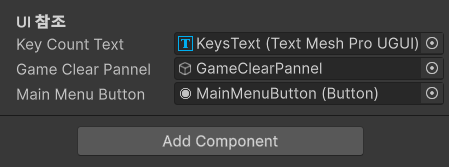
최종적으로 해당 오브젝트들을 연결해 주었습니다.
이후 게임 클리어 패널이 나오게 되면 메인메뉴로 돌아갈 수 있게 버튼을 구현해 두었습니다.
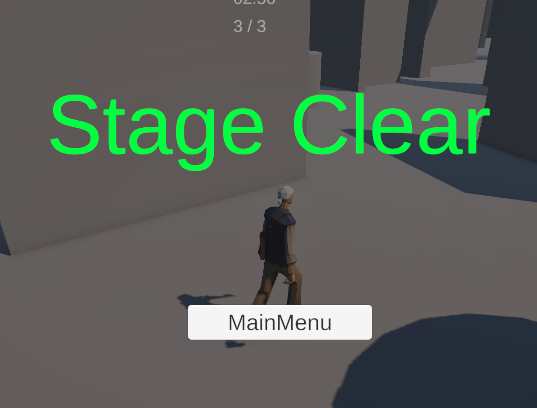
(엄청 허접하네요,,)
해당 내용 커밋사항 URL 주소 :
https://github.com/Junamgyu/PAT_Project/commit/c63fcd4ba18ec5fa534a46efc958ed2f93d9cb53