UE4 - Creating an ARPG #4 - Equip and Sheath Sword
Today's Lesson: Equip and Sheath Sword
Summary
Add a sword that we can Draw and Sheath using an input button.
We also blend the equip animation with all of the lower body movement animations.
✅ Assets
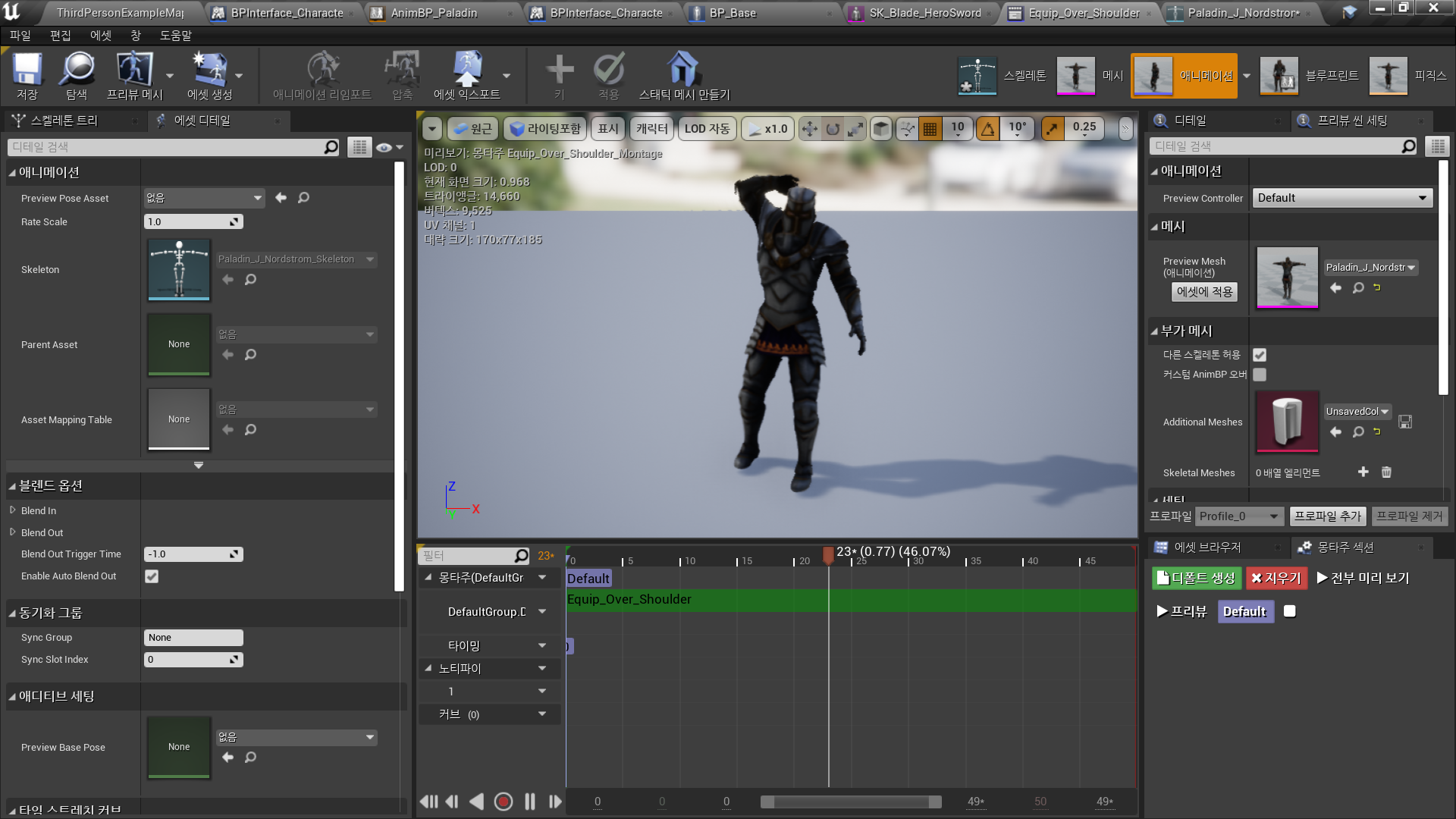
◼️ Animation - Equip Sword
In Folder <Combat>
- Import Animation: Equip_Over_Shoulder
→ Create Anim Montage
◼️ Sword Asset
In Folder <Weapons>
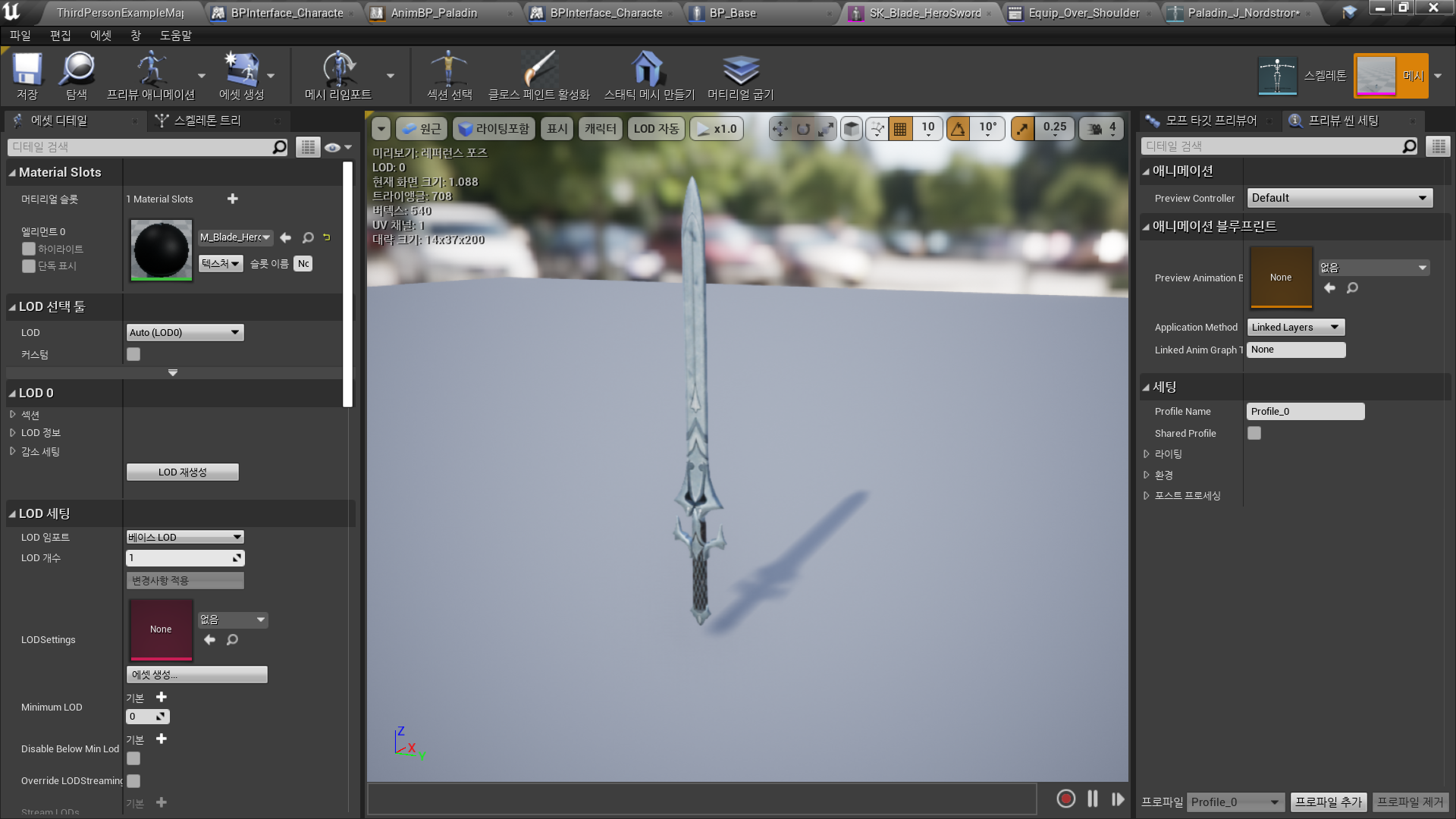
- 기존 Sword Asset 복제
- SK_Blade_HeroSword11 → SwordOfNobles
◼️ Sword BP
- Add Component: Skeletal Mesh
- Mesh - Skeletal Mesh: SwordOfNobles
✅ Project Settings
◼️ Draw Weapon 입력
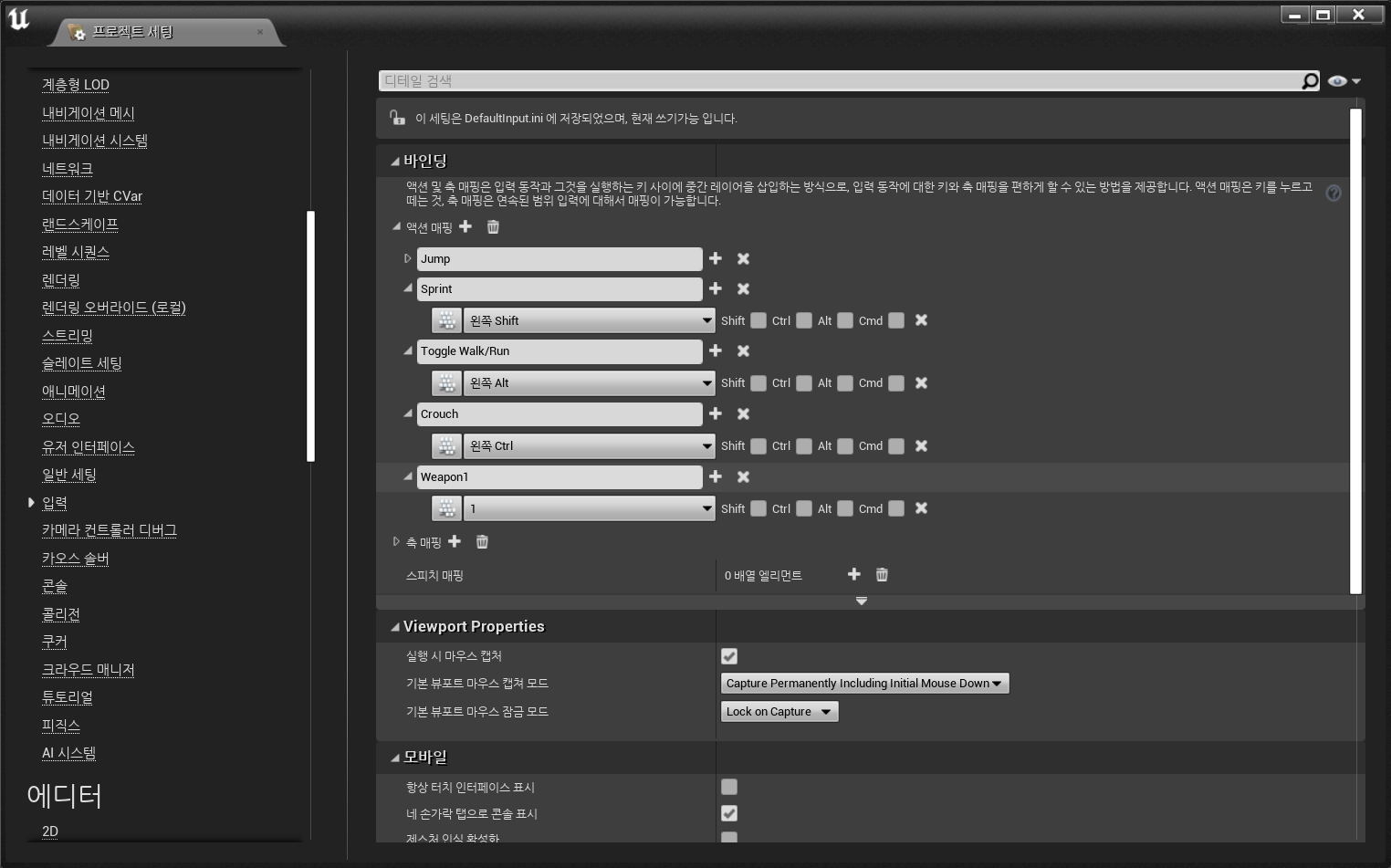
In Project Settings - Inputs
- Add Action Mapping
- Name: Draw Weapon
- Key: 1
✅ Socket
◼️ Weapon Socket 추가
In Character Skeleton
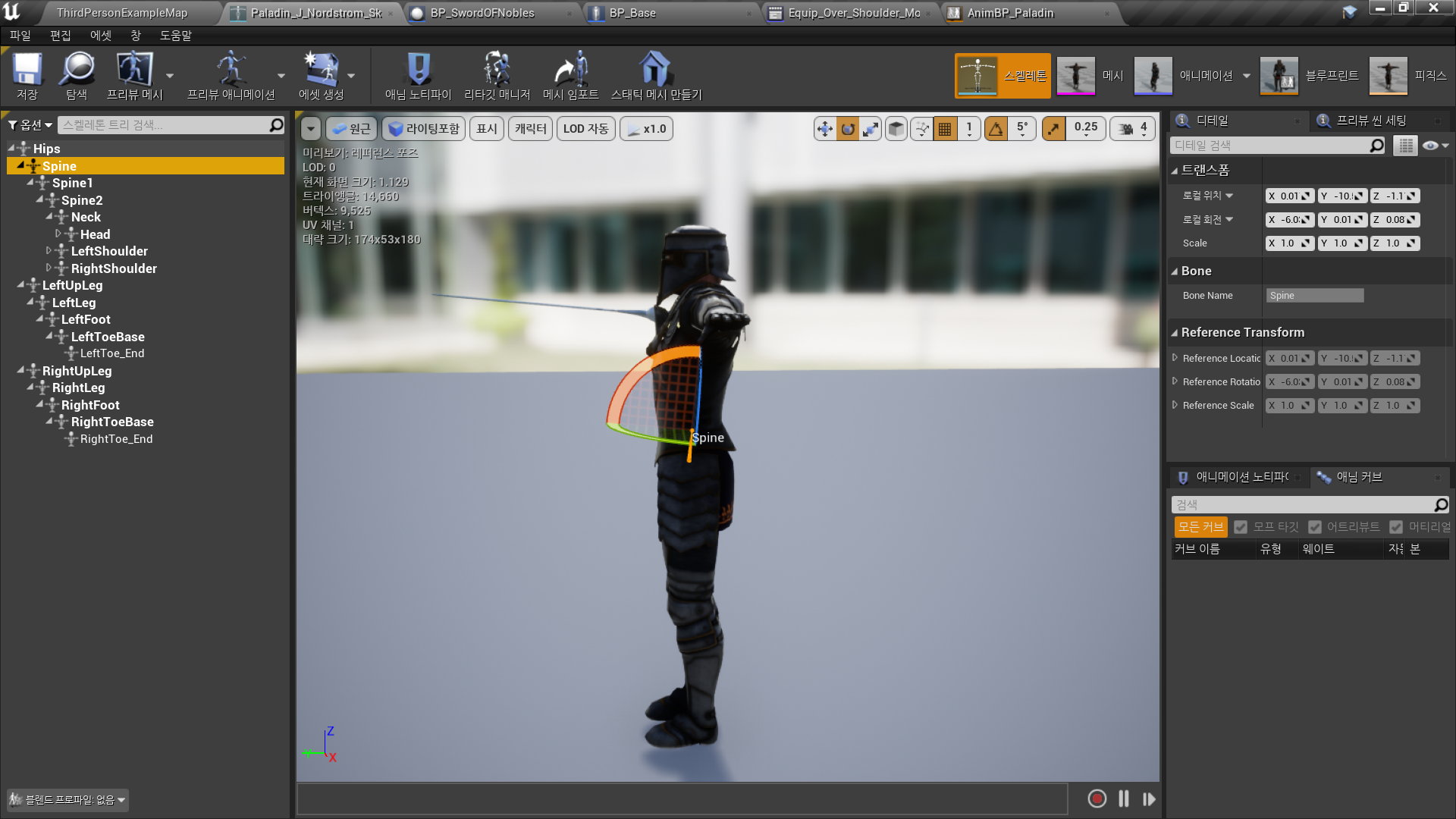
- Left Shoulder → WeaponSheath1
- Right Hand → RightHandWeapon
Preview Asset을 이용하여 각 Socket의 Transform, Rotation, Scale 조정
◼️ Weapon의 부모 Component 추가
In Character BP <BP_Base>
- Add Component: Mesh → Scene <WeaponSheath1>
- Parent Socket: WeaponSheath1 - Add Component: <WeaponSheath1> → Skeletal Mesh <SwordOfNobles>
- Add Component: Mesh → Scene <WeaponInHand>
- Parent Socket: RightHandWeapon - Add Component: <WeaponInHand> → Skeletal Mesh <SwordOfNobles>
✅ Equip and Sheath Logic
◼️ Combat Graph
In Character BP <BP_Base>
Add New Graph: Combat Graph
- New Variable: WeaponDrawn
- Type: Boolean
- Default: False - New Node: Input Action Draw Weapon
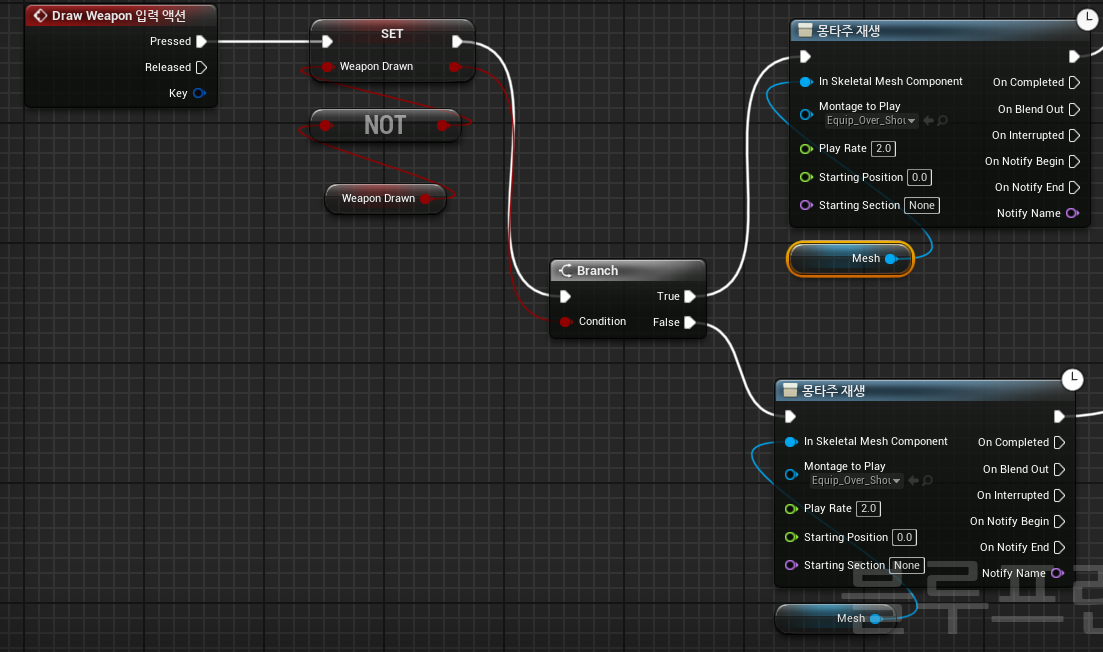
Draw Weapon 입력 시 WeaponDrawn 값 반전 - Branch(WeaponDrawn)
◼️ Draw Weapon Logic
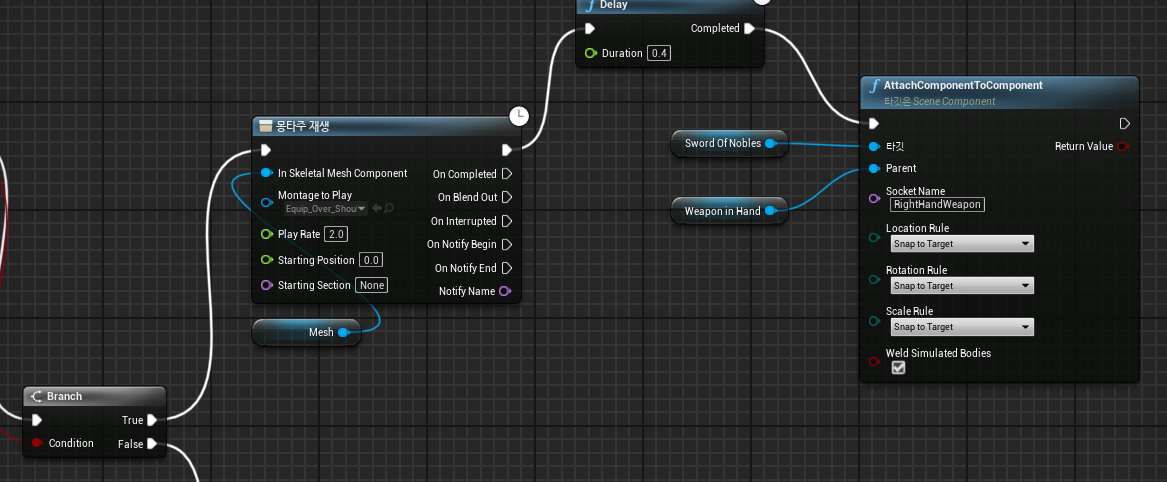
- Branch(WeaponDrawn) == True → Play Montage
- Anim Montage: Equip_Over_Shoulder
상반신/하반신 따로 애니메이션 플레이를 하기 위해 사용
e.g. Walking Anim With Equipping Sword Anim - Delay
- Duration: 0.8
손이 칼에 닿는 타이밍에 Sword Component의 어태치를 바꾸기 위함 - Attach Component to Component
- Target: SwordOfNobles Component
- Parent: WeaponInHand Component
Parent로 Mesh Component도 가능
- Socket Name: RightHandWeapon
- Location/Rotation/Scale Rule: Snap to Target
이 옵션을 선택하면, 무기가 Socket의 로컬 좌표에 맞춰 부착됩니다. 무기는 Socket의 위치와 회전값에 정확하게 맞춰지며, 애니메이션이나 캐릭터의 이동에 따라 무기도 그에 맞춰 자연스럽게 함께 움직입니다.
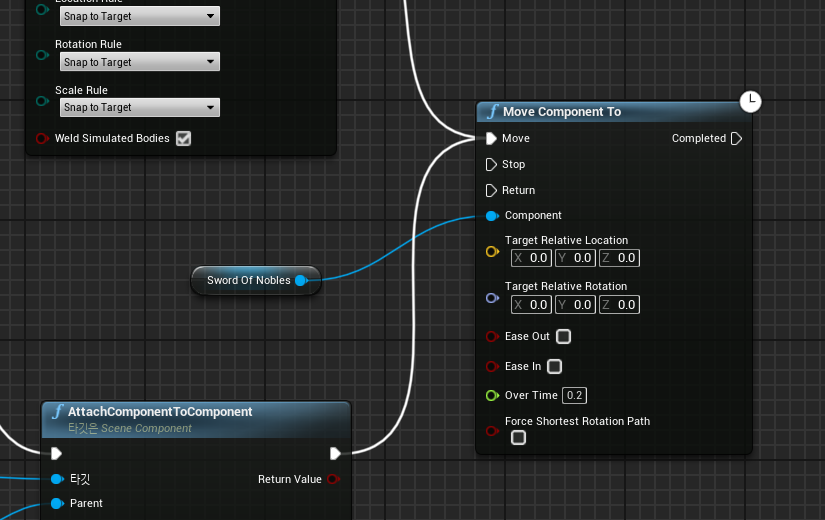
- MoveComponentTo(보간)
부착된 무기가 시간에 걸쳐 특정 위치로 이동하도록 만들기 위함
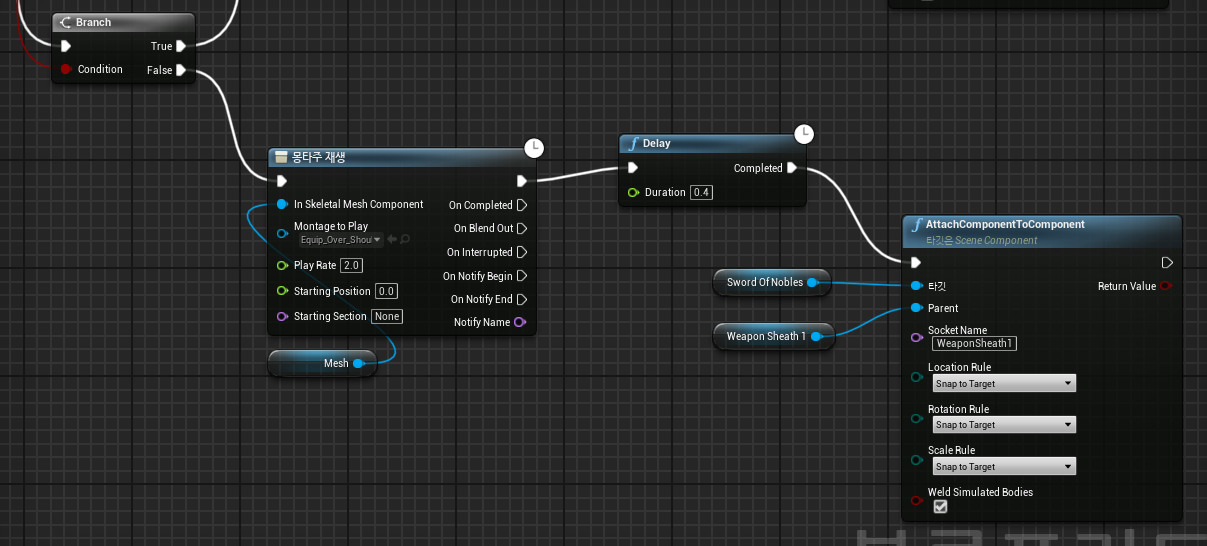
◼️ Sheath Weapon Logic
- Branch(WeaponDrawn) == False
- WeaponInHand Comp → WeaponSheath1 Comp
- Socket Name: RightHandWeapon → WeaponSheath1
◼️ Animation Speed 2배
- Play Anim Montage - In Play Rate: 1.0 → 2.0
- Delay - Duration: 0.8 → 0.4
Play Montage, Play Anim Montage 비교
핵심 차이점
- Play Montage는 Skeletal Mesh Component에 직접 애니메이션을 재생
- Play Anim Montage는 Character의 AnimInstance에 의해 애니메이션 몽타주를 재생
요약- Play Montage는 더 단순한 방식으로, 특정 Skeletal Mesh에 애니메이션 몽타주를 재생하고, 캐릭터 관련 상태나 애니메이션 시스템에 의존하지 않습니다.
- Play Anim Montage는 캐릭터의 AnimInstance를 통해 애니메이션을 관리하고, 캐릭터의 상태와 관련된 추가적인 처리가 필요할 때 사용됩니다.
✅ Animation
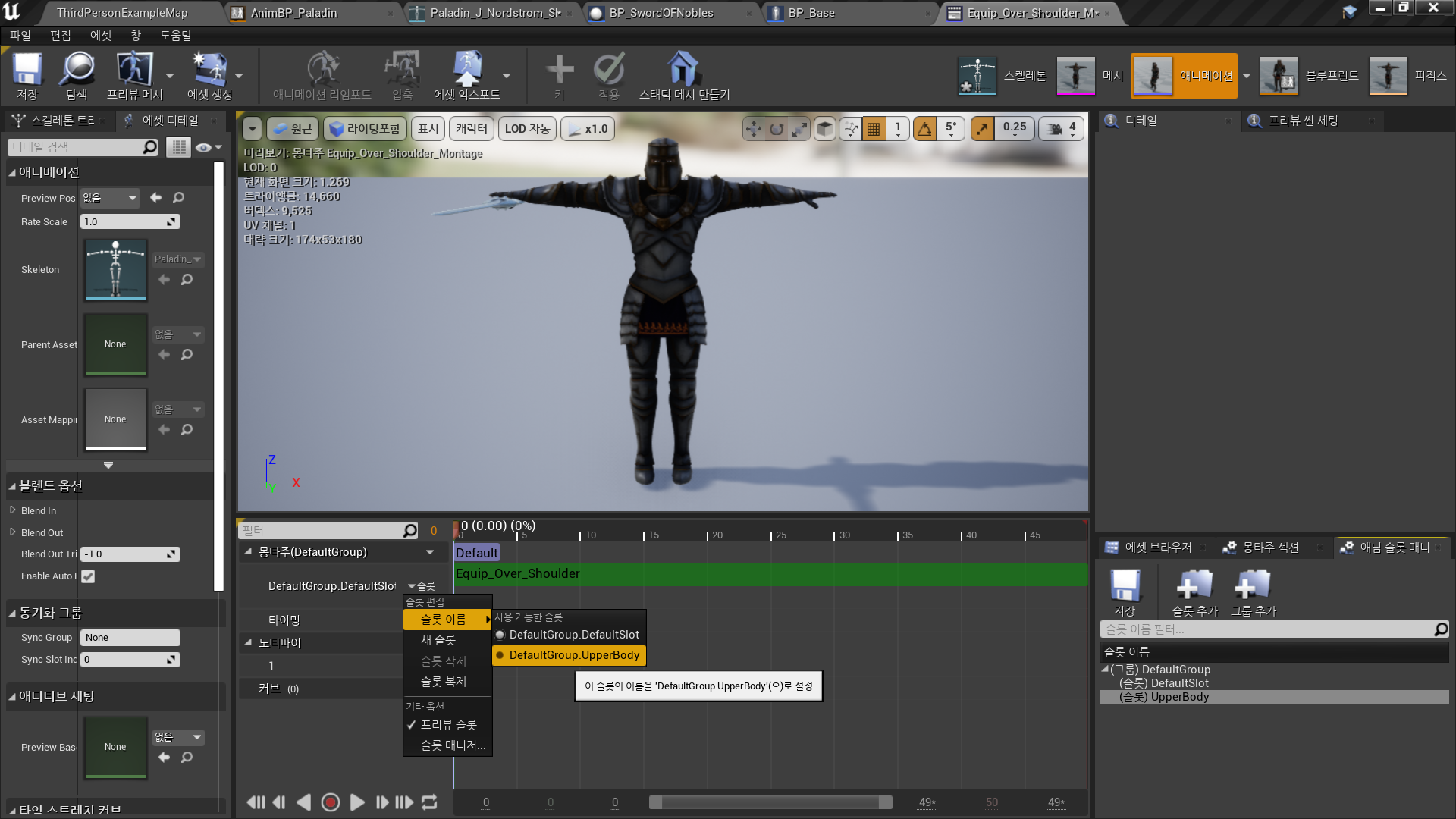
◼️ 상반신 하반신 따로 Animation 재생
In Anim Montage <Euip_Over_Shoulder_Montage>
- 슬롯 매니저
- 슬롯 추가 및 설정: UpperBody
In Anim BP <AnimBP_Paladin> - Anim Graph
- 기존의 Slot 'DefaultSlot' → 캐시 포즈 새로 저장
<Default Pose> - Use cached pose 'DefaultPose' → Slot 'UpperBody'
- Layered blend per bone(본마다 레이어로 블렌딩)
- Base Pose: 'Default Pose'
- Blend Poses0: 'Default Group'그룹의 'UpperBody' 슬롯
- 브랜치 필터 - 배열 엘리먼트 추가
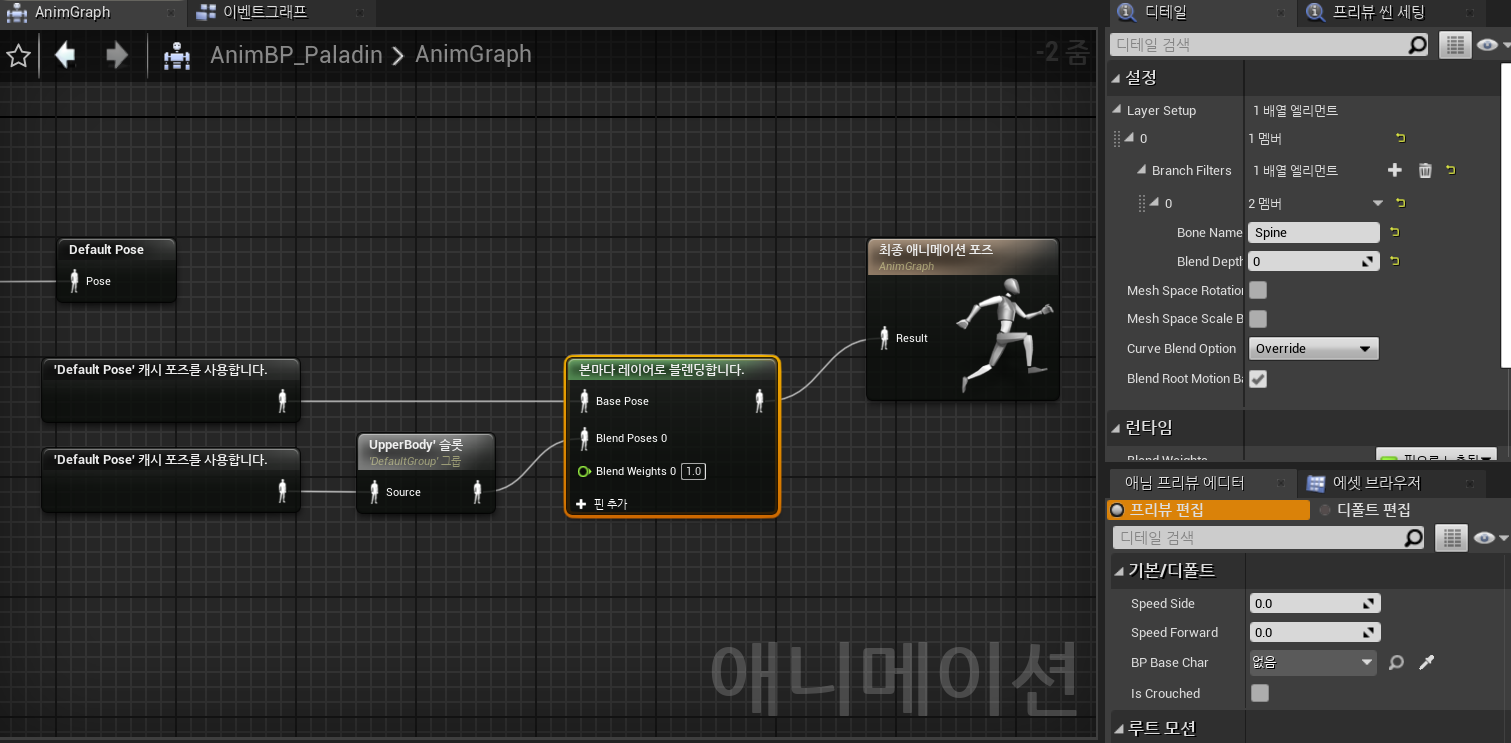
- Bone name: Spine
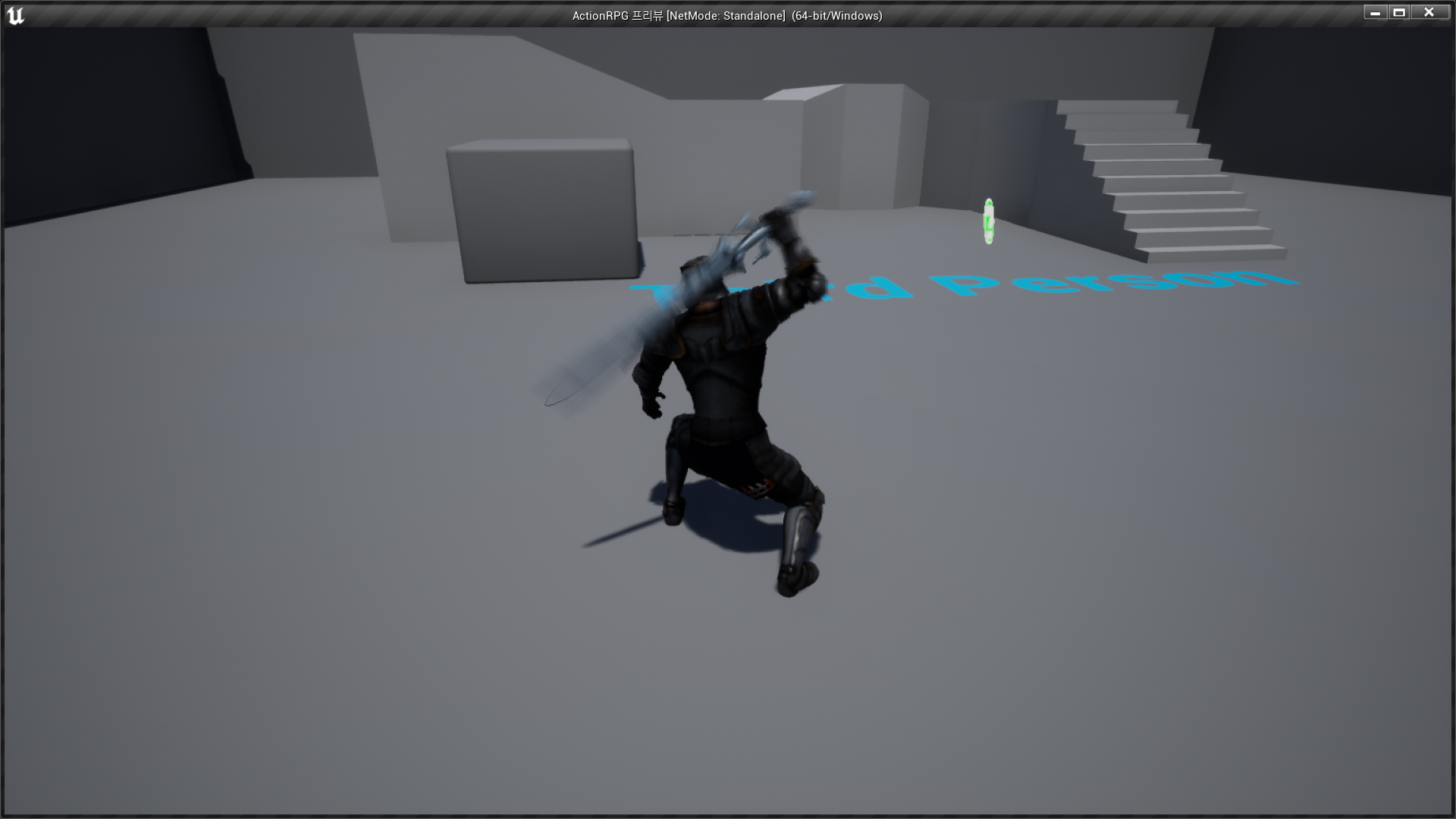
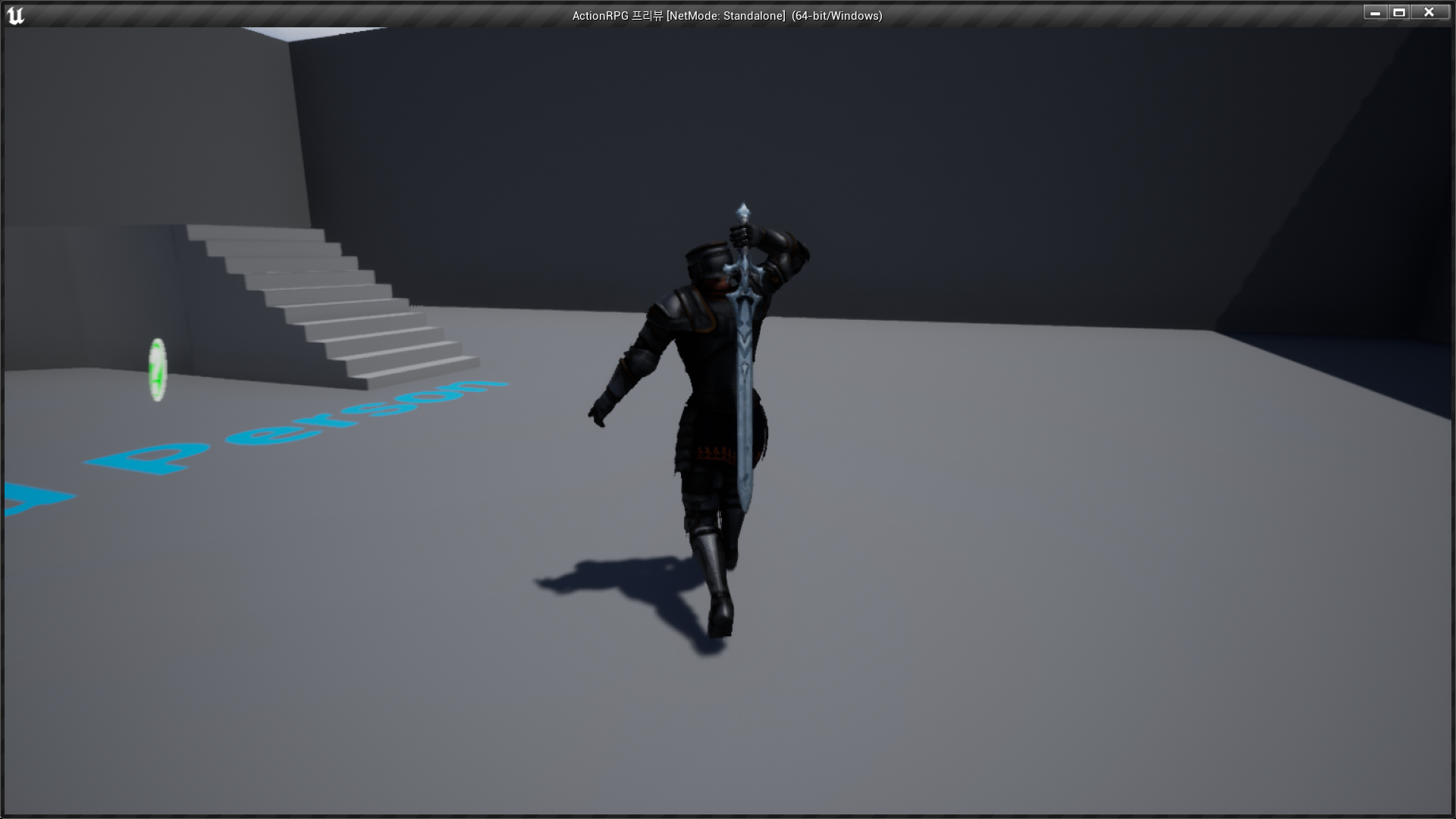
✅ Result
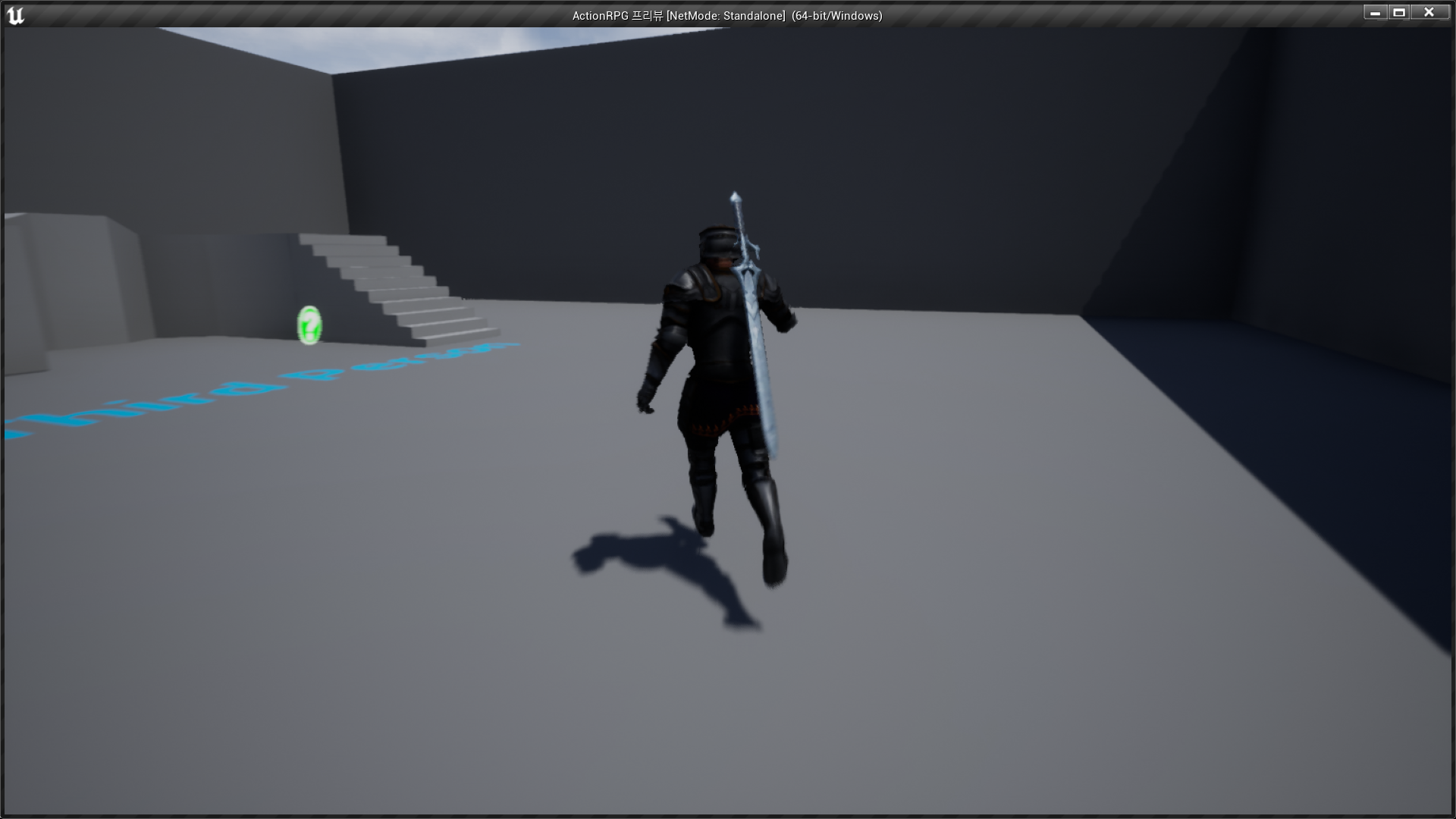
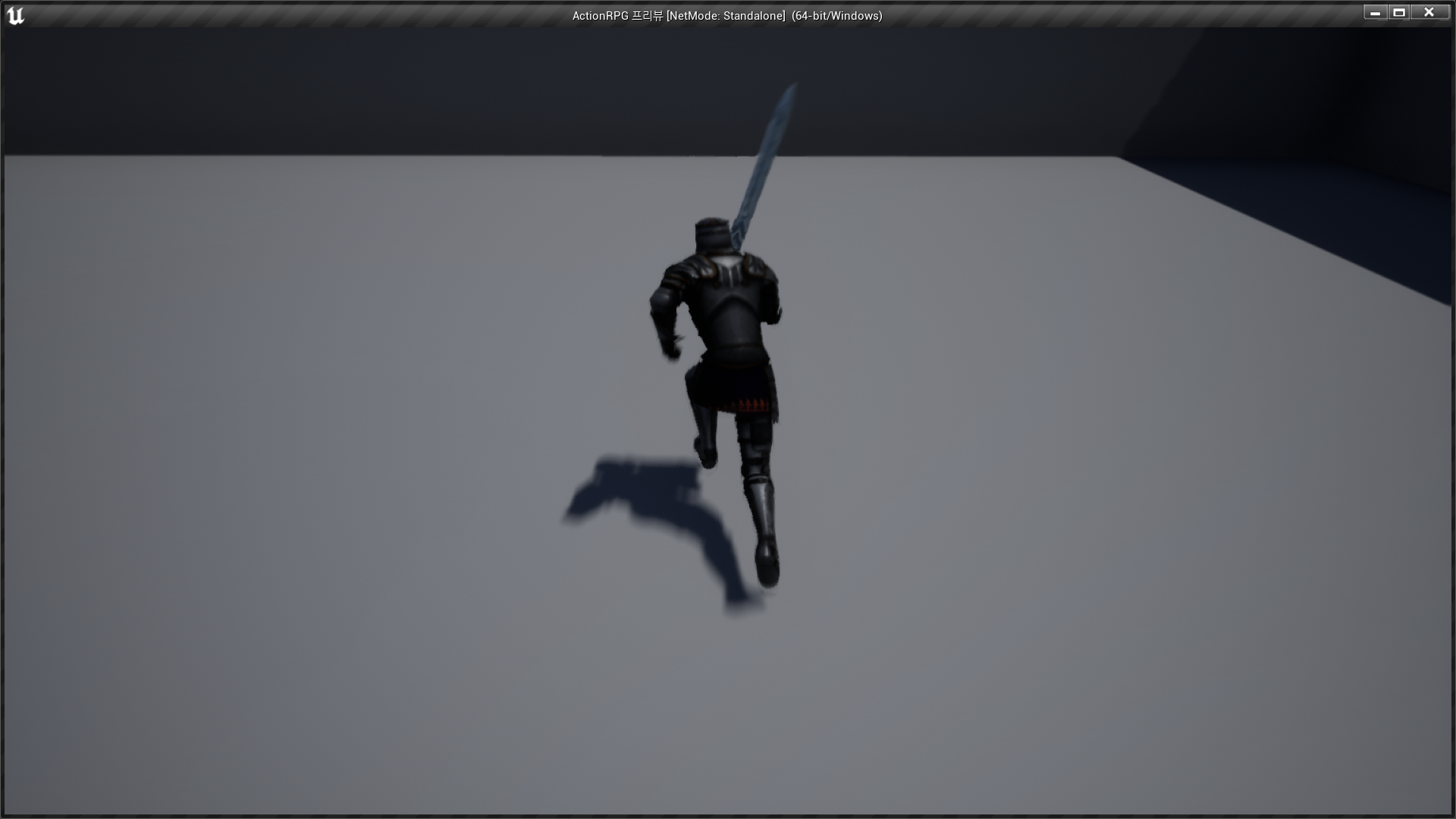
- 웅크림/걷기/뛰기/스프린트 애니메이션과 동시에 equip/sheath 가능

RPG 기획자 지망생