🗂️ Day34 프로젝트 : GUI 퀴즈 앱
Tkinter로 구축한 OX 퀴즈 앱
(🗂️ Day17 프로젝트 : OX 퀴즈 를 GUI로 업그레이드)
1. Trivia Question API
🔍 유의 사항
- 프로그램이 실행될 때마다 open Trivia DB의 API로부터 라이브 데이터를 받게 하기
- 질문 데이터를 📄 data.py에서 딕셔너리 형태로 처리하도록 작성
- 매개변수 : amount=10, category=18, type=boolean
- 메인 파일에는 영향x
⌨️ data.py
import requests

parameters = {
    "amount": 10,
    "category": 18,
    "type": 'boolean'
}

response = requests.get(url='https://opentdb.com/api.php', params=parameters)
response.raise_for_status()

question_data = response.json()['results']
❖ HTML 개체
HTML 개체(entities)
- API로 받은 데이터
- 기호는 HTML 안에서 특정한 형식으로 인코딩됨
- 사람이 읽을 수 있는 원래 형식으로 unescaping 해야 한다
- FreeFormatter : HTML Escape / Unescape 툴
자주 쓰이는 기호
| 기호 | 이름 |
|---|---|
| (공백) | |
| < | < |
| > | > |
| & | & |
| " | " |
| ' | ' |
| ¢ | ¢ |
| £ | £ |
| ¥ | ¥ |
| € | € |
2. HTML 개체 언이스케이핑
🔍 유의 사항
- html.unescape( "html_text" )
- html 모듈의 unescape 메소드
- 사람이 읽을 수 있는 형태로 변환하려는 텍스트를 괄호 안에 넣기
⌨️ quiz_brain.py
import html

class QuizBrain:

    def __init__(self, q_list):
        self.question_number = 0
        self.score = 0
        self.question_list = q_list
        self.current_question = None

    def still_has_questions(self):
        return self.question_number < len(self.question_list)

    def next_question(self):
        self.current_question = self.question_list[self.question_number]
        self.question_number += 1
        # unescaping
        q_text = html.unescape(self.current_question.text)
        user_answer = input(f"Q.{self.question_number}: {q_text} (True/False): ")
        self.check_answer(user_answer)

    def check_answer(self, user_answer):
        correct_answer = self.current_question.answer
        if user_answer.lower() == correct_answer.lower():
            self.score += 1
            print("You got it right!")
        else:
            print("That's wrong.")

        print(f"Your current score is: {self.score}/{self.question_number}")
        print("\n")
3. 클래스 기반 Tkinter UI
🔍 유의 사항
- 메인 파일이 아닌
QuizInterface클래스 안에서 UI 제작- UI는 init 메소드 안에서 모두 작성
- 캔버스 위젯에 패딩을 추가하려면 itemconfig가 아닌 grid()에서 설정
🖼️ false.png

🖼️ true.png

⌨️ ui.py
from tkinter import *

THEME_COLOR = "#375362"

class QuizInterface():

    def __init__(self):
        self.window = Tk()
        self.window.title("Quizzler")
        self.window.config(padx=20, pady=20, bg=THEME_COLOR)

        self.score_label = Label(text="Score: 0", fg="white", bg=THEME_COLOR)
        self.score_label.grid(row=0, column=1)

        self.canvas = Canvas(width=300, height=250, bg="white")
        self.question_text = self.canvas.create_text(
            150, 125,
            fill=THEME_COLOR,
            text=f"question text",
            font=("Arial", 20, "italic")
        )
        self.canvas.grid(row=1, column=0, columnspan=2, pady=50)

        self.check_img = PhotoImage(file="images/true.png")
        self.true_button = Button(image=self.check_img, highlightbackground=THEME_COLOR)
        self.true_button.grid(row=2, column=0)
        self.cross_img = PhotoImage(file="images/false.png")
        self.false_button = Button(image=self.cross_img, highlightbackground=THEME_COLOR)
        self.false_button.grid(row=2, column=1)

        self.window.mainloop()
⌨️ main.py
from question_model import Question
from data import question_data
from quiz_brain import QuizBrain
from ui import QuizInterface


question_bank = []
for question in question_data:
    question_text = question["question"]
    question_answer = question["correct_answer"]
    new_question = Question(question_text, question_answer)
    question_bank.append(new_question)


quiz = QuizBrain(question_bank)
# QuizInterface 클래스 객체 만들기
quiz_ui = QuizInterface()

# tkinter로 UI를 생성한 후에는 while문을 사용할 수 없음
# while quiz.still_has_questions():
#     quiz.next_question()

print("You've completed the quiz")
print(f"Your final score was: {quiz.score}/{quiz.question_number}")
❖ 파이썬 타이핑: 타입 힌트, 화살표->
Type Hints
: type- : 콜론 뒤에 지정하려는 타입 명시
- 나중에 같은 변수를 사용할 때 다른 타입으로 설정할 시, 타입 에러 발생
->- 특정 함수의 반환값의 데이터형을 지정 가능
- 지정한 형과 다른 타입을 반환값으로 넣을 시, 경고가 하이라이트됨
# : 으로 어떤 타입인지 힌트 제공
age: int
name: str
height: float
is_human: bool

# 불리언 타입을 반환하는 함수
def police_check(age: int) -> bool:
    if age > 18:
        can_drive = True
    else:
        can_drive = False
    return can_drive

# 매개변수로 int값 대신 "twelve" 등 다른 타입을 넣으면 타입 에러 발생
if police_check(12):
    print("You may pass.")
else:
    print("Pay a fine.")
Pay a fine.
4. 파이썬 타이핑 & GUI에서 다음 질문 표시
🔍 유의 사항
- 매개변수를 생성할 때, : 으로 매개변수의 데이터형을 명시하기
- 데이터형이 사용자가 만든 클래스일 경우 해당 클래스를 임포트 해야 한다
⌨️ quiz_brain.py
import html

class QuizBrain:

    def __init__(self, q_list):
        …

    def still_has_questions(self):
        …

    def next_question(self):
        self.current_question = self.question_list[self.question_number]
        self.question_number += 1
        q_text = html.unescape(self.current_question.text)
        # 더 이상 input으로부터 유저의 답을 받지 않음
        # user_answer = input(f"Q.{self.question_number}: {q_text} (True/False): ")
        # self.check_answer(user_answer)
        return f"Q.{self.question_number}: {q_text} (True/False): "

    def check_answer(self, user_answer):
        …
⌨️ ui.py
from tkinter import *
from quiz_brain import QuizBrain

THEME_COLOR = "#375362"

class QuizInterface():

    def __init__(self, quiz_brain: QuizBrain):
        …

        self.canvas = Canvas(width=300, height=250, bg="white")
        self.question_text = self.canvas.create_text(
            150, 125,
            # 질문이 잘리지 않고 캔버스 폭에 맞춰 자동으로 줄바꿈을 하도록 width값 설정
            width=280,
            fill=THEME_COLOR,
            text=f"question text",
            font=("Arial", 20, "italic")
        )
        self.canvas.grid(row=1, column=0, columnspan=2, pady=50)

        …

        # 프로그램을 실행하면 바로 질문이 뜨도록 수정
        self.get_next_question()

        self.window.mainloop()


    def get_next_question(self):
        q_text = self.quiz.next_question()
        self.canvas.itemconfig(self.question_text, text=q_text)
⌨️ main.py
from question_model import Question
from data import question_data
from quiz_brain import QuizBrain
from ui import QuizInterface


question_bank = []
…

quiz = QuizBrain(question_bank)
# 클래스에 데이터 타입이 QuizBrain형인 매개변수 추가
quiz_ui = QuizInterface(quiz)

…
5. 정답 확인하기
🔍 유의 사항
- 버튼을 누르면 실제 답과 비교하는 기능 추가
⌨️ ui.py
from tkinter import *
from quiz_brain import QuizBrain

THEME_COLOR = "#375362"

class QuizInterface():

    def __init__(self, quiz_brain: QuizBrain):
        …

        self.check_img = PhotoImage(file="images/true.png")
        self.true_button = Button(
            image=self.check_img, highlightbackground=THEME_COLOR, command=self.true_pressed
        )
        self.true_button.grid(row=2, column=0)
        self.cross_img = PhotoImage(file="images/false.png")
        self.false_button = Button(
            image=self.cross_img, highlightbackground=THEME_COLOR, command=self.false_pressed
        )
        self.false_button.grid(row=2, column=1)

       …

        self.window.mainloop()

    def get_next_question(self):
        …

    def true_pressed(self):
        self.quiz.check_answer("True")

    def false_pressed(self):
        self.quiz.check_answer("False")
6. 플레이어에게 피드백 주기, 점수 유지하기, 버그 수정하기
🔍 유의 사항
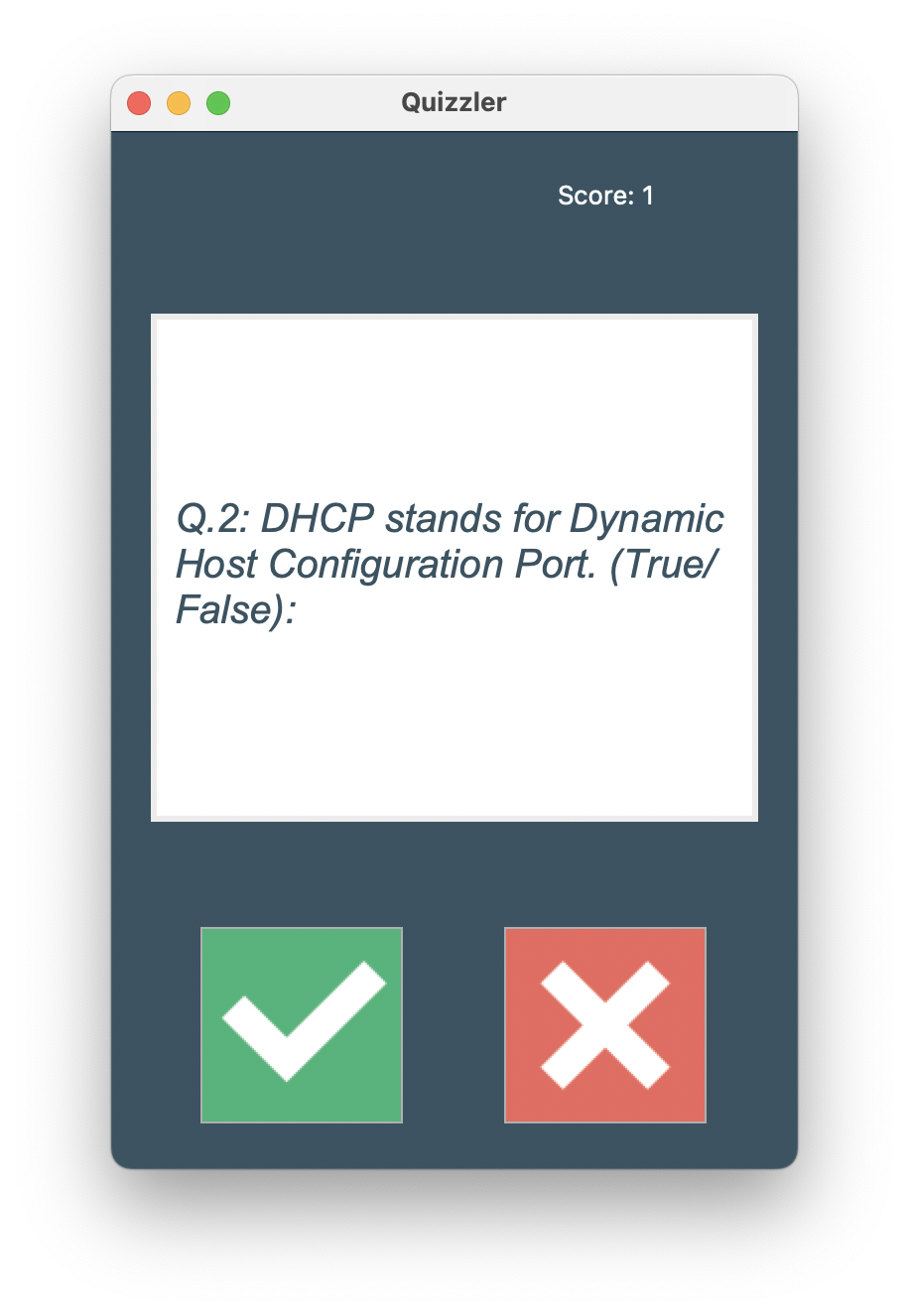
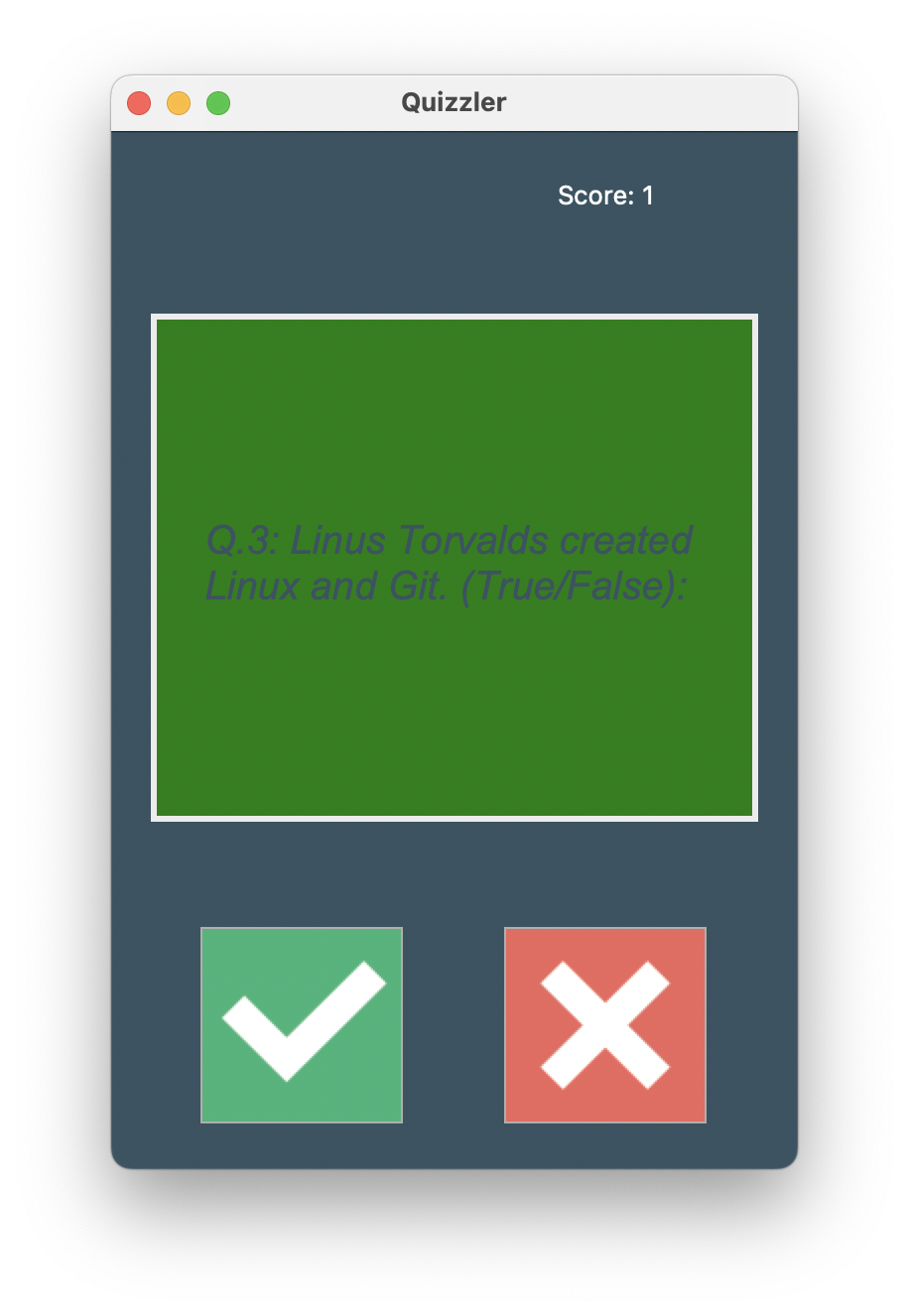
- 플레이어에게 피드백 주기
- 플레이어가 정답을 맞추면 화면이 녹색으로 변경
- 플레이어가 정답을 못 맞추면 화면이 빨간색으로 변경
- 정답에 대한 피드백 후 1초 대기한 다음에 다음 질문으로 넘어가기
- 정답을 맞췄으면 Score에 +1
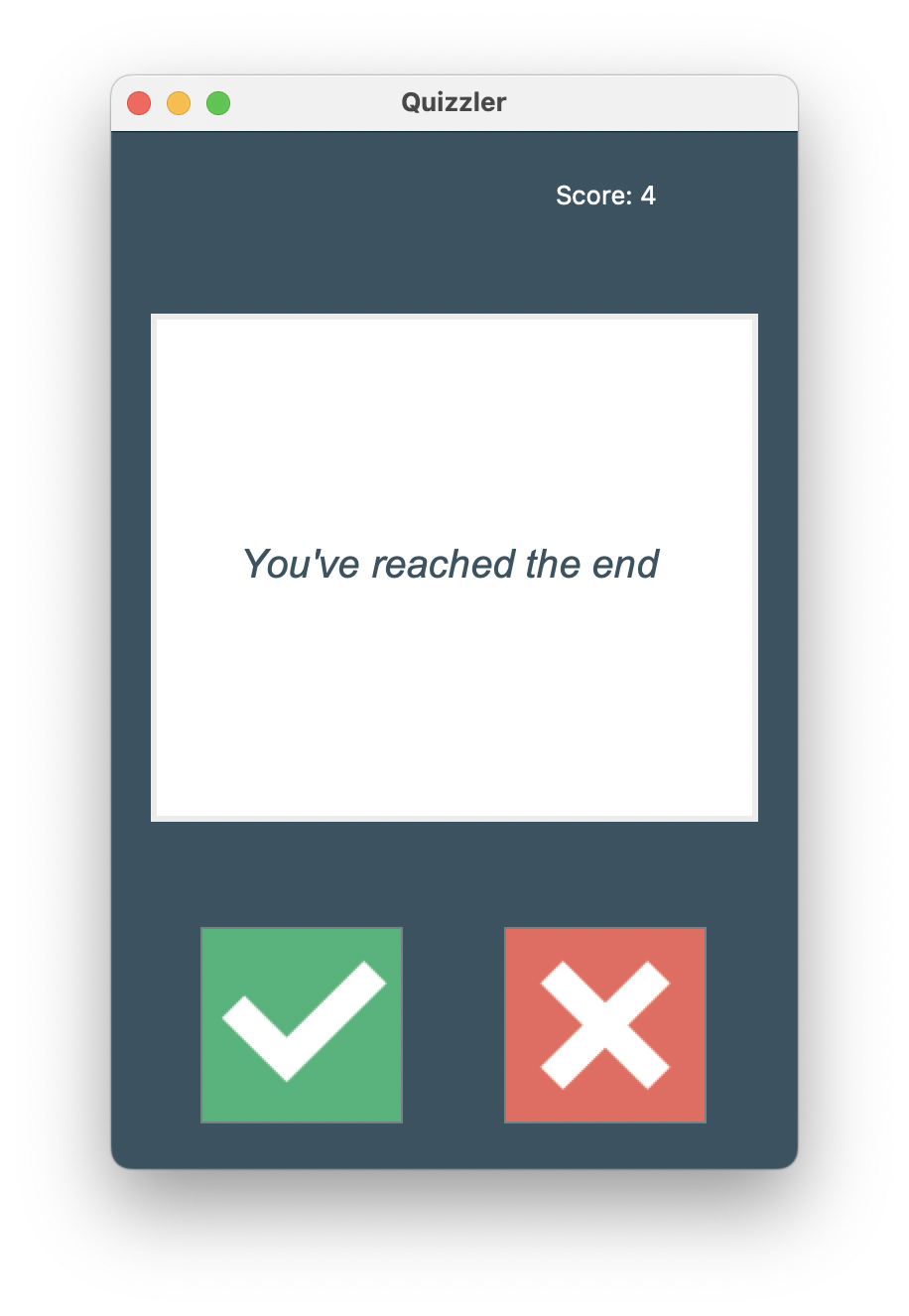
- 퀴즈의 끝에 도달했을 경우(10개를 모두 풀었을 경우)
- 끝났다는 피드백 주기
- 🐞버그 수정하기
- 끝난 후에도 아무 버튼을 누르면 화면이 무작위로 녹색 또는 빨간색으로 바뀌는 현상
- 다음 질문으로 넘어가면 무조건 화면이 흰색으로 바뀌도록 코드 순서 조정
- button.config( state="disabled" ) : 버튼 위젯 비활성화
⌨️ question_model.py
class Question:

    def __init__(self, q_text, q_answer):
        self.text = q_text
        self.answer = q_answer
⌨️ data.py
import requests

parameters = {
    "amount": 10,
    "category": 18,
    "type": 'boolean'
}

response = requests.get(url='https://opentdb.com/api.php', params=parameters)
response.raise_for_status()

question_data = response.json()['results']
⌨️ quiz_brain.py
import html

class QuizBrain:

    def __init__(self, q_list):
        self.question_number = 0
        self.score = 0
        self.question_list = q_list
        self.current_question = None

    def still_has_questions(self):
        return self.question_number < len(self.question_list)

    def next_question(self):
        self.current_question = self.question_list[self.question_number]
        self.question_number += 1
        q_text = html.unescape(self.current_question.text)
        return f"Q.{self.question_number}: {q_text} (True/False): "

    def check_answer(self, user_answer):
        correct_answer = self.current_question.answer
        if user_answer.lower() == correct_answer.lower():
            self.score += 1
            return True
        else:
            return False
⌨️ ui.py
from tkinter import *
from quiz_brain import QuizBrain

THEME_COLOR = "#375362"

class QuizInterface():

    def __init__(self, quiz_brain: QuizBrain):
        self.quiz = quiz_brain
        self.window = Tk()
        self.window.title("Quizzler")
        self.window.config(padx=20, pady=20, bg=THEME_COLOR)

        self.score_label = Label(text="Score: 0", fg="white", bg=THEME_COLOR)
        self.score_label.grid(row=0, column=1)

        self.canvas = Canvas(width=300, height=250, bg="white")
        self.question_text = self.canvas.create_text(150, 125, width=280,
                                                     fill=THEME_COLOR,
                                                     text=f"question text",
                                                     font=("Arial", 20, "italic"))
        self.canvas.grid(row=1, column=0, columnspan=2, pady=50)

        self.check_img = PhotoImage(file="images/true.png")
        self.true_button = Button(
            image=self.check_img, highlightbackground=THEME_COLOR, command=self.true_pressed
        )
        self.true_button.grid(row=2, column=0)
        self.cross_img = PhotoImage(file="images/false.png")
        self.false_button = Button(
            image=self.cross_img, highlightbackground=THEME_COLOR, command=self.false_pressed
        )
        self.false_button.grid(row=2, column=1)

        self.get_next_question()

        self.window.mainloop()


    def get_next_question(self):
        self.canvas.config(bg="white")
        if self.quiz.still_has_questions():
            self.score_label.config(text=f"Score: {self.quiz.score}")
            q_text = self.quiz.next_question()
            self.canvas.itemconfig(self.question_text, text=q_text)
        else:
            self.canvas.itemconfig(self.question_text,
                                   text=f"You've reached the end")
            self.true_button.config(state="disabled")
            self.false_button.config(state="disabled")

    def true_pressed(self):
        is_right = self.quiz.check_answer("True")
        self.give_feedback(is_right)

    def false_pressed(self):
        self.give_feedback(self.quiz.check_answer("False"))

    def give_feedback(self, is_right):
        if is_right:
            self.canvas.config(bg="green")
        else:
            self.canvas.config(bg="red")
        self.window.after(1000, self.get_next_question)
⌨️ main.py
from question_model import Question
from data import question_data
from quiz_brain import QuizBrain
from ui import QuizInterface


question_bank = []
for question in question_data:
    question_text = question["question"]
    question_answer = question["correct_answer"]
    new_question = Question(question_text, question_answer)
    question_bank.append(new_question)


quiz = QuizBrain(question_bank)
quiz_ui = QuizInterface(quiz)