✏️ 오늘 학습한 내용
1. Seaborn
2. Scraping 시각화
3. WordCloud
🔎 Seaborn
-
시각화의 목적
- 스크래핑의 결과가 너무 분산되어있어 한 눈에 보기 어렵다
=> 시각화를 통해 해결
- 스크래핑의 결과가 너무 분산되어있어 한 눈에 보기 어렵다
-
Seaborn이란?
matplotlib을 기반으로 하는 시각화 라이브러리
-
설치
%pip install seaborn -
꺽은선 그래프 (Line Plot)
- 두 변수의 값에 따른 추이를 선으로 이은 그래프
.lineplot()
# seaborn을 호출
# seaborn은 일반적으로 sns라는 약어로 사용
import seaborn as sns

sns.lineplot(x=[1, 3, 2, 4], y=[4, 3, 2, 1])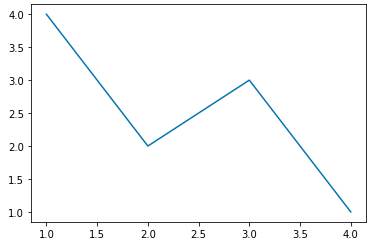
- 막대 그래프 (Bar Plot)
- 범주형 데이터의 "값"과 그 값의 크기를 직사각형으로 나타낸 그림
.barplot()
sns.barplot(x=[1,2,3,4],y=[0.7,0.2,0.1,0.05])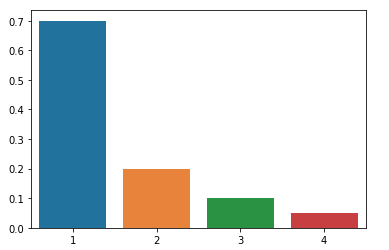
- Plot의 속성
- 그래프의 다양한 요소를 변경 / 추가하고 싶을 때, Plot 속성을 변경
matplotlib.pyplot의 속성을 변경
(Seaborn은matplotlib기반이기에 가능 )
# matplotlib.pyplot 호출

import matplotlib.pyplot as plt

# plt.figure(figsize = (x,y)) : 그래프의 크기 지정
# 그래프를 그리기 전에 지정해줘야함.
# 그렇지 않으면 아무일도 일어나지 않음.

# 그래프의 크기가 상당히 커짐
plt.figure(figsize =(20,10))

sns.lineplot(x=[1, 3, 2, 4], y=[4, 3, 2, 1])
# 제목 추가
plt.title("line Plot")

# plt._label() : 각 축에 설명을 추가
plt.xlabel("X label")
plt.ylabel("Y label")

# plt._lim() : 그래프의 축 범위 지정
# y의 범위 ylim을 2~3으로 제한
## plt.ylim(2,3)
# 반대로 늘릴 경우 공간이 넓어짐
plt.ylim(0,10)

# Notebook 환경이 아닌, 일반적인 경우 show를 사용해야 출력이 됨
plt.show()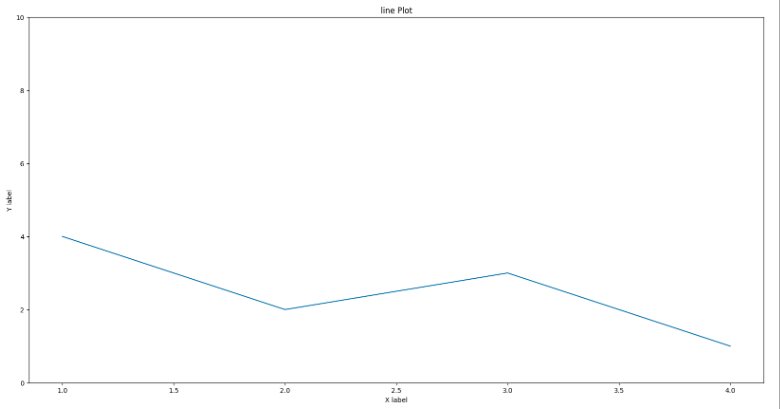
🔎 Scraping 시각화
1) 기상청 날씨 정보 조회
- Scraping
from selenium import webdriver
from selenium.webdriver import ActionChains
from webdriver_manager.chrome import ChromeDriverManager
from selenium.webdriver.common.actions.action_builder import ActionBuilder
from selenium.webdriver import Keys, ActionChains
from selenium.webdriver.chrome.service import Service
from selenium.webdriver.common.by import By

# driver를 이용해 크롬 브라우저를 연다
with webdriver.Chrome(service=Service(ChromeDriverManager().install())) as driver :
    # 기상청을 불러옴
    driver.get("https://www.weather.go.kr/w/weather/forecast/short-term.do")

    # 동적 웹페이지므로 암시적 기다림 사용
    driver.implicitly_wait(1)

    # my-tchart에 해당하는 요소들을 불러옴
    temps = driver.find_element(By.ID,"my-tchart").text

    # replace함수로 ℃를 없앰
    # 줄바꿈을 기준으로 자름
    # temps.replace("℃","").split("\n")

    # list comprehension을 통해 int형으로 변환해줌
    temps = [int(i) for i in temps.replace("℃","").split("\n")]
    print(temps)
결과 : [17, 16, 13, 12, 11, 10, 9, 8, 7, 7, 6, 6, 6, 6, 7, 9, 11, 13, 15]- Line Plot
# x = Elapsed Time(0~len(temperatures)
# y = temperatures

import matplotlib.pyplot as plt
import seaborn as sns

# 최대 크기 +2, 최소 크기 -2 정도로 범위를 조정
plt.ylim(min(temps)-2, max(temps)+2)
plt.title("Expected Temperature from now on")

sns.lineplot(
    x = [i for i in range(len(temps))],
    y = temps
)

plt.show()
2) 해시코드 질문태그 빈도 조회
BeautifulSoup, requests를 사용하여 진행
# page를 돌려가면서 태그를 담을 dictionary
frequency = {}

import time
import requests
from bs4 import BeautifulSoup

# pagination을 고려
for i in range(1, 11) :
    res = requests.get("https://hashcode.co.kr/?page={}".format(i))
    soup = BeautifulSoup(res.text,"html.parser")

    # 1. ul 태그를 모두 찾기
    # 2. 1번 안에 있는 li 태그의 text를 추출

    # ul 중에서도 class가 question-tags인 경우를 추출
    ul_tags = soup.find_all("ul","question-tags")
    for ul in ul_tags:
        li_tags = ul.find_all("li")
        for li in li_tags:
            # 빈칸 제거
            tag = li.text.strip()
            # frequency 안에 tag가 없는 경우 추가
            if tag not in frequency :
                frequency[tag] = 1
            # 빈도 체크
            else :
                frequency[tag] += 1

    # page가 넘어가는 로딩을 감안
    time.sleep(0.5)

print(frequency)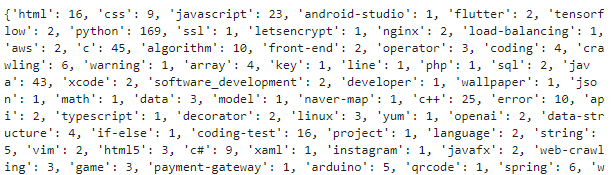
- 빈도가 높은 친구들만 몇 개 추출
Counter(): dictionary를 바탕으로 개수를 세주는 함수
# Counter를 사용하여 가장 빈도가 높은 value들을 추출
from collections import Counter

# dictionary를 Counter형태로 변경
counter = Counter(frequency)

# 상위 10개 추출
counter.most_common(10)- Barplot
# Seaborn을 이용해 이를 Barplot으로 그립니다.
import seaborn as sns
# 글자가 겹치는 것을 방지하기 위해 figsize를 사용
import matplotlib.pyplot as plt

plt.figure(figsize=(20,10))
plt.title("Frequency of questions in Hashcode")
plt.xlabel("Tags")
plt.ylabel("Frequency")

x = [elem[0] for elem in counter.most_common(10)]
y = [elem[1] for elem in counter.most_common(10)]

sns.barplot(x=x,y=y)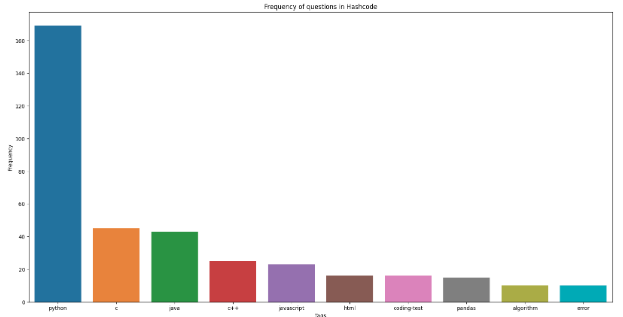
🔎 WordCloud
-
WordCloud (단어구름) 이란?
자주 등장하는 텍스트를 중요도나 인기도를 고려해 표현한 것
-
WordCloud 만드는 과정(1)
- 키워드 추출
- 키워드가 등장한 빈도 측정
- 앞에서 전처리한 정보와 WordCloud 라이브러리를 바탕으로 WordCloud를 생성
-
라이브러리
wordcloud: 파이썬의 텍스트 클라우드 라이브러리
konlpy: 한국어 형태소 분석기 라이브러리
( 주어진 문장에서 명사 등을 뽑아냄 ) -
설치
%pip install wordcloud
%pip install konlpy -
WordCloud 만드는 과정(2)
- KoNLPy 라이브러리로 한국어 문장 전처리
- Counter를 이용해 빈도수 측정
- WordCloud를 이용해 시각화
-
애국가 WordCloud 만들기
# 시각화에 쓰이는 라이브러리
import matplotlib.pyplot as plt
from wordcloud import WordCloud

# 횟수를 기반으로 딕셔너리 생성
from collections import Counter

# 문장에서 명사를 추출하는 형태소 분석 라이브러리
from konlpy.tag import Hannanum

# 워드클라우드를 만드는 데 사용할 애국가 가사

national_anthem = """
동해물과 백두산이 마르고 닳도록
하느님이 보우하사 우리나라 만세
무궁화 삼천리 화려 강산
대한 사람 대한으로 길이 보전하세
남산 위에 저 소나무 철갑을 두른 듯
바람 서리 불변함은 우리 기상일세
무궁화 삼천리 화려 강산
대한 사람 대한으로 길이 보전하세
가을 하늘 공활한데 높고 구름 없이
밝은 달은 우리 가슴 일편단심일세
무궁화 삼천리 화려 강산
대한 사람 대한으로 길이 보전하세
이 기상과 이 맘으로 충성을 다하여
괴로우나 즐거우나 나라 사랑하세
무궁화 삼천리 화려 강산
대한 사람 대한으로 길이 보전하세
"""

# Hannanum 객체를 생성한 후, .nouns()를 통해 명사를 추출합니다.
hannanum = Hannanum()
# 애국가의 명사들을 추출
nouns = hannanum.nouns(national_anthem)
words = [noun for noun in nouns if len(noun) > 1]

# dictionary와 유사한 형태로 변환
counter = Counter(words)

# wordcloud 객체 생성
wordcloud = WordCloud(
    # 한국어 font를 넣어줘야 꺠지지 않음
    # font_path="",
    background_color="white",
    width=1000,
    height=1000
)

# .generate_from_frequencies : {key:value} 형태를 받아서 wordcloud를 만듬
img = wordcloud.generate_from_frequencies(counter)
# img 시각화
plt.imshow(img)-
해시코드 질문 키워드 WordCloud 만들기
- 질문 리스트 제목 추출
# Pagination이 되어있는 질문 리스트의 제목을 모두 가져와 리스트 questions에 저장해봅시다. # 과도한 요청을 방지하기 위해 0.5초마다 요청 questions = [] import time import requests from bs4 import BeautifulSoup # pagination을 고려 for i in range(1, 6) : res = requests.get("https://hashcode.co.kr/?page={}".format(i)) soup = BeautifulSoup(res.text,"html.parser") parsed_datas = soup.find_all("li","question-list-item") for data in parsed_datas : questions.append(data.h4.text.strip()) # page가 넘어가는 로딩을 감안 time.sleep(0.5) questions[:10]- WordCloud
# 시각화에 쓰이는 라이브러리
import matplotlib.pyplot as plt
from wordcloud import WordCloud

# 횟수를 기반으로 딕셔너리 생성
from collections import Counter

# 문장에서 명사를 추출하는 형태소 분석 라이브러리
from konlpy.tag import Hannanum

# 명사 보관함
words = []

# Hannanum 객체를 생성
hannanum = Hannanum()

# 추출한 제목 리스트를 순회하면서 명사를 추출
for question in questions :
    nouns = hannanum.nouns(question)
    words += nouns

counter = Counter(words)

wordcloud = WordCloud(
    #font_path="...",
    background_color="white",
    height=1000,
    width=1000
)

img = wordcloud.generate_from_frequencies(counter)
plt.imshow(img)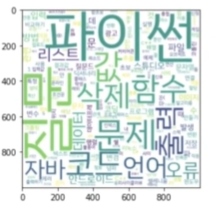

데이터 엔지니어를 꿈꾸는 거북이, 한걸음 한걸음