TF(tranformation system)의 정의와 필요성
로봇을 이용하다보면 여러 좌표계가 필요하고, 이 좌표계간의 관계가 중요해진다.
robot이 어떤 world frame안에 있다고 해보자. 이 때 world frame을 제외하고 다른 좌표계를 이용하지 않는다고 하자. 그렇다면 우리는 모든 것을 world frame 기준으로 구해야 한다. 로봇 팔의 위치, 로봇에 달린 camera의 위치, 로봇의 위치, 장애물의 위치.. 전부 world frame 기준으로만 구할 수 있다. 이는 로봇을 기준으로 한 목표지점의 위치 (= 로봇이 가야하는 위치와 방향) 등을 나타내고 계산하는 데 굉장한 번거로움을 준다. 게다가, 로봇의 자세(또는 configuration)을 변경해야 할 때 world frame 기준으로 매번 복잡한 계산을 하여야 한다.
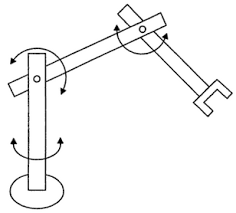
예를 들어 위와 같은 로봇 팔의 자세를 수정하려고 한다고 해보자. 만약 world frame 기준으로 base와 각 arm의 끝부분의 좌표를 나타내고, 이를 계산하여 actuator를 조정해야 한다고 하면 굉장히 번거로운 일이 될 것이다. 그 대신, base 기준 좌표계를 이용하여 첫번째 arm의 자세를 나타내고, 첫번째 arm의 끝부분을 기준으로 두번째 arm의 자세를 나타낸다면, actuator 작동에 번거로운 계산이 필요 없고, 또 사람이 파악하기도 쉬워질 것이다.
따라서 로봇을 사용할 때는 보통 부품별로 좌표계를 설정하고, 로봇의 기준 좌표계를 base frame으로 둔다. base를 기준으로 주변 사물의 위치를 구하고, world frame과 base의 위치관계를 매번 추적하여 로봇의 절대 위치를 구한다.
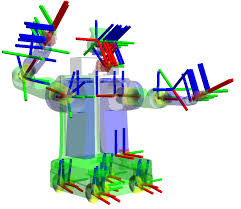
ROS에서 TF는 이러한 번거로운 계산을 도와준다. 위는 ROS에서 URDF(robot model을 그리는 파일 형식, 추후 포스팅할 것이다.)로 나타낸 로봇의 좌표계를 나타내 본 것이다. 모든 부품이 각자의 좌표계를 가지고 있고, 이 좌표계간의 관계가 정의되어 있기 때문에 로봇은 일정한 모양을 가진다. 또한, 로봇의 가장 아래에 기본이 되는 base 좌표계가 존재하여 robot의 world frame 기준 좌표를 나타낼 수 있다. ROS에서 TF를 이용하여 좌표계간의 transform을 쉽게 정의하고, 계산할 수 있어진다.
또한 tf2는 tree 구조를 갖는다. 한 parent frame 아래에 여러 child frame이 존재하고, child frame은 또 child frame을 가질 수 있다. 이러한 무한한 tree 구조를 통해 frame 간의 관계를 간단히 정의할 수 있어진다.
TF2 살펴보기
처음에 설명만 들으면 TF2가 무엇인지 잘 와닿지 않는다. 특히 로보틱스에 이제 막 입문한 사람이라면 더더욱 그럴 것 같다. 여기서는 공식 document에 있는 turtle bot을 이용한 예제를 통해 두 turtlesim의 위치관계를 TF를 통해 확인해볼 것이다.
sudo apt update
sudo apt install ros-dashing-turtlesim
우선 turtlesim을 사용해본 적이 없다면 위 코드로 turtlesim을 설치해준다.
sudo apt-get install ros-humble-rviz2 ros-humble-turtle-tf2-py ros-humble-tf2-ros ros-humble-tf2-tools ros-humble-turtlesimtf2와 가시화에 필요한 rivz2를 설치해준다.
ros2 launch turtle_tf2_py turtle_tf2_demo.launch.py첫번째 터미널을 열고 위 코드를 실행해준다.
ros2 run turtlesim turtle_teleop_key두번째 터미널을 열고 위 코드를 실행해준다. (turtlesim 조작하는 노드)
조작해보면 한 거북이를 움직이면 다른 거북이가 따라오는 것을 확인해볼 수 있다.
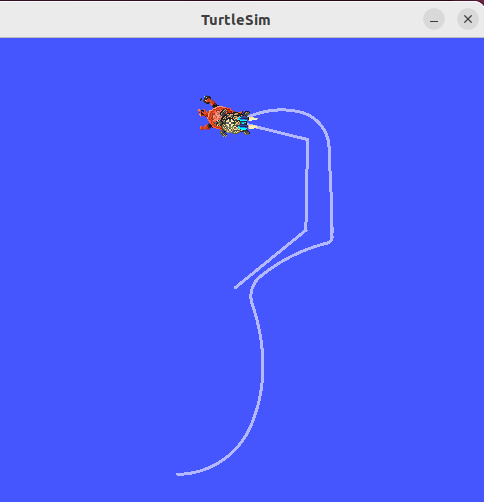
그런데 위 사진처럼 모니터만 켜고 있어서는, 두 turtle의 위치 관계가 어떻게 작성되고 있는지 모른다. 그러므로 가시화를 통해 tf를 확인해보자. 세번째를 터미널에 다음 코드를 입력해준다.
ros2 run tf2_tools view_frames
위 코드를 치면 frame에 대한 pdf 파일이 저장된다. 그 파일을 열어보면 위와같이 turtle1, turtle2가 parent frame인 world frame에 대해 어떻게 정의되고 있는지 알 수 있다.
ros2 run tf2_ros tf2_echo turtle2 turtle1또한 터미널에서도 확인해 볼 수 있다. 위 코드를 세번째 터미널에 쳐보면 아래와 같은 결과를 확인해볼 수 있다.
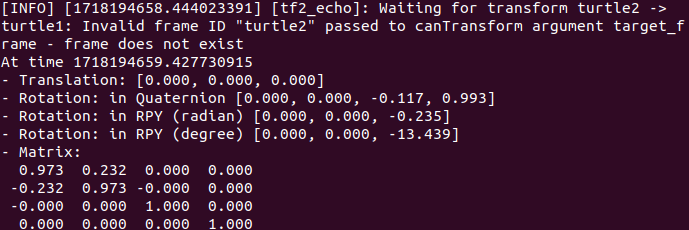
한 frame 기준으로 다른 frame은 3개의 translation과 3개의 rotation을 통해 나타낼 수 있다. turtle2를 기준으로 turtle1을 나타낸 것이 위의 터미널이다. 다만 rotation은 quaternion을 통해 나타내져 있다.(쉽게 말해 새로운 축 k(3)에 대해 회전한 각(1)을 나타내어 4개의 성분이 있다고 보면 된다.) RPY는 Roll, Pitch, Yaw를 나타낸다. 이에 대한 설명은 이 포스팅의 범위를 벗어나므로, 직접 찾아보길 바란다.
ros2 run rviz2 rviz2 -d $(ros2 pkg prefix --share turtle_tf2_py)/rviz/turtle_rviz.rviz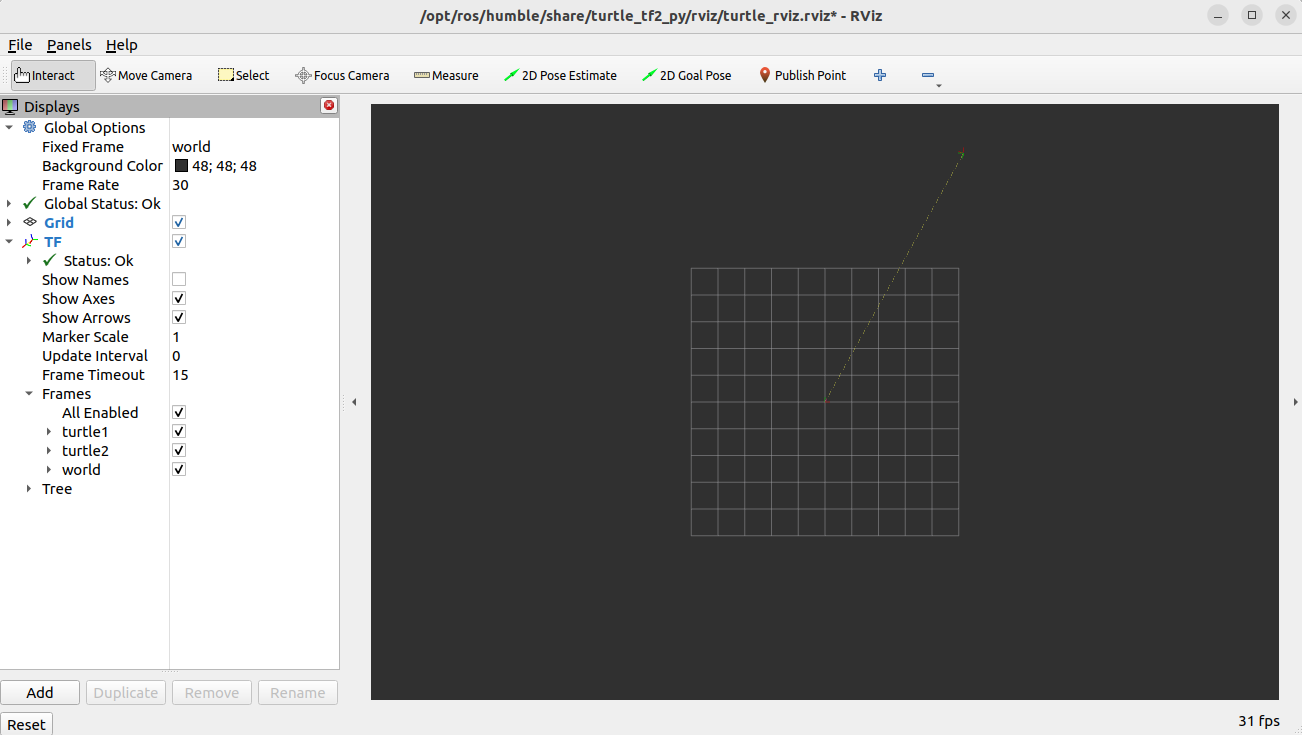
또한 ROS에서 제공하는 가시화 툴인 rviz에서도 위와 같이 world frame에서 두 frame이 어디에 존재하는지 확인할 수 있다.(한 거북이가 다른 거북이를 따라가므로, 두 frame은 겹쳐져있다.) key를 조작하여 turtle을 움직이면 위치가 변하는 것 또한 확인해볼 수 있다.
RVIZ에 대해서는 따로 다루도록 하겠다.
Static Broadcaster 작성하기
static broadcaster란 두 frame의 위치 관계가 static할 때를 이 관계를 topic으로 발행하는 node를 의미한다. 이렇게 두 frame의 관계를 계속해서 publish 해주어야 frame간의 transform이 잘 정의될 수 있다. 로봇의 부품 간의 관계(고정) 등을 설정할 때 이를 이용할 수 있다.(이는 URDF 상에서도 구현이 되긴 한다. URDF에 대해서는 따로 다루도록 하겠다.)
python file로 작성하여 node를 실행할 수도 있고, launch file을 작성하여 간단하게 끼워넣을 수도 있다.
우선 python file을 작성하는 방법을 알아보자.
ros2 pkg create --build-type ament_python learning_tf2_py
cd learning_tf2_py
사용 중인 workspace에 static broadcaster을 넣을 패키지를 만들어준다.
그 뒤 vscode와 같은 test editor로 다음의 static_broadcaster.py 파일을 만들어준다.
import math
import sys

from geometry_msgs.msg import TransformStamped

import numpy as np

import rclpy
from rclpy.node import Node

from tf2_ros.static_transform_broadcaster import StaticTransformBroadcaster


def quaternion_from_euler(ai, aj, ak):
    ai /= 2.0
    aj /= 2.0
    ak /= 2.0
    ci = math.cos(ai)
    si = math.sin(ai)
    cj = math.cos(aj)
    sj = math.sin(aj)
    ck = math.cos(ak)
    sk = math.sin(ak)
    cc = ci*ck
    cs = ci*sk
    sc = si*ck
    ss = si*sk

    q = np.empty((4, ))
    q[0] = cj*sc - sj*cs
    q[1] = cj*ss + sj*cc
    q[2] = cj*cs - sj*sc
    q[3] = cj*cc + sj*ss

    return q


class StaticFramePublisher(Node):
    """
    Broadcast transforms that never change.

    This example publishes transforms from `world` to a static turtle frame.
    The transforms are only published once at startup, and are constant for all
    time.
    """

    def __init__(self, transformation):
        super().__init__('static_turtle_tf2_broadcaster')

        self.tf_static_broadcaster = StaticTransformBroadcaster(self)

        # Publish static transforms once at startup
        self.make_transforms(transformation)

    def make_transforms(self, transformation):
        t = TransformStamped()

        t.header.stamp = self.get_clock().now().to_msg()
        t.header.frame_id = 'world'
        t.child_frame_id = transformation[1]

        t.transform.translation.x = float(transformation[2])
        t.transform.translation.y = float(transformation[3])
        t.transform.translation.z = float(transformation[4])
        quat = quaternion_from_euler(
            float(transformation[5]), float(transformation[6]), float(transformation[7]))
        t.transform.rotation.x = quat[0]
        t.transform.rotation.y = quat[1]
        t.transform.rotation.z = quat[2]
        t.transform.rotation.w = quat[3]

        self.tf_static_broadcaster.sendTransform(t)


def main():
    logger = rclpy.logging.get_logger('logger')

    # obtain parameters from command line arguments
    if len(sys.argv) != 8:
        logger.info('Invalid number of parameters. Usage: \n'
                    '$ ros2 run learning_tf2_py static_broadcaster'
                    'child_frame_name x y z roll pitch yaw')
        sys.exit(1)

    if sys.argv[1] == 'world':
        logger.info('Your static turtle name cannot be "world"')
        sys.exit(2)

    # pass parameters and initialize node
    rclpy.init()
    node = StaticFramePublisher(sys.argv)
    try:
        rclpy.spin(node)
    except KeyboardInterrupt:
        pass

    rclpy.shutdown()
quaternion from euler는 euler 각으로 quaternion을 구하는 함수이다. 이는 static broadcaster에서 rotation이 quaternion으로 나타나기 때문에 사용하며, 이 포스팅에서 설명할 내용은 아니다. 아래 StaticFramePublsiher class를 자세히 살펴보자.
 super().__init__('static_turtle_tf2_broadcaster')

        self.tf_static_broadcaster = StaticTransformBroadcaster(self)

        # Publish static transforms once at startup
        self.make_transforms(transformation)
클래스를 초기화해주고 static broadcaster를 선언한다. 위의 생성자는 어떤 static broadcaster를 사용하든 공통적으로 써줄 수 있다.
def make_transforms(self, transformation):
        t = TransformStamped()

        t.header.stamp = self.get_clock().now().to_msg()
        t.header.frame_id = 'world'
        t.child_frame_id = transformation[1]

        t.transform.translation.x = float(transformation[2])
        t.transform.translation.y = float(transformation[3])
        t.transform.translation.z = float(transformation[4])
        quat = quaternion_from_euler(
            float(transformation[5]), float(transformation[6]), float(transformation[7]))
        t.transform.rotation.x = quat[0]
        t.transform.rotation.y = quat[1]
        t.transform.rotation.z = quat[2]
        t.transform.rotation.w = quat[3]

        self.tf_static_broadcaster.sendTransform(t)
publish할 msg를 만들어주는 function이다. input인 transform은 길이 8의 배열로, [ parent frame, child frame, trans_x, trans_y, trans_z, rot_x, rot_y, rotz ]가 각각 string으로 담겨있다. 이는 parent frame을 기준으로 child frame을 3차원 공간에서 나타낸 정보이다.
publish하는 message인 TransformStamped에 맞게 이 메세지를 수정한 뒤, transform을 publish 하는 것 뿐이며, world 부분만 수정하면 모든 static broadcaster에 이용할 수 있다.
def main():
    logger = rclpy.logging.get_logger('logger')

    # obtain parameters from command line arguments
    if len(sys.argv) != 8:
        logger.info('Invalid number of parameters. Usage: \n'
                    '$ ros2 run learning_tf2_py static_broadcaster'
                    'child_frame_name x y z roll pitch yaw')
        sys.exit(1)

    if sys.argv[1] == 'world':
        logger.info('Your static turtle name cannot be "world"')
        sys.exit(2)

    # pass parameters and initialize node
    rclpy.init()
    node = StaticFramePublisher(sys.argv)
    try:
        rclpy.spin(node)
    except KeyboardInterrupt:
        pass

    rclpy.shutdown()
main은 단지 이 class를 적절하게 돌아가게 하는 부분일 뿐이다.
<exec_depend>geometry_msgs</exec_depend>
<exec_depend>python3-numpy</exec_depend>
<exec_depend>rclpy</exec_depend>
<exec_depend>tf2_ros_py</exec_depend>
<exec_depend>turtlesim</exec_depend>
build 전, package.xml에 다음 부분을 추가해준다.
'static_turtle_tf2_broadcaster = learning_tf2_py.static_broadcaster:main',setup.py의 console_scripts에 위 코드를 추가해준다.
colcon build --packages-select learning_tf2_py이제 ws 폴더로 돌아가 패키지를 build해준다.
실행 방법은 argument를 함께 넣어 실행해주면 된다.
ros2 run learning_tf2_py static_turtle_tf2_broadcaster mystaticturtle 0 0 1 0 0 0rotation은 0이고 z방향 translation만 만들어 정의하고 있다.
이렇게 하면 잘 정의되긴 하지만 매우매우 번거롭다. 스크립트를 매번 작성해야하기 때문이다.
사실 tf2_ros라는 node는 이미 정의되어 있기 때문에 ros run이나 ros launch로 이 노드를 실행하면서 argument를 적당히 넣어주기만 하면 된다. 이것이 앞서 말한 launch file에 끼워넣는 방법이다.
우선 launch file을 만들어야 하므로, 아까 만든 패키지에 launch 폴더를 만들어준다.
mkdir launch
cd launch
그 뒤 다음의 static_launch.py 파일을 만들어준다.
from launch import LaunchDescription
from launch_ros.actions import Node

def generate_launch_description():
    return LaunchDescription([
        Node(
            package='tf2_ros',
            executable='static_transform_publisher',
            arguments = ['--x', '0', '--y', '0', '--z', '1', '--yaw', '0', '--pitch', '0', '--roll', '0', '--frame-id', 'world', '--child-frame-id', 'mystaticturtle']
        ),
    ])
name만 잘 관리해주면 여러 개의 node도 실행할 수 있는 아주 꿀인 broadcaster이다. 여기서 값만 잘 보고 원하는 대로 수정해주면 된다.
Dynamic Broadcaster 작성하기
(dynamic) broadcaster란 두 frame의 위치 관계가 dynamic하게 변하는 것을 의미한다. world frame과 robot의 base frame과의 관계, 로봇의 base frame과 dynamic obstacle의 위치 관계 등을 정의할 때 이용하면 좋다. static broadcaster보다 더 복잡하고 중요한 부분이다.
앞서 static broadcaster는 launch file을 통해서 쉽게 publish 할 수 있었다. 하지만 dynamic broadcaster는 애초에 매번 그 위치관계가 변화하므로, static broadcaster의 python 버전처럼 따로 만들어주어야 한다.
그 방법을 상세히 살펴보자.
아까 만들어둔 패키지의 아래 dynamic_broadcaster.py를 추가해준다.
import math

from geometry_msgs.msg import TransformStamped

import numpy as np

import rclpy
from rclpy.node import Node

from tf2_ros import TransformBroadcaster

from turtlesim.msg import Pose


def quaternion_from_euler(ai, aj, ak):
    ai /= 2.0
    aj /= 2.0
    ak /= 2.0
    ci = math.cos(ai)
    si = math.sin(ai)
    cj = math.cos(aj)
    sj = math.sin(aj)
    ck = math.cos(ak)
    sk = math.sin(ak)
    cc = ci*ck
    cs = ci*sk
    sc = si*ck
    ss = si*sk

    q = np.empty((4, ))
    q[0] = cj*sc - sj*cs
    q[1] = cj*ss + sj*cc
    q[2] = cj*cs - sj*sc
    q[3] = cj*cc + sj*ss

    return q


class FramePublisher(Node):

    def __init__(self):
        super().__init__('turtle_tf2_frame_publisher')

        # Declare and acquire `turtlename` parameter
        self.turtlename = self.declare_parameter(
          'turtlename', 'turtle').get_parameter_value().string_value

        # Initialize the transform broadcaster
        self.tf_broadcaster = TransformBroadcaster(self)

        # Subscribe to a turtle{1}{2}/pose topic and call handle_turtle_pose
        # callback function on each message
        self.subscription = self.create_subscription(
            Pose,
            f'/{self.turtlename}/pose',
            self.handle_turtle_pose,
            1)
        self.subscription  # prevent unused variable warning

    def handle_turtle_pose(self, msg):
        t = TransformStamped()

        # Read message content and assign it to
        # corresponding tf variables
        t.header.stamp = self.get_clock().now().to_msg()
        t.header.frame_id = 'world'
        t.child_frame_id = self.turtlename

        # Turtle only exists in 2D, thus we get x and y translation
        # coordinates from the message and set the z coordinate to 0
        t.transform.translation.x = msg.x
        t.transform.translation.y = msg.y
        t.transform.translation.z = 0.0

        # For the same reason, turtle can only rotate around one axis
        # and this why we set rotation in x and y to 0 and obtain
        # rotation in z axis from the message
        q = quaternion_from_euler(0, 0, msg.theta)
        t.transform.rotation.x = q[0]
        t.transform.rotation.y = q[1]
        t.transform.rotation.z = q[2]
        t.transform.rotation.w = q[3]

        # Send the transformation
        self.tf_broadcaster.sendTransform(t)


def main():
    rclpy.init()
    node = FramePublisher()
    try:
        rclpy.spin(node)
    except KeyboardInterrupt:
        pass

    rclpy.shutdown()
이전 코드와 다른 점은, turtle의 pose에 따라 handle_turtle_pose 메소드를 실행하여 tf를 publish 해준다는 점 뿐이다. 이 코드를 이용하면 dynamic하게 변화하는 frame을 얼마든지 정의할 수 있다.
실행 방법은 단순히 package를 build하고 node를 실행하면 되는데, 보통은 매번 돌아가는 node이므로 다른 node와 묶어서 launch file로 작성하면 된다. 그 과정은 생략하도록 하겠다.
정리
오늘은 로봇을 표현하는 데 있어서 중요한 좌표계 계산을 쉽게 만들도록 도와주는 ROS2의 TF2에 대해 살펴보았다. 로봇의 부품 간의 위치처럼 static한 위치의 경우 launch file을 통해 쉽게 정의해준다. (보통 URDF를 통해 정의되긴 한다.) 반면에 world frame과 로봇의 위치처럼 매번 변하는 경우는 dynamic broadcaster를 통해서 매번 publish 해주어야 한다.
사용한 예제코드는 official documentation의 예제를 그대로 가져온 것인데, 그대로 사용하기 아주 좋은 코드이니 면밀히 읽어보길 바란다.
